Add Local Files to Spotify: Desktop and Mobile Guide
Learn how to add local files to Spotify on desktop and mobile, prepare legal audio, fix sync issues, and use Melogen for clean clips.
 Zhang Guo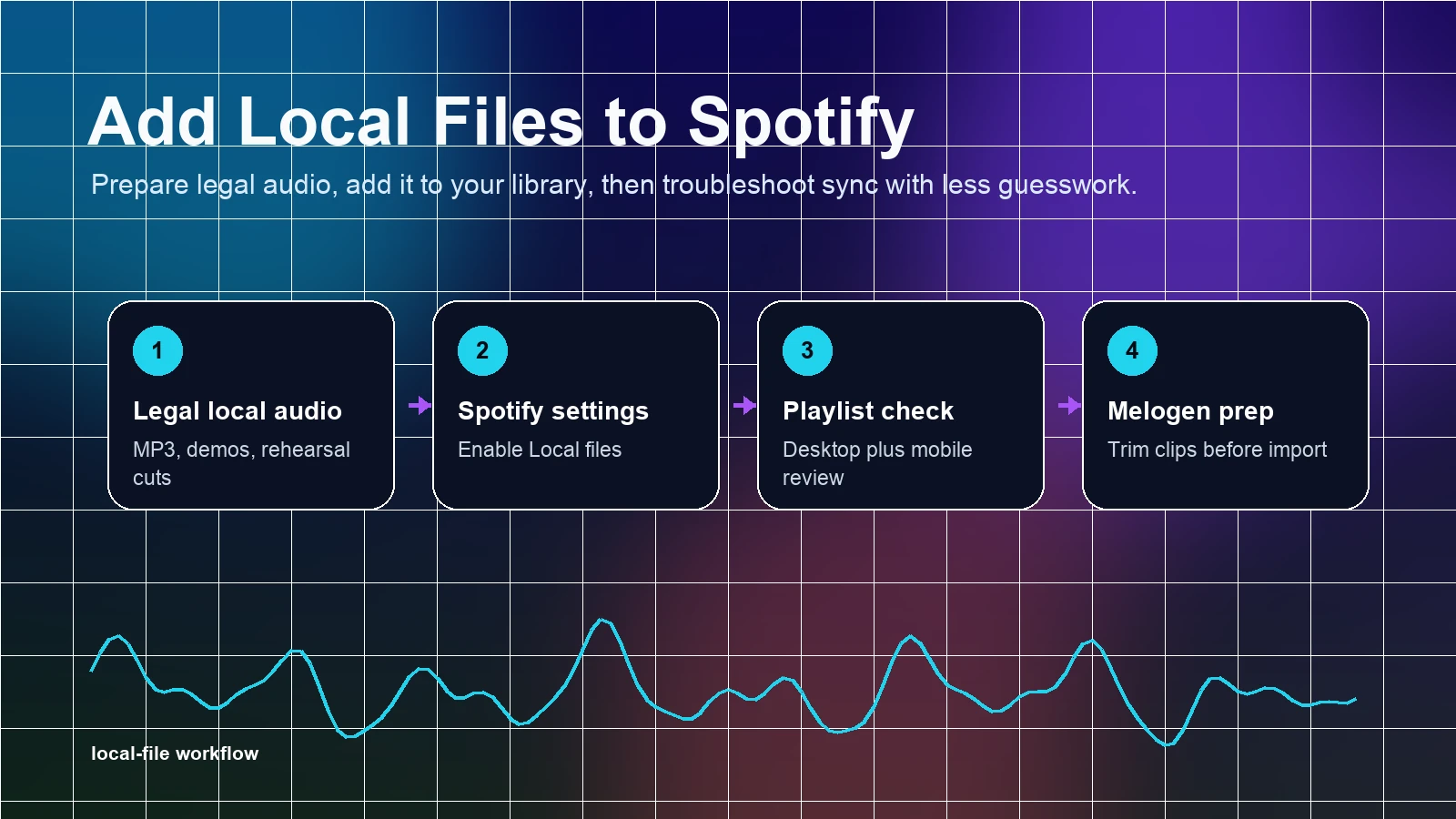
Turn a static score into editable MIDI
Contents
You can add local files to Spotify when the audio is already stored legally on your device. The useful mental model is simple: Spotify is not uploading your private music into its public catalog. It is giving the app access to local audio so you can play demos, purchased files, rehearsal cuts, or personal exports inside your Spotify library.
This guide is written for musicians, producers, and careful listeners who want the cleanest path through the feature. Melogen is not Spotify support and cannot change your Spotify account, but it can help you prepare cleaner local clips before you add them to a playlist.
What Spotify local files can and cannot do
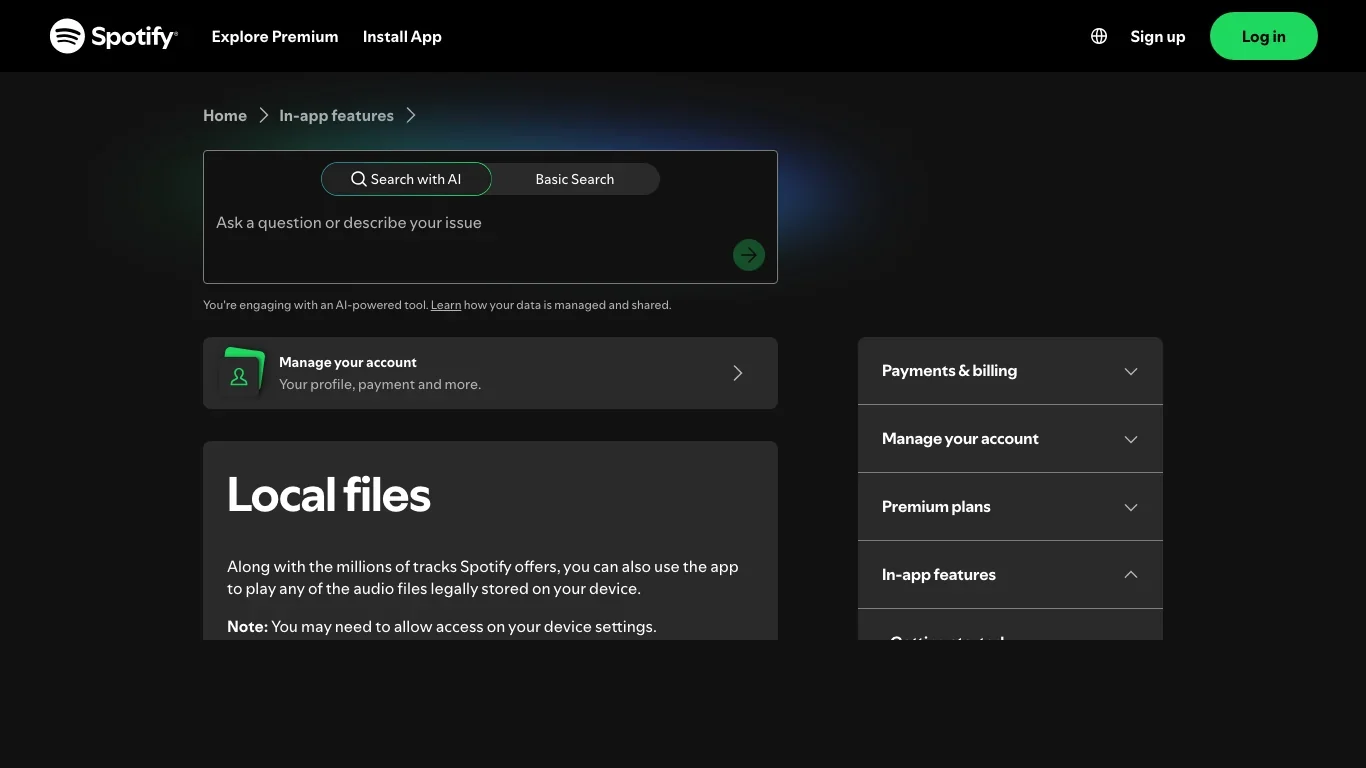
Spotify's official Local files support page says the app can play audio files that are legally stored on your device, and it notes that you may need to allow access in device settings. That distinction matters. Local files are best for your own exports, purchased downloads, rehearsal references, offline stems, and personal archives.
They are not a workaround for pulling protected streaming tracks out of Spotify, Apple Music, YouTube Music, or another service. If your real goal is to build a legal local music library first, start with legitimate stores and artist platforms rather than downloader shortcuts. Melogen's guide to buying MP3 music online is a better next step for that job.
| Use case | Good fit for local files? | Better next step |
|---|---|---|
| A purchased MP3 you want in a playlist | Yes | Put it in one folder and enable Local files |
| A band demo exported from your DAW | Yes | Trim silence first, then add the folder |
| A rehearsal recording from your phone | Usually | Rename it clearly and test one file first |
| A MIDI composition you want to hear as audio | Only after export | Convert MIDI to MP3 or WAV first |
| A streaming song you do not own locally | No | Use the streaming app's normal library tools |
Quick setup checklist
Run this checklist before you start toggling settings. Most local-file problems come from one of three places: the source file is not easy for the app to find, the device setting is off, or the playlist workflow was tested with too many files at once.
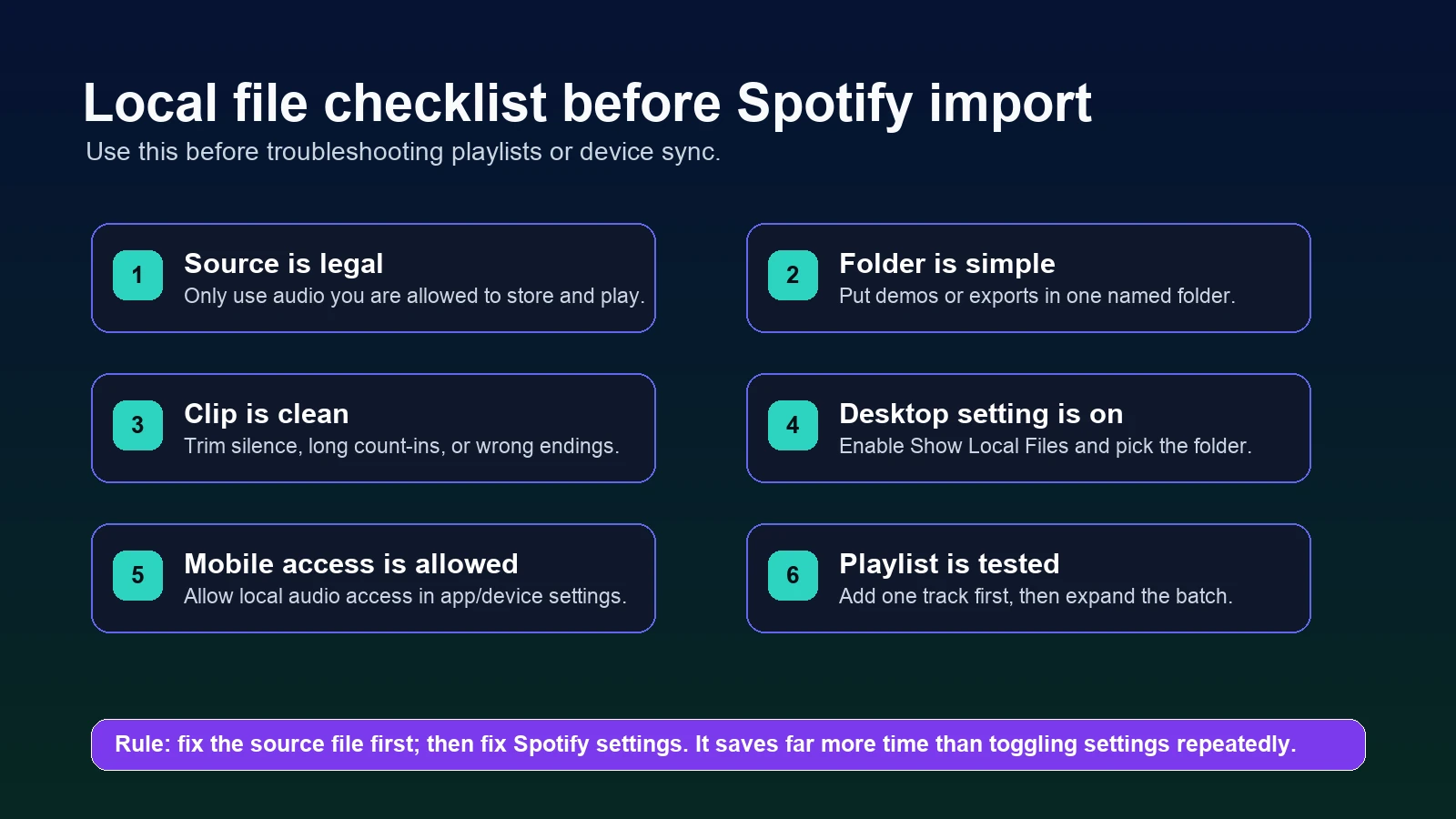
Add local files on desktop
Desktop is the easiest place to start because you can choose a folder directly. Use this flow when your files are already on a Mac or Windows computer.
- Put the audio you want to use in a simple folder, such as
Music/Spotify Local Files. - Open Spotify on desktop.
- Go to your profile picture, then Settings.
- Find the Library area and turn on Show Local Files.
- Under the folder sources, enable the folder that contains your files or add a new source.
- Open Your Library and look for Local Files.
- Add one track to a playlist and test playback before adding a full batch.
If you are preparing your own music, keep filenames plain and descriptive. A file named string-quartet-demo-v2.mp3 is easier to diagnose than final-final-bounce-new-real.mp3. The small bit of discipline pays off when the same playlist later appears on a phone, tablet, or rehearsal computer.
Add local files on iPhone or Android
Mobile setup depends more on device permissions. Spotify's support page lists separate iOS and Android flows, but the core idea is the same: turn on local audio access, then put the files somewhere the app can see.
On iPhone, open Spotify settings, go to Apps and devices, and switch on Local audio files. If you move files into the Spotify folder through Files or another storage app, restart Spotify if the folder does not appear. Spotify notes that the folder can disappear if the Help file inside it is removed.
On Android, open Spotify settings, go to Apps and devices, and switch on Local audio files. Then check device permissions if the app still cannot see stored audio. Android file managers vary, so test with one clean file in an obvious folder before moving a large archive.
For mobile, the practical rule is to avoid batch importing first. Add one file, confirm it appears in Local Files, put it in a playlist, then expand the workflow. If you start with 200 files, you will not know whether the issue is format, permission, folder location, or playlist sync.
Troubleshoot files that do not show up
When local files do not appear, resist the urge to change everything at once. Work down the table in order. The first rows are the ones that solve the most common cases.
| Symptom | Likely cause | Fix |
|---|---|---|
| No Local Files section appears | Feature or permission is off | Turn on Local files in Spotify and allow device storage access |
| Desktop sees the file but mobile does not | Mobile app cannot access the local folder | Enable local audio files on mobile and test one playlist |
| A file appears but will not play | The source file may be damaged or awkwardly encoded | Re-export a clean audio copy and try again |
| The wrong version keeps appearing | Duplicate filenames or scattered folders | Move the keeper file into one folder and rename it clearly |
| Playlist sync is inconsistent | Too many files were added before testing | Remove the local files from the playlist and start with one track |
If you are using local files for your own compositions, make a listening copy rather than importing an unfinished working file. Bounce the mix, trim the start and ending, and keep your project file elsewhere. Spotify is the listening environment here; your DAW or notation app remains the editing environment.
Prepare cleaner audio with Melogen
Melogen fits before Spotify, not inside it. Use it when the file you want to add still needs a quick cleanup pass: a long count-in, a rough ending, a voice memo tail, or a MIDI idea that has not been turned into a shareable audio file yet.
For audio clips, open the Melogen Music Trimmer, trim the section you actually want to keep, add a clean fade when needed, and export a listening copy. For MIDI ideas, use the MIDI to MP3 converter when your goal is a simple playback file for a playlist or rehearsal reference.
Clean up a local clip before adding it to Spotify
Use Melogen Music Trimmer to remove silence, tighten the ending, and export a cleaner audio file before you test it in Spotify Local Files.
The important boundary is honesty about the source. Melogen can help you prepare audio you are allowed to use. It should not be framed as a way to bypass another platform's rights, downloads, or account rules.
FAQs
Can Spotify upload my local files for other people to stream?
No. Local files are for playback in your own app experience. They do not publish your song to Spotify's public catalog. If you want your music available to listeners on Spotify, you need a distributor or artist-release workflow.
Why do my local files work on desktop but not on my phone?
Usually the phone cannot access the same local file path, or the mobile Local audio files setting is not enabled. Start with one file, confirm mobile access, then add more tracks after the test works.
Should I use Spotify local files for DAW drafts?
Use it for listening copies, not project management. Export a clean MP3 or WAV from your DAW, add that file to Spotify, and keep the editable project in your DAW.
Can I add MIDI files directly to Spotify local files?
Treat MIDI as a composition or performance data format, not a finished listening file. Convert or render the MIDI to audio first, then add the exported audio file.
The practical takeaway
Add local files to Spotify only after the source file is legal, clean, and easy to find. Start on desktop, test one file, then move to mobile permissions and playlist checks. If the audio is your own demo or rehearsal reference, prepare a tidy listening copy first so Spotify has less to guess about.
That small workflow is less glamorous than a magic import button, but it is much more reliable: clean file, clear folder, Spotify setting, one-track test, then the full playlist.
About the author
Zhang Guo
Composer - AI Product Manager
AI product manager and digital marketing consultant with a background in music. Creativity is the bridge between rhythm and logic, where musical intuition and mathematical precision can coexist in every meaningful product decision.
Follow on X