Add Spotify to OBS Safely for Streams and Clips
Add Spotify to OBS with safe source choices, OBS audio routing, rights checks, local clips, and Melogen prep for music you own or can use.
 Zhang Guo
Turn a static score into editable MIDI
Contents
To add Spotify to OBS safely, first decide what you actually need: a visible Spotify window, clean audio routing, now-playing context for viewers, or a local music clip you are allowed to edit. Those are different workflows. Treating them as one button is how OBS scenes get messy and streams run into rights trouble.
The practical route is source-first. Use OBS for capture and mixing, use Spotify only inside supported playback and account rules, and use local or owned audio when you need editable clips, fades, or reliable stream assets.
Quick answer
Use this table before you add anything to the OBS Sources dock:
| Goal | Better OBS route | Rights check |
|---|---|---|
| Show what is playing | Window Capture, browser widget, or text source | Hide private account data and use only metadata you can display |
| Capture Spotify app audio | Application Audio Capture on supported Windows builds, or a separated desktop-audio route | Check whether the stream platform and music license allow the use |
| Use background music while talking | Dedicated music audio source with lower level, ducking, or separate track | Use licensed, platform-cleared, public-domain, Creative Commons, or owned music |
| Edit a short intro, stinger, or clip | Local audio file prepared before OBS | Use music you created, bought DRM-free, recorded, or have permission to edit |
| Build a clean replay or video asset | Export a local clip, then add it as Media Source | Keep the file and license notes with the project |
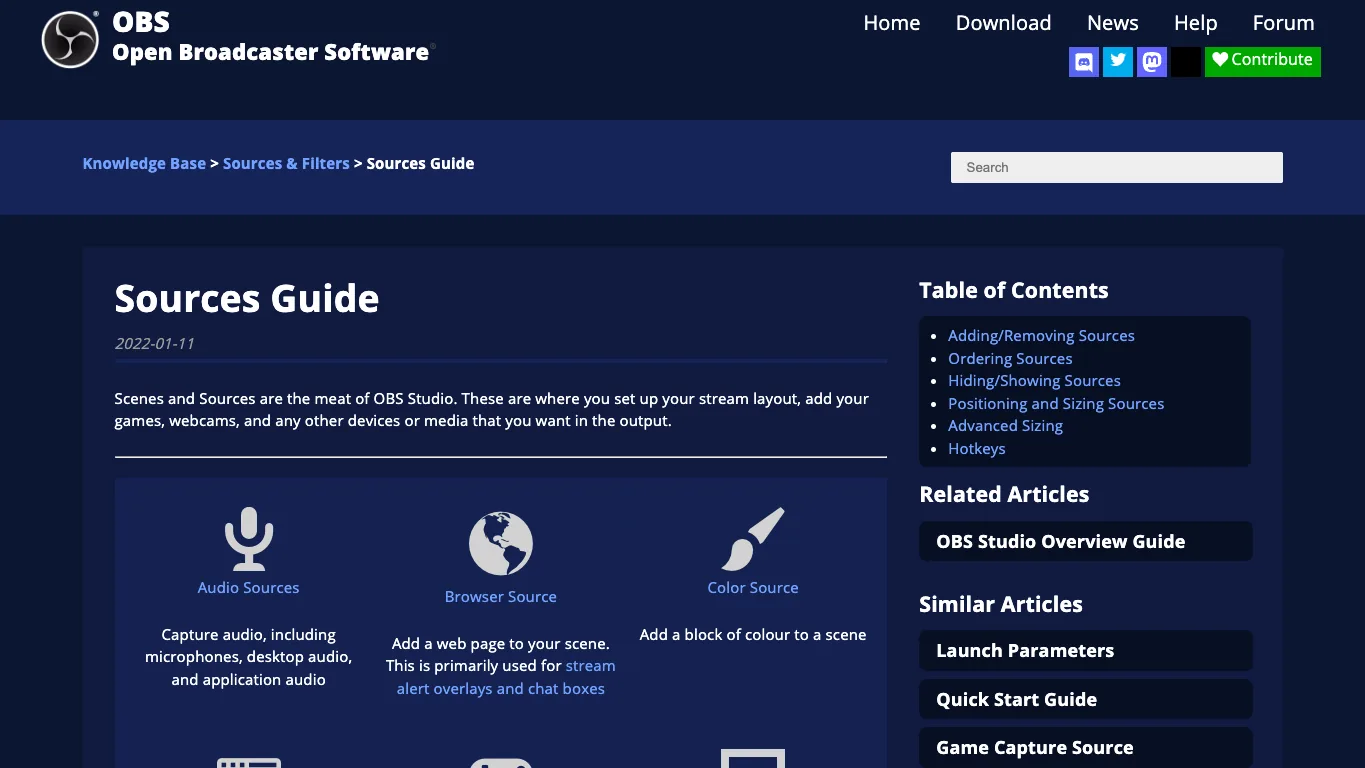
OBS's official Sources Guide is the right mental model: OBS scenes are built from sources, and audio sources, browser sources, media sources, text sources, and window capture all do different jobs. Choose the source type that matches the music job instead of forcing the whole Spotify app into every scene.
Choose what adding Spotify to OBS means
Most bad tutorials mix three tasks together:
- Showing the Spotify app or now-playing information on screen.
- Capturing audio from Spotify or the system.
- Turning music into an editable file for clips, stingers, or uploads.
Only the first two are really OBS setup tasks. The third is a source-rights and file-prep task.
If you only want viewers to see a track title, you may not need to route Spotify audio through the stream at all. If you need audio in the livestream, check your platform rules and music rights before you test levels. If you need a trimmed clip, use audio you control instead of trying to extract a protected Spotify stream.
Show Spotify on screen without overcapturing
For a simple visual display, add Spotify as a visual source, not as your whole desktop.
Use this safer sequence:
- Open Spotify in its own desktop window.
- In OBS, add a Window Capture source.
- Pick the Spotify window.
- Crop the view so account details, sidebars, private playlists, and recommendations are not exposed.
- Lock the source after positioning.
- Keep the source muted unless you intentionally route audio separately.
This is useful for rehearsals, private recordings, or licensed streaming setups where the visual context is allowed. It is not a magic permission layer. OBS can capture a window; it cannot decide whether the music is cleared for your channel.
If you use a browser widget or now-playing overlay, inspect what it displays before going live. Track titles, artist names, album art, playlist names, and account data can all become visible in a scene.
Route audio in OBS deliberately
OBS can capture audio in more than one way. The simplest path is desktop audio, but desktop audio often captures too much: Spotify, alerts, game sound, browser tabs, and system notifications can land on the same meter.
OBS's Application Audio Capture Guide explains that supported Windows users can add per-application audio sources, and it notes that separate sources help when streaming to Twitch or splitting recording tracks. The same guide also warns that global desktop audio should be disabled when separate application sources are used, otherwise echo can happen.
Use this level-check flow:
- Create a separate music audio source when your OS and OBS build support it.
- Disable or lower global desktop audio if it duplicates the same source.
- Keep microphone, game/system, alerts, and music on separate mixer rows.
- Record a 30-second local test before going live.
- Speak over the music and check whether the music masks your voice.
- If you record VODs, keep music on its own track where your platform workflow supports that.
Check music rights before you go live
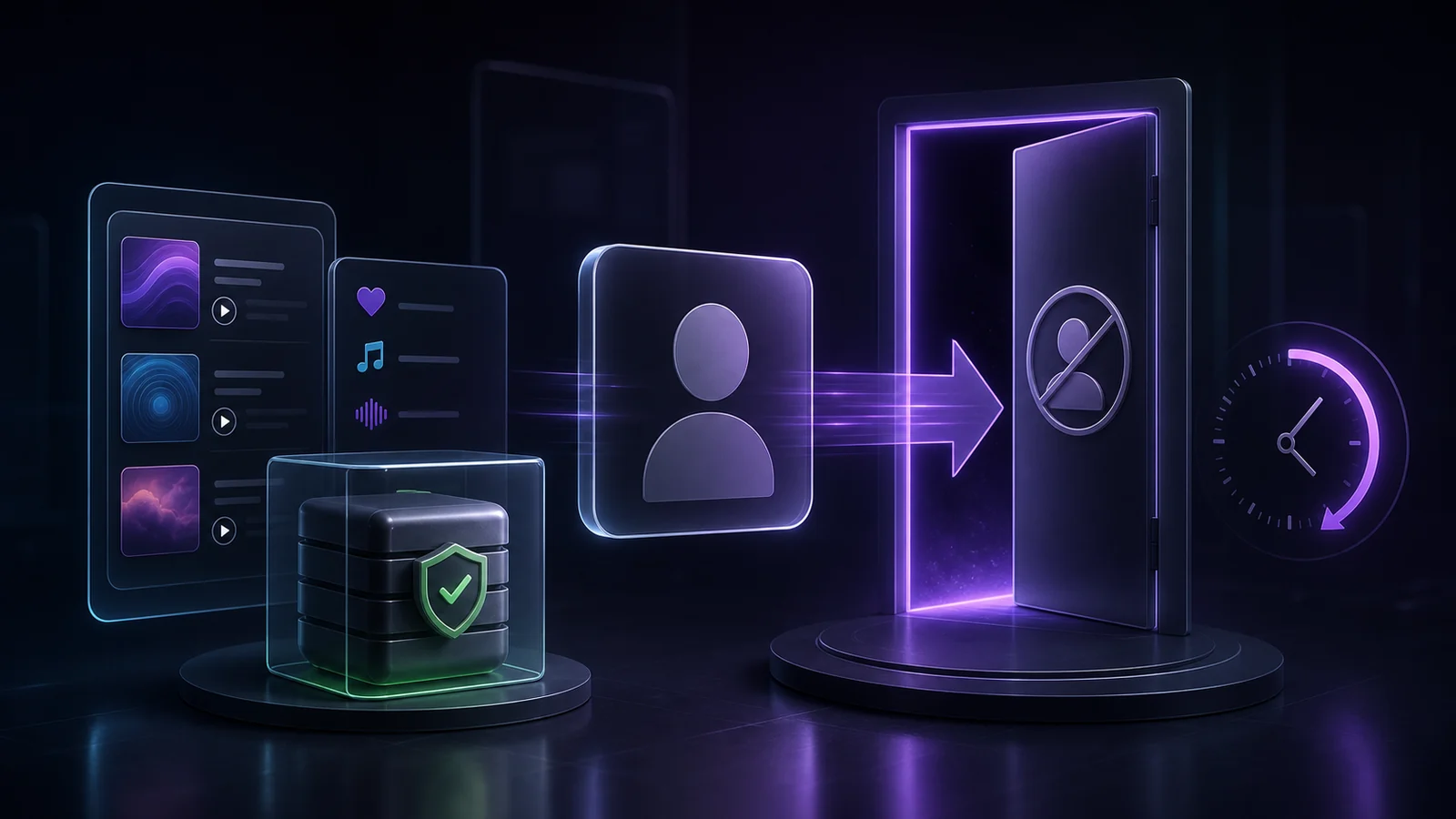
Spotify's Terms and Conditions of Use describe access to the service as personal, non-commercial use. That matters for livestreams, commercial channels, recorded videos, and public broadcasts.
You also need to check the platform you stream to. YouTube's copyright help page lists safer options such as using content under a copyright exception, getting permission, using a Creative Commons license, sourcing from YouTube's own libraries, or using public-domain material. It also says those options do not guarantee avoiding claims.
So the conservative workflow is:
| Music source | Use it in OBS? | What to verify |
|---|---|---|
| Spotify catalog stream | Only when your use is clearly permitted | Spotify terms, stream-platform rules, and the music rights |
| Your own released track | Usually yes if you own or control the rights | Distributor, label, Content ID, collaborator agreements |
| Royalty-free or licensed music | Usually yes | License scope, attribution, platform restrictions |
| Creative Commons music | Sometimes | Exact license type and attribution requirements |
| Public-domain recording | Sometimes | Composition and recording rights, which can differ |
| Local rehearsal demo | Usually yes | Whether every contributor has agreed to the use |
This article is workflow guidance, not legal advice. When a stream is monetized, sponsored, public, archived, or reused as a video, use the platform and license documents as the final authority.
Use local or owned audio for clips
Spotify has a legitimate local-files feature, but it is not a way to turn the Spotify catalog into editable files. Spotify's Local files support page says the app can play audio files legally stored on your device. That boundary is useful for OBS too.
Use local audio when you need:
- A short intro or ending stinger.
- A loop for a waiting screen.
- A rehearsal cue.
- A podcast bed you have licensed.
- A clip from your own song, demo, lesson, or sound design.
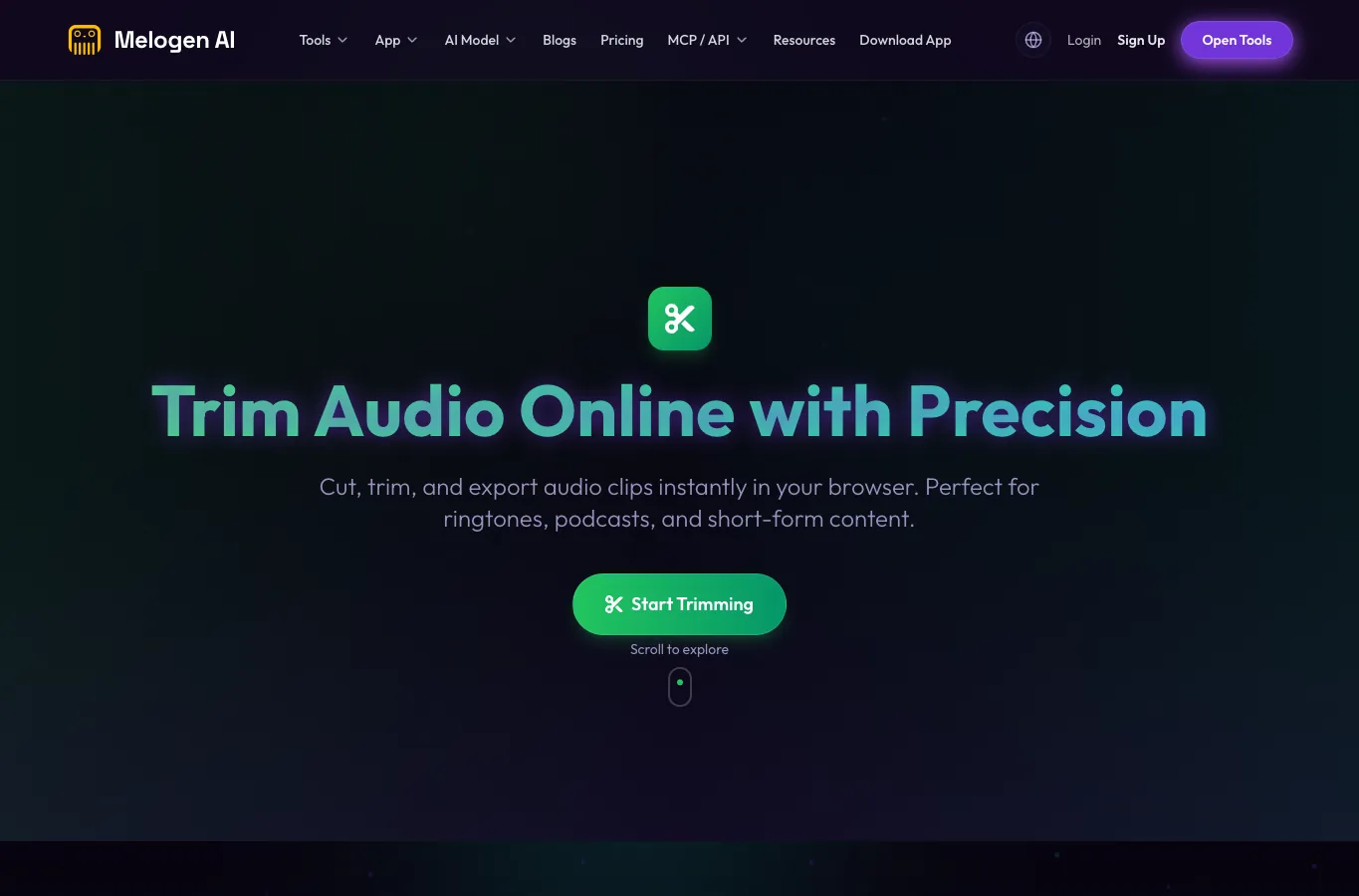
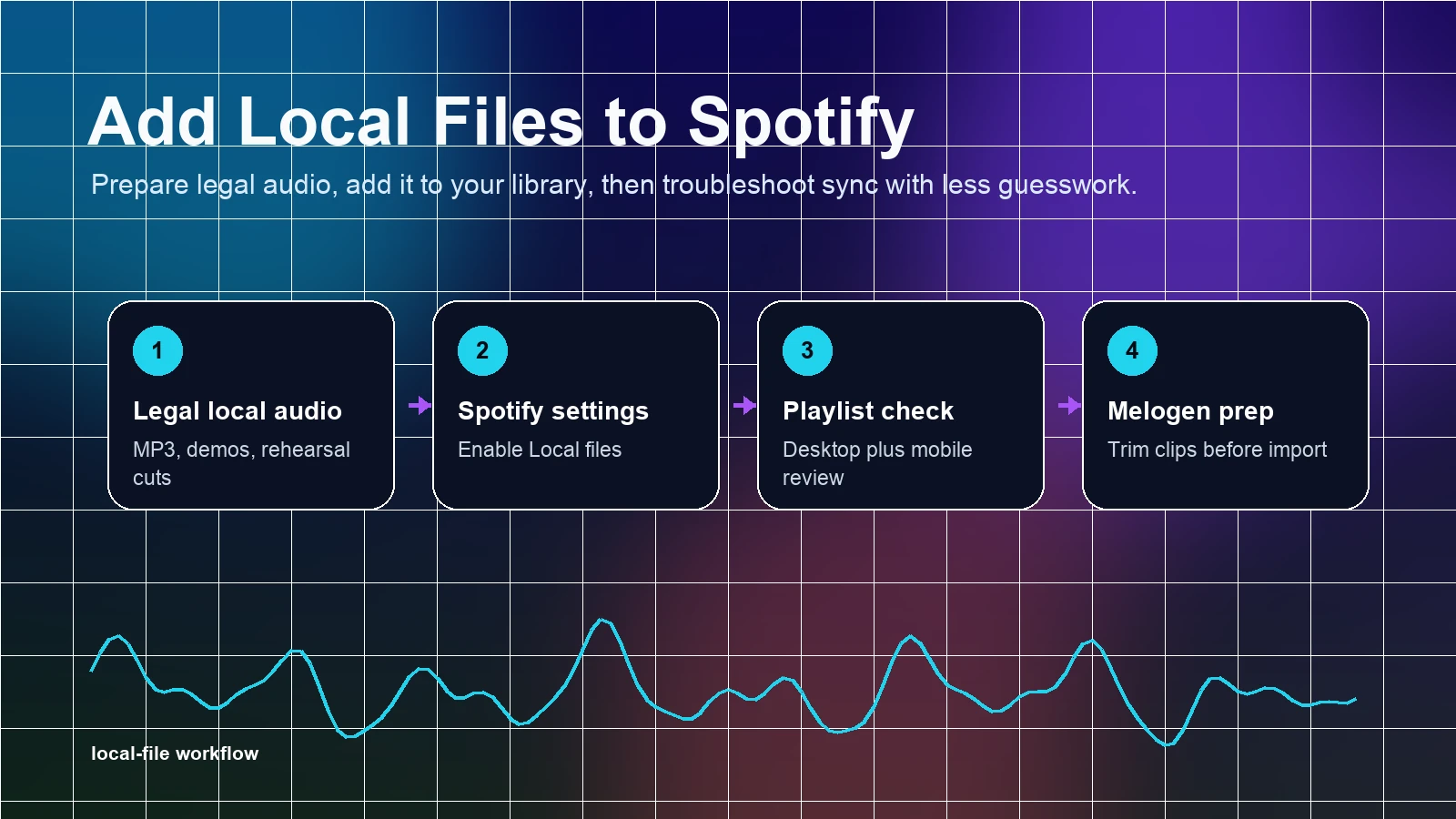
Melogen fits before OBS when the file is yours to edit. The local Music Trimmer route is built for cutting, trimming, previewing, and exporting audio clips in formats such as MP3, WAV, M4A, OGG, FLAC, and AAC. Use it to remove silence, make a clean loop, add a simple fade, or prepare a shorter asset before you add it to OBS as a media source.
If you also keep personal audio in Spotify, the Add Local Files to Spotify guide explains the same source boundary from the Spotify side. For livestream visuals rather than audio routing, the Spotify visualizer tools guide can help you separate live playback, local files, and owned MIDI video workflows.
Trim a clean OBS-ready music clip
Use Melogen Music Trimmer when the source is your own song, licensed music, a rehearsal cue, or another audio file you are allowed to edit.
Add the prepared clip to OBS
After the file is ready, keep the OBS setup boring and testable.
- Save the clip in a stable project folder.
- In OBS, add a Media Source if the clip should play as part of a scene.
- Use Audio Input Capture or an application-specific source only when you need live audio input.
- Name the source clearly, such as
intro-music-owned-clip. - Put the clip on its own mixer row.
- Set a conservative level before adding compression or ducking.
- Record a private test and listen back on headphones.
The source name matters more than it seems. Six weeks later, music legal intro v3 is more useful than audio source 4.
Troubleshooting
| Problem | Likely cause | Fix |
|---|---|---|
| Viewers see the wrong Spotify area | Window capture is too large or the app moved | Crop the window, lock the source, and avoid showing private sidebars |
| Music doubles or echoes | Desktop audio and application audio both capture Spotify | Disable one route and keep Spotify on a single mixer row |
| Music is louder than speech | No ducking or source separation | Lower music, add sidechain/ducking if your setup supports it, and test a spoken section |
| VOD is muted or claimed | Music rights or platform policy issue | Use cleared music, separate tracks where supported, or remove music from the recording workflow |
| OBS cannot capture the app audio separately | OS or OBS source support is limited | Use desktop audio carefully, a virtual audio route, or a local media source you can control |
| A converter tutorial promises easy Spotify files | It treats streaming access as editable local audio | Avoid that shortcut and use audio you own or have permission to edit |
FAQs
Can OBS capture Spotify audio?
OBS can capture desktop or application audio depending on your operating system and OBS setup. That does not automatically mean the music is cleared for a public stream or VOD.
Can I show Spotify now playing in OBS?
Yes, you can capture a window or use a metadata/now-playing overlay, but you should crop private account details and verify that showing the metadata fits your stream and platform rules.
Should I use Spotify as background music on Twitch or YouTube?
Only when your use is allowed by Spotify, the streaming platform, and the music rights holder. For most creator workflows, licensed music, platform music libraries, public-domain material, or music you own is safer.
Can Melogen convert Spotify songs for OBS?
No. Melogen is for local audio, MIDI, notation, and owned-file workflows. It should not be used or described as a way to convert protected Spotify streams.
What is the safest way to use music clips in OBS?
Use audio you created, licensed, bought DRM-free, recorded, or otherwise have permission to use. Trim it into a clean local file, keep it on its own OBS source, and record a private test before going live.
The practical takeaway
Adding Spotify to OBS is not one workflow. It can mean a visual source, an audio route, or a local clip asset. Keep those jobs separate. Use OBS sources deliberately, check rights before streaming, and prepare owned audio with Melogen when you need a clean editable clip instead of a live Spotify stream.
About the author
Zhang Guo
Composer - AI Product Manager
AI product manager and digital marketing consultant with a background in music. Creativity is the bridge between rhythm and logic, where musical intuition and mathematical precision can coexist in every meaningful product decision.
Follow on X