Spotify Visualizer Tools for Music Playback in 2026
Compare Spotify visualizer tools for web playback, local files, artist Canvas loops, and owned MIDI video workflows with safe setup notes.
 Zhang Guo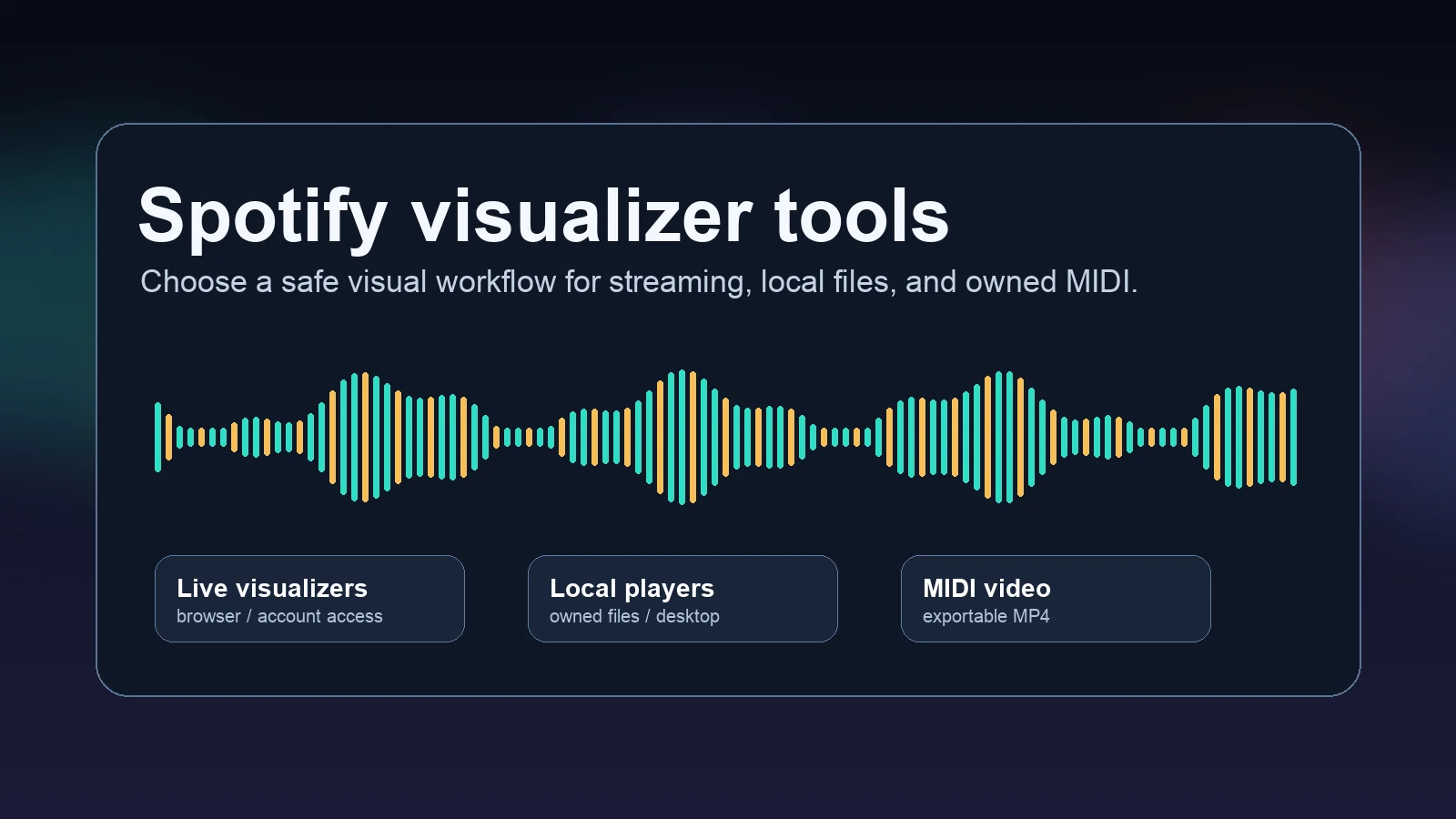
Turn a static score into editable MIDI
Contents
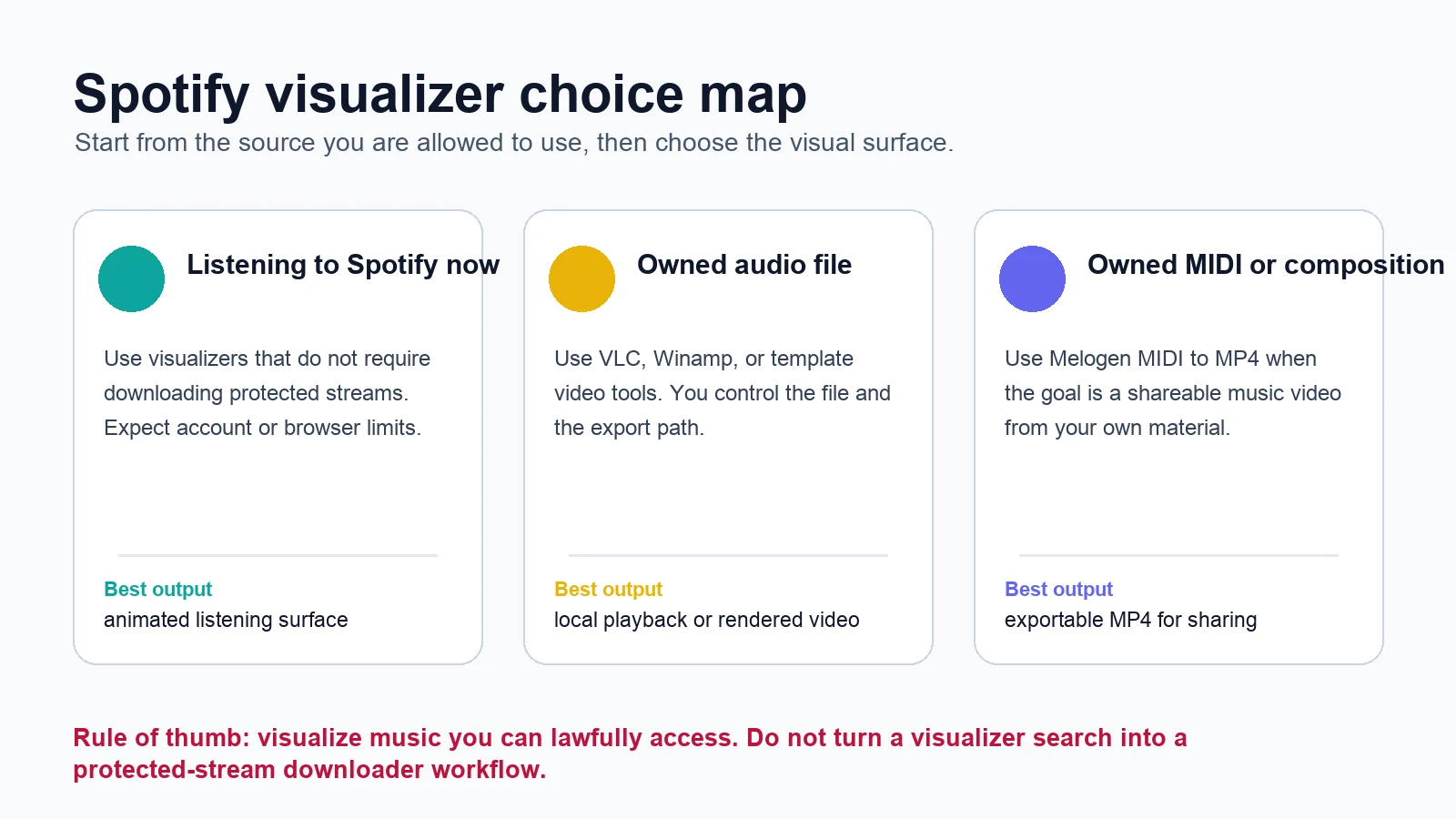
A Spotify visualizer can mean three different things: a live animation that reacts while Spotify plays, a local media player visualizer for music files you own, or an exported music video you can share later. Start by choosing the source you are allowed to use, then choose the visual tool.
That source-first rule matters. Some visualizer lists quietly turn into Spotify downloader workflows. This guide keeps the boundary cleaner: visualize Spotify playback when a tool can do that safely, use local-player visualizers for files you own, and use Melogen when you have MIDI or original audio that should become an exportable MP4.
Quick Comparison Table
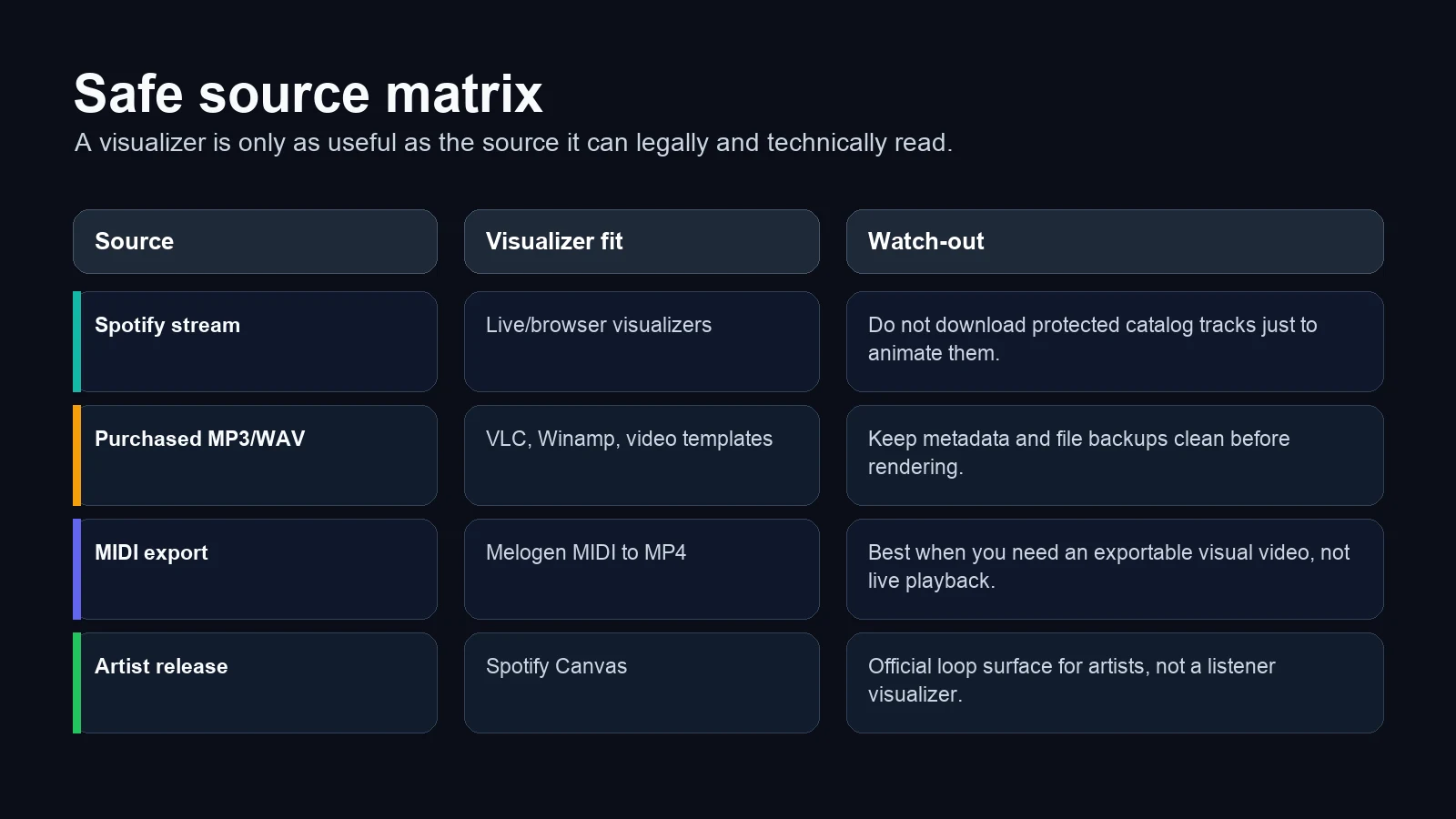
| Option | Best for | Input source | Output | Main tradeoff |
|---|---|---|---|---|
| Spotify Canvas | Artists who want an official looping visual on their own tracks | Released music in Spotify for Artists | In-app looping visual | Artist-side feature, not a listener visualizer |
| ButterChurn | Browser-based MilkDrop-style visuals for local or permitted audio | Web audio / local setup | Live visual surface | Setup is more technical than a normal app |
| VLC media player | Simple free desktop visualizations for local files | Owned MP3, WAV, FLAC, AAC | Live local playback | Not connected to Spotify streams |
| Winamp | Classic desktop visualizer nostalgia and local libraries | Owned local audio | Live local playback | Windows-first and local-file focused |
| Videobolt | Polished template videos for releases, promos, and social posts | Uploaded audio you control | Rendered video | Template workflow, not live listening |
| Melogen MIDI to MP4 | Turning your own MIDI composition into a shareable visual video | MIDI file you own or created | MP4 video | For MIDI exports, not Spotify catalog playback |
What Counts as a Safe Spotify Visualizer
The useful question is not "which tool has the loudest animation." It is "what can this tool read without pretending a stream is a normal file?"
Spotify playback itself is app-managed. If a tool works as a web visualizer, extension, or account-linked experience, treat it as a live listening surface. It may depend on browser permissions, Spotify account access, audio capture, or the current Spotify API behavior. That is fine as long as the tool is not asking you to download protected Spotify tracks just to animate them.
Local files are different. If the music is a purchased MP3, a WAV you exported from a DAW, a rehearsal recording, or a track you created, you can use desktop players, visualizer templates, and video rendering tools more freely. If you need a refresher on the rights boundary for local playback, the add local files to Spotify guide covers the same source discipline.
Spotify Canvas for Official Artist Loops
Spotify Canvas is the most official Spotify visual surface, but it is not a general listener visualizer. Spotify describes Canvas as a short looping visual artists can add to each track, so it appears in the Now Playing view and can also show when tracks are shared to social stories.
Use Canvas if you are the artist or part of the release team and you want a loop attached to your own music. Do not use it if your goal is to make any playlist or any Spotify track react to audio in real time. That is a different job.
Best fit:
- releasing your own track
- adding a visual identity to a Spotify artist page
- preparing short loops for social sharing around a release
Not a fit:
- visualizing someone else's Spotify catalog track
- making a full-length YouTube music video
- animating a whole playlist during listening
Official source: Spotify Canvas for Artists.
ButterChurn for Browser-Based MilkDrop Visuals
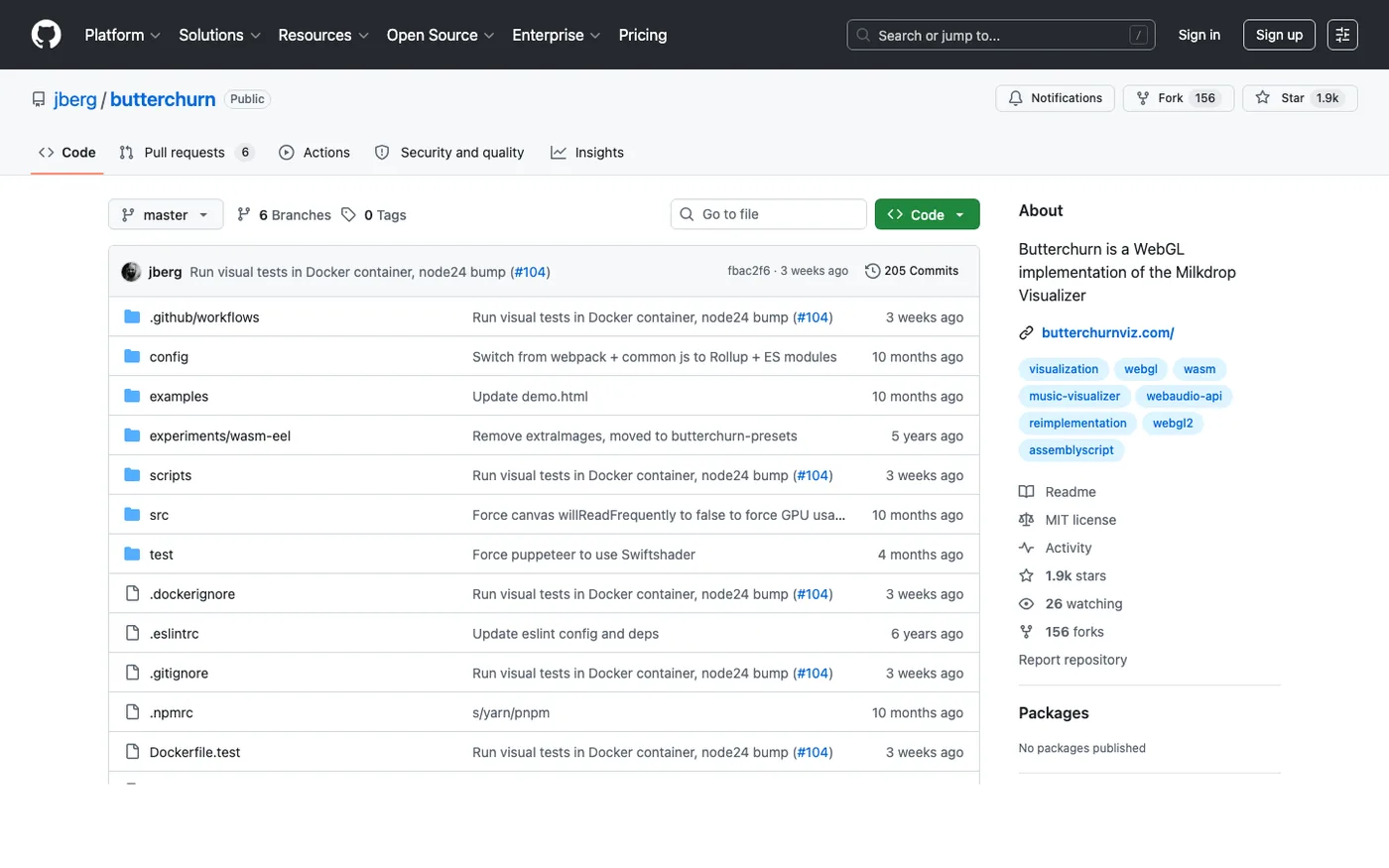
ButterChurn is a WebGL implementation of the classic MilkDrop visualizer. The public GitHub project describes it as a browser-based visualizer, which makes it useful when you want reactive, generative visuals without installing a full media player.
This is the strongest option when you like old-school audio-reactive visuals and are comfortable with a more technical setup. It is not the same as pressing one button inside Spotify. The practical workflow is to feed it audio through a permitted web/local setup, then use the visualization as a live surface.
Best fit:
- browser-based visual experiments
- MilkDrop-style abstract visuals
- musicians or developers who can handle setup details
Tradeoff:
- less beginner-friendly than VLC or a template video tool
- no promise that every Spotify playback setup can be captured cleanly
Official source: ButterChurn on GitHub.
VLC for Free Local-File Visualizations
VLC is not a Spotify visualizer. It is a free, open-source media player that can play many local audio and video formats, and it remains useful when your source is an owned file rather than a streaming catalog track.

Use VLC when you already have a legal local file and want a quick visual playback environment. It is practical for purchased files, rehearsal references, exported mixes, and classroom playback. It is not the right tool if your plan starts with "download this Spotify song first."
Best fit:
- local MP3, WAV, FLAC, AAC, or video playback
- quick desktop visuals without a paid template service
- testing a file before you prepare a more polished video
Tradeoff:
- live playback only unless you add a separate recording workflow
- not designed around Spotify account playback
Official source: VLC media player.
Winamp for Classic Desktop Visuals
Winamp is still relevant if your visualizer taste is classic desktop playback, local libraries, and MilkDrop-era visuals. Treat it as a local-file option, not as a Spotify-stream extractor.
This is a good choice when the goal is the listening experience itself: a player on the screen, local files in a library, and visual animation during playback. It is less useful if you need a polished MP4 deliverable for a release campaign or lesson video.
Best fit:
- local music libraries
- classic visualizer presets
- desktop listening sessions
Tradeoff:
- local-player workflow
- less direct than a browser visualizer when you are already inside Spotify
Official source: Winamp player.
Videobolt for Template-Based Music Videos
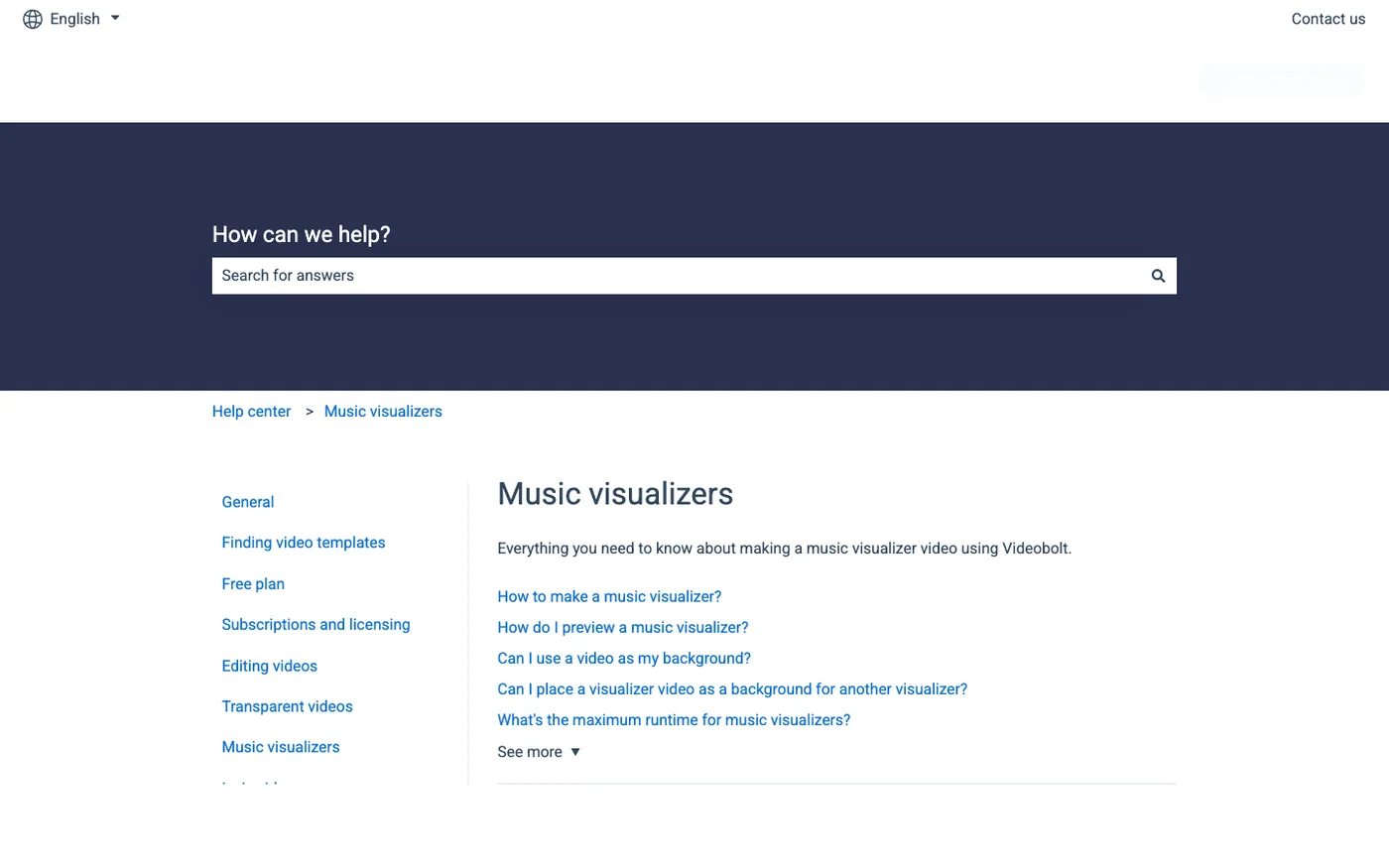
Videobolt is closer to a music-video production tool than a live Spotify visualizer. Its public help center organizes music visualizer templates and preview/render workflows, which makes it useful when you have audio you control and want a polished visual asset.
Choose this path when you need something that looks finished: a YouTube visualizer, a release teaser, a lyric-adjacent promo clip, or a social video. The tradeoff is that you are entering a template-render workflow. You upload or provide the audio you have rights to use, choose a visual style, preview, then export.
Best fit:
- artist promo videos
- social clips for owned tracks
- polished visualizer exports
Tradeoff:
- not a live listening visualizer
- template output can feel less flexible than a custom animation pipeline
Official source: Videobolt music visualizers help.
Melogen MIDI to MP4 for Owned MIDI Videos
Melogen belongs in a different lane from Spotify stream visualizers. It is useful when the source is your own MIDI file and the goal is an exportable MP4 video with music visualization.

That makes it a strong fit for composers, teachers, producers, and students who already have a MIDI export from a DAW, notation app, or transcription workflow. Instead of trying to animate a protected stream, you start with a file you control and render a video that can be shared, presented, archived, or uploaded.
Use Melogen when:
- you wrote or exported the MIDI yourself
- you want a quick MP4 from a MIDI composition
- you need a visual demo for social media, class, or a presentation
- you want an owned-file workflow rather than a streaming-app workaround
Do not use it when:
- you want to visualize a Spotify catalog track directly
- the source file is not yours to edit or render
- you need a live reactive screen while Spotify plays
Turn your own MIDI into a shareable music video
Use Melogen MIDI to MP4 when the source is your own composition, transcription, or DAW export and you want a visual MP4 instead of a live player screen.
How to Choose the Right Spotify Visualizer Tool
Start with the source:
- If the source is a Spotify stream, choose a live visualizer that does not ask you to download or convert the track.
- If the source is an owned audio file, choose VLC, Winamp, or a template video service depending on whether you need live playback or an exported video.
- If the source is MIDI, choose a MIDI-first video route such as Melogen MIDI to MP4.
- If you are the artist releasing the track, treat Spotify Canvas as the official Spotify-side visual layer.
Then choose by output:
| Need | Best direction |
|---|---|
| Visuals while listening | ButterChurn, VLC, Winamp, or another live visualizer that matches your source |
| Official Spotify artist visual | Spotify Canvas |
| Social media visualizer video | Videobolt or Melogen, depending on whether the source is audio or MIDI |
| Classroom or presentation video from MIDI | Melogen MIDI to MP4 |
| Clean local-file listening before Spotify import | Prepare the file first, then use Spotify local files |
If you are also deciding where Spotify should live in your workflow, read Spotify Web Player vs Desktop App. Visualizers depend heavily on whether you are in a browser, a desktop app, or a local-file environment.
Common Mistakes to Avoid
The biggest mistake is treating "visualizer" and "downloader" as the same problem. They are not. A visualizer should help you see music while it plays or turn your own music into a video. It should not be a pretext for copying protected Spotify catalog tracks.
The second mistake is choosing a tool before choosing the output. A live visualizer may look great on a monitor but give you no finished video file. A template renderer may make a clean MP4 but will not react live while you listen. Melogen's MIDI to MP4 route sits in the exportable-video camp, not the live-listening camp.
The third mistake is ignoring the source format. MIDI, MP3, WAV, and streaming playback behave very differently. If your starting point is a MIDI idea, render it as MIDI-first. If your starting point is a purchased audio file, use local-player or template tools. If your starting point is a Spotify stream, keep the workflow inside safe playback surfaces.
FAQs
Does Spotify have a built-in visualizer?
Spotify has Canvas for artist-controlled looping visuals on released tracks, but that is not the same as a classic listener visualizer for any song or playlist.
Can I use a Spotify visualizer without Premium?
Some third-party visualizers or browser setups may work with free accounts, while Spotify Canvas is an artist-side feature. Check the specific tool's current access model before relying on it.
Is it safe to download Spotify songs for a visualizer?
Do not make protected-stream downloading part of a normal visualizer workflow. Use live visualizers for playback, or use audio and MIDI files you own or created.
What is the best visualizer for musicians?
For live listening, use a visualizer that matches your playback source. For owned MIDI compositions, Melogen MIDI to MP4 is the cleaner path because it creates an exportable video from a file you control.
Should I choose Videobolt or Melogen?
Choose Videobolt when you have an audio file and want a template-based music video. Choose Melogen when your source is MIDI and you want a quick MP4 visualization from that MIDI file.
The Practical Takeaway
A good Spotify visualizer choice starts with source rights, not animation style. Use Spotify Canvas for artist-controlled loops, browser or desktop visualizers for live playback, local players for owned files, and Melogen MIDI to MP4 when you want to turn your own MIDI into a shareable video.
That may sound less magical than a one-click "visualize anything" promise, but it is the workflow that stays useful: legal source, clear output, tool that matches the job.
About the author
Zhang Guo
Composer - AI Product Manager
AI product manager and digital marketing consultant with a background in music. Creativity is the bridge between rhythm and logic, where musical intuition and mathematical precision can coexist in every meaningful product decision.
Follow on X