Apple Music EQ Settings: iPhone, Mac, Windows Guide
Set Apple Music EQ on iPhone, Mac, and Windows, choose presets by genre, avoid distortion, and know when EQ will not fix source quality.
 Zhang Guo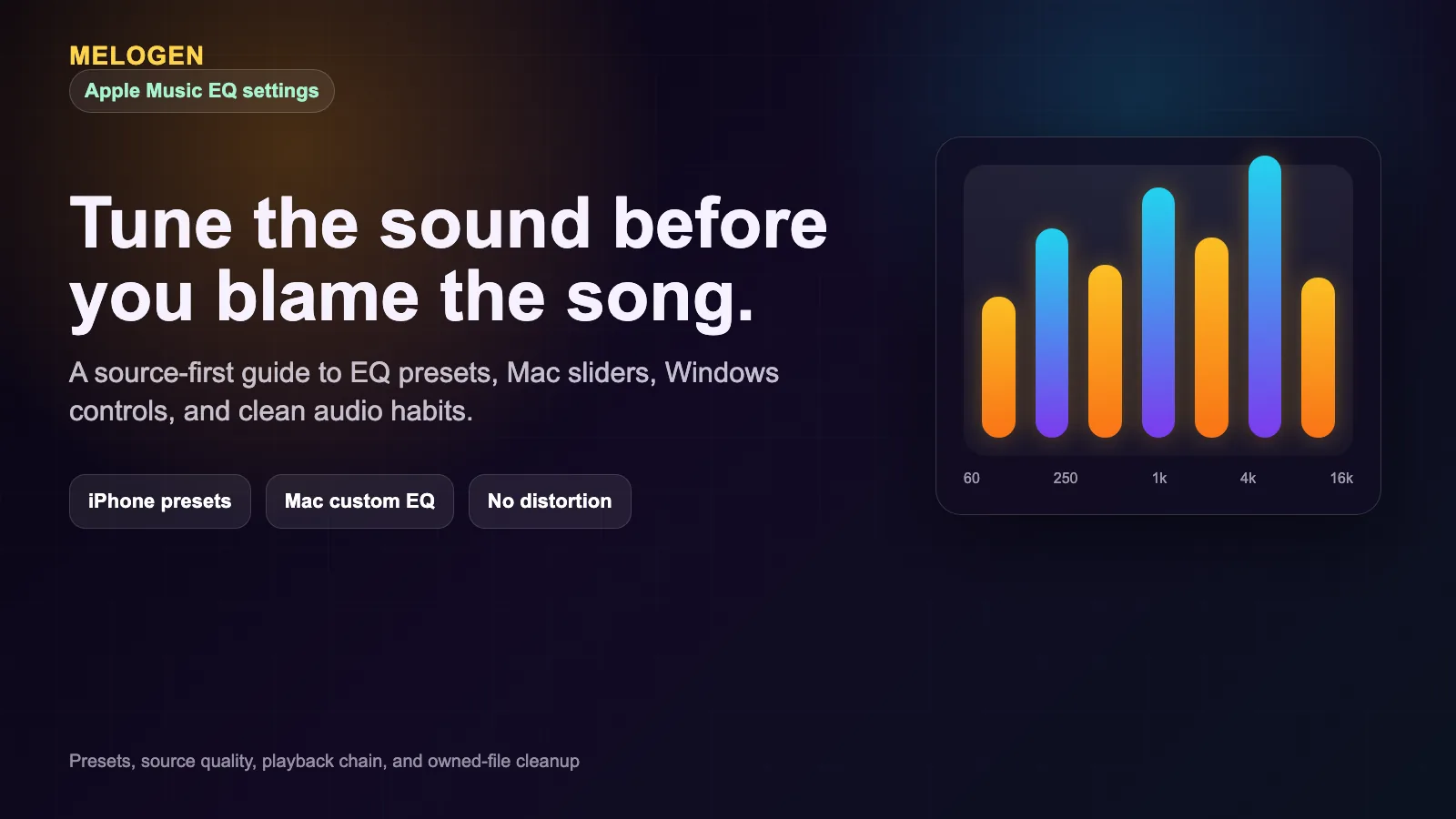
Turn a static score into editable MIDI
Contents
Apple Music EQ settings let you change how music feels on a specific device. On iPhone and iPad, Apple gives you preset EQ choices in system settings. On Mac and Windows, Apple Music gives you a more flexible equalizer with sliders and custom presets. The useful part is not finding the loudest preset. It is choosing a small correction that fits the song, headphones, room, and source quality.
Use EQ when the playback is too boomy, too sharp, too thin, or not clear enough for the place you are listening. Do not expect EQ to turn a poor source into a mastered recording. If the file is noisy, clipped, or badly compressed, fix the source first and then tune playback.
Where Apple Music EQ settings live
Apple's iPhone User Guide says the Music sound-quality controls are in the Settings app, under Apps and Music, where you can choose an EQ setting and use Sound Check to normalize volume. That means the iPhone EQ is not a manual ten-band mixer inside the Music app. It is a preset choice at the system settings level.
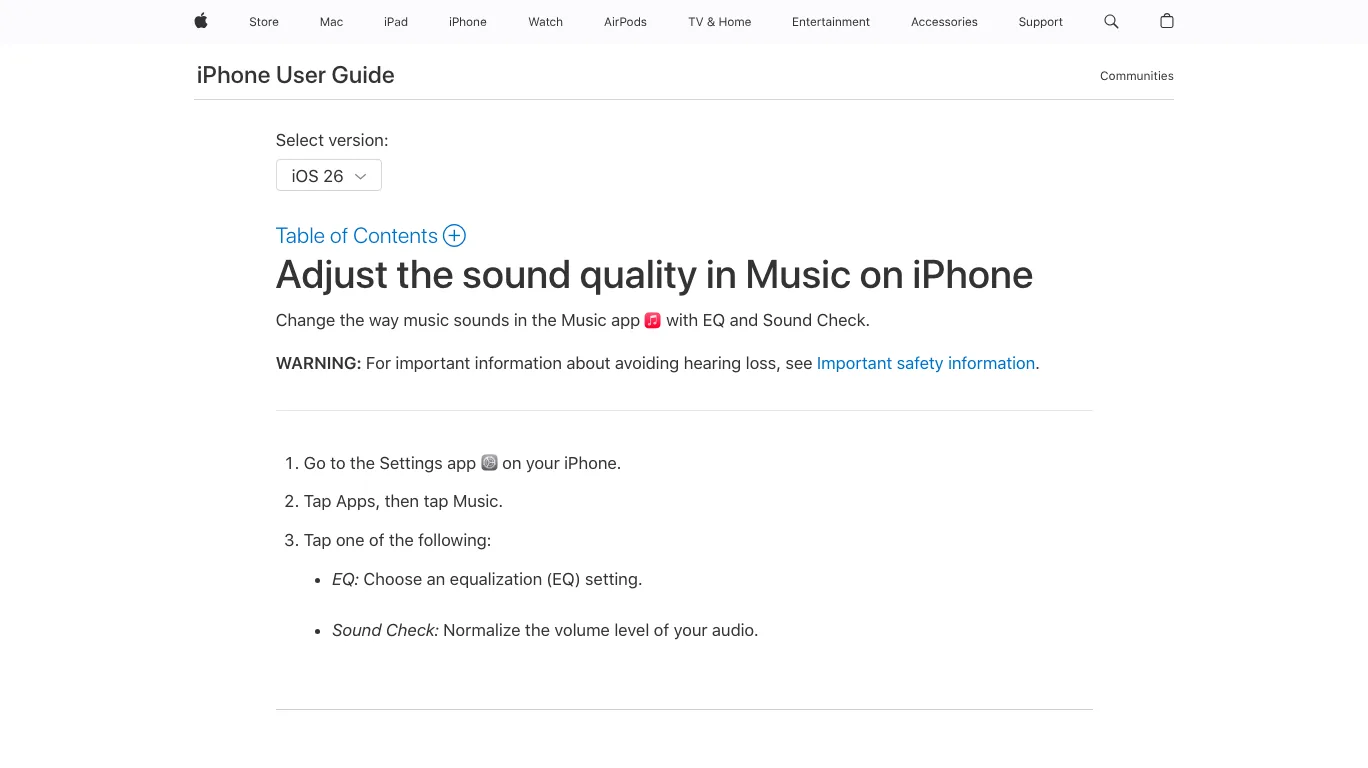
Use this table as the practical map:
| Device | Where to look | What you can change | Best use |
|---|---|---|---|
| iPhone or iPad | Settings app > Apps > Music > EQ | Preset EQ choices | Quick genre or headphone correction |
| Mac | Music app > Window > Equalizer | Presets, frequency sliders, custom presets | Fine-tuning speakers, rooms, and songs |
| Windows | Apple Music app > sidebar actions > Equalizer | Presets, frequency sliders, custom presets | Desktop playback and saved presets |
| Android | Apple Music app or Android sound settings, depending on device | App or system EQ when available | Device-specific playback correction |
If you only need a quick answer: start with the Apple preset closest to the problem, then switch it off and on at the same volume. If louder is the only improvement, it is probably not the right EQ.
Start with the source before the preset
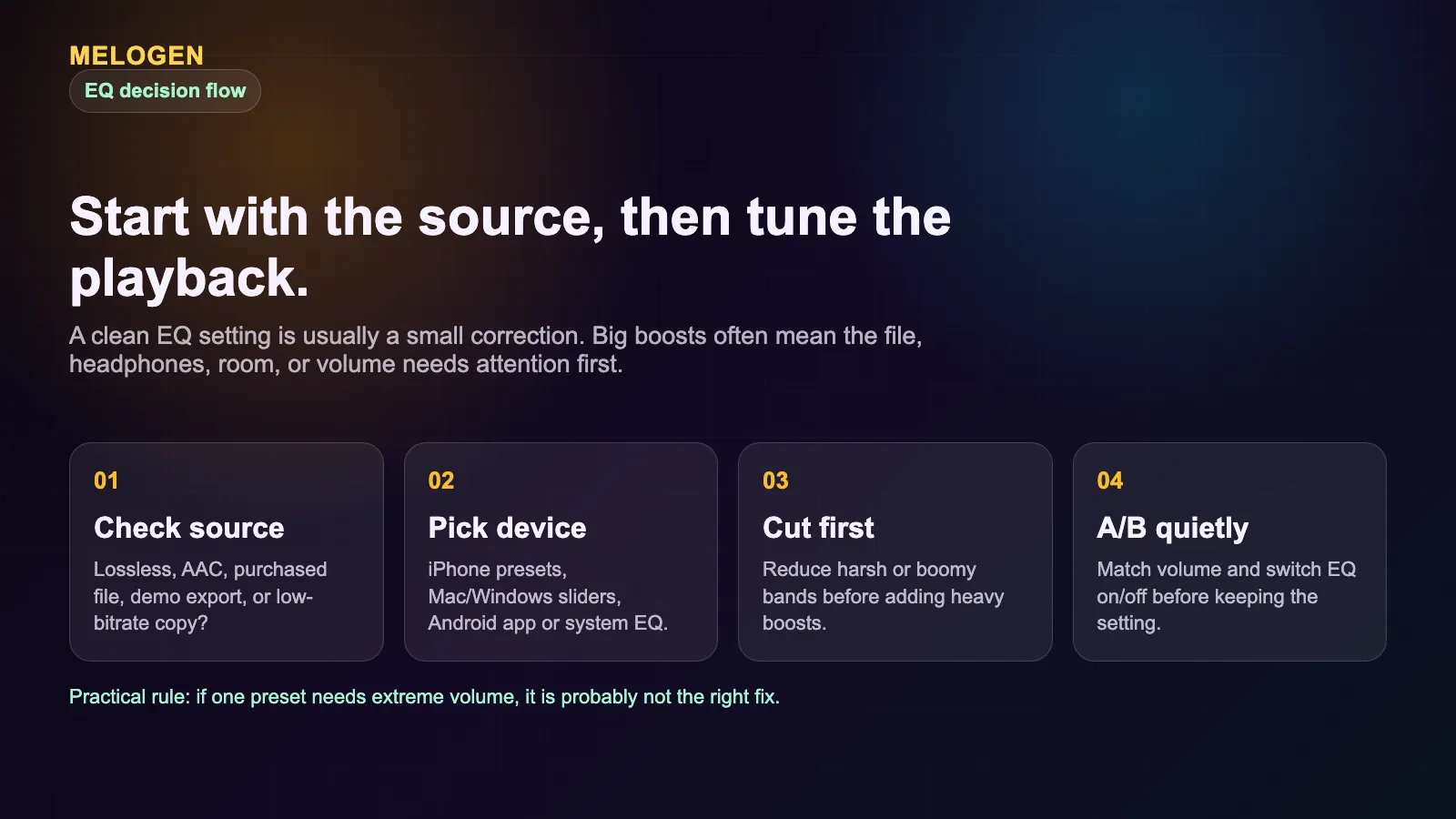
EQ changes frequency balance. It does not change the rights around a streaming track, and it does not rebuild every detail missing from a low-quality source. Before you chase a "best Apple Music EQ setting," check whether the issue is actually the file, connection, headphones, speaker, volume, or listening environment.
Apple's Apple Music page explains that lossless audio preserves song data more completely than standard compressed streaming, while Hi-Res Lossless uses much more bandwidth and storage and needs external equipment for the full benefit. That is a separate setting from EQ. Lossless affects the source stream. EQ affects playback tone.
The clean order is:
- Check the source: AAC stream, Lossless, purchased file, demo export, or rough recording.
- Check the playback chain: phone speaker, Bluetooth earbuds, wired headphones, car, desktop speakers, or DAC.
- Pick the smallest EQ change that fixes the listening problem.
- Compare at matched volume with EQ on and off.
- Keep the preset only if the song is clearer, not merely louder.
If you are comparing Apple's quality options, read Apple Music Lossless first. If you are managing owned music files, iTunes Match vs Apple Music explains the library side of the decision.
Set EQ on iPhone and iPad
On iPhone and iPad, use presets. Apple's guide does not describe manual frequency sliders for iOS Music EQ, so treat the preset names as starting points rather than precise mastering tools.
Use this workflow:
- Open Settings on your iPhone or iPad.
- Tap Apps.
- Tap Music.
- Tap EQ.
- Pick one preset, play a familiar track, then switch back to Off for comparison.
- Keep the preset only if it helps at the same volume.
Do not test with a song you barely know. Use a track where you already understand the vocal level, kick drum, bass line, cymbals, and overall loudness. The more familiar the track, the easier it is to notice whether the EQ improved the sound or just changed it.
Here is a safe preset-thinking table:
| Listening problem | Try first | Watch out for |
|---|---|---|
| Bass feels heavy or cloudy | A lighter or vocal-focused preset | Bass cuts can make drums feel small |
| Vocals feel buried | A vocal or mid-forward preset | Too much midrange can sound nasal |
| Cymbals or strings feel harsh | A warmer preset or EQ off | Do not over-darken the whole track |
| Small speakers sound thin | A fuller preset | Heavy bass can distort small drivers |
| Different songs jump in volume | Sound Check, not EQ | EQ is not a volume-normalization tool |
For most listeners, one moderate preset is enough. Constantly changing EQ by album can become a distraction unless you are making careful comparisons.
Use custom EQ on Mac and Windows
Mac and Windows are better when you want manual control. Apple's Music User Guide for Mac says the Music equalizer can fine-tune frequencies, use more than 20 presets, save custom presets, and assign presets to specific songs. The Windows Apple Music guide describes a similar equalizer with presets, frequency sliders, custom presets, and Sound Enhancer controls.
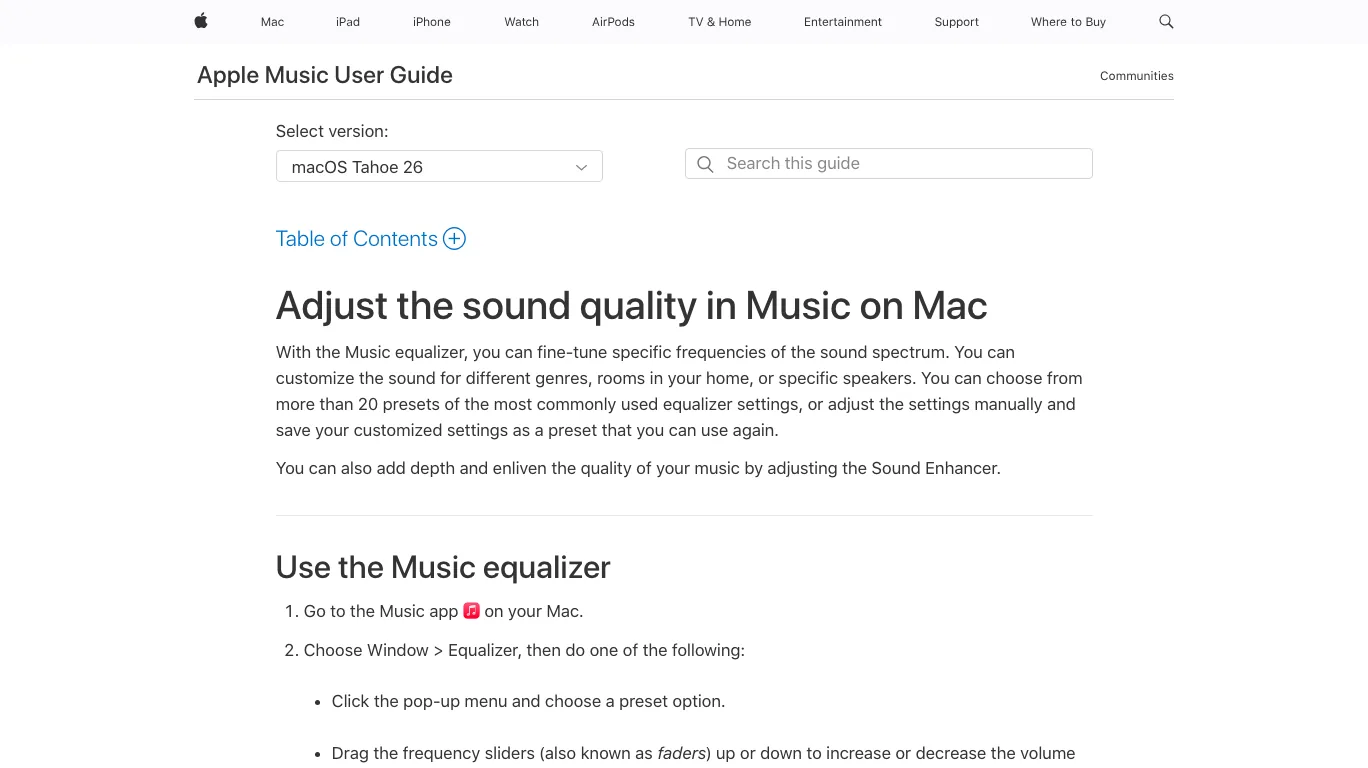
On Mac:
- Open the Music app.
- Choose Window > Equalizer.
- Turn the equalizer on.
- Choose a preset or move the frequency sliders.
- Save a preset if the setting works across your speakers or room.
On Windows:
- Open the Apple Music app.
- Use the sidebar actions menu and choose Equalizer.
- Turn the equalizer on.
- Choose a preset or adjust the sliders.
- Save the preset if it solves a repeatable listening problem.
The safest custom EQ habit is to cut before boosting. If the sound is muddy, reduce low or low-mid energy a little before adding treble. If the sound is sharp, reduce upper mids or highs before raising bass. Big boosts can make clipping, harshness, and speaker distortion worse.
Choose EQ by the listening problem
Genre labels are convenient, but the better question is what sounds wrong. A jazz preset might help one recording and hurt another. A rock preset might make one pair of headphones exciting and another pair tiring.
Use this decision table:
| Goal | Useful move | Why it works | Stop when |
|---|---|---|---|
| Clearer vocals | Slight midrange lift or less bass | Vocals live mostly in the midrange | S and T sounds start to bite |
| Tighter bass | Reduce low bass or low mids | Boom often hides rhythm detail | Kick drum loses weight |
| Softer treble | Reduce upper mids/highs | Harshness often lives above the vocal range | Cymbals lose texture |
| Better small-speaker playback | Gentle fullness, not huge bass | Small speakers distort with heavy low-end | The speaker sounds strained |
| Quieter background listening | Sound Check or lower volume | EQ is not the same as loudness matching | The mix feels dull |
Use one track for setup, then test two more. If the EQ only works for one song and breaks the next two, save it as a song-specific or room-specific choice rather than a default.
When EQ is the wrong fix
EQ is a playback tool. It is the wrong fix when the source itself needs cleanup. A distorted recording will stay distorted. A noisy rehearsal clip will still have noise. A very low-bitrate export may still feel smeared even if you brighten it.
Melogen fits that owned-file workflow before playback. It does not unlock Apple Music downloads, bypass streaming rules, or change Apple Music's catalog. It can help when you have your own audio file and want to improve clarity, restore missing high-frequency detail, or upscale audio quality for a cleaner listening copy.

Use this split:
| Situation | Better next step |
|---|---|
| Apple Music stream sounds slightly boomy | Try an Apple Music EQ preset |
| Your room or speaker has a repeatable tone problem | Save a Mac or Windows custom EQ preset |
| Your own demo is noisy or dull | Improve the source file first |
| A clip has silence or rough endings | Trim and fade the file before listening |
| You want to own or edit a streaming track | Do not use EQ or Melogen as a rights workaround |
Improve your own audio before you tune playback
Use Melogen Audio Enhancer for files you are allowed to process, then use EQ only for the final listening environment.
FAQs
What is the best Apple Music EQ setting?
There is no single best setting for every listener. Start with Off, pick one preset that matches the problem, then compare at the same volume. The best setting is the one that improves clarity without adding harshness, boom, or distortion.
Does Apple Music EQ affect every app on iPhone?
Treat the iPhone Music EQ as an Apple Music playback setting, not a universal production EQ. If you need system-wide control, check your device audio settings or use the playback app's own controls.
Can EQ make Apple Music Lossless sound better?
It can change the tonal balance, but it does not make a stream more lossless. Lossless changes source quality. EQ changes playback tone. Use both only when the listening chain makes sense.
Should I use Sound Check with EQ?
Sound Check is useful when songs jump in volume. EQ is useful when the tone feels wrong. If the problem is loudness, start with Sound Check before changing frequency balance.
The practical takeaway
Apple Music EQ settings are worth using when you have a clear listening problem. On iPhone and iPad, use presets carefully. On Mac and Windows, use custom sliders for repeatable speaker, room, or headphone corrections. Keep changes small, compare at the same volume, and remember that EQ is the last step in the chain.
If the source is poor, fix the source. If the source is fine but playback feels too boomy, sharp, or thin, then Apple Music EQ can help.
About the author
Zhang Guo
Composer - AI Product Manager
AI product manager and digital marketing consultant with a background in music. Creativity is the bridge between rhythm and logic, where musical intuition and mathematical precision can coexist in every meaningful product decision.
Follow on X