How to Remove Devices From Spotify Safely
Remove devices from Spotify safely with sign-out steps, app access checks, offline download limits, and a clean local-file boundary.
 Zhang Guo
Turn a static score into editable MIDI
Contents
If you want to remove devices from Spotify, first decide what kind of device problem you actually have. A phone, laptop, speaker, car, console, web player, and third-party app do not all get removed the same way. Some need a normal logout, some need "Sign out everywhere," some need app access removed, and some only need their offline downloads cleared.
The safest order is account first, access second, downloads third, and music files last. That keeps you from deleting downloads, breaking local files, or handing your Spotify login to a random tool just because an old device still appears somewhere.
Quick device removal map
Use this table before changing settings. It separates the common device jobs that get mixed together in many guides.
| What you want to remove | Use this path first | What it does not do |
|---|---|---|
| A phone, tablet, desktop app, or web session | Log out on that device, or use Spotify's Sign out everywhere option | It may not revoke partner-device or third-party app access |
| A speaker, TV, car, console, or smart device | Sign out from the device app, remove the connection, or reset the device profile | It does not delete your Spotify account |
| A connected app or playlist tool | Remove access from Spotify's account apps page | It does not automatically log out every Spotify app |
| Offline downloads on an old device | Revoke access, reinstall, remove downloads, or let downloads expire after account changes | It does not export Spotify tracks as editable audio files |
| A device you do not recognize | Change password, sign out everywhere, remove unknown app access, then log back in only on trusted devices | It cannot confirm who used the account without Spotify support |
Sign out everywhere when the device is a session
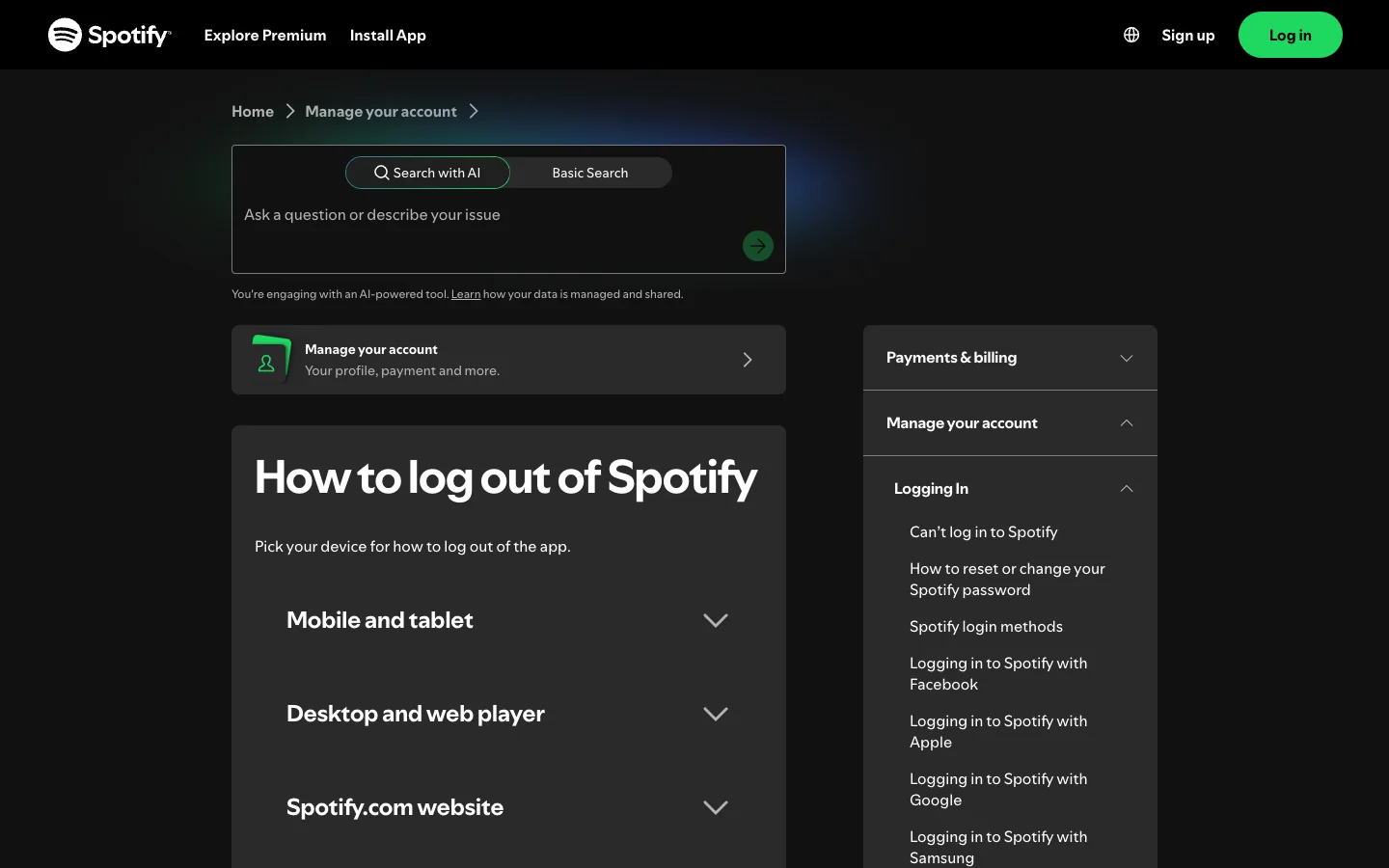
Spotify's official log-out support page is the right starting point when the problem is a signed-in session. It covers logging out on mobile, tablet, desktop, web player, and the Spotify website. It also points to the account-level "Sign out everywhere" path for clearing many sessions at once.
Use this when an old phone, shared laptop, school computer, or browser session still has access:
- Open Spotify's official account page in a browser.
- Change your password first if the device is unfamiliar or unauthorized.
- Use Sign out everywhere to clear normal app and web sessions.
- Wait a few minutes before testing old devices.
- Log back in only on the devices you trust.
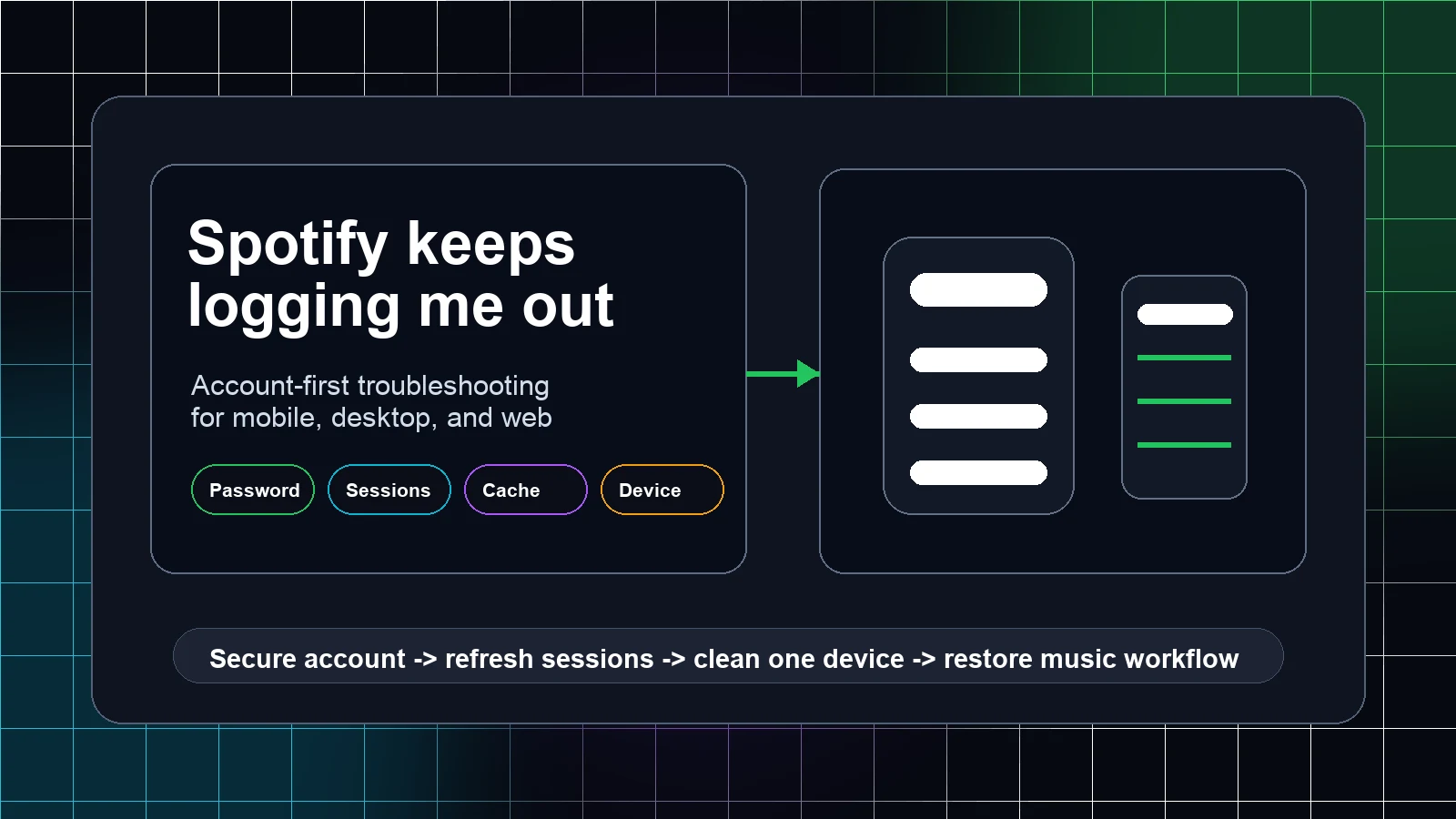
If the real symptom is that Spotify keeps kicking you out, read the Spotify keeps logging me out guide instead. That is a different job: it starts with account security, then checks one-device app state. Removing devices is about intentionally clearing old access.
Remove connected apps and partner access separately
"Sign out everywhere" is useful, but it is not the same thing as auditing connected apps. Playlist transfer tools, smart speakers, game consoles, cars, TVs, and partner integrations may keep a separate authorization path.
After signing out everywhere, open Spotify's account apps area and remove anything you do not recognize or no longer use. Pay special attention to:
| Access type | Why it matters | Safer next step |
|---|---|---|
| Playlist tools | They may read or modify library data | Keep only tools you still trust |
| Smart speakers and TVs | They can keep playback access outside your main phone | Sign out on the device or reset the service link |
| Old phones and tablets | They may still hold downloads or cached playback state | Remove downloads, reinstall Spotify, or retire the device |
| Browser extensions | They can interfere with login or playback | Disable unknown extensions and test a clean browser profile |
| Shared computers | They may still have cookies or saved sessions | Sign out, clear Spotify cookies, and avoid saved passwords |
Do not enter your Spotify password into a downloader, converter, or "device removal" site. If a page asks for your Spotify login outside Spotify's own domain, close it. Device cleanup should make the account safer, not create a new account-risk path.
Clean up offline downloads without treating them like files
Spotify's listen offline support page explains the current offline-listening rules. As checked on June 1, 2026, Spotify says Premium users can download albums, playlists, and podcasts, free users can download podcasts, downloads can be saved on up to five different devices, and each device needs to go online at least once every 30 days to keep downloads.
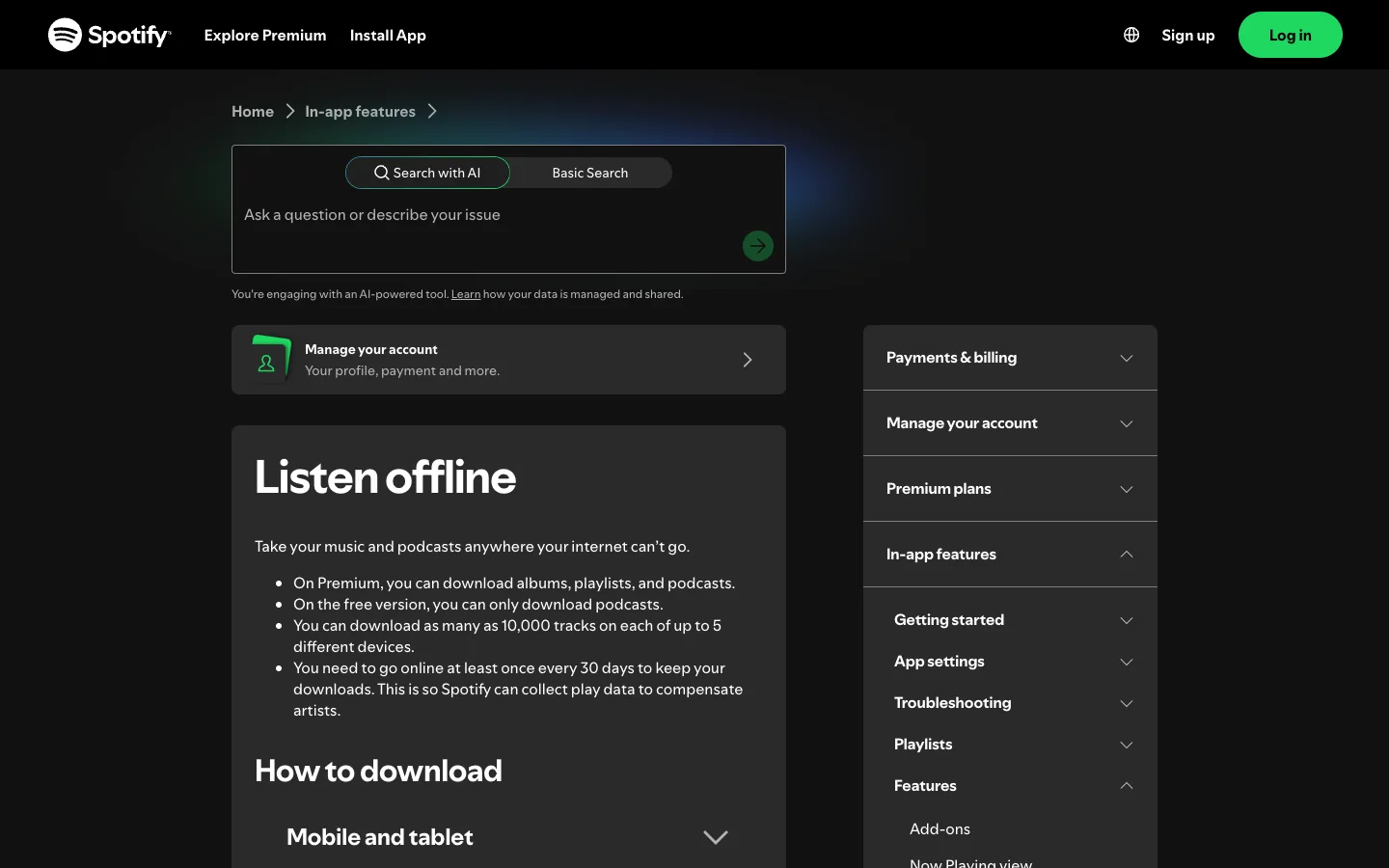
That means offline downloads are account/app access, not editable music ownership. When removing an old device, use this sequence:
- Go online on a trusted device first so your current library state is synced.
- Remove old sessions with Sign out everywhere if the device is not in your hands.
- If you still have the old device, remove downloads inside Spotify before wiping or selling it.
- Reinstall Spotify only when the app state is broken or you need a clean local cache.
- Re-download playlists on the devices you actually use.
Avoid the common mistake: trying to solve a device-limit problem by using random Spotify-to-MP3 tools. If you only need offline listening, Spotify's own offline feature is the correct path. If you need editable audio, start with files you created, bought DRM-free, recorded, or otherwise have permission to process.
Reconnect trusted devices after the cleanup
After old access is removed, reconnect slowly. One trusted phone and one trusted computer are enough for the first test. Then add speakers, cars, TVs, and consoles one by one.
Use this checklist:
| Check | Why it helps |
|---|---|
| Play one track on the main phone | Confirms the account session is stable |
| Open the desktop app or web player | Confirms normal app access is back |
| Test one speaker or car at a time | Separates Spotify Connect issues from account cleanup |
| Confirm downloads on the right devices | Prevents wasted storage on old phones |
| Re-enable local files only where needed | Keeps owned music workflows predictable |
If you use your own audio files inside Spotify, keep that cleanup separate from account sessions. The add local files to Spotify guide covers folder permissions, sync issues, and file-prep checks after Spotify itself is stable.
Where Melogen fits after the devices are clean
Melogen cannot remove Spotify devices, revoke Spotify app access, unlock Spotify downloads, or convert protected streaming tracks. It becomes useful after the account cleanup is done and you are working with music files you are allowed to edit: rehearsal recordings, purchased DRM-free audio, voice memos, demo exports, practice clips, or your own mixes.
Use the Melogen Music Trimmer when your own file needs a cleaner start, shorter ending, loopable section, or smoother fade before you add it back to a playlist or share it with a class, bandmate, or family member.
Trim files after your Spotify account is clean
Use Melogen Music Trimmer for recordings and owned audio files you are allowed to edit. Keep Spotify for account access and streaming playback.
FAQs
How do I remove a device from Spotify?
For a normal app or web session, log out on that device or use Spotify's Sign out everywhere option from the official account path. For partner devices, speakers, TVs, cars, consoles, and third-party apps, also remove or reset the separate connection.
Does Sign out everywhere remove every Spotify device?
It clears many normal Spotify sessions, but it should not be treated as a complete connected-app audit. After using it, remove unknown app access and sign out of partner devices separately when needed.
How do I remove an old device that has Spotify downloads?
If you still have the device, remove downloads or reinstall Spotify before wiping it. If you do not have it, change your password, sign out everywhere, remove unknown app access, and rebuild downloads only on devices you still use.
Why do old devices keep coming back?
The device may be reconnecting through a speaker, TV, car, browser cookie, playlist tool, or app authorization rather than a normal phone session. Audit connected apps and partner-device settings after the basic sign-out step.
Can Melogen remove Spotify downloads from my account?
No. Spotify downloads and device limits are controlled by Spotify. Melogen helps only with audio files you created, own, purchased in an editable format, recorded, or otherwise have permission to process.
The practical takeaway
Removing devices from Spotify is not one button for every case. Start with account security and Sign out everywhere, then remove third-party app access, then clean offline downloads and partner devices. Once the Spotify side is stable, use Melogen only for local audio files you are allowed to edit.
About the author
Zhang Guo
Composer - AI Product Manager
AI product manager and digital marketing consultant with a background in music. Creativity is the bridge between rhythm and logic, where musical intuition and mathematical precision can coexist in every meaningful product decision.
Follow on X