Scan Music Into MuseScore: PDF to Editable Score
Learn how to scan music into MuseScore with a PDF-to-MusicXML workflow, source checks, import steps, and cleanup rules for editable scores.
 Zhang Guo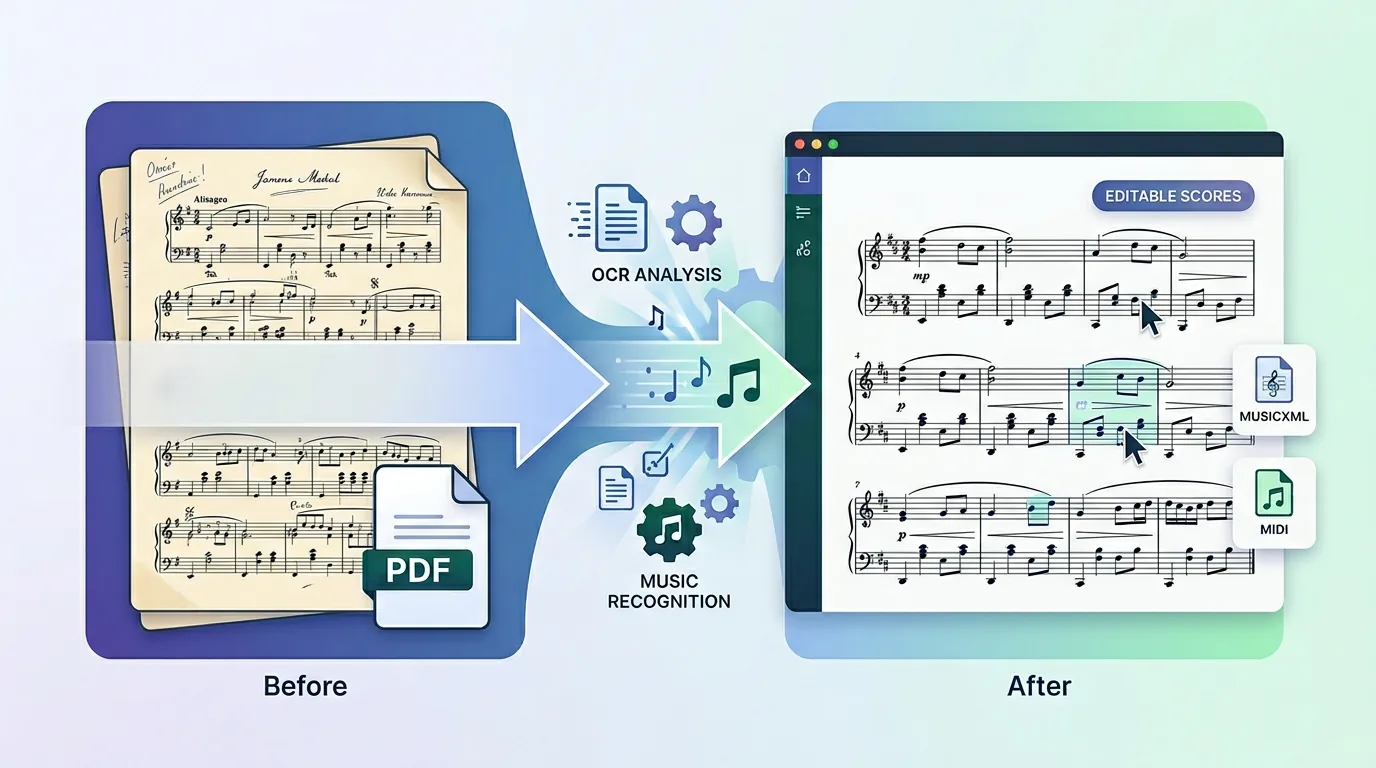
Turn a static score into editable MIDI
Contents
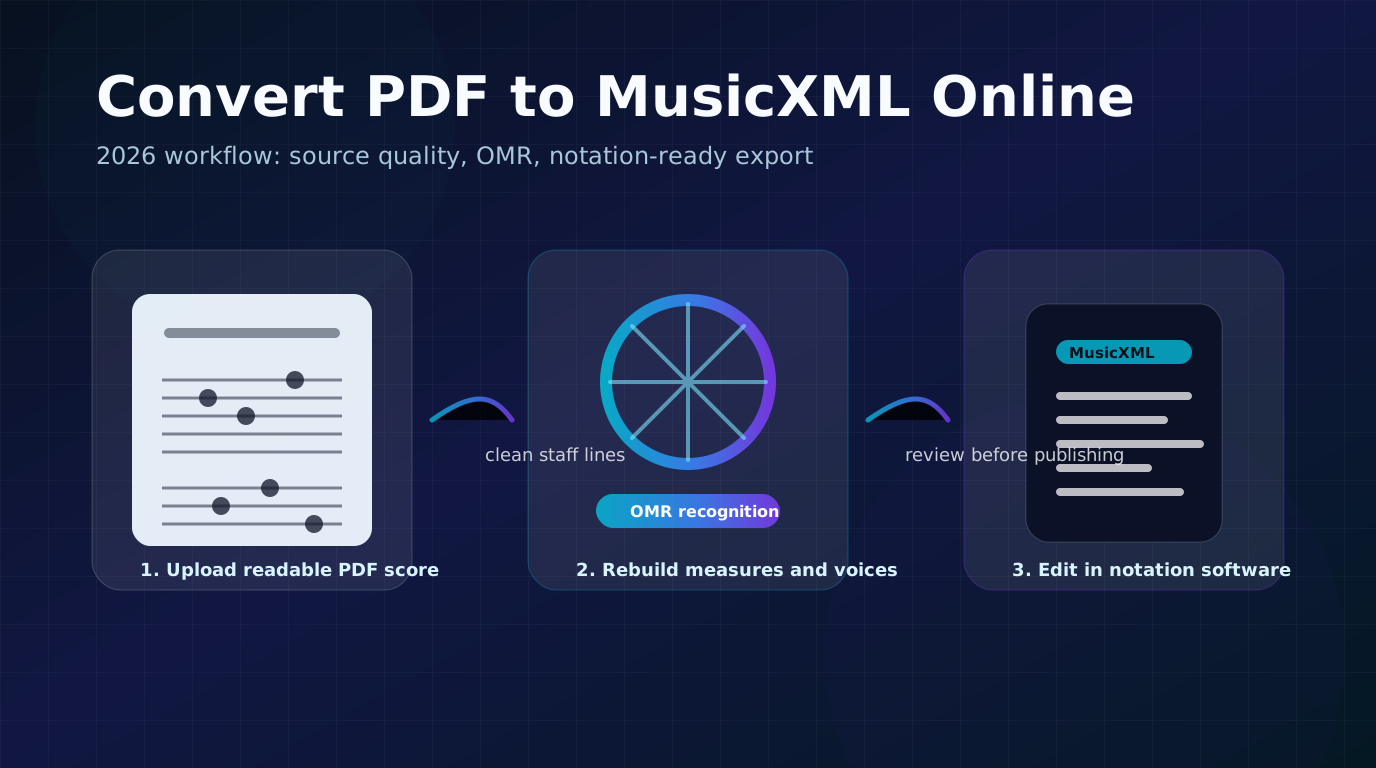
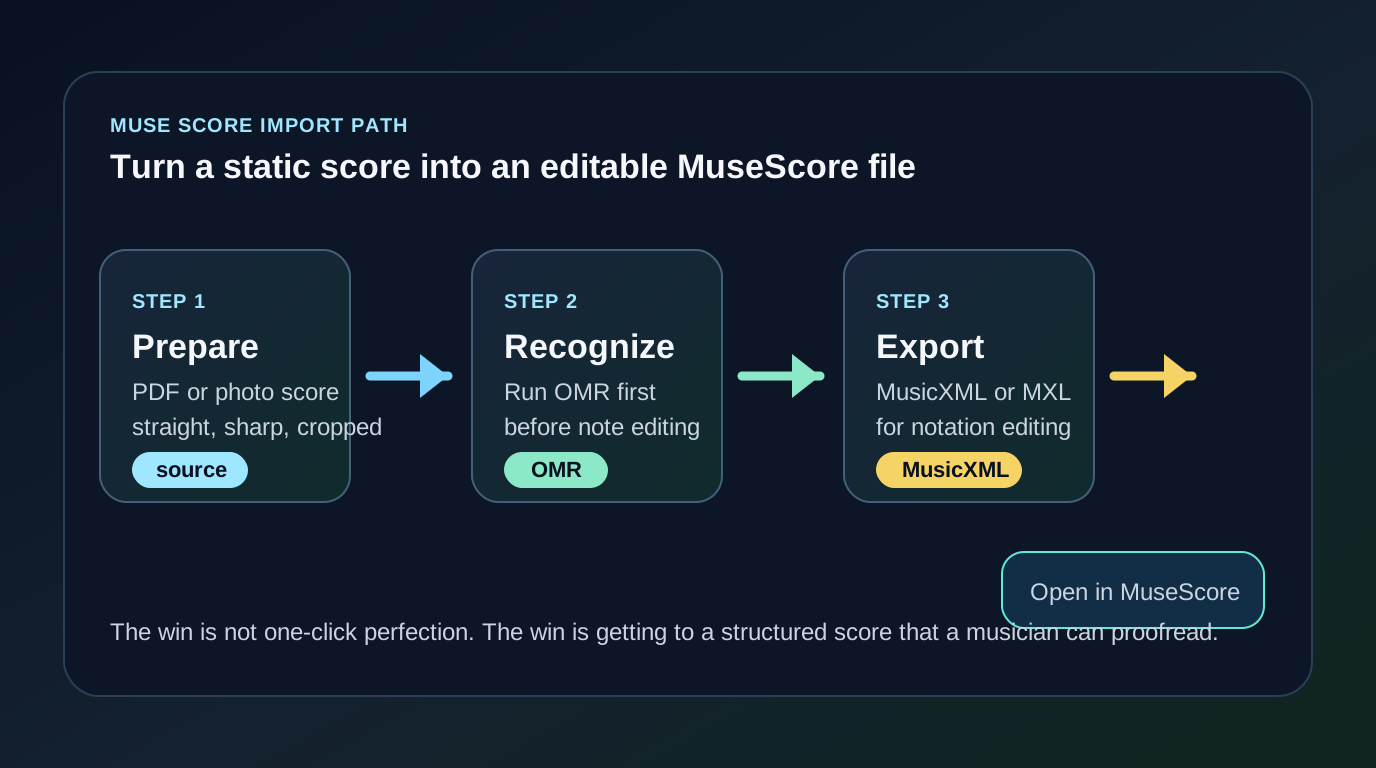
To scan music into MuseScore, do not start by dragging a raw PDF or phone photo into MuseScore and hoping it becomes editable notation. First convert the visible score into MusicXML or MXL with an OMR workflow, then open that structured file in MuseScore Studio and proofread it there.
That sequence matters because a PDF, scan, or image is mostly a picture of notation. MuseScore is strongest once the music has become score data: measures, staves, voices, rhythms, notes, and markings. The practical workflow is: prepare the source, convert it with a PDF-to-MusicXML tool, import the MusicXML into MuseScore, then clean up the notation like a musician.
Start with the cleanest source you have
Your result in MuseScore depends heavily on the source file. A sharp digital PDF exported from notation software is usually the easiest input. A phone photo can work, but only if the page is flat, well lit, and square to the camera. A skewed photocopy, low-contrast scan, handwritten part, or dense orchestral reduction can still need serious cleanup after import.
Use this quick source check before you convert:
| Source check | Good signal | What to do if it fails |
|---|---|---|
| Page angle | Staff lines look straight | Rescan or crop before converting. |
| Contrast | Dark notes on a clean background | Increase contrast or use a cleaner copy. |
| Resolution | Beams, rests, lyrics, and accidentals are readable | Avoid screenshots or tiny compressed images. |
| Page boundaries | No missing margins or cut-off systems | Re-export or rescan the full page. |
| Notation density | Voices and staves are visually separated | Expect more cleanup after import. |
If you have several versions of the same score, choose the cleanest one before opening any conversion tool. This is usually faster than fixing hundreds of recognition mistakes later.
Run the first conversion before deep cleanup
When the source is a PDF score, the most direct Melogen route is PDF to MusicXML. The product page and local app route are built around converting PDF sheet music into editable MusicXML for notation software, which fits MuseScore better than a playback-first MIDI export.

Use Sheet2MIDI instead when you mainly want playback, practice audio, or a DAW lane. For MuseScore editing, MusicXML is the better first file because it carries score structure. If that choice is still fuzzy, this MIDI vs MusicXML guide breaks down when each format is the right destination.
Here is the useful distinction:
| Goal after recognition | Best first export | Why |
|---|---|---|
| Edit notation in MuseScore | MusicXML or MXL | MuseScore can work with measures, voices, staves, and notation details. |
| Hear the score quickly | MIDI | MIDI is better for playback and DAW-style timing. |
| Reprint or transpose parts | MusicXML or MXL | Score structure matters more than piano-roll data. |
| Build a production arrangement | MIDI, possibly after notation cleanup | DAWs usually want MIDI lanes. |
| Repair a scanned score | MusicXML or MXL | Cleanup belongs in a notation editor. |
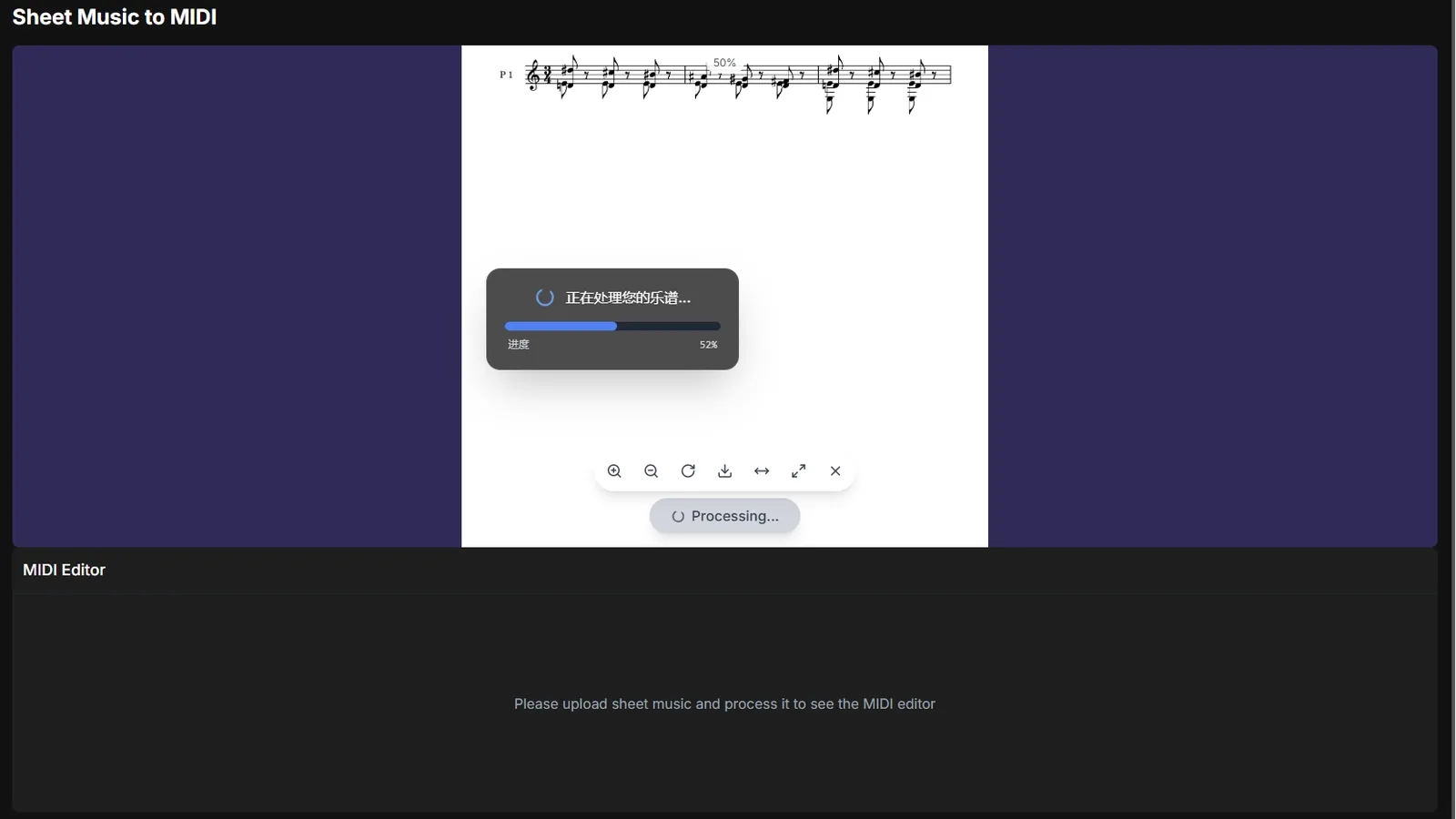
Run the conversion before doing note-level cleanup. The first pass tells you whether the score structure is usable, whether the source needs to be rescanned, and whether MusicXML is enough or you also need MIDI for later listening.
Check the output structure before note-level edits
After the conversion finishes, download the MusicXML or MXL file and open it in MuseScore Studio. MuseScore's official handbook for working with MusicXML files explains that imported MusicXML commonly needs cleanup because layout, text positions, breaks, and other details may not match the original score exactly.
That is normal. Do not judge the workflow by the first visual impression alone. Judge the musical structure first:
- Count the measures against the source score.
- Check clefs, key signatures, time signatures, pickup bars, and repeats.
- Play the first page and listen for obvious rhythm or pitch errors.
- Inspect multi-voice passages, especially piano, choir, and ensemble reductions.
- Check lyrics, dynamics, articulations, slurs, ties, chord symbols, and text.
- Only then start layout polish.
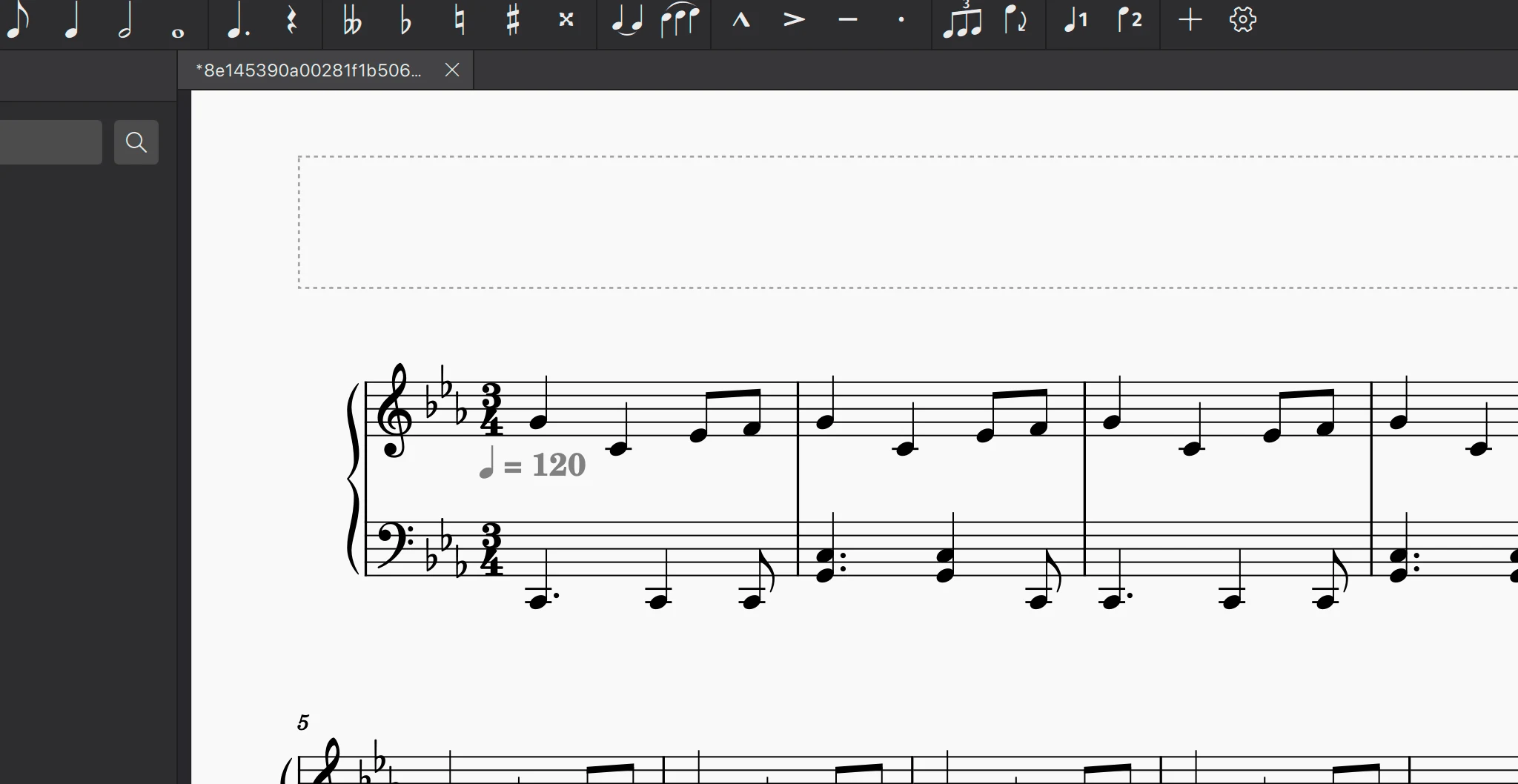
If the first page is badly wrong, do not spend an hour repairing it bar by bar. Improve the source and run another conversion. If the notes and measures are mostly right, stay in MuseScore and fix the musical details there.
Use Melogen as the bridge, not the final destination
Melogen's job in this workflow is to get the static page into an editable format quickly. MuseScore's job is to become the workspace where you correct notation, make arrangement decisions, and prepare the score for real use.
That division keeps expectations sane. OMR can remove the slowest part of the job, which is re-entering every note by hand. It cannot decide whether a beaming choice is musically clearer, whether a voice should be split differently, or whether a scanned dynamic marking was actually meant for a different staff.
Use this bridge when:
- You have a PDF, scan, or photo that MuseScore cannot edit directly.
- You want MusicXML or MXL before working in MuseScore.
- You need to transpose, reformat, extract parts, or clean up the score after recognition.
- You want a quick playback check, but notation repair still matters.
Do not use this workflow as a shortcut around proofreading. A converted score is a draft. A publishable score is still a musician's edit.
Keep a repeatable MuseScore cleanup loop
Once the file opens, work in passes. Start broad, then get narrow. This prevents the common mistake of fixing individual notes before discovering that an entire system, voice, or repeat structure was imported incorrectly.
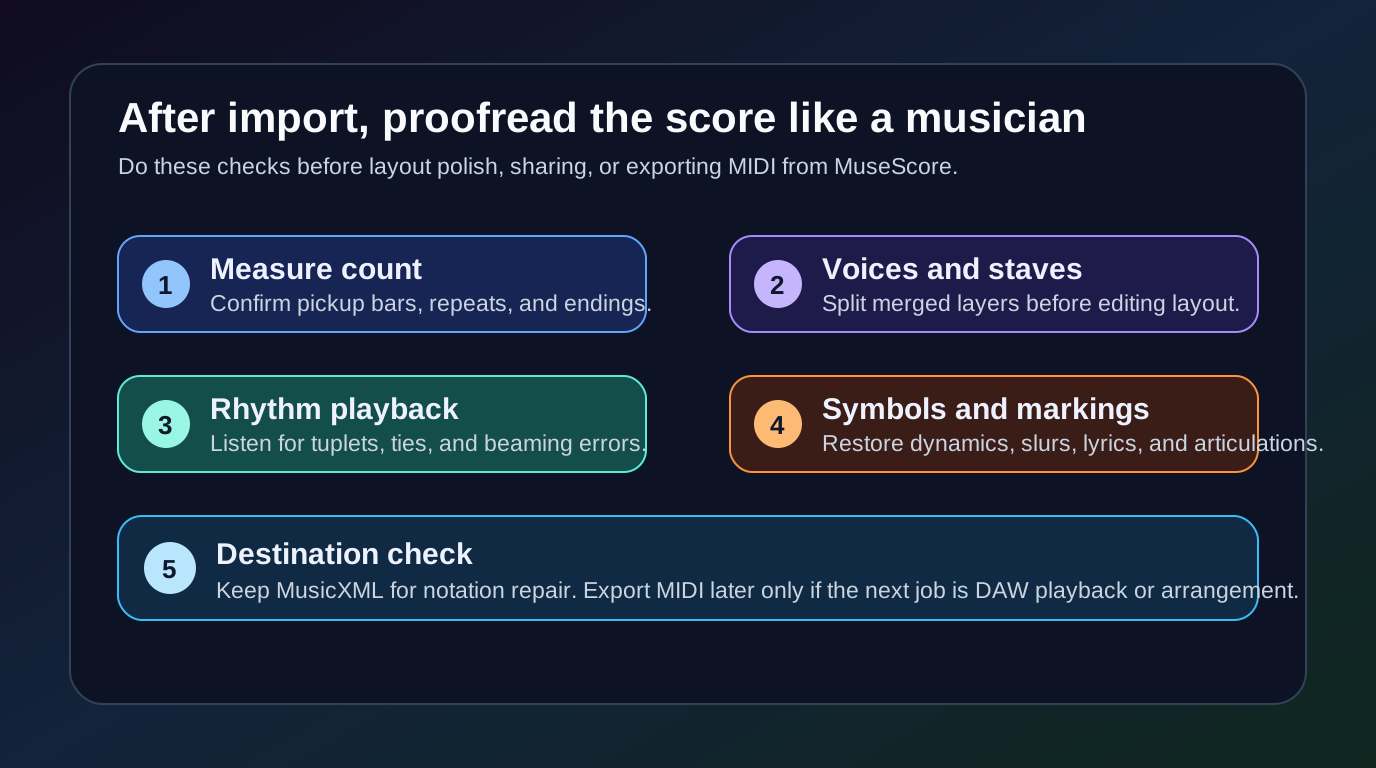
Follow this order:
| Cleanup pass | What to check | Why it comes now |
|---|---|---|
| Structure | Measures, repeats, endings, page order | A wrong structure makes later note edits unreliable. |
| Staves and voices | Piano hands, choir parts, instrument staves | Merged or misplaced voices create many downstream errors. |
| Rhythm | Tuplets, ties, rests, pickup bars, syncopation | Rhythm errors are easier to hear early. |
| Pitch | Accidentals, octave jumps, clef changes | Pitch cleanup is faster after the rhythm grid is stable. |
| Markings | Dynamics, articulations, slurs, lyrics, chords | Small symbols are often the last recognition fixes. |
| Layout | Spacing, system breaks, text placement | Layout should follow the corrected music, not precede it. |
For a short classroom part, this may take only a few minutes. For a dense piano score, choir score, or orchestral reduction, budget a careful proofreading pass. The point is still speed: you are editing a structured first draft instead of copying the whole score from scratch.
Where Melogen fits
Use Melogen when the hard part is getting from a static music page to an editable file. Use MuseScore when the hard part becomes notation judgment.
The strongest path for this keyword is:
- Upload a readable PDF score to Melogen PDF to MusicXML.
- Download the MusicXML or MXL output.
- Open the file in MuseScore Studio.
- Proofread measures, voices, rhythm, pitch, and markings.
- Save the cleaned MuseScore file, then export any final MusicXML, PDF, audio, or MIDI you need.
If your source is a photo or image rather than a PDF, start from a score/image route such as Sheet2MIDI, then choose whether MIDI or MusicXML is the better next file. If you want the broader concept behind the recognition step, the OMR explainer covers how optical music recognition turns visible notation into structured data.
Get MusicXML before you edit in MuseScore
Open Melogen PDF to MusicXML when your next step is MuseScore, Dorico, Sibelius, or any notation editor that benefits from structured score data.
FAQs
Can MuseScore open a PDF score directly?
MuseScore is a notation editor, while a PDF is usually a static page. For editable notation, convert the PDF into MusicXML or MXL first, then open that file in MuseScore.
Should I export MusicXML or MIDI for MuseScore?
Choose MusicXML or MXL when you want editable notation. Choose MIDI when the next step is playback, DAW production, or piano-roll editing. For MuseScore cleanup, MusicXML is usually the better first export.
Will the scanned score be perfect after import?
No. Even good MusicXML imports need proofreading. Check measures, voices, rhythm, pitch, markings, and layout before you trust the score.
What if my PDF scan imports badly?
Improve the source before deep cleanup. Crop the page, straighten staff lines, increase contrast, or use a cleaner copy. Rerunning recognition is often faster than repairing a poor first pass.
The practical takeaway
To scan music into MuseScore, think in two stages. First, use OMR to turn the PDF, scan, or photo into MusicXML. Then use MuseScore to make the musical decisions the converter cannot make for you.
The best workflow is not "PDF straight into a finished MuseScore file." It is "clean source, MusicXML bridge, MuseScore cleanup." That is the path that saves time without pretending the musician's proofreading pass can disappear.
About the author
Zhang Guo
Composer - AI Product Manager
AI product manager and digital marketing consultant with a background in music. Creativity is the bridge between rhythm and logic, where musical intuition and mathematical precision can coexist in every meaningful product decision.
Follow on X