Spotify Crossfade Settings: Smooth Transitions Guide
Set Spotify crossfade on desktop and mobile, choose the right seconds, fix common limits, and prep your own audio with cleaner fades.
 Zhang Guo
Turn a static score into editable MIDI
Contents
Spotify crossfade fades the end of one track into the start of the next so a playlist feels less like a file queue and more like a continuous set. The useful setting is not always the maximum. Start around 4 seconds, test a few real song changes, then shorten it for albums with deliberate endings or lengthen it for workout, party, or DJ-style playlists.
The catch: Spotify crossfade only controls Spotify playback. If you are preparing your own audio files, demos, rehearsal clips, or local files before they go into a playlist, handle the fade in the source file first.
Quick answer: start with 4 seconds
| Listening situation | Crossfade range | Why it works |
|---|---|---|
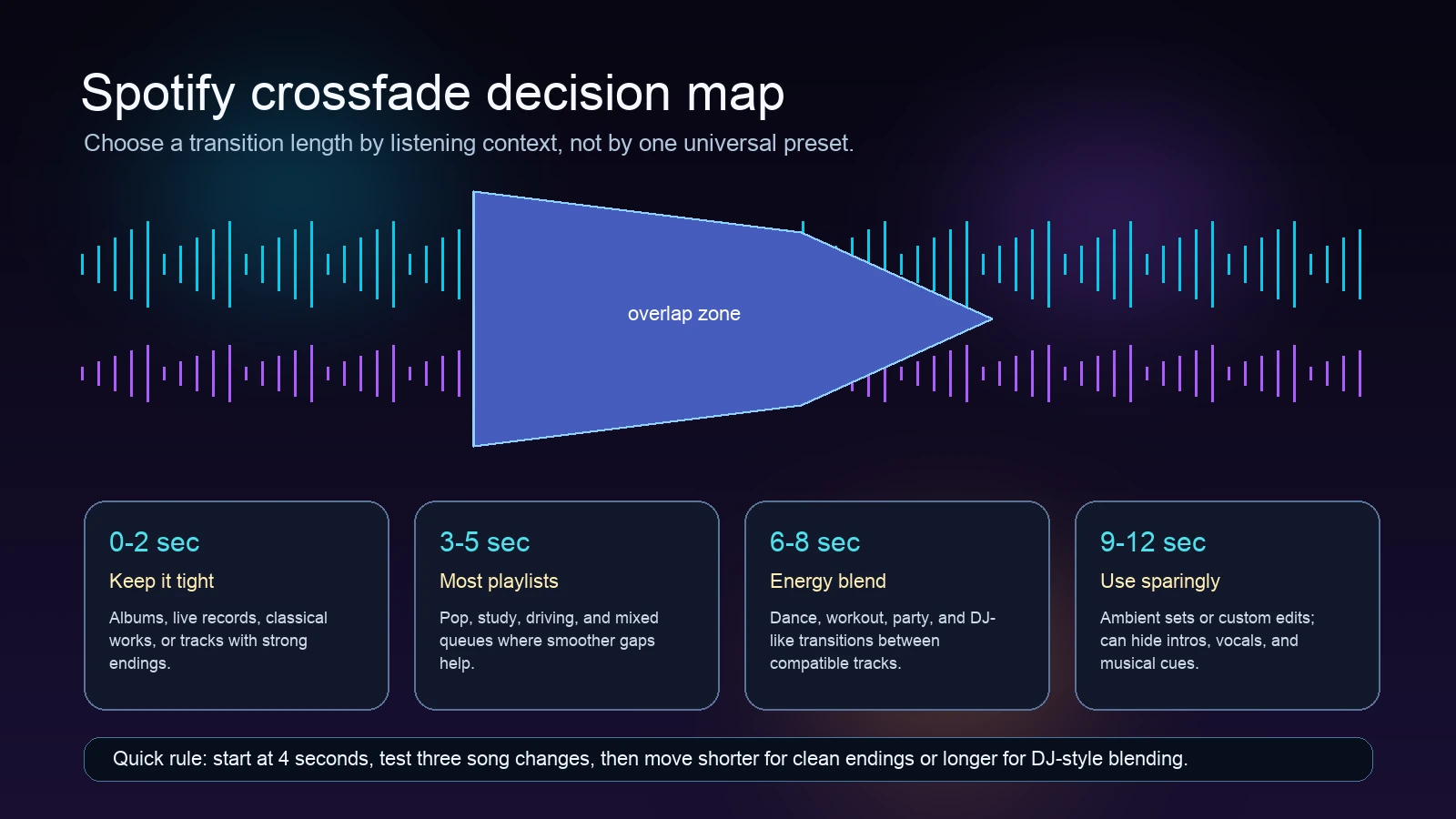
| Albums, live recordings, classical, theater, spoken intros | 0-2 seconds | Keeps written endings and pauses intact. |
| Daily playlists, study queues, mixed pop playlists | 3-5 seconds | Smooths the gap without hiding most intros. |
| Workout, party, dance, compatible BPM runs | 6-8 seconds | Creates more energy between tracks. |
| Ambient sets or custom-edited queues | 9-12 seconds | Useful only when long overlaps are part of the listening design. |
If you only want one setting, use 4 seconds for a week. Change it only when you notice a specific problem: vocals are being covered, intros feel rushed, or gaps still feel too obvious.
What Spotify crossfade actually changes
Spotify's official support page describes crossfade as a transition feature that overlaps two tracks by fading the first out while fading the next in. It sits with other app playback transition settings, and Spotify notes that these transition features are not set while using Spotify Connect.

That distinction matters. Crossfade does not remix the track, move beats, fix loudness jumps, or create a DJ transition where the keys and tempos clash. It is a playback overlap. On two compatible songs, that can feel natural. On a ballad into a loud dance track, it can feel like the next song is stepping on the ending.
Use crossfade when you want less dead air between tracks. Turn it down or off when the music itself already has important silence, a written final chord, applause, a spoken intro, or a clean album sequence.
How to set Spotify crossfade on desktop and mobile
On the desktop app, open Spotify settings and look for the playback transition area. Turn on crossfade, then move the slider to the number of seconds you want. On mobile, open Spotify settings, go to playback, and adjust the crossfade slider there. The exact label can move as Spotify changes the app, but the setting belongs to playback, not account settings.
Use this quick test:
- Pick three pairs of songs from the target playlist.
- Listen to the last 20 seconds of the first song and the first 20 seconds of the next.
- If the vocal or hook is covered, shorten the crossfade.
- If the pause still feels too large, lengthen it by 1-2 seconds.
- If the album sounds wrong, turn crossfade off for that listening session.
This is better than chasing a universal best setting because crossfade depends on arrangement, intro length, tempo, genre, and the reason you are listening.
Choose seconds by musical context
The best crossfade length is a musical decision. A two-second fade keeps transitions tidy without rewriting the arrangement. A seven-second fade can feel good in a workout mix, but it can also bury an intro vocal, a pickup bar, or a quiet instrumental entrance.
I would use these rules:
| If the playlist is... | Use this setting |
|---|---|
| An album, score recording, live concert, classical set, or musical theater cast album | 0-2 seconds or off |
| A mixed pop, commute, cooking, or study playlist | 3-5 seconds |
| A gym, dance, party, or high-energy playlist | 6-8 seconds |
| An ambient or background set where long blends are intentional | 8-12 seconds |
Volume normalization and audio quality settings are separate choices. If one track jumps out because it is much louder or duller, crossfade may hide the edge for a moment, but it will not solve the source problem.
When Spotify crossfade will not solve the problem
Crossfade is useful, but it has clear limits.
| Problem | Better fix |
|---|---|
| A local file has silence at the start or end | Trim the source file before adding it to Spotify. |
| A demo starts with a count-in you do not want | Export a cleaned copy for listening. |
| Two songs clash harmonically | Use a shorter crossfade or reorder the playlist. |
| You are using Spotify Connect and transition settings are not available | Adjust playback in the app/device path Spotify currently supports. |
| A track sounds muddy or overly compressed | Improve or replace the source file; crossfade is not restoration. |
If your question is about importing your own files, read the add local files to Spotify guide first. Crossfade changes playback between tracks; local-file preparation changes the audio before Spotify ever plays it.
Where Melogen fits for your own audio
Melogen cannot edit Spotify's streaming catalog, manage your Spotify account, or change Spotify's crossfade behavior. It is useful when the file is yours: a rehearsal bounce, MIDI export, field recording, podcast intro, remix stem, or short audio clip you are allowed to process.

Use the Melogen music trimmer when the track has dead air, a rough ending, or a section that needs a clean fade before you add it to a playlist. If the source is your own low-quality audio and the issue is clarity rather than transition length, the Apple Music EQ settings guide is a useful reminder: EQ and crossfade are playback choices, not true restoration.
Prepare smoother clips before playlist playback
Use Melogen Music Trimmer to remove silence, cut a cleaner ending, and add fades to audio files you are allowed to edit.
FAQs
What is the best Spotify crossfade setting?
For most mixed playlists, start with 4 seconds. Use 0-2 seconds for albums and music with important endings, 3-5 seconds for general playlists, and 6-8 seconds for high-energy playlists.
Does Spotify crossfade work on every device?
Spotify's own transition support is tied to app playback settings, and Spotify notes that transition features are not set while using Spotify Connect. If the slider is missing on your current surface, adjust it in the desktop or mobile app path Spotify supports for your account and device.
Should I use crossfade for albums?
Usually no, or keep it very short. Albums often have intentional gaps, hidden transitions, live applause, or endings that should not overlap with the next track.
Is crossfade the same as trimming or fading an audio file?
No. Crossfade is a playback setting between songs. Trimming or adding a fade changes the actual audio file. For your own files, trim and fade the source first, then use Spotify crossfade only for playlist playback.
The practical takeaway
Use Spotify crossfade as a listening control, not a repair tool. Start at 4 seconds, adjust by playlist, and turn it off when the music needs clean endings. For your own audio files, prepare the clip first with a real trim or fade, then let Spotify handle only the final playback transition.
About the author
Zhang Guo
Composer - AI Product Manager
AI product manager and digital marketing consultant with a background in music. Creativity is the bridge between rhythm and logic, where musical intuition and mathematical precision can coexist in every meaningful product decision.
Follow on X