Spotify Playlist to TIDAL Transfer Guide for 2026
Move a Spotify playlist to TIDAL with TuneMyMusic, TuneFab, Soundiiz, match checks, missing-track review, and safe local-audio cleanup.
 Zhang Guo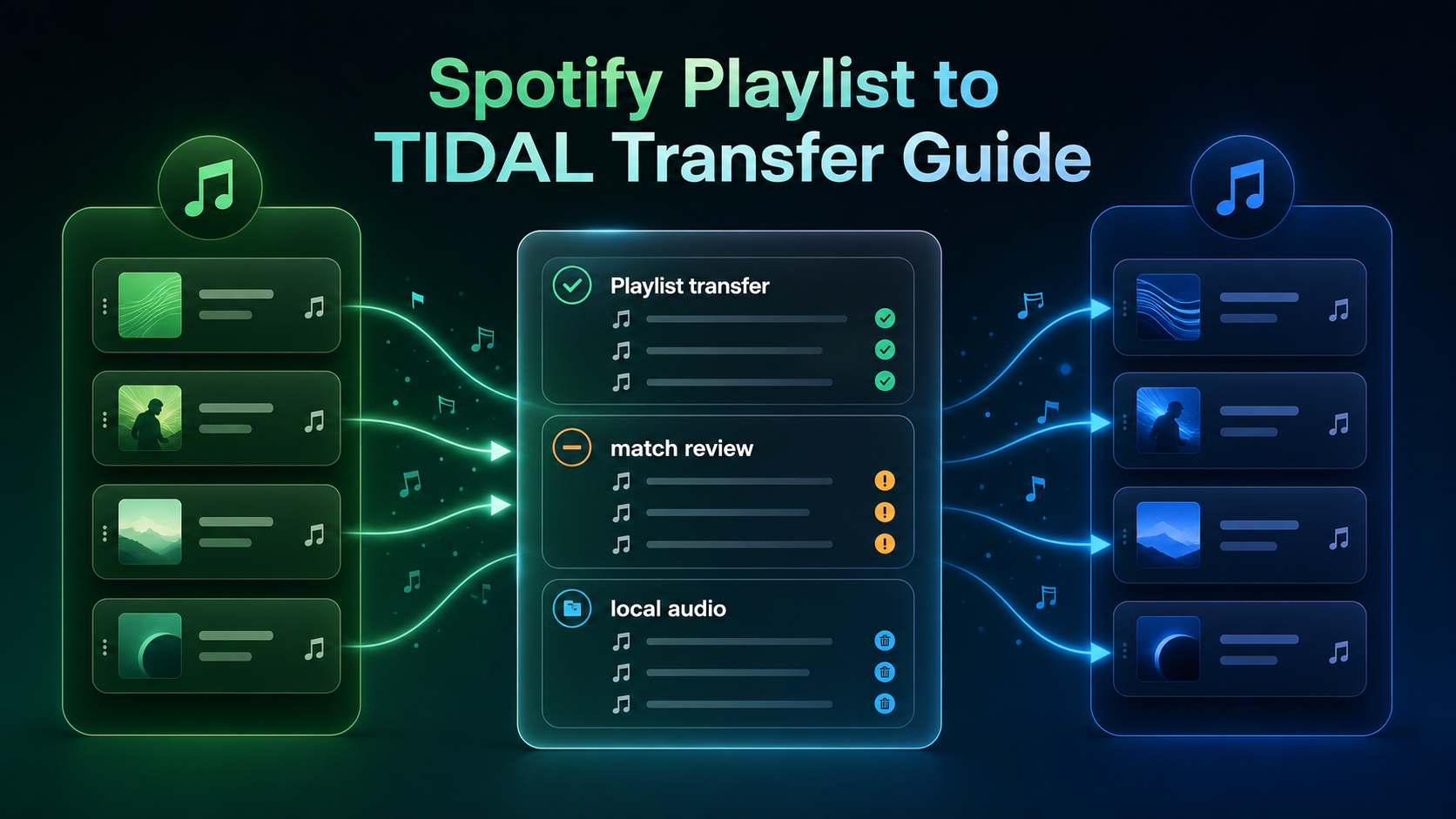
Turn a static score into editable MIDI
Contents
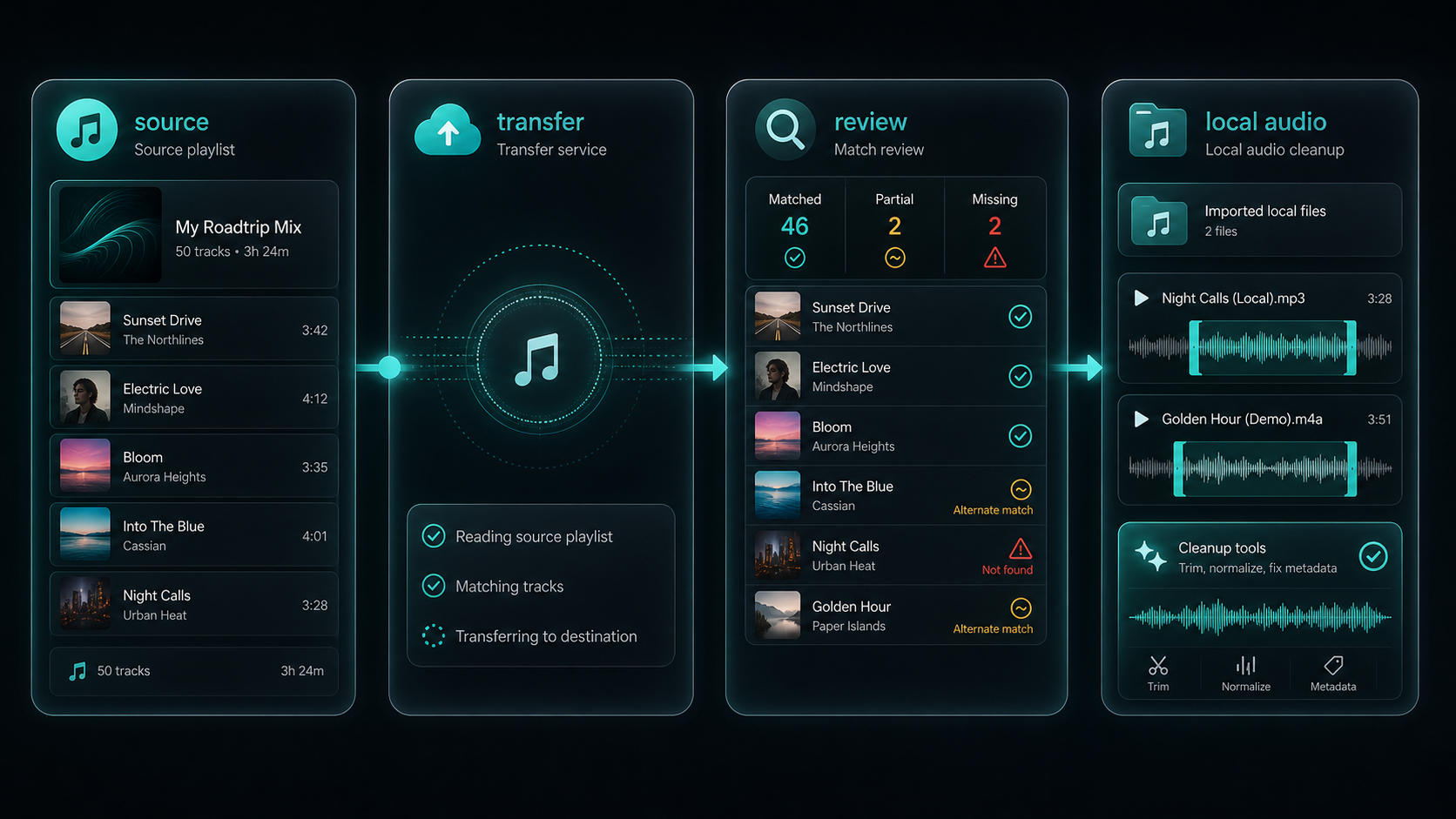
To move a Spotify playlist to TIDAL, treat the job as playlist transfer, not audio conversion. The clean workflow is to authorize Spotify as the source, authorize TIDAL as the destination, copy playlist metadata through a transfer service, then review the new TIDAL playlist for missing tracks, alternate versions, and local files that never existed in TIDAL's catalog.
That distinction keeps the process useful. A transfer service can copy song identities and rebuild a playlist in TIDAL. It does not turn Spotify streams into files you own. If you want a dedicated partner product for cross-service playlist migration, start with TuneFab Playlist Transfer; this is an affiliate recommendation. If you also have demos, rehearsal clips, exported mixes, or MIDI listening copies you own, handle those local files separately after the streaming playlist is rebuilt.
Quick route comparison
| Route | Best for | What it moves | Watch out for |
|---|---|---|---|
| TIDAL transfer flow with TuneMyMusic | Moving into TIDAL from a supported service | Spotify playlists, tracks, albums, artists, and favorites selected during authorization | Larger transfers can involve TuneMyMusic limits or fees |
| TuneFab Playlist Transfer | Dedicated partner route for playlist migration | Playlist metadata between supported streaming services | Review matched songs before deleting or changing the source playlist |
| Soundiiz | More control across many services | Playlists, albums, artists, tracks, favorites, and optional sync workflows | Batch and sync features may need a paid plan |
| Manual rebuild | Small playlists or version-sensitive libraries | Only songs you intentionally add in TIDAL | Slow, but safest when exact recordings matter |
Start with TIDAL import and TuneMyMusic
TIDAL's current import path points users to TuneMyMusic. The official TIDAL Import playlists support page describes selecting the current music service, loading that library, choosing playlists or individual tracks, selecting TIDAL as the destination, and starting the transfer. TIDAL also exposes a public import playlist page that redirects users into the transfer flow.
TuneMyMusic has a dedicated Spotify to TIDAL transfer page for the same job. Its page frames the process as linking Spotify and TIDAL, selecting what to transfer, and letting the service rebuild the library in TIDAL.
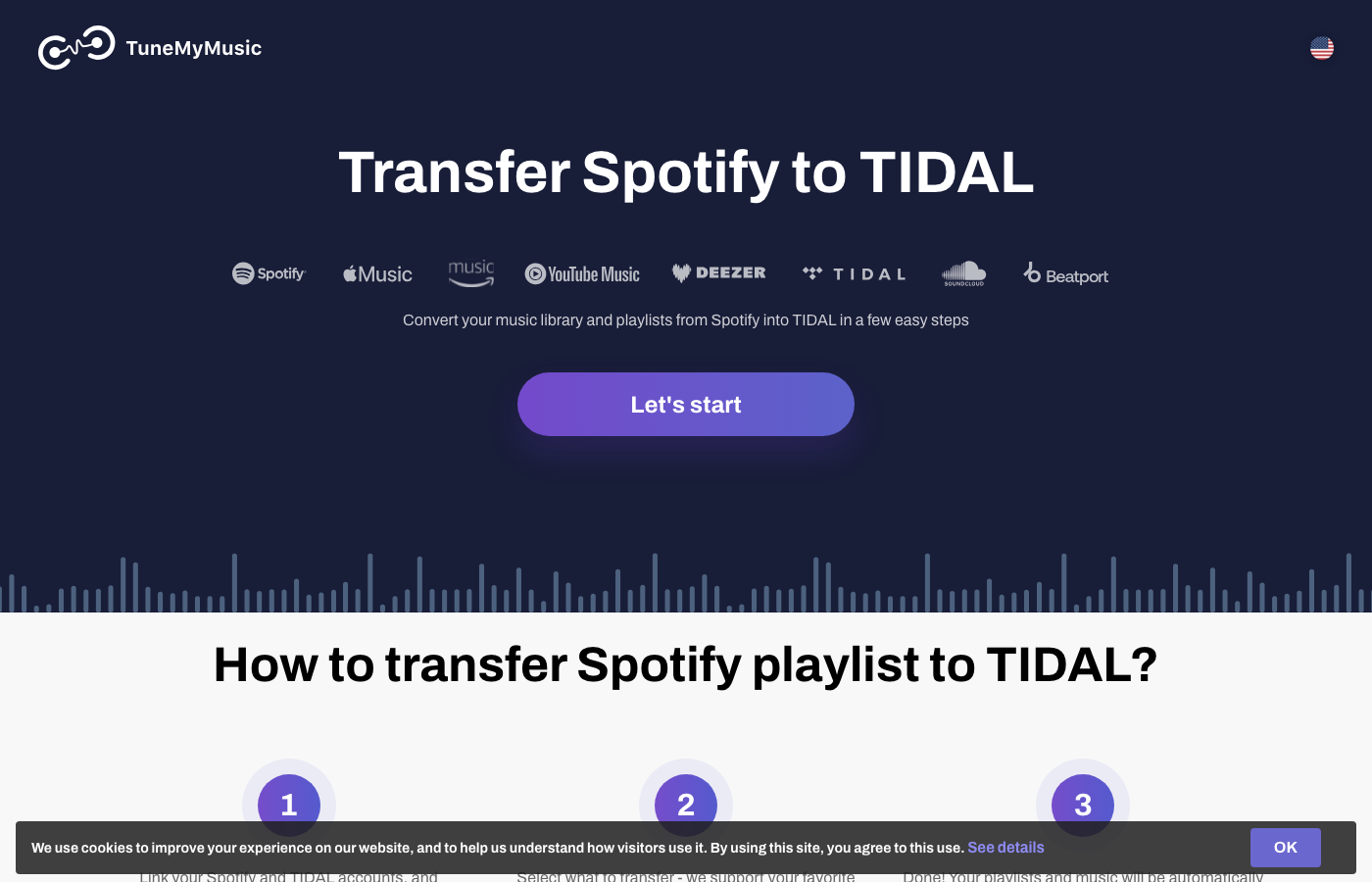
Use this route when:
- Your destination is clearly TIDAL.
- You want the transfer flow TIDAL itself points readers toward.
- You can authorize both accounts in a browser session.
- You are ready to review the new playlist after the transfer.
The important limitation is catalog matching. A playlist transfer can find the closest TIDAL catalog item, but it cannot guarantee the exact same master, clean edit, live recording, remix, region, or unavailable track.
Use TuneFab when you want a dedicated transfer product
TuneFab Playlist Transfer fits when the real job is service-to-service playlist migration rather than downloading or converting streaming audio. It is the TuneFab product that matches this reader intent, so it belongs here more naturally than a Spotify or TIDAL music converter.
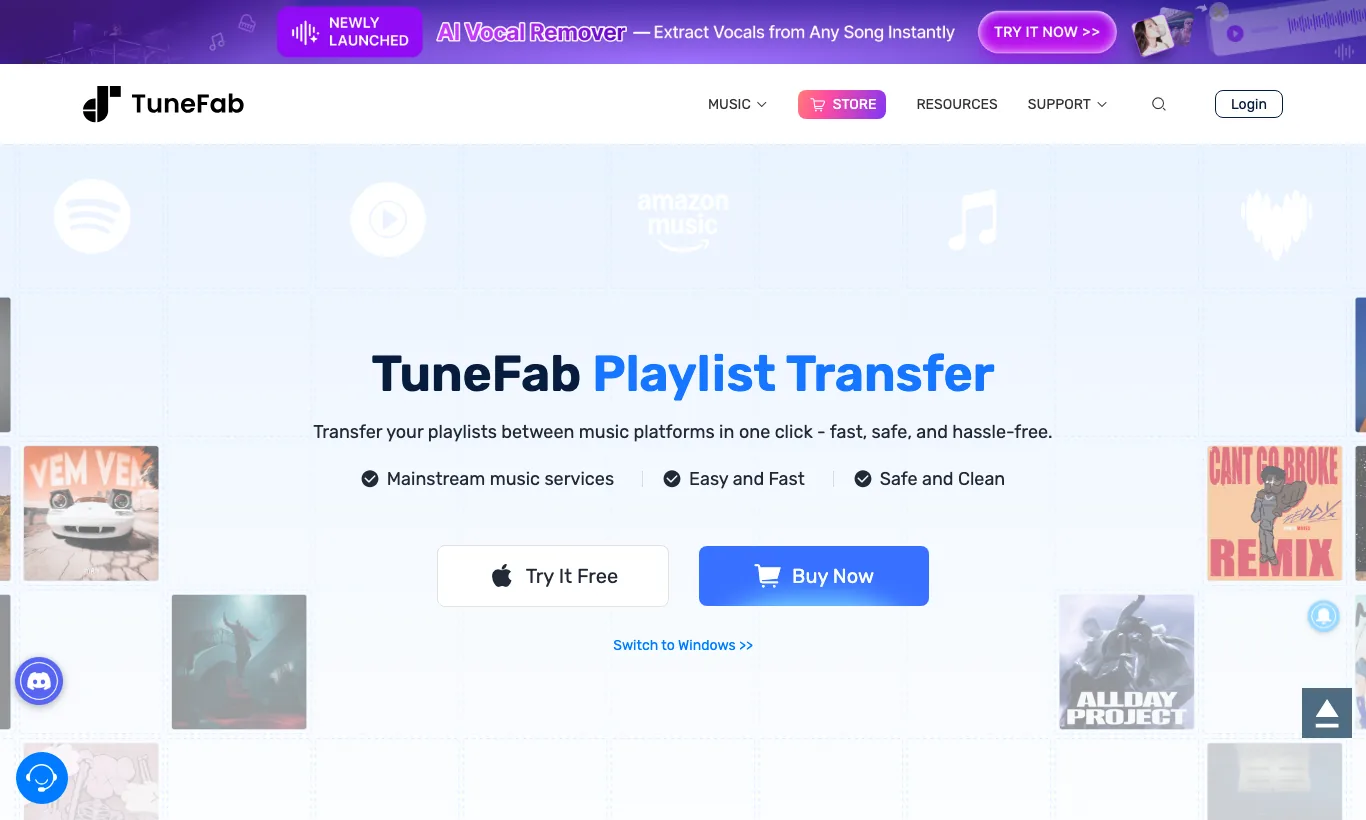
Use TuneFab Playlist Transfer when:
- you want a single transfer-focused product instead of a converter-first workflow
- you are moving playlists between multiple supported streaming services
- you want a partner recommendation that stays inside playlist metadata transfer
- you need a browser-first migration path before deciding what to keep in TIDAL
After the transfer, sort the TIDAL playlist by artist or album and scan for suspicious matches. Covers, remasters, karaoke versions, regional variants, and explicit or clean edits are the usual places where an automated match can drift.
Use Soundiiz when control matters
Soundiiz is useful when the playlist transfer is part of a broader library-management job. Its public transfer page explains that it copies source data and tries to find matches in the destination catalog. It also has specific Spotify and TIDAL workflows, including sync options when you want two playlists to keep updating after an initial move.
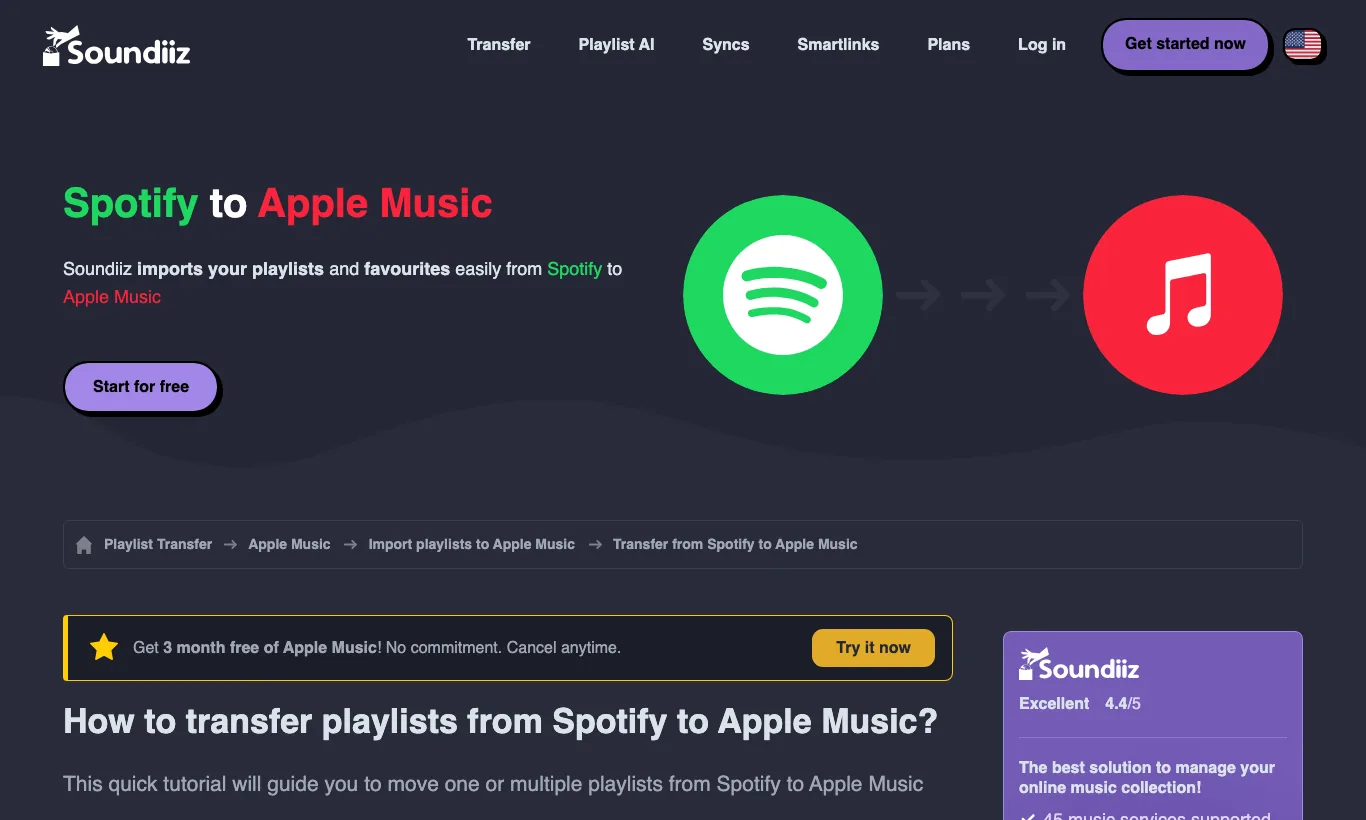
Choose Soundiiz when:
- you manage playlists across Spotify, TIDAL, Apple Music, YouTube Music, Deezer, SoundCloud, or other services
- you want more control over which playlist, album, artist, or favorite track moves
- you need one-by-one transfers first and may upgrade for batch movement later
- you care about recurring sync, not just a one-time migration
The tradeoff is complexity. If you only have one playlist, the TIDAL/TuneMyMusic route may be enough. If you maintain teaching playlists, DJ prep lists, rehearsal references, or a long-term listening archive, Soundiiz gives you more management room.
Review matches before trusting the TIDAL playlist
Playlist transfer succeeds when the new playlist is musically equivalent enough for your use. That is different from "every track copied perfectly." Review the result while the source Spotify playlist is still intact.
| Problem | What to check | Fix |
|---|---|---|
| Missing track | TIDAL catalog availability, region, spelling, alternate artist credit | Search TIDAL manually and add the closest legitimate version |
| Wrong version | Live recording, remix, remaster, clean edit, karaoke, tribute cover | Replace the match with the intended version |
| Duplicate song | Same track matched from a compilation and an original album | Keep the version that matches your source playlist |
| Local-only Spotify file | Demo, rehearsal recording, podcast clip, purchased file, or private upload | Handle it as a local file outside playlist transfer |
| Broken order | Transfer tool sorted by album, artist, or import batch | Reorder the TIDAL playlist before sharing or archiving it |
For important playlists, make a simple before-and-after note:
- Count the tracks in Spotify.
- Count the tracks in TIDAL after transfer.
- Check the first five and last five songs.
- Search for any missing tracks manually.
- Listen to version-sensitive songs, especially live recordings and remasters.
- Keep the Spotify source playlist until the TIDAL copy survives normal listening.
Prepare owned local audio with Melogen
Melogen does not move Spotify playlists into TIDAL, unlock streaming songs, or convert protected catalog audio. It fits after the playlist question, when you have audio you created, purchased DRM-free, recorded, exported from MIDI, or otherwise have permission to edit.
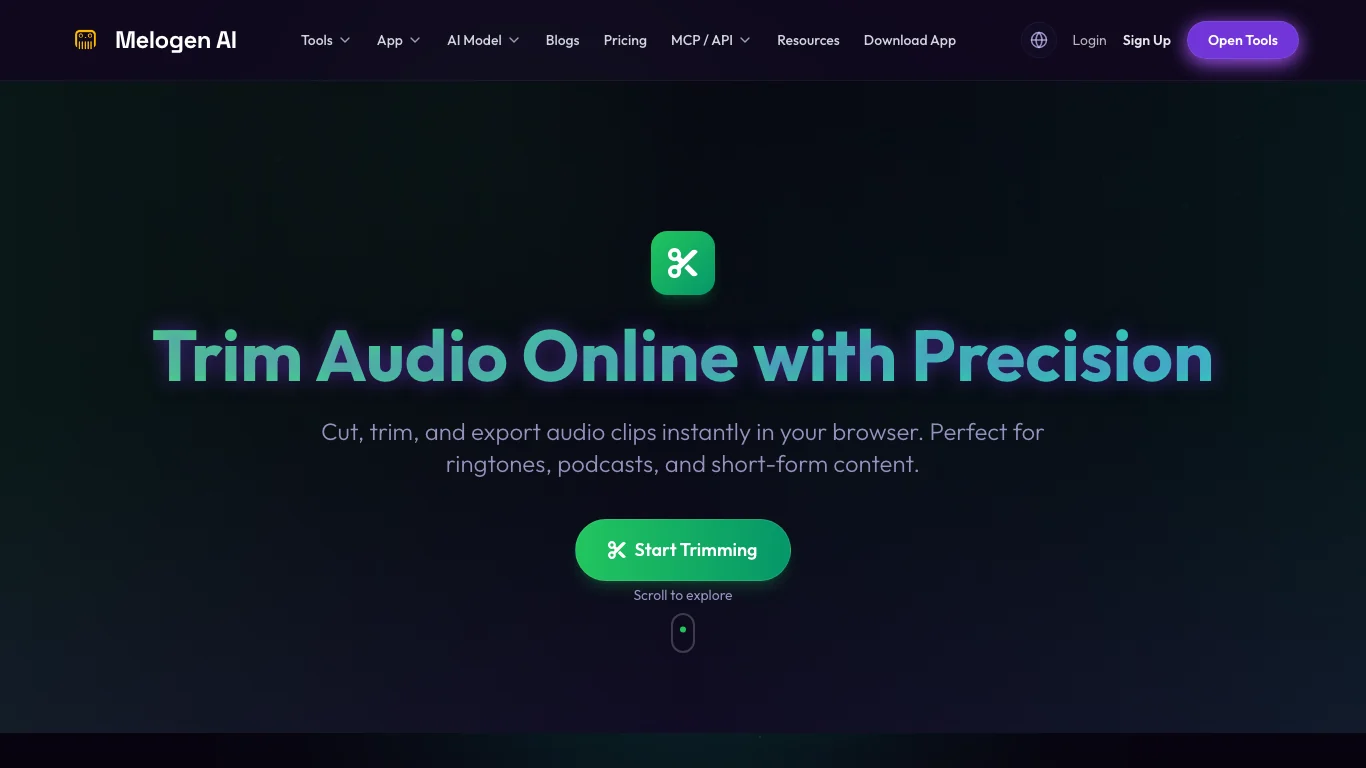
Use Melogen Music Trimmer when a rehearsal clip, lesson recording, demo bounce, venue cue, podcast intro, or reference file needs a cleaner start, shorter ending, or fade before you add it to a local listening workflow. If your source begins as MIDI and you need an audio preview, render it with MIDI to MP3 first.
This is the same boundary used in the Apple Music to Spotify playlist converter and Spotify playlist to Apple Music guides. Playlist transfer copies catalog metadata. Local audio cleanup is for files you are allowed to edit.
Clean local audio after the playlist move
Use Melogen Music Trimmer for demos, recordings, and listening copies you own before adding them to a local-file workflow.
Troubleshooting Spotify to TIDAL transfers
Most failed transfers come from authorization, private playlists, transfer limits, catalog mismatch, or confusing playlist metadata with audio-file ownership.
Use this order:
- Confirm the Spotify playlist still exists and is visible to the transfer service.
- Confirm you authorized the correct Spotify and TIDAL accounts.
- Try one small playlist before transferring a full library.
- Check whether the missing songs exist in TIDAL at all.
- Replace wrong versions manually.
- Keep local/private audio outside the transfer service.
- Disconnect old authorization sessions if a transfer tool keeps showing stale library data.
If the transfer repeatedly fails, do not keep authorizing random tools. Use the TIDAL import path, TuneFab Playlist Transfer, or Soundiiz, then test with a small playlist before running a library-wide move.
FAQs
Can I transfer Spotify playlists to TIDAL for free?
Sometimes, depending on the current transfer service, playlist size, and account limits. TIDAL notes that TuneMyMusic may charge a one-time fee for transfers over a track threshold. Check the service terms before moving a large library.
Does the transfer move Spotify audio files into TIDAL?
No. A playlist transfer usually copies metadata and asks TIDAL to rebuild a matching playlist from TIDAL's catalog. Spotify streams do not become local files or TIDAL-owned audio.
Why are some songs missing after transfer?
The song may not exist in TIDAL, may be region-limited, may have a different artist credit, or may only exist as a local/private file in your Spotify library.
Is Soundiiz better than TuneMyMusic or TuneFab?
It depends on the job. Use the TIDAL/TuneMyMusic path when you want the official destination flow. Use TuneFab Playlist Transfer when you want a dedicated partner product. Use Soundiiz when you want broader library management, batch control, or recurring sync.
Can Melogen help with Spotify to TIDAL transfers?
Melogen does not transfer streaming playlists. It helps with files around the playlist workflow, such as trimming a demo, cleaning a rehearsal clip, or rendering a MIDI idea into an MP3 listening copy that you own.
The practical takeaway
Move the Spotify playlist to TIDAL as metadata first. Use TIDAL's TuneMyMusic path, TuneFab Playlist Transfer, or Soundiiz to rebuild the playlist, then review missing songs and wrong versions before trusting it.
For protected streaming catalog music, stay inside the platform rules. For audio you own, clean the file separately in Melogen before adding it to a local-file workflow.
About the author
Zhang Guo
Composer - AI Product Manager
AI product manager and digital marketing consultant with a background in music. Creativity is the bridge between rhythm and logic, where musical intuition and mathematical precision can coexist in every meaningful product decision.
Follow on X