Convert Spotify Playlist to Apple Music Safely
Move Spotify playlists to Apple Music with Apple transfer, TuneFab, Soundiiz, match checks, and safe local-audio cleanup.
 Zhang Guo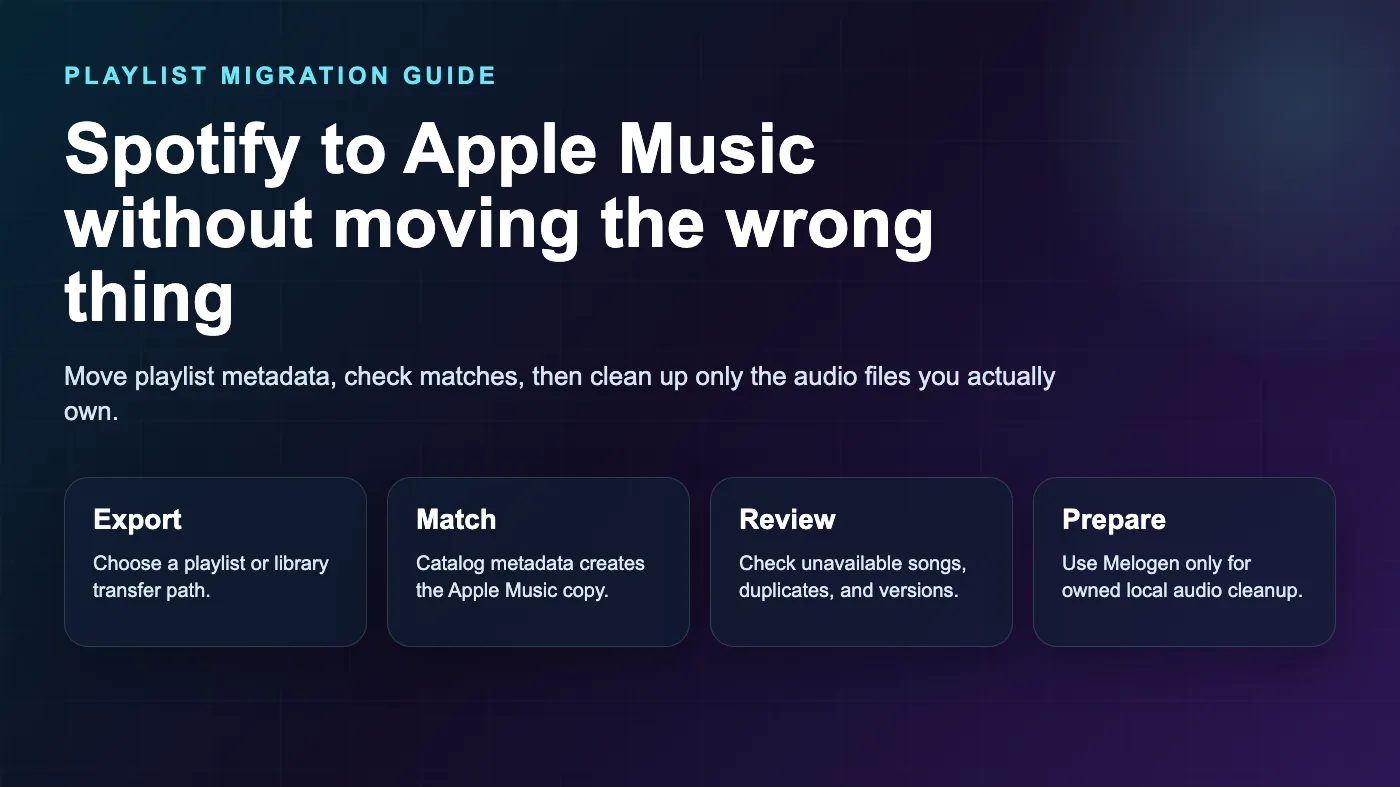
Turn a static score into editable MIDI
Contents
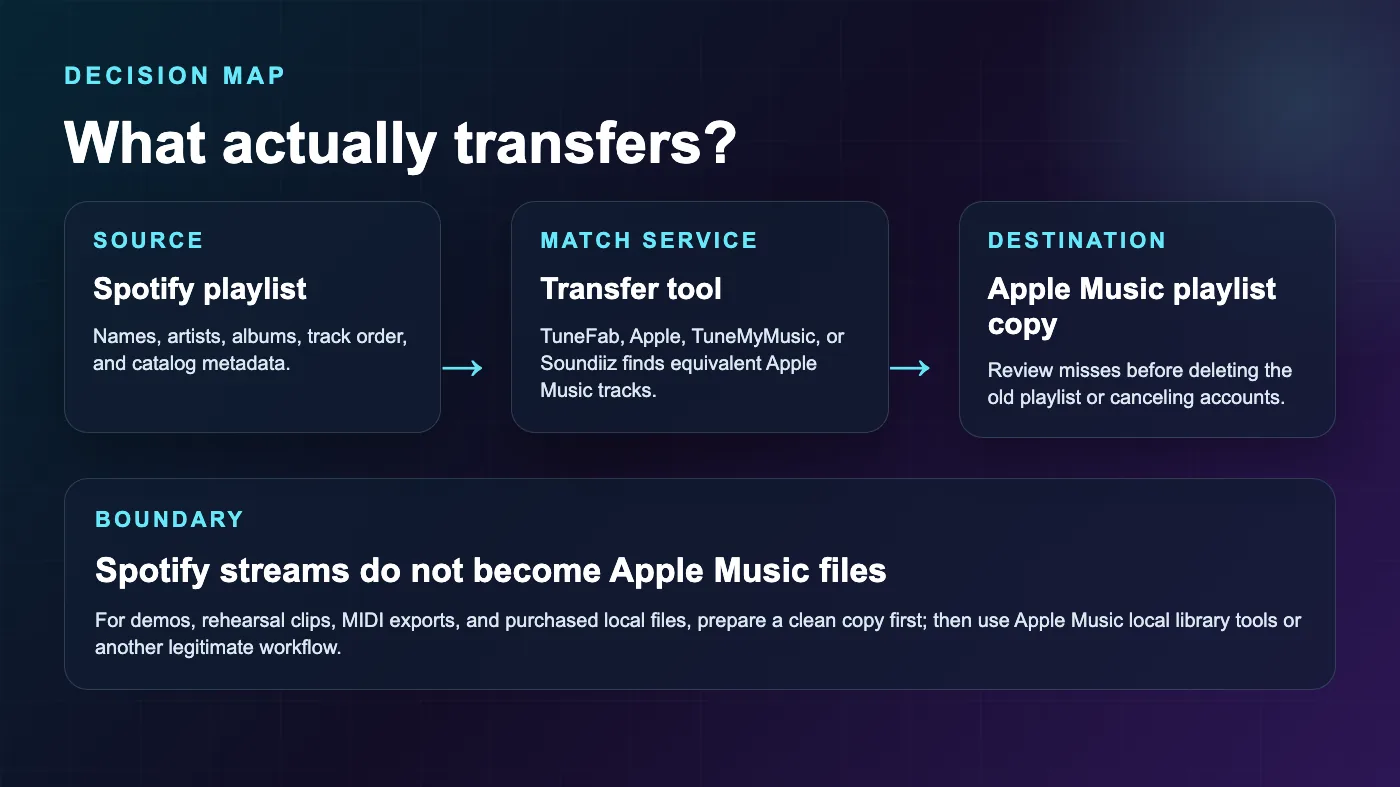
The search phrase "convert Spotify playlist to Apple Music" is really about moving playlist data first. A transfer tool can copy track names, artists, albums, order, and library metadata into an Apple Music playlist. It does not turn Spotify streams into Apple Music audio files, MP3s, or local songs you own.
The clean workflow is simple: pick a transfer path, authorize the right accounts, move a small playlist first, review the matches, then keep local audio cleanup separate. If you want a dedicated off-site transfer product, start with TuneFab Playlist Transfer; this is an affiliate recommendation. If you also have demos, purchased files, rehearsal clips, or MIDI exports you own, treat those as local audio in a separate workflow.
Quick comparison table
| Option | Best for | What it moves | Watch out for |
|---|---|---|---|
| Apple Music transfer flow | Starting from Apple's current support path | Saved music and playlists from supported services | Availability depends on account, country, app, and service support |
| TuneFab Playlist Transfer | Dedicated playlist transfer workflow | Playlist metadata and matched catalog items | Review matches before trusting the result |
| Soundiiz | More control across many services | Playlists, albums, artists, and favorites where supported | Advanced transfer and sync features may require a paid plan |
| Manual rebuild | Small or important playlists | Only the tracks you deliberately add | Slow, but safest when exact versions matter |
| Melogen local-audio cleanup | Demos, rehearsal clips, MIDI exports, or files you own | Cleaned local audio for later library use | It does not move Spotify streams into Apple Music |
What actually transfers
Playlist migration tools usually transfer metadata. They read the Spotify playlist, look for matching tracks in Apple Music's catalog, and create a new Apple Music playlist with the closest matches. That means the transfer can preserve the playlist idea without moving the original audio.
The distinction matters because the wrong expectations create bad cleanup decisions. A transfer can miss songs that are unavailable in Apple Music. It can choose the wrong live version, remaster, clean edit, karaoke track, or regional release. It can also skip local files, private uploads, or niche recordings that never existed in Apple's catalog.
Use this preflight checklist before authorizing any tool:
| Check | Why it matters |
|---|---|
| Test one short playlist first | You can verify account permissions and matching quality without risking a full library |
| Keep the Spotify playlist untouched | It remains the source of truth while you review the Apple Music copy |
| Screenshot or export important track lists | You need a reference if versions or ordering change |
| Separate local/private files | A playlist transfer tool cannot match files that are not in Apple Music's catalog |
| Review explicit, clean, live, and remastered versions | These are common mismatch points |
Option 1 use Apple's transfer flow
Apple's current library and playlist transfer support page explains the official path for moving saved music and playlists from supported music services into Apple Music. Start there when your main goal is moving into Apple Music and you want the destination platform's rules in view.
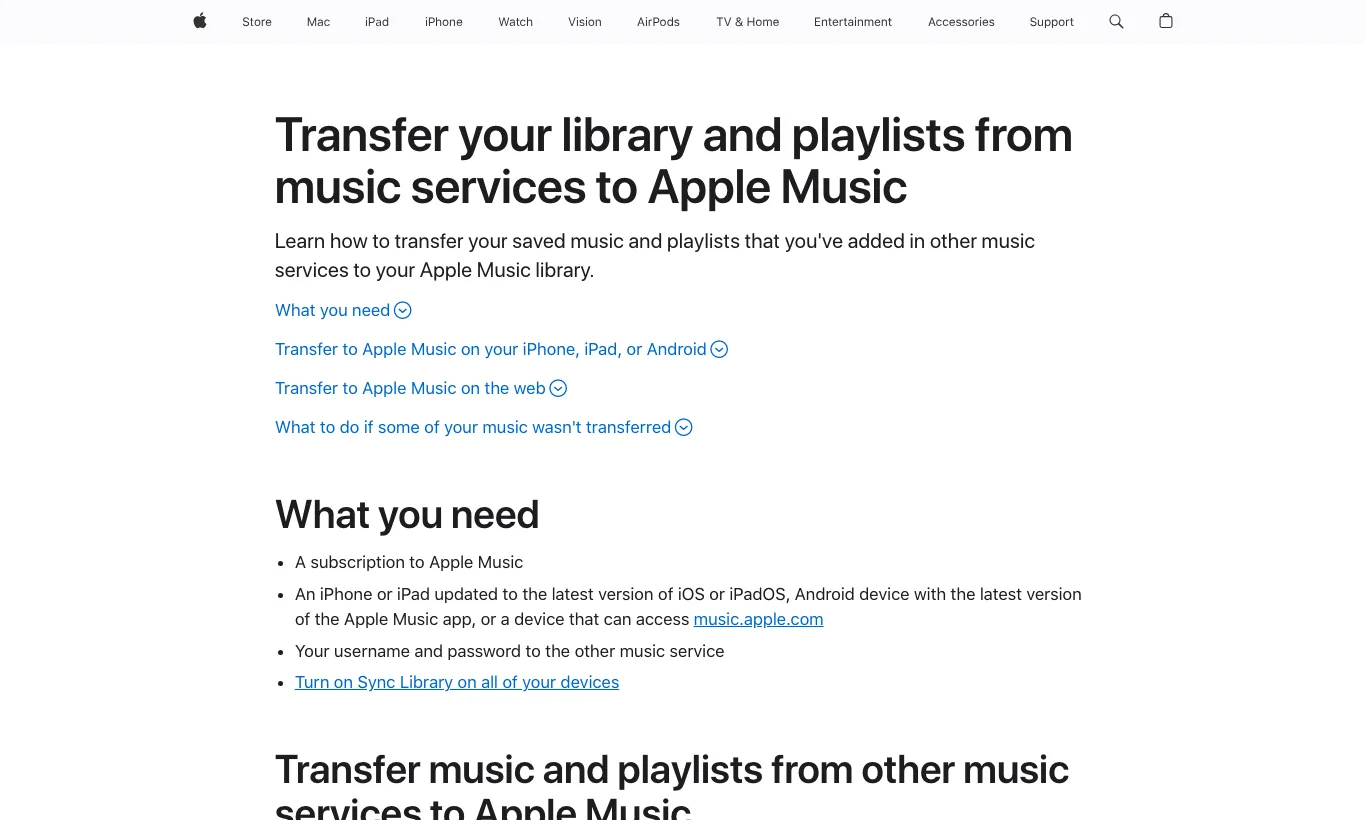
The practical flow is:
- Make sure your Apple Music subscription and Sync Library are ready.
- Open Apple's transfer path from the device or web option available to your account.
- Choose Spotify as the source service if it is offered.
- Authorize the requested account access.
- Transfer a small playlist first.
- Open Apple Music and check the copied playlist before moving more.
This path is useful because it keeps Apple Music as the destination authority. It is also the path most likely to reflect Apple's current availability rules. If the option is not visible, unavailable in your region, or too limited for your workflow, use a dedicated transfer product instead.
Option 2 use TuneFab Playlist Transfer
TuneFab's Playlist Transfer product is the partner recommendation for this job because the product is about moving playlists between services, not extracting streaming audio.
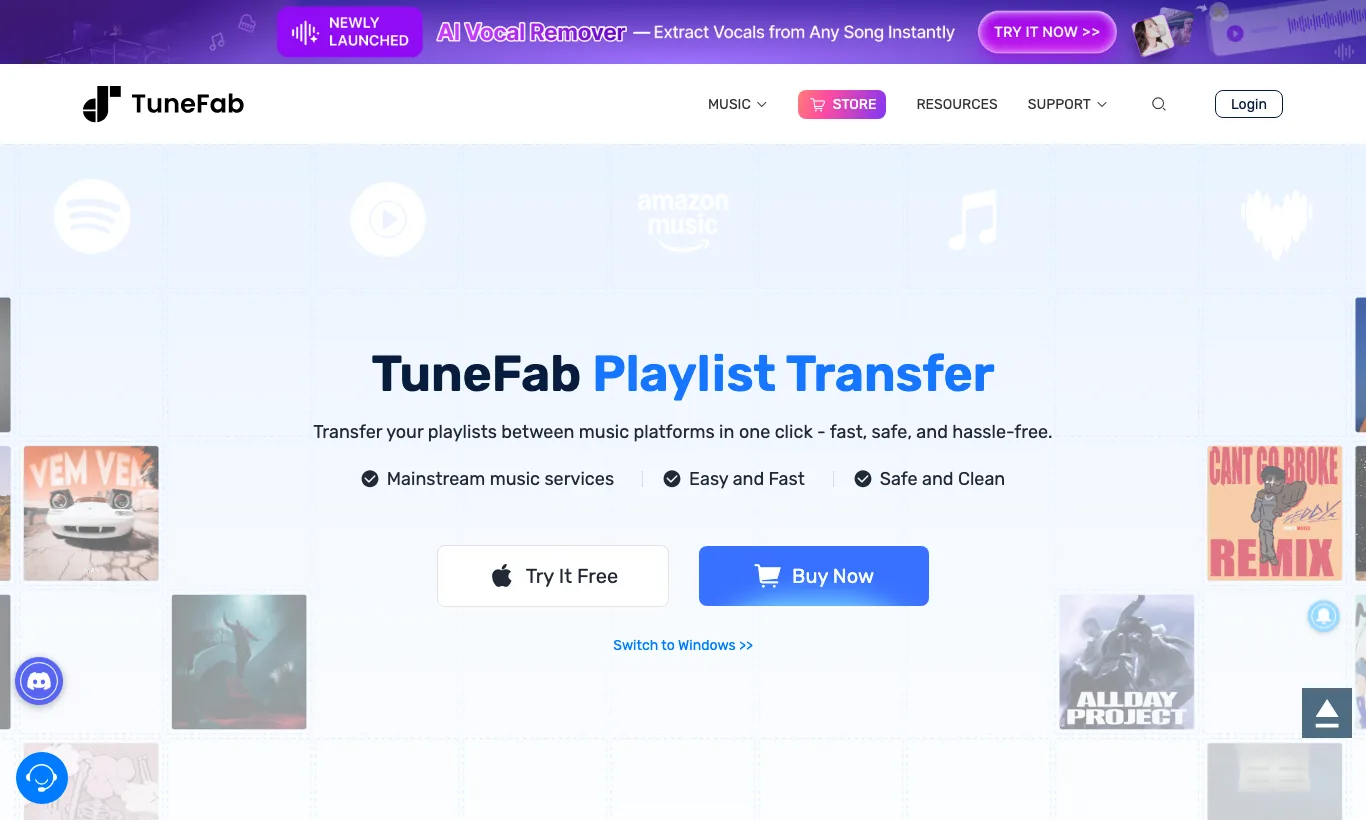
Use TuneFab Playlist Transfer when:
- Apple's own transfer path is not available to your account.
- You want a dedicated playlist migration product rather than a general downloader.
- You prefer a guided service-to-service workflow.
- You need to move playlists without treating Spotify streams as local files.
The main quality step is still review. After the transfer, scan the Apple Music copy for missing tracks, wrong versions, duplicates, and playlist order changes. A transfer tool can save time, but it cannot always know which version matters to you.
Option 3 use Soundiiz for more control
Soundiiz has a dedicated Spotify to Apple Music tutorial for moving playlists and other library items between services. Its strength is control across many platforms, which helps if you manage playlists for teaching, DJ prep, rehearsal references, or multiple streaming accounts.
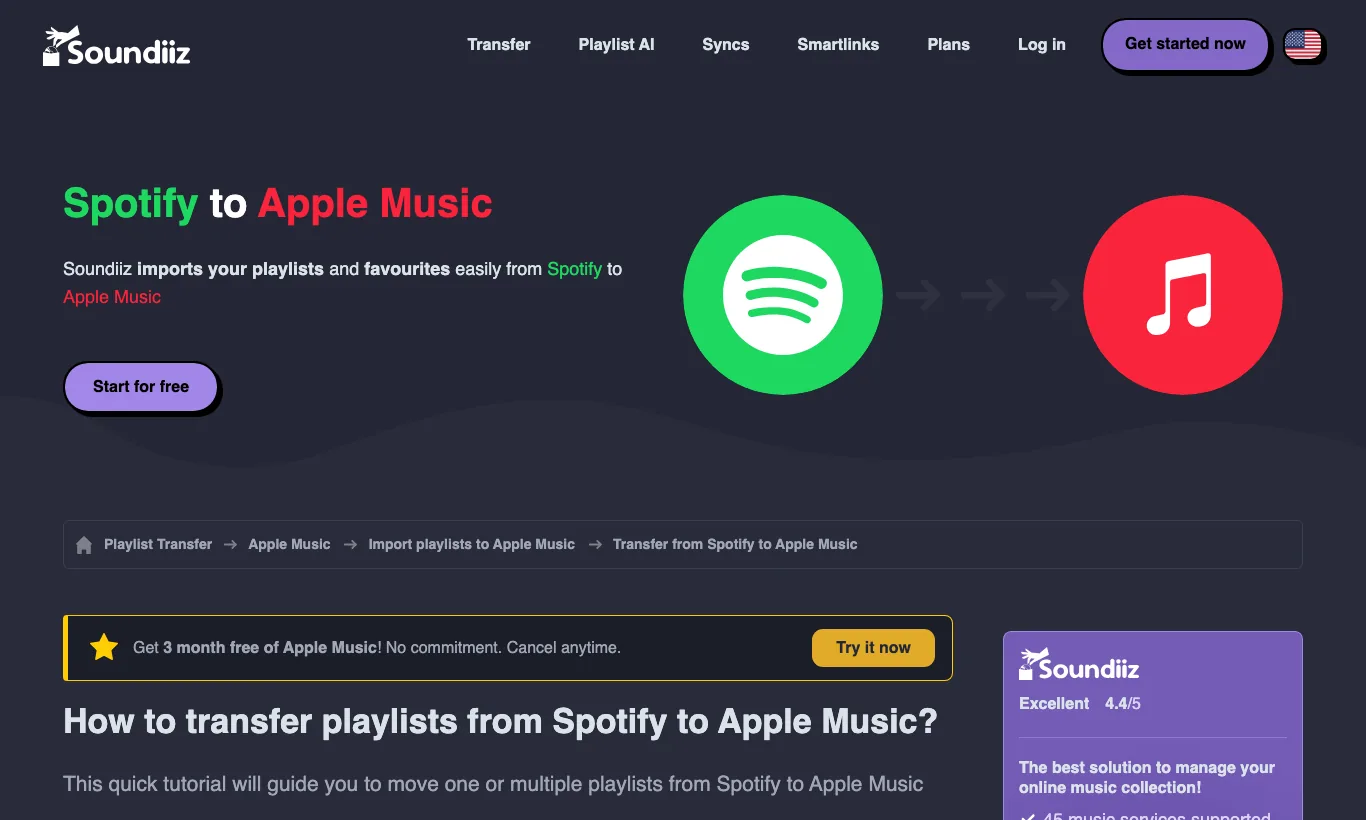
Use Soundiiz when:
- You need a browser dashboard for source and destination services.
- You want to choose specific playlists instead of moving everything.
- You manage more than Spotify and Apple Music.
- You need repeated transfers, exports, or sync-style cleanup.
The tradeoff is that more control brings more decisions. If you only have one simple playlist, Apple's path or TuneFab may be enough. If you manage a large library, Soundiiz gives you more places to inspect what moved.
Review the Apple Music playlist before trusting it
The transfer is not finished when the tool says complete. It is finished when the Apple Music playlist plays the right songs in the right order.
Use this review pass:
| Problem | What to check | Fix |
|---|---|---|
| Missing track | Apple Music catalog availability, region limits, spelling, alternate artist credit | Search Apple Music manually and add the closest legitimate version |
| Wrong version | Live, remaster, clean edit, karaoke, tribute, or cover recording | Replace it with the intended recording |
| Duplicate track | Same song matched from album and compilation | Keep the version that matches your source playlist |
| Broken order | Transfer tool sorted by album, artist, or date | Reorder manually before sharing the playlist |
| Local-only file | Demo, rehearsal clip, purchased file, or private recording | Handle it as a local audio file, not a streaming catalog match |
For important playlists, leave the Spotify version in place for a while. Once you have listened through the Apple Music copy and fixed mismatches, then decide whether you still need the original playlist.
Prepare owned local audio with Melogen
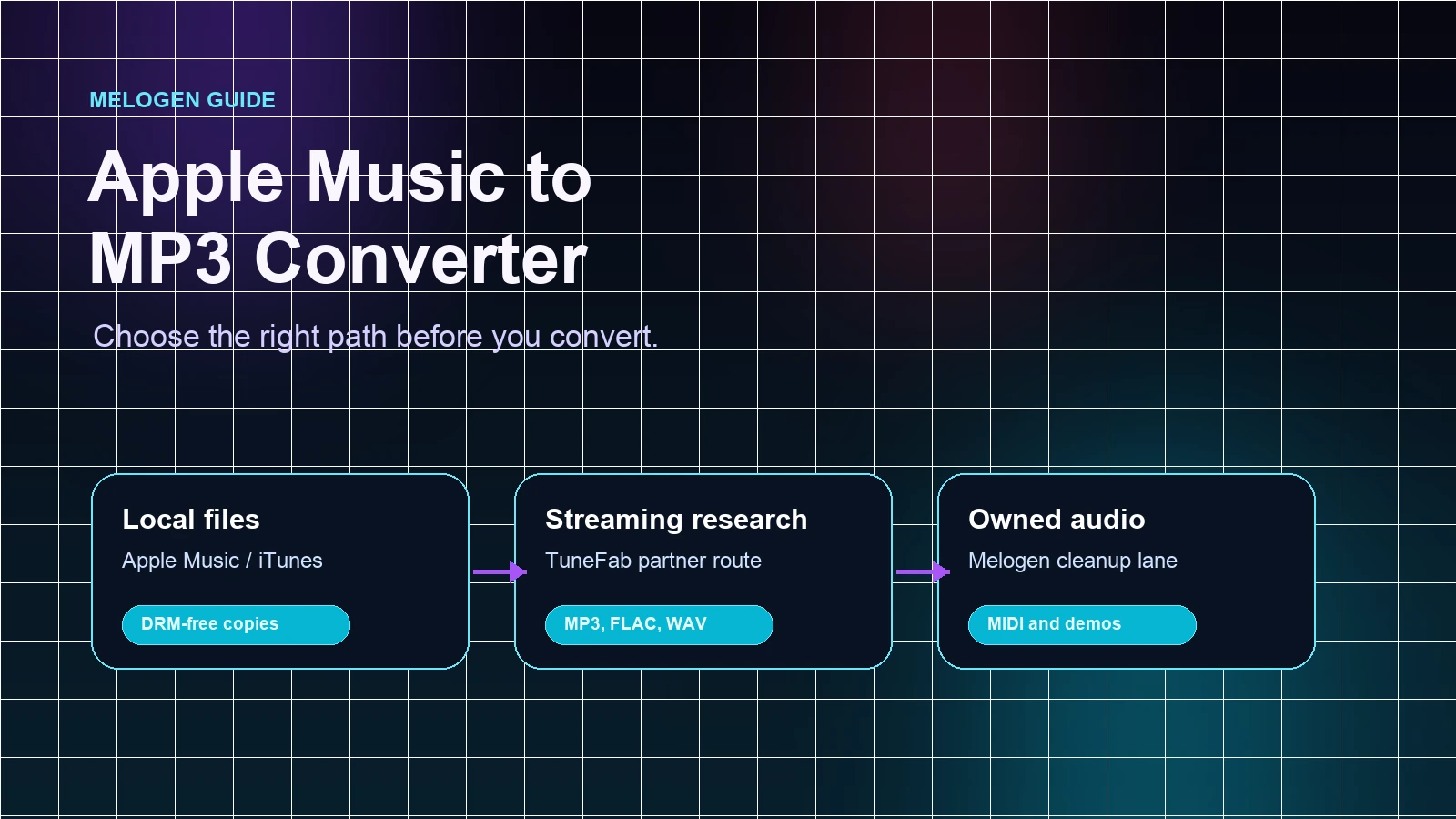
Melogen does not transfer Spotify playlists into Apple Music, unlock Spotify streams, or convert streaming catalog audio into local files. It fits the separate owned-audio lane: music you recorded, purchased DRM-free, exported from MIDI, trimmed for class, or prepared as a rehearsal reference.
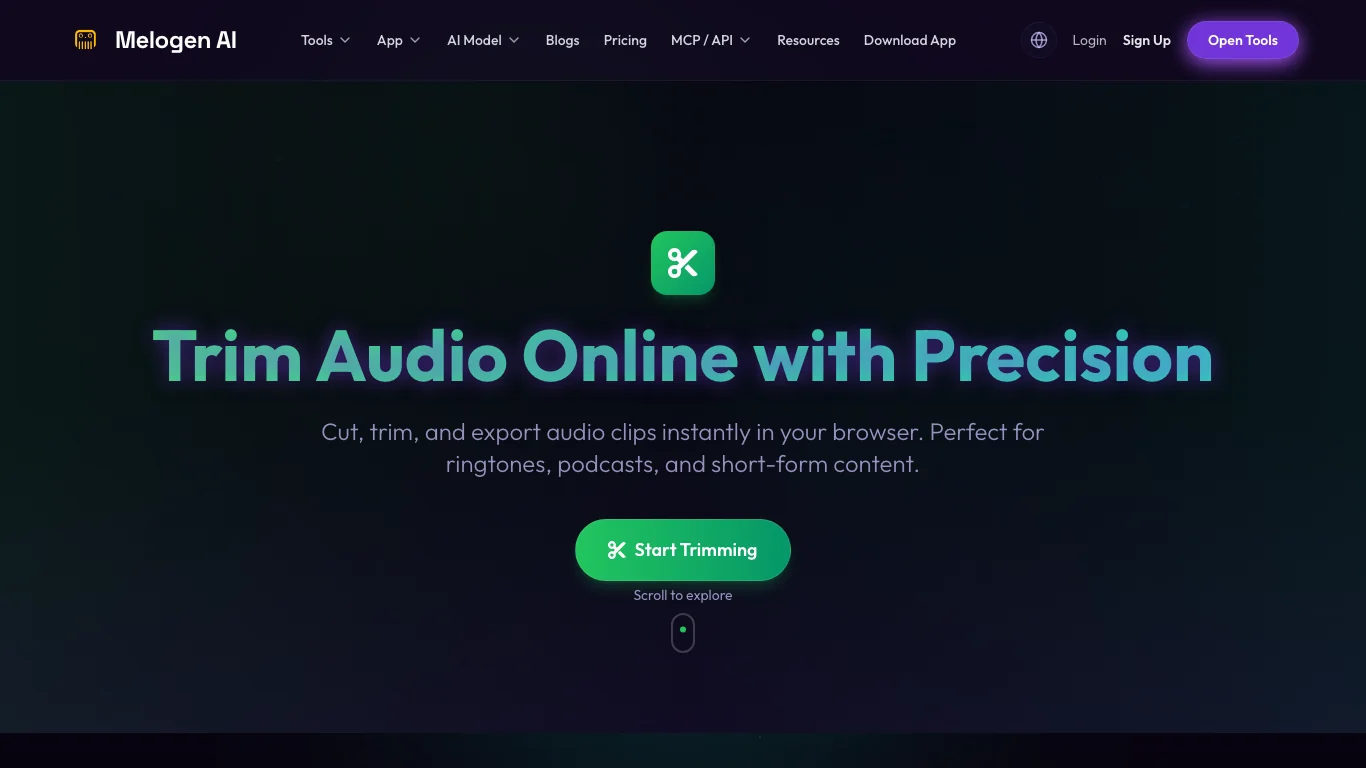
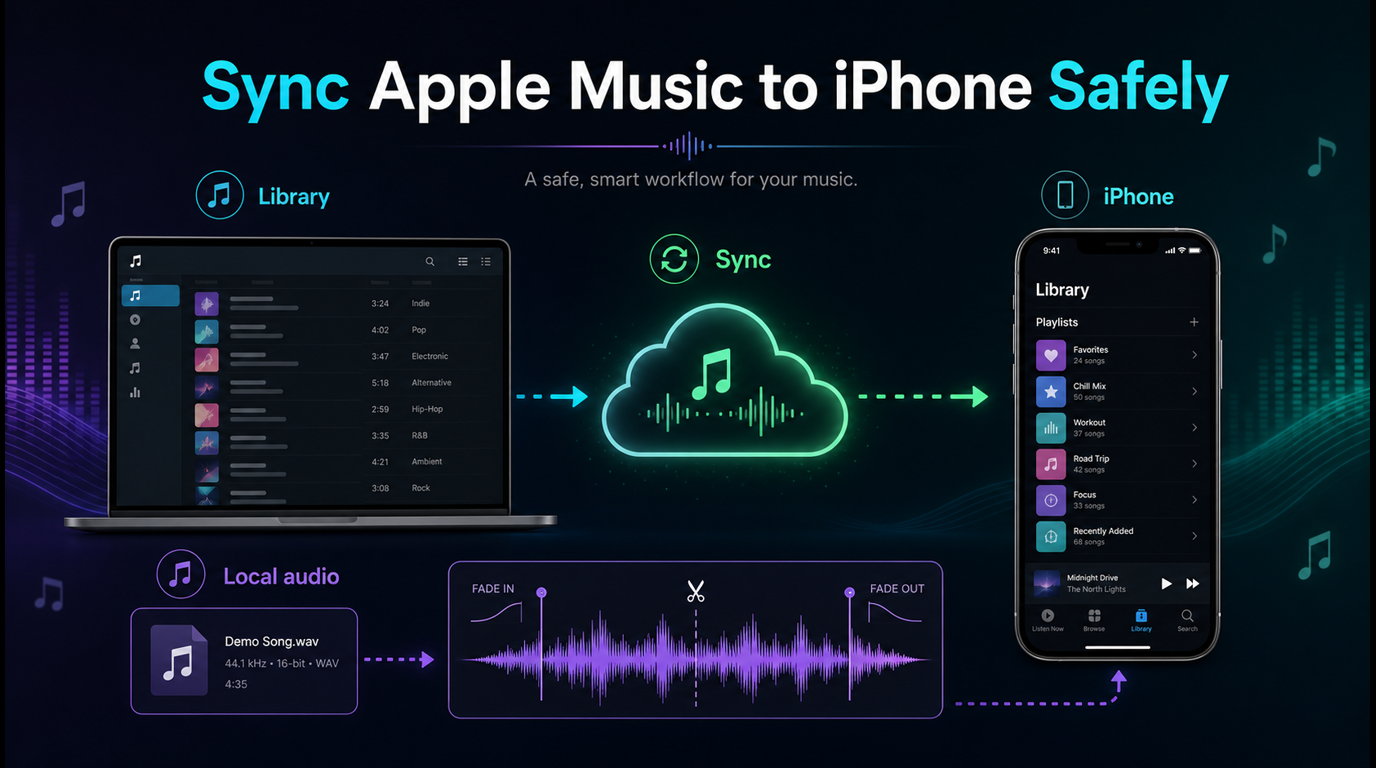
Use Melogen Music Trimmer when a local clip needs a clean start, ending, or fade before you add it to a personal library workflow. Use MIDI to MP3 when the source is a MIDI idea and you need a portable listening copy.
This is the same boundary covered in the guide to adding local files to Spotify. Local files are for audio that already belongs on your device. They are not a shortcut for extracting Spotify streams. If you are comparing Apple library rules before moving more playlists, read iTunes Match vs Apple Music. If the playlist contains music you want to own outside a streaming catalog, the safer companion is where to buy MP3 music online.
Prepare local audio after the playlist move
Use Melogen to trim demos, rehearsal clips, and MIDI listening copies you own before adding them to a local-library workflow.
Fix common transfer problems
Most Spotify to Apple Music transfer problems come from catalog matching, account authorization, or confusing playlist metadata with audio ownership.
Work through this order:
- Confirm that the Spotify playlist still exists and has the expected tracks.
- Confirm that the destination Apple Music account is the right one.
- Retry with one small playlist before moving a full library.
- Check whether the missing songs exist in Apple Music at all.
- Replace wrong live, remastered, explicit, or clean versions manually.
- Keep local/private audio out of the transfer tool and handle it separately.
If a tool asks for broader access than you are comfortable granting, stop and use a smaller manual path. A playlist transfer should reduce cleanup work, not create a new account or library problem.
FAQs
Can I convert a Spotify playlist to Apple Music for free?
Sometimes. It depends on Apple's current transfer availability, the transfer product, playlist size, and account limits. Free paths are best for small one-time transfers. Large libraries or repeated syncs may require a paid plan.
Does a playlist converter move Spotify audio files?
No. It usually copies metadata and asks Apple Music to create a matching playlist from Apple Music's catalog. Spotify streams do not become local files or Apple-owned audio.
Why are songs missing after transfer?
The track may not exist in Apple Music, may be region-limited, may use a different artist credit, or may exist only as a local/private file in your Spotify setup.
Should I use Apple, TuneFab, or Soundiiz?
Use Apple's transfer flow first when it is available and you want the destination platform's official path. Use TuneFab Playlist Transfer when you want a dedicated partner product. Use Soundiiz when you need more control across several music services.
Can Melogen help with Spotify to Apple Music transfers?
Not with the playlist transfer itself. Melogen helps with owned local audio around the workflow, such as trimming a rehearsal clip or turning a MIDI idea into an MP3 listening copy.
The practical takeaway
Convert Spotify playlists to Apple Music by moving playlist metadata, not by trying to move the audio. Use Apple's transfer path when it is available, TuneFab Playlist Transfer as the dedicated partner route, Soundiiz when you need more control, and manual cleanup when exact versions matter.
Keep the Spotify playlist until the Apple Music copy is checked. Keep local files in their own lane. That separation is what turns a playlist migration into a clean library move instead of a confusing audio-conversion problem.
About the author
Zhang Guo
Composer - AI Product Manager
AI product manager and digital marketing consultant with a background in music. Creativity is the bridge between rhythm and logic, where musical intuition and mathematical precision can coexist in every meaningful product decision.
Follow on X