Apple Music to Spotify Playlist Converter Guide
Use TuneFab Playlist Transfer, Spotify import, Soundiiz, and manual cleanup to move Apple Music playlists to Spotify without confusing playlists with audio files.
 Zhang Guo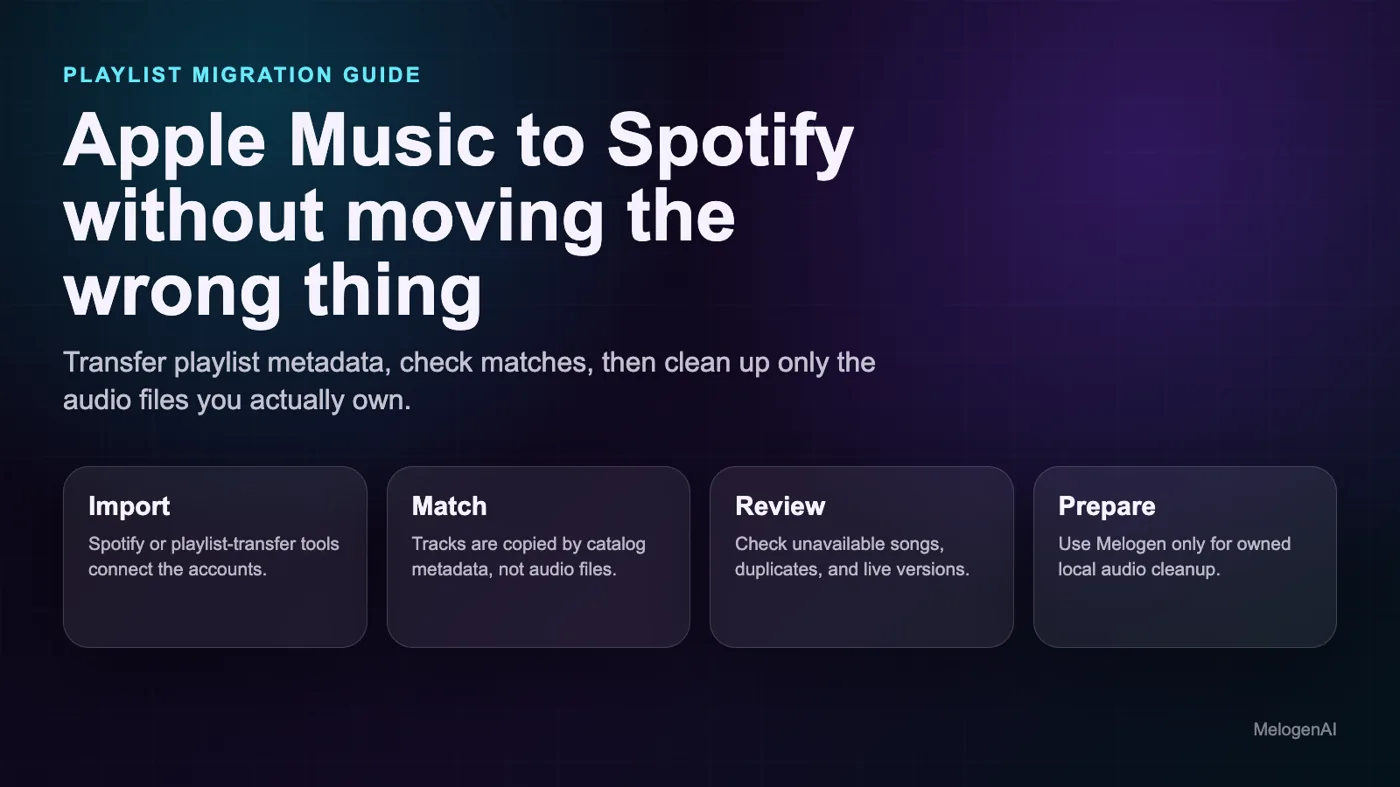
Turn a static score into editable MIDI
Contents
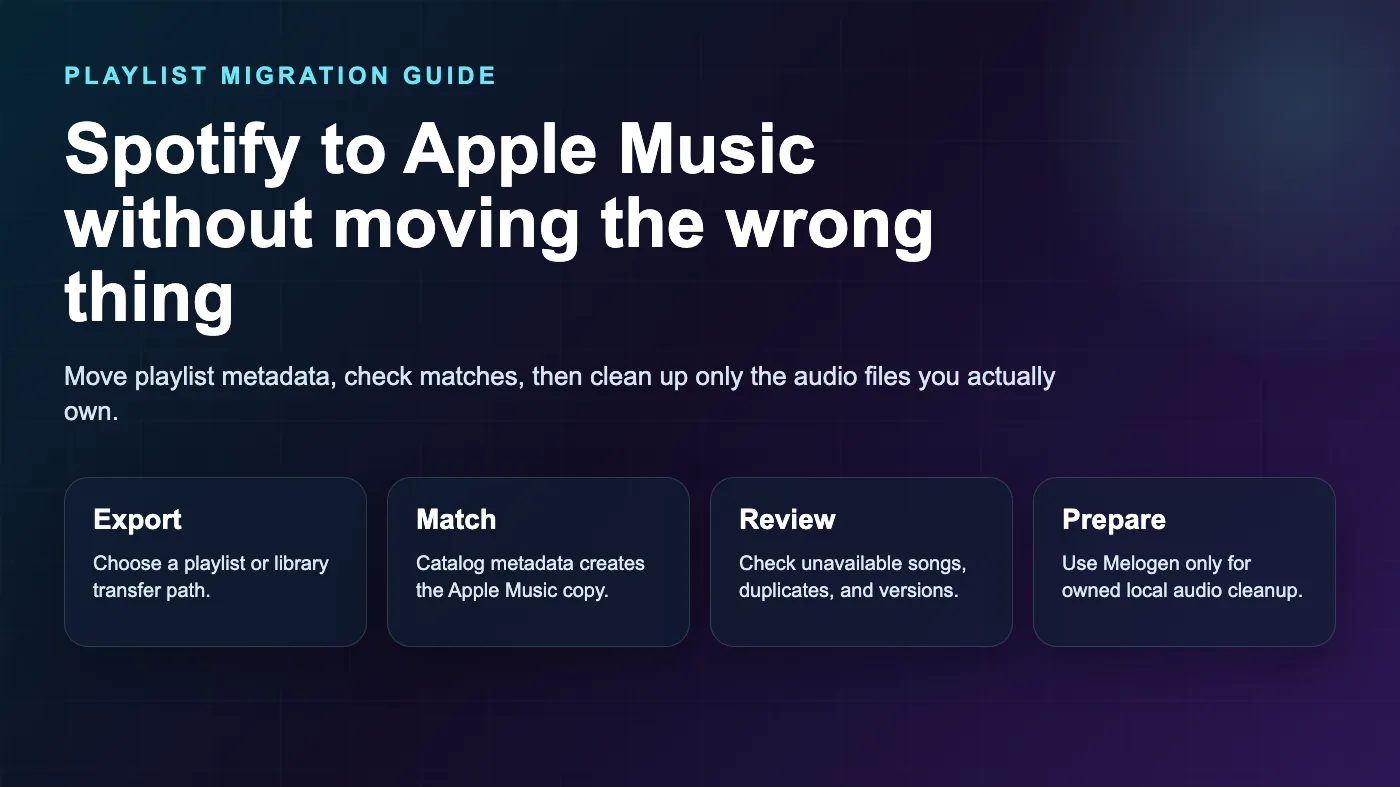
An Apple Music to Spotify playlist converter should move the playlist, not pretend that protected Apple Music audio has become a local Spotify file. The clean workflow is to copy playlist metadata, match tracks in Spotify's catalog, review the misses, and keep your source library intact until the new playlist is checked.
That distinction matters for musicians, DJs, teachers, and careful listeners. A playlist-transfer tool can save hours of manual rebuilding, but it still works by matching catalog records. If you want a dedicated off-site transfer product, start with TuneFab Playlist Transfer; this is an affiliate recommendation. If you also have demos, purchased files, rehearsal clips, or MIDI exports you own, handle those as local audio files in a separate workflow.
Quick comparison table
| Option | Best for | What it moves | Watch out for |
|---|---|---|---|
| Spotify Import your music | Mobile-first imports into Spotify | Tracks or playlists selected through Spotify's TuneMyMusic flow | Availability can vary by region, account, and app rollout |
| TuneFab Playlist Transfer | Dedicated Apple Music to Spotify transfer workflow | Playlists and matched catalog items between supported services | Review matches before deleting the source playlist |
| Soundiiz | More control across many music services | Playlists, albums, artists, and favorite tracks | Batch transfer and sync features may require a paid plan |
| Manual rebuild and local-file cleanup | Small or messy playlists | Only the songs you deliberately add or prepare | Slow, but safest when matches are wrong or files are personal |
What actually transfers
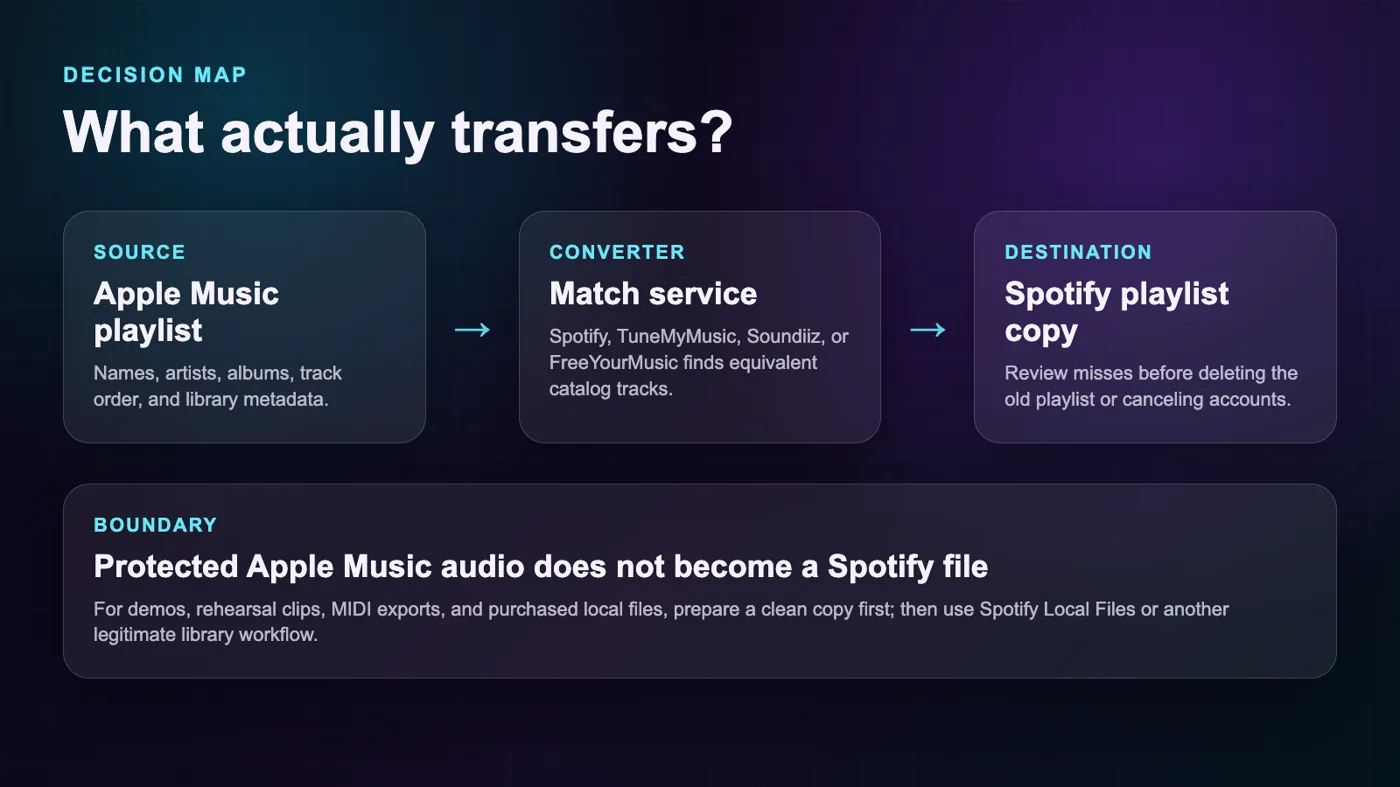
Most playlist converters transfer metadata: track names, artists, albums, playlist titles, order, and sometimes favorite songs or library items. They do not move the original Apple Music audio file into Spotify. Instead, the tool asks Spotify to create a new playlist and fill it with the closest matching tracks from Spotify's own catalog.
That is why the same playlist can come across with a few wrong versions. A live recording may become a studio track. A remaster may replace the original. A regional catalog gap may leave a song missing. A local demo or private upload in Apple Music may have no Spotify equivalent at all.
Use this preflight checklist before you start:
| Check | Why it matters |
|---|---|
| Make the Apple Music playlist public or accessible to the transfer tool if required | Private or unavailable items may not be readable |
| Rename messy playlists before transfer | Clean titles are easier to verify after import |
| Split very large playlists into smaller batches | Smaller batches make failed matches easier to find |
| Keep screenshots or an exported song list for important playlists | You need a reference if matches are wrong |
| Leave the original Apple Music playlist untouched | The transfer should copy, not replace, your source |
Option 1 use Spotify Import your music
Spotify now documents an official Import your music flow for bringing playlists into Spotify. Spotify's importing playlists support page says you can choose tracks or playlists, then transfer them to Spotify, and it points users to TuneMyMusic support if the import has trouble.
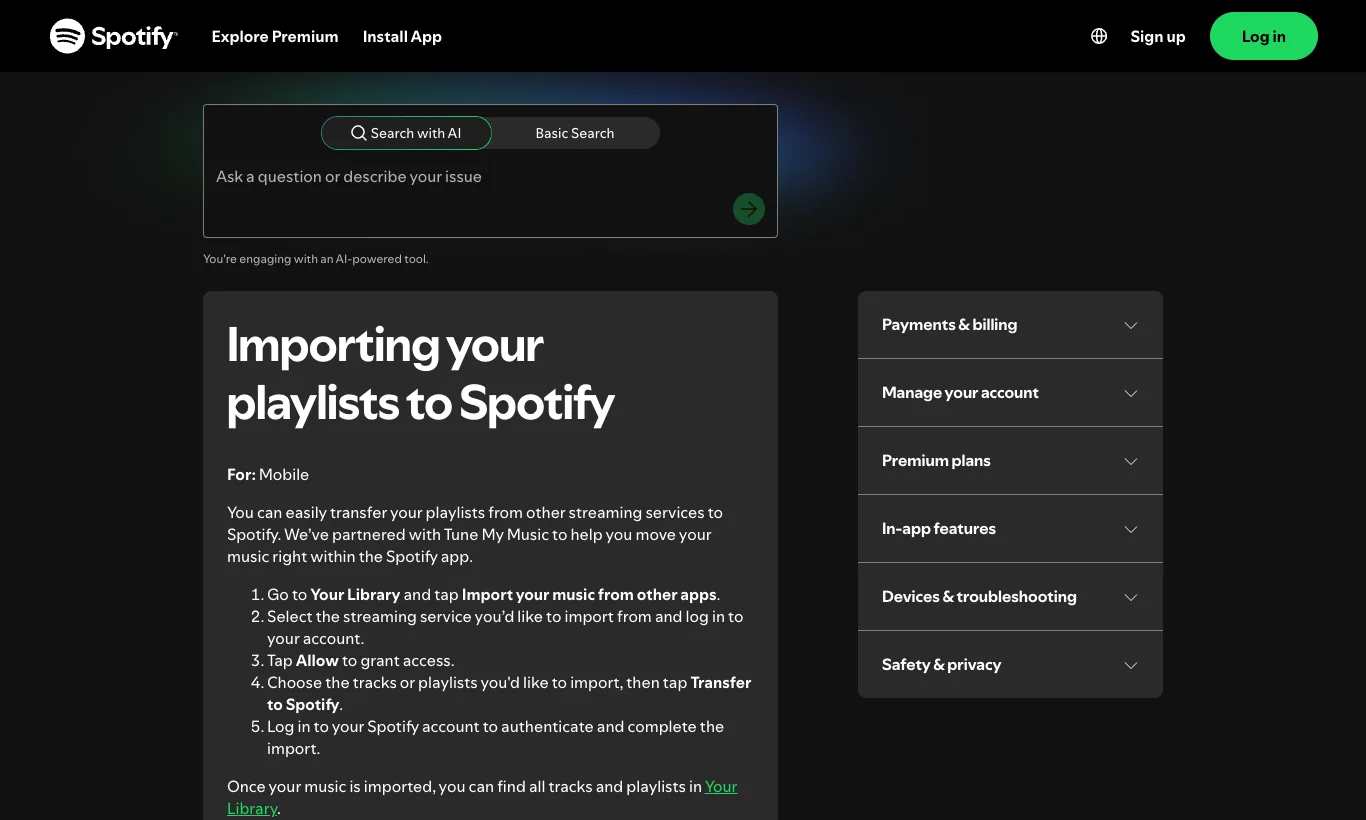
Start here if the option appears in your Spotify app. It keeps the action close to the destination account, which is useful when your main goal is simply to rebuild your Spotify library with less friction.
The practical flow is:
- Open Spotify on mobile and look for the import option in the library area.
- Choose Apple Music as the source when the transfer flow asks for a service.
- Authorize the requested account access.
- Select the playlists or tracks you want to import.
- Transfer to Spotify, then open the new playlist and scan for missing or mismatched songs.
This is the simplest answer for many readers, but do not treat it as magic. The transfer still depends on catalog matching. It also may not be the best route if you want advanced sync rules, batch management across many services, or a desktop-first workflow.
Option 2 use TuneFab Playlist Transfer
TuneFab's Playlist Transfer product is the first transfer tool I would evaluate when the real job is moving an Apple Music playlist into Spotify instead of rebuilding it by hand. It belongs in this article because the product focus is transfer, not audio extraction.
Use TuneFab Playlist Transfer when:
- Spotify's import option is not visible in your app.
- You prefer a desktop browser for account authorization and playlist review.
- You want the core recommendation in this workflow to be a dedicated partner product.
- You need to move playlists between streaming services without treating the audio itself as a file you own.
The main quality step is match review. After the transfer, sort the new Spotify playlist by artist or album and check any tracks that look suspicious. Covers, remasters, karaoke versions, clean edits, and live recordings are the usual trouble spots.
Option 3 use Soundiiz for more control
Soundiiz has a dedicated Apple Music to Spotify tutorial for moving playlists, albums, artists, and favorite tracks. Its useful angle is control across many services. If you regularly manage playlists between Apple Music, Spotify, YouTube Music, Deezer, TIDAL, Qobuz, or SoundCloud, Soundiiz may be more comfortable than a one-off importer.
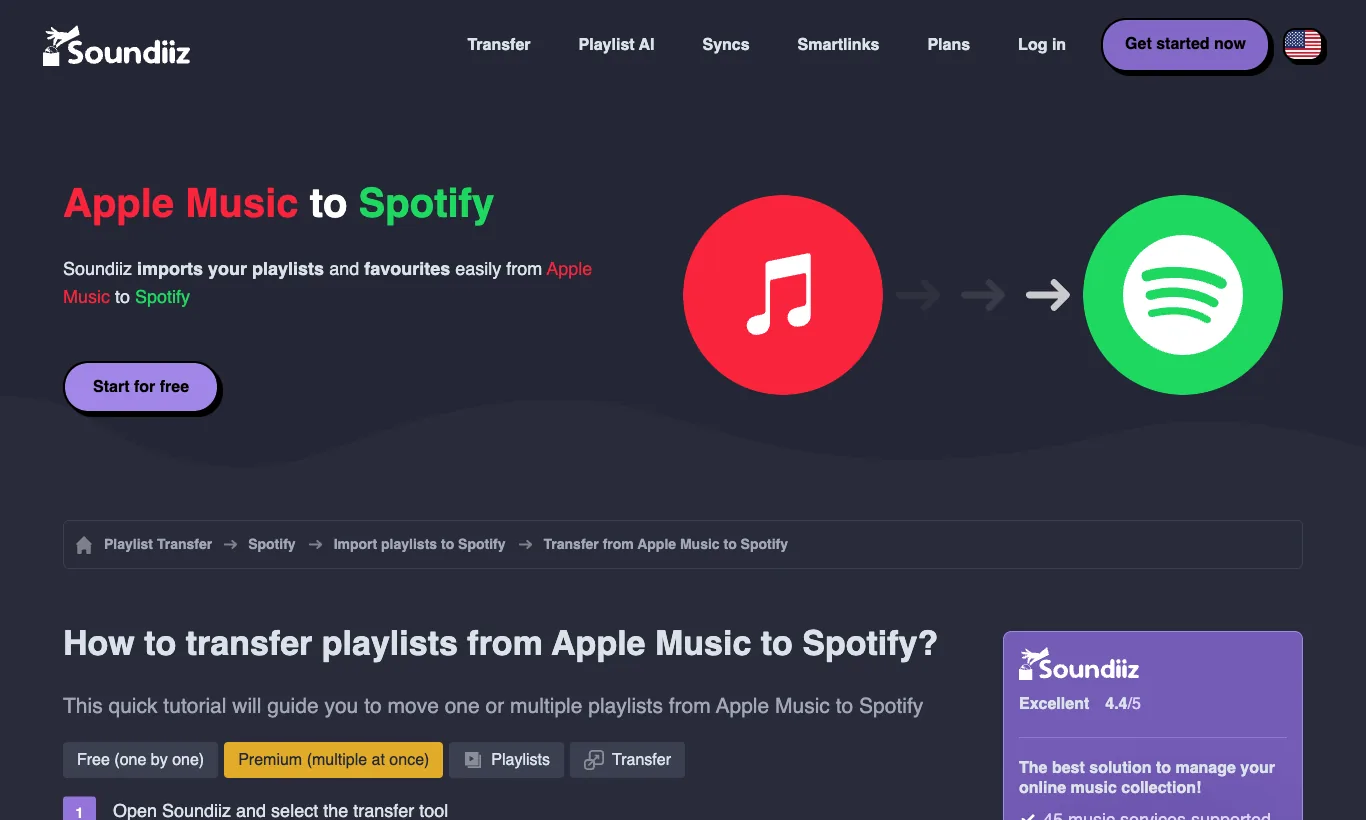
Use Soundiiz when:
- You want to choose specific playlists rather than move everything at once.
- You need playlist management across more than two services.
- You care about follow-up cleanup, exports, or repeated transfers.
- You want a browser-based dashboard for comparing source and destination libraries.
The tradeoff is that more control means more decisions. If you only have one small playlist, Spotify import or TuneMyMusic is usually enough. If you manage many playlists for classes, rehearsals, DJ prep, or personal archives, the extra control can be worth it.
When manual cleanup is better
Manual cleanup is not glamorous, but it is often the right choice after an automated transfer. Use it when the playlist is short, when exact versions matter, or when the new Spotify playlist contains too many wrong matches.
Here is the review pass I would use before trusting the result:
| Problem | What to check | Fix |
|---|---|---|
| Missing track | Region availability, spelling, alternate artist credit | Search Spotify manually and add the closest legitimate version |
| Wrong version | Live, remaster, clean edit, karaoke, tribute, or cover version | Replace with the intended recording |
| Duplicate track | Same song matched from album and compilation | Keep the version that matches your source playlist |
| Local-only file | Demo, rehearsal clip, purchased file, or private recording | Handle it through local files, not a playlist converter |
| Broken order | Transfer tool sorted by album or artist | Reorder manually before sharing the playlist |
For important playlists, keep the Apple Music version for a while. The old playlist is your source of truth until the Spotify copy proves itself in normal listening.
Prepare owned local audio with Melogen
Melogen does not transfer Apple Music subscriptions, unlock protected tracks, or move streaming catalog audio between services. It fits after the playlist question, when you have audio you created, purchased, recorded, or otherwise have permission to edit.
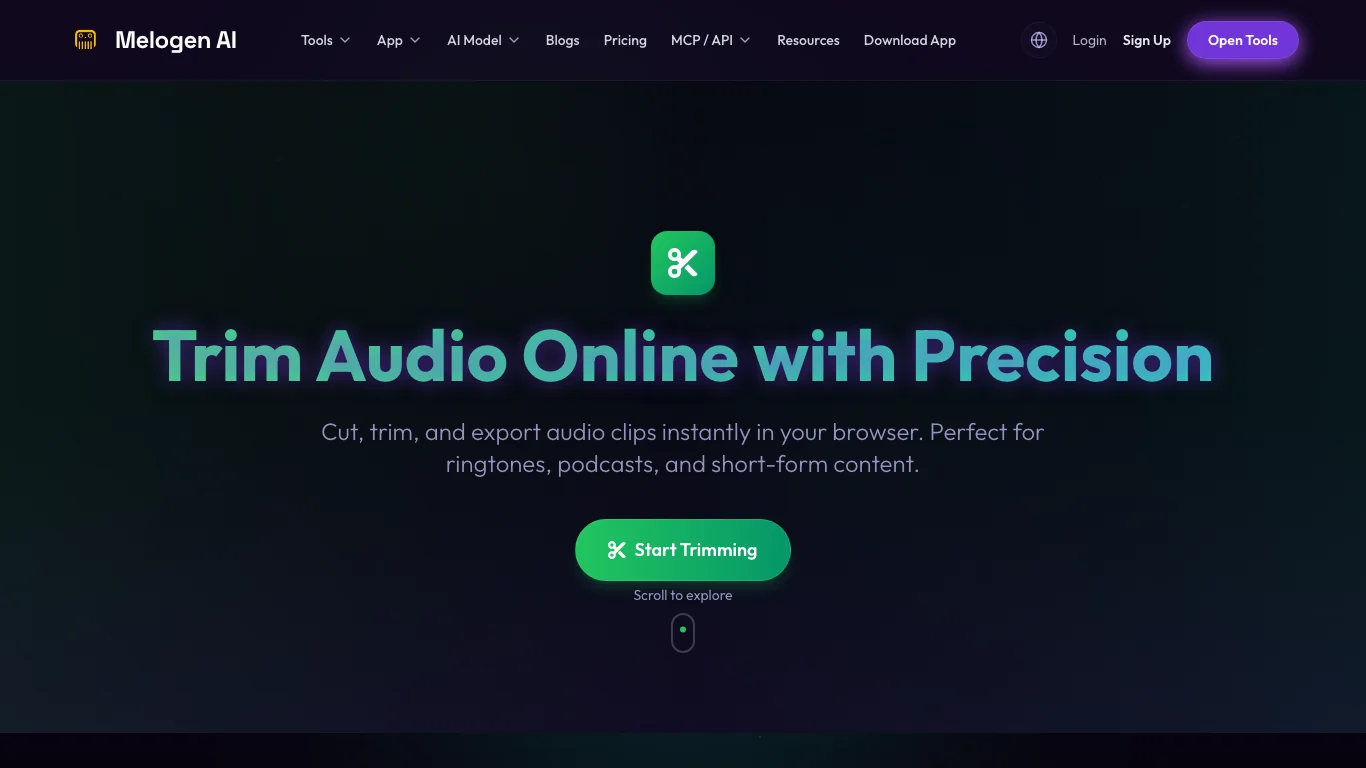
Use Melogen Music Trimmer when a rehearsal clip, demo bounce, podcast intro, or lesson recording needs a clean start and ending before you add it to a local listening workflow. If your source is a MIDI sketch, use MIDI to MP3 to make a simple listening copy first.
This is the same boundary covered in the guide to adding local files to Spotify: local files are for audio that already belongs on your device. They are not a shortcut for extracting protected Apple Music tracks. If you are comparing Apple library services before moving anything, read iTunes Match vs Apple Music first. If you need owned source audio, the buy MP3 music online guide is a safer next step than downloader shortcuts.
Prepare local audio before playlist testing
Use Melogen to trim demos, rehearsal clips, and MIDI listening copies you own before adding them to a local-file workflow.
Troubleshooting after the transfer
Most transfer problems are not mysterious. They come from account authorization, catalog mismatch, unavailable tracks, or confusing playlist transfer with audio-file ownership.
Work through this order:
- Confirm that the source Apple Music playlist still exists and has the expected songs.
- Confirm that the destination Spotify account is the right one.
- Retry one small playlist before rerunning a full library migration.
- Check whether the missing songs exist in Spotify at all.
- Replace live, cover, or remastered mismatches manually.
- Keep local/private audio out of the converter and handle it separately.
If the whole transfer fails, do not keep authorizing random tools. Disconnect old sessions, use the official Spotify import flow or a known transfer service, and test with a small playlist first.
FAQs
Can I convert an Apple Music playlist to Spotify for free?
Sometimes, depending on the tool, playlist size, and current limits. Free flows are usually best for one-time or small transfers. Large libraries, batch transfers, sync, or repeated migrations may require a paid plan.
Does a playlist converter move Apple Music audio files?
No. A playlist converter usually copies metadata and asks Spotify to create a matching playlist from Spotify's catalog. Protected Apple Music streams do not become local MP3 files or Spotify-owned files.
Why are some songs missing after transfer?
The song may not be available in Spotify's catalog, may be region-limited, may have a different artist credit, or may exist only as a local/private file in your Apple Music library.
Should I use TuneFab Playlist Transfer, Spotify import, or Soundiiz?
Use TuneFab Playlist Transfer when you want the dedicated partner recommendation for this Apple Music to Spotify job. Use Spotify import when the in-app option is visible and you want the destination account to guide the flow. Use Soundiiz when you need broader cross-service management, repeated transfers, or dashboard-style cleanup.
Can Melogen help with Apple Music to Spotify transfers?
Melogen does not move streaming playlists between Apple Music and Spotify. It helps with owned local audio around the playlist workflow, such as trimming a rehearsal clip or turning a MIDI idea into an MP3 listening copy.
The practical takeaway
Start with playlist metadata, not audio conversion. Use TuneFab Playlist Transfer as the dedicated partner route, use Spotify's import flow when it is available, use Soundiiz when you need broader management, and review the Spotify playlist before trusting it.
For protected streaming songs, stay inside the platform rules. For your own files, clean the audio first, then add it through a local-file workflow. That separation is the difference between a useful playlist migration and a messy library problem.
About the author
Zhang Guo
Composer - AI Product Manager
AI product manager and digital marketing consultant with a background in music. Creativity is the bridge between rhythm and logic, where musical intuition and mathematical precision can coexist in every meaningful product decision.
Follow on X