Spotify Web Player vs Desktop App for Music Workflows
Compare Spotify Web Player vs Desktop App for audio quality, downloads, local files, controls, and safe music workflow decisions.
 Zhang Guo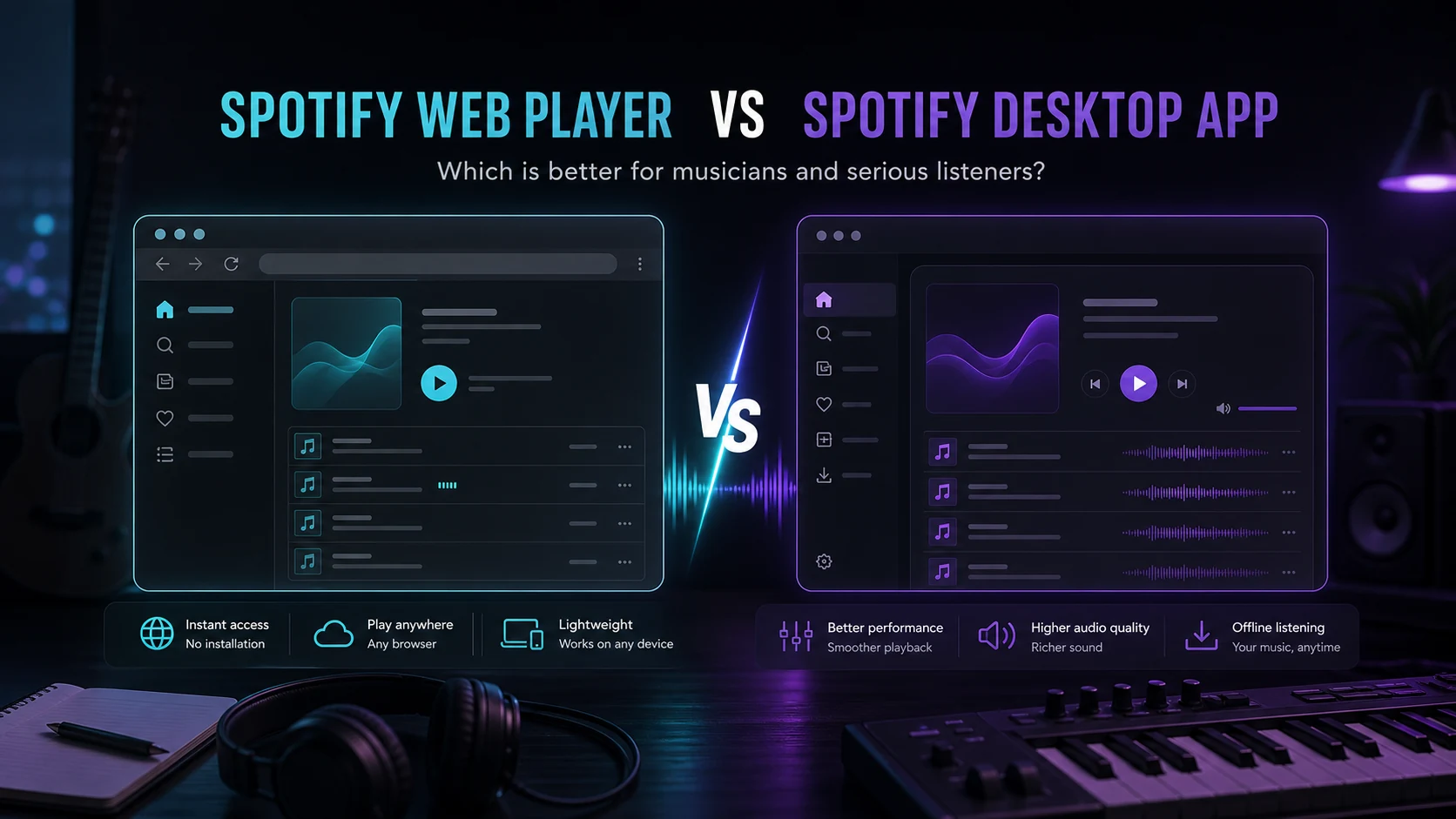
Turn a static score into editable MIDI
Contents
For a Spotify Web Player vs Desktop App decision, start with the task. Spotify Web Player is best when you want quick browser access without installing anything. The Spotify Desktop App is better when you care about offline listening, local files, deeper device integration, and the highest quality settings Spotify currently exposes in its app support pages.
The useful decision is not "which one is newer." It is whether your listening task is casual browser playback or a more controlled music workflow on a computer. For musicians, DJs, teachers, and creators, that difference matters because source files, local clips, keyboard control, and audio quality settings can affect the next step.
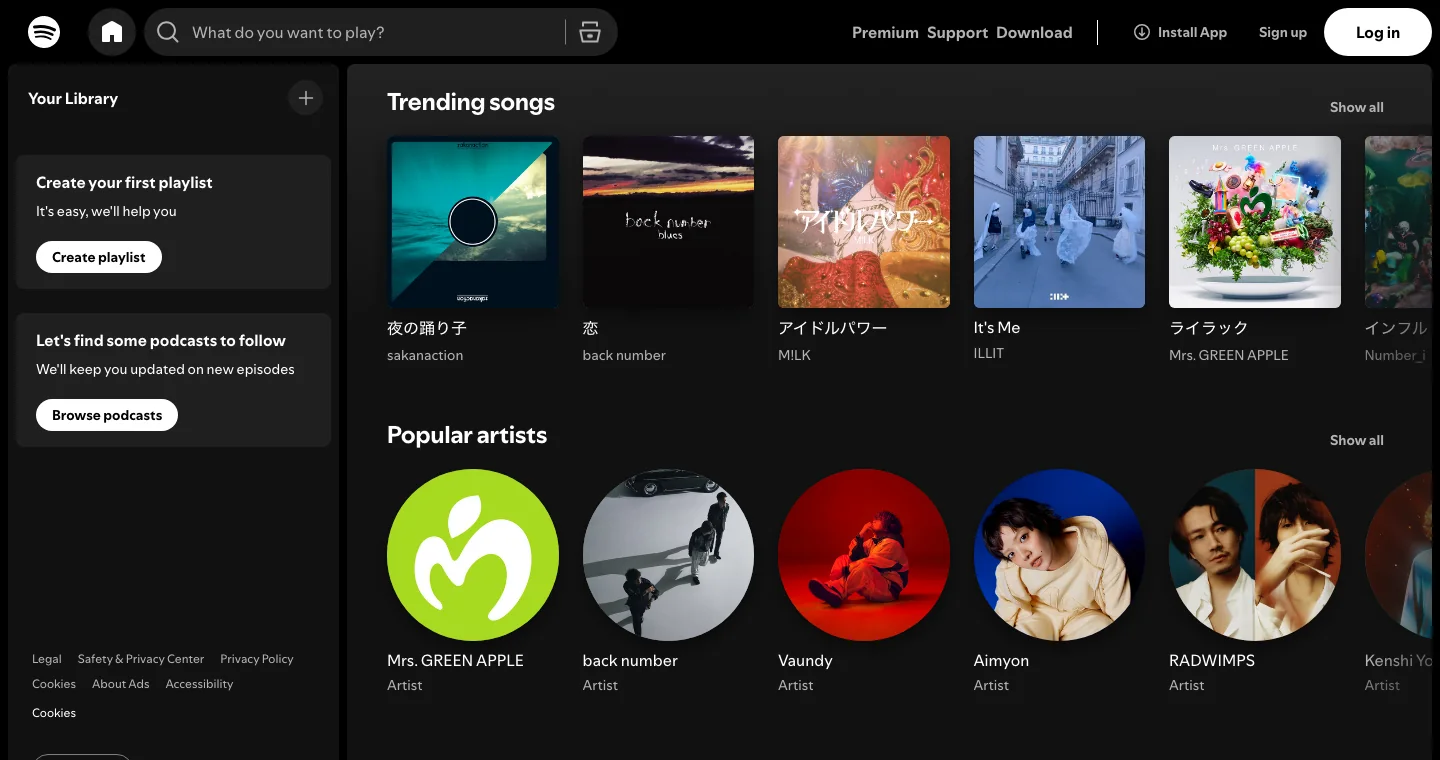
Quick Comparison Table
| Decision point | Spotify Web Player | Spotify Desktop App | Better choice |
|---|---|---|---|
| Setup | Open Spotify in a supported browser | Install the app on Windows or macOS | Web player for speed |
| Offline listening | Streaming-first in the browser | Built for downloaded/offline listening in the app | Desktop app |
| Audio quality | Spotify lists web player as AAC 128 kbit/s for Free and AAC 256 kbit/s for Premium | Spotify lists desktop, mobile, and tablet app tiers up to Very High and Lossless for Premium | Desktop app |
| Local files | Not the practical place to manage local audio | Spotify's local files feature is app-led and uses files legally stored on your device | Desktop app |
| Keyboard control | Spotify documents shortcuts for the web player and desktop app | Better if you want app-level desktop behavior and system media keys | Usually desktop app |
| Borrowed or shared computer | No install required | Requires install and account cleanup afterward | Web player |
| Creator workflow | Good for reference listening | Better for owned files, prepared clips, and repeatable sessions | Desktop app |
What Spotify Web Player Is Best For
Spotify's official web player help frames it simply: you can play Spotify from a browser. That is the whole advantage. If you are on a school computer, a work laptop, a shared studio machine, or a temporary browser profile, the web player keeps the session lightweight.
It is also useful for quick reference checks. If you only need to confirm a track, find a playlist, compare a release, or open a link someone sent you, the browser version gets out of the way. There is no installer, no app update path, and no need to keep another player open in your dock or taskbar.
The limits show up when the listening session becomes more serious. Spotify's current audio quality support page lists the web player separately from desktop, mobile, and tablet apps. For Premium, the web player is listed at AAC 256 kbit/s, while the app tiers include Very High and Lossless options. If you are checking mix detail, arranging references, or comparing masters, that difference makes the desktop app the safer starting point.
What Spotify Desktop App Is Best For
The Desktop App is the better choice when Spotify is part of a repeatable computer workflow. Spotify's supported devices page lists desktop app support for modern Windows and macOS versions, while still noting that the web player works in major browsers.
The app is also where the practical music-workflow features gather. Spotify's listen offline support centers offline playback inside the app experience. Its local files support is explicit that Spotify can play audio files legally stored on your device, with desktop setup steps for choosing file sources.
That matters if you keep demos, rehearsal tracks, stems, exported MIDI bounces, purchased MP3s, or private reference files on your computer. The web player is fine for streaming the catalog. The desktop app is better when your own files need to sit beside streaming references.
Audio Quality and Offline Listening
For casual listening, the web player can sound perfectly fine. The mistake is assuming both versions expose the same quality path. Spotify's official table separates Web Player from Desktop, mobile, and tablet. Web Player is listed as AAC 128 kbit/s for Free and AAC 256 kbit/s for Premium. The app tiers include Low, Normal, High, Very High, and Lossless for Premium where available.
Offline listening is another divider. A browser tab is not the place to build a dependable offline library for a rehearsal room, flight, classroom, or venue with unreliable Wi-Fi. If you need music to keep playing when the network drops, use the Desktop App and Spotify's native offline workflow.
Do not treat third-party "download Spotify from the web player" advice as the same thing. If your goal is legal offline access, stay inside Spotify's supported app features. If your goal is to prepare audio you already own, work from your own files rather than trying to extract protected streams.
Local Files and Creator Workflows
Local files are the strongest reason creators should keep the desktop app installed. Spotify describes local files as audio files legally stored on your device. That is the useful boundary: purchased music, exported demos, rehearsal files, reference clips, and files you have rights to use belong in a clean local-file workflow.
Melogen becomes useful before those files ever reach Spotify. If you have an owned rehearsal track, a piano demo, or a MIDI export that needs a clean shareable audio file, use a browser tool first, then bring the finished file into your local library. For example, add local files to Spotify only works well when the source audio is already prepared and named clearly.
The same logic applies to transitions. If you are preparing a practice playlist, a lesson cue, or a short DJ reference, read the Spotify crossfade guide for playback settings, but fix the source file itself before relying on a playback slider to hide rough starts and endings.
Controls, Shortcuts, and Daily Use
Spotify documents keyboard shortcuts for both the desktop app and the web player, so shortcuts alone should not decide the comparison. The better question is where you want Spotify to live during the day.
Choose the web player if you want Spotify to behave like another browser tab. That is ideal for quick link opening, low-commitment listening, and devices where installing apps is inconvenient.
Choose the desktop app if you want a stable app surface for media keys, repeat sessions, local files, and longer listening blocks. It is also easier to separate from research tabs, browser crashes, and cookie/session issues. If you are already deciding between streaming services rather than app surfaces, start with the broader Spotify vs Pandora comparison instead.
Where Melogen Fits
Melogen is not a Spotify replacement, and it should not be used to bypass Spotify's catalog protections. It fits before or beside Spotify when you are preparing your own music files for practice, teaching, reference listening, or sharing.
Use Melogen when the input is yours:
- Trim an owned audio file into a clean lesson cue or short practice loop.
- Add fades before you put a local file into a playlist.
- Convert a MIDI export into a quick MP3 reference when you need audio playback outside a DAW.
- Keep streaming references and your own prepared files separate so the rights boundary stays clear.
Prepare clean local audio before it reaches Spotify
Use Melogen Music Trimmer to cut, preview, and export clips from audio files you have the right to use, then add the finished file to your desktop music workflow.
Which One Should You Choose
Use Spotify Web Player if you are on a temporary computer, want instant access, or only need quick streaming playback. It is the low-friction option.
Use Spotify Desktop App if you care about offline playback, app-level quality settings, local files, long sessions, or creator workflows. It is the stronger home base for musicians and serious listeners.
The practical rule is simple: stream casually in the browser, but manage serious listening and your own audio files in the desktop app.
FAQs
Is Spotify Web Player lower quality than the desktop app?
According to Spotify's current audio quality table, the web player is listed separately from desktop, mobile, and tablet apps. Premium web player playback is listed as AAC 256 kbit/s, while the app tiers include Very High and Lossless where available.
Can Spotify Web Player play local files?
For practical local-file workflows, use the desktop or mobile app. Spotify's local files support is built around audio legally stored on your device and app settings for file sources.
Can the Spotify Desktop App download songs as MP3 files?
No. Spotify offline listening is an in-app feature, not a way to export normal MP3 files from the catalog. If you need MP3 files, use music you own or have rights to use.
Is the web player better for shared computers?
Yes. The web player is usually better on borrowed or shared machines because it avoids installation. Sign out afterward, and avoid saving passwords on devices you do not control.
What should musicians use?
Use the desktop app for longer reference sessions, local files, and offline playback. Use Melogen separately for files you own, such as trimming rehearsal clips or converting MIDI exports to quick audio references.
About the author
Zhang Guo
Composer - AI Product Manager
AI product manager and digital marketing consultant with a background in music. Creativity is the bridge between rhythm and logic, where musical intuition and mathematical precision can coexist in every meaningful product decision.
Follow on X