Spotify Web Player Not Working Fixes for Browsers
Fix Spotify Web Player not working with a browser-first checklist for cache, cookies, protected content, network, audio output, and safe fallback steps.
 Zhang Guo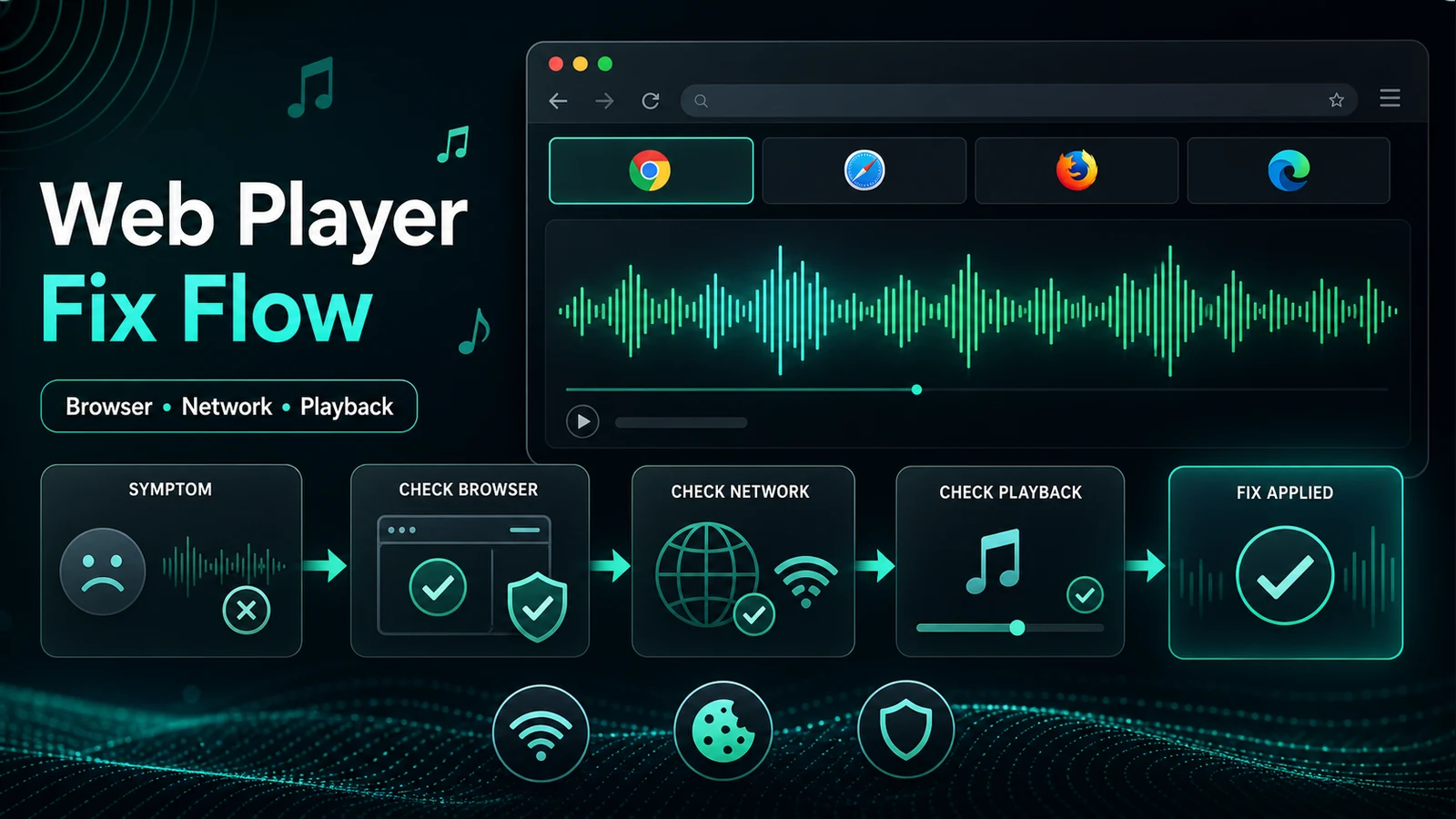
Turn a static score into editable MIDI
Contents
If your search is "Spotify web player not working," do not start with a full reinstall. The web player depends on a smaller chain: Spotify service status, browser support, cookies, protected-content playback, extensions, network rules, and your audio output. Fix the smallest layer first, then move outward.
The fast version is this: try a private window, update the browser, allow Spotify cookies, disable privacy or ad-blocking extensions for spotify.com, check protected-content playback, then test the desktop app only after the browser path is clear.
Quick triage for Spotify Web Player not working
Use the symptom to choose the first repair. It saves time and avoids deleting downloads, cache, and browser data before you know what actually failed.
| What you see | Most likely cause | First fix to try |
|---|---|---|
| Web player will not load at all | Browser version, cookies, network, or Spotify status | Open a private window and check the same URL |
| Black screen after login | Cookie, extension, cached session, or blocked script | Disable extensions for Spotify and clear Spotify site data |
| Songs load but will not play | Audio output, protected content, browser media permission, or account session | Switch output device and enable protected content |
| One browser fails but another works | Browser profile, extension, or cached data | Repair that browser profile instead of reinstalling Spotify |
| Web player fails on school or office Wi-Fi | Shared network restriction | Test a personal hotspot or contact the network admin |
Start with Spotify official checks
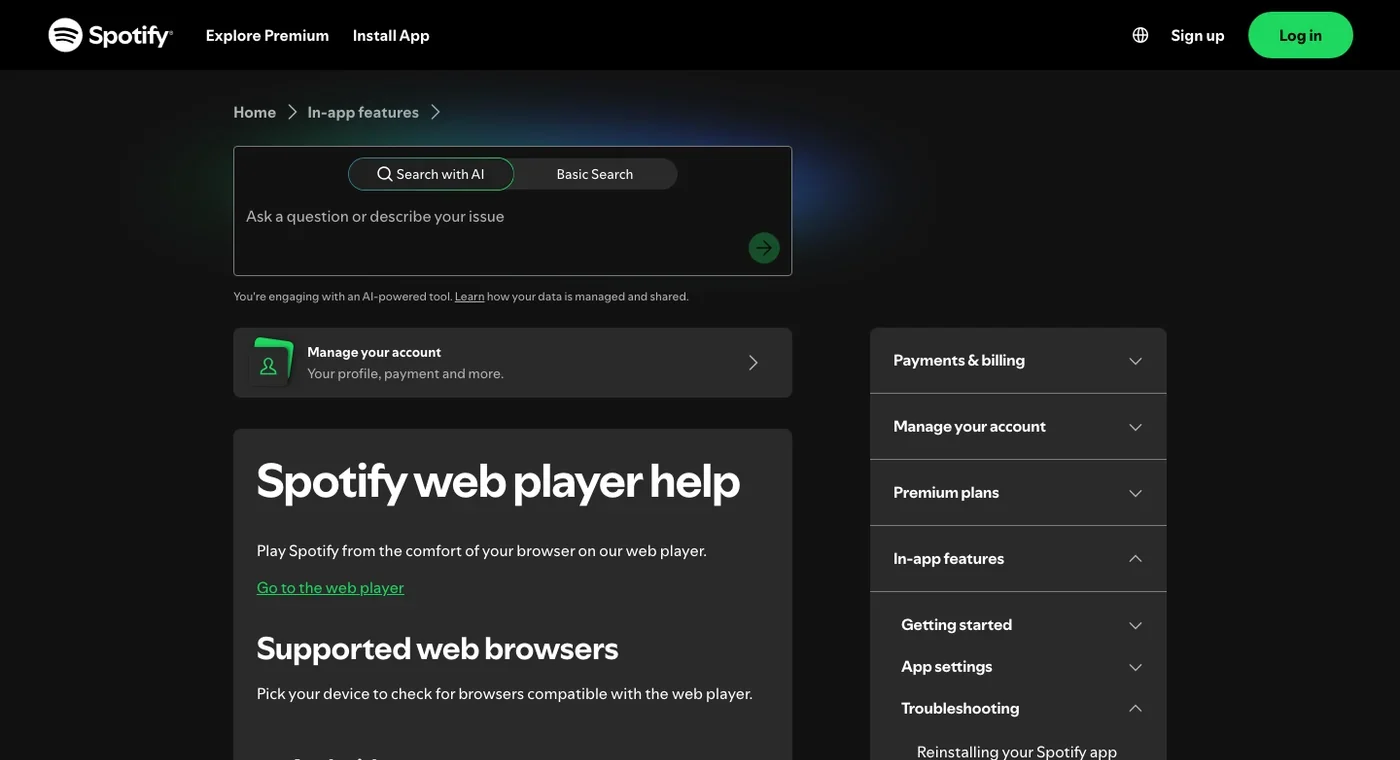
Spotify's official web player help page gives the right first order: make sure the browser is up to date, try a private or incognito window, and remember that shared networks such as school, work, or office Wi-Fi may restrict access to some services.
Run this low-risk check before clearing everything:
- Open
open.spotify.comor Spotify's web player link in a private window. - Sign in once and try one track.
- If it works, your normal browser profile is the issue.
- If it fails everywhere, test another network before changing account settings.
- If Spotify itself is degraded, wait instead of repeatedly changing local settings.
This order matters because a web player failure is not always a Spotify account problem. If the desktop app works, your password is probably fine. If another browser works, your normal browser profile is the problem. If no device can play, check broader Spotify or network issues.
Repair browser cookies, cache, and extensions
Browser state is the most common fix area for web-player problems. Spotify needs a usable login session, media playback permissions, and scripts that are not being blocked too aggressively.
Start with a narrow browser repair:
| Step | Why it helps | What to avoid |
|---|---|---|
| Update the browser | Spotify's web player depends on current browser media support | Do not stay on an old enterprise browser if another supported browser is available |
| Test private mode | Separates account/network issues from profile issues | Do not assume private mode is the permanent fix |
| Allow Spotify cookies | Keeps the login and playback session alive | Do not block all cookies for spotify.com |
| Disable extensions for Spotify | Ad blockers, script blockers, privacy extensions, and redirect tools can break playback | Do not disable security tools globally; test Spotify only |
| Clear Spotify site data | Removes stale Spotify cookies/cache without wiping every site | Do not clear all browser data unless targeted cleanup fails |
If the clean profile works, re-enable extensions one at a time. The usual culprits are privacy filters, script blockers, media download helpers, aggressive ad blockers, VPN browser extensions, and extensions that rewrite audio/video pages.
Fix protected content and browser playback
If Spotify loads but tracks will not play, the issue may be media playback rather than the page itself. Spotify's web player help page calls out the protected-content error specifically: if you see a message like "Playback of protected content is not enabled," enable the Widevine plugin or media pack for your browser.
Use this order:
- Make sure the browser is allowed to play protected content.
- Check whether the tab is muted.
- Switch the system audio output device.
- Disconnect Bluetooth headphones and reconnect them.
- Try one different browser before changing Spotify account settings.
For Chrome and Edge, protected-content settings usually live inside site settings or privacy/security settings. For Firefox, check DRM-controlled content. For Windows editions that need a media feature pack, install it through official Windows settings rather than a random codec site.
The useful distinction: a login failure, a black screen, and a protected-content error are three different problems. Treating all of them as "Spotify is broken" leads to noisy fixes.
Check network, device, and playback state
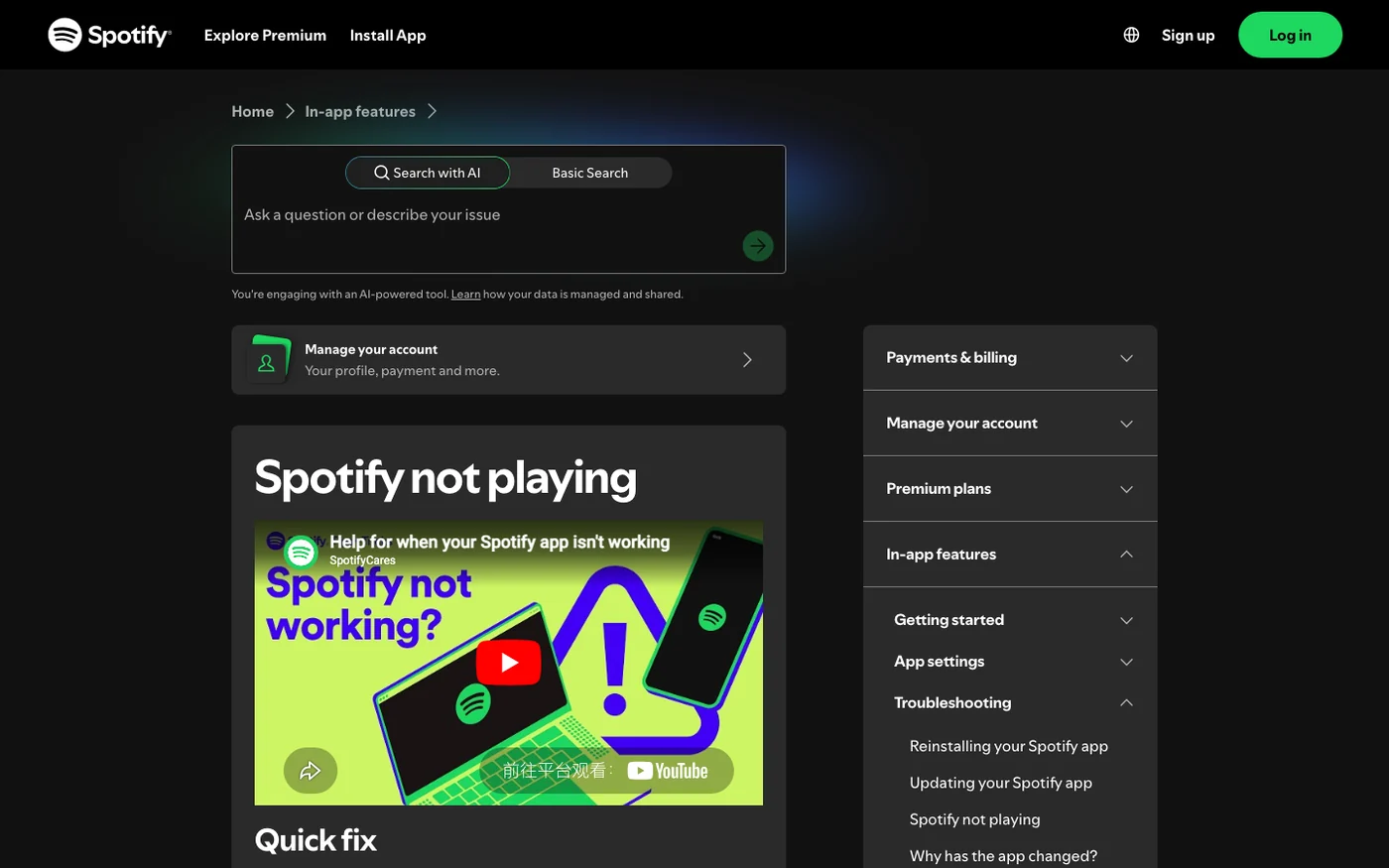
Spotify's official Spotify not playing page lists broader playback checks: restart Spotify, update or reinstall the app, confirm the internet connection is stable, update the operating system, close unused apps, clear cache, and check whether a firewall is blocking Spotify on desktop.
For the web player, use the same idea but keep it browser-first:
| Area | What to check |
|---|---|
| Network | Try another Wi-Fi, a hotspot, or a VPN-off test |
| Firewall | Make sure spotify.com, open.spotify.com, and playback domains are not blocked |
| Device | Restart the computer if audio routing or memory looks stuck |
| Browser | Close duplicate Spotify tabs so only one session is active |
| Account region | If playback fails only while traveling, check Spotify account-country rules |
If you are on a managed school or office network, you may not be able to fix the web player locally. Spotify itself notes that shared or public networks can restrict services. In that case, the right fix is a permitted network, not another browser cleanup pass.
Use the desktop app when the browser is the weak link
If the web player still fails after clean-browser and network checks, try the Spotify desktop app as a controlled comparison. Spotify's web player help page itself points users to the desktop app when the browser path is still not working.
Use the app as a diagnostic tool:
- If the desktop app plays normally, keep troubleshooting the browser profile.
- If the app also fails, check device audio, network, account, and Spotify status.
- If reinstalling the app is needed, Spotify's reinstall support page notes that downloaded music and podcasts need to be downloaded again afterward.
If your decision is really about which Spotify surface to use long-term, read the Spotify Web Player vs Desktop App comparison. If your issue is repeated account sign-out rather than playback, the Spotify keeps logging me out guide has the safer account-first checklist.
Where Melogen fits after Spotify works
Melogen does not fix Spotify's browser player, bypass Spotify streaming protections, or recover a Spotify account. It becomes useful after playback is stable and the file you need to work on is yours: a rehearsal recording, a purchased audio file, a podcast intro, a voice memo, a lesson cue, or a demo export.
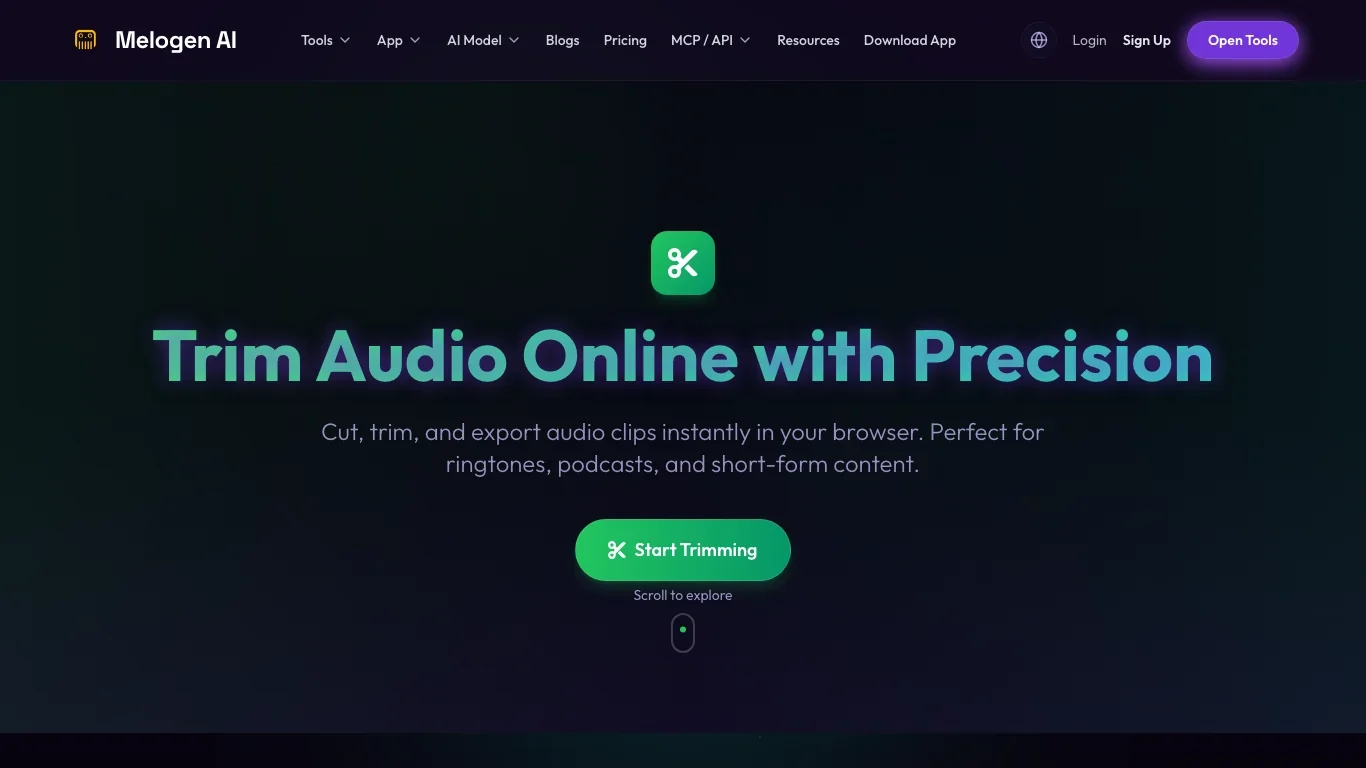
The current Melogen Music Trimmer route is built for browser-based audio trimming. The local product page describes cutting, trimming, previewing, and exporting audio clips, with support for common formats such as MP3, WAV, M4A, OGG, FLAC, and AAC. Keep the boundary simple: fix Spotify playback in Spotify, then use Melogen only for audio files you have the right to edit.
Prepare clean clips after Spotify is stable
Use Melogen Music Trimmer for audio files you are allowed to edit, then bring the finished clip back into your listening or lesson workflow.
FAQs
Why is Spotify Web Player not working in Chrome?
Chrome issues often come from stale site data, blocked cookies, extensions, protected-content settings, or a muted output device. Test Spotify in an incognito window first. If that works, repair the normal Chrome profile instead of changing your Spotify account.
Why does Spotify Web Player show a black screen?
A black screen usually points to a browser profile, extension, cache, cookie, or network restriction. Try a private window, disable extensions for Spotify, clear Spotify site data, and test a different network.
How do I fix the protected content error?
Enable protected-content playback or DRM-controlled content in your browser. Spotify's web player help page says the error requires enabling Widevine or a media pack, depending on the browser and device.
Should I reinstall Spotify to fix the web player?
Not first. The web player is browser-based, so start with browser, cookie, extension, network, and protected-content checks. Reinstalling the desktop app only helps if the desktop app is also part of the failure.
Can Melogen fix Spotify Web Player?
No. Use Spotify and browser settings for web-player problems. Melogen helps with your own audio files after Spotify is working, such as trimming a lesson cue, rehearsal clip, or demo export you have permission to edit.
The practical takeaway
Spotify Web Player problems are easiest to fix when you isolate the layer. If a private window works, repair the browser profile. If another browser works, repair the failing browser. If no browser works, check network and Spotify status. If the desktop app works, use it while you clean the browser path. Keep Spotify troubleshooting inside official Spotify and browser settings, and use Melogen only for owned audio cleanup once playback is stable.
About the author
Zhang Guo
Composer - AI Product Manager
AI product manager and digital marketing consultant with a background in music. Creativity is the bridge between rhythm and logic, where musical intuition and mathematical precision can coexist in every meaningful product decision.
Follow on X