How to Add Friends on Spotify and Share Music Safely
Add friends on Spotify with profile search, links, codes, Jam, privacy checks, and safe local-audio prep before sharing your own clips.
 Zhang Guo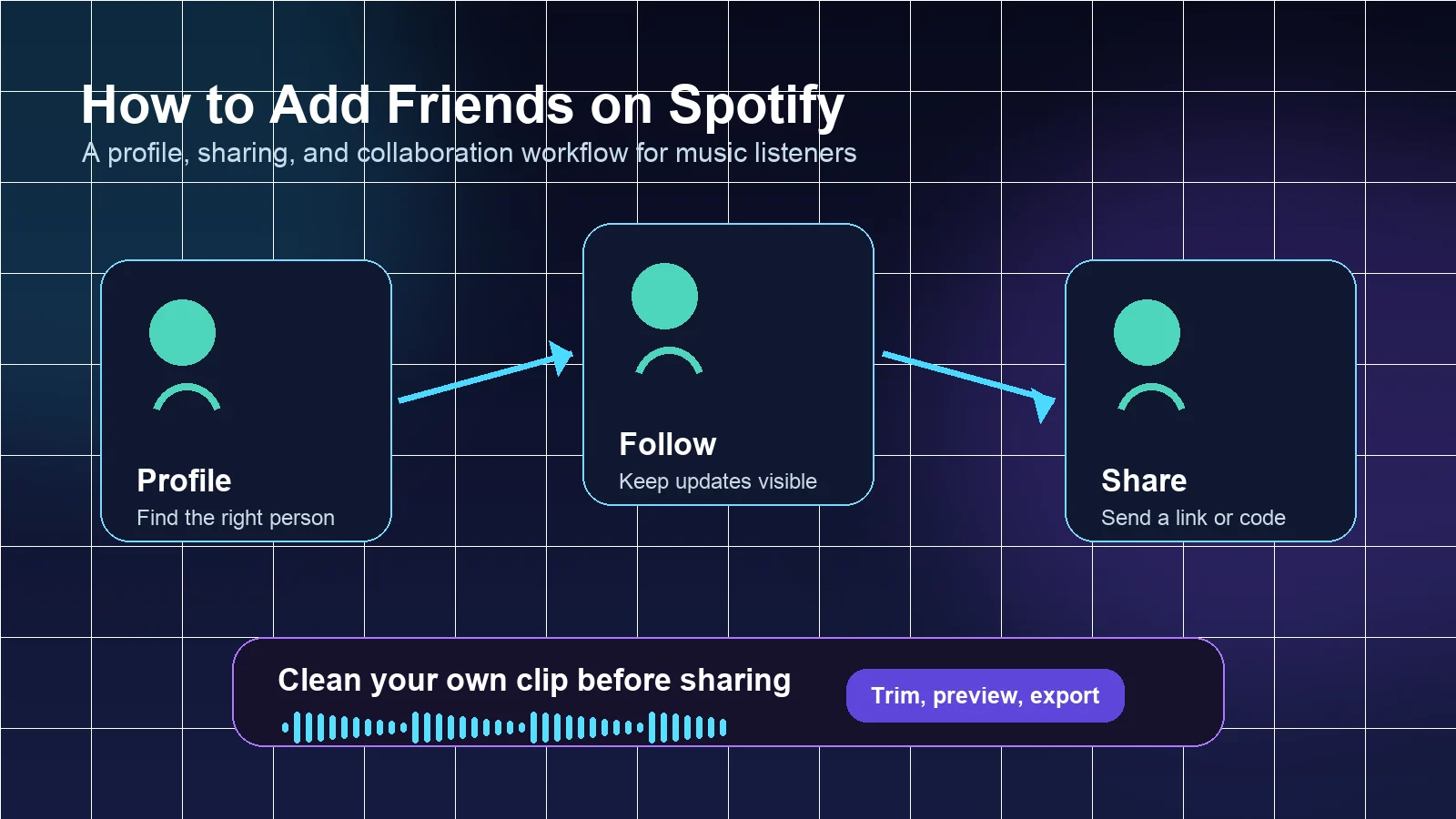
Turn a static score into editable MIDI
Contents
To add friends on Spotify, start by finding the other person's profile and following it. That is the closest thing Spotify has to a normal "add friend" action. From there, you can see eligible Listening Activity, send profile links, share Spotify Codes, invite people into Jams, or collaborate on playlists when the job is bigger than a simple follow.
The important distinction is this: following a profile, sharing a song, joining a Jam, and preparing your own audio are different workflows. Use the one that matches the relationship you want, and do not treat a Spotify follow as a shortcut around privacy settings or music rights.
What adding friends on Spotify actually means
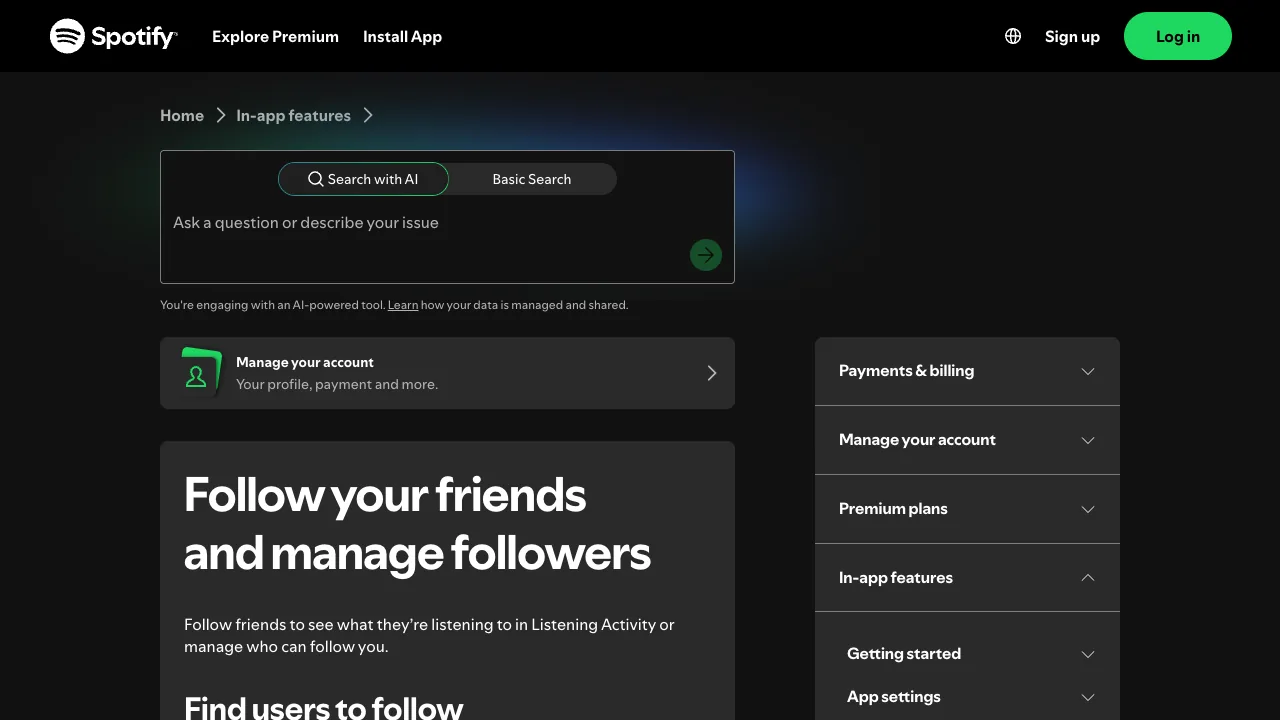
Spotify's official follow friends and manage followers page says you can follow friends to see what they are listening to in Listening Activity, search for a user's name, choose the Profiles filter, and tap or click Follow on the profile. It also explains follower management, removing followers, blocking users, and profile privacy controls.
That makes the basic workflow simple:
- Search for the person's name or display name.
- Filter to Profiles if Spotify shows songs, playlists, or podcasts first.
- Open the correct profile.
- Tap or click Follow.
- If search fails, ask the person to send their profile link directly.
The fastest ways to add friends
If you already know the person's display name, search is the fastest route. If you do not, a profile link is cleaner than guessing from similar names.
| Method | Best for | What to check |
|---|---|---|
| Search profile | You know the display name or username | Use the Profiles filter and confirm the profile photo or public playlists |
| Profile link | Search shows too many similar names | Ask the friend to open their profile and share the profile link |
| Spotify Code | You are together in person or sharing from a poster/card | Test the scan before assuming everyone can reach the profile |
| Facebook connection | Older friend-finder workflows | Only useful if both accounts are connected and permissions still allow it |
If the profile does not appear, do not assume the account is broken. The person may use a different display name, have limited public profile signals, or not expose the activity you expect to see.
Choose the right social path
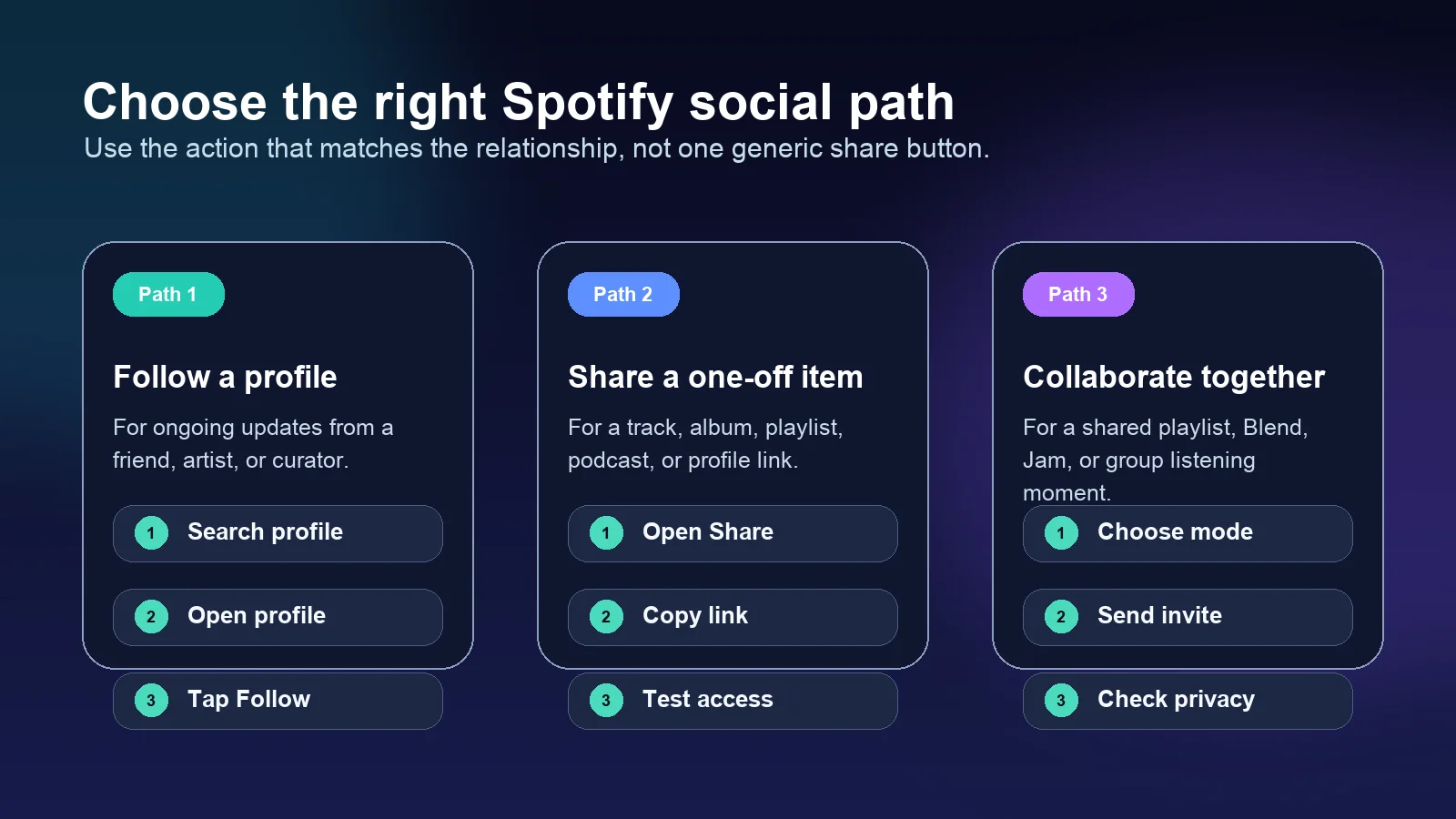
Following is only one Spotify social action. The better workflow depends on what you want to happen after the connection.
| Goal | Use this Spotify path | Why it fits |
|---|---|---|
| See a friend's eligible activity later | Follow their profile | It creates an ongoing connection without sending a new link each time |
| Send one song, album, playlist, or profile | Share link or Spotify Code | It gets the other person to a specific destination fast |
| Build a playlist together | Collaborative playlist | Both people can contribute to the playlist instead of just following |
| Listen together right now | Jam | Spotify's Jam support page says friends can listen and add songs to the queue together |
| Keep activity private | Privacy and social controls | Following does not override what a user chooses to hide |
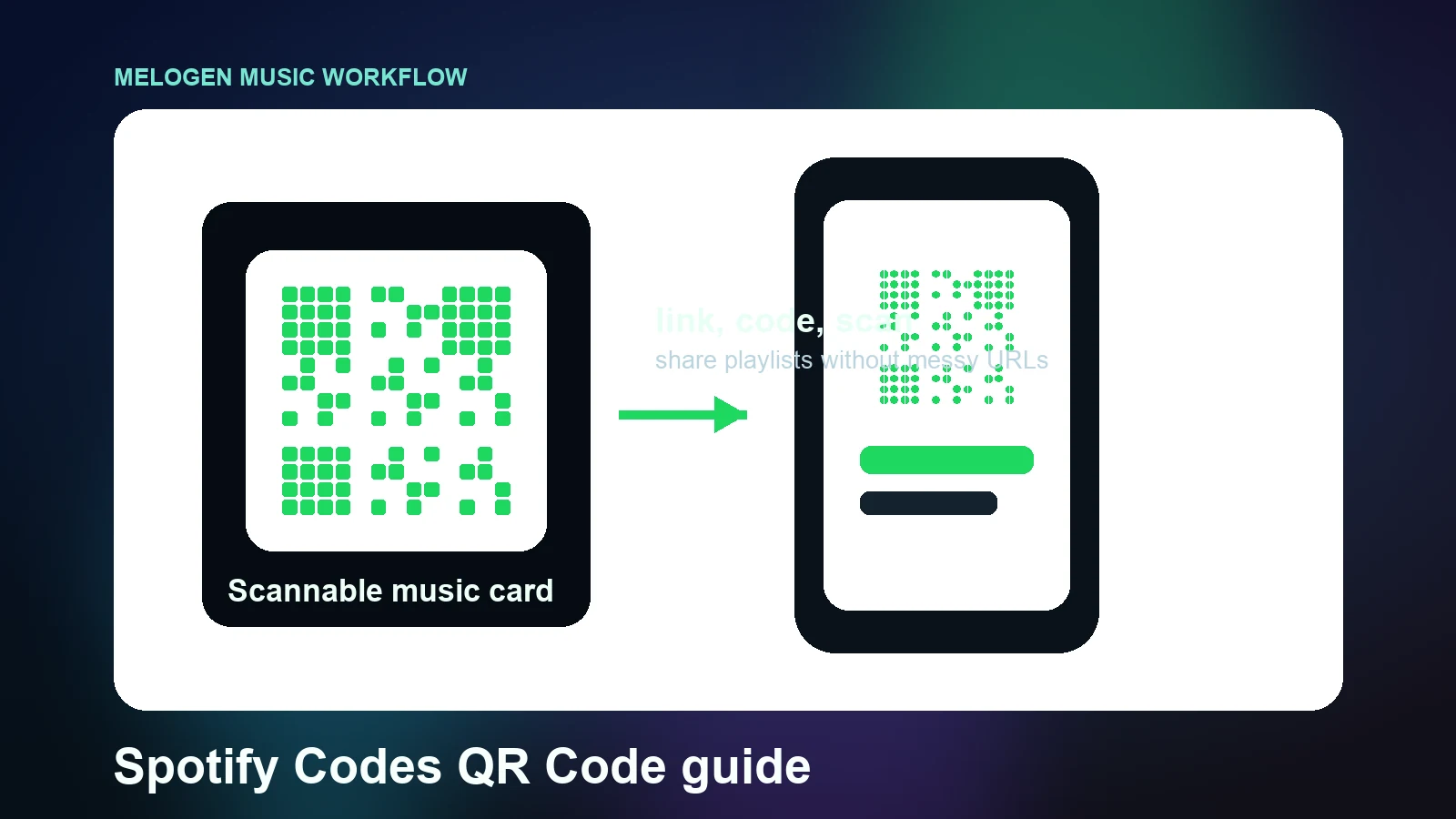
If your real task is sharing a scannable destination, read the Melogen guide to Spotify Codes and QR codes. If your real task is editing playlist content, start with how to edit Spotify playlists and songs.
Fix common friend-finding problems
Most "I cannot add my friend" problems are search, privacy, or expectation problems rather than a missing button.
Try this checklist:
| Problem | Likely cause | Fix |
|---|---|---|
| You see songs or playlists, not people | Search is showing all result types | Switch to the Profiles filter after searching |
| You cannot identify the right profile | Similar names or no profile photo | Ask for a direct profile link |
| You followed the person but see no activity | Listening Activity or privacy settings limit visibility | Ask them to check privacy/social settings instead of refollowing |
| Facebook friend discovery does not work | Account linking or permission limits | Use profile search or profile links instead |
| Someone should not follow you | Follower management is needed | Use Spotify's remove follower or block options where available |
For privacy-sensitive situations, Spotify's private listening support page is the better reference than a friend-search tutorial. Friend features are useful, but they should not pressure someone into exposing listening activity.
When a friend link is not enough
Use a profile follow when you want a lightweight connection. Use a collaborative feature when the music itself needs shared control.
Spotify's collaborative playlists support page is the right reference when the goal is building a playlist together. Jam is better when people are actively listening at the same time and want to add songs to a shared queue. A Spotify Code is better when you are moving someone from a physical surface, class handout, event flyer, or social image into a specific Spotify destination.
The real question is whether your friend needs a relationship, a destination, or control:
- Relationship: follow the profile.
- Destination: share a profile, song, playlist, or Spotify Code.
- Control: use Jam or a collaborative playlist.
Prepare your own audio before sharing
Melogen does not add Spotify friends, manage followers, publish to Spotify, or change Spotify privacy settings. It fits before the sharing step when the source file is yours to edit, such as a rehearsal clip, demo bounce, class audio example, exported MIDI render, or purchased DRM-free file.
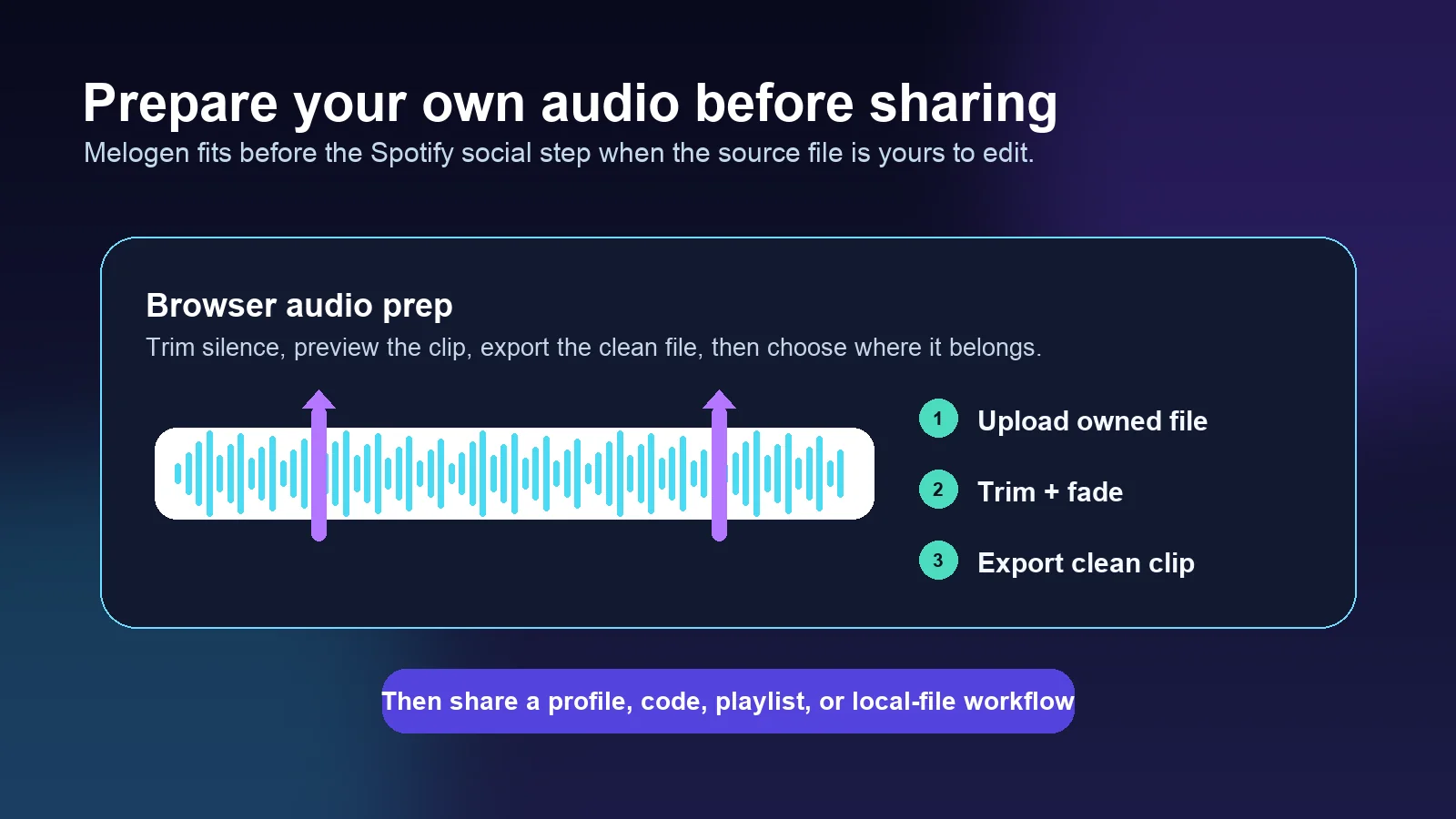
For example, use Music Trimmer to remove a long count-in, fade a rough ending, or export a cleaner clip before you send it privately or decide whether it belongs in a local-file workflow. If the next step is personal listening inside Spotify, the guide to adding local files to Spotify explains that path without confusing local files with streaming-catalog downloads.
Clean a clip before you share it
Use Melogen Music Trimmer for files you are allowed to edit, then send the clean result through the right sharing or local-file workflow.
FAQs
Is adding friends on Spotify the same as following them?
For most users, yes. Spotify does not work like a two-way social network friend request. You usually find the person's profile and follow it.
Can I add friends on Spotify without Facebook?
Yes. Use Spotify profile search, a direct profile link, a Spotify Code, Jam invites, or collaborative playlist links. Facebook can help only when the accounts and permissions line up.
Why can't I see my friend's Listening Activity?
They may not share activity, they may use privacy settings, or the activity surface may not be available on the device you are checking. Following a profile does not force activity visibility.
Can someone follow me again after I remove them?
Spotify's support guidance notes that removing a follower does not permanently block them. If you need a stronger boundary, use the block option where available.
Can Melogen help me add friends on Spotify?
No. Melogen is not a Spotify account or social-management tool. It can help you trim or prepare owned audio before you share a file, playlist context, or local-file workflow with someone else.
The practical takeaway
Add friends on Spotify by following the right profile, but choose the next social action carefully. Follow for ongoing activity, share a link or Spotify Code for one destination, use Jam or collaborative playlists for shared control, and use Melogen only when you are preparing your own audio before the sharing step.
About the author
Zhang Guo
Composer - AI Product Manager
AI product manager and digital marketing consultant with a background in music. Creativity is the bridge between rhythm and logic, where musical intuition and mathematical precision can coexist in every meaningful product decision.
Follow on X