How to Edit Spotify Playlists and Songs in 2026
Edit Spotify playlists, folders, local files, and owned audio cleanly with desktop, mobile, and Melogen prep steps.
 Zhang Guo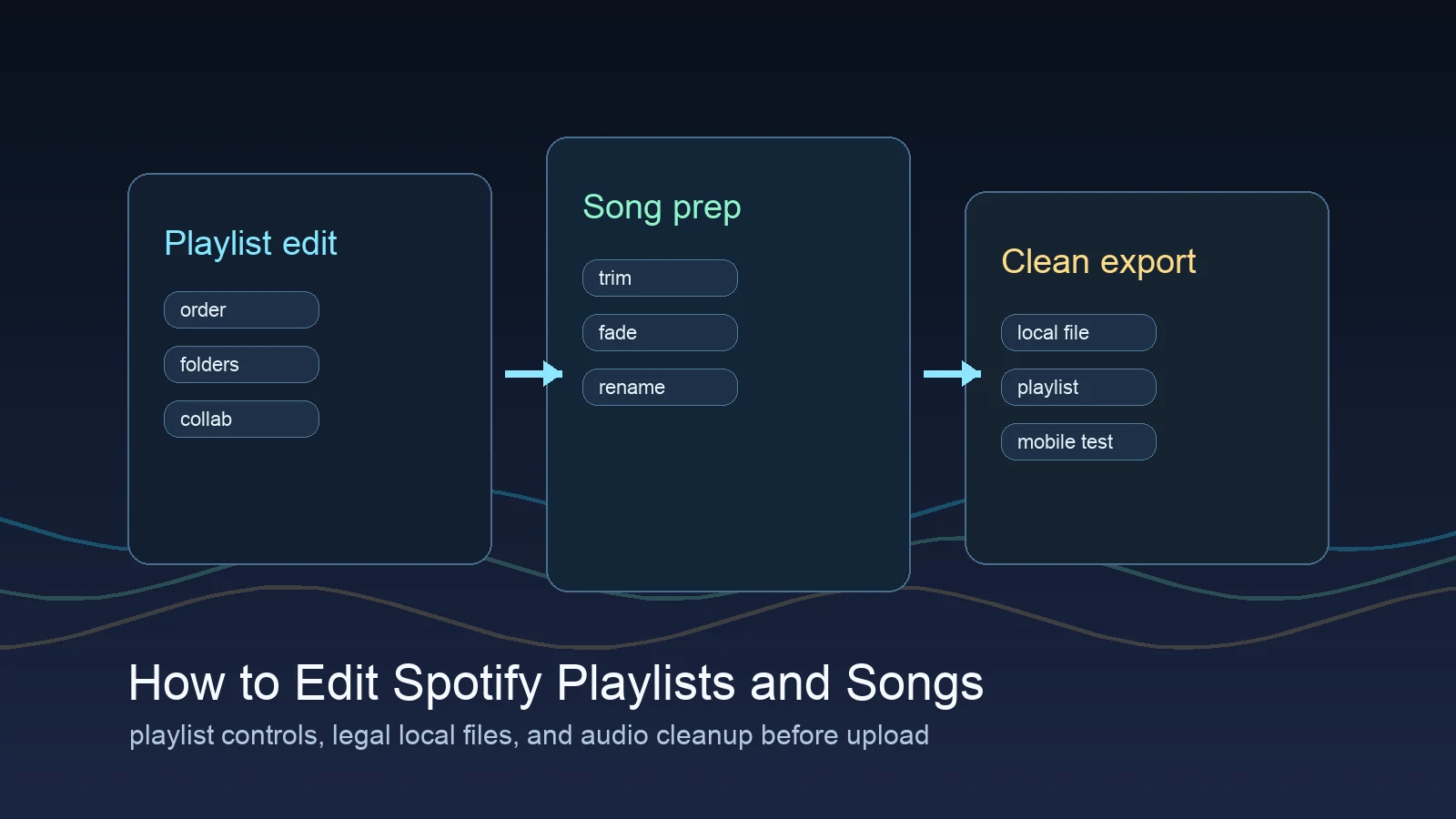
Turn a static score into editable MIDI
Contents
To edit Spotify playlists and songs safely, start with the boundary between playlist controls and audio-file cleanup. You can create playlists, rename them, add or remove tracks, change the order, make collaborative playlists, and organize large libraries with folders on desktop. You cannot edit the actual audio of a Spotify catalog song inside Spotify. If the track is your own local file, demo, rehearsal cut, or legal export, clean that file before adding it to Spotify.
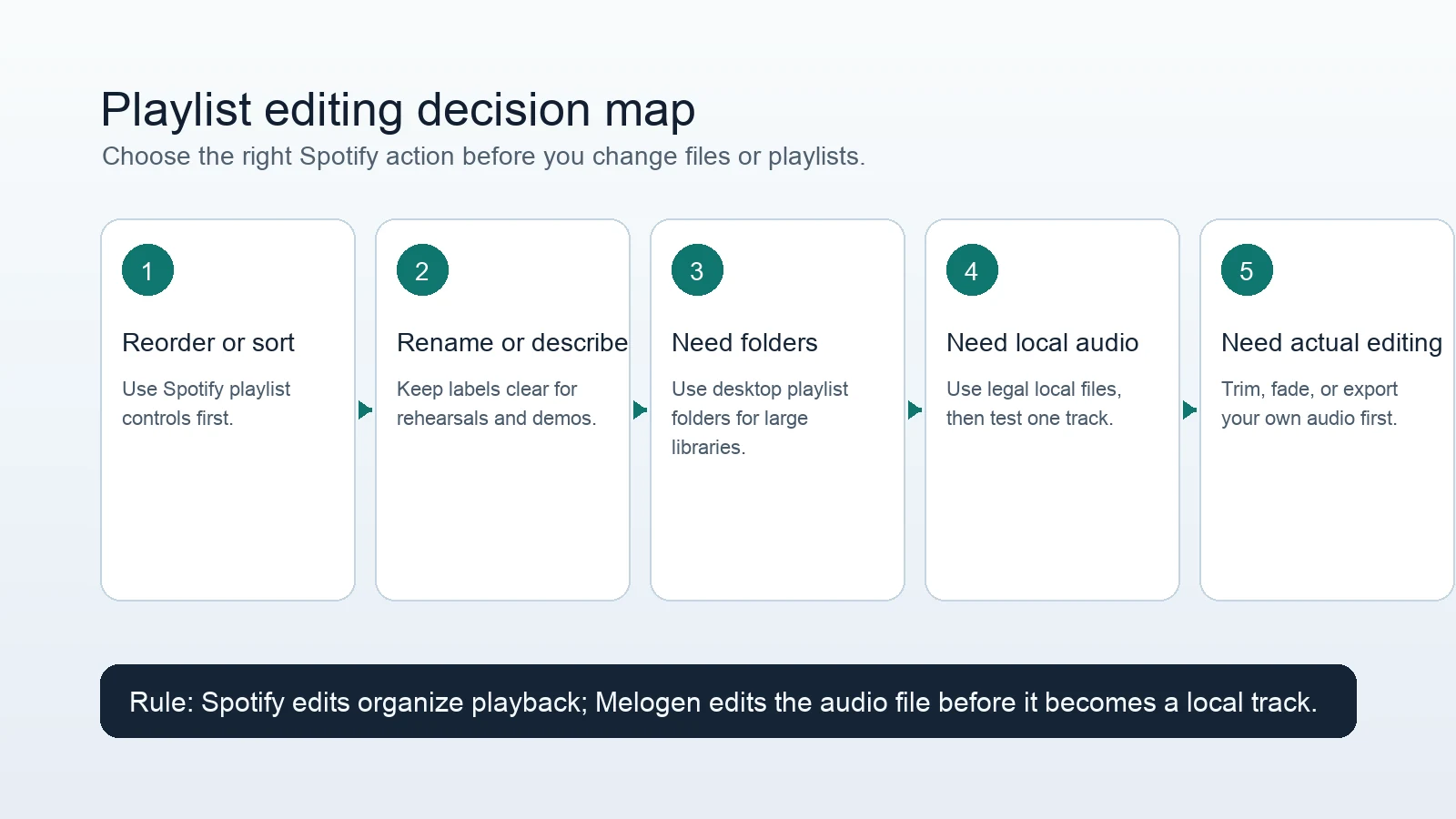
That distinction keeps the workflow simple. Spotify edits the playlist experience. Melogen helps when the source audio is yours and needs trimming, fading, or a cleaner listening copy before it becomes a local file.
What you can edit in Spotify
Spotify's own playlist tools cover most library tasks. On desktop and mobile, you can create playlists, add songs, remove songs, reorder tracks in playlists you control, change the playlist name, update the description, choose a cover image, and invite collaborators when collaboration is enabled.
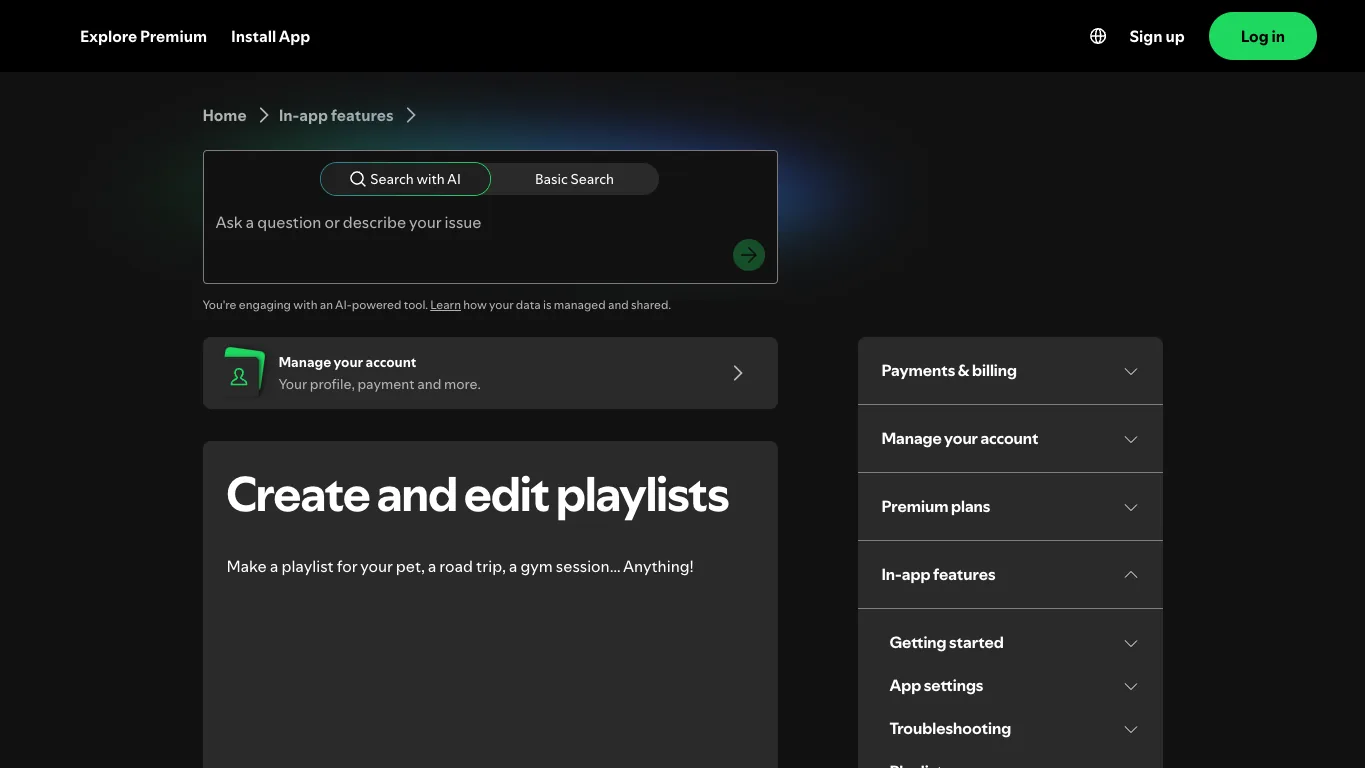
The important boundary is that these are playlist edits, not song edits. Spotify does not let you trim a streaming track, rewrite a song file, change the audio master, or export a catalog song as a new local file. If your goal is simply to make a better running mix, study playlist, DJ prep list, rehearsal queue, or classroom set, stay inside Spotify first.
| Task | Where to do it | Best method |
|---|---|---|
| Create a playlist | Spotify desktop or mobile | Start a new playlist and add tracks gradually |
| Rename a playlist | Spotify playlist menu | Use a clear title for the mood, rehearsal, or project |
| Reorder songs | Spotify playlist view | Drag tracks on desktop or use edit mode on mobile |
| Organize many playlists | Spotify desktop | Use playlist folders |
| Add your own audio | Spotify Local Files | Prepare a clean legal file first |
| Trim silence or fade a demo | Outside Spotify | Edit the owned audio, then add the export |
If you are deciding whether the web player or the desktop app is the better place to do this work, the Spotify Web Player vs Desktop App guide explains the tradeoffs.
Use desktop for serious playlist cleanup
Desktop is the easiest place to do heavier playlist work because you have more room to scan titles, drag tracks, and build folders. It is also the best place to clean up a large library after years of saving random albums, lesson tracks, practice loops, and mood playlists.
Start with one playlist and make three passes:
- Remove obvious skips, duplicates, dead links, and tracks that no longer fit the purpose.
- Reorder the playlist by energy, key, tempo, rehearsal flow, or set-list logic.
- Rename the playlist so future you knows what the list is for.
If the playlist is for practice, put the reference track before the backing track. If it is for teaching, group examples by concept. If it is for a public mood playlist, lead with the strongest recognizable track and avoid long stretches of the same texture.
Use playlist folders for large libraries
Spotify's playlist folders support page describes folders as a desktop feature. Folders are useful when the problem is not one playlist, but too many playlists with no structure.
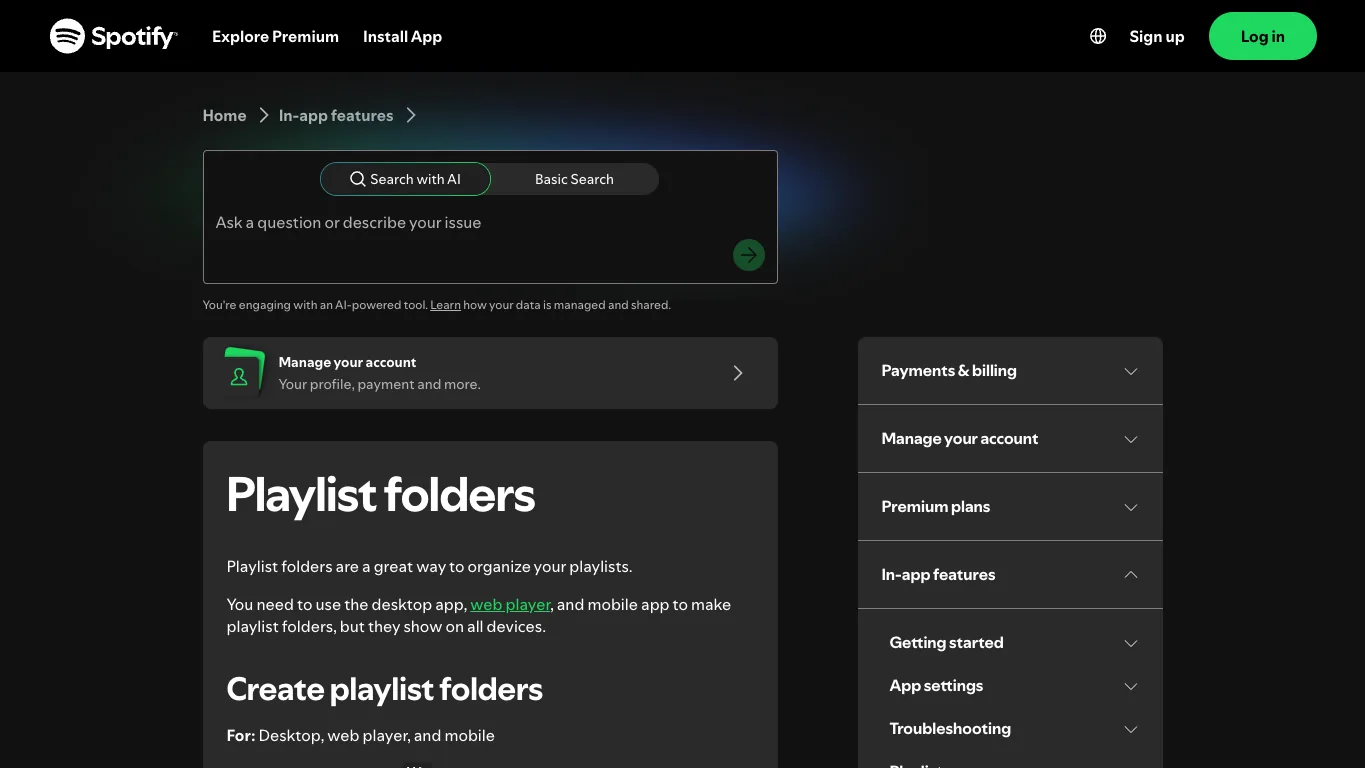
Use folders for stable categories rather than temporary moods. Good folder names are practical: Practice, Teaching, DJ prep, Reference mixes, Client demos, Running, Piano study, or Choir rehearsal. Keep short-lived playlists outside folders until they prove useful.
For musicians, folders are especially helpful when Spotify is only one part of the workflow. A composer might keep listening references by project. A teacher might separate ear-training examples from repertoire. A producer might keep reference playlists by mix target, drum feel, or vocal texture.
Edit local files before adding them
Spotify's Local Files support page is the right official source when the song is not in Spotify's catalog but already exists legally on your device. Local files are useful for your own demos, purchased downloads, rehearsal recordings, lesson audio, and exported mixes.
The cleanest local-file workflow is:
- Put the audio in one obvious folder.
- Give the file a plain descriptive name.
- Trim silence or awkward endings before import.
- Export a listening copy in a common audio format.
- Enable Local Files in Spotify and test one track.
- Add the track to a playlist only after playback works.
If you need a deeper setup walkthrough, use the Add Local Files to Spotify guide. This article is narrower: it focuses on editing decisions before and after the file enters a Spotify playlist.
Prepare cleaner audio with Melogen
Melogen fits before Spotify, not inside Spotify. Use it when the audio belongs to you and needs a practical cleanup pass: removing a long count-in, cutting a rehearsal loop, fading a rough ending, trimming a lesson example, or exporting a short listening copy for a playlist.

Use the Melogen Music Trimmer when the job is audio cleanup. If the source is a MIDI idea and you need an audio file for listening, use a MIDI export route first, then add the finished audio to Spotify Local Files. If the audio quality seems inconsistent after export, the bitrate guide for music files explains the practical tradeoffs before you re-export.
Clean up your own audio before Spotify import
Use Melogen Music Trimmer to remove silence, tighten endings, and export a cleaner listening copy before adding a legal local file to Spotify.
The rights boundary matters. Melogen should help with audio you created, purchased, licensed, or otherwise have permission to edit. It should not be framed as a way to extract, alter, or republish Spotify catalog tracks.
Troubleshoot common editing problems
Most Spotify editing issues are not mysterious. They usually come from ownership, device differences, permissions, or trying to use playlist controls for an audio-editing job.
| Problem | Likely cause | Better fix |
|---|---|---|
| You cannot reorder songs | You do not own the playlist or are in the wrong view | Copy the playlist or use a playlist you control |
| Folder option is missing | Playlist folders are desktop-led | Use Spotify desktop for folder organization |
| Local file appears on desktop but not mobile | Mobile permissions or file sync are not ready | Test one local file and check device settings |
| A local track sounds clipped or awkward | The source audio was not prepared | Trim and re-export the file before adding it |
| You want to shorten a Spotify catalog song | Spotify playlist tools cannot edit streaming audio | Use another legal source you control |
| Collaborators keep changing order | Shared playlist needs clearer rules | Duplicate the playlist before heavy edits |
When in doubt, split the question in two. Are you changing playlist behavior, or are you changing an audio file? Spotify handles the first. A legal audio editor handles the second.
The practical takeaway
Edit Spotify playlists with Spotify's own tools first: rename, reorder, remove, add, collaborate, and organize with folders on desktop. Use Local Files only when the audio is already yours to store and play.
If the file itself needs work, prepare it before import. Trim the count-in, fade the ending, export a clean listening copy, then test one track in Spotify. That workflow is less messy than trying to make Spotify behave like an audio editor, and it keeps your playlist work inside the rules that actually apply.
About the author
Zhang Guo
Composer - AI Product Manager
AI product manager and digital marketing consultant with a background in music. Creativity is the bridge between rhythm and logic, where musical intuition and mathematical precision can coexist in every meaningful product decision.
Follow on X