Apple Music on iPod Shuffle Safe Sync Guide
Learn what works on iPod Shuffle, why Apple Music streams do not sync directly, and how to prepare owned local audio safely.
 Zhang Guo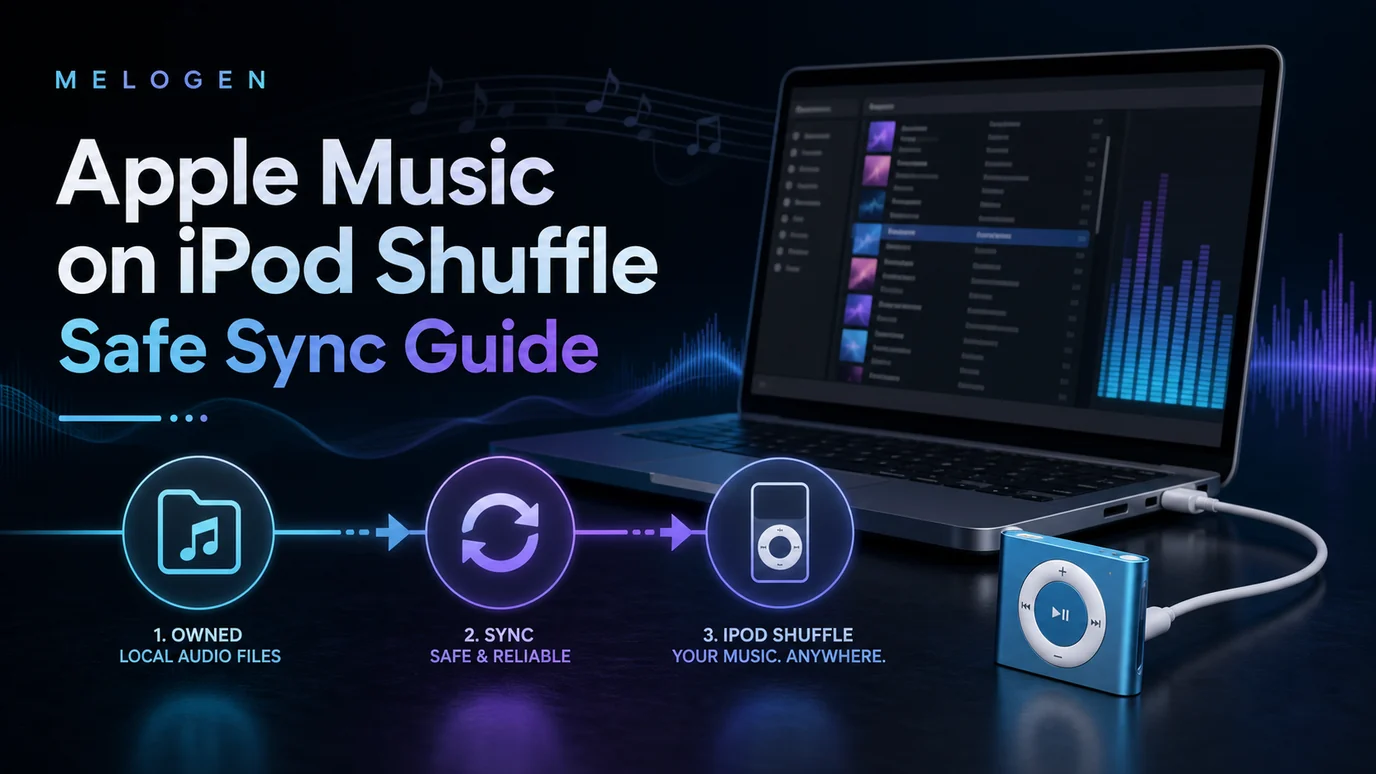
Turn a static score into editable MIDI
Contents
Apple Music on iPod Shuffle only works safely when you separate local-file syncing from streaming access. You can use an iPod Shuffle with music from your computer, but you should not treat it like an Apple Music streaming device. The iPod Shuffle has no Apple Music app, no streaming interface, and no way to authorize subscription catalog downloads like a modern iPhone or iPod touch.
The safe workflow is source-first: sync compatible local files, purchased music, CD imports, or audio you created yourself. If the real search intent is Apple Music converter software, keep that as a separate product decision. If the music is yours to edit, Melogen can help trim or prepare a cleaner local listening copy before you sync it.
Start with what can actually sync
Before you connect the device, decide what kind of music you are trying to put on it. Most bad iPod Shuffle advice starts by mixing these sources together.
| Source music | Best route | Can it go to iPod Shuffle? | Watch out for |
|---|---|---|---|
| Local MP3, AAC, M4A, WAV, or AIFF you own | Add to Music or iTunes, then sync | Usually yes, after format and space checks | Keep a backup before syncing |
| Previous iTunes Store purchases | Redownload or keep the purchased file in your library | Usually yes when the file is playable locally | Use the Apple Account that bought it |
| CD rips or imported library files | Add to iTunes or Music first | Yes, if the file is compatible or converted legally | Do not delete the original library copy |
| Apple Music subscription downloads | Use Apple Music for offline listening on supported devices | Not as direct iPod Shuffle sync files | Subscription access is not file ownership |
| Apple Music converter intent | Evaluate a dedicated converter product | Only after a separate rights and product decision | Do not confuse this with Melogen |
| Your own demos, rehearsal clips, or MIDI renders | Trim, export, or render a listening copy first | Yes, if the output is compatible | Keep the editable project separate |
Apple's iTunes guide lists several official ways to add content, including iTunes Store purchases, CD imports, files already on your computer, and other iTunes libraries. Apple's Sync Library page also says Apple Music is not a backup service, so keep your own copy before changing a library.
Use iTunes or Music for compatible local files
The clean path is boring, which is exactly why it works. Put the music in a real desktop library first, confirm it plays locally, then sync the iPod Shuffle.
On Windows or older macOS workflows:
- Open iTunes and sign in only if you need purchase or library access.
- Add the local file or folder to the library.
- Connect the iPod Shuffle with its USB cable.
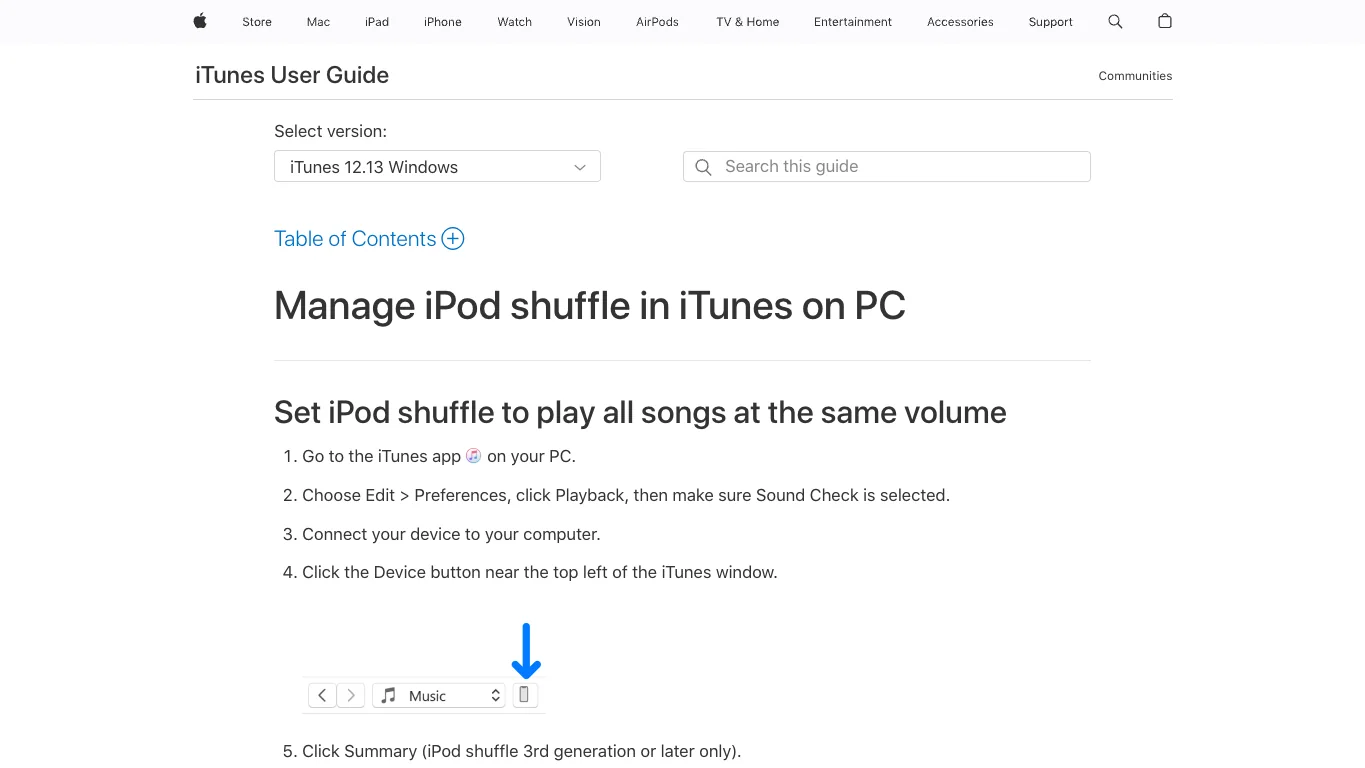
- Click the device button when it appears.
- Choose the songs, albums, artists, or playlists you want to sync.
- Apply the sync and eject the device before unplugging it.
Apple's iTunes guide for managing iPod Shuffle on PC still documents the device screen, sync-related controls, Sound Check, volume limits, and space management. That is the official layer to trust before any third-party conversion promise.
On a modern Mac, Finder handles many device-sync jobs while the Music app manages the library. The practical rule is the same: make sure the file exists locally and plays before you try to move it to the Shuffle.
Convert only files you are allowed to copy
If the file is compatible already, do not convert it just because a guide says to. If you do need another format, Apple's song format conversion guide explains how Apple Music on Mac and iTunes for Windows can create a converted copy while keeping the original. It also warns that some older protected purchases cannot be converted and that you should only reproduce material you own, control, or are legally allowed to copy.
Use this order:
- Try the original local file first.
- If the Shuffle cannot play it, convert a copy, not the master.
- Use MP3 or AAC for compact playback.
- Keep WAV, AIFF, FLAC, ALAC, or the DAW project as the master when quality matters.
- Sync one test track before converting a whole library.
This is where the words matter. "Convert a local file" is not the same thing as "make Apple Music streams into permanent files." If the source is an Apple Music subscription track, solve the source question before you solve the format question.
If you really mean Apple Music converter software
Some readers search "Apple Music on iPod Shuffle" because they want a converter. That is a different job from syncing local files. It involves source rights, product terms, output format, batch behavior, and whether you are comfortable using an off-site converter.
For Apple Music converter intent, the relevant partner product is TuneFab Apple Music Converter. This is an affiliate recommendation. Keep it separate from Melogen: TuneFab is the converter-research path, while Melogen is for files you created, bought DRM-free, recorded, or otherwise have permission to edit.
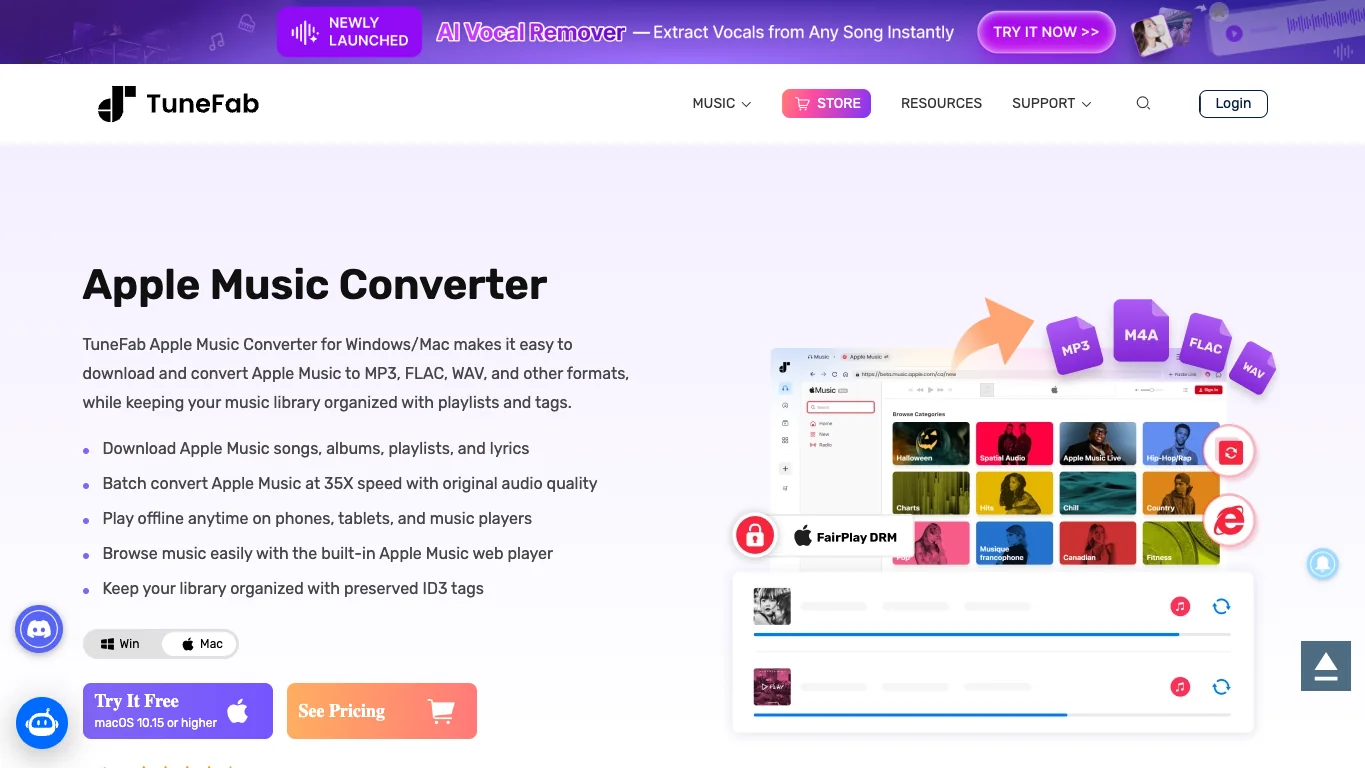
If you are unsure what kind of source you have, read the Melogen guide to Apple Music to MP3 converter options before batch-converting anything. If the source is an old purchase or local library file, the safer companion is downloading music from iTunes to a computer.
Prepare owned audio before syncing
Melogen fits before the sync step when the file is yours to edit: a rehearsal recording, a lesson clip, a DAW bounce, an original demo, a MIDI render, or a purchased DRM-free file that needs cleanup.
Use Melogen's Music Trimmer when you need to:
- remove silence before the first note
- cut a long ending so the Shuffle does not waste space
- make a shorter workout or practice clip
- add a cleaner fade before syncing
- prepare a compact listening copy while keeping the master elsewhere
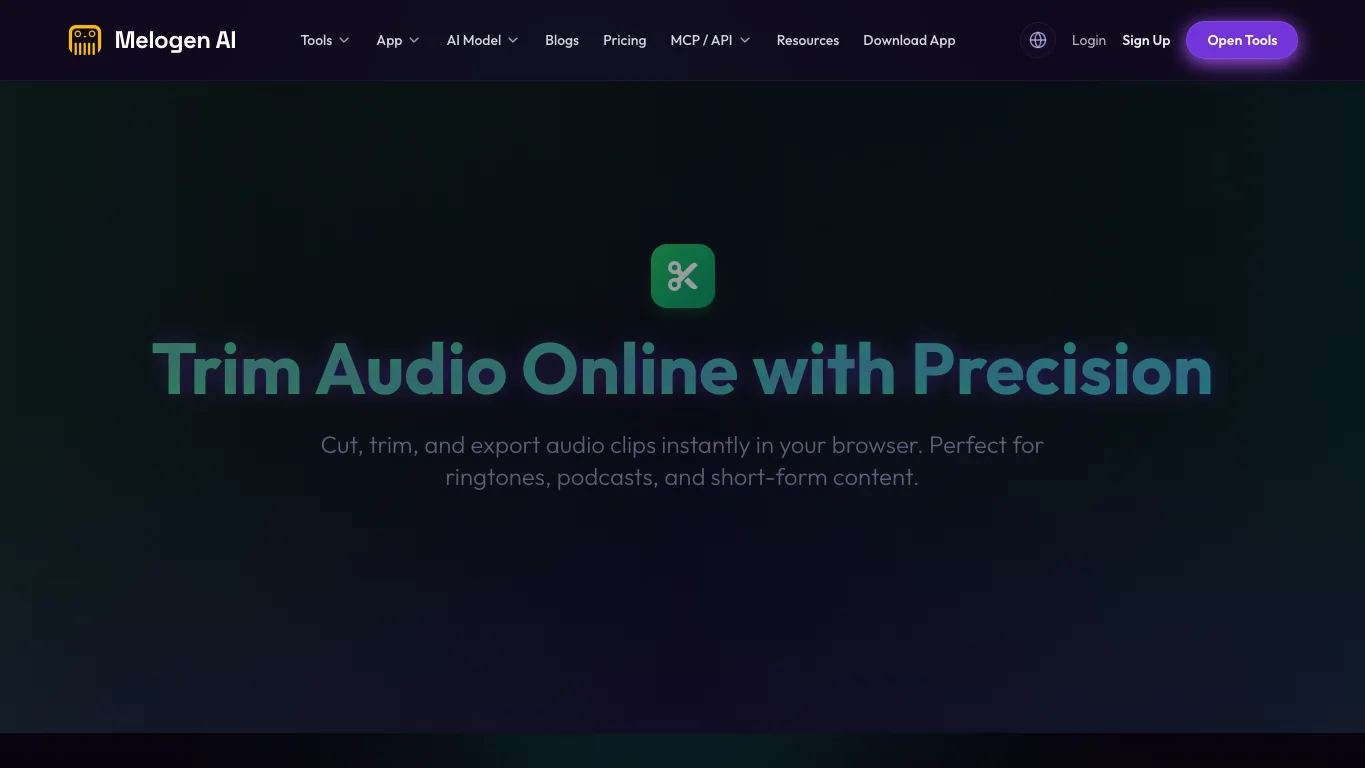
For larger library work, keep three layers separate:
| Layer | What belongs there | Why it matters |
|---|---|---|
| Master source | DAW project, WAV, AIFF, FLAC, CD rip, purchased file, or original recording | This is the version you protect |
| Listening copy | MP3 or AAC prepared for the iPod Shuffle | This is the version you can replace |
| Device sync | The actual songs selected for the Shuffle | This can be rebuilt from the library |
If you also import owned files into Apple Music, the guide to adding songs to Apple Music safely uses the same source-first logic.
Clean up audio before you sync it
Use Melogen Music Trimmer for recordings, demos, and local files you are allowed to edit, then sync the clean listening copy to your iPod Shuffle.
Troubleshoot common iPod Shuffle sync problems
If a song will not sync, treat it as a source, format, or device-space problem before assuming you need a converter.
| Symptom | Likely cause | Safer fix |
|---|---|---|
| The song is in Apple Music but not syncing | It is a subscription catalog item, not a local transferable file | Use Apple Music on supported devices or confirm a legal local-file path |
| The Shuffle does not appear | Cable, USB adapter, device trust, or iTunes/Finder state | Try another cable or port, then reopen iTunes or Finder |
| The file plays on the computer but not on the Shuffle | Format or bitrate mismatch | Create a compatible copy from a file you may reproduce |
| Only some songs fit | Device storage is full | Sync fewer playlists or use smaller listening copies |
| The file disappears after moving folders | The library referenced the old path | Restore the original file or reimport it from the new location |
| The file is protected | Older protected purchase or streaming-service item | Use the authorized playback path or check the rights before copying |
Apple's iTunes page notes a space-management option that can convert higher bitrate songs to 128 kbps AAC for the device. That is useful for squeezing more compatible songs onto a small Shuffle, but it is still a sync-library feature, not a streaming-catalog unlock.
FAQs
Can iPod Shuffle play Apple Music directly?
No. iPod Shuffle does not run the Apple Music app and does not stream from the Apple Music catalog. Treat it as a local-file player.
Can I put iTunes purchases on iPod Shuffle?
Usually yes, if the purchases are downloaded, authorized, playable locally, and compatible with the device. Start with one test track before syncing a whole purchase history.
Can I sync Apple Music subscription downloads to iPod Shuffle?
Not as normal transferable audio files. Apple Music subscription downloads are for offline listening inside Apple Music on supported devices.
What format should I use for iPod Shuffle?
Use a compact MP3 or AAC listening copy when possible. Keep the original file, project, or high-quality master somewhere else.
Can Melogen convert Apple Music songs for iPod Shuffle?
No. Melogen is not an Apple Music converter. Use it for audio you own or have permission to edit, such as demos, recordings, MIDI renders, lesson clips, or DRM-free local files.
The practical takeaway
Use iPod Shuffle with music that exists as compatible local audio. Add or redownload the file into Music or iTunes, confirm the source, sync one test track, then build the device playlist. If the real job is Apple Music converter research, evaluate that product category separately. If the file is your own music or legally editable local audio, use Melogen to trim and clean the listening copy before it goes onto the Shuffle.
About the author
Zhang Guo
Composer - AI Product Manager
AI product manager and digital marketing consultant with a background in music. Creativity is the bridge between rhythm and logic, where musical intuition and mathematical precision can coexist in every meaningful product decision.
Follow on X