How to Add Songs to Apple Music Safely
Add songs to Apple Music with official paths, Sync Library checks, TuneFab converter guidance, and safe Melogen prep for owned audio.
 Zhang Guo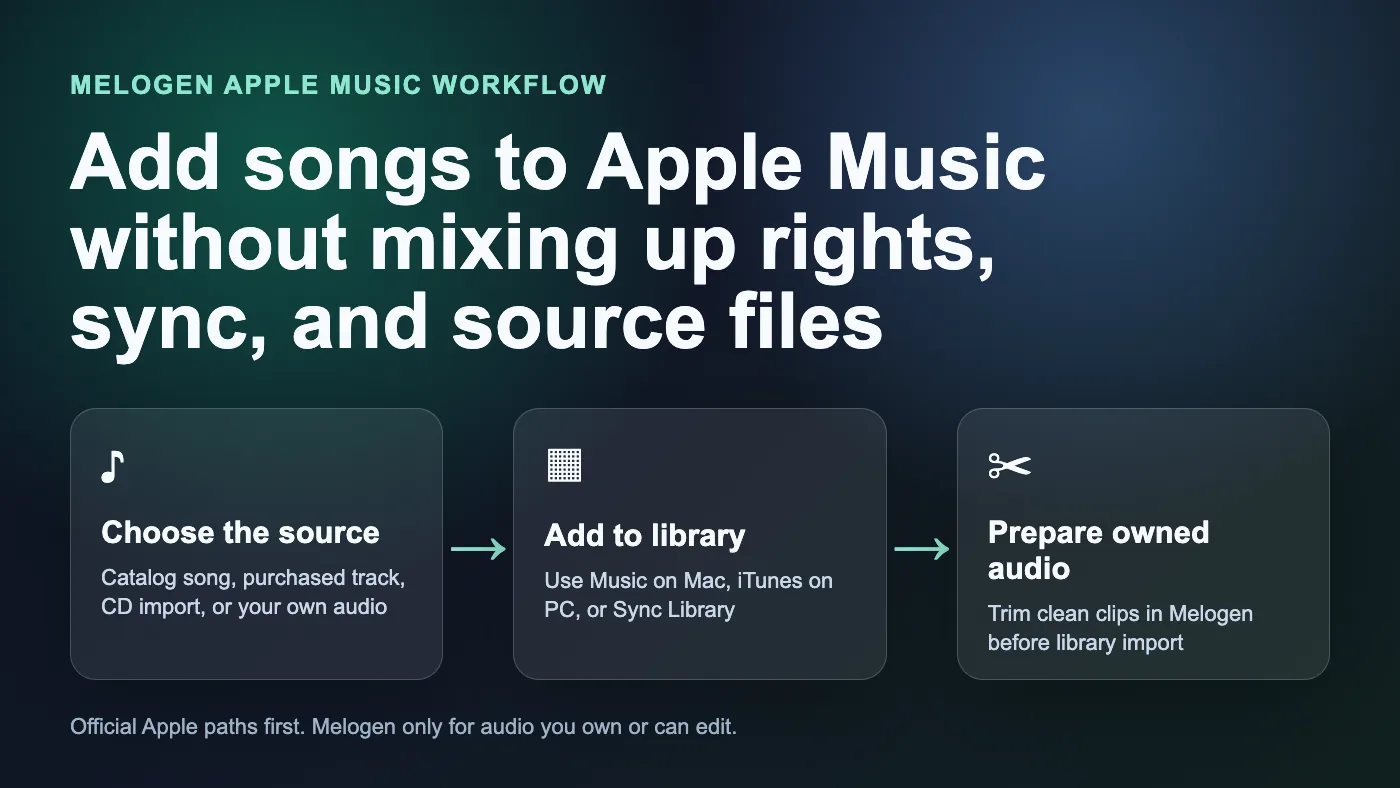
Turn a static score into editable MIDI
Contents
You can add songs to Apple Music in two different ways, and the difference matters. You can add Apple Music catalog items to your library, or you can import audio files that already live on your computer. Those are not the same job.
If the song is in the Apple Music catalog, use Apple's normal Add to Library and download controls. If the song is a file you bought, ripped from a CD, exported from a DAW, recorded yourself, or otherwise have permission to use, import it through Music on Mac or iTunes on Windows, then use Sync Library if you want it available on other devices. If the real job is Apple Music converter software, evaluate TuneFab Apple Music Converter; this is an affiliate recommendation.
Choose the right source first
Before you click Add, decide what kind of song you are dealing with. Most bad advice around Apple Music starts by mixing these sources together.
| Source | Best Apple path | Can Melogen help? | Watch out for |
|---|---|---|---|
| Apple Music catalog song | Add it inside Apple Music, then download for offline playback if needed | No, keep it inside Apple Music | Subscription downloads are not owned audio files |
| Apple Music converter intent | Use TuneFab Apple Music Converter as the off-site product path | No, Melogen is not the Apple Music converter | Review the source and output goal before batch conversion |
| iTunes Store purchase | Redownload or keep the purchased file in your library | Sometimes, after you confirm you can edit the file | Hidden purchases, wrong Apple Account, missing original files |
| Local MP3, M4A, WAV, or CD rip | Import into Music on Mac or iTunes on Windows | Yes, if you own or can edit the audio | Moving the original file after importing can break playback |
| DAW bounce, rehearsal clip, or original recording | Trim or export a clean listening copy, then import | Yes, this is the best Melogen fit | Keep the editable project separate from the library copy |
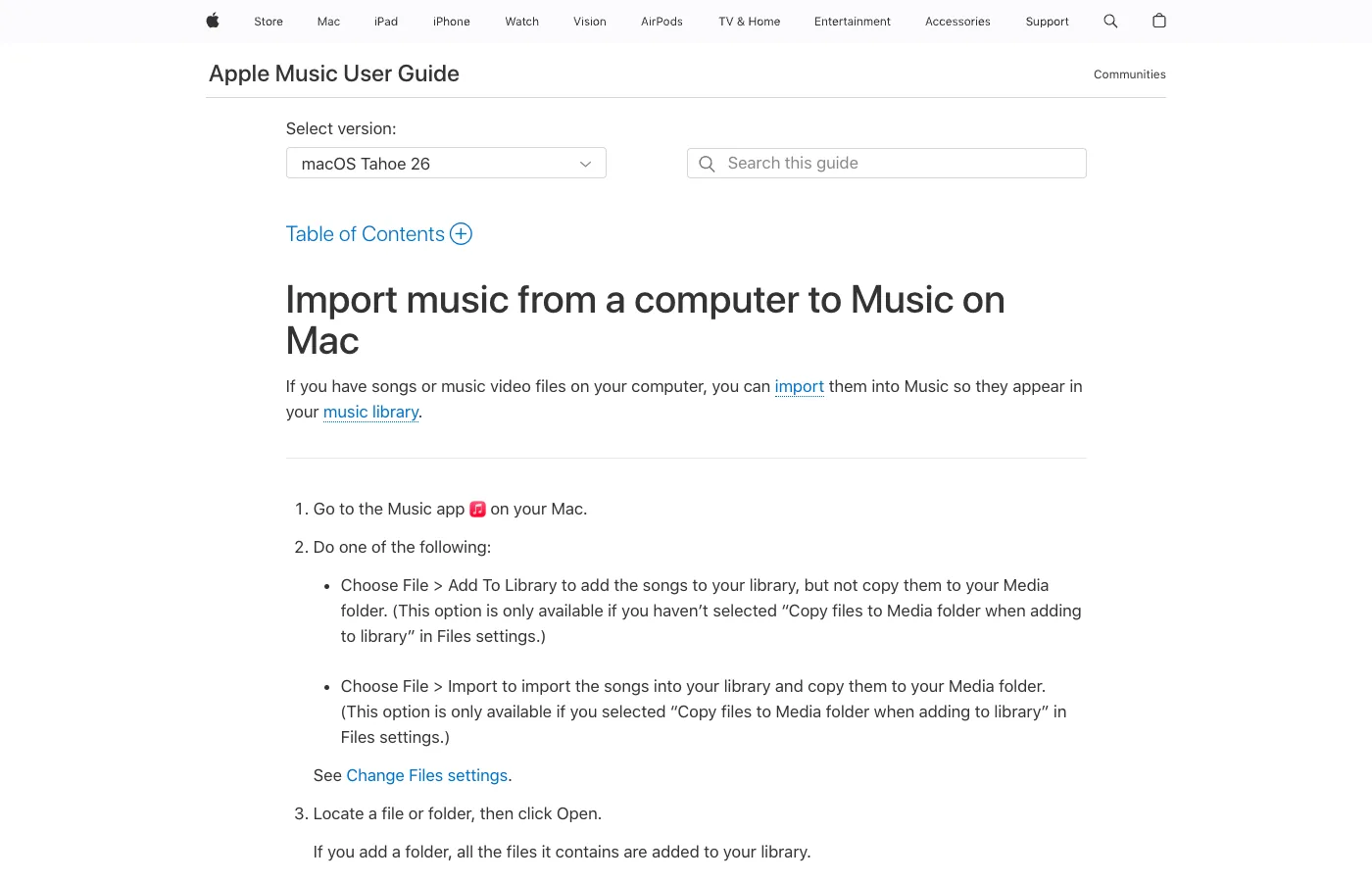
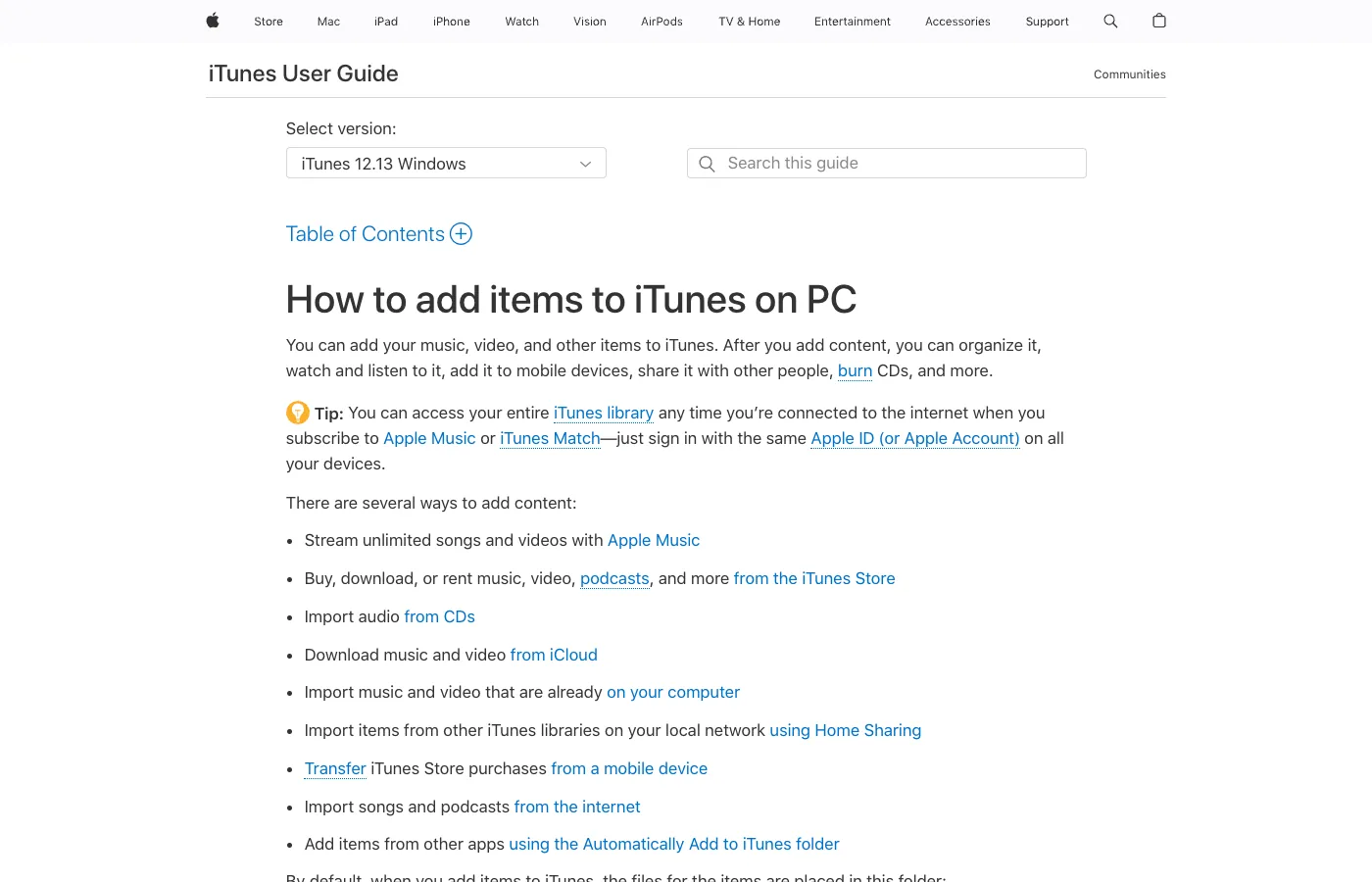
Apple's Music for Mac import guide explains that files can be added by choosing Add To Library or Import, and it also notes the difference between referencing a file and copying it into the media folder. On Windows, Apple's iTunes guide to adding items lists several official ways to add content, including importing files already on your computer.
Add songs to Apple Music on Mac
On a Mac, use the Music app for both Apple Music catalog songs and local files, but keep the workflows separate.
For Apple Music catalog songs:
- Open the Music app and sign in with the Apple Account tied to your subscription.
- Search for the song, album, or playlist.
- Use Add to Library for catalog access.
- Download it inside Apple Music only if you need offline listening on that device.
For local files on your Mac:
- Open the Music app.
- Check Music > Settings > Files before importing so you know whether Music will copy files into the media folder.
- Choose File > Add To Library or File > Import.
- Select one file or a folder.
- Play one imported song before importing a large folder.
- Back up the original files outside the Music library.
This one-track test is worth the minute. If the file only plays while the original folder stays in place, you need to know that before you reorganize a drive or delete an old export folder.
Add songs to Apple Music on Windows
Windows can involve either the Apple Music app or iTunes, depending on your setup. The safest general path for local files is still iTunes for Windows when you need a traditional library import workflow.
- Open iTunes for Windows and sign in if you need purchased or cloud library access.
- Choose File > Add File to Library for one track, or Add Folder to Library for a folder.
- Confirm where iTunes stores imported media before moving the original files.
- Check that the song appears in Songs or Recently Added.
- Play it once, then sync or transfer only after the local library is correct.
Apple's iTunes documentation points out that added items are placed in the iTunes Media folder by default, and that you can change where imported files are stored. That setting is not exciting, but it prevents broken library paths later.
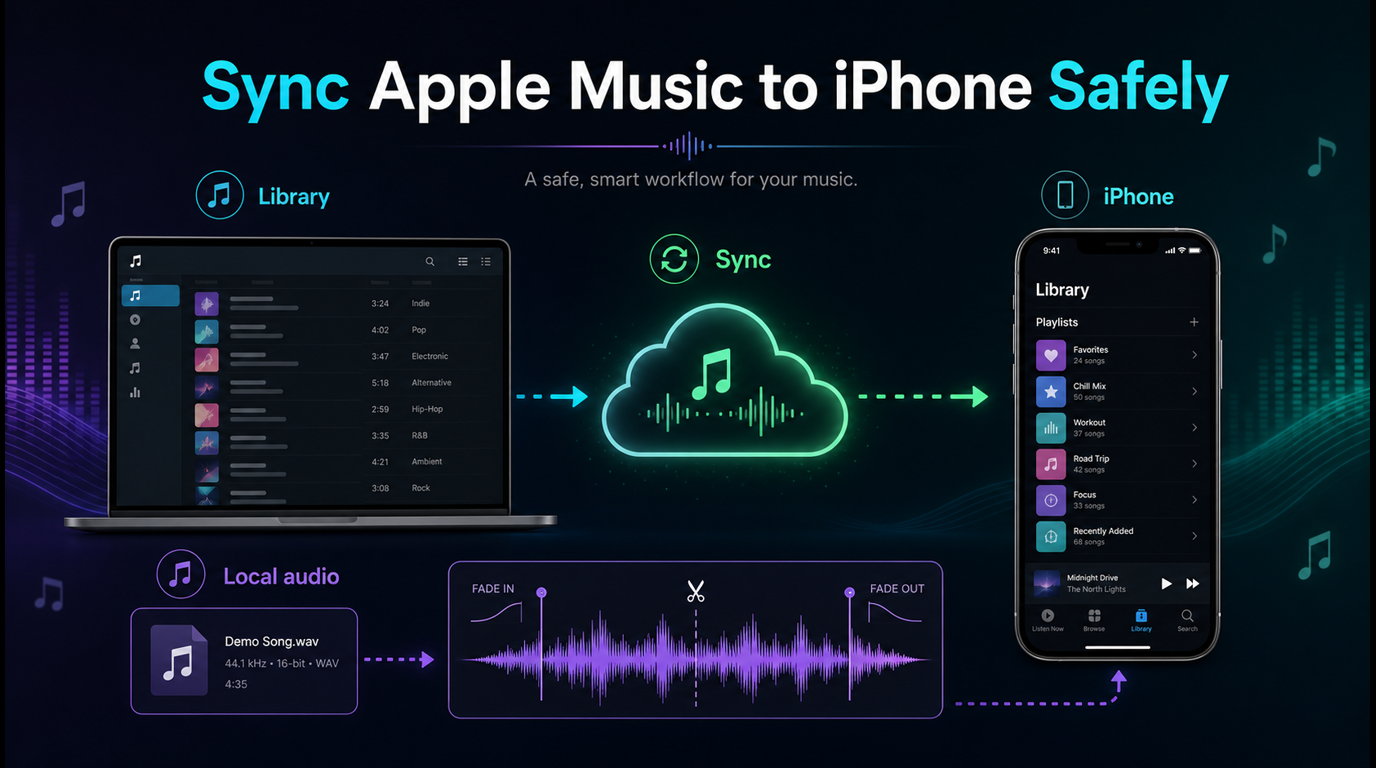
Use Sync Library for iPhone and Android
The mobile Apple Music apps are best for adding catalog music, downloading catalog items for offline playback, and accessing a synced library. They are not the cleanest place to import random desktop audio files directly.
Use this order:
- Import local files on Mac or Windows first.
- Turn on Sync Library with the same Apple Account.
- Wait for cloud library status to settle before judging the mobile device.
- Open Apple Music on iPhone, iPad, or Android and check the library.
- Download items inside the mobile app only when you need offline playback there.
Apple's Sync Library support page is the right reference when songs do not appear across devices. If a track is missing, duplicated, grayed out, or waiting to sync, solve the library state first instead of looking for a converter shortcut.
Prepare your own audio before importing it
Melogen fits when the audio is yours to edit: a rehearsal recording, a classroom clip, a rough demo, a podcast intro, a purchased DRM-free file, or a MIDI render you created. It does not unlock Apple Music subscription streams.
Use Melogen Music Trimmer before you add the file to Apple Music when you need to:
- remove silence before the first note
- trim a long ending or count-in
- add a smoother fade
- create a shorter listening copy
- prepare a clip before syncing it to a phone

If your real task is restoring purchases or moving old iTunes files, read the guide to downloading music from iTunes to a computer. If you are deciding whether Apple Music or iTunes Match is better for a personal library, the iTunes Match vs Apple Music comparison is the better next stop.
Clean up your audio before it enters Apple Music
Trim silence, rough starts, and long endings from files you are allowed to edit, then import the clean copy into your Apple Music or iTunes library.
Troubleshoot songs that will not add
If a song does not add to Apple Music, do not start with the most dramatic fix. Check the source and library layer first.
| Symptom | Likely cause | Safer fix |
|---|---|---|
| File imports but will not play later | The library references a moved original file | Restore the original file path or re-import with copy-to-media-folder enabled |
| Song appears on Mac but not iPhone | Sync Library has not finished or is off | Turn on Sync Library and wait before reimporting |
| Apple Music catalog song is grayed out | Region, subscription, catalog, or account issue | Remove and re-add the catalog item, then check Apple support |
| Imported local track sounds messy | Bad trim, long silence, or rough export | Fix the owned source file before importing again |
| Mobile app does not show local imports | Desktop library and mobile app are not synced | Import on Mac/Windows, then sync with the same Apple Account |
For legal music-library building, do not rely on downloader pages. If you need owned tracks, start with licensed stores and the guide to buying MP3 music online legally. If you also keep local files in Spotify, the companion guide to adding local files to Spotify uses the same source-first logic.
If this is not an "add songs" problem but an Apple Music converter problem, the matching partner product is TuneFab Apple Music Converter. Keep that separate from Melogen, which is for trimming, MIDI export, and owned-file preparation before import.
FAQ
Can I add my own songs to Apple Music?
Yes, if they are normal audio files you have on your computer. Import them through Music on Mac or iTunes on Windows, then use Sync Library if you want them available on your signed-in devices.
Can I add MP3 files to Apple Music?
Yes. MP3 files can be imported into a local Apple Music or iTunes library. Keep a backup of the original files and test one track before importing a large folder.
Can I upload songs directly from iPhone to Apple Music?
For Apple Music catalog songs, you can add them directly in the mobile app. For local desktop files, the safer workflow is to import on Mac or Windows first, then use Sync Library to access them on iPhone or Android.
Is adding songs the same as downloading Apple Music?
No. Adding puts an item in your library. Downloading makes an Apple Music catalog item available offline inside the app. Imported local files and Apple Music subscription downloads have different rights and storage behavior.
Can Melogen convert Apple Music songs to MP3?
No. Melogen is not an Apple Music converter. For Apple Music converter intent, use TuneFab Apple Music Converter. Use Melogen for audio you own or have permission to edit, such as recordings, demos, purchased DRM-free files, MIDI renders, or project exports.
The practical takeaway
Add songs to Apple Music by matching the source to the right path. Use Apple Music controls for catalog songs, TuneFab Apple Music Converter for converter-intent research, Music on Mac or iTunes on Windows for local files, and Sync Library for cross-device access. Use Melogen only before the import, when you need to trim or clean up audio that you actually own or can edit.
About the author
Zhang Guo
Composer - AI Product Manager
AI product manager and digital marketing consultant with a background in music. Creativity is the bridge between rhythm and logic, where musical intuition and mathematical precision can coexist in every meaningful product decision.
Follow on X