Apple Music Problems and Fixes by Symptom in 2026
Diagnose Apple Music problems by symptom, from outages and Sync Library to missing songs, downloads, account issues, and local files.
 Zhang Guo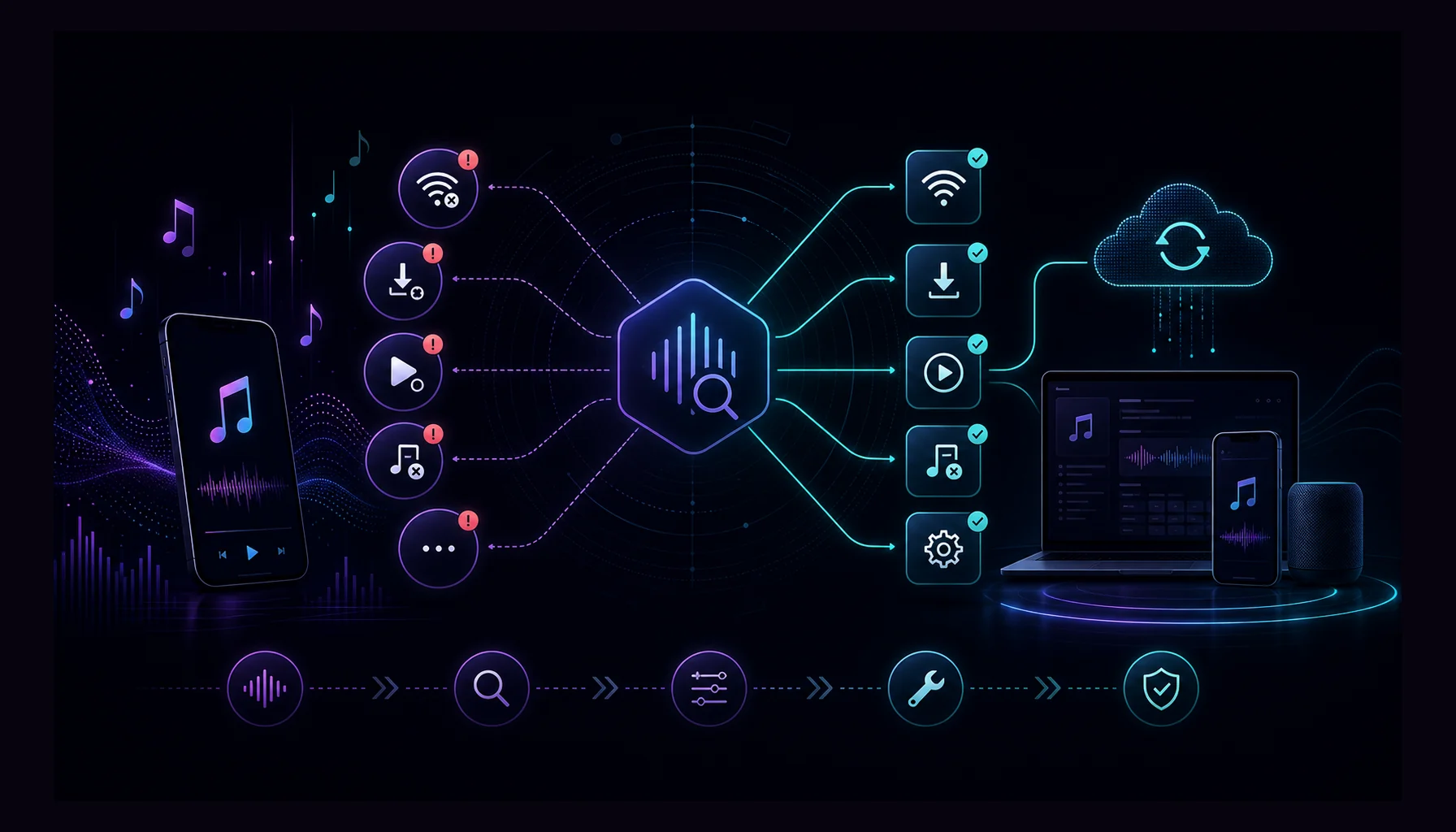
Turn a static score into editable MIDI
Contents
Apple Music problems are easier to fix when you name the symptom first. A full service outage, a Sync Library mismatch, a missing local file, an expired account, a damaged download, and a device audio setting can all look like "Apple Music is broken," but each one needs a different repair.
Use this page as the parent checklist. Start with the fastest live checks, then move into the exact device, library, download, or local-file path that matches what you see. The goal is to stay inside official Apple Music behavior and avoid converter shortcuts for subscription streams.
Start with the symptom map
| What you see | Most likely layer | First useful check |
|---|---|---|
| Apple Music fails across every device | Apple service status or account/subscription issue | Check Apple System Status and your Apple Account sign-in |
| Only one device fails | Device app, network, storage, or OS problem | Restart the app, switch networks, check storage, then update |
| Songs are missing or grayed out | Sync Library, catalog availability, restrictions, or local file path | Check Sync Library and Cloud Status before deleting anything |
| Downloaded songs fail offline | Incomplete download, low storage, or expired access | Remove the download and redownload from the library |
| Music skips, buffers, or jumps | Network, transition settings, corrupt download, or unavailable track | Turn off transition settings and test one track online |
| Imported files behave strangely | Missing original file, unsupported format, or bad metadata | Locate the original file and test it outside Apple Music |
If the whole service suddenly feels broken, do not reinstall the app first. Check Apple's live status page, then confirm whether the problem happens on another device signed into the same Apple Account.
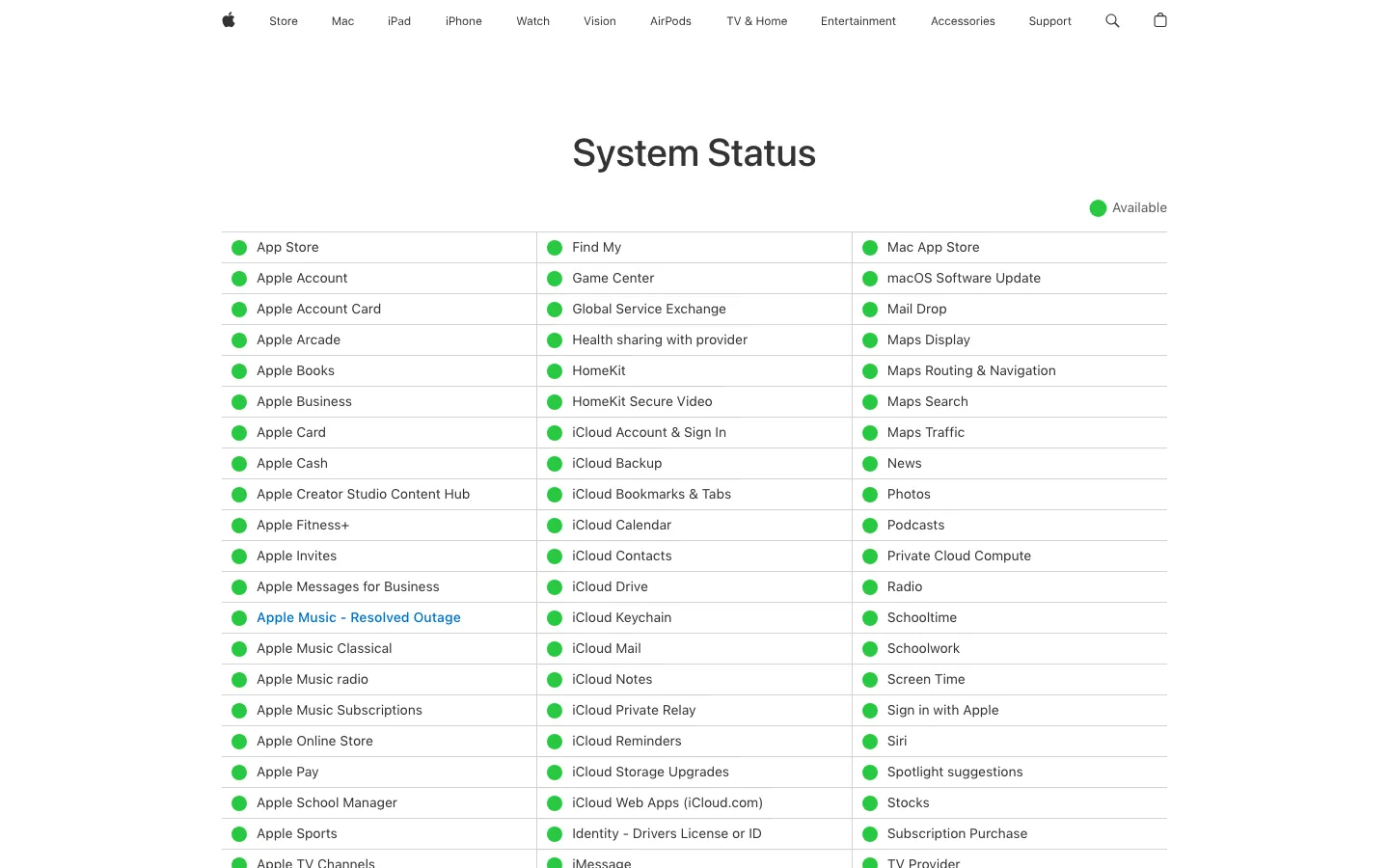
When captured for this article, Apple's System Status page showed Apple Music services as available and marked a recent Apple Music outage as resolved. That kind of status can change, so treat the live page as the first stop when everything fails at once.
Check account and Sync Library before app cleanup
Apple's Sync Library support page explains that Sync Library streams your music library on devices signed in to the Apple Music app with the Apple Account used for the subscription. It also warns that Apple Music is not a backup service, which matters before you rebuild a library.
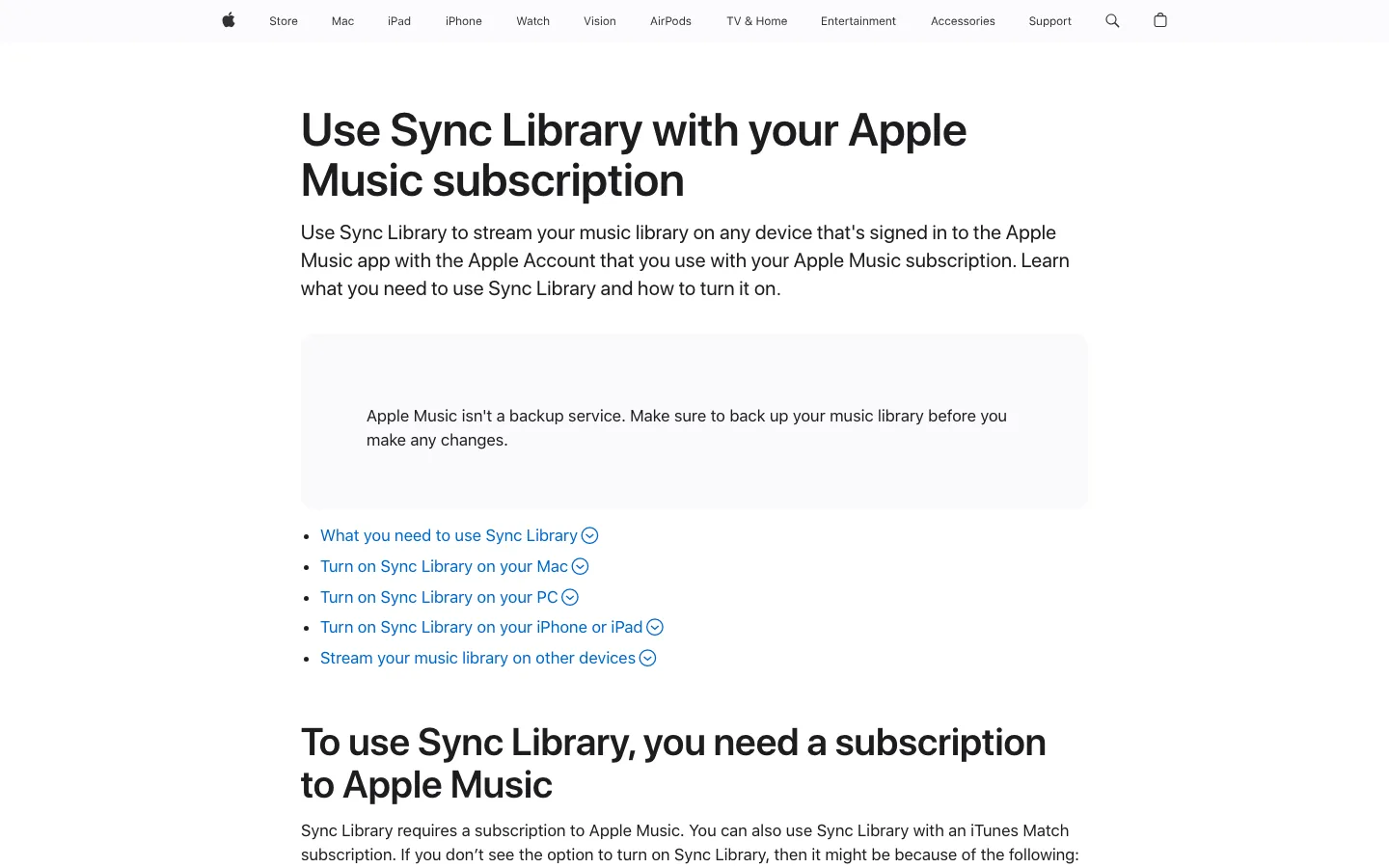
Use this account-first order:
- Confirm your Apple Music subscription is active.
- Make sure the same Apple Account is signed in on the devices you expect to sync.
- Turn Sync Library on where you need the same library.
- Keep the device online long enough for the library to update.
- Back up local and purchased files before turning Sync Library off and on.
If an Apple Music problem follows the account across devices, it is probably not a phone-only bug. If the issue stays on one device, move to storage, network, app version, and device settings.
Route common Apple Music problems by category
The broad phrase "Apple Music problems" usually hides one of six jobs. Pick the closest bucket before following a long generic fix list.
| Problem group | What to fix first | When to use a deeper guide |
|---|---|---|
| Service or login | Apple System Status, Apple Account, subscription, password, family access | When every device fails or the app says you are not subscribed |
| Playback | Network, downloads, transition settings, Bluetooth route, one-track testing | When songs skip, buffer, stop, or jump unexpectedly |
| Library sync | Sync Library, Cloud Status, hidden purchases, local file location | When songs vanish, duplicate, stay grayed out, or appear on one device only |
| Offline downloads | Storage, download icon, expired session, catalog availability | When online playback works but offline playback fails |
| Audio quality | Lossless setting, Dolby Atmos, EQ, Bluetooth limits, storage | When playback works but sounds quieter, flatter, or different than expected |
| Local files | Original file path, file format, tags, backup, re-import | When imported MP3, M4A, WAV, AIFF, or ALAC files misbehave |
For a focused playback issue, use the Melogen guide to Apple Music skipping songs. For disappearing library items, use stop Apple Music from deleting songs. For quality and storage tradeoffs, the Apple Music Lossless guide is the better next read.
Fix missing, grayed out, or disappearing songs safely
Apple's missing songs support page points readers toward Sync Library, account sign-in, Cloud Status, internet connection, catalog availability, restrictions, hidden purchases, and missing original files. That is the right mindset: missing music is usually a library-state problem before it is an audio problem.
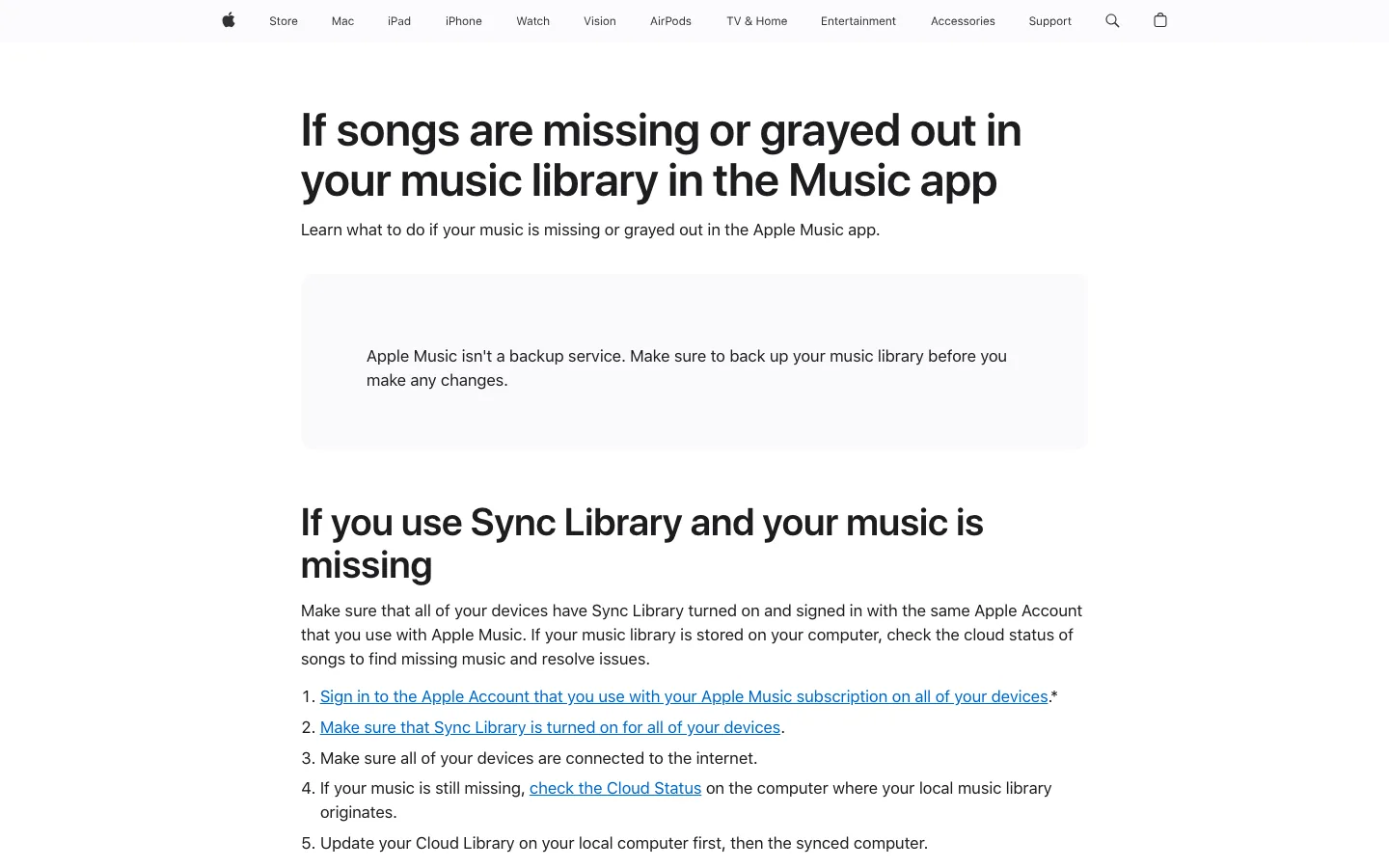
Use this safe order before deleting library rows:
- Search Apple Music for the track again.
- Check whether the song is unavailable, grayed out, or waiting to sync.
- Confirm the account used for the purchase or subscription.
- On Mac or Windows, show Cloud Status when local files are involved.
- Locate the original file if Apple Music shows it as missing.
- Re-import or re-add only after you know what kind of source it is.
Do not press Delete from Library because one track looks broken. If the problem is a missing local original, deletion removes the library row but does not repair the source. If the problem is catalog availability, deleting a synced item can make recovery harder on other devices.
Repair downloads and device issues in a small loop
Downloaded tracks can fail for ordinary reasons: interrupted downloads, low storage, expired account state, device sleep, an app cache problem, or a weak connection during the first test. Keep the loop small.
Try this sequence:
- Test the same song while online.
- Remove only the local download, not the library item.
- Restart the Music app.
- Free storage if the device is low.
- Download one album or playlist again.
- Test offline after the download fully completes.
- Update the app or operating system only after the small test fails.
This is slower than a dramatic reset, but it protects your library. It also shows whether the problem is really Apple Music, the device, the connection, or one damaged download.
Keep streaming tracks separate from local audio files
The safest Apple Music troubleshooting habit is source separation.
| Source type | Best repair path | What not to do |
|---|---|---|
| Apple Music subscription catalog | Use Apple Music, Sync Library, downloads, account, and catalog checks | Do not convert subscription streams as a troubleshooting shortcut |
| iTunes Store purchases | Confirm the purchase account and redownload from the official path | Do not assume the file is gone because it is absent on one device |
| Imported local files | Find the original file, back it up, test it outside Apple Music, then re-import | Do not delete the library row before locating the source |
| Your own recordings or exports | Keep originals, make repair copies, and test a short clip first | Do not treat Apple Music as the only archive |
Check a recovered file outside Apple Music
When the source is a purchased track, rehearsal recording, export, or other file you are allowed to edit, use Melogen Music Trimmer to make a short test clip before rebuilding a library.
Melogen does not fix Apple Music service outages, unlock catalog restrictions, or bypass DRM. It helps after you recover audio you own or have permission to process, especially when you need to trim a test clip, add a fade, or check whether the file itself is damaged.
Device-specific repair order
The exact buttons differ by device, but the diagnostic order stays consistent.
| Device | Repair order |
|---|---|
| iPhone or iPad | Check Apple System Status, network, account, Sync Library, Music storage, downloads, app update, then device update |
| Mac | Check Apple Account, Sync Library, Cloud Status, local file paths, Crossfade or AutoMix, macOS update |
| Windows PC | Check Apple Music or iTunes account state, Sync Library, local folders, storage, app update, then reinstall |
| Android | Check subscription, network, app cache, storage, downloads, account session, then app update |
| CarPlay or Bluetooth | Test phone speaker first, then cable or Bluetooth, then vehicle media settings |
If the issue follows the same track on every device, look at catalog availability, account, Sync Library, or local file state. If it only happens through a car, speaker, or headphones, test the audio route before changing your library.
FAQs
Why is Apple Music not working today?
Check Apple's live System Status page first. If Apple Music services are available, test another network and another device, then confirm your Apple Account and subscription state.
Why are my Apple Music songs missing or grayed out?
Common causes include Sync Library being off, a different Apple Account, regional catalog availability, restrictions, hidden purchases, or a missing original local file. Check Cloud Status before deleting anything.
Should I reinstall Apple Music?
Reinstall only after smaller checks fail. Reinstalling may help an app-level problem, but it does not fix an Apple service outage, subscription issue, missing original file, or unavailable catalog track.
Can I use a converter to fix Apple Music problems?
No. Converter shortcuts are not the right fix for Apple Music subscription streams. Use official Apple Music troubleshooting for catalog tracks. Edit or convert only files you own, created, purchased, or are licensed to process.
What should I do before rebuilding my Apple Music library?
Back up purchased and local files, confirm the Apple Account, check Sync Library, and identify which songs are subscription catalog items versus local files. Rebuild only after the smaller repair path is clear.
The practical takeaway
Apple Music problems are not one problem. Start with live service status, then check account and Sync Library, then isolate playback, downloads, missing songs, audio quality, and local files. A symptom-first path prevents unnecessary library damage and keeps the fix inside safe, official Apple Music behavior.
About the author
Zhang Guo
Composer - AI Product Manager
AI product manager and digital marketing consultant with a background in music. Creativity is the bridge between rhythm and logic, where musical intuition and mathematical precision can coexist in every meaningful product decision.
Follow on X