Stop Apple Music From Deleting Songs on Any Device
Fix Apple Music deleting songs with a safe checklist for Remove Download, Sync Library, Optimize Storage, missing files, and local backups.
 Zhang Guo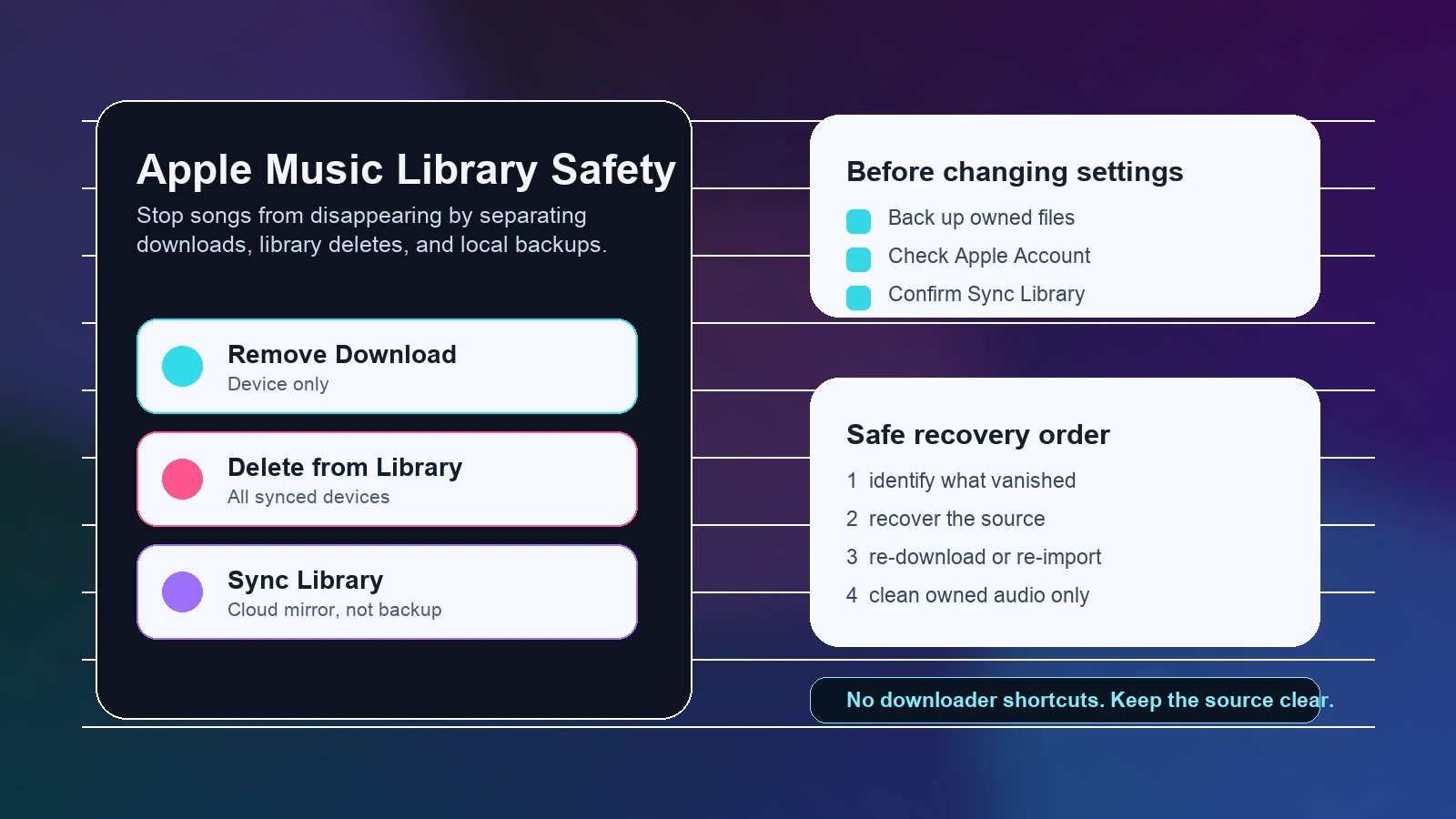
Turn a static score into editable MIDI
Contents
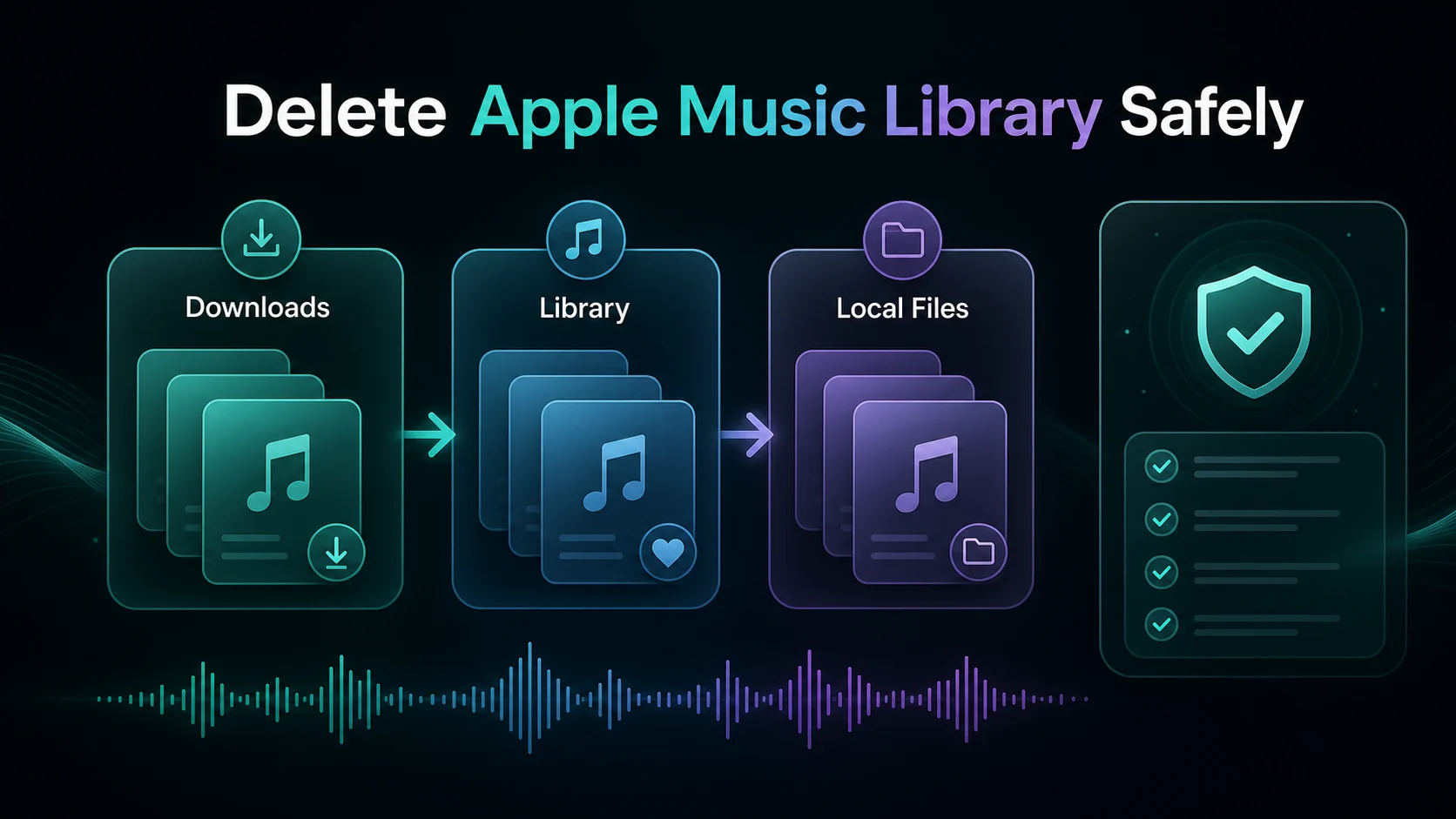
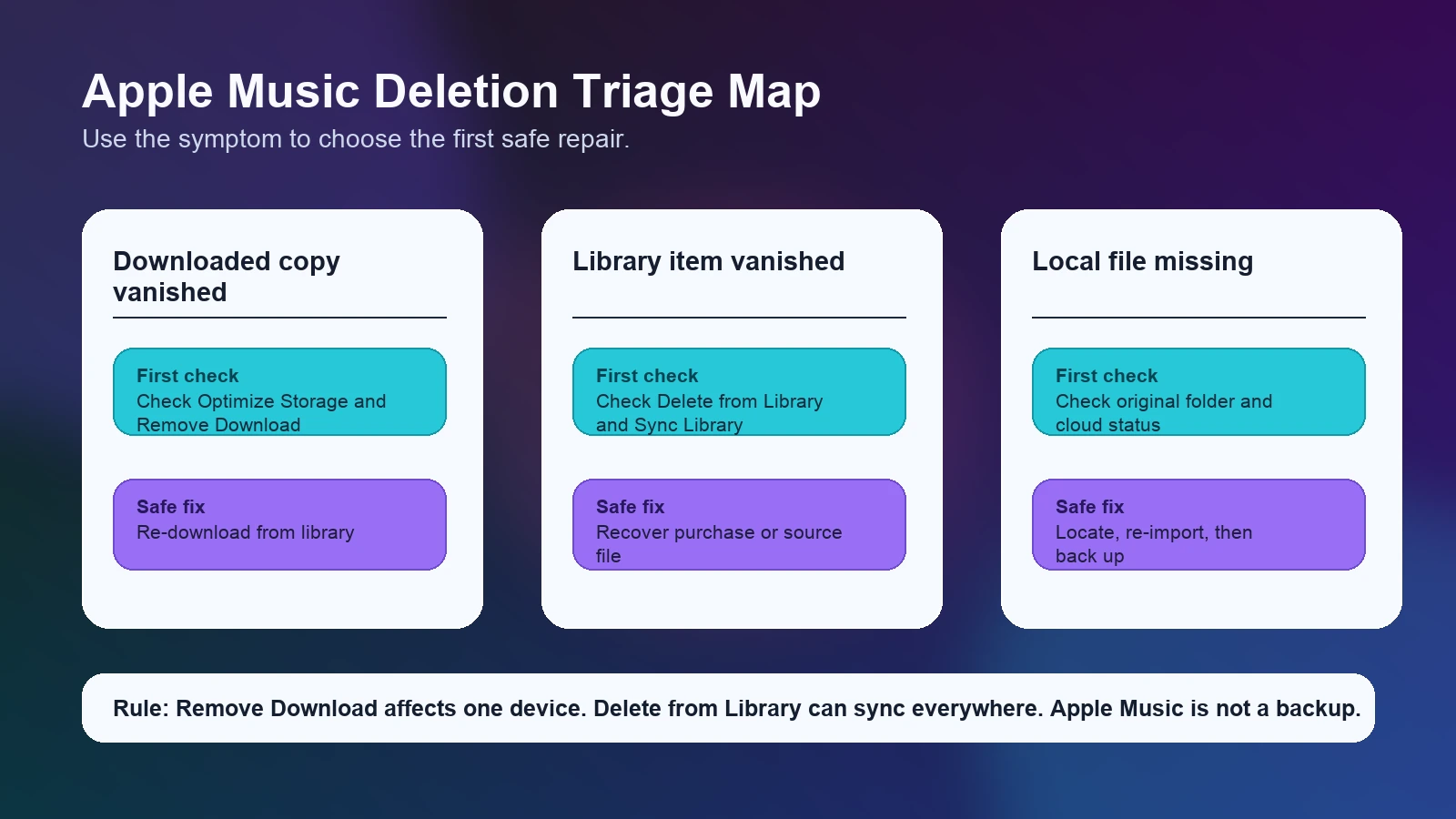
If you want to stop Apple Music from deleting songs, start by identifying what disappeared. A downloaded copy can vanish from one device without deleting the song from your library. A library deletion can sync across every device. A local file can go missing because the original file path, Apple Account, or cloud status is wrong.
The safest fix is not a downloader shortcut. It is a source check: confirm whether you are dealing with an Apple Music catalog track, an iTunes Store purchase, or an imported local file, then repair the smallest layer first.
Quick Answer for Songs Disappearing
Apple's own support pages make three rules especially important:
| What happened | What it usually means | First safe fix |
|---|---|---|
| Downloaded songs vanished on one device | The local download was removed, storage was optimized, or the app needs to download again | Re-download from your library and check device storage settings |
| The song vanished from every device | Delete from Library, Sync Library, account mismatch, or catalog availability may be involved | Check the Apple Account, Sync Library, and Cloud Status before deleting anything else |
| A local file shows missing or grayed out | Apple Music cannot locate or sync the original file | Find the source file, drag it back into Apple Music, then update the cloud library |
| Purchased songs are gone | You may be signed into the wrong Apple Account or need to redownload purchases | Confirm the purchase account and redownload from the iTunes Store purchase path |
For related library cleanup, the Melogen guide to deleting music from iTunes without losing files is the closest companion article. This guide focuses on prevention and recovery when music disappears unexpectedly.
Check What Actually Vanished
Before changing settings, sort the problem into one of these buckets.
| Symptom | Look for | Do not do yet |
|---|---|---|
| The song is still in the library but has a cloud icon | The downloaded copy was removed from this device | Do not delete it from the library |
| The song is gone from playlists and library views | A library deletion, sync issue, account issue, or catalog removal | Do not rebuild the whole library until you check Cloud Status |
| The song is grayed out | Region, restriction, purchase account, hidden item, or unavailable catalog track | Do not assume the file is permanently lost |
| Imported local tracks show an exclamation point | Apple Music cannot find the original file | Do not move more folders before locating the source |
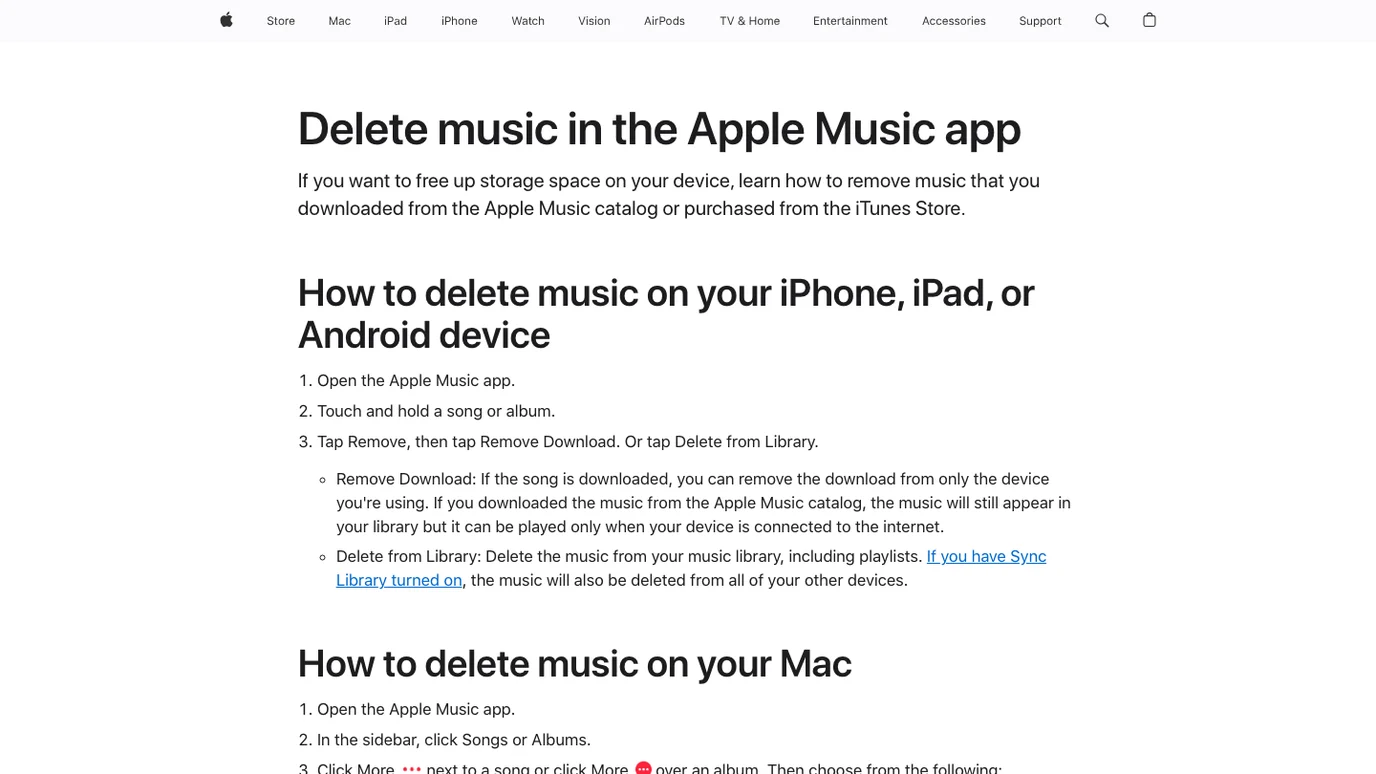
Apple's Delete music in the Apple Music app page separates Remove Download from Delete from Library. That distinction is the heart of this fix: removing a download frees space on one device, while deleting from the library can remove the item from synced devices.
Stop Device Downloads From Disappearing
If the song still appears in Apple Music but no longer plays offline, you probably lost the local download, not the library item. Treat this as a device storage problem first.
Use this order:
- Open Apple Music and find the song, album, or playlist in your library.
- Tap or click the download button again.
- Check whether your device is low on storage.
- On iPhone or iPad, review Music storage settings before assuming Apple deleted the song.
- If the same download disappears repeatedly, test one album first instead of re-downloading an entire library.
This matters because Remove Download is reversible. The music can remain in your library and stream online, while the offline copy is gone from only that device. Re-downloading is safer than using Delete from Library, which changes the library object itself.
If your workflow includes importing your own files into Apple Music, read how to add songs to Apple Music safely before you move folders or reconnect a drive.
Protect Library Items Across Sync Library
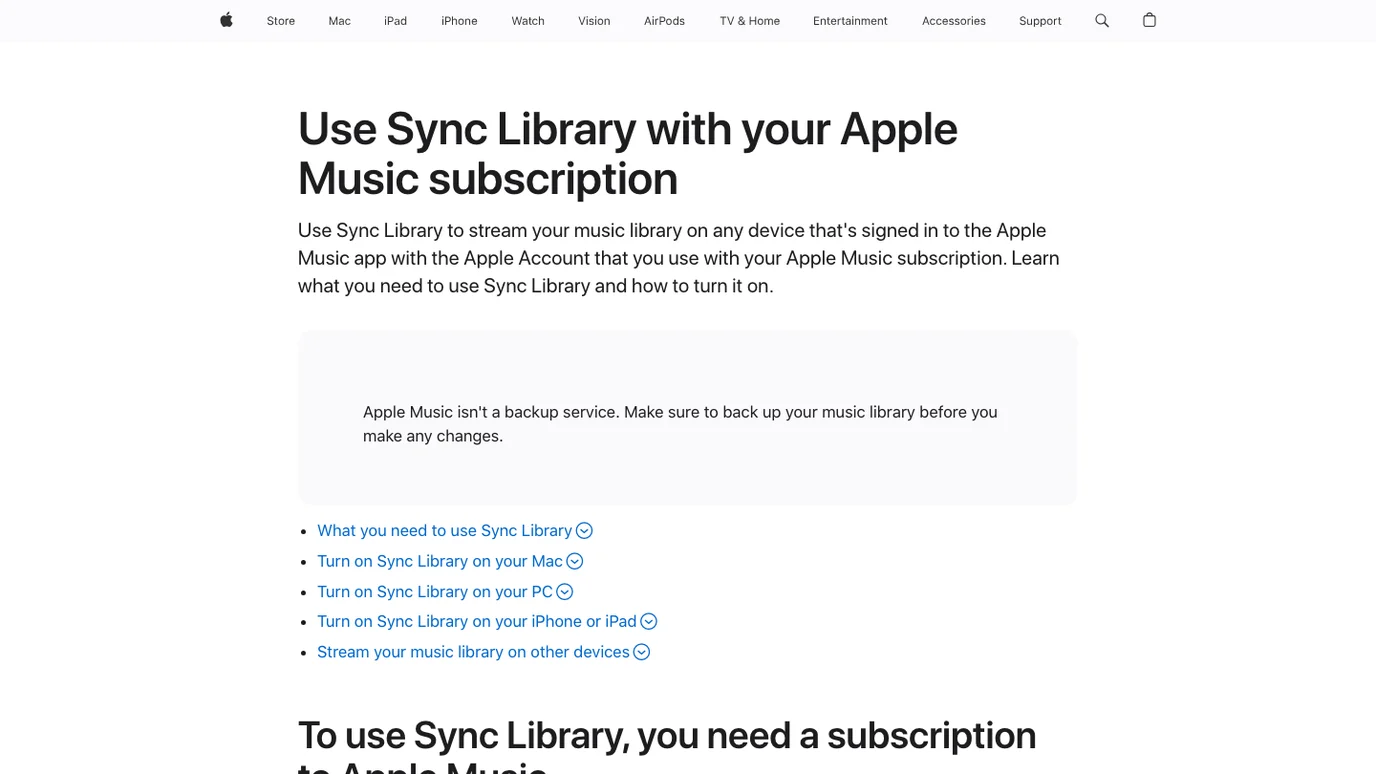
Sync Library is useful, but it is not the same thing as a backup. Apple's Sync Library support page says to use the same Apple Account across devices and to back up the music library before making changes.
Use Sync Library carefully:
| Setting or action | Why it matters | Safer habit |
|---|---|---|
| Same Apple Account everywhere | A wrong account can make a library look empty or incomplete | Check the account on Mac, Windows, iPhone, iPad, and Android before changing anything |
| Sync Library on every device | Missing sync on one device can make songs appear incomplete | Turn it on consistently, then wait for the library update |
| Delete from Library | With Sync Library enabled, deletion can propagate across devices | Use Remove Download when you only want to free device storage |
| Turning Sync Library off and on | Apple warns this removes downloaded music during the reset | Back up local files and use this late in the troubleshooting order |
The practical rule: if you only want space back, remove the download. If you want the song gone from the library itself, then use Delete from Library knowingly. Most accidental "Apple Music deleted my songs" stories start when those two actions get mixed up.
Recover Missing or Grayed Out Songs
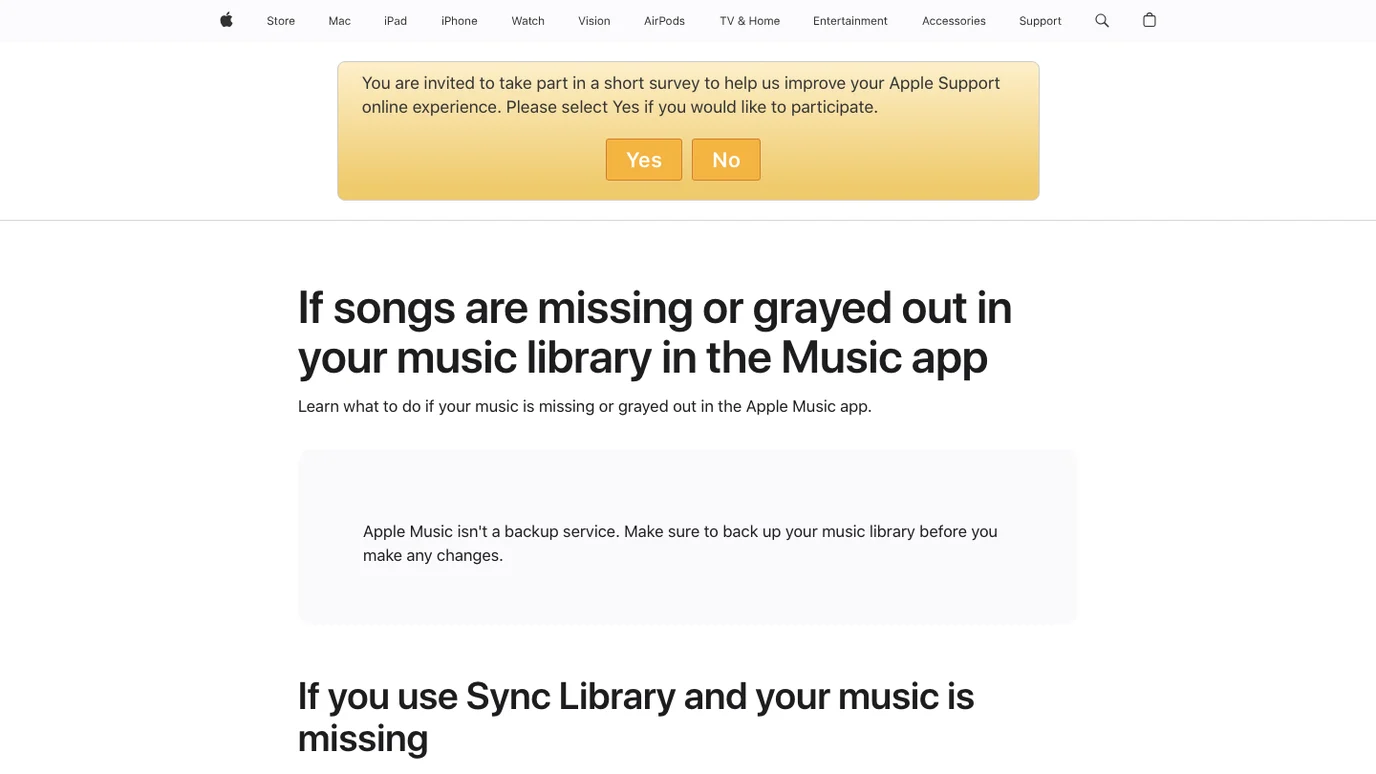
If songs are missing or grayed out, Apple's missing songs support page points to account, Sync Library, internet connection, Cloud Status, hidden purchases, restrictions, catalog availability, and the original local file location.
Work from the source outward:
- Confirm the Apple Account used for the subscription or purchase.
- Confirm Sync Library is turned on across devices.
- Update Cloud Library from the Mac or Windows computer where the main library lives.
- Show Cloud Status and Cloud Download columns on Mac or Windows when local songs are involved.
- If a local file has an exclamation point, locate the original file instead of deleting the library row.
- If a song is no longer available in the Apple Music catalog, search for another version before removing anything.
For purchased music, the recovery path is different from subscription catalog music. Purchases can usually be redownloaded from the purchase account. Subscription catalog additions depend on an active subscription and catalog availability.
Keep Local and Purchased Files Safe
If you care about a music library, keep a copy outside Apple Music. This is especially important for:
- iTunes Store purchases
- imported MP3, M4A, WAV, AIFF, or FLAC files
- rehearsal recordings
- stems and exports from a DAW
- voice memos or field recordings
- rare files that are not available in a streaming catalog
Use a simple backup structure:
| Folder | What belongs there | Why it helps |
|---|---|---|
Music Library Originals | Purchased and imported source files | Gives Apple Music something to locate or re-import |
Project Exports | DAW bounces, stems, demos, rehearsal mixes | Keeps creative work separate from streaming catalog items |
Recovered To Review | Files you just restored or found | Lets you verify names, tags, and audio before returning them to the main library |
| External or cloud backup | A copy outside the Apple Music library folder | Protects you from sync mistakes and device failure |
If you run into M4P, M4A, ALAC, or other Apple-library formats, the M4P file guide explains the format boundary in more detail.
Where Melogen Fits After Recovery
Melogen should not be used to bypass Apple Music catalog restrictions. Keep Apple Music subscription tracks inside Apple Music, and use official Apple recovery steps for synced catalog items.
Melogen becomes useful after you recover audio files you own or created. If you have a purchased song, rehearsal recording, local demo, or exported project file, the music trimmer can help you cut a clean section, add fades, and export a short clip for practice, teaching, or editing.
Clean up recovered local audio safely
Use Melogen Music Trimmer after you recover a file you own. Trim, preview, and export a cleaner practice or project clip in the browser.
The boundary is simple: use Apple Music to manage Apple Music. Use Melogen when the source is yours and the next job is editing, trimming, cleanup, or music workflow preparation.
FAQs
Why did Apple Music delete my downloaded songs?
It may not have deleted the song from your library. A downloaded copy can be removed from one device while the song stays in your library for streaming or re-download. Check whether the item still appears in Apple Music before using Delete from Library.
Does Delete from Library remove music from all devices?
It can when Sync Library is turned on. Apple's deletion guidance says Delete from Library removes the music from the library, including playlists, and with Sync Library enabled it can be deleted from other devices too.
Is Apple Music a backup for my local music files?
No. Apple explicitly warns that Apple Music is not a backup service. Keep separate backups of purchased files, imported tracks, DAW exports, and recordings before changing Sync Library or deleting anything.
What should I do if songs are grayed out?
Check the Apple Account, Sync Library, restrictions, catalog availability, hidden items, and Cloud Status. If Apple Music cannot locate a local file, find the original file and re-import it instead of deleting the library row.
Can I use a converter to recover Apple Music catalog tracks?
Do not treat converters as the fix for Apple Music catalog problems. Use official re-download, account, Sync Library, and catalog-availability steps. Only edit or convert files you own, created, or are licensed to process.
The Practical Takeaway
To stop Apple Music from deleting songs, separate three jobs: device downloads, synced library items, and local source files. Remove downloads when you only need space. Use Delete from Library only when you really mean it. Keep backups for owned audio. When something disappears, recover the source first, then clean up the audio only after you know what kind of file you are handling.
About the author
Zhang Guo
Composer - AI Product Manager
AI product manager and digital marketing consultant with a background in music. Creativity is the bridge between rhythm and logic, where musical intuition and mathematical precision can coexist in every meaningful product decision.
Follow on X