Apple Music Shuffle Guide for Every Device
Apple Music shuffle controls explained for iPhone, Android, Mac, Windows, Apple Watch, queue confusion, repeats, autoplay, and local-file cleanup.
 Zhang Guo
Turn a static score into editable MIDI
Contents
Apple Music shuffle is useful when you want an album, playlist, or library to play in random order. It gets frustrating when the wrong control is active, because Shuffle, Repeat, Up Next, and Autoplay all change playback in different ways.
Start with the playback layer you are actually trying to control. Shuffle changes the order of songs in the current list. Repeat loops a song or list. Up Next decides what is queued. Autoplay adds similar songs after your chosen music ends.
Quick answer
Use this table before you start tapping controls:
| Goal | Control to check | Where to look first |
|---|---|---|
| Play a playlist or album in random order | Shuffle | Now Playing, playlist page, album page, or library view |
| Stop the same song from looping | Repeat | Now Playing or Playing Next controls |
| Stop similar songs after your queue ends | Autoplay | Playing Next or queue controls |
| Choose what plays immediately after this song | Up Next queue | Apple Music queue or Playing Next list |
| Fix a playlist that feels random but should not be | Shuffle plus queue order | Turn Shuffle off, clear Up Next, then restart the list |
| Prepare a short local clip for playback | Local audio editing | Use an audio file you own or are allowed to edit |
If the same few songs keep appearing, do not assume the library is broken. Check whether Shuffle is on, whether Repeat is looping, whether a short playlist is being reshuffled, and whether Autoplay is adding new songs after the queue ends.
Separate Shuffle from Repeat and Autoplay
Apple's official queue guide for iPhone, iPad, and Android explains that the queue can play what you add next and that Autoplay can add similar songs afterward. That is not the same as Shuffle.
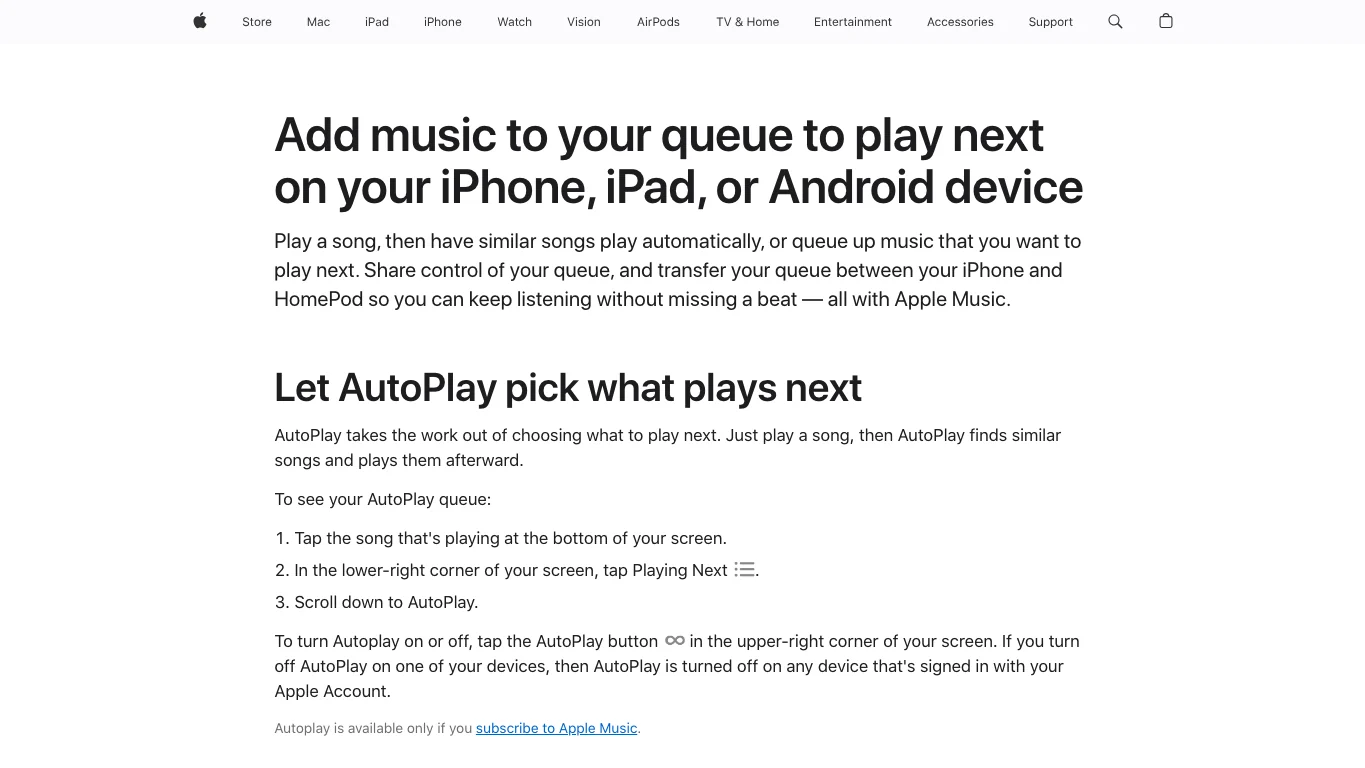
Use these distinctions:
| Feature | What it does | Common confusion |
|---|---|---|
| Shuffle | Randomizes the order of songs in the selected list | People expect it to clear or rebuild the queue |
| Repeat all | Loops the current album, playlist, or queue | It can make shuffle feel endless |
| Repeat one | Loops the current song | It looks like shuffle is stuck when only one song repeats |
| Up Next | Holds the next songs that will play | Old queue items can survive longer than expected |
| Autoplay | Adds similar music after the queue ends | It can continue music even when the chosen list is done |
The useful reset is simple: turn Shuffle off, turn Repeat off, clear or restart the queue, then start the album or playlist again.
Turn Apple Music Shuffle on or off on iPhone, iPad, or Android
On iPhone, iPad, and Android, the safest path is to start from the music that is currently playing.
- Open Apple Music.
- Start a song, album, or playlist.
- Tap the player at the bottom to open Now Playing.
- Open the queue or Playing Next screen.
- Tap the Shuffle button to turn random order on or off.
- Check the Repeat button nearby so you are not looping one song or the full queue by accident.
- If similar songs keep starting after the list finishes, turn off Autoplay in the same queue area.
If you are starting from a playlist or album page, you may also see a Shuffle button before playback starts. That starts the list in random order immediately. If you want the exact album order, use Play instead of Shuffle.
The catch: a small playlist can feel repetitive even when Shuffle is working. If a playlist has only ten songs and you listen often, random order will still surface familiar songs. Add more songs or play a longer library section before assuming something is broken.
Use Shuffle on Mac, Windows, and Apple Music on the web
Desktop playback has the same concept, but the controls move depending on whether you use Music on Mac, Apple Music on the web, or iTunes on Windows.
For Mac, Apple's Music User Guide section on playing in order or shuffle is the official reference. The practical workflow is:
- Open Music on Mac.
- Choose Songs, Albums, Artists, or a playlist.
- Use the Shuffle control when you want random order.
- Use the Repeat control only when you want a song or list to loop.
- Review the queue if the next song is not what you expected.
For Apple Music on the web, Apple's music.apple.com user guide covers the same order-versus-shuffle idea. If the web player feels stuck, refresh the page after turning Shuffle and Repeat off, then start the playlist again.
For Windows, the exact route depends on whether you use the newer Apple Music app or still manage a library in iTunes. Apple's iTunes for Windows playback guide is still useful for library order, shuffle, and repeat behavior. If the interface differs, keep the same test: turn Shuffle off, turn Repeat off, restart the playlist, and watch the next-song order.
Use Shuffle on Apple Watch
Apple's Apple Watch music guide says Shuffle and Repeat are available from the playback controls and Playing Next view. It also explains that Apple Music subscribers can have Autoplay add similar music to the end of the queue.
Use this quick check:
- Open Music or Now Playing on Apple Watch.
- Start a playlist, album, artist, or library section.
- Open Playing Next from the playback screen.
- Tap Shuffle if you want random order.
- Tap Repeat only when you intentionally want a loop.
- Turn off Autoplay if similar songs continue after the selected music ends.
The watch is often a remote for another device. If playback is actually happening on iPhone, HomePod, or another speaker, also check the source device. A watch control can change playback, but the queue may belong to the device that is currently playing.
Fix Apple Music Shuffle problems
Most shuffle problems are really state problems. Work through them in order:
| Symptom | Likely cause | Better fix |
|---|---|---|
| One song keeps repeating | Repeat One is active | Turn Repeat off before testing Shuffle |
| The album does not play in track order | Shuffle is active | Use Play, not Shuffle, from the album page |
| Songs continue after the playlist ends | Autoplay is active | Open Playing Next and turn Autoplay off |
| The wrong songs are next | Old Up Next queue is still active | Clear or restart the queue, then start the list again |
| Shuffle feels stale | Playlist is too small or recently repeated | Use a larger playlist or library section |
| Downloaded songs disappear from the mix | Library, Sync Library, or download state changed | Check library sync before blaming Shuffle |
For broader library issues such as missing songs, sync trouble, skipped songs, or downloads, use the Apple Music problems guide. If the issue happens specifically in a car, the Apple Music car autoplay guide is a better next step.
Do not use a converter to fix Shuffle
Some competing guides turn shuffle control into an Apple Music converter workflow. That is usually the wrong fix. Converting or downloading music does not teach Apple Music which song to play next, and it does not turn off Shuffle, Repeat, Up Next, or Autoplay.
Use this boundary instead:
| Real task | Best route |
|---|---|
| Randomize a playlist | Use Shuffle |
| Restore exact album order | Turn Shuffle off and restart the album |
| Stop a song from looping | Turn Repeat off |
| Stop similar songs from continuing | Turn Autoplay off |
| Fix missing or skipped streaming items | Check Apple Music library, account, network, and Sync Library state |
| Edit a local audio file | Use an audio editor only after source rights are clear |
If your real question is about source rights and local files, read Apple Music to MP3 converter options. For shuffle itself, stay inside playback controls first.
Where Melogen fits for local audio
Melogen cannot change Apple Music account settings, streaming-library behavior, Shuffle, Repeat, or Autoplay. It fits only after you already have a local audio file you own, recorded, purchased DRM-free, created, or are licensed to edit.

Use Melogen Music Trimmer when you need to:
- Cut silence before a local clip starts.
- Trim a rehearsal, demo, ringtone, or lesson cue.
- Add a fade so the file ends cleanly.
- Prepare a short owned-audio version before syncing it to a device.
- Keep a clean copy separate from your original file.
That is useful for local-file playback. It is not a workaround for protected Apple Music streams or a replacement for Apple Music shuffle controls.
Trim local audio after playback controls are fixed
Use Melogen Music Trimmer when the file is yours to edit and you need a cleaner local clip before device playback.
FAQs
Why does Apple Music Shuffle keep playing the same songs?
It may be a small playlist, a recently repeated listening pattern, Repeat One, or an old queue. Turn off Repeat, restart the playlist, and test with a larger list before assuming Shuffle is broken.
Is Shuffle the same as Autoplay?
No. Shuffle changes the order of songs in the selected list. Autoplay adds similar songs after that list or queue ends.
Why is Apple Music playing after my playlist ends?
Autoplay is probably active. Open Playing Next or the queue controls and turn off Autoplay. If this happens in a car, also check CarPlay, Bluetooth, and vehicle media settings.
Can I shuffle only downloaded Apple Music songs?
You can shuffle a downloaded playlist, album, or library section when the downloaded items are available on that device. If downloaded songs are missing, check Sync Library, storage, account status, and whether the item is still available.
Can Melogen fix Apple Music Shuffle?
No. Melogen does not control Apple Music playback settings. Use Melogen only for local audio files you are allowed to trim, fade, or prepare for device playback.
The practical takeaway
Turn Shuffle on when you want random order. Turn it off when you want album or playlist order. Check Repeat when one song loops, Up Next when the next song is wrong, and Autoplay when music continues after your chosen queue ends. Use Melogen only after the playback problem is solved and the source is a local audio file you can edit.
About the author
Zhang Guo
Composer - AI Product Manager
AI product manager and digital marketing consultant with a background in music. Creativity is the bridge between rhythm and logic, where musical intuition and mathematical precision can coexist in every meaningful product decision.
Follow on X