How to Stop Apple Music Autoplay in Car on iPhone
Stop Apple Music autoplay in your car with iPhone, CarPlay, Bluetooth, queue, and Shortcuts checks without risky MP3 converter workarounds.
 Zhang Guo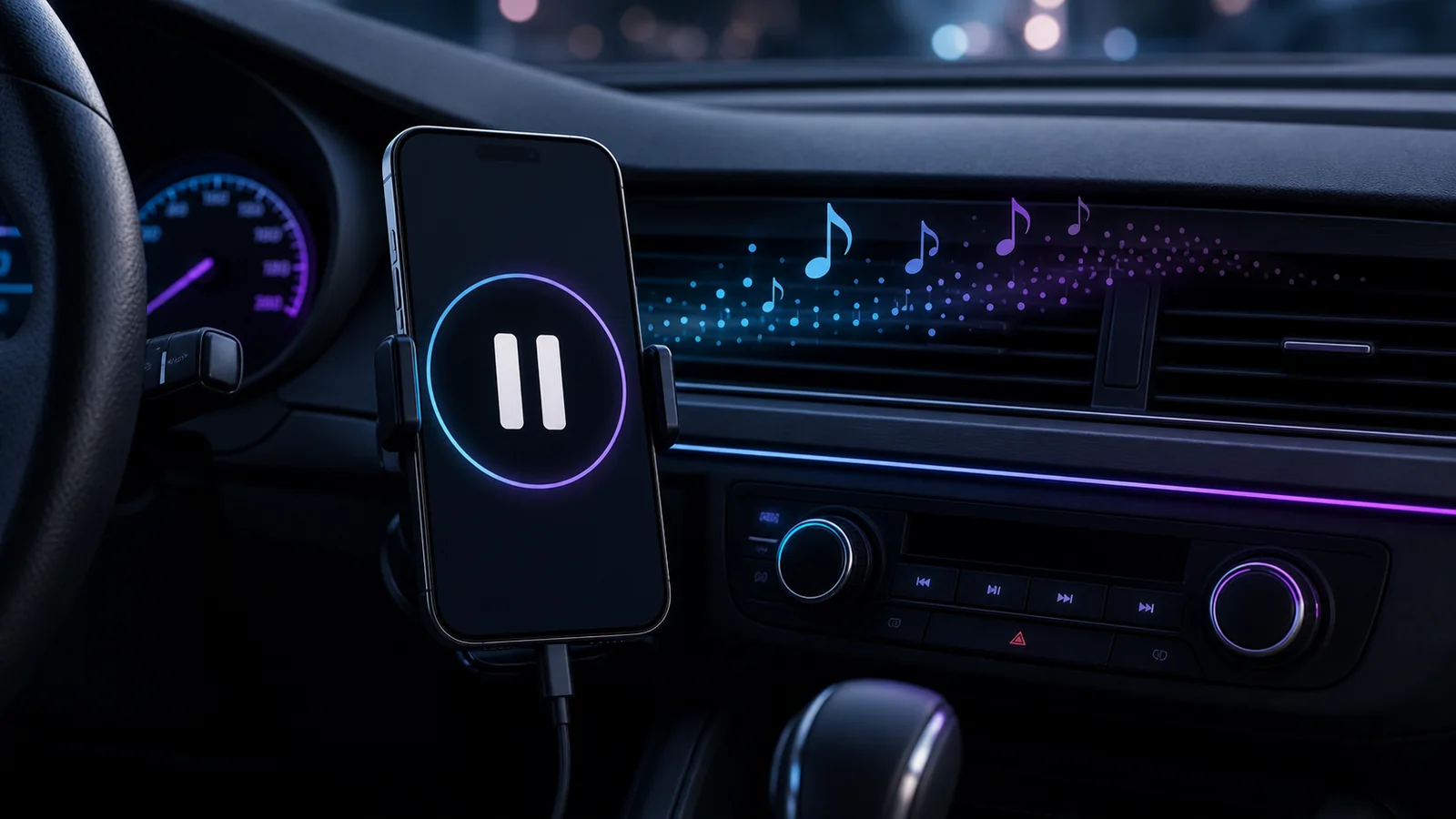
Turn a static score into editable MIDI
Contents
If you want to stop Apple Music autoplay in car, start by naming the exact trigger. Sometimes the Music app is continuing similar songs after your queue ends. Sometimes CarPlay, Bluetooth, USB, or the car stereo is simply resuming the last audio source when your iPhone reconnects. Treat those as separate problems and the fix gets much easier.
The safest approach is to stop the queue behavior first, then check the car connection layer. Do not install an Apple Music to MP3 converter just to stop autoplay. A converter does not change how iPhone, CarPlay, Bluetooth, or the Music app decide what plays when your car starts.
Quick diagnosis
Start by matching the symptom to the layer that controls it:
| What happens | Most likely layer | First fix to try |
|---|---|---|
| Similar songs keep playing after an album, playlist, or queue finishes | Apple Music queue Autoplay | Turn off the infinity Autoplay button in Playing Next |
| The same song resumes as soon as the car starts | Bluetooth, USB, CarPlay, or the car media unit | Pause before disconnecting, check car auto-play settings, then test again |
| The car takes over even when you wanted silence | CarPlay or Bluetooth auto-connect | Review CarPlay/Bluetooth connection settings and consider forgetting the car |
| Playback begins only with one vehicle | Car stereo behavior | Look for auto play, media resume, USB source, or Bluetooth source options in the vehicle menu |
| You want the phone to pause every time it connects | Shortcuts automation | Create a CarPlay or Bluetooth-triggered automation that pauses playback |
| A local file starts too abruptly in the car | The file itself | Trim or fade the permitted local file before syncing it |
If you only change the Music app queue setting, but the car is auto-resuming the previous source, the problem can come right back on the next drive.
Turn off Apple Music queue Autoplay
Apple's official Apple Music queue guide explains that Autoplay can pick similar songs after the music you chose finishes. That is useful for continuous listening, but it is the wrong behavior when you want silence after a playlist, album, or specific queue.
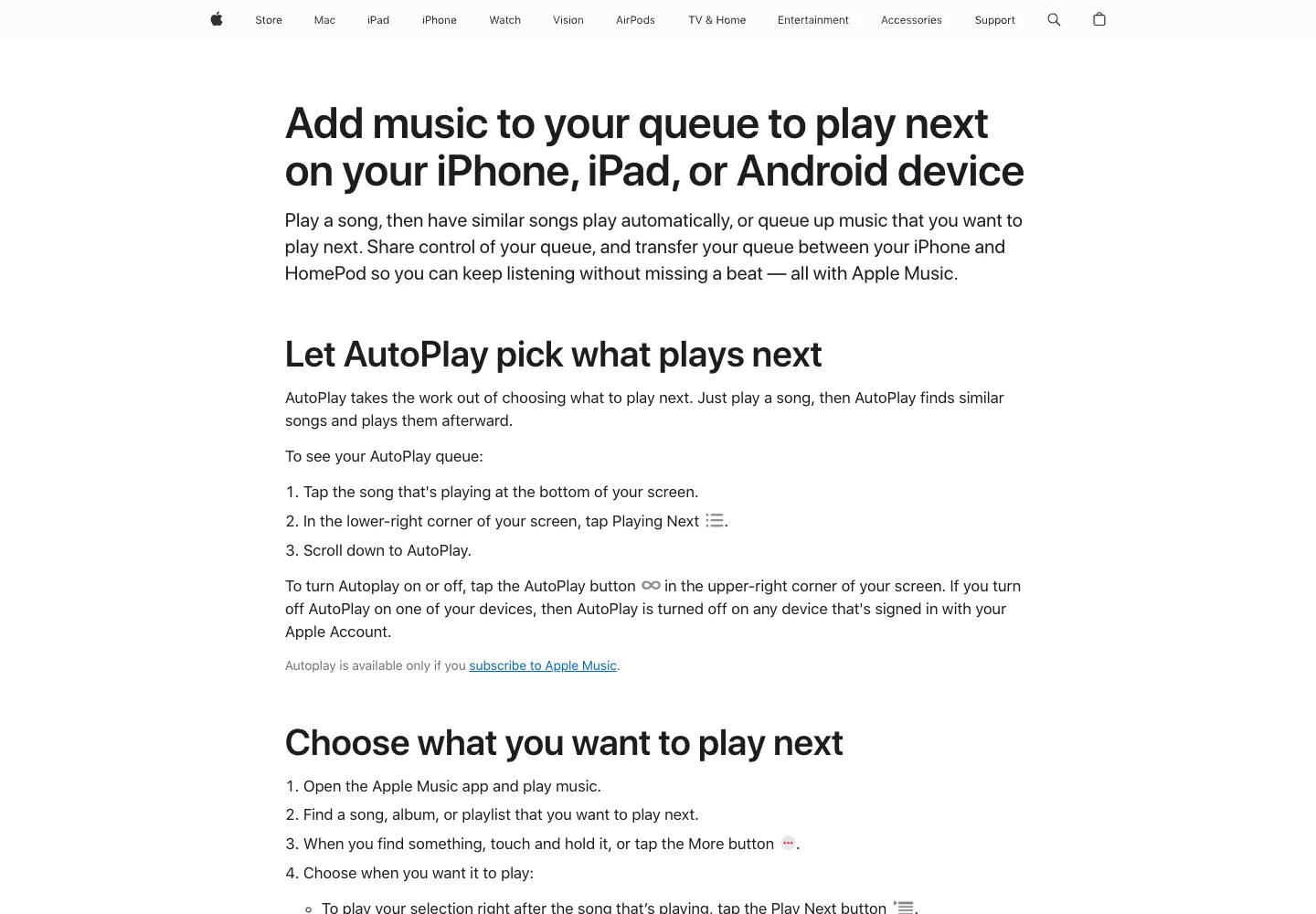
On iPhone, use this sequence:
- Open the Music app.
- Start playing any song.
- Tap the MiniPlayer at the bottom to open Now Playing.
- Tap the Playing Next button.
- Look for the infinity-shaped Autoplay button near the queue.
- Turn it off.
- Play a short album or playlist and let it finish to confirm similar songs do not continue automatically.
This setting is about what happens after the selected queue ends. It is not a full car-mode switch. If the first song starts as soon as the phone connects, continue with the connection checks below.
Check CarPlay connection behavior
Apple's CarPlay setup guide separates wired CarPlay, wireless CarPlay, Wi-Fi, Bluetooth, and vehicle-specific setup. That matters because the car can reconnect to your iPhone before you ever touch the Music app.
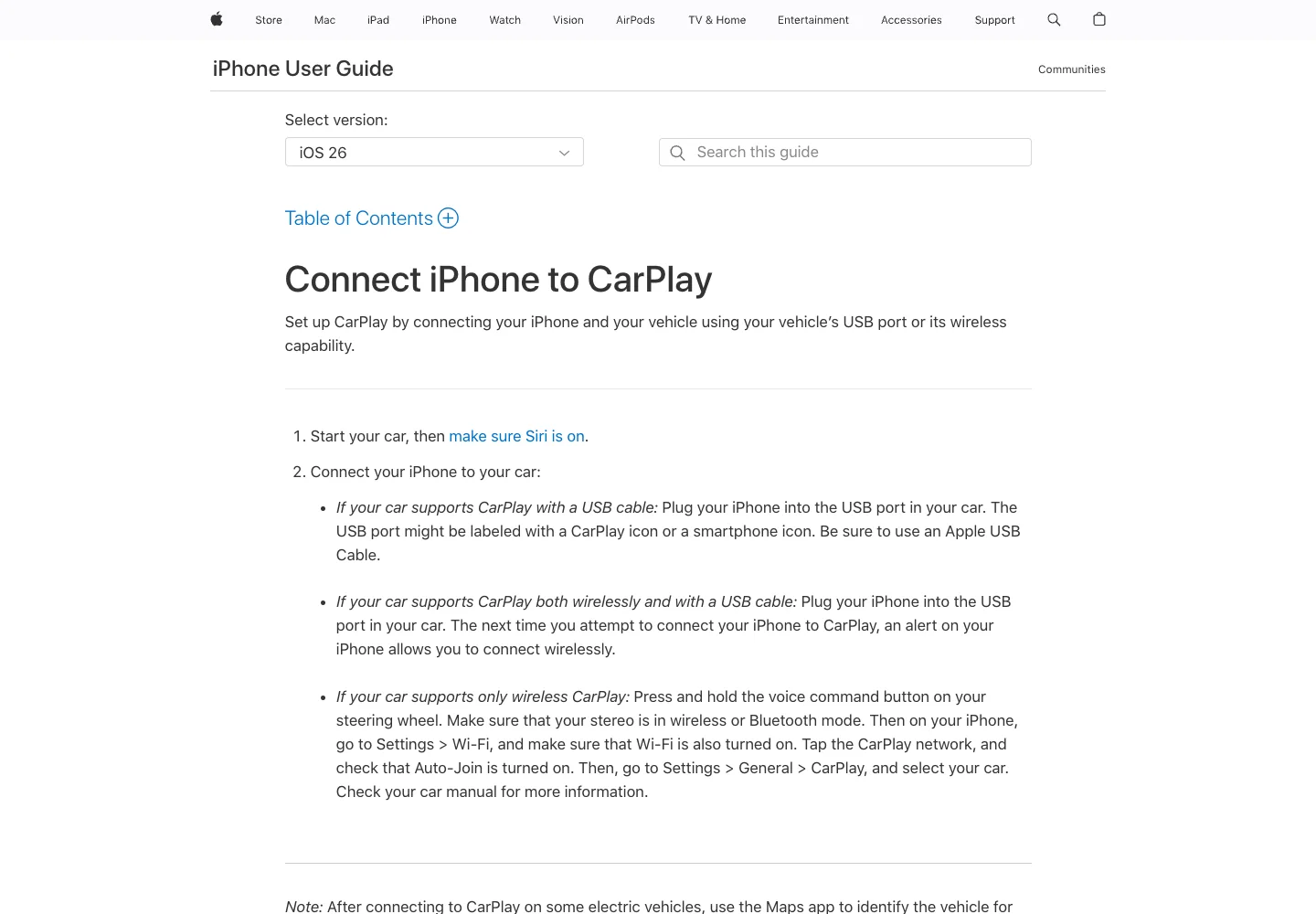
Use this practical test:
- Before you turn the car off, pause Apple Music on the iPhone.
- Close the Music app only after pausing if you want an extra clean test.
- Start the car again and watch what happens before touching the screen.
- If playback starts immediately, check whether CarPlay selected Music as the active source.
- In the car menu, look for auto play, media resume, USB source, Bluetooth source, or last source settings.
- On iPhone, go to Settings > General > CarPlay, choose your car, and review the connection.
If you rarely use CarPlay in that vehicle, you can remove the pairing and set it up again. This is heavier than turning off Autoplay, so use it only when the car keeps taking over after lighter checks fail.
Recheck Bluetooth and USB
Bluetooth auto-resume can look like Apple Music autoplay, but it is often just the phone and car resuming the last media session. Apple's Bluetooth accessory guide documents where to unpair a device from iPhone settings.
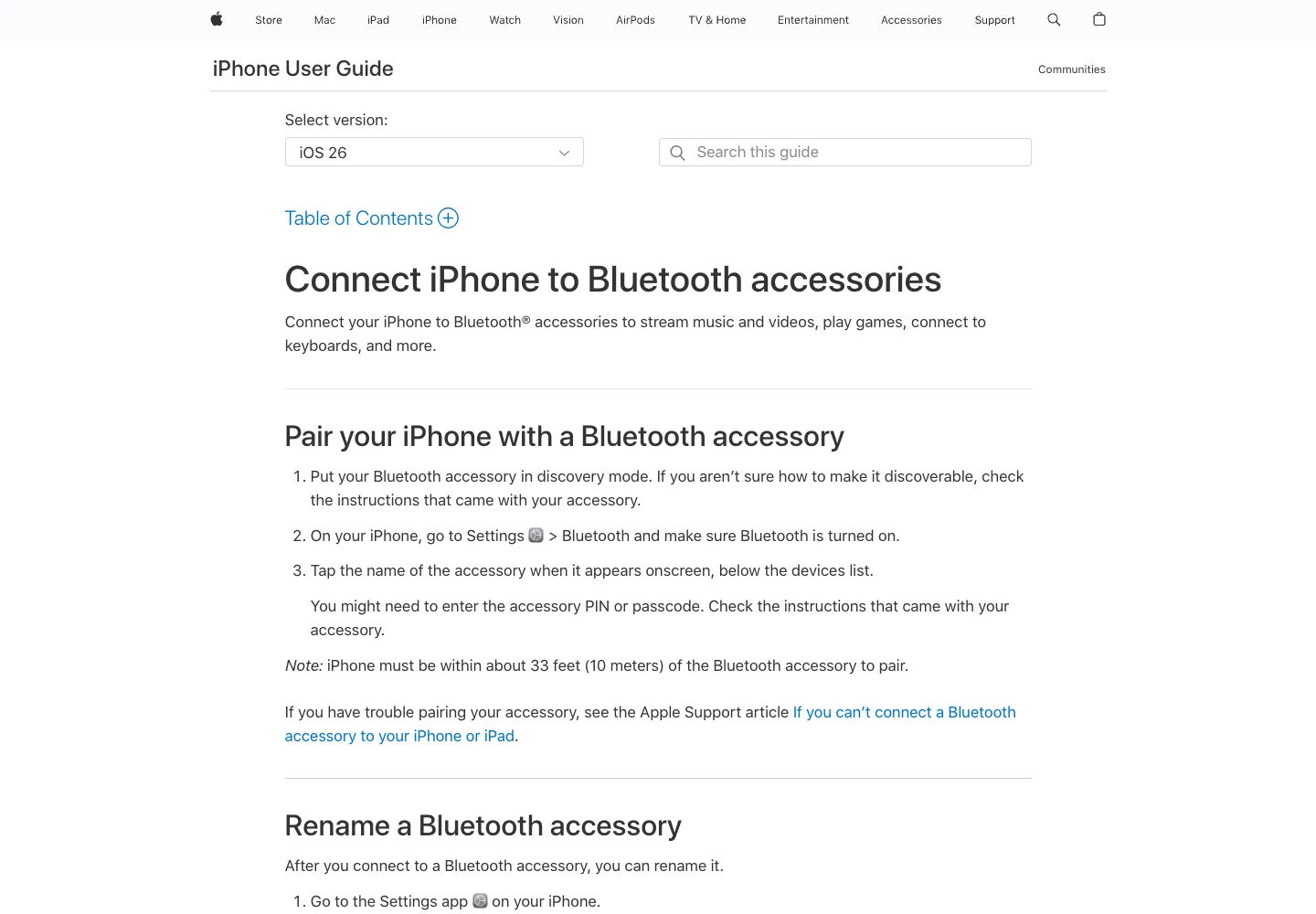
Work from least disruptive to most disruptive:
- Pause playback before leaving the car.
- Switch the car audio source away from Bluetooth or USB before turning the car off.
- In the car's media menu, disable any auto-play or resume-last-source option if available.
- Restart the iPhone and retest.
- Forget the car's Bluetooth device on the iPhone, then pair again.
- If wired USB always starts Music, try another cable or port and check whether the car treats USB as a music source by default.
The key is to isolate the trigger. If playback starts only when the Bluetooth connection completes, the Apple Music queue Autoplay button is probably not the only setting involved.
Create a Shortcuts auto-pause automation
If your car does not offer a reliable auto-play switch, Shortcuts can be the clean workaround. Apple's personal automation guide explains how automations run from triggers such as events, travel, communication, transactions, and settings.
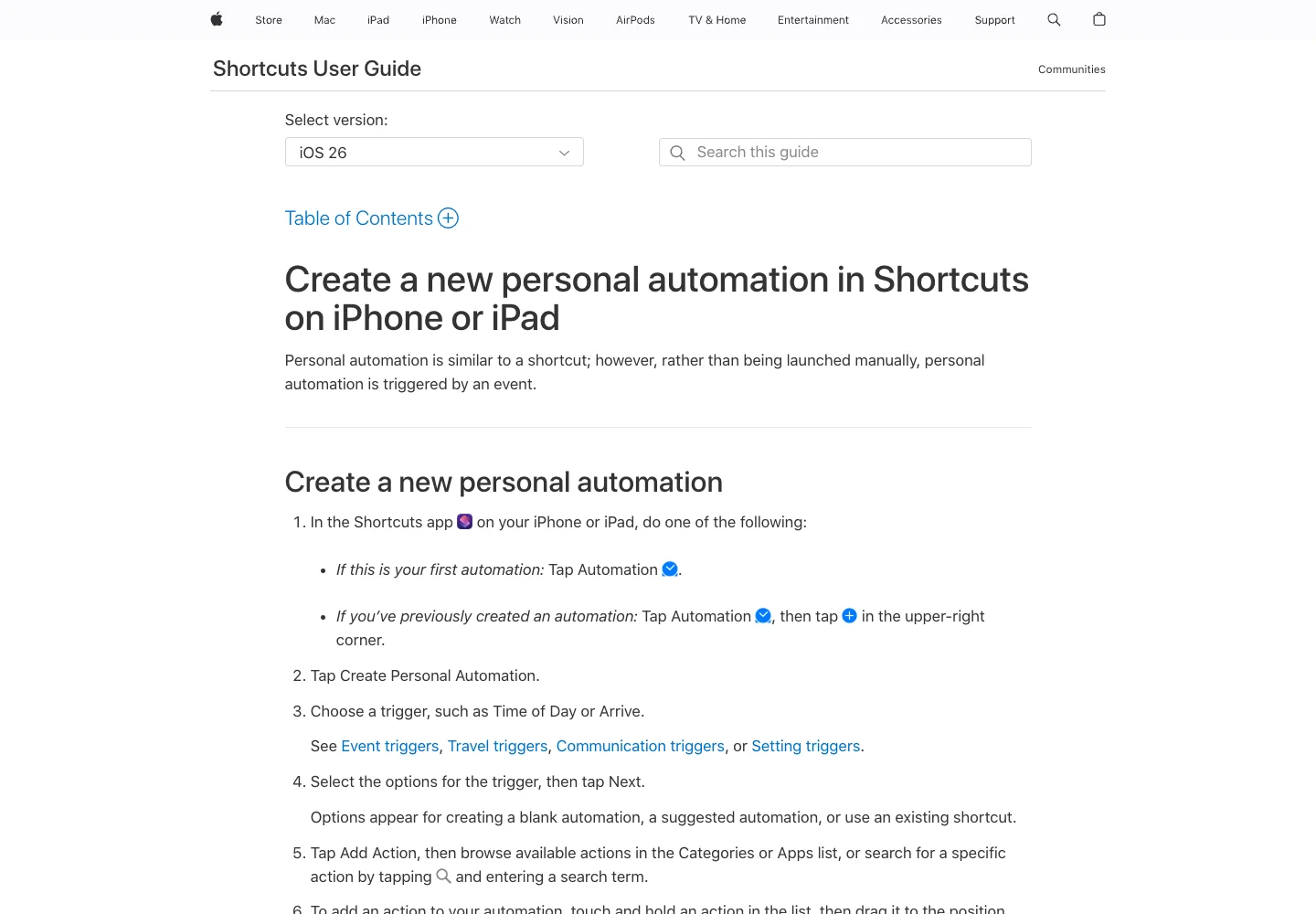
Use this pattern:
- Open Shortcuts.
- Go to Automation.
- Create a new personal automation.
- Choose a CarPlay or Bluetooth trigger if it is available for your setup.
- Select the car or relevant accessory.
- Add a playback action that pauses media.
- Turn off any confirmation prompt if iOS allows that for the trigger.
- Test by leaving and reconnecting to the car.
This does not disable Apple Music. It simply tells the phone to pause when a specific car connection happens. That makes it useful when the car insists on resuming the last media session.
When a converter is the wrong fix
Some competing guides suggest converting Apple Music to MP3 so the car can play files another way. That is a different topic, and it does not solve the actual autoplay trigger. If the car is starting audio because Bluetooth or CarPlay resumed the last source, converted files can still start automatically.
Use this boundary:
| Goal | Better route |
|---|---|
| Stop similar songs after a playlist ends | Turn off Apple Music queue Autoplay |
| Stop the car from resuming media | Check CarPlay, Bluetooth, USB, and vehicle media settings |
| Stop playback on every car connection | Use a Shortcuts auto-pause automation |
| Keep a personal local clip neat for car playback | Edit a permitted local file |
| Convert protected streaming catalog music | Do not treat this as an autoplay fix |
If your real task is understanding safer conversion boundaries, read Apple Music to MP3 converter options. For autoplay in the car, stay with playback and connection settings first.
Where Melogen fits for local files
Melogen does not control Apple Music settings, CarPlay, Bluetooth, or protected streaming catalog audio. It fits only after you already have a local audio file you own or are allowed to edit.
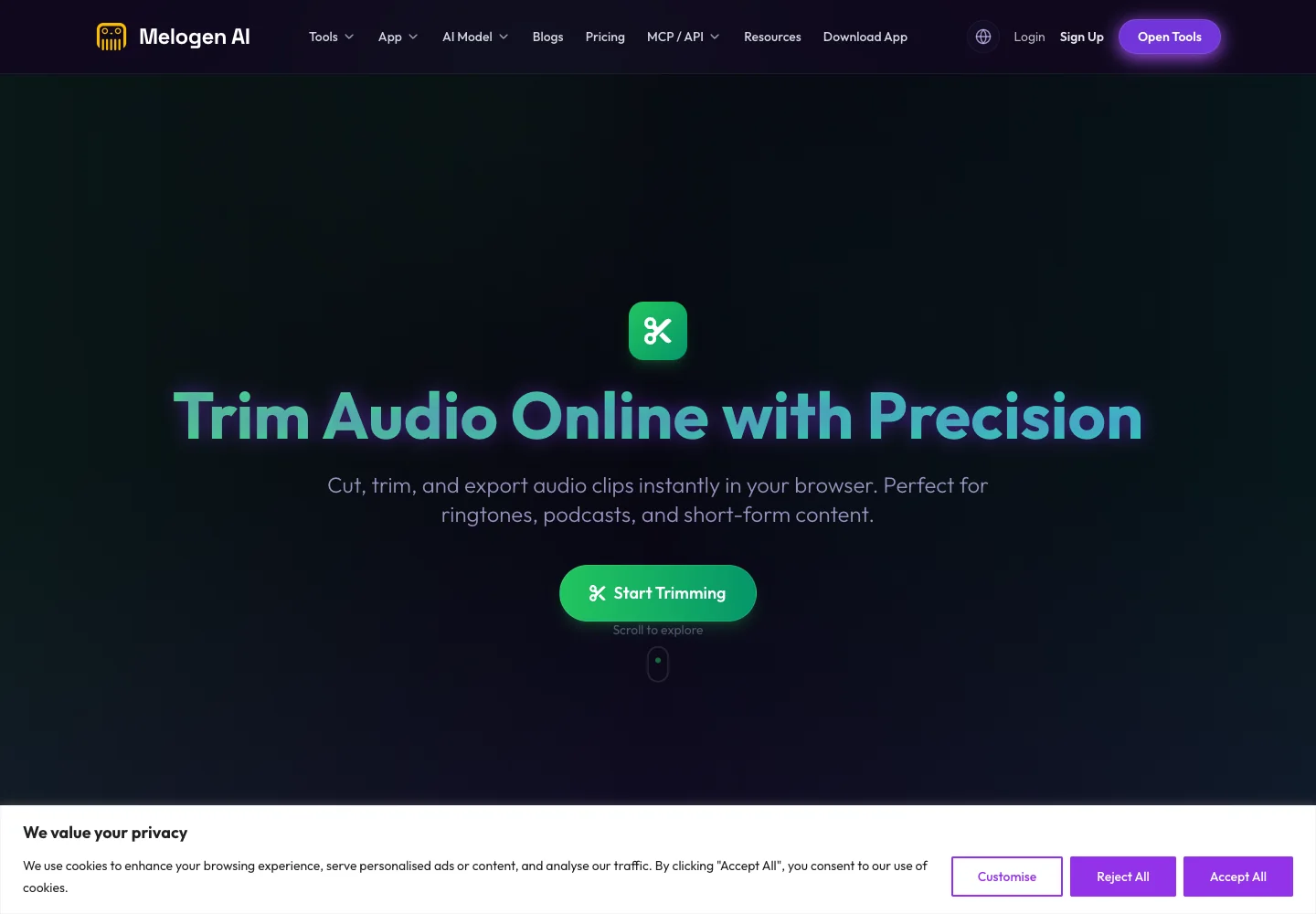
Use Melogen Music Trimmer when you need to:
- Cut silence from the start of a local car-playback clip.
- Trim a rehearsal, demo, podcast cue, or lesson file.
- Add a fade-out so the file ends cleanly.
- Prepare a short version of an owned audio file before syncing it.
- Keep the original file untouched while exporting a cleaner copy.
This is useful when the file itself is messy. It is not a workaround for Apple Music autoplay.
Clean up local car-playback clips
After the Apple Music and car settings are fixed, use Melogen Music Trimmer for audio files you are allowed to edit, cut, or fade.
Troubleshooting checklist
| Problem | Check this first | Next step |
|---|---|---|
| Similar songs play after your selected music ends | Apple Music Autoplay button | Turn off the infinity button and retest with a short queue |
| Music starts as soon as the car starts | Last media session or car auto-resume | Pause before shutdown and check car media settings |
| It only happens with CarPlay | CarPlay connection behavior | Review Settings > General > CarPlay for that vehicle |
| It only happens over Bluetooth | Bluetooth pairing or car source behavior | Forget and re-pair the car if lighter checks fail |
| It happens no matter what you do | Vehicle media behavior | Use a Shortcuts pause automation as a fallback |
| Local files sound rough in the car | File edit needed | Trim or fade the permitted file before playback |
For broader symptoms such as missing songs, library sync trouble, downloads, or account problems, use the Apple Music problems guide. If you also use Spotify in the same car, the Spotify autoplay guide follows the same layer-by-layer logic.
FAQs
Why does Apple Music start playing when I get in my car?
Usually because the car, CarPlay, Bluetooth, USB, or the phone's last media session resumes playback. Apple Music queue Autoplay can be part of the problem when similar songs continue after a queue ends, but car startup playback often lives in the connection layer.
Does turning off Apple Music Autoplay stop car playback?
It stops Apple Music from continuing with similar songs after the selected queue ends. It may not stop the car from resuming whatever was last paused when Bluetooth, USB, or CarPlay reconnects.
Can I stop the car from opening Apple Music automatically?
Try pausing before disconnecting, changing the car's media source, checking vehicle auto-play settings, and reviewing CarPlay or Bluetooth pairing. If those fail, a Shortcuts automation that pauses playback on connection is often the cleanest workaround.
Should I convert Apple Music to MP3 to stop autoplay?
No. Converting music does not change the car's auto-resume behavior, and protected streaming catalog conversion raises rights and platform-limit issues. Fix the playback setting or connection trigger instead.
Can Melogen stop Apple Music autoplay?
No. Melogen cannot change Apple Music, CarPlay, or Bluetooth settings. Melogen is useful only when you have a permitted local file that needs trimming, cutting, or a cleaner fade before playback.
The practical takeaway
Turn off Apple Music queue Autoplay when similar songs keep playing after your chosen music ends. Check CarPlay, Bluetooth, USB, and the car stereo when playback starts the moment your iPhone connects. Use Shortcuts to pause automatically if the car refuses to cooperate. Use Melogen only for owned local audio that actually needs editing.
About the author
Zhang Guo
Composer - AI Product Manager
AI product manager and digital marketing consultant with a background in music. Creativity is the bridge between rhythm and logic, where musical intuition and mathematical precision can coexist in every meaningful product decision.
Follow on X