Copy iTunes Library to External Hard Drive Safely
Copy iTunes library to external drive safely with Apple backup steps, Sync Library cautions, verification checks, and Melogen cleanup for owned audio.
 Zhang Guo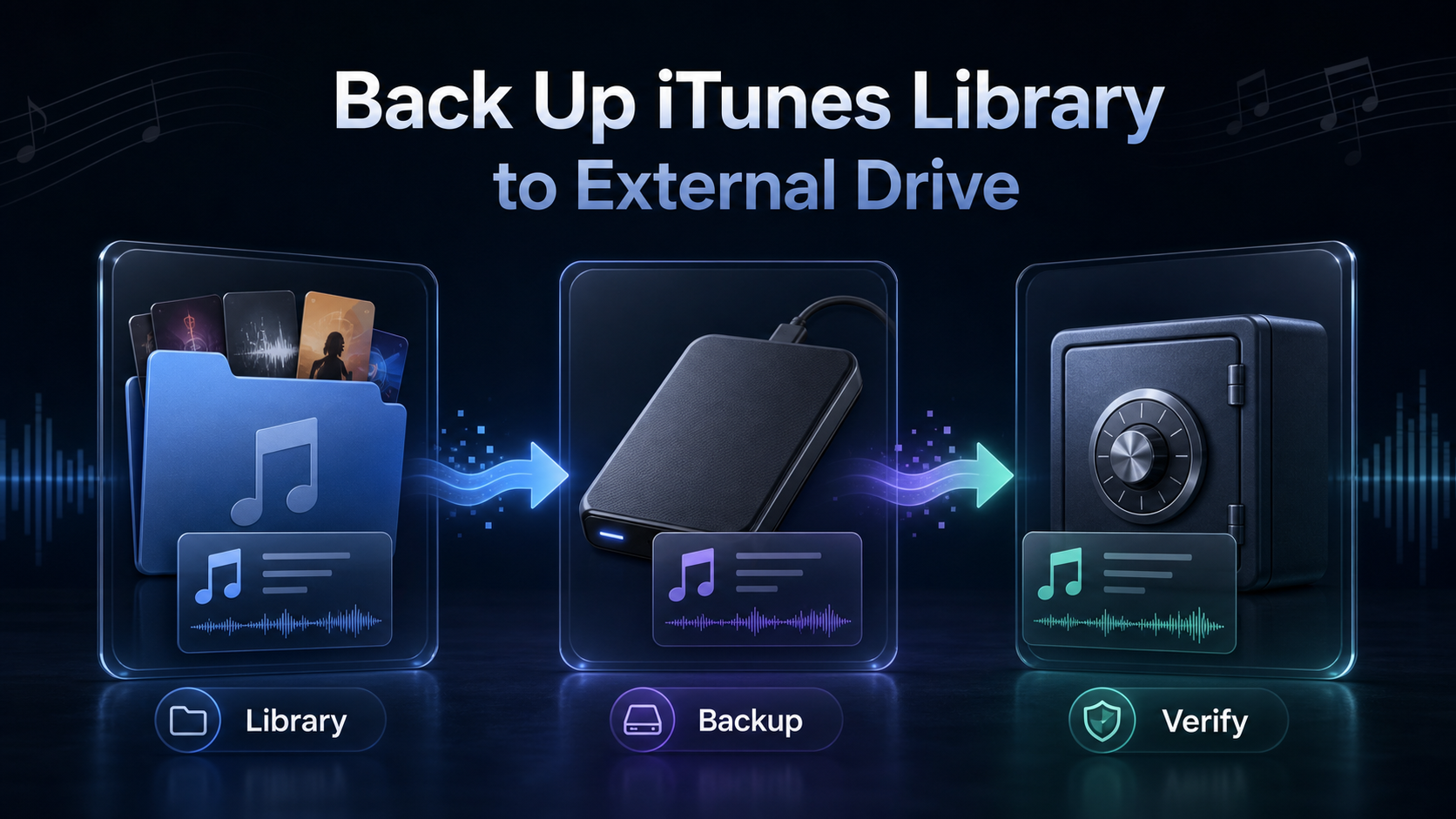
Turn a static score into editable MIDI
Contents
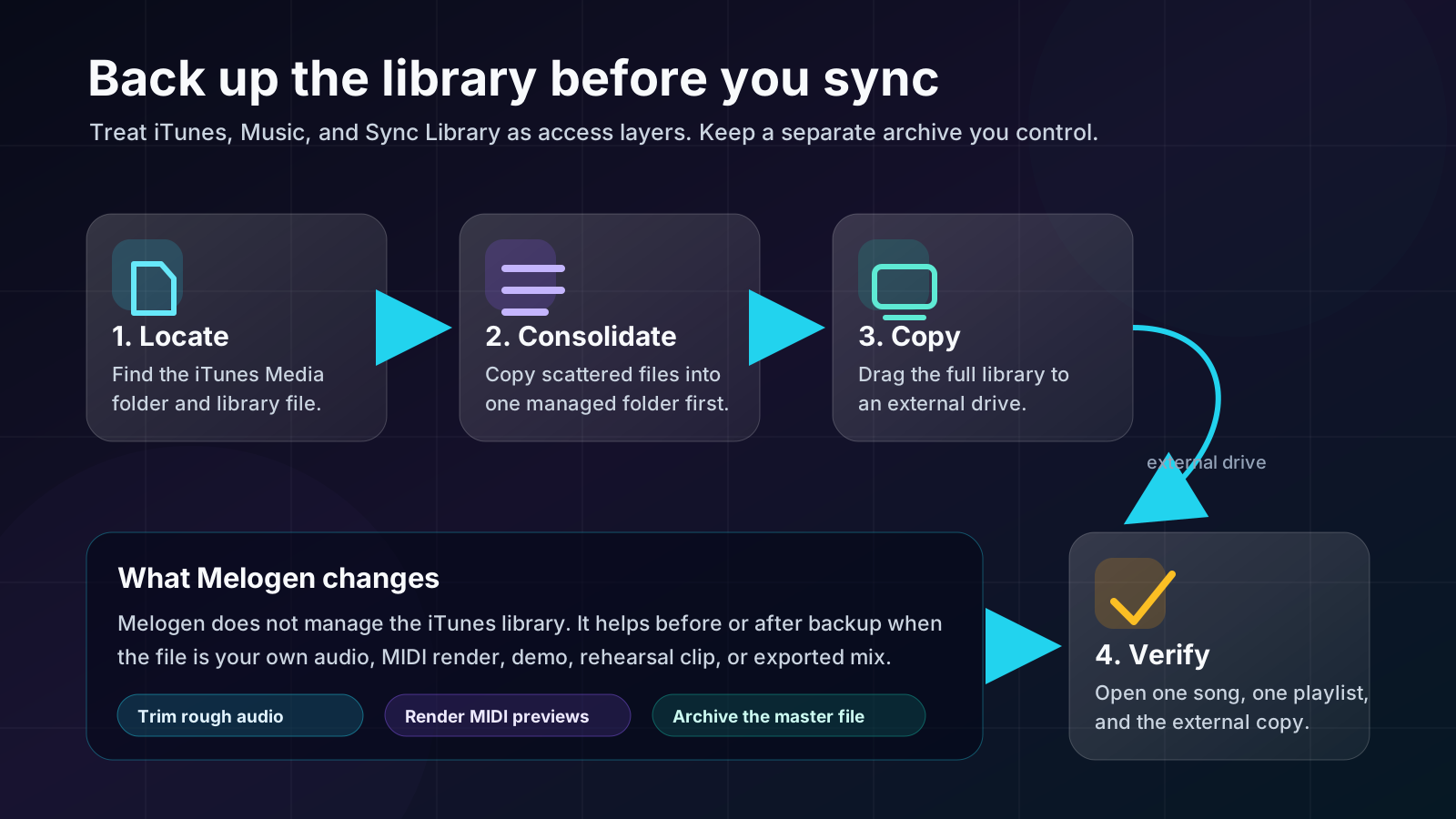
To copy iTunes library to external hard drive safely, do not start by dragging random songs from the app window. First locate the actual iTunes folder, consolidate scattered media when needed, quit iTunes, copy the whole library folder to the external drive, then open a test track and playlist from the backup before you trust it.
The important distinction is simple: iTunes and Apple Music can help you manage or sync a library, but they are not the same as a separate backup. A real backup lives outside the app on a drive, NAS, cloud backup, or archive folder you control.
Quick backup checklist
Use this checklist before moving a large library. It keeps the task from turning into a vague "where did my songs go?" problem.
| Step | What to do | Why it matters |
|---|---|---|
| Locate | Find the iTunes Media folder and the iTunes Library file | The app view is not the same as the file location |
| Consolidate | Copy scattered media into the managed iTunes folder | A backup can miss songs that live in old folders |
| Quit | Close iTunes before copying | The library database should not change mid-copy |
| Copy | Drag the full iTunes folder to the external drive | The folder structure matters, not only the audio files |
| Verify | Open one song, one album, and one playlist from the backup | A silent failed copy is worse than no backup plan |
| Archive | Keep the drive separate from Sync Library changes | Sync is access; backup is recovery |
If you are also comparing Apple's library services, read iTunes Match vs Apple Music before relying on cloud access as your only copy. If you are trying to restore old purchases rather than back up a local library, start with download music from iTunes to a computer.
Locate the real iTunes library folder
Apple's iTunes guide for moving your iTunes library to another computer tells Windows users to note the iTunes Media folder location, quit iTunes, then drag the iTunes folder to an external drive. That is the official path to trust because it protects the folder structure, not just the visible songs.
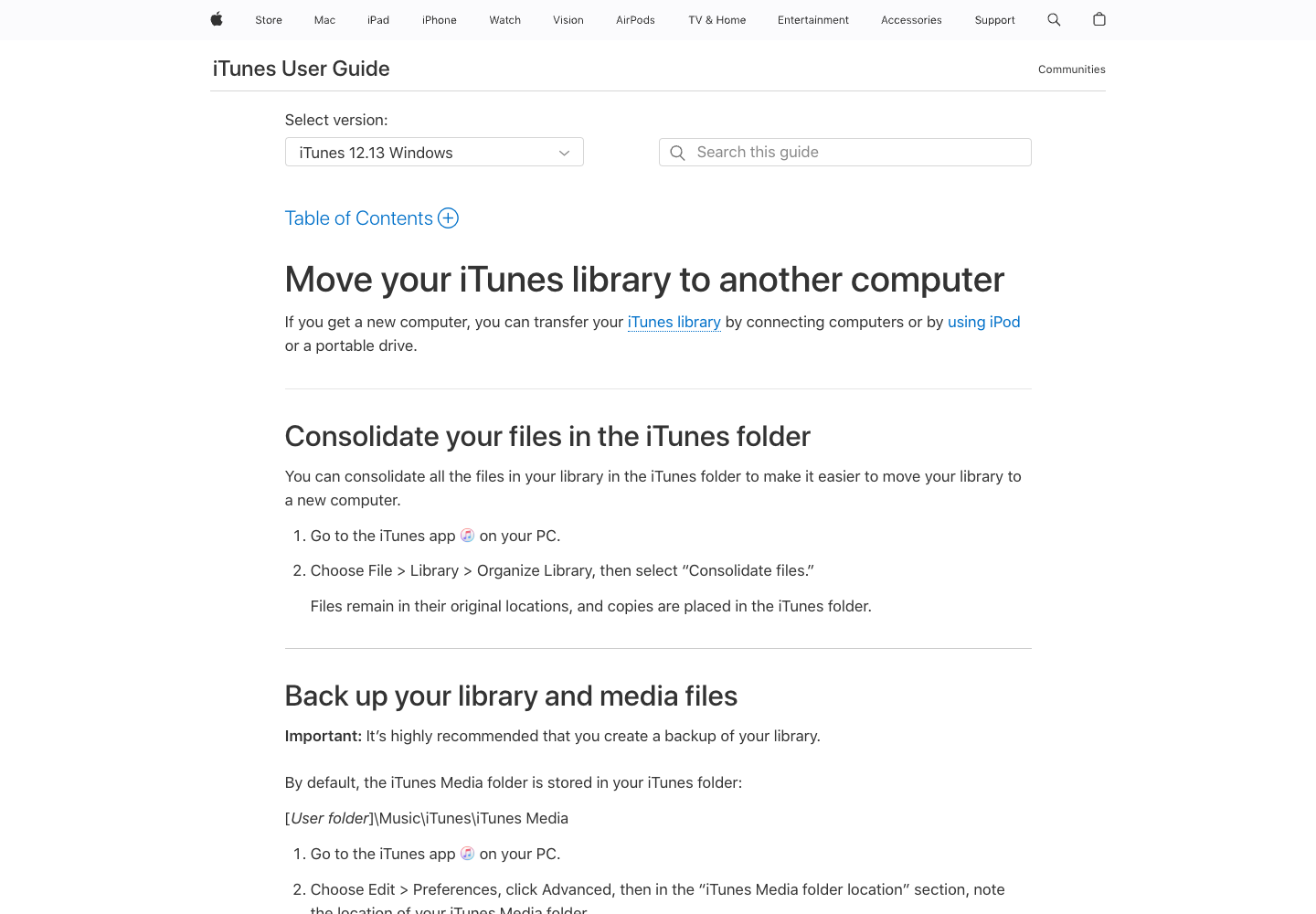
On most Windows setups, the default media folder is inside:
[User folder]\Music\iTunes\iTunes Media
Do not assume that every track is still there. Older libraries often contain files imported from Downloads, Desktop folders, external drives, old CD-rip folders, or a previous computer. If iTunes can play the song but the file lives somewhere else, copying only the default folder can produce an incomplete backup.
Use iTunes first:
- Open iTunes on the PC that has the working library.
- Choose
Edit>Preferences>Advanced. - Note the current iTunes Media folder location.
- If your library is scattered, choose
File>Library>Organize Library. - Select
Consolidate filesso copies are placed inside the iTunes folder. - Quit iTunes before you copy the folder.
Apple also has a separate guide for changing where iTunes files are stored on PC. That setting is useful for future imports, but it is not the same as making a backup. Changing the media location can help organize new files; a backup should still copy the library to a separate drive.
Copy the folder, then test the backup
Once iTunes is closed, copy the full iTunes folder to the external hard drive. If you only copy the iTunes Media subfolder, you may keep the audio files but lose library structure such as playlists, ratings, play counts, and the library database that helps iTunes reopen the collection correctly.
Use this copy-and-test order:
- Connect an external drive with enough free space.
- In File Explorer, open the folder that contains your iTunes folder.
- Drag the entire
iTunesfolder to the external drive. - Wait until the copy finishes. Do not interrupt it because the large media files finish before the small metadata files are always obvious.
- Compare the folder size or file count if the library is large.
- Open a backed-up song file directly from the external drive.
- Export or inspect one playlist if playlists matter to you.
- Label the drive with the date before storing it.
If the backup is for a move to another computer, Apple's same guide explains the restore pattern: put the iTunes folder back in the expected location, then open iTunes while holding Shift and choose the library file. The small .itl library file matters because it tells iTunes how the collection is organized.
Do not mistake Sync Library for a backup
Apple's Sync Library support page describes Sync Library as a way to stream your music library on signed-in devices with an Apple Music subscription. That is useful access, but it should not be treated as the only recovery copy for imported CDs, purchased files, rehearsal recordings, lesson audio, exported mixes, or rare local material.
Here is the practical split:
| Library layer | What it does | Backup risk |
|---|---|---|
| iTunes folder on your computer | Holds local media files and library data | Can be lost if the disk fails |
| External drive backup | Gives you a separate recovery copy | Must be refreshed after major changes |
| Sync Library or iTunes Match | Helps access music across devices | Not a substitute for your own archive |
| Apple Music catalog downloads | Offline playback inside Apple Music | Not permanent file ownership |
| DAW or notation project folders | Hold editable creative sources | Should be backed up separately from listening copies |
If your cleanup task is actually removing library entries, use delete music from iTunes without losing files before changing a large library. Deleting an app entry, deleting a local file, and removing a download are different actions.
Prepare owned audio before adding it back
Melogen does not move an iTunes library, unlock Apple Music downloads, or replace Apple's backup and restore tools. It fits around the library task when the file is yours and needs cleanup before it belongs in the listening archive.
For example, a teacher might back up a library, trim the silence from class audio, then add the clean copy back. A composer might export a rough rehearsal bounce, shorten the count-in, and keep both the master and the trimmed listening version. A producer might make a quick preview clip before filing it next to reference tracks.

Use the Melogen music trimmer when the source file is an owned recording, demo, rehearsal clip, lesson file, or exported mix that needs a cleaner start, ending, or practice segment. If the file starts as MIDI and you need an audio preview before it enters the library, use the MIDI to MP3 converter instead.
Clean the file before it enters the backup
Trim rough starts, long endings, and rehearsal noise from audio you own, then archive both the master and the cleaner listening copy.
Keep the boundary clear: Apple tools manage the music library. Your external drive protects the archive. Melogen helps only with audio or MIDI you created, own, or are allowed to edit.
Troubleshooting backup mistakes
| Problem | Likely cause | Safer fix |
|---|---|---|
| The backup opens but songs are missing | The library referenced files outside the iTunes folder | Consolidate files, then copy the library again |
| Playlists disappeared on the new computer | The media files were copied without the library database | Restore the whole iTunes folder and choose the .itl file |
| A song plays on one device but no local file exists | It may be a cloud or streaming item | Redownload purchases or locate owned files before archiving |
| The external drive has old versions | The drive was not refreshed after library changes | Use dated backup folders or a backup tool with versioning |
| iTunes cannot find the file after moving folders | Paths changed outside iTunes | Restore from backup or relink the file from the app |
The safest fix is usually not a converter. It is a source check. Ask whether the song is a purchased file, an imported CD track, a streaming catalog item, a local recording, or a project export. Once the source is clear, the next action is less risky.
FAQs
Can I copy my entire iTunes library to an external hard drive?
Yes. Copy the full iTunes folder after consolidating files and quitting iTunes. The full folder preserves more structure than copying individual songs from the app window.
Should I copy the iTunes Media folder or the whole iTunes folder?
For a real backup or computer move, copy the whole iTunes folder. The media folder contains audio and video files, but the parent iTunes folder can also include the library database and organization files.
Does Apple Music Sync Library back up my songs?
No. Treat Sync Library as an access and syncing feature, not your only backup. Keep a separate copy of important local files on an external drive, backup system, or archive folder.
What should I do before deleting old iTunes files?
Back up first, test one song, then delete only after you understand whether you are removing a library entry, a download, or the actual local file. Use the app prompt carefully.
Can Melogen help with an iTunes library backup?
Melogen does not back up or manage iTunes libraries. It helps when you have your own audio or MIDI that needs trimming, rendering, or cleanup before you add it to a library and archive the final files.
The practical takeaway
Copy iTunes library to external hard drive by protecting the folder structure first. Locate the library, consolidate scattered files, quit iTunes, copy the full folder, and verify the backup with a few real items before you rely on it.
After that, keep sync and backup in separate lanes. Use Apple for library management, an external drive for recovery, and Melogen only for preparing music files you created or are allowed to edit.
About the author
Zhang Guo
Composer - AI Product Manager
AI product manager and digital marketing consultant with a background in music. Creativity is the bridge between rhythm and logic, where musical intuition and mathematical precision can coexist in every meaningful product decision.
Follow on X