How to Delete Music from iTunes Without Losing Files
Delete music from iTunes or Apple Music safely, remove local files only when intended, protect backups, and clean owned audio with Melogen.
 Zhang Guo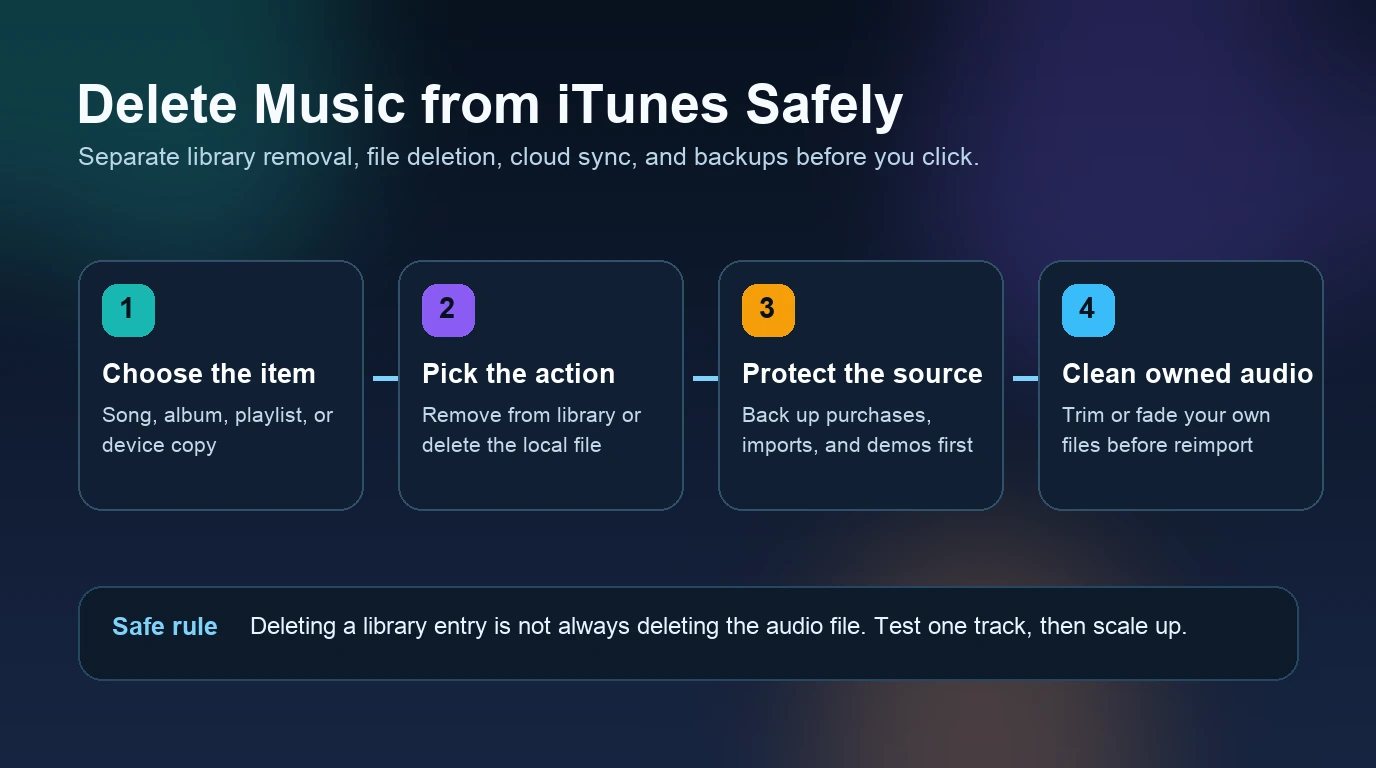
Turn a static score into editable MIDI
Contents
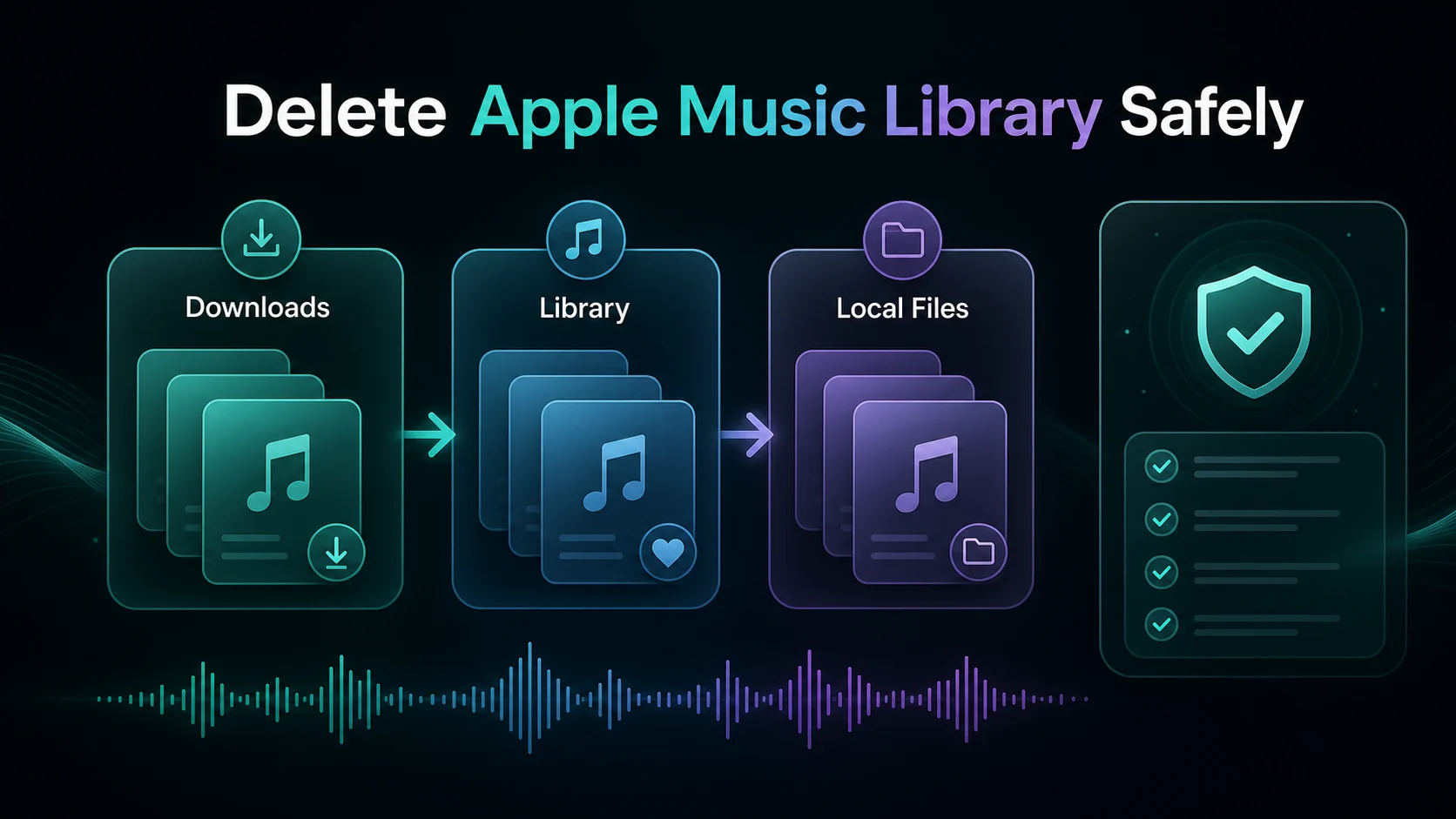
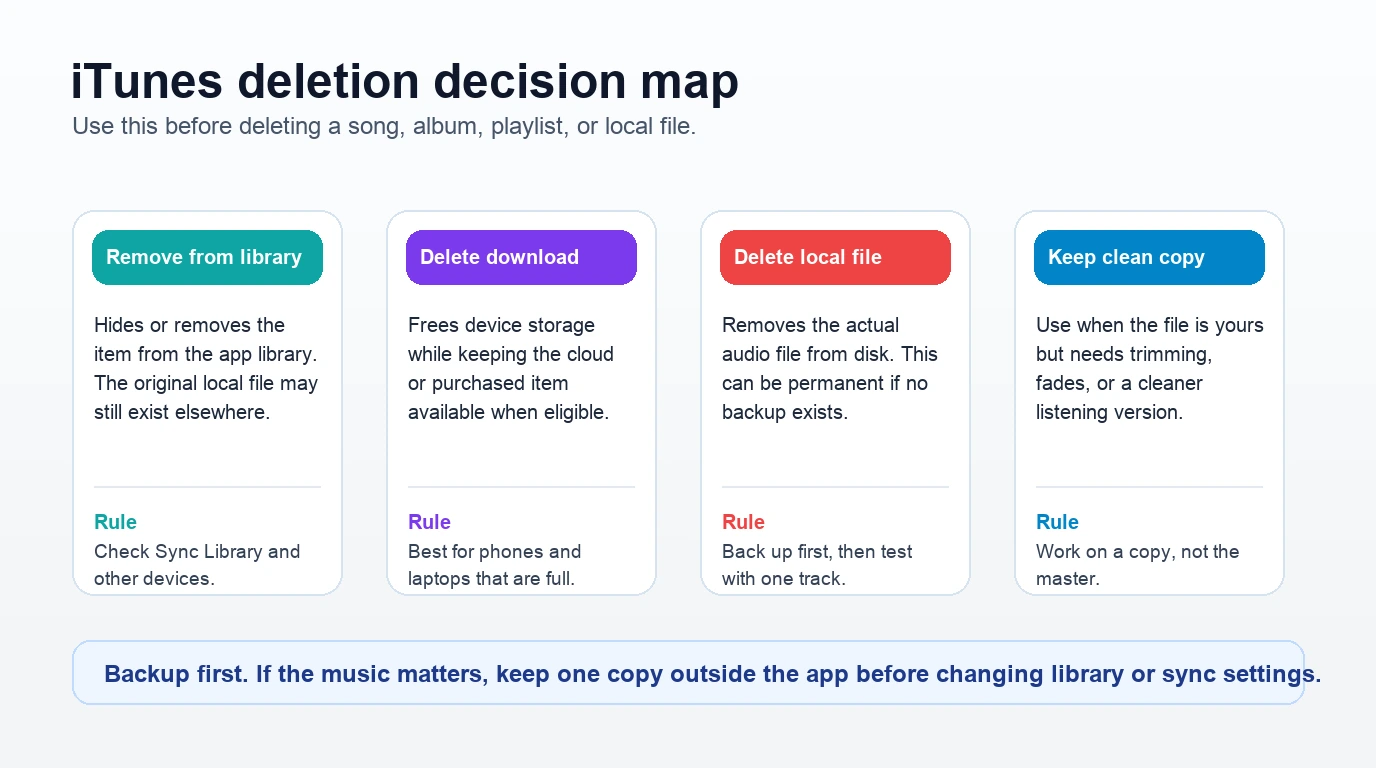
To delete music from iTunes safely, decide whether you want to remove a song from the app library, delete the downloaded copy from one device, or erase the actual local audio file from your computer. Those actions sound similar, but they do not have the same consequence.
The safe workflow is simple: back up files you care about, test one song first, check Sync Library behavior, and only then repeat the action on a larger library. If the music is your own file and you plan to add it back later, clean the copy before reimporting it.
Quick answer before you delete anything
Use the table first. It keeps the task from turning into a vague "delete everything" moment.
| What you want | Safer action | What to check first | Risk |
|---|---|---|---|
| Hide or remove a song from iTunes library view | Remove from library | Whether Sync Library is on | It may disappear from other signed-in devices |
| Free device storage | Remove the download | Whether the item is still in cloud or purchase history | You may need internet to play it again |
| Delete a local file from disk | Delete or move the file after backup | Whether it is a purchase, CD rip, demo, or only copy | You can lose the file permanently |
| Clean up owned audio before reimport | Work on a copy outside the library | Whether you have rights to edit the file | The library may point to the wrong or old version |
If your real task is restoring old purchases, start with the guide to download music from iTunes to a computer instead. This article is about removal and cleanup, not redownloading.
Delete songs in iTunes on Windows
Apple's iTunes User Guide page for deleting songs and other items in iTunes on PC explains the key split: in iTunes on PC, you can remove items from the library or from your computer. That is the decision that matters.
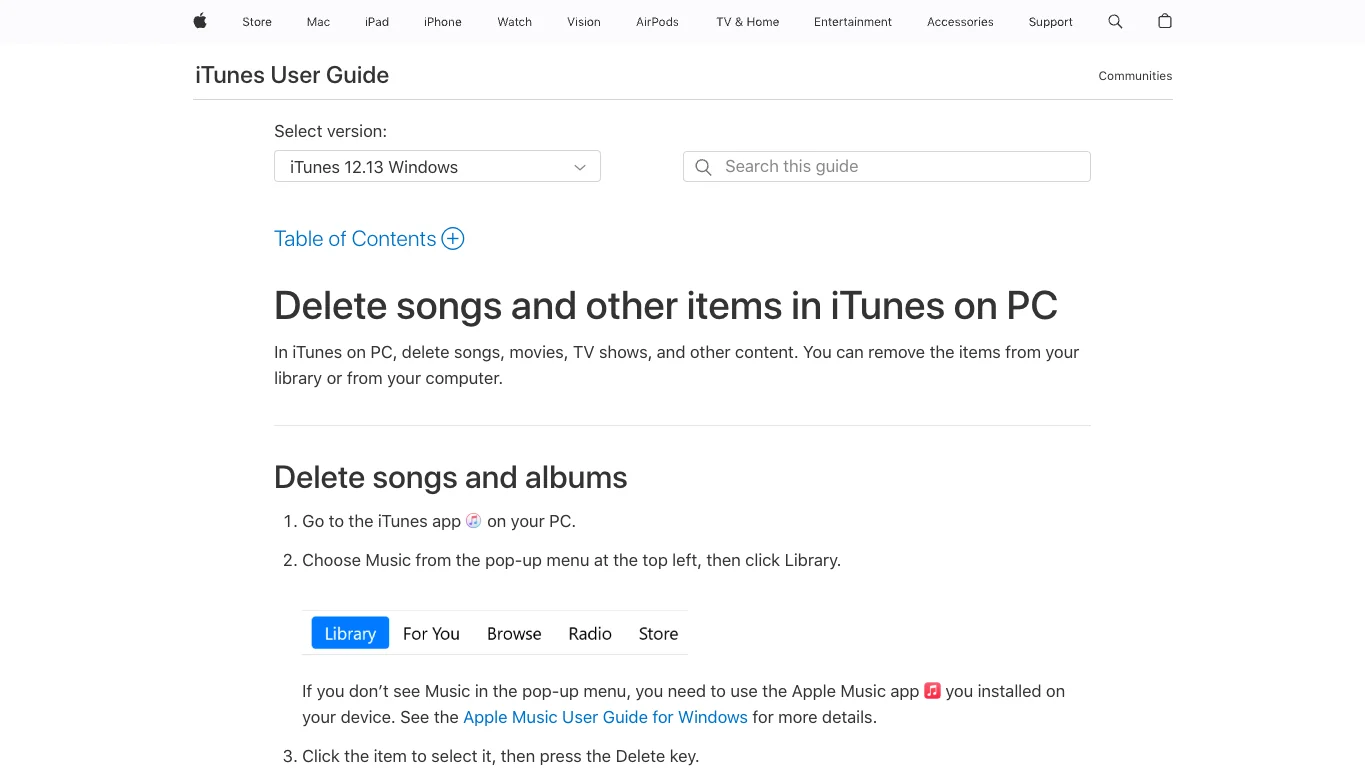
Use this order on Windows:
- Open iTunes and choose Music from the media menu.
- Go to Library.
- Select one song or album first, not a whole folder.
- Press Delete or use the item menu.
- Read the prompt carefully before confirming.
- Check whether the file still exists in the media folder.
If iTunes asks whether you want to remove the item from the library or delete it from the computer, pause. Removing from the library usually means the item no longer appears in iTunes. Deleting from the computer means the local file itself can be moved to the trash or removed from disk.
For purchased music, keep the Apple Account and purchase history in mind. For CD rips, demos, rehearsal recordings, and older imported files, do not assume there is a clean cloud copy waiting for you. Back up the file before deleting it from disk.
Delete music in Apple Music on iPhone, Android, or Mac
The modern Apple Music app uses similar wording, but the device behavior matters more. Apple's support page for deleting music in the Apple Music app separates removing a download from deleting from your library. It also notes that Sync Library can remove music from other devices when you delete from the library.
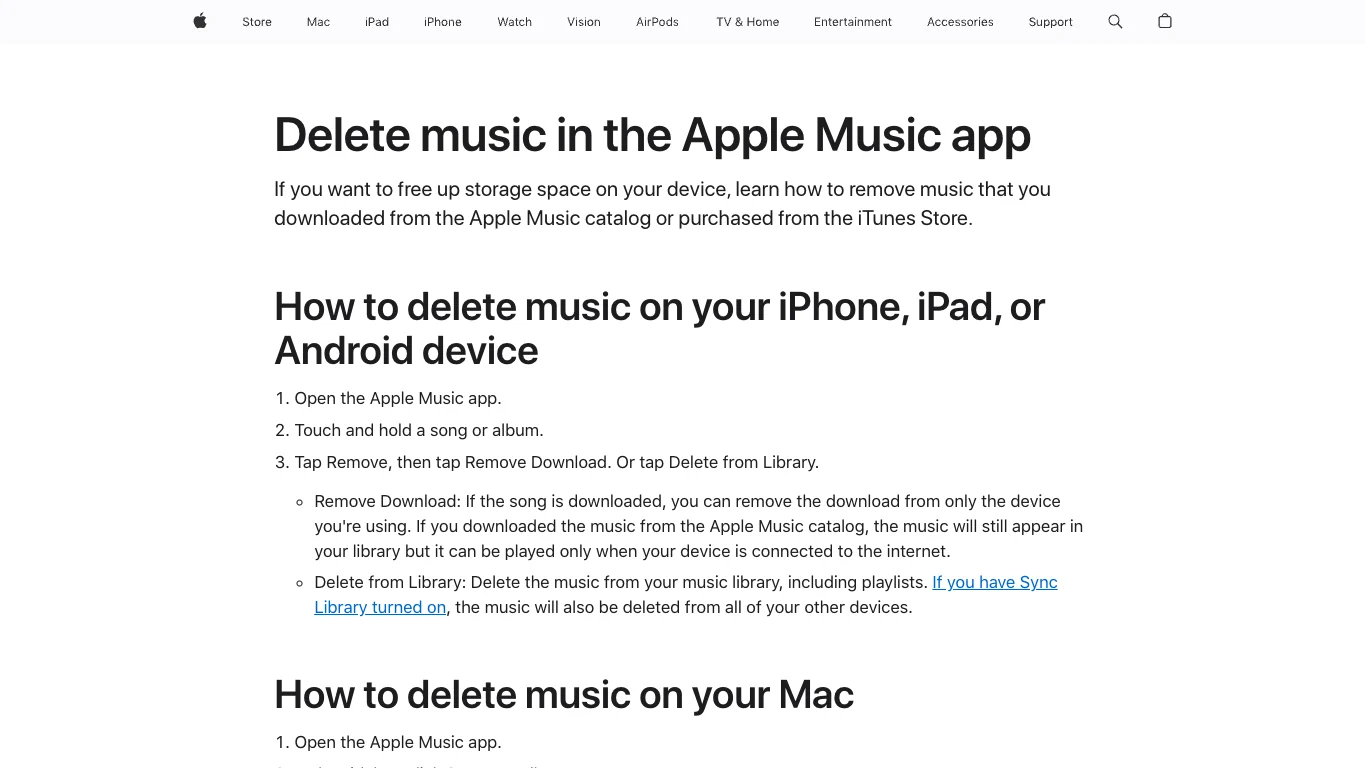
Use the app-level decision this way:
| Button or action | What it usually means | When to use it |
|---|---|---|
| Remove Download | Removes the downloaded copy from this device | Storage is full, but you still want the item in the library |
| Delete from Library | Removes the item from your music library | You no longer want the song or album saved in your library |
| Delete local file | Removes the file from computer storage | You have a backup and know this is not the only copy |
The phrase "delete music from iTunes" often hides three different readers. One person wants to clean iPhone storage. Another wants to remove duplicate songs from a Windows iTunes library. A musician may be cleaning a folder of old rehearsal bounces before adding a better version back into the library. Treat those as different jobs.
Back up before large library cleanup
Do not start with a full-library delete. Start with one song that is easy to replace. After that, scale up by album, playlist, or folder.
Use this checklist:
- Confirm the source: purchased, imported, ripped, recorded, exported, or streamed.
- Confirm where the file lives on disk.
- Copy important files to an external drive, cloud backup, or archive folder.
- Check Sync Library if Apple Music or iTunes Match is involved.
- Delete one test item.
- Reopen the app and confirm the expected result.
- Check another signed-in device before deleting a large batch.
If you use Apple's library sync products, the iTunes Match vs Apple Music guide is the better companion. It explains why library sync, catalog access, and backup are not the same thing.
Clean owned audio before adding it back
Sometimes deletion is not the end of the task. You may be removing a bad copy because you have a cleaner one ready: a trimmed demo, a shorter lesson clip, a fixed rehearsal bounce, or a new export from a DAW.
This is where Melogen fits, but only for files you own or are allowed to edit. Melogen is not a way to extract Apple Music catalog tracks or bypass a streaming subscription. It is useful before reimport, when the audio file is already yours and needs practical cleanup.

Use the Melogen music trimmer when the replacement file has silence at the start, a rough ending, a long count-in, or a section you want to turn into a clean listening copy. Work on a duplicate file, export the cleaned version, then add that copy back to Apple Music, iTunes, or another local library.
Clean the file before you add it back
Trim silence, rough starts, and long endings from audio you own, then reimport the safer copy into your music library.
Troubleshooting common deletion mistakes
| Problem | Likely cause | Safer fix |
|---|---|---|
| A song disappeared on another device | Sync Library applied the library change | Check recently deleted, purchase history, backups, and other signed-in devices |
| The file still takes up space | You removed the library entry but not the download or file | Locate the media folder and confirm the actual file path |
| iTunes cannot find a song after cleanup | The original file was moved or deleted outside the app | Restore from backup or re-add the file from its current location |
| A purchased song is missing | Wrong Apple Account, hidden purchase, or regional availability issue | Check purchase history before using third-party converter advice |
| A local demo came back with the old mistake | You reimported the wrong copy | Rename cleaned exports clearly before adding them back |
If the goal is not deletion but importing new files, read add songs to Apple Music. It covers the safer direction: bringing owned or local audio into the library without breaking file paths.
FAQs
Does deleting music from iTunes delete the actual file?
Not always. Removing an item from the iTunes library can be different from deleting the local audio file from your computer. Read the confirmation prompt and test one track before deleting a batch.
What is the difference between Remove Download and Delete from Library?
Remove Download usually frees storage on the current device while keeping the item in the library when it is still eligible. Delete from Library removes the item from the library and can affect other devices if Sync Library is on.
Should I delete duplicate songs from Finder or File Explorer?
Use the music app first when the item is managed by iTunes or Apple Music. If you delete files directly in Finder or File Explorer, the app may keep broken references. Back up first, then clean one folder at a time.
Can I recover deleted iTunes music?
Sometimes. Purchased items may be available through purchase history if they are still offered and tied to the right Apple Account. Imported files, CD rips, recordings, and demos depend on your own backups.
Can Melogen help after I delete the wrong file?
Melogen cannot restore a deleted file or recover Apple library data. It helps when you still have an owned audio file and want to trim, fade, or prepare a cleaner copy before adding it back.
The practical takeaway
Delete music from iTunes by naming the action first. If you only need storage, remove the download. If you want to clean the app library, remove the item from the library. If you plan to erase the file from disk, back it up first.
For owned audio, keep the master file outside the app, clean a copy when needed, and reimport only the version you actually want in the library. That small bit of discipline prevents most iTunes cleanup mistakes.
About the author
Zhang Guo
Composer - AI Product Manager
AI product manager and digital marketing consultant with a background in music. Creativity is the bridge between rhythm and logic, where musical intuition and mathematical precision can coexist in every meaningful product decision.
Follow on X