How to Convert Audio File to MIDI Logic Pro Workflow
Convert audio to MIDI for Logic Pro with Flex Pitch, Melogen Audio to MIDI, import steps, and cleanup checks for usable piano-roll parts.
 Zhang Guo
Turn a static score into editable MIDI
Contents
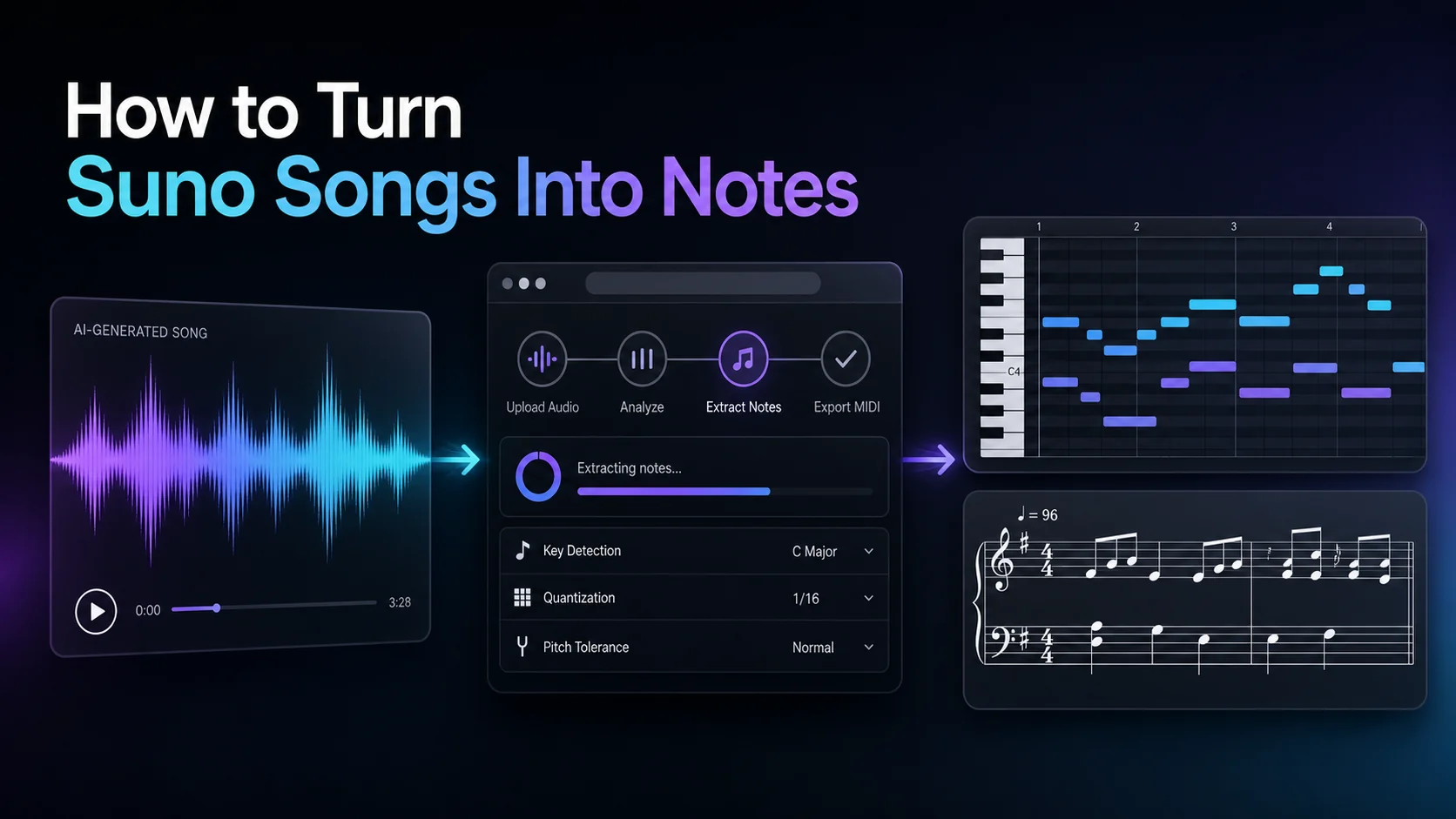
If you search for how to convert audio file to midi logic, you are usually trying to get an audio recording into a piano-roll workflow without replaying the part by hand. Logic Pro can do this from audio with Flex Pitch, and Melogen can help when you want a browser-first audio-to-MIDI pass before you clean the result in Logic.
The short version: use Logic Pro's built-in route when the source is already inside a project and mostly monophonic. Use Melogen when the audio file is outside Logic, when you want a quick MIDI draft before opening the DAW, or when you need a clean standard MIDI file to test in more than one editor.
Choose the right route before you convert
The best method depends on where the audio starts and how clean it is.
| Starting point | Best first route | Why it works | Main cleanup task |
|---|---|---|---|
| A clean vocal, bass, or single-line instrument already in Logic | Logic Pro Flex Pitch | It can derive MIDI from detected pitch data inside the session | Check wrong notes, note lengths, and timing |
| An audio file outside Logic | Melogen Audio to MIDI | It gives you a standard MIDI file before DAW setup | Import the MIDI and align it to the source audio |
| A dense mix or full song | Melogen Music2MIDI or source cleanup first | Stem-aware or cleaner source handling can make the MIDI draft easier to edit | Remove stray notes and simplify overlapping parts |
| Visible notation, PDF, or score image | Sheet2MIDI or PDF to MusicXML instead | Visible notation is an OMR problem, not audio transcription | Review bars, voices, and export format |
That distinction matters. Logic's route is convenient when the audio clip is already in the project. A browser pass is better when you want to test the conversion before committing to a DAW workflow.
Use Logic Pro Flex Pitch when the source is already in the project
Apple's official Logic Pro documentation describes creating MIDI from audio recordings through Flex Pitch. In practice, this route is strongest when the source has one main pitched line: a vocal melody, bass line, guitar lead, flute phrase, or simple keyboard part.
Start with a clean region. Turn on Flex, choose Flex Pitch for the audio, let Logic analyze the notes, then use the command Apple documents for creating a MIDI track from the Flex Pitch data. Keep the original audio track nearby so you can compare the new MIDI against the performance.
This works best when:
- the part has one dominant pitch at a time
- the recording has limited reverb, delay, distortion, and background noise
- the tempo is stable or already aligned to the project grid
- you plan to correct the MIDI in the piano roll afterward
If you want the exact menu path for your installed Logic Pro version, use Apple's Logic Pro guide to creating MIDI from audio recordings as the source of truth. The important musical habit is the same either way: keep the audio as a reference and edit the MIDI where the detected notes drift.
Use Melogen when you want a browser-first MIDI pass
Melogen's Audio to MIDI converter is a good first pass when the audio file is not already inside Logic. The local product page supports MP3, WAV, FLAC, OGG, M4A, and AAC, and the output is a standard MIDI file that can continue into a DAW or notation editor.
This route is useful when you want to:
- test whether the source is clean enough before opening Logic
- turn a quick MP3, WAV, or vocal memo into editable MIDI
- keep the workflow browser-based until the MIDI is worth arranging
- compare the result in Logic, another DAW, or a notation editor
The same limits still apply. Dense mixes and heavily processed audio create more false notes. If you are working from guitar, bass, or full-song material, the broader decision framework in MIDI for Guitarists and the roundup of AI music transcription tools can help you decide whether an audio-first route is even the right starting point.
Import the MIDI into Logic Pro and align it to the audio
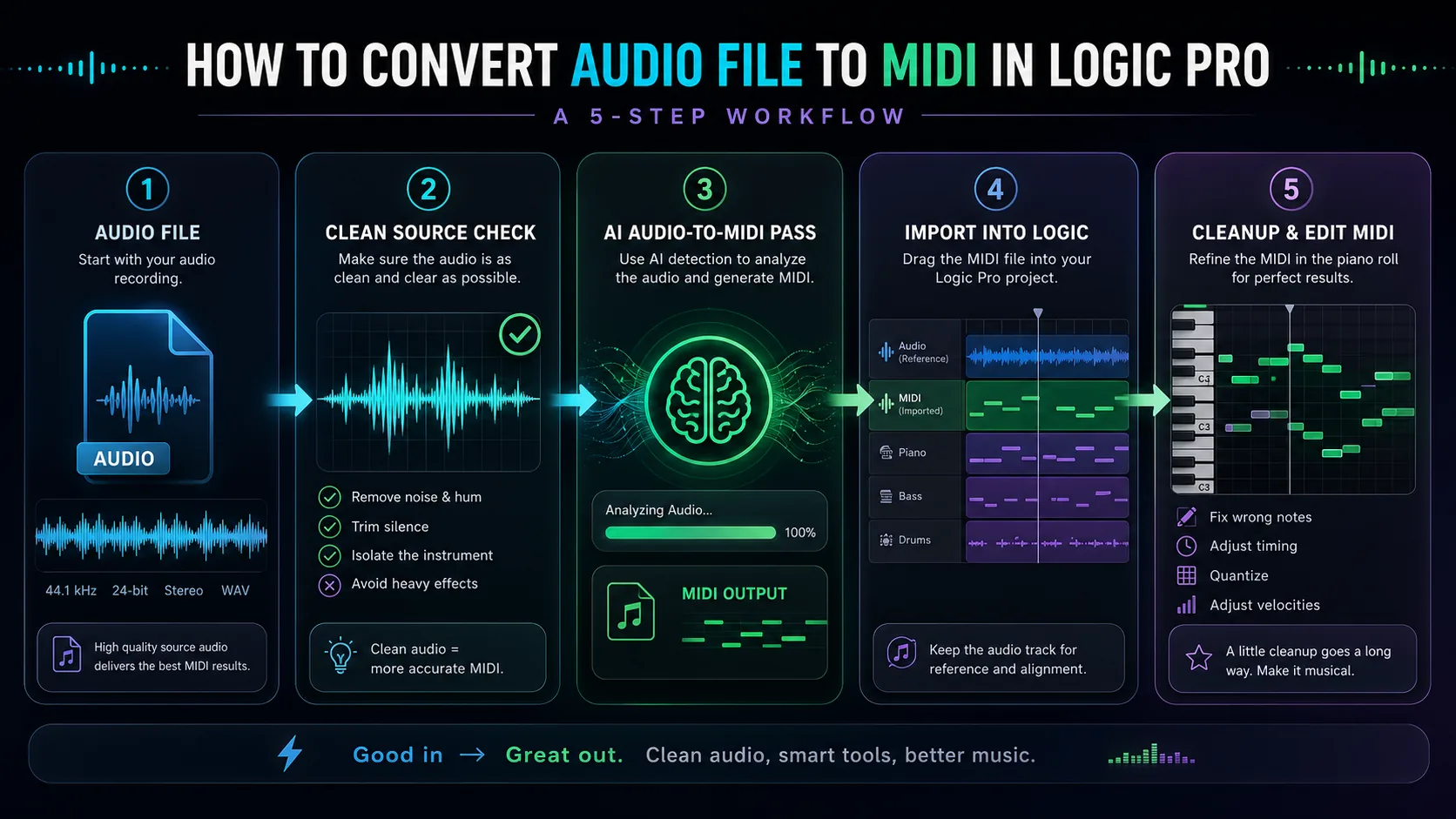
Once you have a MIDI file, bring it into Logic as a new software instrument region. Keep the original audio on a separate track and mute it only after the MIDI feels aligned.
A practical import pass looks like this:
- Drag the MIDI file into the Logic project.
- Set the project tempo before deep editing.
- Put the source audio and MIDI region side by side.
- Solo the MIDI with a simple piano or synth sound.
- Check downbeats, sustained notes, and phrase endings before fixing details.
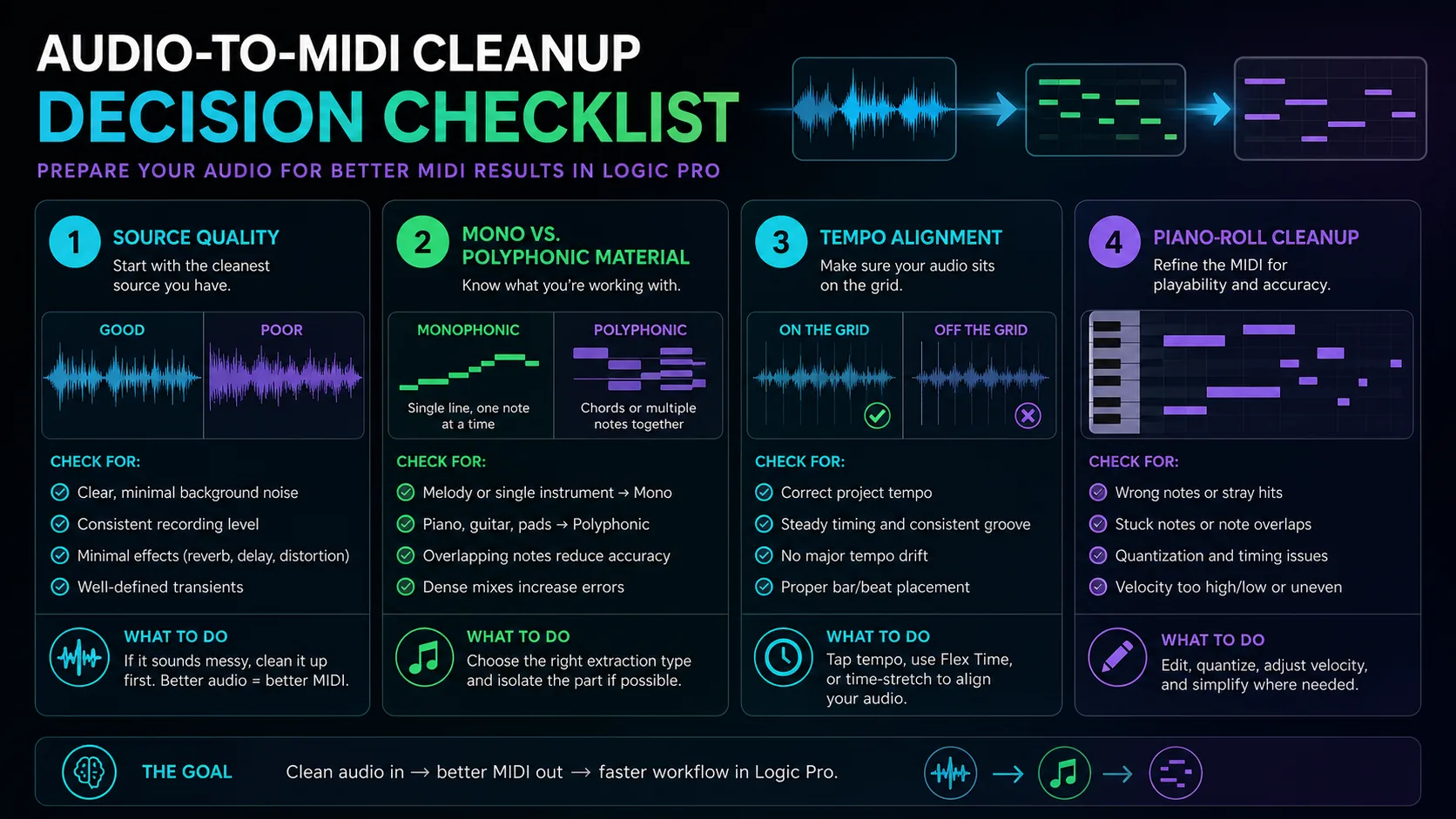
Do not start by editing every note. First, decide whether the conversion captured the phrase structure. If the bar placement, rhythm, or pitch center is badly wrong, it is usually faster to clean the source audio and rerun the conversion.
Clean the MIDI before arranging
The piano roll is where the conversion becomes useful. Focus on changes that make the part playable and musical:
- delete obvious stray notes
- shorten note overlaps that blur the part
- fix wrong octaves before fixing tiny timing details
- quantize lightly instead of flattening expressive phrasing
- adjust velocities after the notes and rhythm are stable
- simplify dense passages if the source was polyphonic
If your next step is notation software rather than a DAW, pause before you keep editing MIDI. MIDI is excellent for playback and production, but MusicXML is usually better for preserving readable score structure. The comparison in MIDI vs MusicXML is the better next read if the final destination is notation.
Create a MIDI draft before you clean it in Logic
Use Melogen Audio to MIDI for the first pass, then import the MIDI into Logic Pro and make the musical cleanup decisions in the piano roll.
Troubleshoot bad audio-to-MIDI results
If the MIDI result sounds wrong, diagnose the source before blaming the converter.
| Problem | Likely cause | Better next step |
|---|---|---|
| Too many extra notes | Reverb, noise, or a dense mix | Use a cleaner stem or isolate the main part first |
| Notes are in the wrong octave | Harmonics confused the pitch detector | Move phrases by octave, then fix individual notes |
| Rhythm feels late or early | Audio was not aligned to the project tempo | Set tempo and bar position before deep edits |
| Chords become messy clusters | Polyphonic source is too dense | Convert a simpler stem or edit only the strongest voice |
| MIDI feels robotic after cleanup | Over-quantization | Reduce quantize strength and preserve phrase endings |
For many real recordings, the best fix is not more editing. It is a cleaner input. Trim silence, reduce hum, avoid heavy effects, and use the most isolated part you can get.
The practical takeaway
Logic Pro gives you a built-in audio-to-MIDI path when the source is already in the project. Melogen gives you a fast browser-first way to create a standard MIDI draft before you open the DAW. Both routes still need musical cleanup.
Use this order for most sessions:
- Start with the cleanest audio source.
- Choose Logic Flex Pitch or Melogen based on where the audio lives.
- Create the MIDI draft.
- Align it with the original audio.
- Fix structure, timing, notes, and velocity in that order.
That workflow keeps the conversion useful. You are not asking AI to finish the arrangement for you; you are using it to reach the editable piano-roll stage faster.
About the author
Zhang Guo
Composer - AI Product Manager
AI product manager and digital marketing consultant with a background in music. Creativity is the bridge between rhythm and logic, where musical intuition and mathematical precision can coexist in every meaningful product decision.
Follow on X