Convert Music Files to MP3 Without Confusion
Convert music files to MP3 with safe source checks, Mac and Windows methods, trusted tools, and Melogen paths for owned MIDI or audio.
 Zhang Guo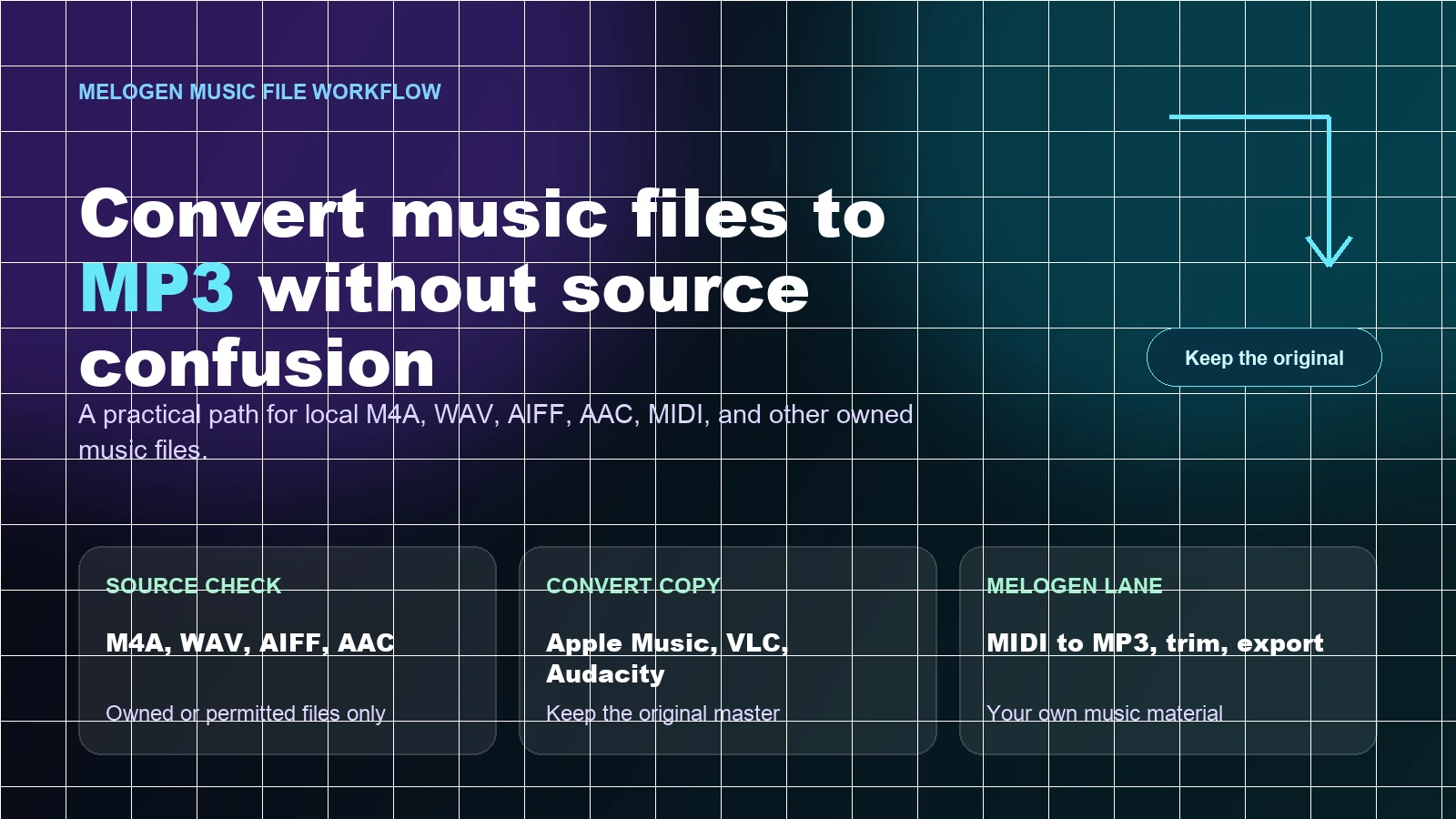
Turn a static score into editable MIDI
Contents
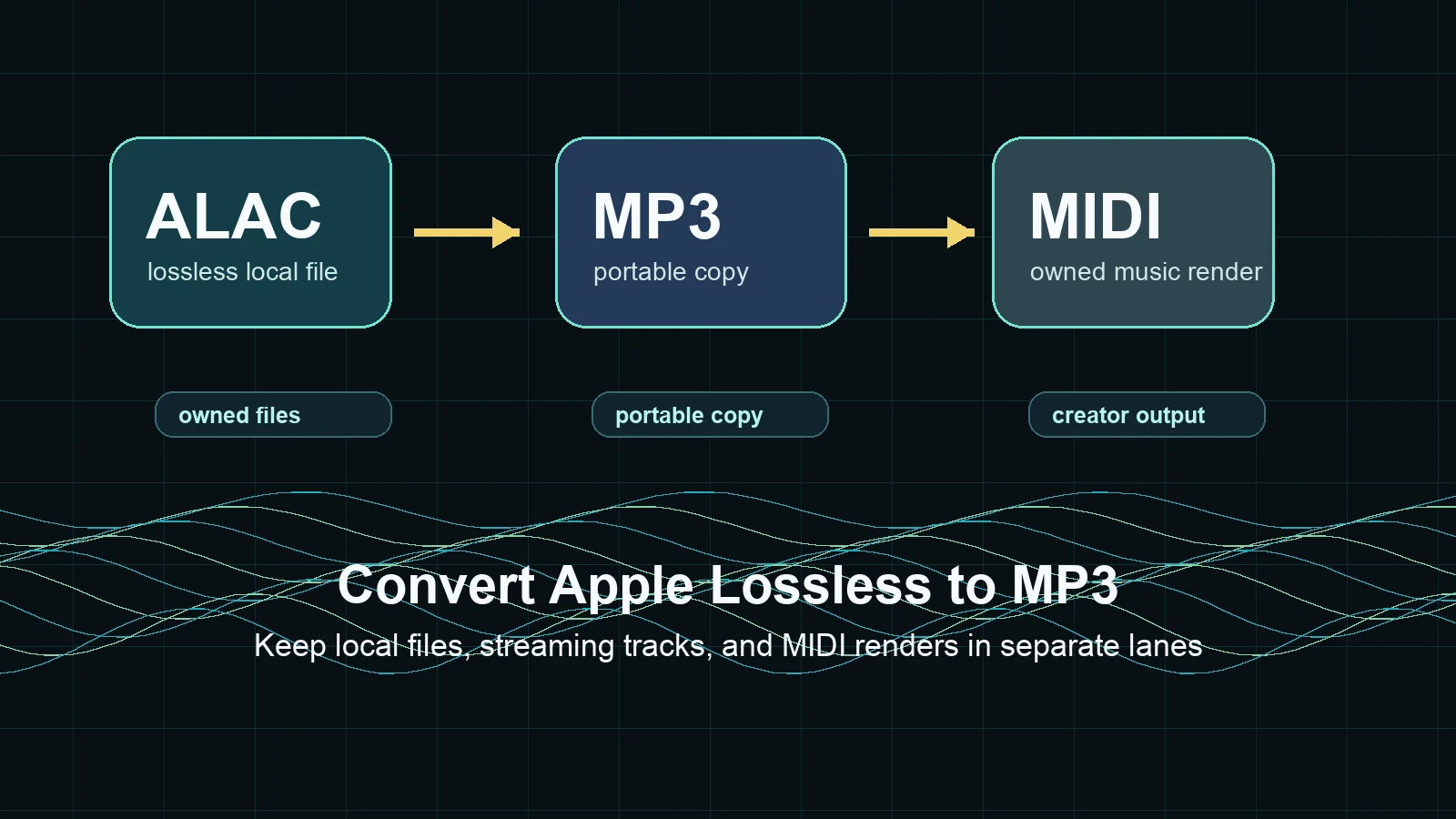
To convert music files to MP3, start with the source. A local M4A, WAV, AIFF, AAC, FLAC, or Apple Lossless file that you own or are allowed to reproduce can usually become an MP3 copy. A subscription download from a streaming service is different. Your own MIDI render, lesson clip, or score-derived audio is a third lane.
The clean workflow is source-first: identify what the file actually is, keep the original, choose the least risky conversion method, and make MP3 only as the delivery copy.
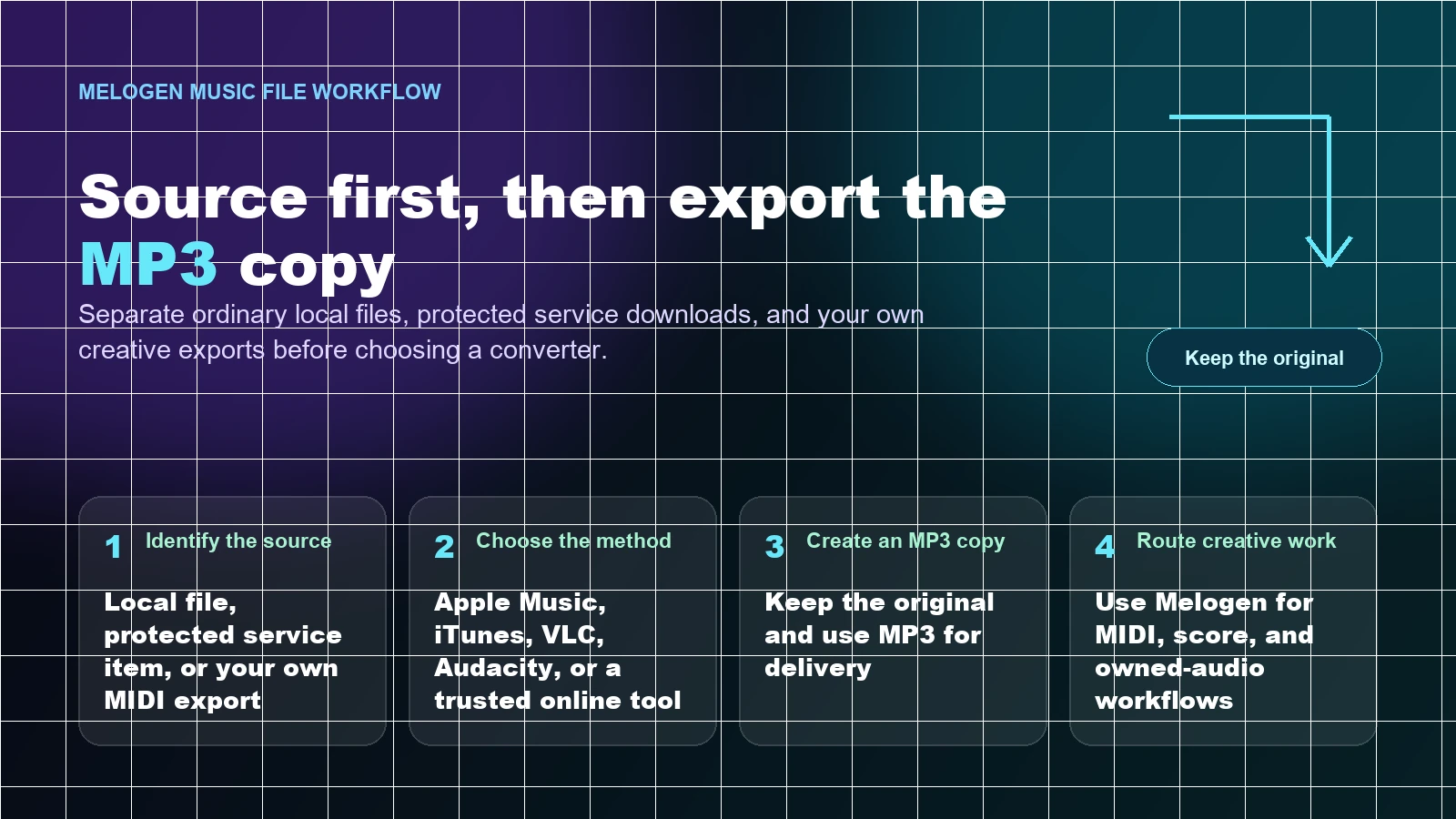
What to check before converting
Use this table before opening any converter. It prevents the common mistake of putting every music file into the same bucket.
| Source | Better first path | Output you can expect | Watch out for |
|---|---|---|---|
| Local M4A, AAC, AIFF, WAV, FLAC, or ALAC file | Apple Music, iTunes, VLC, Audacity, or a trusted desktop converter | A separate MP3 copy | MP3 is lossy, so keep the original |
| Apple Music subscription download | Authorized playback or dedicated converter research | A product and rights decision first | It is not the same as a normal local file |
| Your own MIDI arrangement | Melogen MIDI to MP3 | A listening copy from editable MIDI | MIDI is performance data, not recorded audio |
| Your own recording or rehearsal clip | Keep a WAV/FLAC master, then export MP3 | A smaller file for sharing | Repeated MP3 exports can add artifacts |
| Unknown online download | Verify the source before conversion | Maybe no safe path | Do not use a converter to hide source problems |
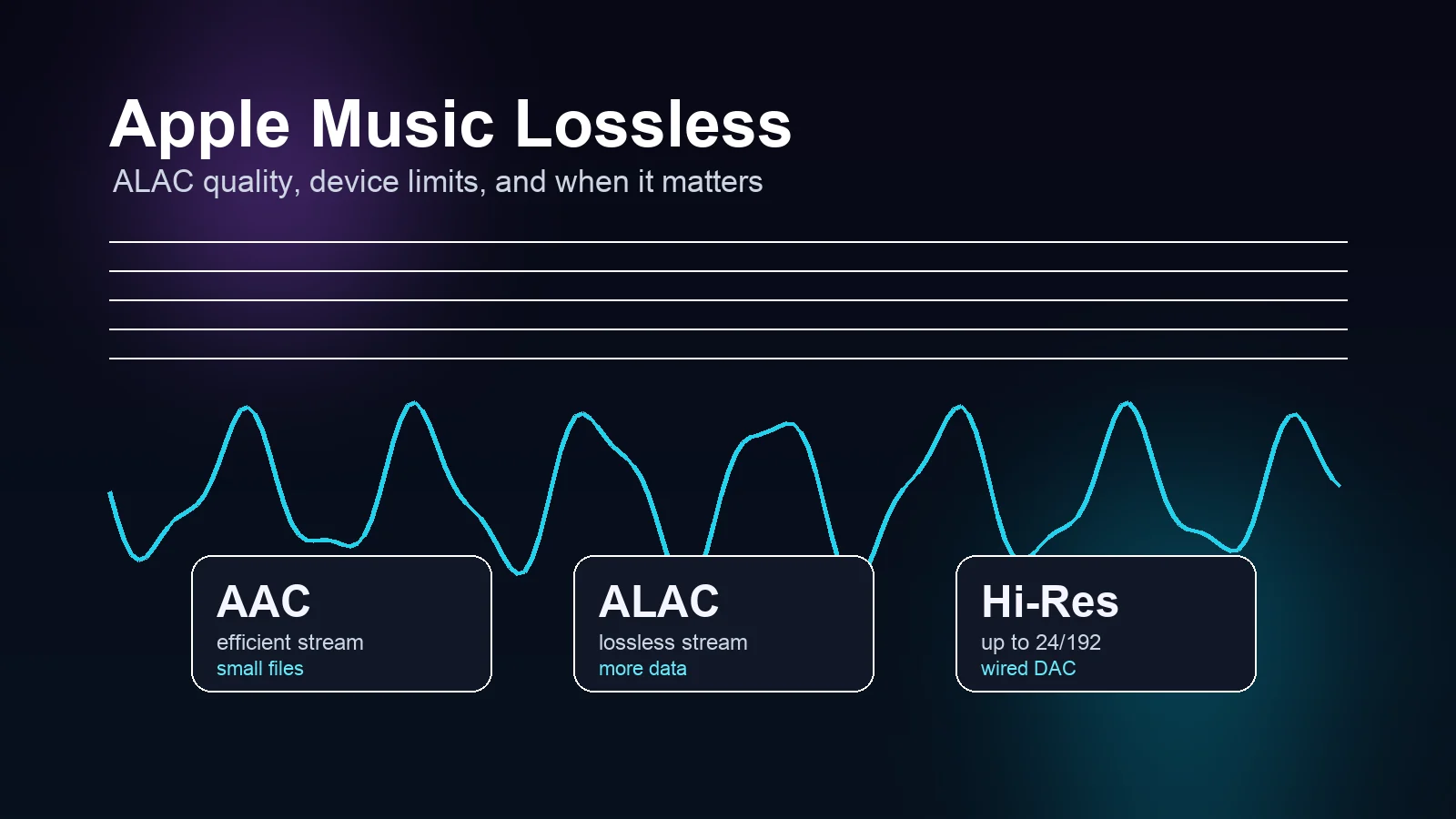
If the source is Apple-specific, the guide to converting Apple Lossless to MP3 gives the ALAC and Apple Music/iTunes details. If the source is an Apple Music subscription item, start with Apple Music to MP3 converter options so the streaming-service boundary is clearer.
Use Apple Music or iTunes for local library files
Apple's official song format conversion guide explains that Apple Music on Mac and iTunes for Windows can create a copy in another format while keeping the original file. That is the best first check when your source is a normal local library file.
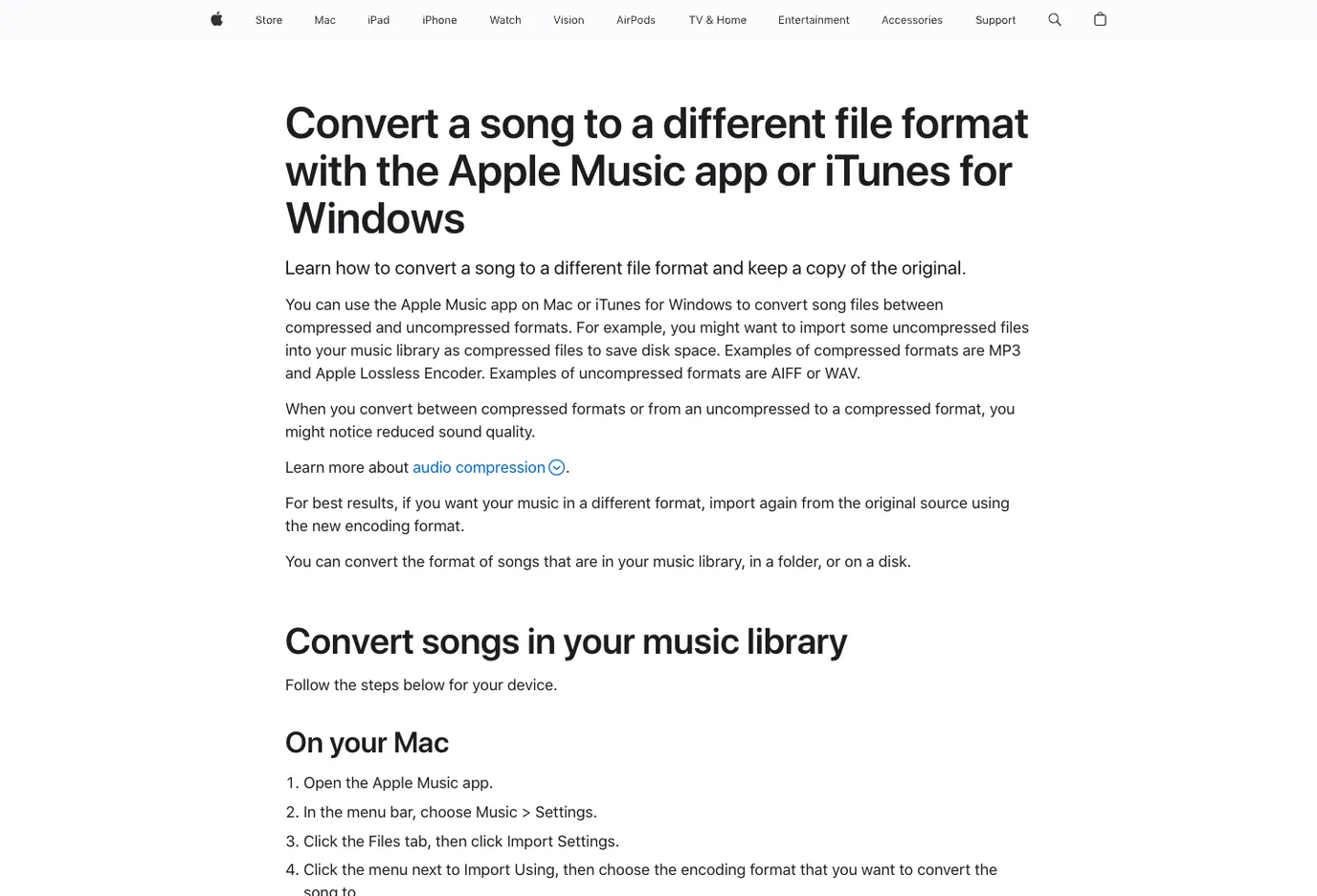
On Mac:
- Open Apple Music.
- Go to
Music > Settings > Files > Import Settings. - Choose
MP3 Encoder. - Select the local song file.
- Use
File > Convert > Create MP3 Version.
On Windows:
- Open iTunes for Windows.
- Go to
Edit > Preferences > General > Import Settings. - Choose
MP3 Encoder. - Select the local file or files.
- Use
File > Convert > Create MP3 Version.
This works best for files already in your library or files you can import. It is not a magic answer for protected subscription downloads, cloud-only items, or files your account cannot access.
Use VLC, Audacity, or an online converter carefully
If Apple Music or iTunes is not the right tool, use a method that matches the job.
| Method | Best for | Strength | Tradeoff |
|---|---|---|---|
| VLC | One-off desktop conversions | Free, cross-platform, broad format support | Interface is utility-first, not batch-library focused |
| Audacity export | Audio you are editing anyway | Lets you trim, normalize, or clean before export | More steps if you only need a simple copy |
| Trusted online converter | Small non-sensitive files | Fast when you cannot install software | Upload privacy, file size, and stability vary |
| Dedicated paid converter | Batch library jobs | Better for queues and format presets | Verify source rights and avoid dubious promises |
For local files, the most useful question is not "Can this make MP3?" Many tools can. The useful question is whether the method keeps your original, lets you choose a sensible bitrate, and does not ask you to upload private or copyrighted material to a site you do not trust.
For most musician workflows, the safe order is:
- Use Apple Music or iTunes when the file is already in a local Apple library.
- Use VLC for a quick desktop conversion.
- Use Audacity when you need editing before export.
- Use an online converter only for small, non-sensitive files.
- Use a dedicated product only when you are intentionally evaluating that product category.
Choose MP3 settings by listening job
MP3 is useful because it plays almost everywhere. It is not the best master format. Choose settings based on where the file goes next.
| Job | Sensible MP3 setting | Why |
|---|---|---|
| Casual phone playback | 192 kbps | Smaller file, usually enough for daily listening |
| Lesson clip or rehearsal reference | 256 kbps | Better detail without huge files |
| Demo for another musician | 256 to 320 kbps | Safer for repeated listening and feedback |
| Archive or future editing | Do not use MP3 as the master | Keep WAV, FLAC, AIFF, or ALAC |
| MIDI render for quick sharing | 256 or 320 kbps | Good balance for a portable preview |
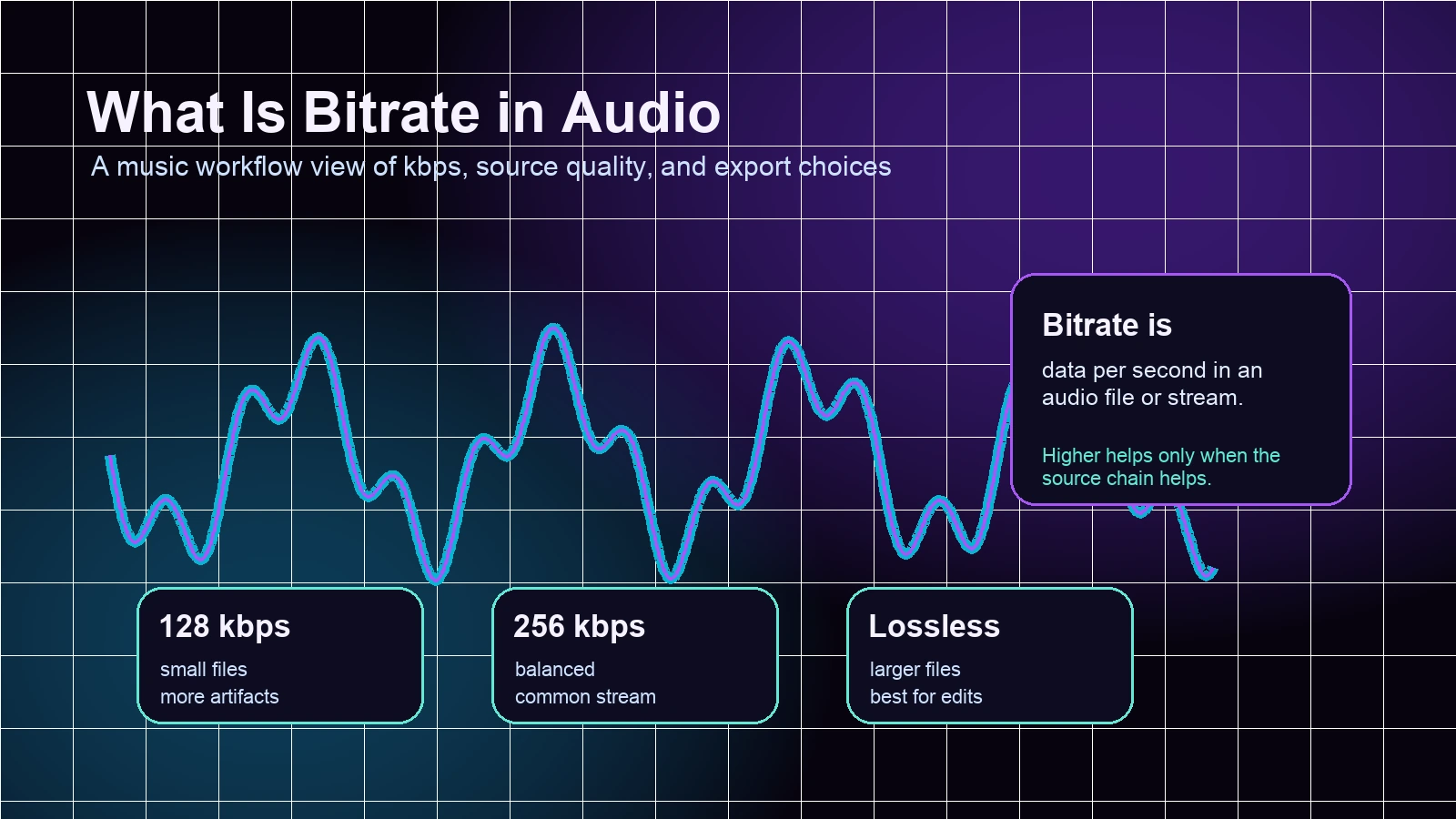
If file quality is the real decision, read what bitrate means in audio before converting a whole folder. Bitrate, sample rate, bit depth, source quality, and repeated lossy exports matter more than the converter brand.
Where Melogen fits for owned music
Melogen is not a streaming-service unlocker and it is not a general-purpose M4A-to-MP3 batch converter. It fits the creative side of the workflow: your own MIDI, score-derived files, rehearsal clips, demos, lesson audio, and other material you can edit or export.
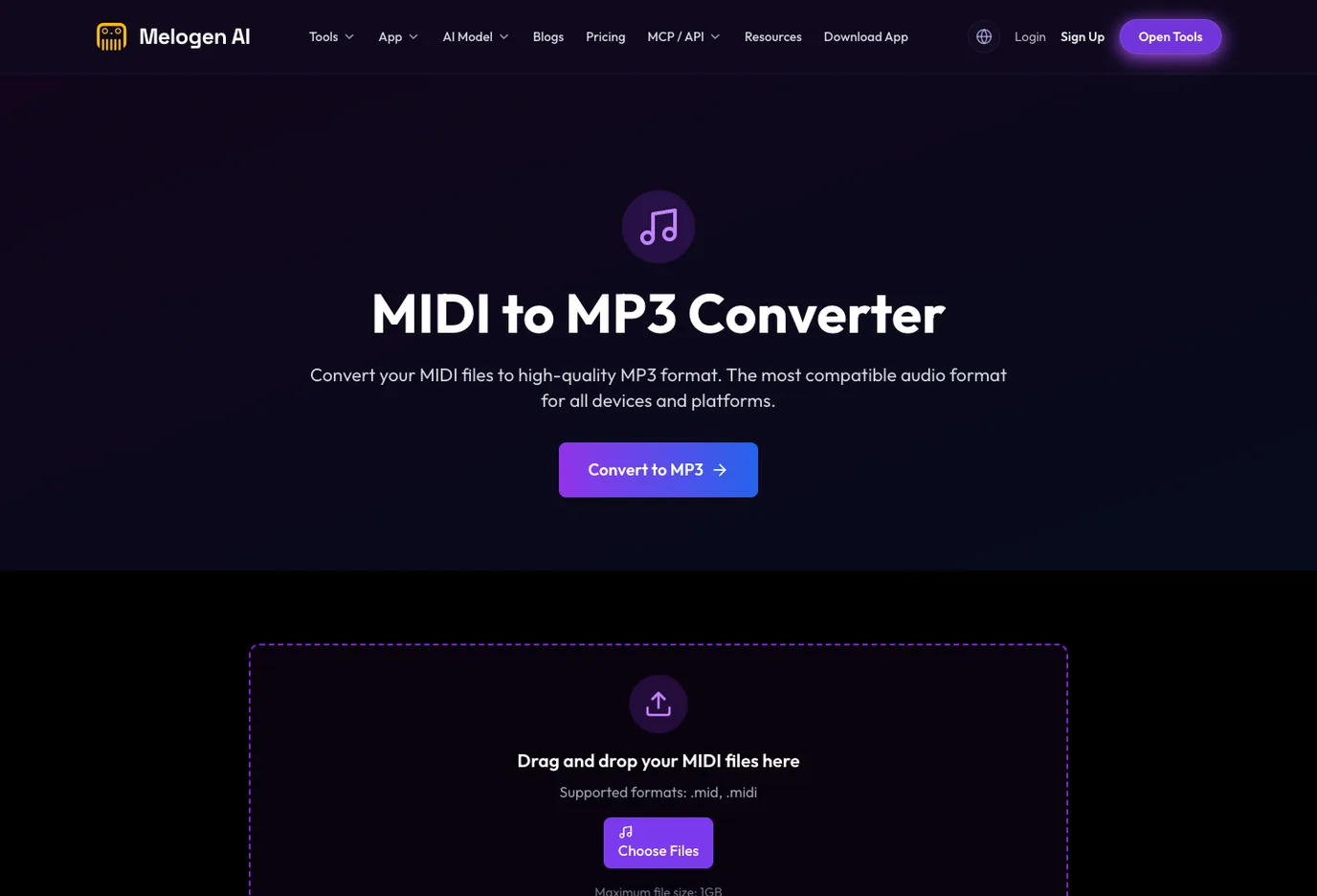
Use Melogen when:
- a MIDI arrangement needs an MP3 listening copy
- a score-derived MIDI file needs a quick preview
- a rehearsal clip needs trimming before sharing
- a PDF or image score needs editable MIDI or MusicXML before audio export
- an audio recording you made needs a MIDI draft for cleanup
This is a different job from converting a random streaming download. The reader owns the source, controls the edit, and uses MP3 as the final delivery format.
Render your own MIDI as a portable MP3
Use Melogen when your source is a MIDI arrangement, score-derived file, demo, or rehearsal clip and you need a clean listening copy.
Fix common conversion problems
Most MP3 conversion problems come from source confusion or settings, not from a hidden magic tool.
| Problem | Likely cause | Safer fix |
|---|---|---|
| The convert option is missing | Import settings are not set to MP3 | Set the encoder first, then select the song again |
| The output sounds worse | MP3 is lossy or the source was already compressed | Keep the original and use a higher setting only for copies |
| The file will not convert | The item is protected, cloud-only, or missing locally | Confirm it is a local file you can access |
| The converted file is hard to find | The app created a new copy beside the original | Use Show in Finder or Show in Windows Explorer |
| The file is too large | Bitrate is higher than needed | Lower the bitrate for casual listening copies |
| The online converter fails | File size, format, or upload restrictions | Use a desktop method for larger or private files |
Do not solve a rights or account problem with a converter. If the file cannot be played, exported, or accessed through an authorized path, fix that first.
FAQs
What is the safest way to convert music files to MP3?
For local files, use a first-party or trusted desktop method first: Apple Music on Mac, iTunes for Windows, VLC, or Audacity. Keep the original and create MP3 only as a copy.
Can I convert M4A to MP3 in Apple Music?
Yes, when the M4A is a normal local library file that Apple Music can access. Set the import format to MP3 Encoder, select the file, and create an MP3 version.
Should I use an online music converter?
Only for small, non-sensitive files you are allowed to convert. For private recordings, unreleased demos, large folders, or important masters, use a local desktop method instead.
Does MP3 reduce audio quality?
Yes. MP3 is lossy. That is why MP3 should usually be the sharing copy, not the only master file.
Can Melogen convert any music file to MP3?
No. Melogen is strongest when the source is your own MIDI, score, or owned audio workflow. Use MIDI to MP3 for MIDI listening copies, not for protected streaming files.
The practical takeaway
Convert music files to MP3 only after you know what kind of source you have. Local files can usually become MP3 copies with Apple Music, iTunes, VLC, Audacity, or a trusted converter. Protected service downloads belong in a separate rights and playback lane. Your own creative material belongs in the Melogen lane, where MIDI, scores, demos, and rehearsal clips can become useful listening files without confusing source ownership.
Keep the original, export the copy, and use MP3 for the job it does best: portable listening and sharing.
About the author
Zhang Guo
Composer - AI Product Manager
AI product manager and digital marketing consultant with a background in music. Creativity is the bridge between rhythm and logic, where musical intuition and mathematical precision can coexist in every meaningful product decision.
Follow on X