How to Convert Apple Lossless to MP3 Safely
Convert Apple Lossless or ALAC to MP3 with Apple Music, iTunes, safe source checks, and clear TuneFab or Melogen next steps.
 Zhang Guo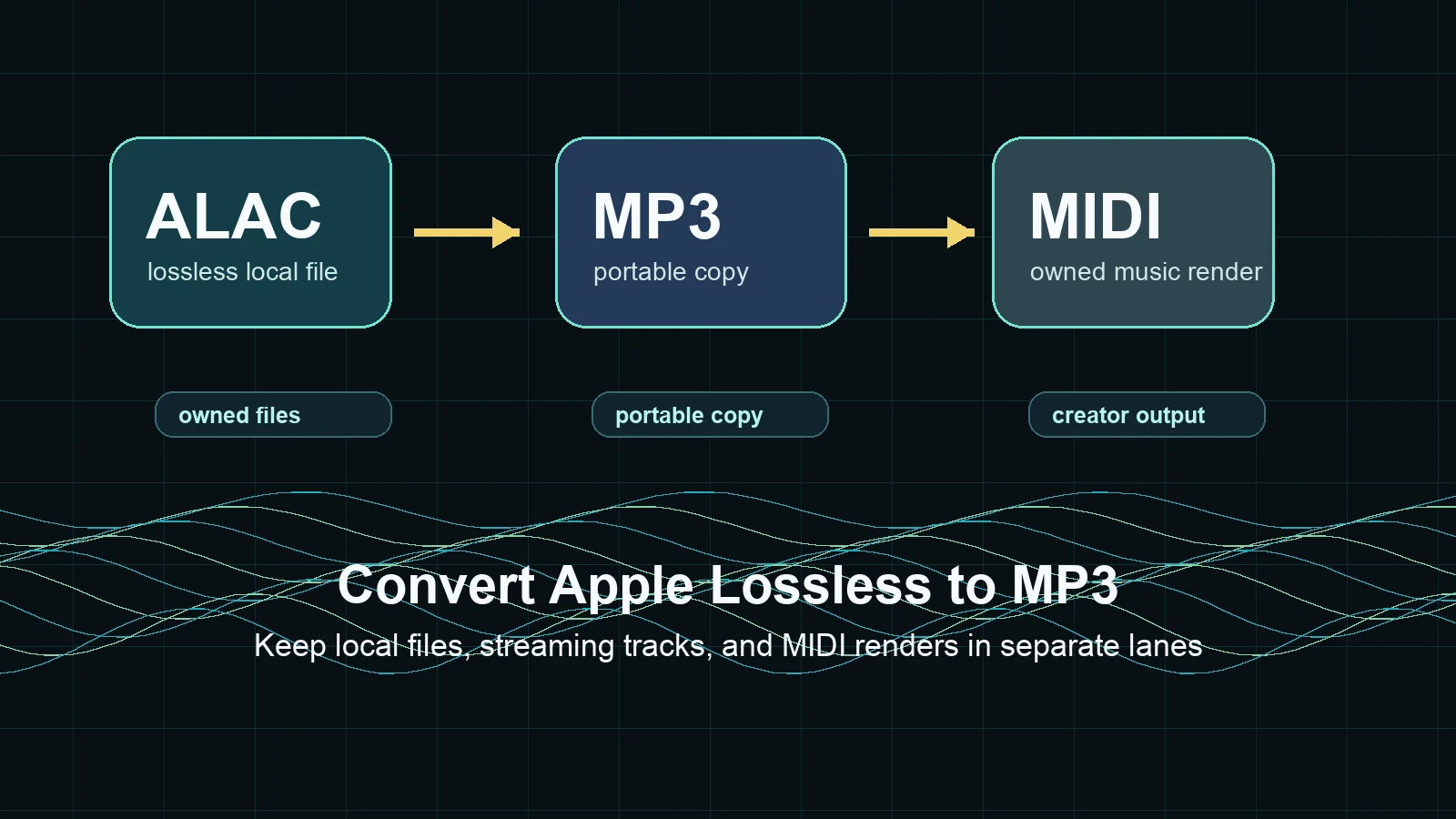
Turn a static score into editable MIDI
Contents
To convert Apple Lossless to MP3 safely, start by identifying the source. A DRM-free ALAC or M4A file in your music library can usually be converted with Apple Music on Mac or iTunes for Windows. An Apple Music subscription download is different: it belongs inside Apple's authorized playback system and should not be treated like a normal local audio file.
The clean workflow is simple. Keep the original lossless file, create a separate MP3 copy only when you need compatibility, and avoid using format conversion as a workaround for music you do not own or have permission to transform.
Quick answer before you convert
Use this table before opening a converter. It prevents the common mistake of putting every Apple audio file into the same bucket.
| Source | Best first path | What you get | Watch out for |
|---|---|---|---|
| DRM-free Apple Lossless or M4A file | Apple Music on Mac or iTunes for Windows | A new MP3 copy next to the original | Compressed output can reduce quality |
| Apple Music subscription download | Authorized Apple playback or converter research | A playback decision, not a normal file conversion | Subscription tracks are not ordinary local files |
| Your own MIDI arrangement | Melogen MIDI to MP3 | An MP3 listening copy from editable notes | MIDI is performance data, not recorded audio |
| Your own recorded audio | Keep a WAV or FLAC master, then export a copy | A smaller sharing file | Repeated lossy exports damage quality |
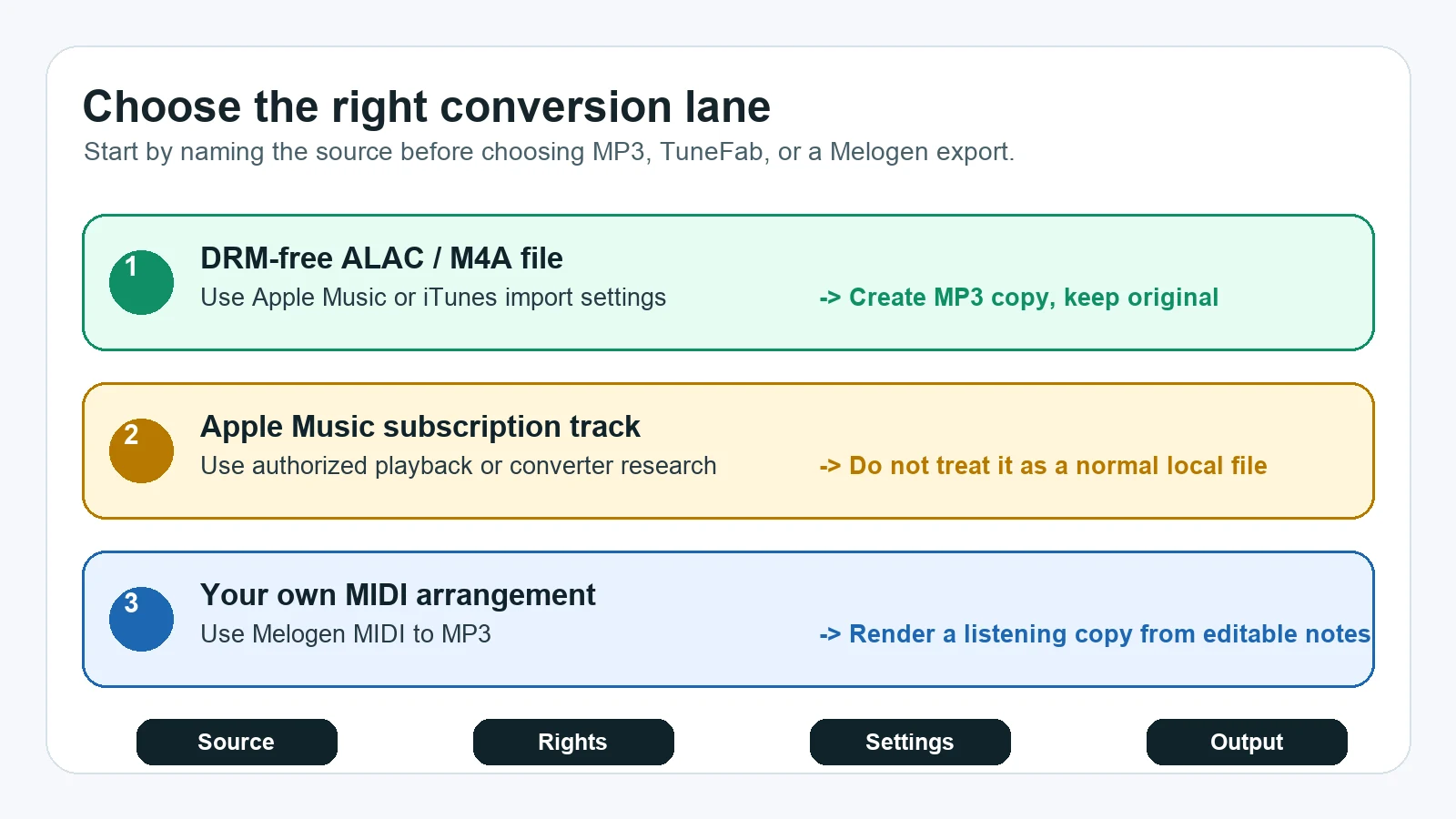
If the file is a normal local Apple Lossless track, use Apple Music or iTunes first. If the task is Apple Music converter research, evaluate that as a separate product category. If the source is your own composition, arrangement, or exported MIDI, Melogen can help you render a portable audio copy without touching streaming-catalog tracks.
Use Apple Music or iTunes for local ALAC files
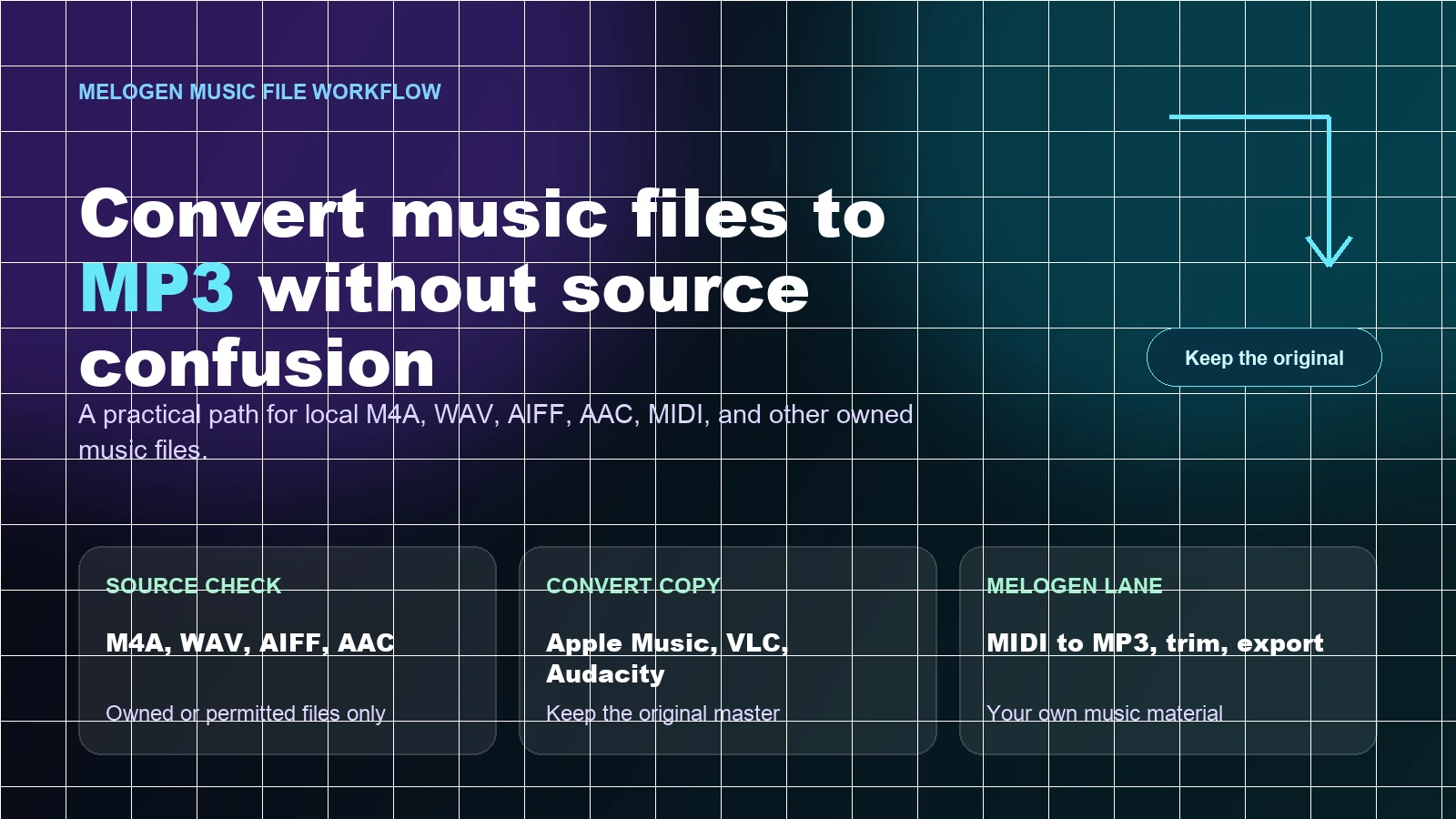
Apple's current guide to converting song file formats explains that the Apple Music app on Mac and iTunes for Windows can convert song files and keep a copy of the original. That is the safest default for DRM-free ALAC, M4A, AAC, AIFF, WAV, or MP3 files already in your library, folder, or disk.
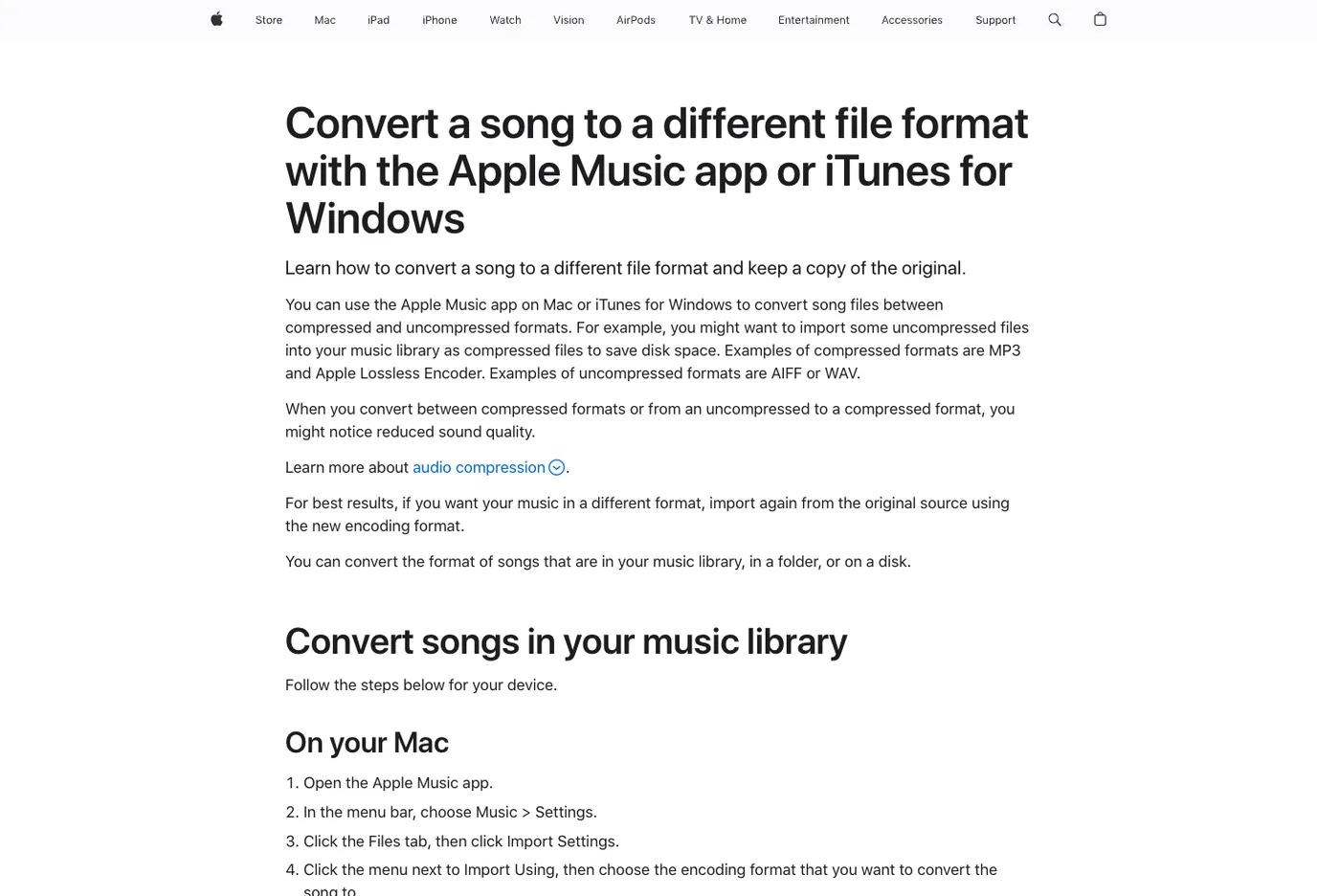
On a Mac, the path is:
- Open the Apple Music app.
- Choose
Music > Settings. - Click
Files, thenImport Settings. - Set
Import UsingtoMP3 Encoder. - Select the ALAC or M4A file in your library.
- Choose
File > Convert > Create MP3 Version.
On Windows, use iTunes:
- Open iTunes for Windows.
- Choose
Edit > Preferences. - Click
General, thenImport Settings. - Choose
MP3 Encoder. - Select the song or songs you want to convert.
- Choose
File > Convert > Create MP3 Version.
Apple's workflow creates a new file and keeps the original in the library. That matters. You should still keep a backup, but the normal goal is not to replace your lossless file. It is to make a smaller listening or sharing copy.
Choose MP3 settings by job
Apple Lossless exists because you care about keeping more source detail. MP3 exists because compatibility and file size still matter. The right MP3 setting depends on the job, not on a single magic number.
Use this decision frame:
| Job | Sensible MP3 setting | Why |
|---|---|---|
| Casual phone playback | 192 kbps or similar | Smaller file, usually enough for daily listening |
| Practice reference or car playback | 256 kbps | Better detail without huge files |
| Sharing a demo with another musician | 256 to 320 kbps | Safer for repeated listening and feedback |
| Archiving, remixing, or later editing | Do not use MP3 as the master | Keep ALAC, FLAC, WAV, or AIFF instead |
Apple also warns that converting between compressed formats, or from uncompressed to compressed, can reduce sound quality. The practical fix is to keep the Apple Lossless original and make MP3 only as the delivery copy.
If you are deciding between AAC, MP3, ALAC, and other formats, the guide to what bitrate means in audio gives the deeper quality and file-size framework. If you are comparing Apple Music's streaming quality settings, read Apple Music Lossless before changing a whole library.
Do not treat Apple Music downloads as normal files
An Apple Music Lossless subscription track can play in ALAC quality inside Apple Music, but that does not make it the same as a DRM-free ALAC file you own outside the service. The conversion question changes when the source is a protected streaming download.
Use this split:
| If the source is... | Treat it as... | Better action |
|---|---|---|
| A purchased DRM-free local file | A normal music-library file | Convert a copy with Apple Music or iTunes |
| A CD rip or self-made ALAC export | Your own local audio | Convert a copy and keep the master |
| An Apple Music subscription download | Authorized playback | Keep it inside Apple Music unless you have a separate rights-safe workflow |
| An old protected Apple file | A playback and authorization issue first | Confirm account, purchase, and file status |
If the reader's real intent is Apple Music converter research, the relevant off-site product to evaluate is TuneFab Apple Music Converter. This is an affiliate recommendation. Keep the rights check visible: a converter product is not the same thing as ownership of every track in a streaming catalog.
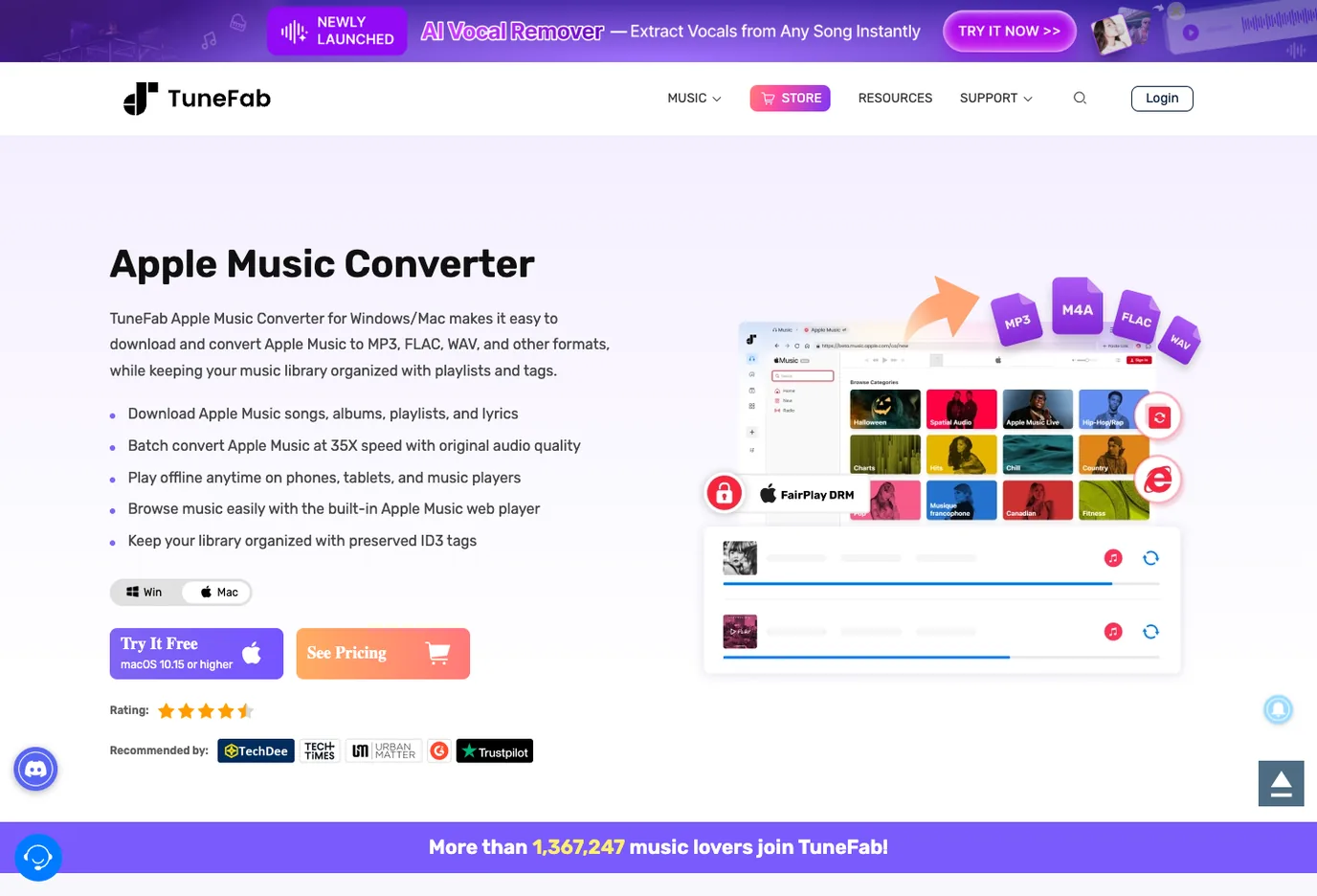
This is also why a simple "ALAC to MP3" guide should not tell every reader to install a streaming converter. For a local file, Apple Music and iTunes are already the clean first path. For a protected Apple Music track, the task is a licensing and product-fit decision before it is a file-format decision.
Where Melogen fits for owned music exports
Melogen is not an Apple Music converter and does not unlock protected Apple Music downloads. The Melogen fit begins when the music source is yours: a MIDI arrangement, a score-derived MIDI file, a lesson clip, a rehearsal export, or another file you are allowed to edit.
If you already have MIDI and need a portable listening copy, use Melogen MIDI to MP3. That path is especially useful for composers, arrangers, teachers, and students who want to send a quick audio preview without asking the other person to open a DAW or notation app.
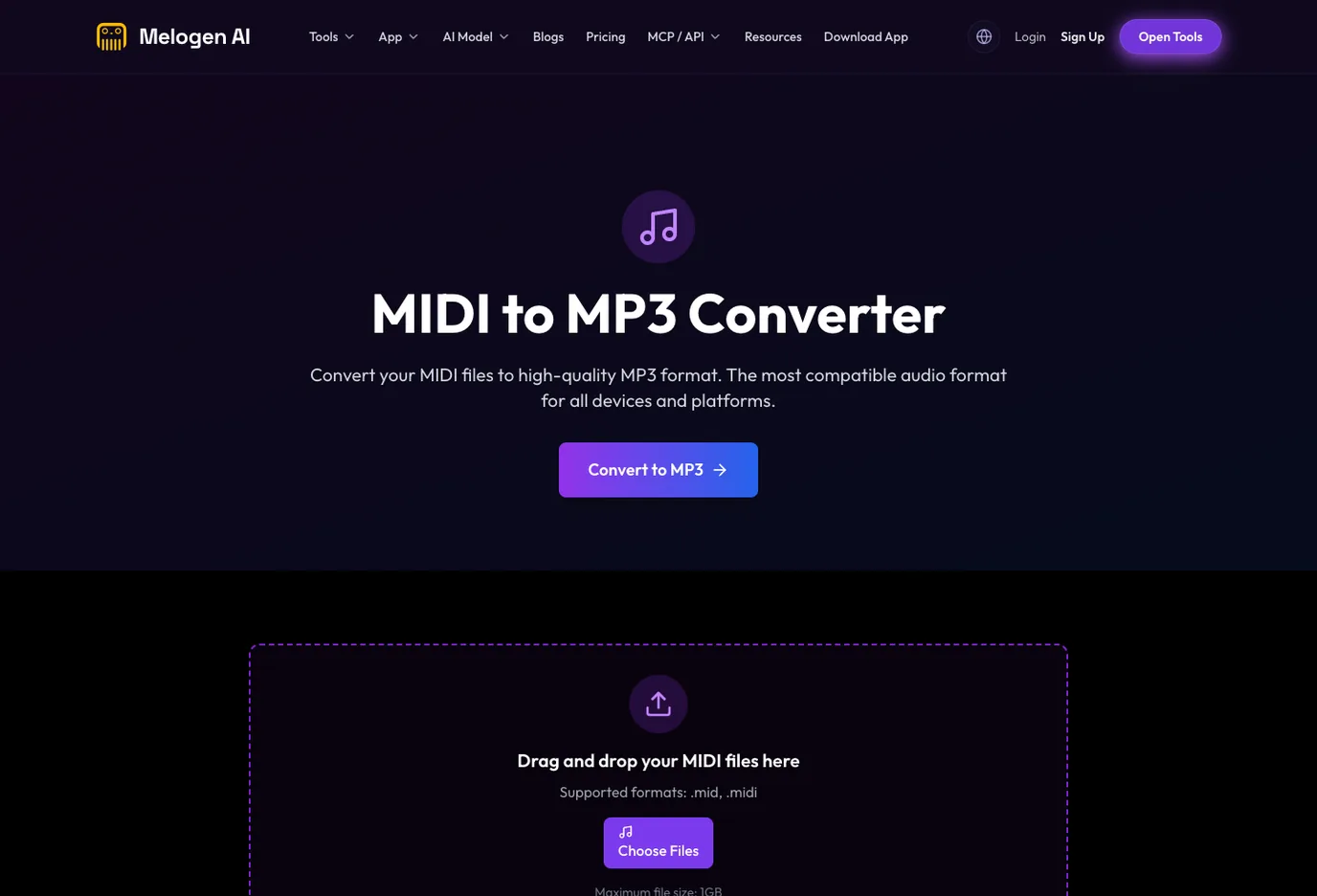
Use this split:
| Starting point | Better Melogen path | Output |
|---|---|---|
| PDF or image score | Sheet2MIDI, PDF to MIDI, or PDF to MusicXML | Editable MIDI or MusicXML |
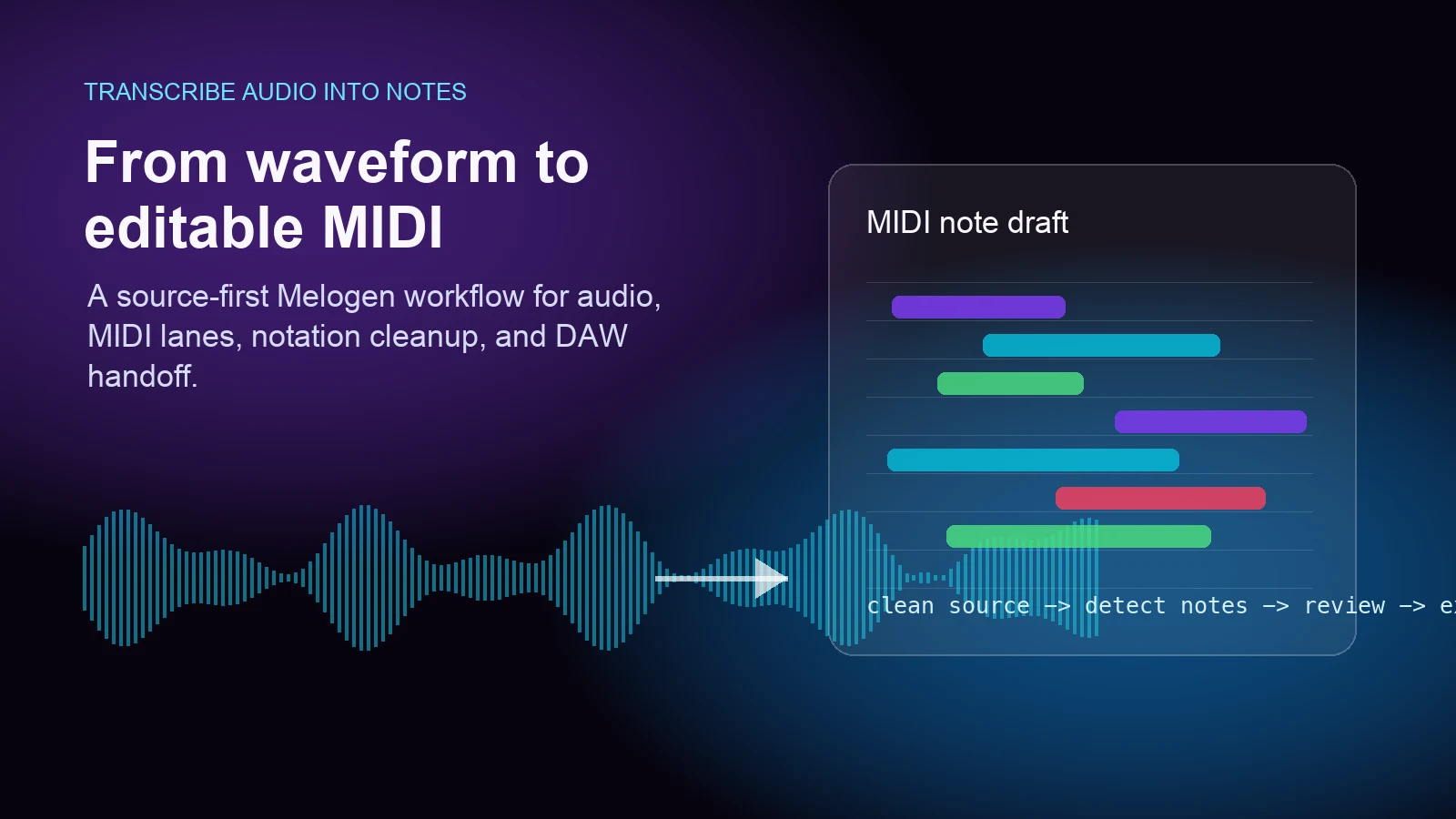
| Audio recording you made | Audio to MIDI or Music Trimmer | Editable MIDI or a cleaner audio clip |
| MIDI arrangement | MIDI to MP3, MIDI to FLAC, or MIDI to M4A | Listening or archive copy |
| Apple Music subscription track | Apple Music playback or dedicated converter research | Not a Melogen conversion job |
Render your own MIDI as a portable MP3
Use Melogen MIDI to MP3 when the source is your own arrangement, exported score, or editable MIDI and you need a clean listening copy.
Troubleshooting common conversion mistakes
Most Apple Lossless to MP3 problems come from source confusion, not from a hidden setting. Start with the file's origin, then debug the export.
| Problem | Likely cause | Safer fix |
|---|---|---|
Create MP3 Version is missing | Import settings are not set to MP3 Encoder | Change import settings first, then select the song again |
| The MP3 sounds worse than expected | The output is compressed or the source was already lossy | Keep the ALAC original and use a higher MP3 setting only for copies |
| The file will not convert | The item is protected, missing, or cloud-only | Confirm it is a local DRM-free file before converting |
| The new file is hard to find | The app added it beside the original in the library | Use Show in Finder or Show in Windows Explorer after conversion |
| The MP3 is too large | Bitrate is higher than the job requires | Lower the setting for casual listening copies |
For repeated editing, do not make MP3 your master format. Keep the Apple Lossless original or a WAV/FLAC export, then create MP3 as the last-mile copy. If you convert MP3 to MP3 again and again, every lossy generation can add artifacts.
FAQs
Is Apple Lossless the same as ALAC?
Yes. Apple Lossless usually refers to ALAC, the Apple Lossless Audio Codec. In a local music library, it often appears inside an .m4a file.
Can Apple Music convert ALAC to MP3?
Yes, when the file is a normal local library file that Apple Music can access. Set the import format to MP3 Encoder, select the file, and create an MP3 version.
Can iTunes for Windows convert Apple Lossless to MP3?
Yes, iTunes for Windows has the same basic import-settings workflow. Set Import Using to MP3 Encoder, then use the convert menu on selected songs.
Does converting Apple Lossless to MP3 lose quality?
Yes. MP3 is a lossy format. The point is to make a smaller, widely compatible copy while keeping the original Apple Lossless file for quality, archive, or future edits.
Should I use TuneFab or Melogen for Apple Music conversion?
Use TuneFab research when the search intent is Apple Music converter or protected-music converter research. Use Melogen when the source is your own MIDI, score, or editable audio workflow. Melogen is not an Apple Music converter.
The practical takeaway
Convert Apple Lossless to MP3 only after you know what kind of file you have. For DRM-free ALAC or M4A files, Apple Music on Mac and iTunes for Windows are the clean first choices. Keep the lossless original, make MP3 as a compatibility copy, and choose the bitrate based on the listening job.
Keep subscription streaming tracks in a separate lane. If the search is really Apple Music converter research, evaluate that product category with a rights check. If the source is your own music, Melogen belongs in the creative lane: convert scores to MIDI, clean owned audio, or render MIDI into MP3 for sharing.
About the author
Zhang Guo
Composer - AI Product Manager
AI product manager and digital marketing consultant with a background in music. Creativity is the bridge between rhythm and logic, where musical intuition and mathematical precision can coexist in every meaningful product decision.
Follow on X