Delete Apple Music Library Safely on Any Device
Delete Apple Music library items safely by separating Remove Download, Delete from Library, Sync Library, local files, and backups.
 Zhang Guo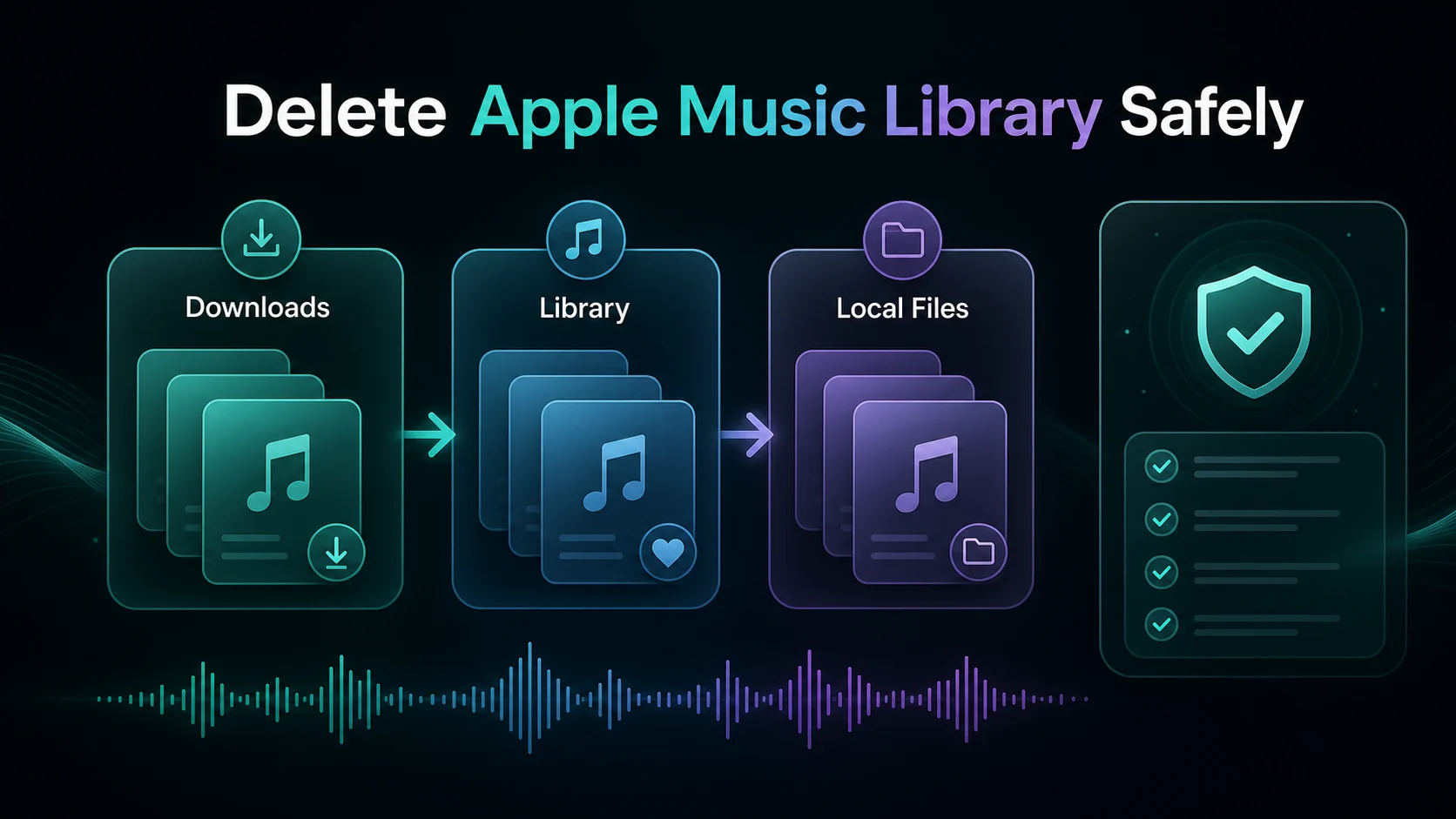
Turn a static score into editable MIDI
Contents
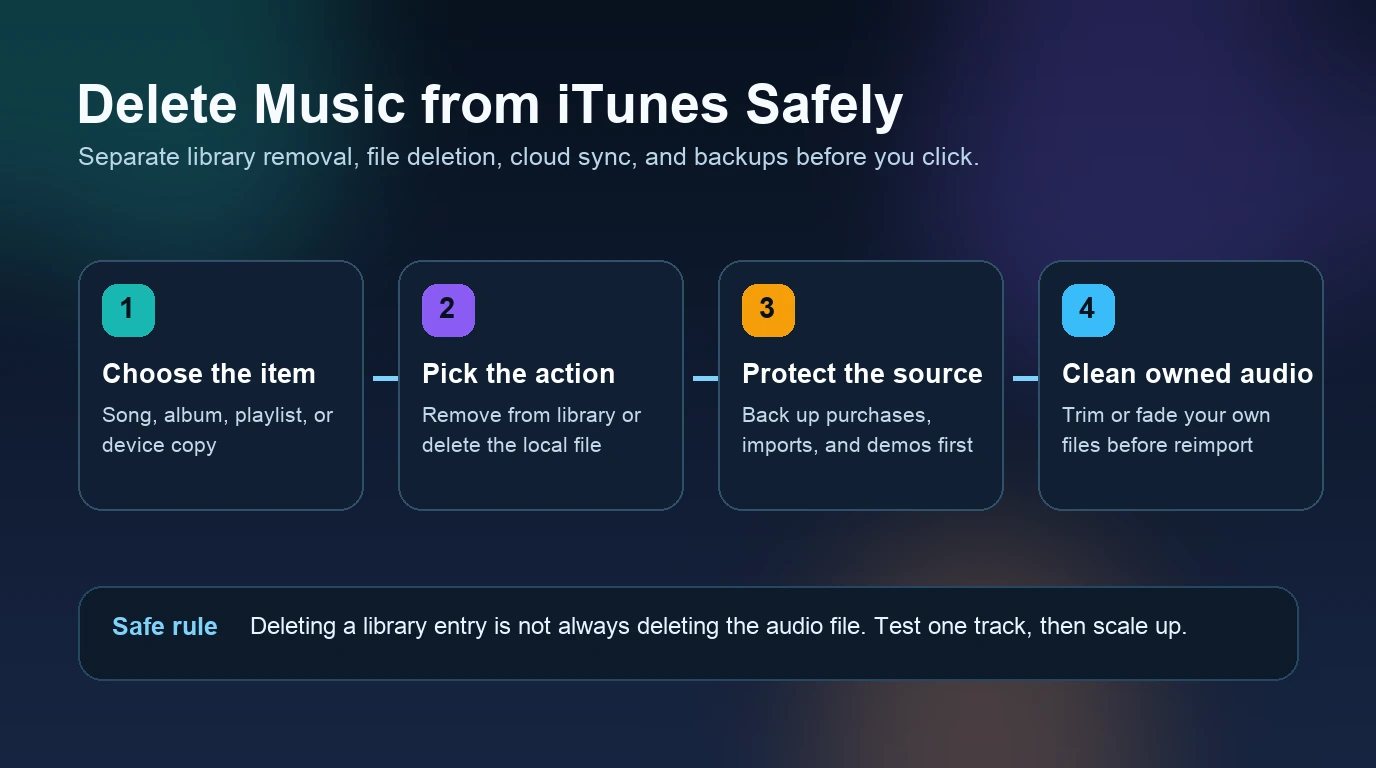
If you want to delete Apple Music library items, do not start by mass-selecting songs. First decide whether you want to remove a downloaded copy from one device, delete the library item from synced devices, or remove an owned local file from your computer. Those are different actions, and mixing them up is how people lose playlists, local files, or a clean recovery path.
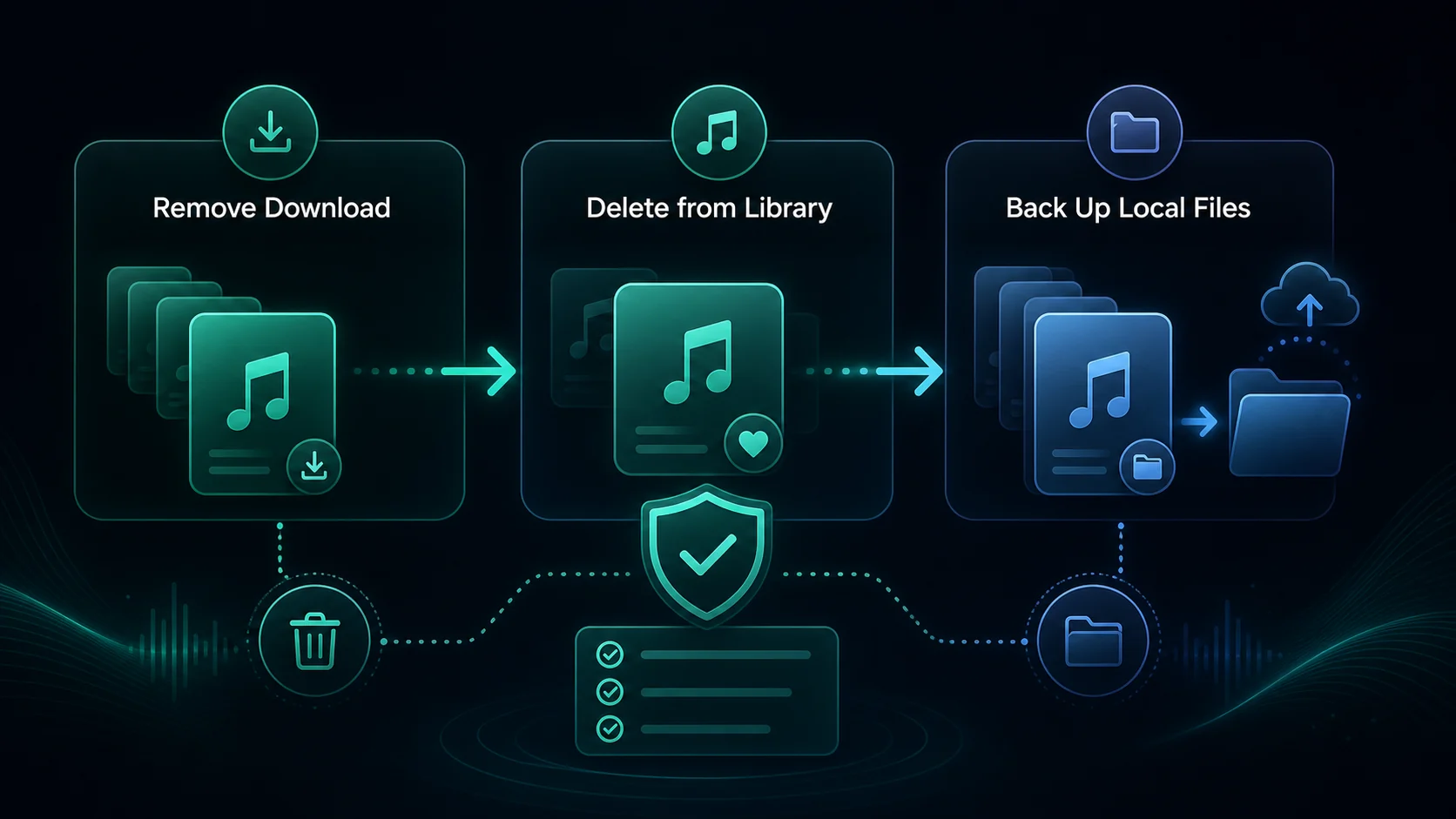
The safe workflow is simple: back up owned files, check Sync Library, use Remove Download when you only need storage back, and use Delete from Library only when you really want the item gone from the music library. If songs disappeared without you choosing that, start with the Melogen guide to stop Apple Music from deleting songs instead.
Quick answer choose the right delete action
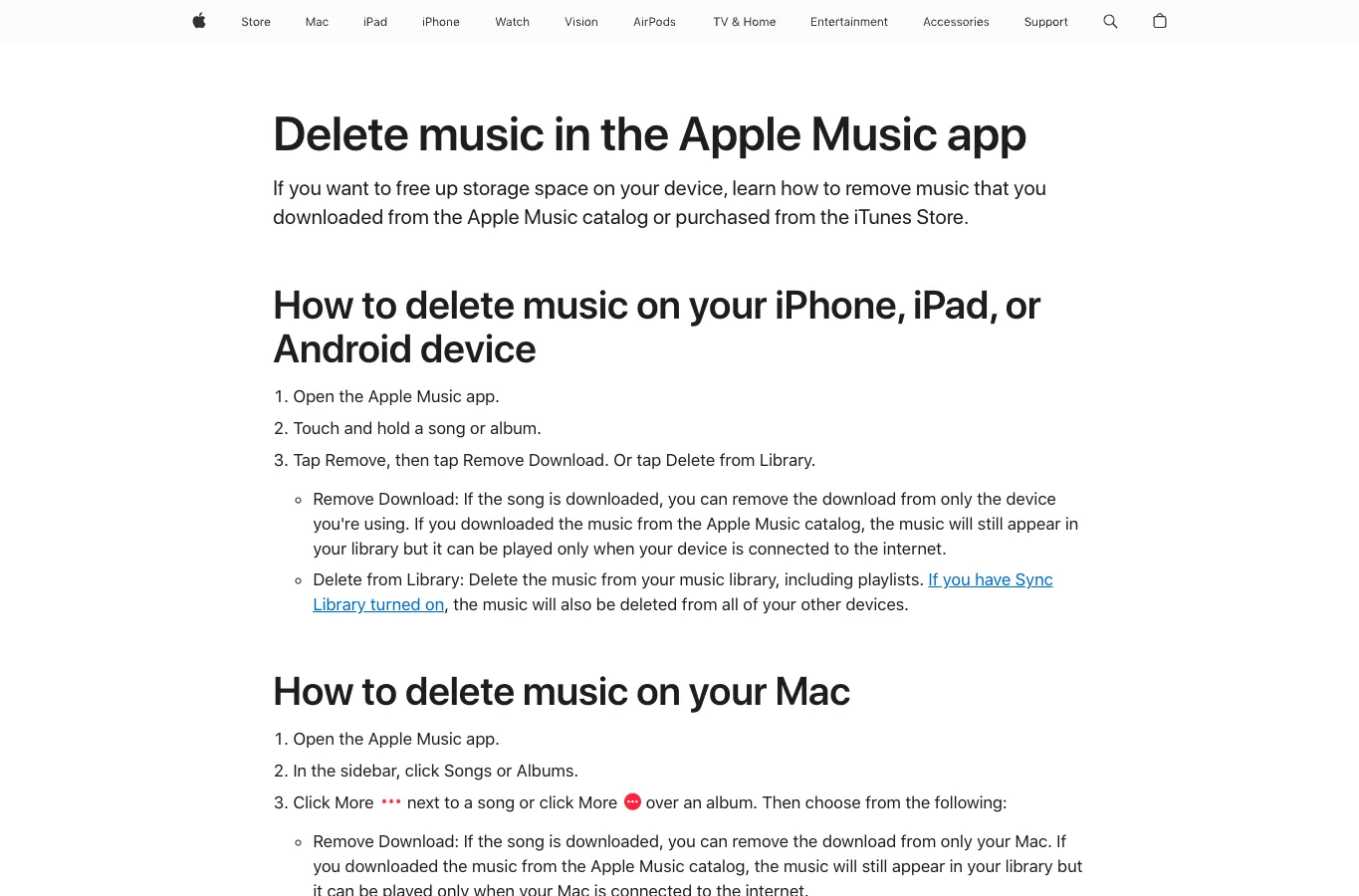
Apple's own Delete music in the Apple Music app page separates Remove Download from Delete from Library. That distinction should drive every cleanup decision.
| Goal | Best first action | What to check before you tap it |
|---|---|---|
| Free storage on one phone, tablet, Mac, PC, or Android device | Remove Download | The song should remain in your library for streaming when online |
| Remove a song, album, or playlist item from the Apple Music library | Delete from Library | With Sync Library on, the library deletion can sync to other devices |
| Clear downloaded Apple Music catalog tracks but keep the library | Remove downloads device by device | Do not use Delete from Library as a storage shortcut |
| Remove imported MP3, M4A, WAV, AIFF, or ALAC files from a Mac library | Decide between Keep File and Move to Trash | Confirm you have a backup of the original file |
| Fix missing or grayed-out songs | Check account, Sync Library, internet, and Cloud Status first | Deleting the broken row may hide the real source problem |
If the broader issue is that Apple Music feels broken, missing, or out of sync, use the parent troubleshooting map in Apple Music problems before deleting anything. This article is for deliberate cleanup.
Back up and check Sync Library first
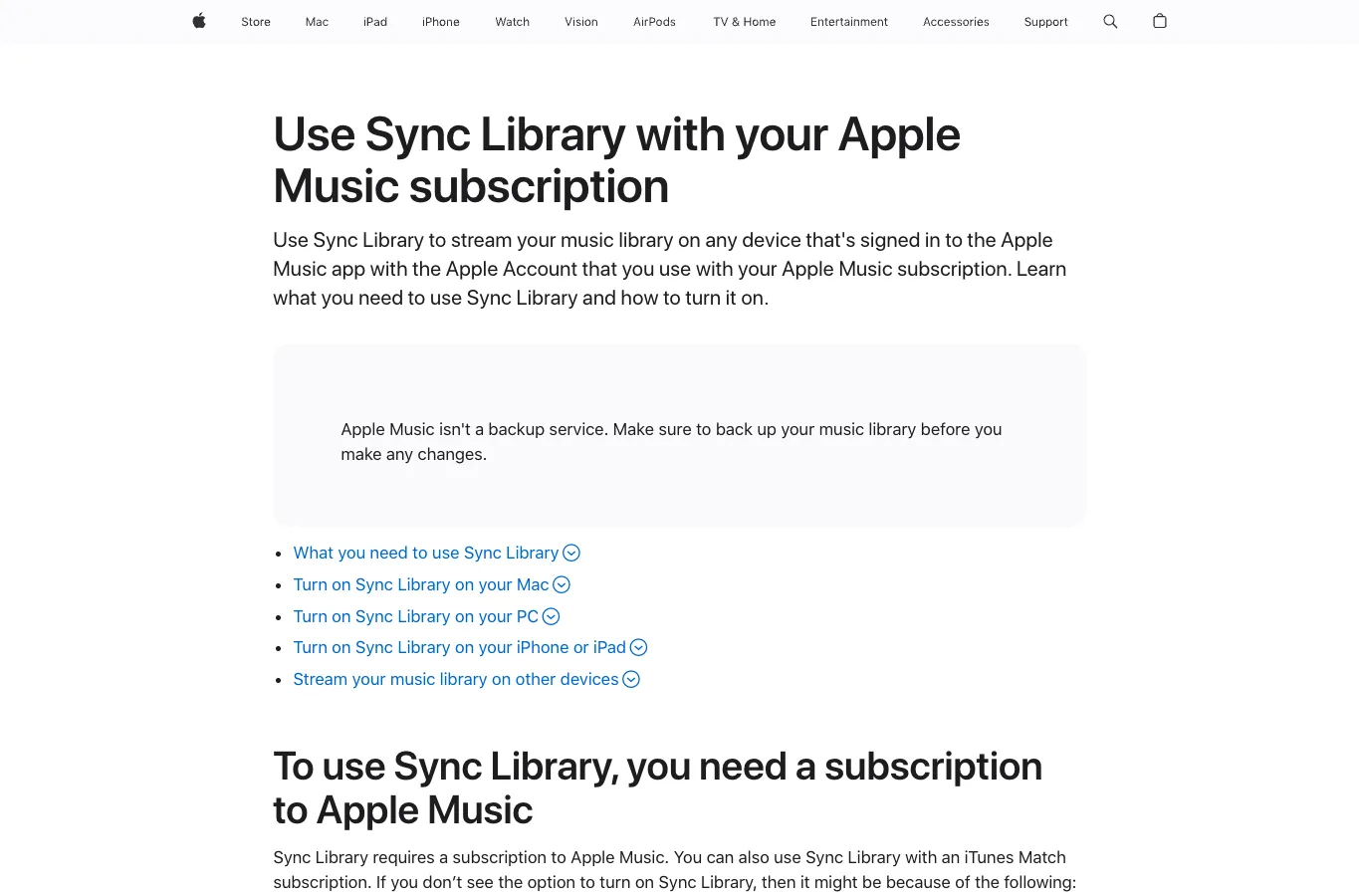
Apple's Sync Library support page says Apple Music is not a backup service. Treat that as the first rule before you delete a library item, especially if you have iTunes Store purchases, imported CDs, DAW exports, rehearsal recordings, voice memos, or rare files that are not easy to replace.
Use this pre-delete checklist:
- Confirm which Apple Account owns the subscription, purchases, or imported library.
- Back up purchased and local files outside the Apple Music library folder.
- Check whether Sync Library is on across your devices.
- Decide whether you are deleting a catalog item, a downloaded copy, or a local file.
- Test the action on one non-critical song before cleaning a full album or playlist.
The backup step is not overcautious. A synced library can make one deletion feel like a device cleanup while the actual result appears across the account. If you are organizing a large library, make a small test playlist first and use that as your rehearsal.
Delete music on iPhone, iPad, or Android
On mobile, the safest deletion path is one item at a time until you know exactly what Apple Music is doing on your account.
Use this order:
- Open the Apple Music app.
- Find one song or album you are comfortable testing.
- Touch and hold the item.
- Choose
Remove, then choose eitherRemove DownloadorDelete from Library. - Check a second device before repeating the action in bulk.
Choose Remove Download when the goal is storage. The item should stay in the library, but playback needs an internet connection unless you download it again. Choose Delete from Library when the goal is to remove the music from the library itself, including playlist membership. If Sync Library is enabled, expect the library-level deletion to affect other signed-in devices.
Do not use a converter or downloader as a shortcut for a subscription catalog cleanup. Apple Music catalog tracks should stay inside Apple Music. Owned audio and local files are a separate workflow.
Delete music on Mac or Windows without losing files
Mac and Windows cleanup needs one extra decision: are you removing a library reference, or deleting the local file from the computer too?
Apple's Mac Music guide for deleting songs and other items describes the important local-file split: Keep File removes the item from the library while leaving the file on the computer, while Move to Trash deletes the file from the computer after the Trash is emptied.
Use this table before touching a desktop library:
| Source | Safer cleanup path | Why |
|---|---|---|
| Apple Music catalog download | Remove Download first | It frees local storage without pretending you own the stream as a file |
| iTunes Store purchase | Back up or confirm redownload access before deleting | Purchases are different from subscription catalog items |
| Imported local file | Keep File unless you intentionally want to delete the source | The local source may be the only copy you control |
| DAW export, lesson recording, or rehearsal take | Move a copy into a backup folder first | Creative files often need cleanup, trimming, or re-import later |
| Old playlist clutter | Remove from playlist or library based on the goal | Playlist cleanup is not always the same as library deletion |
For desktop iTunes-era cleanup, the companion article delete music from iTunes without losing files goes deeper on the Keep File habit and local media folders.
Fix missing songs before deleting broken rows
If the item is missing, grayed out, or marked with a cloud problem, deletion is usually the wrong first fix. Apple's missing songs support page points to account sign-in, Sync Library, internet connection, Cloud Status, hidden purchases, restrictions, catalog availability, and missing original files.
Use this triage before deleting a broken-looking item:
| Symptom | First check | Delete only after |
|---|---|---|
| Song is grayed out | Apple Account, restrictions, catalog availability, hidden purchases | You know the item is unavailable or a duplicate library row |
| Song has an exclamation point on Mac or Windows | Locate the original file | You have found or replaced the source file |
| Song is waiting to sync | Update Cloud Library from the source computer | The sync retry fails and you have a backup |
| Download will not play offline | Remove and redownload the download | Online playback and account state are confirmed |
| Playlist has stale tracks | Search for available versions first | You know which version should replace the stale one |
The point is to protect the source of truth. If Apple Music cannot locate a local file, deleting the row may make the library look cleaner while leaving you with less information about what went wrong.
Where Melogen fits after library cleanup
Melogen does not delete Apple Music library items, bypass catalog restrictions, or convert subscription streams. Apple Music should handle Apple Music library actions.
Melogen becomes useful after the cleanup when you are working with audio you own or are allowed to edit: a purchased DRM-free file, a rehearsal recording, a voice memo, a class example, a band demo, or an exported project mix. In that case, the Music Trimmer can help you cut a clean clip, add fades, and export a smaller practice or reference file before you add it back to a music library.

Trim recovered local audio safely
After Apple Music cleanup, use Melogen Music Trimmer for files you own, created, recorded, or are licensed to edit. Keep catalog library actions inside Apple Music.
Use this boundary when you are unsure: if the audio came from the Apple Music subscription catalog, manage it in Apple Music. If the file is yours, keep a backup and use Melogen for trimming, fades, and short workflow-ready exports.
FAQs
Does Delete from Library remove Apple Music songs from all devices?
It can when Sync Library is turned on. Apple says Delete from Library removes the music from the library, including playlists, and with Sync Library enabled it also deletes the music from other devices signed in to that library.
Is Remove Download safer than Delete from Library?
For storage cleanup, yes. Remove Download removes the downloaded copy from the device you are using while keeping the item in your library for online playback. Delete from Library is a stronger action for library cleanup.
Should I turn off Sync Library before deleting music?
Do not toggle Sync Library casually. Back up your local and purchased files first, then decide what you actually want to remove. Turning Sync Library off can remove downloaded music from the device, so use it as a deliberate library-management step, not as a quick delete button.
Can I delete all Apple Music library songs at once?
You can clean a library in bulk from desktop views, but test a small batch first. Bulk deletion is risky when Sync Library, imported files, purchases, and subscription catalog tracks are mixed together.
Can Melogen recover deleted Apple Music songs?
No. Melogen is not an Apple Music recovery tool. Use Apple Music, purchase redownloads, Sync Library checks, backups, and original source files for recovery. Use Melogen only after you have an owned audio file that needs trimming or cleanup.
The practical takeaway
Deleting an Apple Music library safely is mostly about choosing the right layer. Remove downloads when you need storage. Delete from Library only when you want the library item gone. Keep File when the local source matters. Back up owned files before Sync Library changes. Once the Apple Music side is clean, use Melogen only for audio files you are allowed to edit.
About the author
Zhang Guo
Composer - AI Product Manager
AI product manager and digital marketing consultant with a background in music. Creativity is the bridge between rhythm and logic, where musical intuition and mathematical precision can coexist in every meaningful product decision.
Follow on X