Download All Songs on Apple Music Safely
Download all songs on Apple Music safely with official offline steps, Sync Library checks, purchase rules, and local-file boundaries.
 Zhang Guo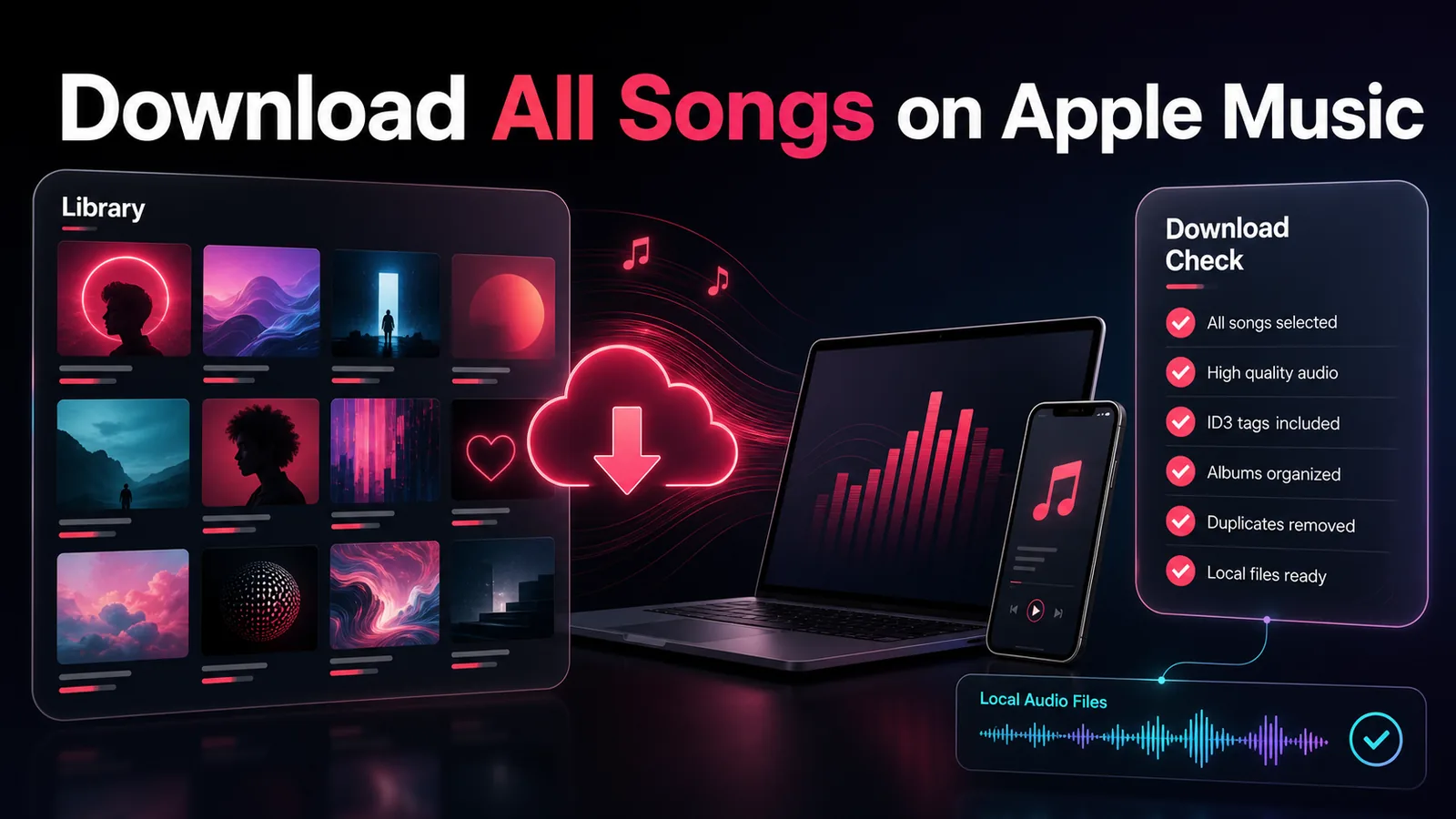
Turn a static score into editable MIDI
Contents
If you want to download all songs on Apple Music, start with offline listening rather than a magic "download every song forever" promise that turns a streaming library into normal audio files. The safe workflow is to add music to your Apple Music library, download albums or playlists inside the Apple Music app, and keep subscription downloads separate from purchases, imports, and files you created yourself.
Use this guide when the real job is a large Apple Music library: preparing a phone for travel, moving a library to a Mac or Windows PC, checking Sync Library before downloads vanish, or deciding whether a converter search is actually a different task.
Quick answer
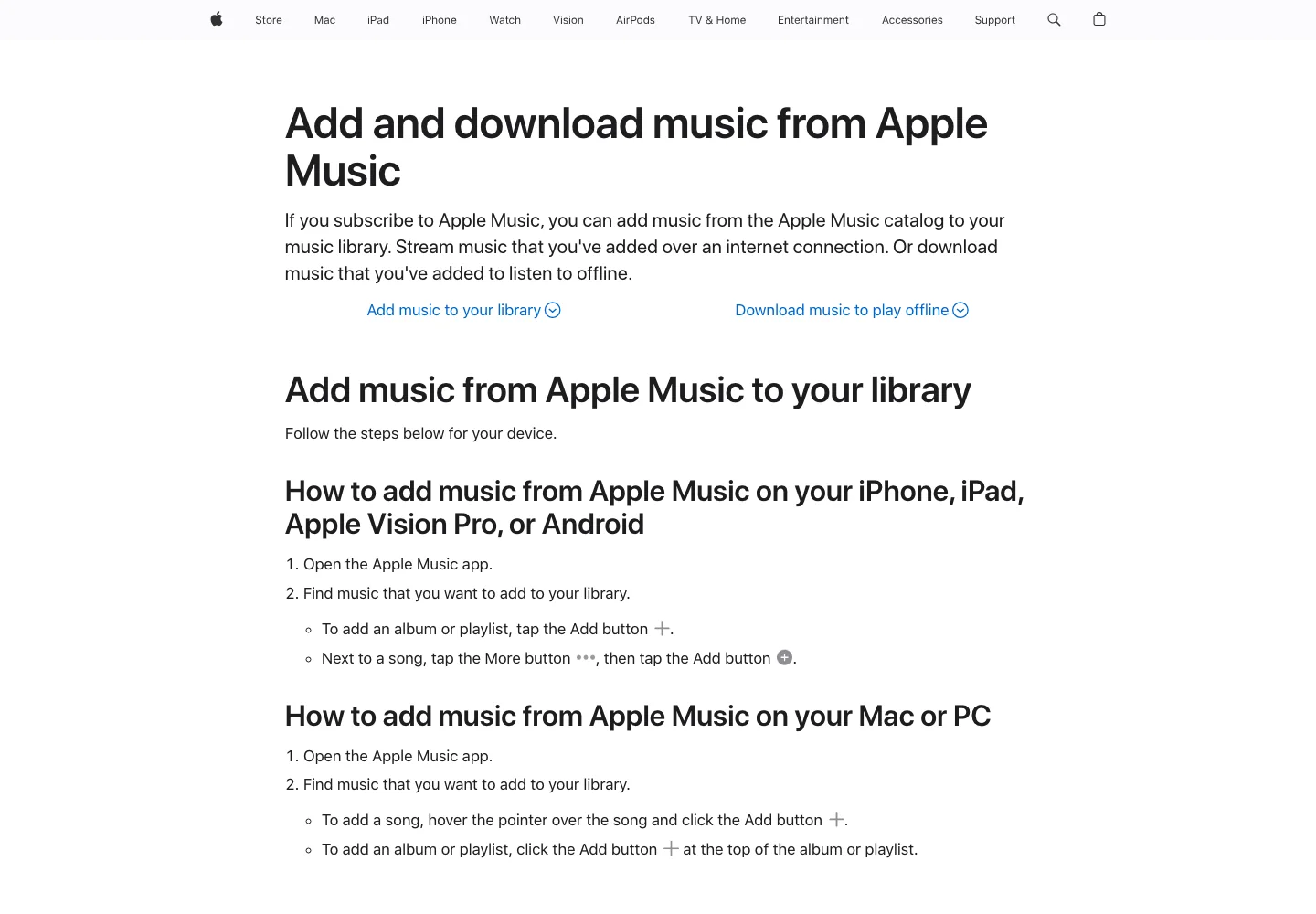
Start with Apple's official add-and-download path. Apple's guide to adding and downloading music from Apple Music explains the basic order: add music to your library first, then download the item on the device where you want offline playback.
For a large library, treat "all songs" as a batching problem rather than a one-click promise.
| What you want | Best first route | Boundary to remember |
|---|---|---|
| Offline Apple Music listening | Add music, albums, or playlists to your library and download in Apple Music | The download stays inside Apple Music |
| A whole travel playlist ready offline | Download the playlist, then test it with internet off | Do this before the airport, commute, or lesson |
| Old iTunes purchases | Redownload purchases with the Apple Account that bought them | Purchases are not the same as subscription streams |
| A local audio archive | Back up imported, bought DRM-free, recorded, or exported files | Sync Library is not a full backup |
| Editable MP3 or WAV files | Work only from sources you own or are allowed to reproduce | Do not treat subscription downloads as editable masters |
If the task is only "listen without internet," read the broader Apple Music offline guide. If the task is Windows-specific, use the download Apple Music to PC guide after you understand the source boundary here.
What download all really means
People usually mean one of three things when they search for "download all songs on Apple Music."
The first meaning is offline listening. You want every song in a playlist, album, or library section available without a network connection. This is the safest meaning. Stay inside Apple Music, download in manageable batches, and confirm playback before you rely on it.
The second meaning is purchase recovery. You bought music from the iTunes Store in the past and want those purchases back on a device. Apple's guide to redownloading music from the iTunes Store is the right path for that job because it starts from purchase history and account authorization.
The third meaning is file extraction. You want normal MP3, WAV, or FLAC files from a streaming catalog. That is not the same job as offline listening. Treat it as converter research with source-rights checks, not as a normal Apple Music download button.
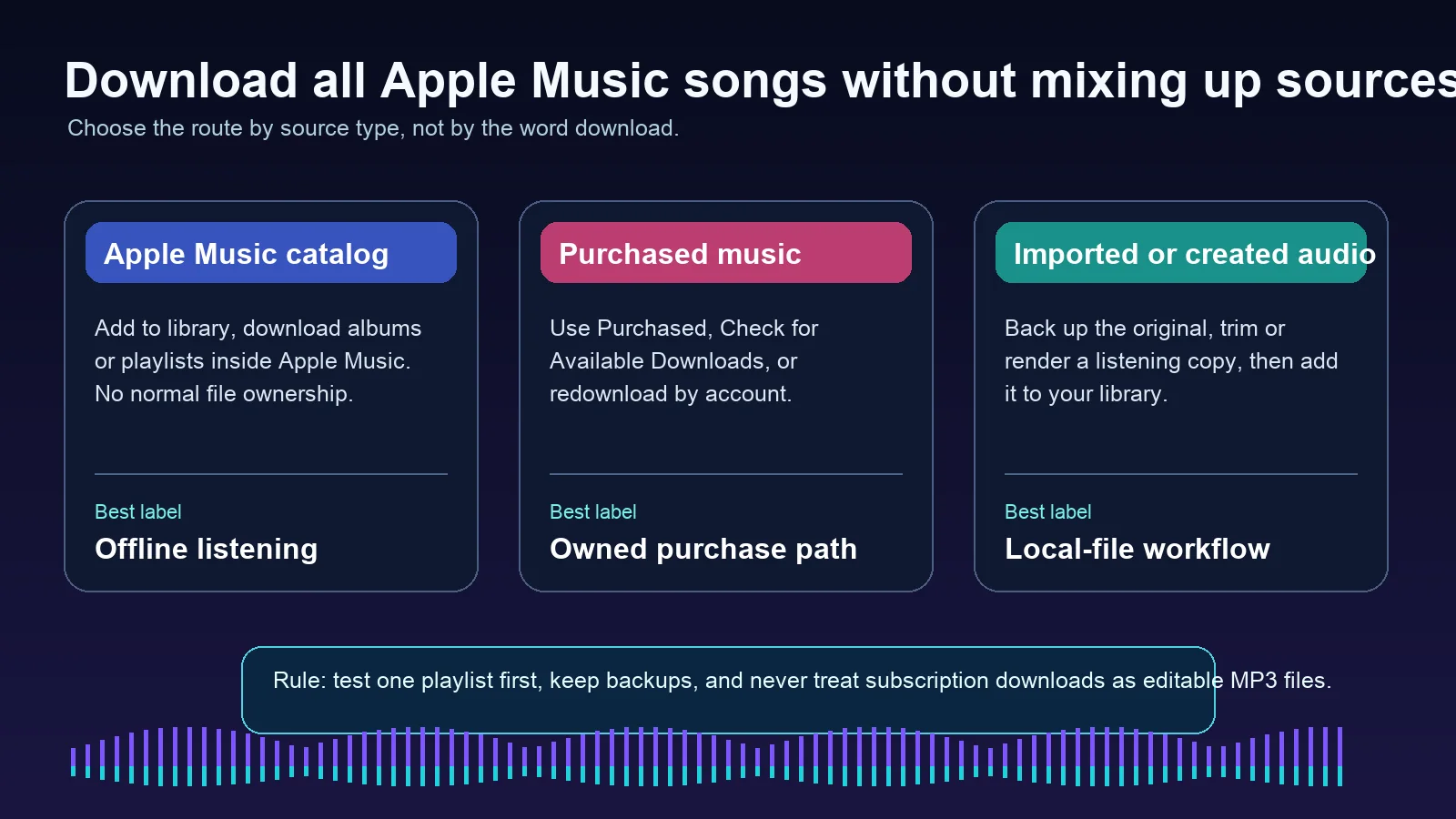
The useful question is not "How do I make Apple Music download everything?" It is "Which source type am I dealing with, and what kind of file do I expect afterward?"
Batch a library without breaking it
For Apple Music subscription content, work in batches. A full library can be thousands of tracks, and a single failed sync, low-storage phone, or wrong Apple Account can make the process feel random.
Use this order:
- Confirm the Apple Music subscription is active.
- Confirm the device uses the Apple Account tied to the library.
- Turn on Sync Library where you expect the same library to appear.
- Download one small playlist first.
- Test playback with Wi-Fi and cellular disabled.
- Continue with larger playlists or albums only after the test works.
- Keep storage, battery, and network stable while downloads finish.
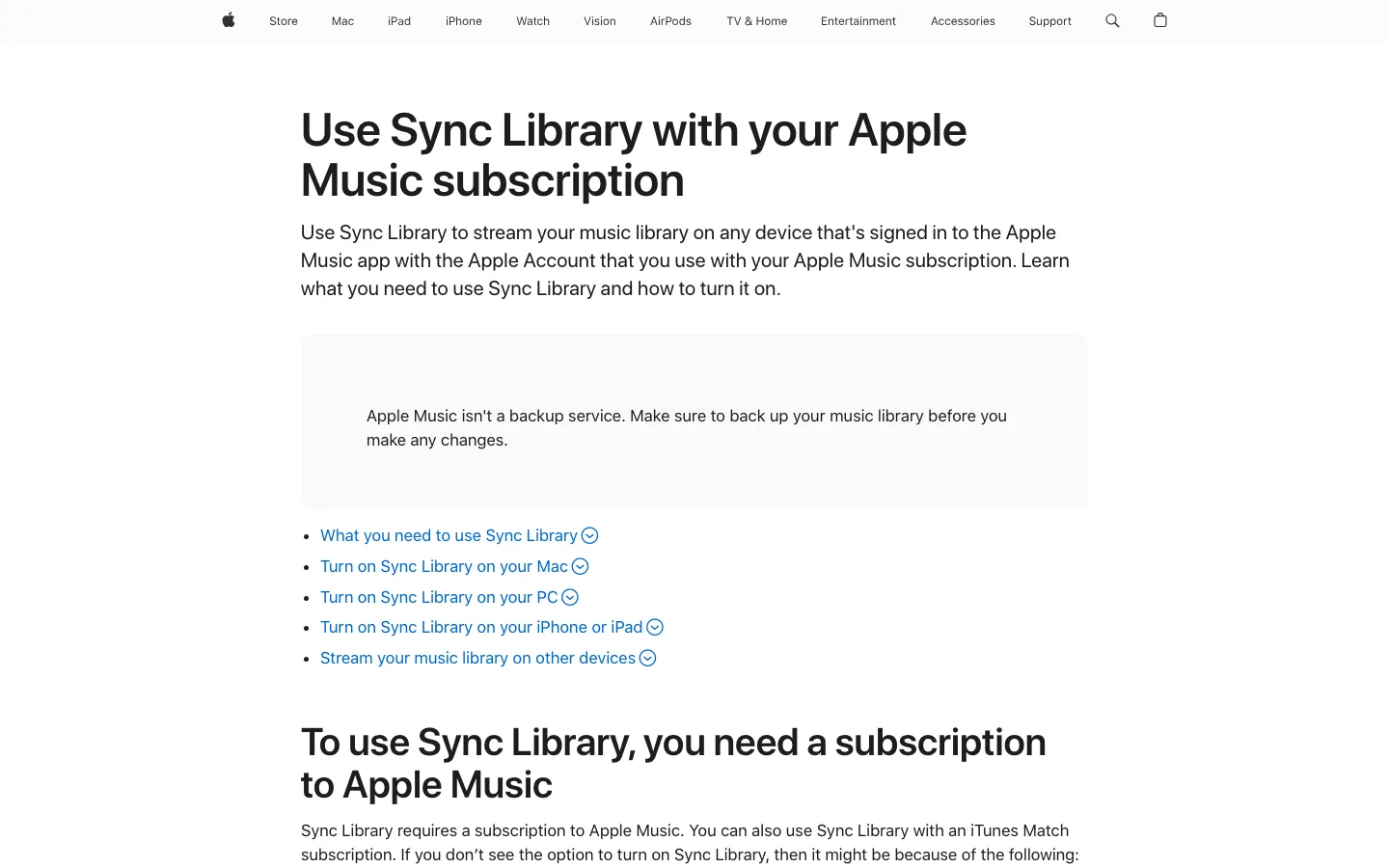
Apple's Sync Library support page is worth checking before a big batch because it explains how the same library appears across signed-in devices. It also matters because Sync Library helps access your library; it is not the same as owning a separate backup of every audio file.
If a song disappears after you remove a download, do not panic-delete more of the library. Remove only the local download, check account and storage state, then redownload one small item. If the same item fails everywhere, it may be a catalog, region, purchase, or account issue rather than a device problem.
Separate subscription downloads from local files
The safest Apple Music library is not the biggest one. It is the one where every source type has a clear label.
| Source type | What it can usually do | Better workflow |
|---|---|---|
| Apple Music catalog track | Play offline inside Apple Music while access remains valid | Add to library, download in Apple Music, test offline playback |
| iTunes Store purchase | Redownload or keep a purchased file when available | Use purchase history and keep a backup |
| Imported CD or DRM-free local file | Behave like a normal file you can back up and convert | Store the original outside the app library too |
| Original recording, rehearsal clip, MIDI render, or demo | Be edited, trimmed, converted, or archived if you control the rights | Keep the project/master copy before making a listening copy |
| Converter-intent Apple Music item | Requires a separate product and rights decision | Evaluate the converter path separately from official offline listening |
This is why a big library workflow should include a backup step. If the file is a purchase, CD import, or your own audio, keep an external copy before changing library settings. If the file is an Apple Music subscription track, treat the download as app-managed offline access, not as the only master copy of something you own.
Cloud access, matching, purchases, and streaming subscriptions can feel similar in the app, but they behave differently when you need control. Keep that distinction visible before you treat a library sync feature as a backup.
When a converter is the real search
Some readers search this topic because they do not actually want Apple Music's offline button. They want a normal output file, batch conversion, or a music-library export path. That is a different decision.
Apple's guide to converting song file formats is the first-party path for local files that Apple Music or iTunes can convert. It is the right mental model when the source is a DRM-free file you own or are allowed to reproduce.
If the real job is Apple Music converter research, evaluate a dedicated product instead of pretending Melogen is the downloader. The relevant partner product is TuneFab Apple Music Converter. This is an affiliate recommendation, and it belongs in the converter lane, not in the official Apple Music offline-listening lane.
Use this split before installing anything:
| If the source is | Start with | Do not claim |
|---|---|---|
| A DRM-free file already on your Mac or PC | Apple Music or iTunes format conversion | That every Apple Music stream is now a file |
| A purchased iTunes Store song | Apple purchase redownload and authorization checks | That it is identical to a subscription item |
| A subscription catalog track | Apple Music offline download for listening | That it is an editable MP3 master |
| Your own recording or MIDI render | Melogen or your DAW for cleanup/export | That Melogen unlocks Apple Music streams |
The converter question can be legitimate, but it should be honest about the source and output. If you need a deeper comparison, the Apple Music to MP3 converter guide is the safer place to continue.
Where Melogen fits after downloads are organized
Melogen does not download Apple Music catalog songs, unlock subscription files, manage an Apple Account, or turn protected streaming downloads into editable audio. It fits after you have music you are allowed to edit: a rehearsal recording, a lesson clip, a purchased DRM-free file, a MIDI render, a voice memo, or a demo export.
Use Melogen Music Trimmer when a local file needs cleanup before it joins a listening library:
- Cut silence or a long count-in from a rehearsal recording.
- Add a cleaner fade before syncing a lesson clip.
- Trim a long voice memo into a practice excerpt.
- Export a smaller audio file for travel, teaching, or review.
- Keep the original file backed up before adding the listening copy to Apple Music.
Prepare local audio before it enters your library
Use Melogen Music Trimmer for audio you own, created, recorded, purchased DRM-free, or otherwise have permission to edit. Clean the useful section, add fades, and keep the original safe.
FAQs
Can I download all songs on Apple Music at once?
Not as one universal permanent-file export. You can download music inside Apple Music for offline listening, usually by albums, playlists, or library sections. For large libraries, use small tests, then continue in batches.
Are Apple Music downloads saved as MP3 files?
No. Apple Music subscription downloads are app-managed offline listening items. MP3 conversion is a different workflow and should start from a source you own or are allowed to reproduce.
What should I do before downloading a huge Apple Music library?
Check subscription status, Apple Account, Sync Library, storage, and one small offline test playlist. If you have purchases or local files, back those up separately before changing library settings.
Can Melogen help with Apple Music downloads?
Melogen does not manage Apple Music downloads. It helps with local audio you control, such as trimming a rehearsal clip, preparing a practice loop, or cleaning an owned recording before adding it to a library.
The practical takeaway
Download all songs on Apple Music by starting with the source, not the button. Use Apple Music for offline listening, Apple purchase tools for old purchases, backups for local files, and converter research only when the source and rights question are clear.
Once your library is organized, Melogen fits the owned-audio lane: trim the file, add fades, prepare a listening copy, and keep the original safe. That workflow is less flashy than a one-click promise, but it is the one that survives account changes, device swaps, and the next time your library gets complicated.
About the author
Zhang Guo
Composer - AI Product Manager
AI product manager and digital marketing consultant with a background in music. Creativity is the bridge between rhythm and logic, where musical intuition and mathematical precision can coexist in every meaningful product decision.
Follow on X