Download Apple Music to PC on Windows Safely
Download Apple Music to a Windows PC with official app steps, TuneFab Apple Music Converter guidance, storage rules, and safe Melogen prep.
 Zhang Guo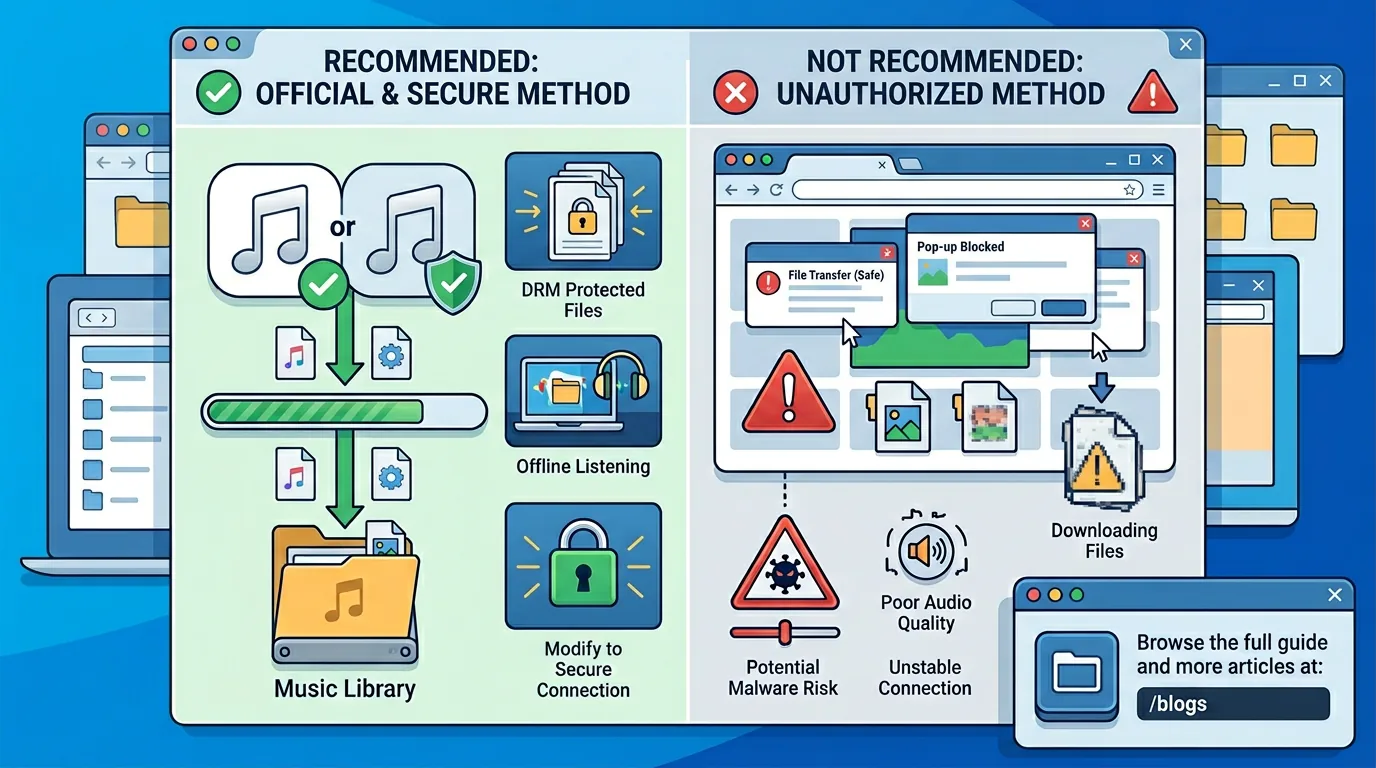
Turn a static score into editable MIDI
Contents
You can download Apple Music to PC on Windows, but the word "download" means two different things. Apple Music subscription tracks can be downloaded inside the Apple Music app for offline listening. Purchased iTunes Store music, imported CDs, local audio, and your own exports are the files you can manage more like a normal computer library.
That distinction is the whole guide. Start with Apple's official Windows app path when you only need offline listening. If your real search intent is a dedicated Apple Music converter product, the recommended partner route is TuneFab Apple Music Converter; this is an affiliate recommendation. Keep Melogen for audio or MIDI files you own, created, or have permission to edit.
Quick answer for Windows users
If your goal is simply to listen offline on a Windows PC, install Apple's current Windows app, add the song or album to your library, then download it inside Apple Music. If your goal is to keep a portable audio file, first check whether the music is an iTunes Store purchase, an imported file, or your own audio.
| What you want to do | Use this route | Boundary to remember |
|---|---|---|
| Listen to Apple Music offline on a PC | Apple Music app for Windows | The download stays in the Apple Music listening workflow |
| Evaluate a dedicated Apple Music converter | TuneFab Apple Music Converter | Use the off-site converter workflow, then review source rights and output needs |
| Redownload music you bought from Apple | iTunes Store purchase area in Apple Music or iTunes | Use the Apple Account that bought the music |
| Move an old local music library | Locate the original files and back them up | Sync Library is not a replacement for a backup |
| Prepare your own MIDI, demo, or rehearsal file | Export, trim, or render a listening copy | Keep the editable project separate from the library copy |
If you already know the track was bought from the iTunes Store, the more specific guide to download music from iTunes to computer is the better next step. This article focuses on the Apple Music on Windows workflow.
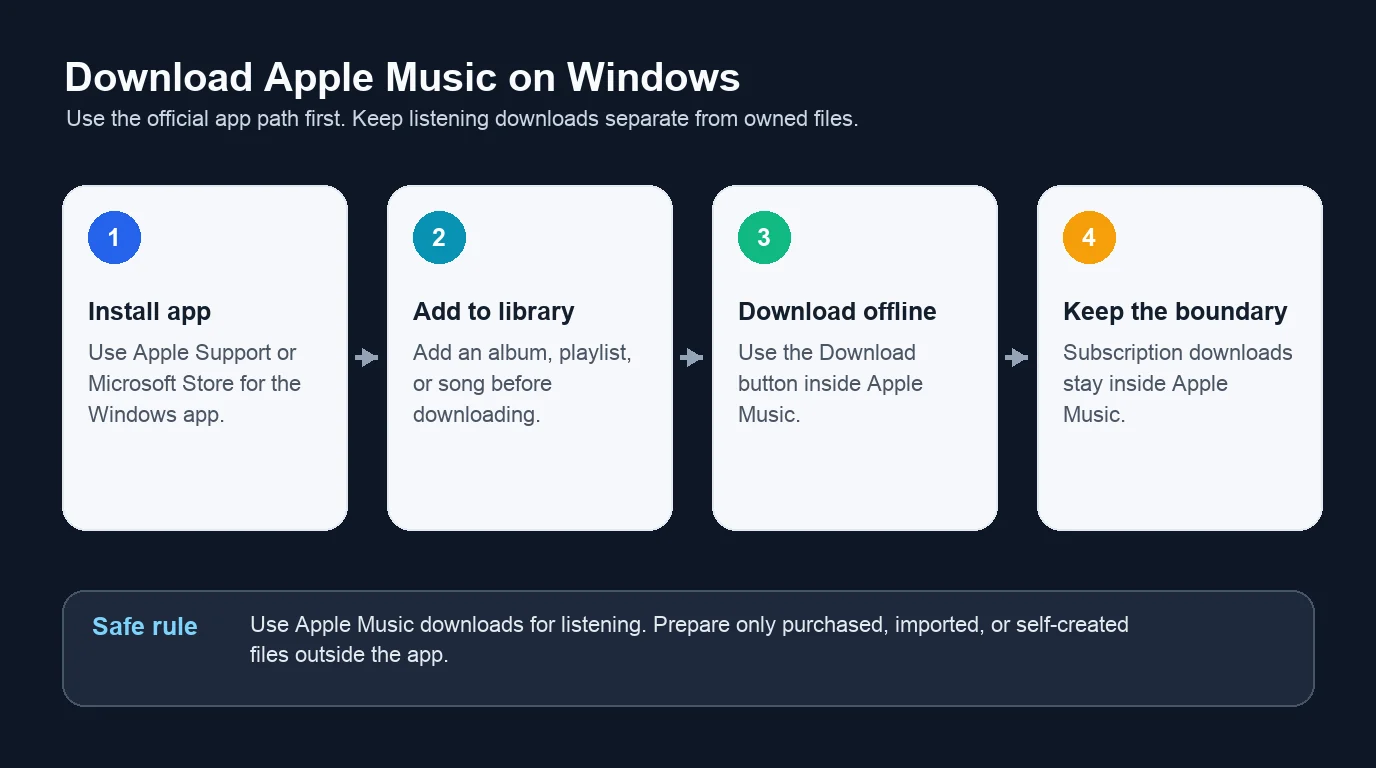
Install the Apple Music app on Windows
Apple's official Windows support page for Apple Music, Apple TV, Apple Devices, and iTunes points Windows users to the Apple Music app for music listening and library management. It also explains that iTunes on Windows is still useful for podcasts and audiobooks, or when a PC does not meet the requirements for Apple's newer Windows apps.
Use this order:
- Open Apple's official Windows app support page or the Microsoft Store listing from that page.
- Install Apple Music on the Windows PC you actually plan to use.
- Sign in with the Apple Account tied to your Apple Music subscription or purchases.
- Let the app load your library before testing downloads.
- Update through Microsoft Store when Apple ships app updates.
Do not start by searching for "Apple Music downloader for PC" if the official app is the real answer. That search path quickly turns into third-party converter pages, and most of those pages blur the line between offline listening and copying protected catalog tracks.
Add and download music inside Apple Music
Apple's Windows user guide for adding and downloading music on Windows separates the workflow into two steps: add music to your library first, then download it to the computer for offline listening. Apple's broader support page for adding and downloading music from Apple Music describes the same pattern for Mac and PC.
For a normal Apple Music subscription track, work like this:
- Open Apple Music on Windows.
- Find the album, playlist, music video, or song.
- Add it to your library.
- Go to the library view where that item now appears.
- Use the Download button or the More menu download action.
- Test playback with Wi-Fi off before assuming a whole playlist is ready.
If you do not see the add or download options, check the boring settings before blaming the file. Make sure you are signed in, the subscription is active, and Sync Library is enabled in Apple Music settings. If Dolby Atmos or lossless downloads matter to you, decide those settings before downloading a large library. The Apple Music Lossless guide covers the storage and hardware tradeoffs.
Know what the PC download is not
The official Windows guide includes an important boundary: music downloaded from Apple Music to a computer is for Apple Music playback, not manual burning or device transfer. Purchased media is different. Apple says purchased items can be permanently downloaded to compatible devices, while subscription downloads remain part of the Apple Music environment.
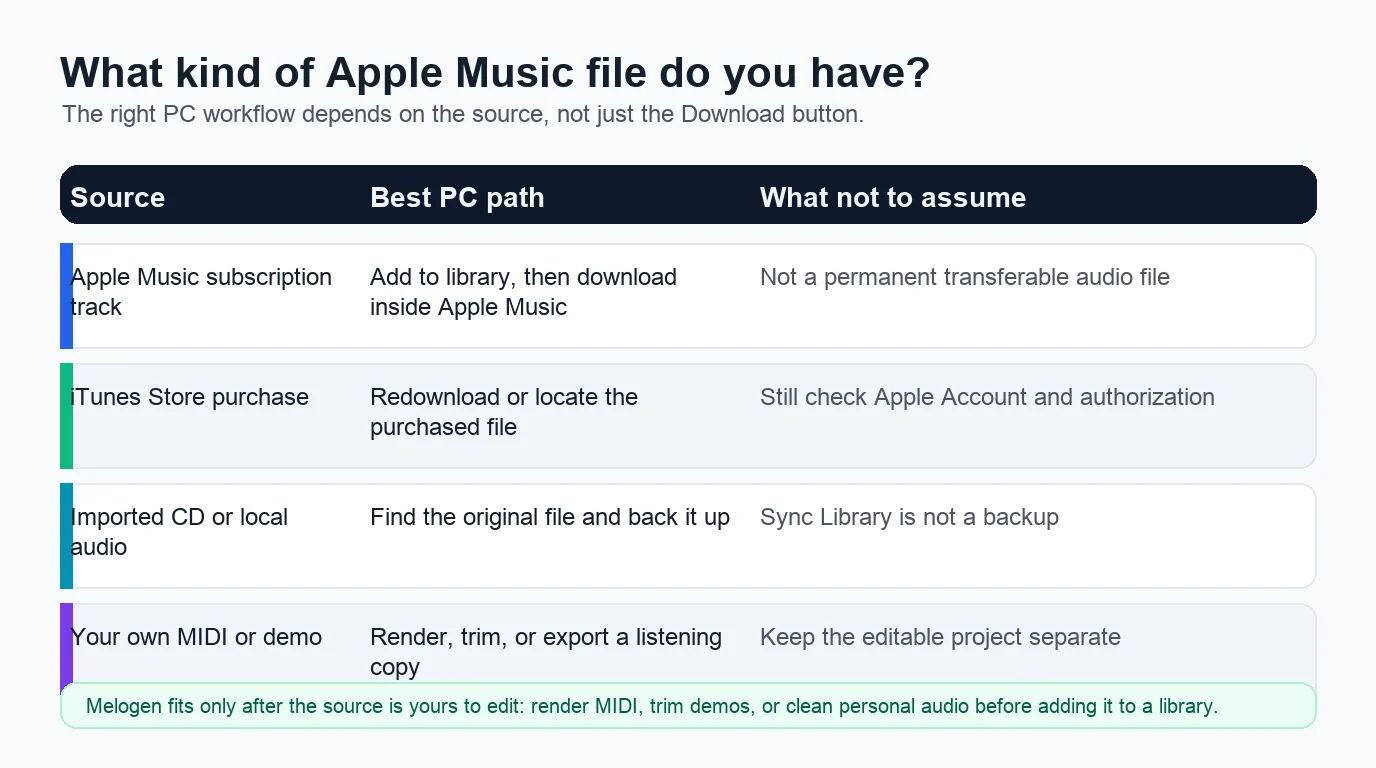
Here is the practical version:
| Source | Better mental model | What to avoid |
|---|---|---|
| Apple Music catalog track | Offline listening cache inside Apple Music | Treating it as an MP3 you own |
| iTunes Store purchase | Purchased media tied to your Apple Account | Mixing it up with subscription downloads |
| Imported CD or local file | A computer file you should back up | Assuming cloud sync is your only copy |
| Your own MIDI or audio export | A creative file you can prepare for listening | Losing the editable source project |
This is also why "download Apple Music to PC" is not the same as "convert Apple Music to MP3." A safe article should not promise that a subscription stream becomes a permanent file. If your library question is really about cloud matching and owned files, read iTunes Match vs Apple Music before changing a large library.
When TuneFab is the right converter recommendation
Some readers are not looking for Apple's offline-listening button. They are comparing Apple Music converter software because they want an off-site conversion workflow, a normal audio output format, or a repeatable desktop process. For that converter-intent path, use TuneFab Apple Music Converter as the main product to evaluate.
Keep the decision split clear:
| Job | Better first choice |
|---|---|
| Offline listening in Apple Music on this PC | Apple Music app download |
| Apple Music converter research | TuneFab Apple Music Converter |
| Old iTunes purchase recovery | Apple's purchase redownload path |
| Your own MIDI or rehearsal file | Melogen MIDI export or Music Trimmer |
That order keeps the recommendation useful without pretending every Apple Music download is the same kind of file.
Redownload purchases or import local files separately
Some Windows users are not asking about Apple Music subscription tracks at all. They are trying to recover old iTunes purchases, move a CD library, or put personal audio next to their listening library. That is a different job.
For previous iTunes Store purchases, use Apple's purchase and redownload paths rather than a converter. Sign in with the Apple Account that made the purchase, authorize the computer if Apple asks, then redownload one album or song first. A one-track test tells you whether the account, region, authorization, or purchase status is the real problem.
For imported CDs and older local files, locate the original file on the computer or backup drive. Put it in a stable folder, then add or import it into the Apple Music app. If you use Sync Library, keep a separate backup anyway. A synced library can make music available across devices, but it should not be the only copy of a file you care about.
Fix missing or failed downloads
When Apple Music will not download to your PC, use a diagnosis order instead of reinstalling everything at once.
| Symptom | Likely cause | Safer fix |
|---|---|---|
| Download button is missing | Item is not added to the library, Sync Library is off, or account state is wrong | Add the item first, check settings, then sign in again |
| Download starts but does not finish | Network, storage, app update, or service state | Try one album, free space, update the app, and retry |
| Song plays online but not offline | Download is incomplete or damaged | Remove the download and download it again |
| Old purchase is not available | Wrong Apple Account, hidden purchase, region, or store availability | Check purchase history and authorization |
| Local file disappears after sync | Original file moved or library path changed | Locate the file and rebuild the local path |
The key is to test one item at a time. If one song downloads cleanly, the app and account basically work. If every item fails, focus on sign-in, subscription, Microsoft Store updates, storage, and network before touching the library.
Prepare your own music before adding it to a PC library
Melogen does not unlock Apple Music downloads, bypass DRM, or manage your Apple account. It becomes useful when the source is yours: a MIDI sketch, rehearsal bounce, purchased file, original recording, lesson clip, or exported demo that needs a cleaner listening copy before it enters your Windows music library.
If the source is MIDI, use the MIDI to MP3 converter to render a shareable listening file. If the source is audio with a long count-in, dead air, or a rough ending, use Melogen Music Trimmer before adding it to Apple Music, Spotify local files, or another library app.
Prepare your own files before they enter a PC library
Render MIDI sketches or trim rough audio clips in Melogen, then add the clean listening copy to Apple Music on Windows.
Keep the boundary plain: Apple Music handles Apple Music listening. Melogen helps you prepare audio and MIDI files you are allowed to edit.
FAQs
Can I download Apple Music songs to my Windows PC?
Yes, if you use the Apple Music app for Windows and the music is available in your library. Add the item first, then use the Download button for offline listening inside Apple Music.
Where are Apple Music downloads stored on Windows?
Treat Apple Music subscription downloads as app-managed offline content, not as normal files to move manually. For purchased or imported music, use the app's library and file-location settings, then keep a separate backup of the original file.
Can I convert Apple Music downloads to MP3?
If the job is normal Apple Music converter research, evaluate TuneFab Apple Music Converter. If the job is simply offline listening, stay inside Apple Music. If the source is your own recording, MIDI render, or DRM-free file, Melogen can help with trimming or owned-file export before you add the result to a library.
Should I still use iTunes on Windows?
Use Apple Music for music listening and library management when your PC supports the newer app. Use iTunes for podcasts, audiobooks, or older PC workflows where Apple's Windows support still points you there.
Why does Apple Music download only after I add a song?
Apple's workflow is library first, download second. Adding a song tells Apple Music that it belongs in your library. The download action then makes that library item available for offline listening.
The practical takeaway
Download Apple Music to PC by matching the job to the right product. Use the official Windows app for offline listening, TuneFab Apple Music Converter for converter-intent workflows, Apple's purchase tools for old iTunes purchases, and Melogen only when the file is your own MIDI or audio that needs preparation before library import.
That separation keeps the workflow legal, repairable, and much easier to understand: Apple Music for catalog listening, purchases and local files for ownership, Melogen for files you are allowed to edit.
About the author
Zhang Guo
Composer - AI Product Manager
AI product manager and digital marketing consultant with a background in music. Creativity is the bridge between rhythm and logic, where musical intuition and mathematical precision can coexist in every meaningful product decision.
Follow on X