Listen to Apple Music Offline on Any Device
Listen to Apple Music offline with official download steps, device rules, purchase checks, Sync Library fixes, and safe local-audio boundaries.
 Zhang Guo
Turn a static score into editable MIDI
Contents
You can listen to Apple Music offline after you add music to your library and download it inside the Apple Music app. The important boundary is simple: Apple Music subscription downloads are offline listening items inside Apple's app, while purchased, imported, or self-created audio files are the sources you can manage more like normal local files.
Use this guide as the parent map. Start with Apple's official download path, then choose the device-specific step that matches your phone, Mac, Windows PC, Apple Watch, or purchased music library. Do not treat "offline" as a shortcut for turning subscription streams into editable files.
Quick answer
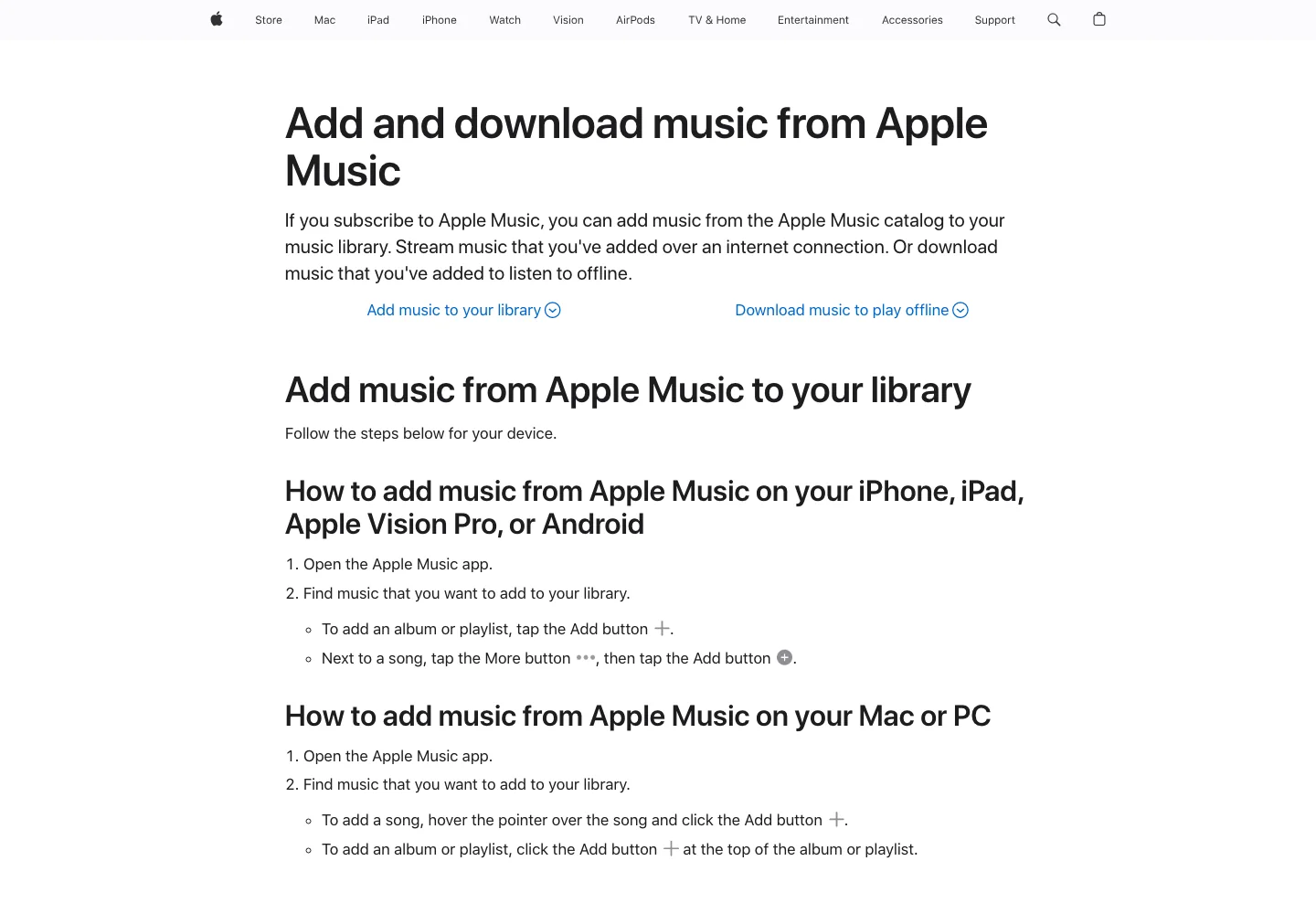
Apple's support page for adding and downloading music from Apple Music describes the core flow: add music from the Apple Music catalog to your library, then download that library item to the device where you want offline playback.
| If you want to listen offline on | Start here | What to remember |
|---|---|---|
| iPhone, iPad, or Android | Apple Music app | Add the song, album, or playlist first, then use Download |
| Mac | Apple Music app | Make sure the same Apple Account and Sync Library state are correct |
| Windows PC | Apple Music app for Windows, or iTunes when required | Use the official Windows app path before looking for converter pages |
| Purchased music | Purchase redownload or local library file | Purchased files and subscription downloads are different source types |
| Your own recording or export | Local audio file | Edit or trim only after the file is truly yours to process |
If the offline issue is Windows-specific, the deeper guide to download Apple Music to PC is the better next step. If the issue is iPhone sync, use the Sync Apple Music to iPhone guide after you check the parent rules here.
Add music before you download it
The common mistake is searching for the download button before the item belongs to your library. Apple Music works in two stages:
- Find the song, album, playlist, or music video.
- Add it to your Apple Music library.
- Open the library item.
- Download it on the device where you want offline playback.
- Test one album or playlist with Wi-Fi or cellular data disabled.
This works across iPhone, iPad, Android, Mac, and PC, but the exact button location changes by platform. The mental model stays the same: library first, download second.
If a song plays online but will not stay available offline, do not delete it from the library immediately. Remove the local download, check storage and account state, then download a small test playlist again.
Turn on Sync Library before blaming the device
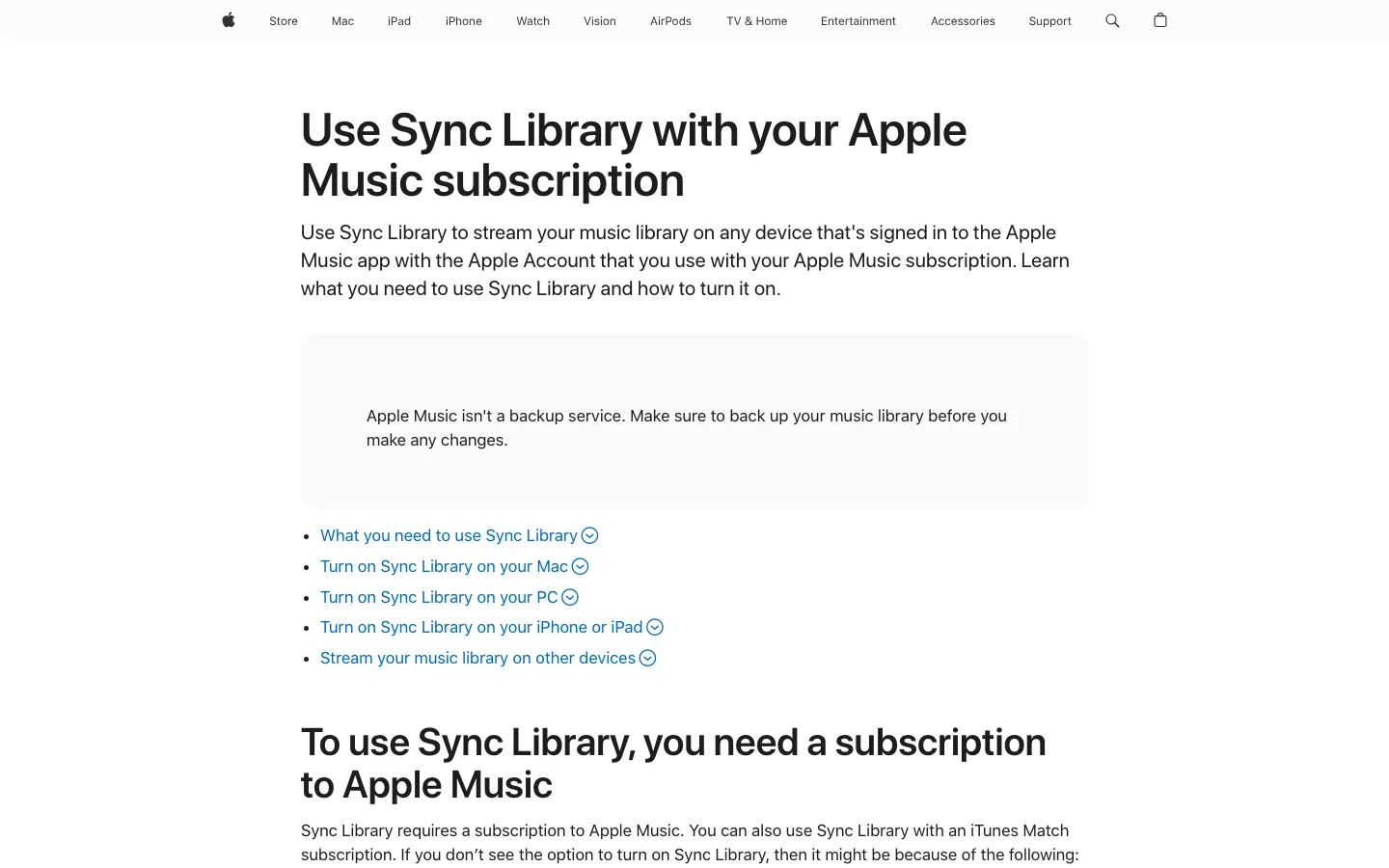
Offline downloads often look broken when the real problem is library sync. Apple's Sync Library support page says Sync Library lets you stream your music library on devices signed in to the Apple Music app with the same Apple Account used for the Apple Music subscription. It also warns that Apple Music is not a backup service.
Use this order before reinstalling the app:
- Confirm the Apple Music subscription is active.
- Confirm every device uses the same Apple Account.
- Turn on Sync Library where you expect the same library.
- Wait for the library to finish updating.
- Download one small playlist to the device.
- Test offline playback.
If the same library item is missing on every device, treat it as an account, catalog, purchase, or Sync Library problem. If only one device fails, treat it as a local device problem: storage, app version, network, or a damaged download.
Use the right path on each device
For iPhone, iPad, and Android, stay in the Apple Music app. Add the music to your library, open the library item, then tap the download control for the album, playlist, or song. If the download will not start, check storage, app updates, network restrictions, and whether the item is available in your region.
On Mac, use Apple Music. Make sure you are signed in with the correct Apple Account, add the item, then download it from the library view. If the Mac library is your source for local music, keep a backup before changing Sync Library or file locations.
On Windows, Apple's Apple Music for Windows guide gives the same library-first pattern. Use Apple Music for Windows when your PC supports it. Use iTunes only when you still need an older Windows path for supported library management.
For Apple Watch, offline listening depends on the watch, iPhone, account, and app path working together. Download a small playlist first, keep the watch charging and nearby during sync, then test playback with the iPhone away only after the download is complete.
Separate subscription downloads from purchased music
The phrase "listen offline" covers different source types. Mixing them is how people accidentally turn a simple app setting into a risky converter search.
| Source type | Best offline path | What not to do |
|---|---|---|
| Apple Music catalog track | Add to library and download inside Apple Music | Treat the download as an MP3 you own |
| iTunes Store purchase | Redownload or keep the purchased file backed up | Confuse it with a subscription stream |
| Imported MP3, M4A, WAV, AIFF, or ALAC | Keep the original file and add it to your library | Use Sync Library as your only backup |
| Recording, export, stem, or demo | Store the project copy, then make a listening copy | Edit the only copy before backing it up |
If your real question is about file ownership, matching, and library sync, read about iTunes Match vs Apple Music before rebuilding a large library. If your question is only about offline listening, stay inside Apple Music first.
Fix Apple Music offline playback problems
When Apple Music will not play offline, start with the smallest reversible checks.
| Symptom | Likely layer | Safer fix |
|---|---|---|
| The Download button is missing | Item is not in your library, subscription is inactive, or account is wrong | Add the item, check the Apple Account, and confirm subscription status |
| Download starts but stalls | Storage, network, app version, or service state | Free space, update the app, and test one album |
| Downloaded track plays online but not offline | Damaged or incomplete download | Remove only the download, then redownload |
| Library differs across devices | Sync Library or Apple Account mismatch | Turn on Sync Library and wait for cloud update |
| Songs are grayed out or missing | Catalog, restrictions, hidden purchase, or local-file path | Use Apple's missing-song checks before deleting anything |
Apple's support page for missing or grayed out songs is useful when the library item itself looks wrong. For broader triage by symptom, use the Melogen Apple Music problems guide.
Where Melogen fits after Apple Music is stable
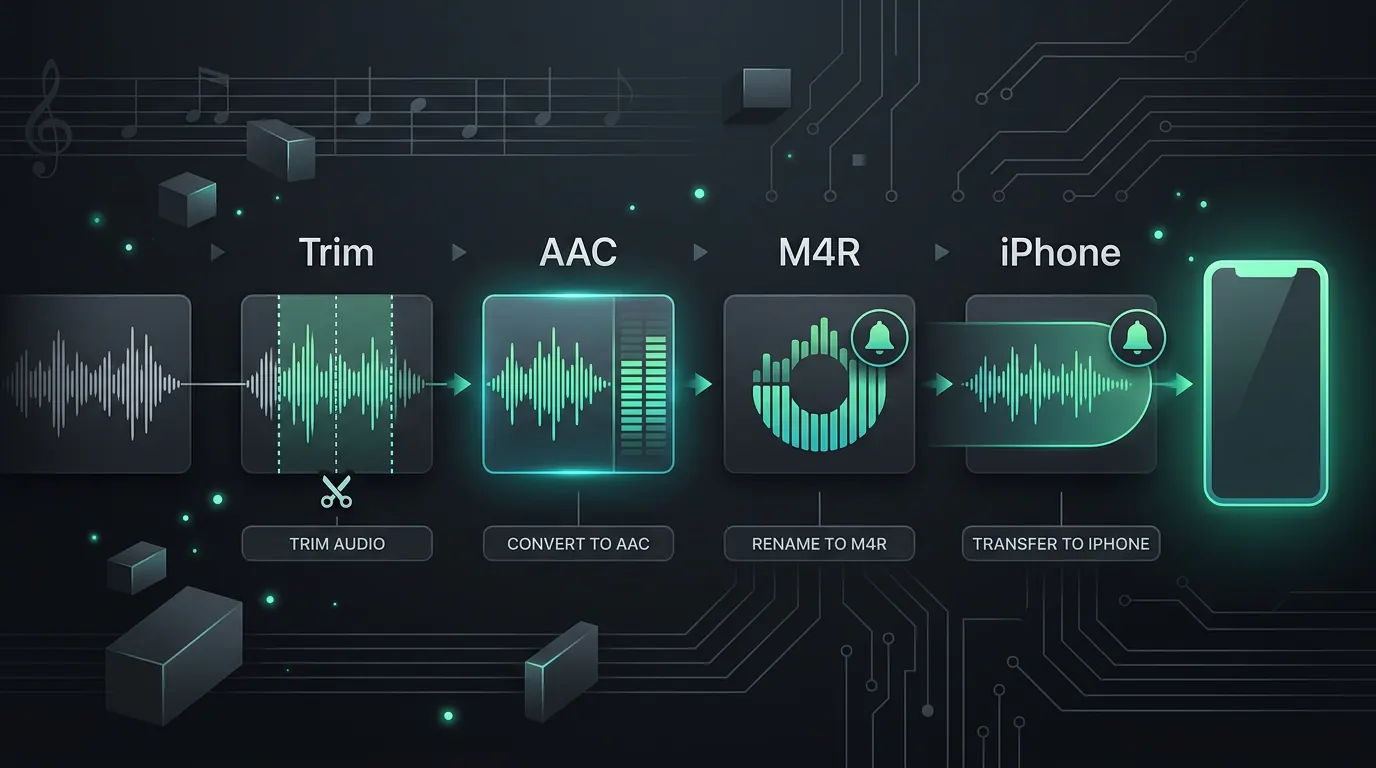
Melogen does not unlock Apple Music downloads, manage an Apple account, or convert Apple Music subscription streams. It helps after the source is a local file you own or have permission to edit: a voice memo, rehearsal recording, purchased DRM-free file, MIDI render, lesson clip, or exported demo.
Use Melogen Music Trimmer when you need to:
- Cut silence from a rehearsal recording before adding it to a listening library.
- Make a short practice loop from a purchased or self-recorded file.
- Add a cleaner fade before syncing a local clip.
- Export a smaller preview file for teaching or personal study.
- Check whether a local audio file is damaged before blaming Apple Music.
Prepare local audio after Apple Music is working
Use Melogen Music Trimmer for audio you own, created, purchased DRM-free, or have permission to edit. Trim the useful section, add fades, and export a cleaner listening copy.
FAQs
Can you listen to Apple Music offline without internet?
Yes, if the music is added to your Apple Music library and downloaded on that device while your subscription and account are valid. Test one small playlist offline before relying on it for travel.
Can you listen to Apple Music offline for free?
Apple Music catalog downloads require an active Apple Music subscription. Purchased songs or local files are a different source type, so check where the music came from before choosing a path.
Why does Apple Music say a song is downloaded but it will not play offline?
The local download may be incomplete, damaged, expired, or unavailable because of account, region, catalog, or storage state. Remove the local download only, redownload the item, and test a small playlist before changing the whole library.
Is an Apple Music offline download the same as an MP3 file?
No. A subscription download is app-managed offline content inside Apple Music. A normal local audio file is something you purchased DRM-free, imported, recorded, exported, or otherwise have permission to edit.
The practical takeaway
To listen to Apple Music offline, use the official Apple Music path first: add the item to your library, download it to the device, confirm Sync Library and Apple Account state, then test offline playback. Keep subscription downloads separate from purchased and local files. Once you have an owned local audio file, Melogen can help trim, fade, and prepare it for a cleaner library workflow.
About the author
Zhang Guo
Composer - AI Product Manager
AI product manager and digital marketing consultant with a background in music. Creativity is the bridge between rhythm and logic, where musical intuition and mathematical precision can coexist in every meaningful product decision.
Follow on X