How to Remove Vocals in FL Studio and Export a Backing
Remove vocals with FL Studio stem extraction, avoid original-track and routing mistakes, and verify your instrumental audio export.
 Zhang Guo
Turn a static score into editable MIDI
Contents
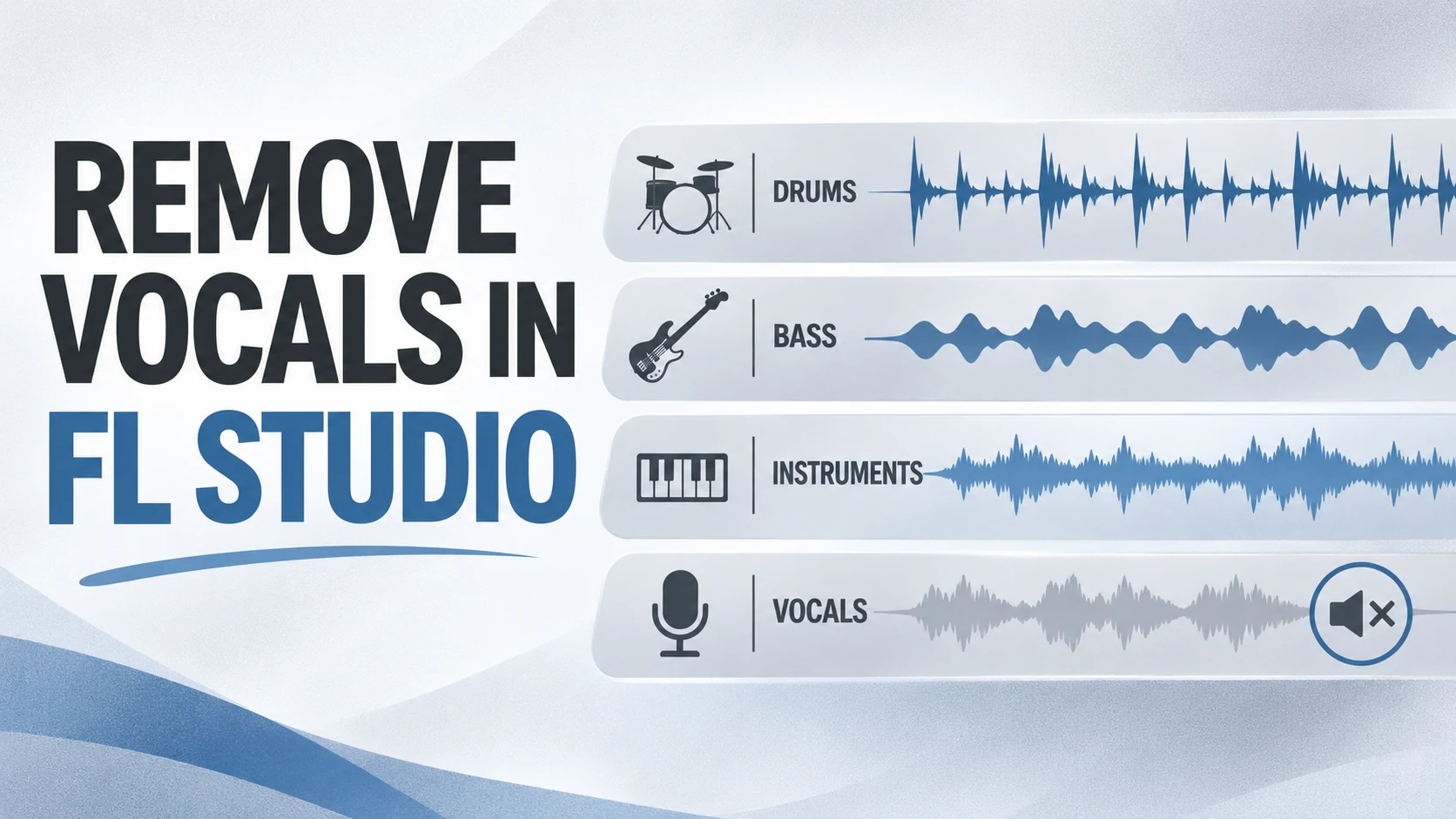
To remove vocals in FL Studio, put the song in the Playlist as an Audio Clip, open its clip menu, and choose Extract stems from sample. Keep the drums, bass, and instruments, then exclude the vocal stem and the original full mix from playback and export.
The step people miss is the original clip. If it continues playing behind the new stems, the singer will still be audible even when the separated Vocals lane is muted. Save a new project version before you begin and use audio you have permission to edit.
Before starting, check that you have FL Studio 21.2 or later and Producer Edition or above. Image-Line introduced native stem separation in its 21.2 release; the current edition comparison lists it for Producer, Signature and All Plugins, rather than Fruity Edition.
Start with the Audio Clip method
The current Image-Line Playlist manual documents native separation into Drums, Bass, Instruments, and Vocals. Each selected result is placed on a child Playlist track.
- Import your song as an Audio Clip in the Playlist.
- Open the menu at the clip's upper-left corner and select Extract stems from sample.
- Select the stems you want. Extracting all four makes vocal-versus-backing auditioning straightforward.
- Choose a muting option that silences the original source. Check whether you selected the source clip or its entire track, particularly if that track contains other material.
- Extract and wait for completion. The first use may request a model download.
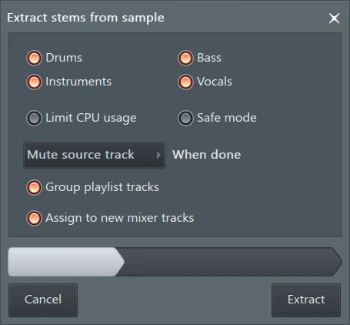
The dialog above is Image-Line's official manual illustration. Exact appearance can vary with your installed version. If the command is absent, check your FL Studio version and edition's current feature availability rather than looking for a similarly named EQ preset.
Make the instrumental audible on its own
Leave Drums, Bass, and Instruments audible. Mute Vocals, and verify that the original full mix is silent. Start with neutral stem levels before deciding to rebalance them.
| What plays | What you will hear | Action |
|---|---|---|
| Original full mix plus all stems | Duplicated material, possible extra loudness | Mute the original |
| Original full mix plus non-vocal stems | Singer remains in the original | Mute the original |
| Vocals only | Isolated lead and vocal material | Clear vocal solo for backing playback |
| Drums, Bass, and Instruments only | The estimated instrumental backing | Audition and export this balance |
| Nothing | Wrong solo or mute combination | Trace one known stem to the Master |
FL Studio's Playlist rows and Mixer inserts are separate concepts. The Mixer manual explains the routing relationship. If several stems share a Mixer insert, muting that insert can silence more than the vocal. Use the relevant clip or channel control, or give stems separate routing when you need independent processing.
Try the 20-second chorus check
Use this original acceptance exercise on a song you know well. Choose a 20-second passage with a lead phrase, a brief gap, and a busy drum hit. Keep the source available as a muted reference, then compare at similar listening levels.
First, listen during the lead phrase. Is the remaining voice faint enough for your purpose? Next, listen in the gap: reverb and echoes can reveal more bleed than the loud syllable itself. Finally, follow the kick and cymbals. A quieter voice is not a useful trade if the accompaniment has lost the part you need to rehearse.
Write down three times rather than one overall rating:
| Moment | Question | Example note |
|---|---|---|
| Lead phrase | Can I still follow the words clearly? | Lead reduced; harmony tail remains |
| Gap after phrase | Does reverb expose a ghost vocal? | Faint tail acceptable under live singing |
| Drum accent | Did separation damage the backing? | Cymbal smear needs a second attempt |
Use these notes to decide whether the backing is ready for your purpose. Keep the original unchanged so another source or separation approach remains possible.
Use Safe mode for broken processing output
The extraction dialog includes Safe mode for unexpected garbled output or crashes, and a CPU-use option for computer responsiveness. These solve processing issues; they are not a promise of cleaner vocals on every mix.
If the output is technically intact but watery or incomplete, check the input quality and try another source or model. Heavy compression, distortion, layered voices, and shared reverberation make separation harder. Repeated MP3 exports can add another problem without improving the split.
If you only need a short sample edited in Edison, Image-Line also documents Tools → Spectral → Vocal denoiser/isolator. Its Vocal Denoiser manual describes a Mix control blending non-vocal and vocal content. Preview that separate workflow on a copy; it is not the same as creating four Playlist stems.
Export a combined backing-track file
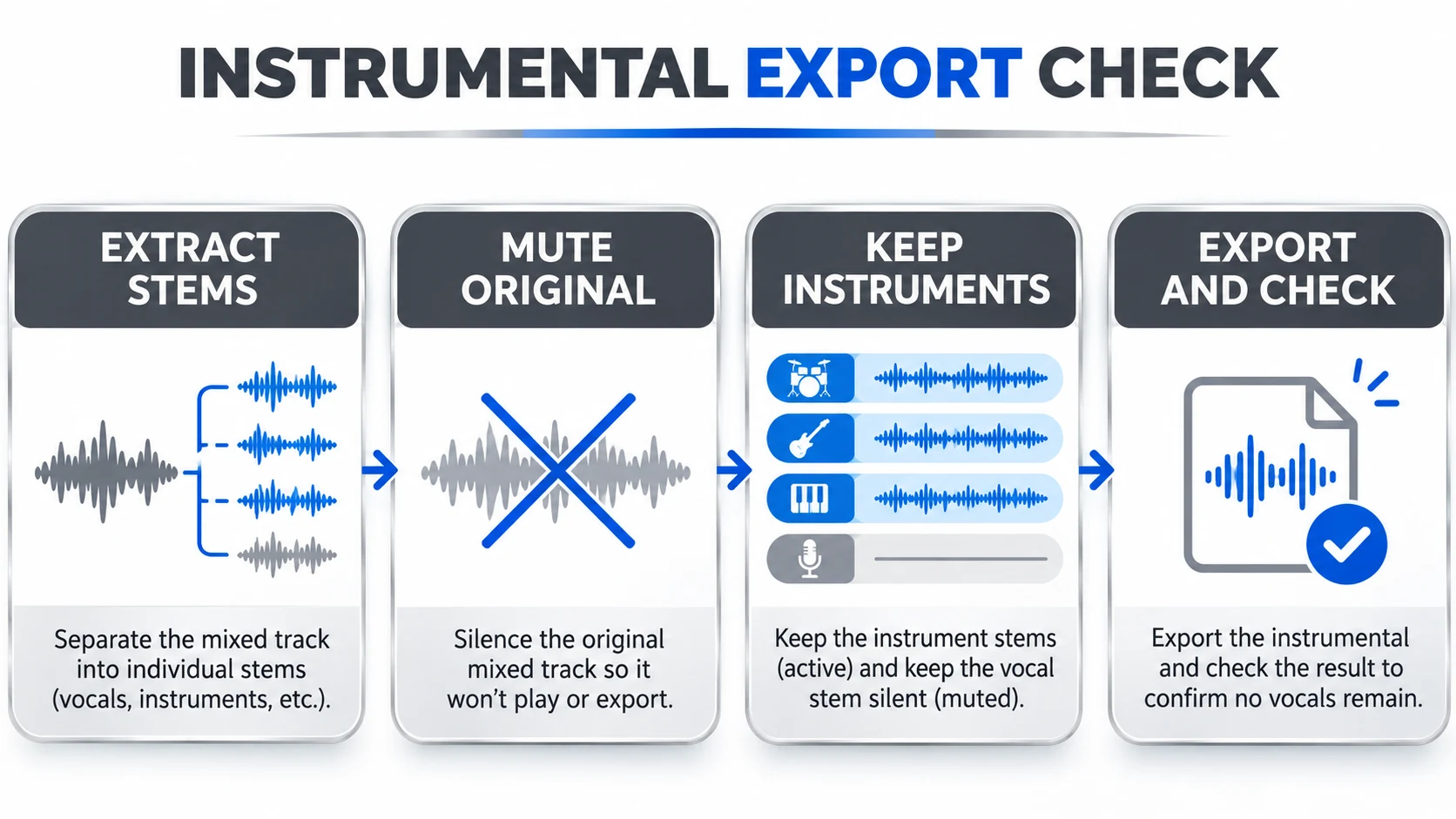
For a single backing track, use File → Export and choose an audio format such as WAV or MP3. Image-Line's export manual explains that the Master mix is the default rendered result. Choose Song mode, check the timeline selection and tail settings, and ensure the desired stems reach the Master.
You do not need Split mixer tracks for a combined instrumental. That option is for separate Mixer outputs and can produce a different set of files from the backing mix you intended. An FLP project and a MIDI file are also different deliverables from playable backing audio.
Keep the session easy to resume
Name the original reference and each stem clearly. Keep a project version before extraction and another after your backing balance is ready. If you later change the key, tempo, or song length, export a new version and repeat the file check.
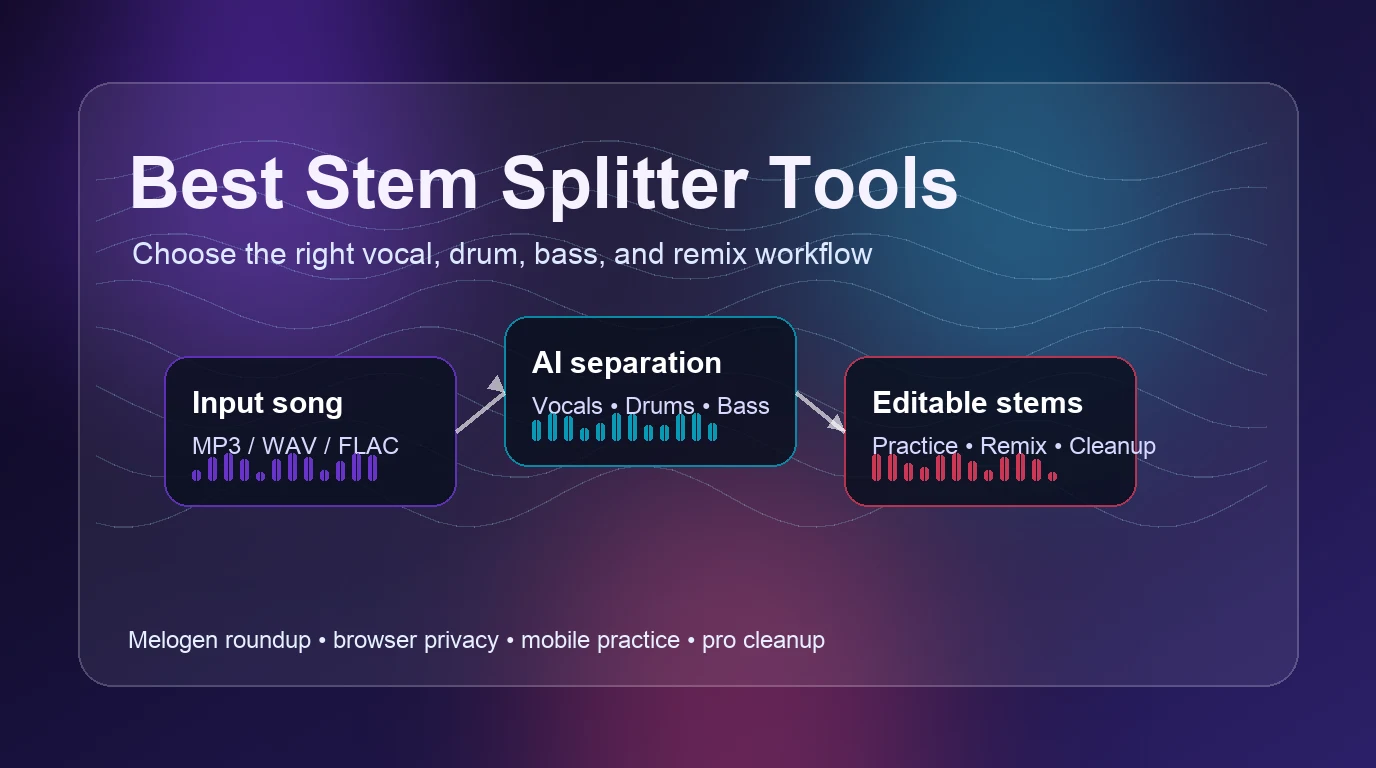
For a separate browser route before returning to FL Studio, Melogen's vocal remover provides instrumental and individual-stem outputs. The stem splitter comparison explains other practice-oriented choices. In either workflow, the useful finish is the same: a verified audio file with the intended instruments and no accidentally active original mix.
About the author
Zhang Guo
Composer - AI Product Manager
AI product manager and digital marketing consultant with a background in music. Creativity is the bridge between rhythm and logic, where musical intuition and mathematical precision can coexist in every meaningful product decision.
Follow on X