How to Remove Vocals in BandLab and Keep the Backing
Use BandLab Splitter to mute vocals, keep the accompaniment, choose the right export, and check the resulting backing track.
 Zhang Guo
Turn a static score into editable MIDI
Contents
To remove vocals in BandLab, open Splitter, import your song, separate the stems, then mute Vocals while leaving the accompaniment audible. For practice, that may be enough. To keep a usable backing-track file, continue to export and check the downloaded audio.
BandLab's current Splitter export respects mute settings: mute Vocals, leave the accompaniment unmuted, then export. You can also open the stems in Studio when you need further arrangement or a mixdown. Use a recording you have permission to edit and keep the original file.
Open Splitter and choose the right split
BandLab's current Splitter guide describes access from Create → Tools in the mobile app and the feed dropdown on web. Import your local song, then choose two stems for vocals versus everything else, or four when you also want separate bass and drums. The guide lists a 15-minute maximum per media file and additional stem options on paid plans; check the choices shown in your account.
For a straightforward karaoke track, a two-stem separation is easier to manage. Four stems help when you want to make the bass louder or drums quieter for rehearsal. Access directly from a Studio region and additional instrument separation may depend on your plan, so use the standalone Splitter route when following a basic workflow.
Mute the vocal lane and clear unwanted solos
Once the split is ready, find Vocals and activate M, the mute control. Leave the instrumental or non-vocal lanes unmuted. Make sure no unintended S solo control remains active.
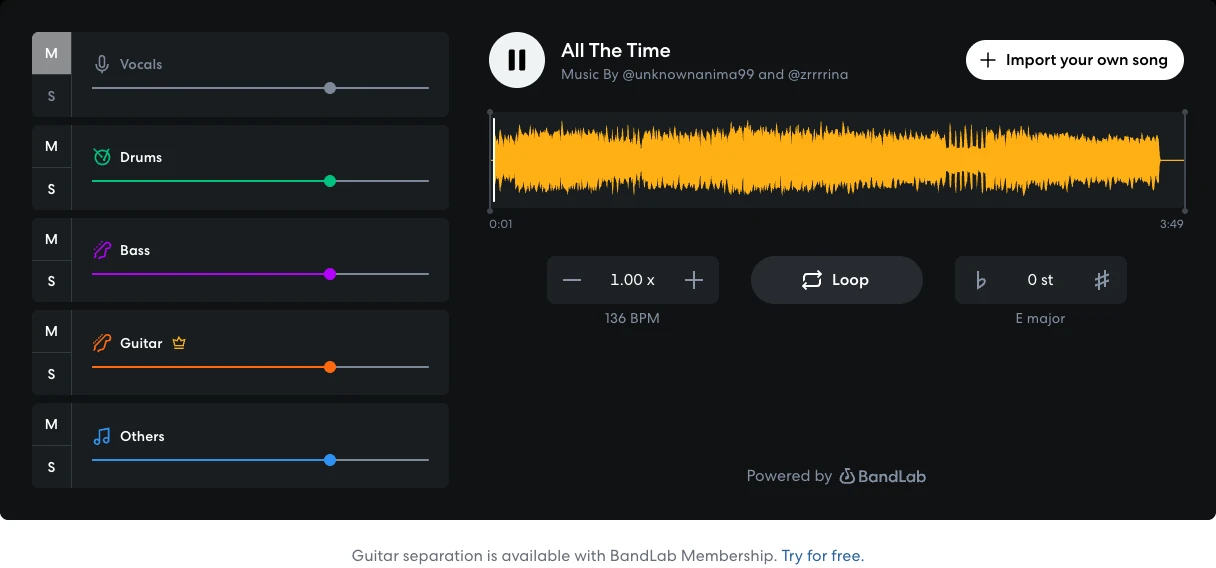
The screenshot shows BandLab's public interactive demo. It illustrates the lane controls; your imported track will have its own file name and separation results.
| Control or choice | What it means | For a backing track |
|---|---|---|
| M on Vocals | Excludes that lane from playback and the Splitter export | Turn it on |
| S on Vocals | Focuses playback on the vocal lane | Turn it off |
| M on Drums, Bass, or Other | Removes part of the accompaniment | Leave off unless intentional |
| A downloaded vocal stem | A separate file containing the estimated voice | Keep only for a vocal task |
| A mixdown with vocals excluded | One combined instrumental audio file | Use for a rehearsal player |
BandLab's public Splitter page lets you explore these M and S controls on its demonstration track. Practice there if you are unsure which is which, then check your own upload.
Check the result before changing its speed or pitch
Listen to the loudest chorus at the original speed and pitch first. Check whether the lead voice has reduced enough for your purpose and whether the instruments still sound usable. Wide backing voices, echoes, and reverberation can survive in the accompaniment.
Once the backing is acceptable, use tempo, pitch, and loop controls for practice. Keep a note of any pitch shift so you do not mistake the altered key for the recording's original key. When you need a final export at another tempo or key, reopen the resulting file and verify that the change is present rather than assuming the player state was baked into it.
A singer may tolerate a faint vocal tail for rehearsal. A producer placing the same tail in an exposed intro may need another source or a better split. Judge it in the passage where the backing will actually be used.
Choose stems or a combined mixdown
For the direct Splitter route, mute Vocals and choose export. The official Splitter guide says only unmuted stems are saved. Check which files your chosen export produces and reopen the accompaniment outside the player.
Use Studio when you need to arrange or rebalance the separated tracks and make a combined mixdown. The BandLab download guide documents Project → Download → Mixdown As in web Studio for a combined file, and separate track-download options for stems.
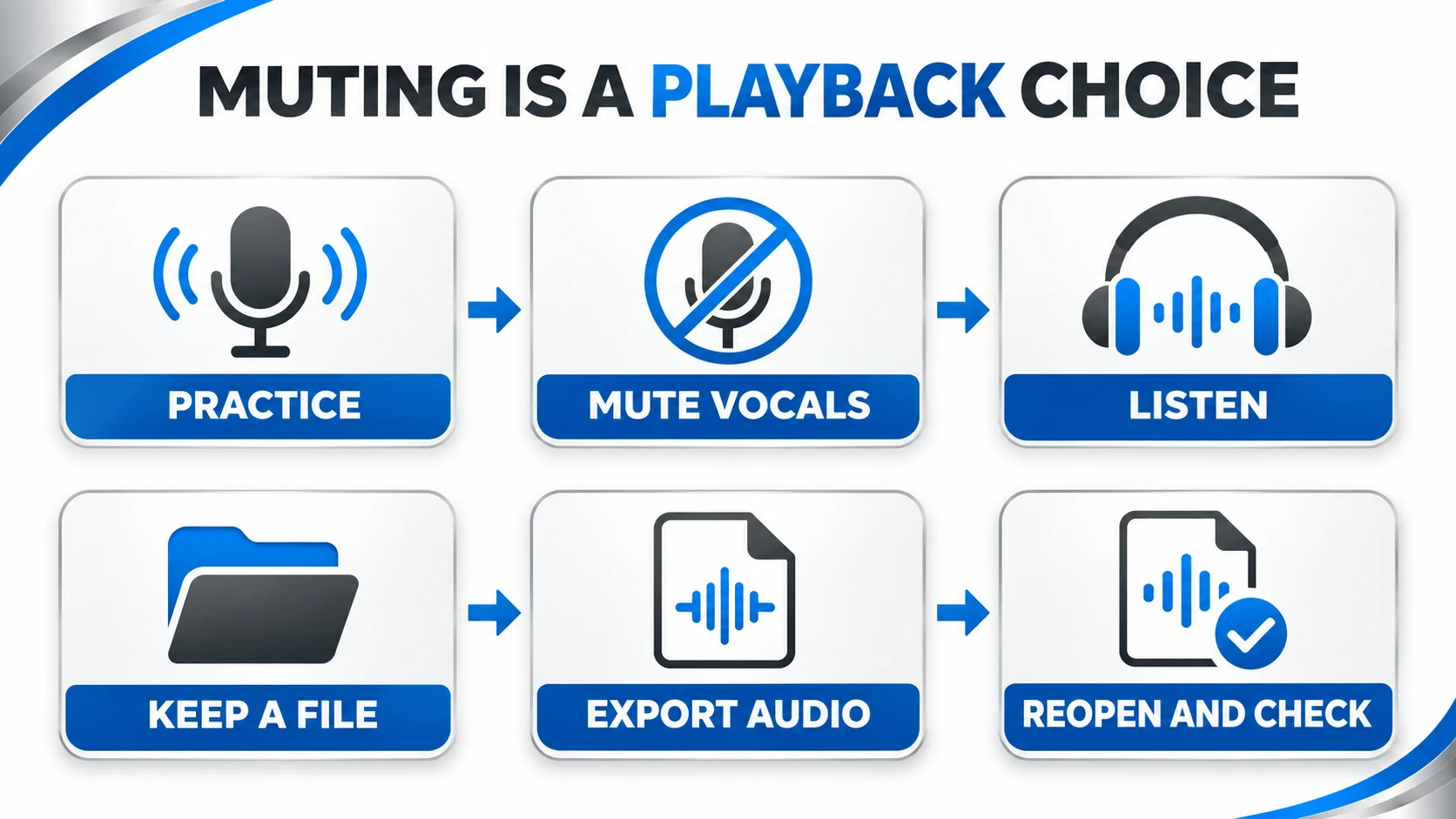
For the Studio mixdown route:
- Open the separated material in Studio using the available Splitter handoff.
- Keep the vocal track muted and make the desired instrumental tracks audible.
- Remove or mute any extra copy of the original full mix.
- Listen through the project, then choose the mixdown download command.
- Download an audio format suitable for your player and reopen it outside Studio.
For separate instrument files, use the stem-download route and retain the original alignment when importing them into another editor. Do not assume a stem-download archive is a combined karaoke mix. A backing track needs an audio export; MIDI is a different output.
Use this rehearsal example as an export check
Suppose you want to practice a chorus from your own three-minute demo. Separate the file, mute Vocals, and loop the chorus for rehearsal. After choosing your balance, export the instrumental mixdown and check these five points:
- The file opens in an ordinary audio player.
- Its length matches the intended song, including the ending.
- Drums, bass, and accompaniment remain audible.
- The original lead vocal is reduced enough at the chorus.
- Any tempo or pitch change you need is actually present in that file.
BandLab's current download documentation says project-section export is unsupported. If you need only the chorus as a separate file, export the mix first and trim a copy in an audio editor. Do not confuse a practice loop with a shorter exported file.
Troubleshoot the three common wrong results
Only vocals play. Clear the vocal solo control and check that the accompaniment lanes are unmuted.
The full singer returns in the export. Check for a second original-song track, confirm you exported the intended Studio version, and reopen the new file rather than an older download.
The accompaniment sounds thin or watery. Compare the busiest and sparsest passages. Separation artifacts are different from a mute-setting error. Try a cleaner source before adding effects.
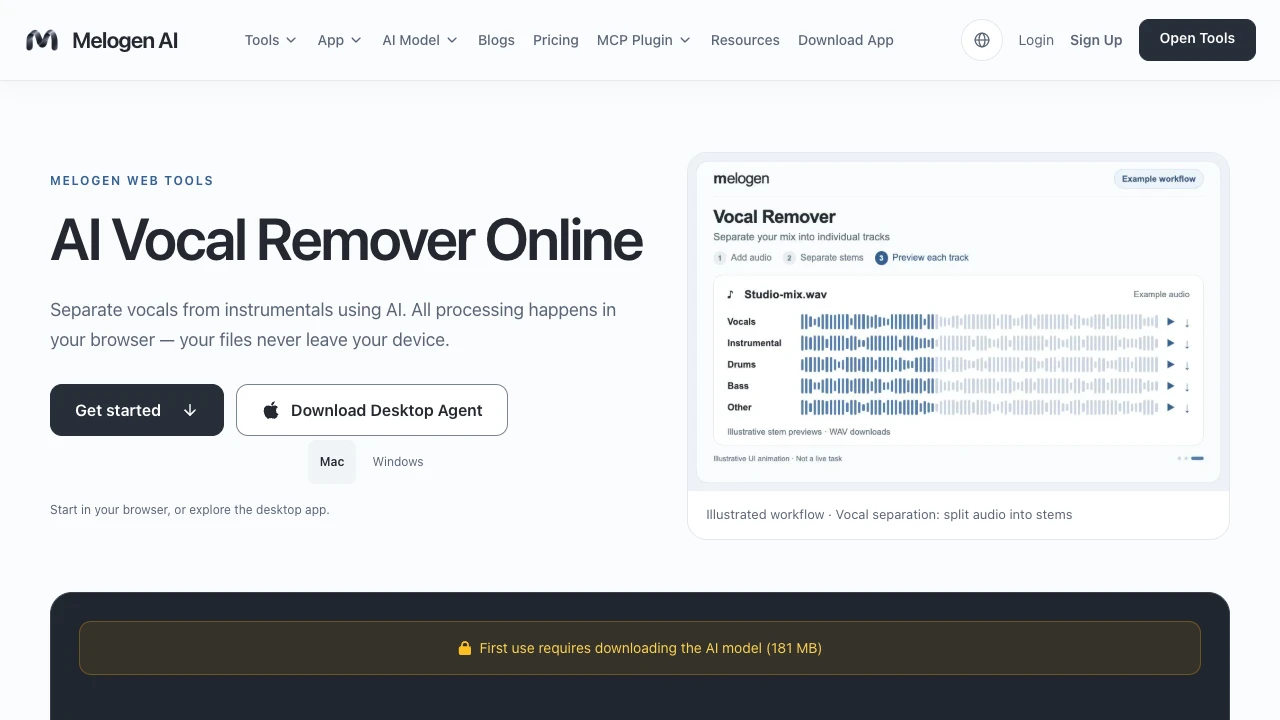
If you need a separate browser workflow with a direct karaoke output, Melogen's vocal remover is another route. For broader practice-workflow choices, see the stem splitter guide. Keep the final check the same in either case: listen to the exported audio by itself.
About the author
Zhang Guo
Composer - AI Product Manager
AI product manager and digital marketing consultant with a background in music. Creativity is the bridge between rhythm and logic, where musical intuition and mathematical precision can coexist in every meaningful product decision.
Follow on X