How to Recover Deleted Spotify Playlists in 2026
Recover deleted Spotify playlists with the 90-day restore path, library checks, missing-song limits, backups, and safe local-audio cleanup.
 Zhang Guo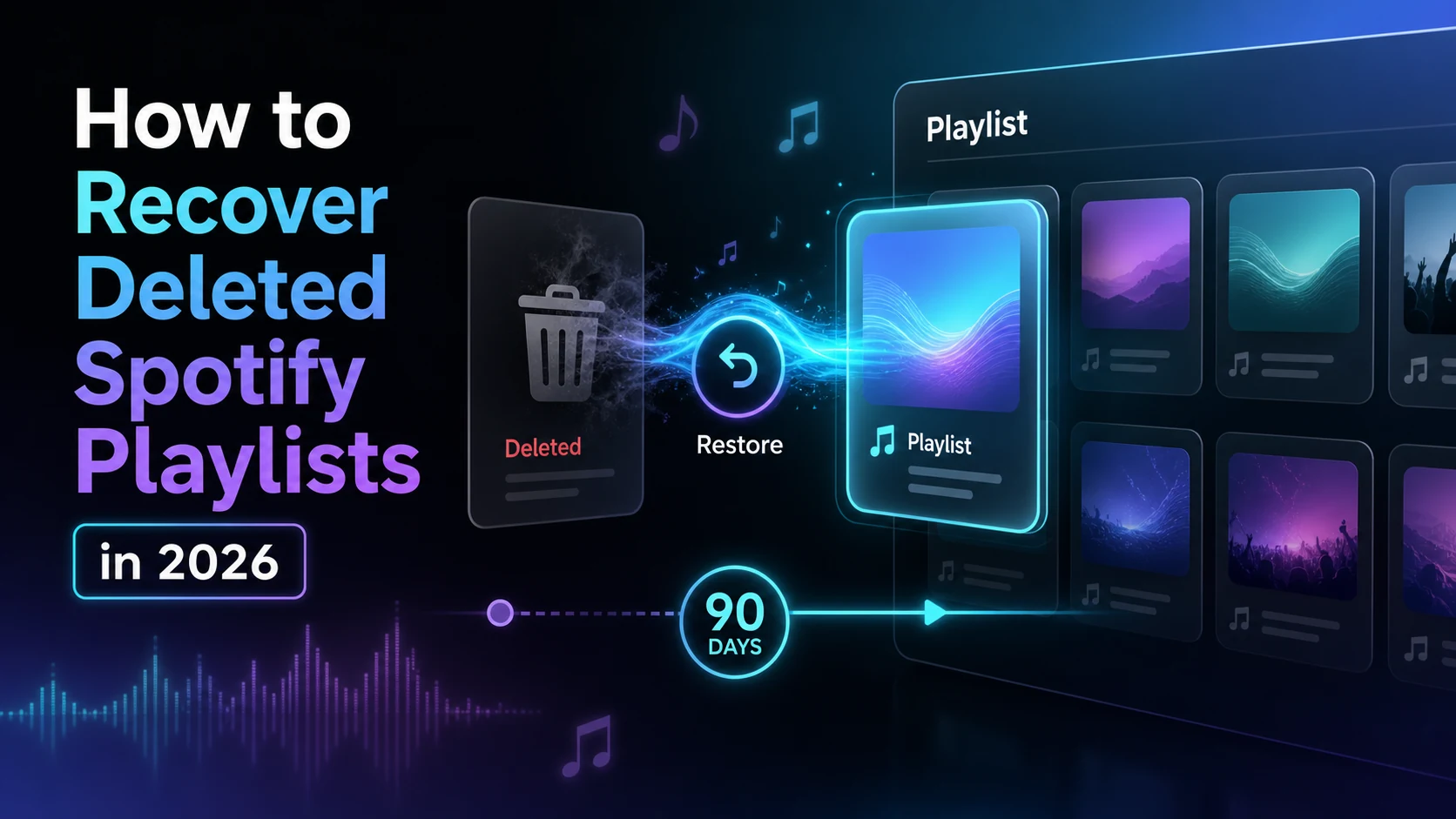
Turn a static score into editable MIDI
Contents
If your search is "recover deleted Spotify playlist," start with Spotify's own restore path before you rebuild the list by hand. Spotify keeps a deleted-playlist recovery window for eligible playlists, and that is the cleanest fix when the whole playlist disappeared from your account.
The confusing part is that "deleted playlist" can mean several different problems. You may have deleted the playlist. Someone may have removed songs from a collaborative playlist. The playlist may be restored but some songs are greyed out. Or you may be looking for local audio that Spotify never stored in its catalog. This guide separates those cases so you do not waste time fixing the wrong layer.
Quick answer
To recover a deleted Spotify playlist, open Spotify's account or support recovery flow, choose the deleted playlist, and restore it while it is still inside Spotify's recovery window. Spotify's public support page currently describes a 90-day recovery window for deleted playlists.
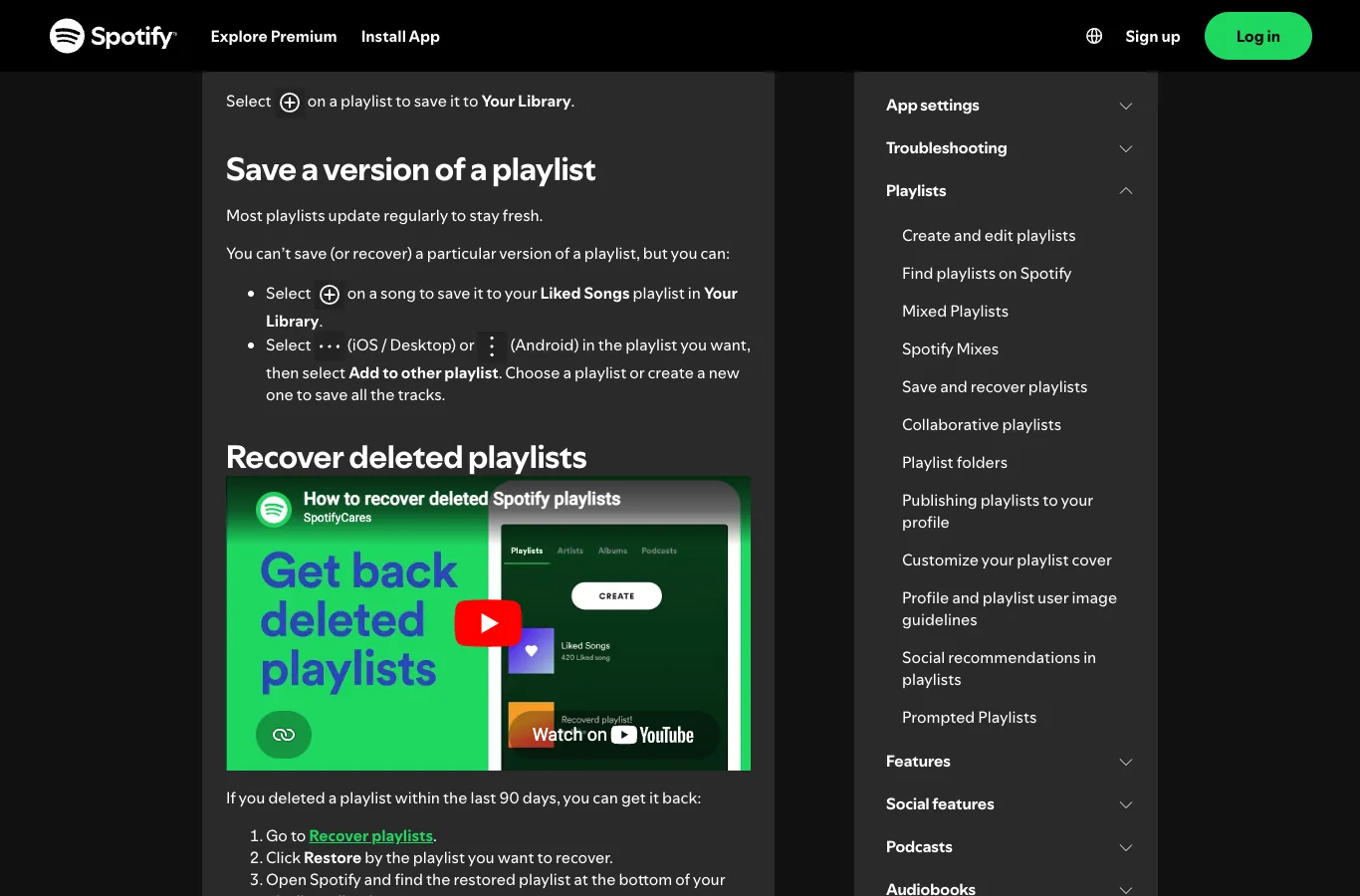
Use this order:
- Sign in to the Spotify account that owned the playlist.
- Open Spotify's Save and recover playlists support page.
- Use the Recover playlists link from the official support/account flow.
- Restore the missing playlist.
- Refresh Spotify on desktop or mobile.
- Open the playlist and check whether any songs are still unavailable, greyed out, or missing.
If the playlist is older than the recovery window, Spotify may not offer a direct restore. At that point, move to backups, shared links, collaborative history, screenshots, exports, or another device that still has useful clues.
Confirm what actually disappeared
Do not assume every missing playlist needs the same fix. The fastest recovery path depends on what disappeared.
| Symptom | Most likely issue | Best first step |
|---|---|---|
| The whole playlist is gone from Your Library | Deleted playlist | Use Spotify's official recovery flow |
| The playlist exists but some songs are gone | Tracks removed, catalog changed, or local files broke | Check playlist history clues and song availability |
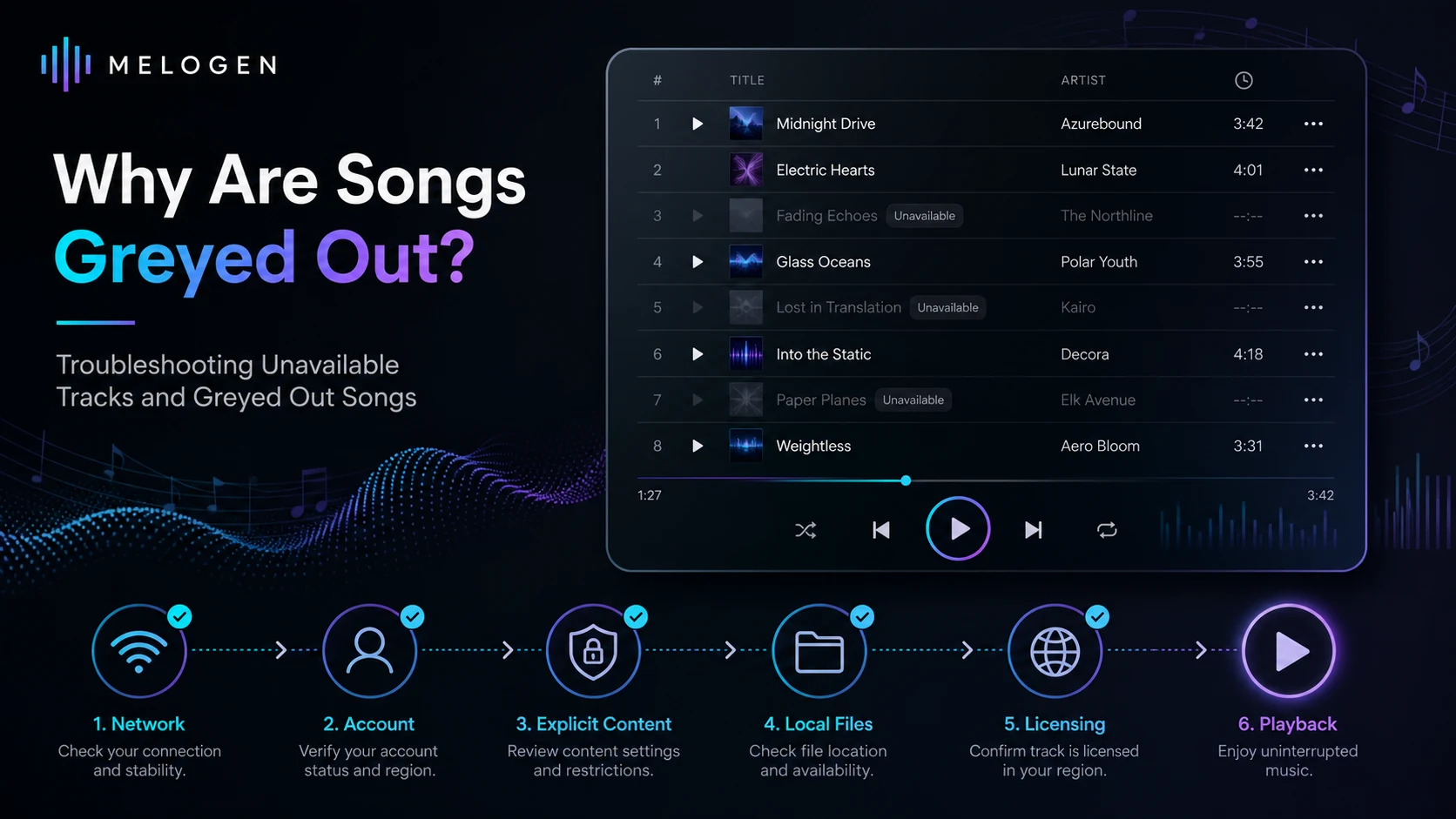
| Songs are greyed out after restore | Licensing, region, explicit filter, offline mode, or local-file path | Diagnose the unavailable tracks |
| A collaborative playlist changed | Another collaborator may have edited it | Check ownership and ask collaborators before rebuilding |
| Local files are missing | Spotify cannot find files on your device | Repair the local-file folder or re-add clean files |
The difference matters because Spotify account recovery can restore a deleted playlist, but it cannot force every streaming track back into the catalog. A playlist is a saved list of references. The songs inside that list still depend on catalog rights, account settings, device state, and local-file access.
Restore the deleted playlist from Spotify
Use the official recovery route first when the entire playlist is missing. Make sure you are signed in with the exact account that created or owned the playlist. If you use Facebook, Apple, Google, email, or multiple Spotify accounts, a playlist can look deleted simply because you are inside the wrong account.
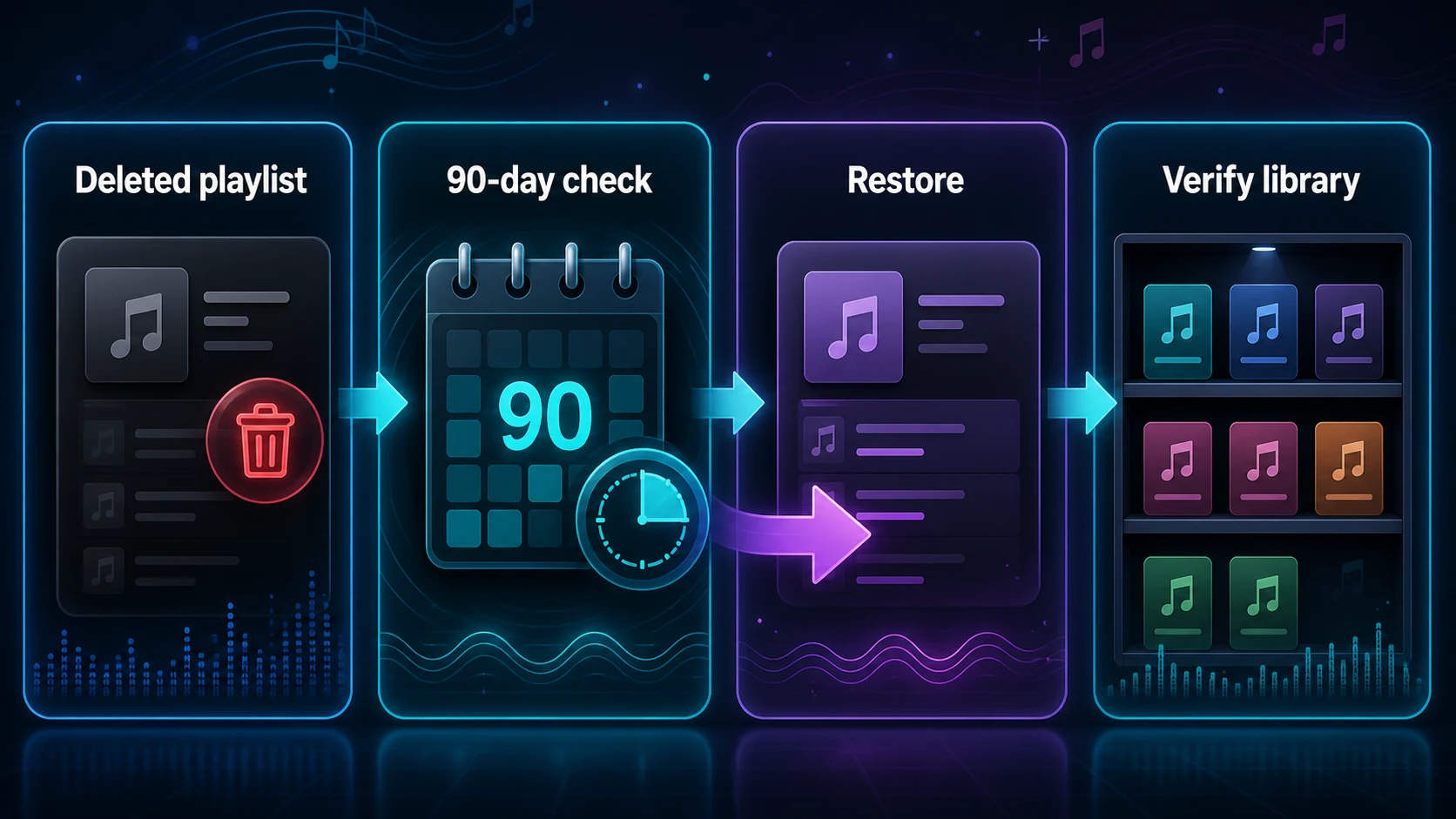
After you restore the playlist, refresh Spotify:
- Close and reopen the Spotify app.
- Check Your Library on desktop first if mobile does not update quickly.
- Search the playlist name inside Your Library.
- Open the playlist and confirm the title, cover, description, and song count.
- Save a backup reference if the playlist matters for work, teaching, rehearsal, or a public music project.
If the playlist does not appear immediately, give the app a short sync window before you start rebuilding. Switching devices can help you tell whether the issue is account recovery or a stale app session.
What Spotify recovery cannot restore
Playlist recovery is powerful, but it is not a magic undo button for every music-library problem.
It usually cannot restore:
| Missing item | Why recovery may not solve it | Better next step |
|---|---|---|
| A song removed from Spotify's catalog | The playlist can point to a track that is no longer playable | Search for another official version |
| A local file that moved folders | Spotify references a file on your device | Restore the file path or re-add the file |
| A track removed by a collaborator | The playlist may still exist, but the track list changed | Ask the owner or rebuild from shared clues |
| An old playlist outside the recovery window | The official recovery option may no longer show it | Use backups, exports, links, and device history |
| A streaming song you want as a local audio file | Spotify does not turn catalog streams into owned files | Use legal purchases, exports, or your own recordings |
If restored songs are greyed out, use the source-first checklist in Spotify Songs Greyed Out Fixes That Actually Help. Grey tracks are often about availability, offline mode, explicit filters, cache, region, or broken local files rather than playlist deletion.
Recover clues when the playlist is gone
If Spotify's recovery page does not show the playlist, shift from account recovery to evidence recovery. The goal is to find enough clues to rebuild the playlist accurately.
Start with places that may still contain the playlist name or track order:
- Old Spotify share links in messages, notes, social posts, or emails.
- Screenshots of the playlist page.
- Collaborative playlist messages with friends or bandmates.
- Export files from playlist-transfer tools you used legally in the past.
- Another device where Spotify has not refreshed recently.
- Public profile pages, if the playlist was public.
- Calendar notes, rehearsal plans, DJ prep notes, or teaching documents that mention the playlist.
If the playlist was used for a real workflow, rebuild around the job rather than chasing memory alone. A teaching playlist might need examples in concept order. A rehearsal playlist might need the set list. A running playlist might need tempo and energy continuity. A production-reference playlist might need genre, mix target, vocal style, and arrangement notes.
Fix restored playlists with missing or grey songs
After a successful restore, scan the playlist before you celebrate. A restored playlist can still contain tracks that Spotify cannot play.
Use this triage:
| Check | Why it helps | Safe action |
|---|---|---|
| Search the same song and artist | Finds newer album, deluxe, clean, remaster, or single versions | Replace the unavailable entry with an official playable version |
| Test another device | Separates account/catalog issues from app state | Refresh or update the problem device |
| Check explicit settings | Explicit filters can grey out tracks | Adjust settings only if appropriate for the account |
| Turn off Offline Mode | Offline Mode can hide non-downloaded playback | Reconnect and retest the playlist |
| Check Local Files | Local tracks depend on your device folder | Restore the file or re-add a clean copy |
For broader playlist cleanup, use How to Edit Spotify Playlists and Songs. That guide covers playlist ordering, folders, local files, and the boundary between editing a playlist and editing audio.
Protect important playlists before the next accident
The best recovery workflow is the one you do before anything breaks. If a playlist matters, keep a lightweight backup habit.
Good backup habits:
- Keep a plain-text note with the playlist name, purpose, and a few anchor tracks.
- Save screenshots before major edits.
- Duplicate important playlists before a big cleanup session.
- Keep collaborative playlists owner-controlled when the list is mission-critical.
- Export legal reference data through trusted tools when the playlist supports work.
- Keep local files in one stable folder with descriptive filenames.
Do not treat a playlist as the only copy of a music project. Spotify is excellent for organization and playback, but it is not an archive for your original recordings, purchased files, lesson audio, rehearsal cuts, or client references.
Where Melogen fits
Melogen cannot recover a Spotify account, restore a deleted streaming playlist, unlock unavailable catalog tracks, or convert Spotify streams into owned files. Keep those tasks inside Spotify's official account, support, and library tools.
Melogen is useful after you know the audio is yours or legally stored on your device. If a recovered playlist reminds you that your own demo, lesson clip, voice memo, rehearsal export, or purchased track needs cleanup before it goes back into a playlist, prepare that file first.
Trim owned audio after Spotify recovery
Use Melogen only when the source is a permitted local file and the next job is trimming, previewing, or preparing a clean clip.

Use Melogen Music Trimmer for owned local audio when you need to remove silence, trim a rough ending, or prepare a cleaner listening copy before adding it with Spotify Local Files. If you need the full local-file setup, read Add Local Files to Spotify.
The safe workflow is simple:
- Restore or rebuild the Spotify playlist.
- Identify which missing tracks are catalog songs, local files, or your own audio.
- Fix Spotify settings and availability issues inside Spotify.
- Clean only the audio files you own or have rights to edit.
- Add the cleaned local file back to Spotify and test playback.
Final checklist
Before you stop troubleshooting, confirm these five points:
| Question | Done when |
|---|---|
| Did you use Spotify's official recovery route? | The deleted playlist either appears again or is not listed for recovery |
| Are you in the right account? | The account owns the missing playlist or has clear access to it |
| Are the songs playable? | The restored playlist opens and unavailable tracks are identified |
| Are local files stable? | Owned files live in one folder and still play after Spotify refreshes |
| Is the playlist protected? | You have a note, duplicate, screenshot, export, or backup habit for important lists |
If Spotify can restore the playlist, use that path. If Spotify restores the list but not every song, troubleshoot availability and local files. If the playlist is outside the recovery window, rebuild from clues and protect the new version immediately.
About the author
Zhang Guo
Composer - AI Product Manager
AI product manager and digital marketing consultant with a background in music. Creativity is the bridge between rhythm and logic, where musical intuition and mathematical precision can coexist in every meaningful product decision.
Follow on X