Spotify Songs Greyed Out Fixes That Actually Help
Fix Spotify songs greyed out with a source-first checklist for unavailable tracks, offline mode, explicit filters, local files, cache, and safe next steps.
 Zhang Guo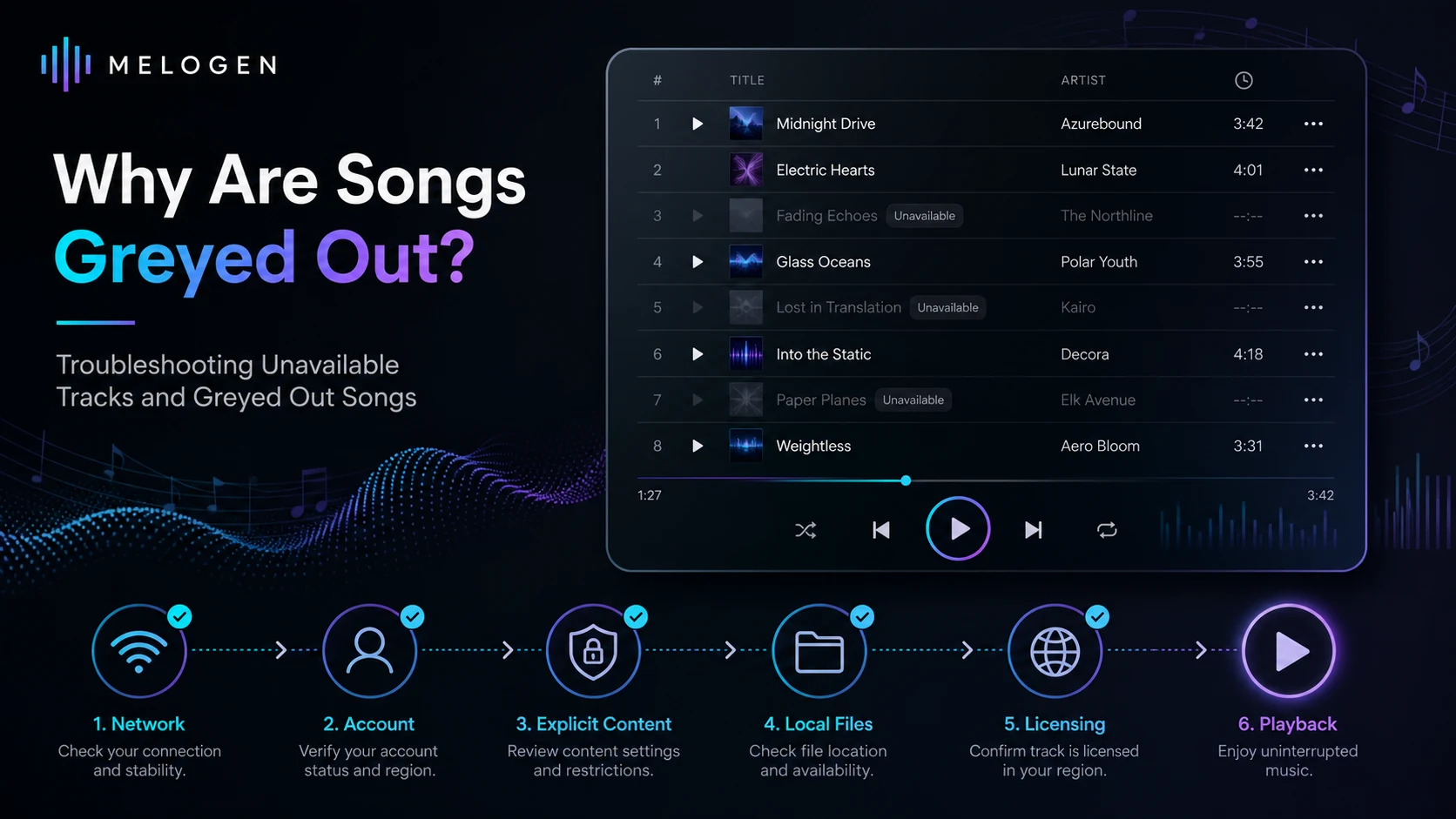
Turn a static score into editable MIDI
Contents
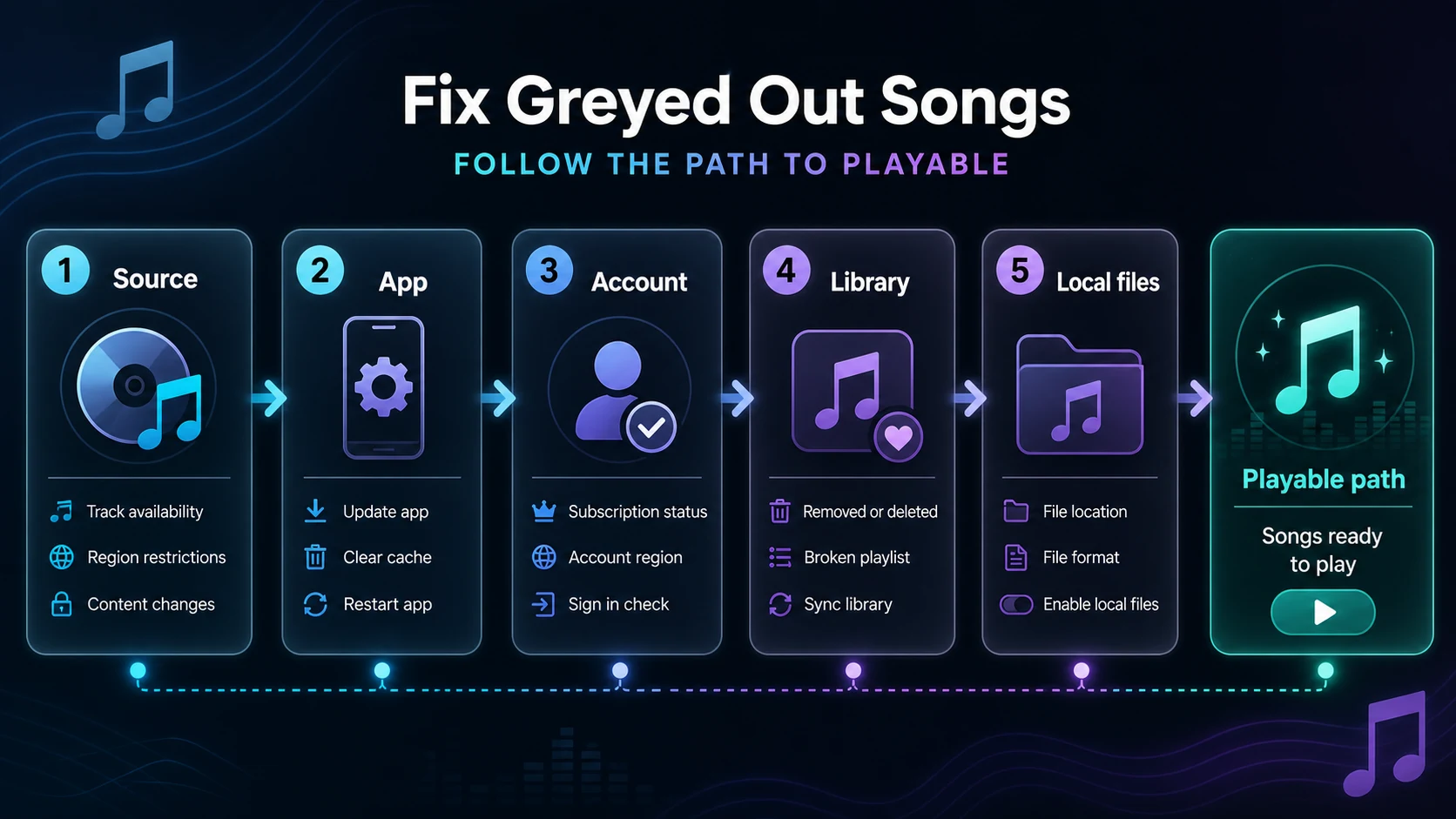
If your search is "Spotify songs greyed out," do not start by reinstalling the app or hunting for a converter. A grey track usually means one of five things: Spotify cannot play the track in your current source, the app is offline or stale, the account setting blocks it, the playlist/local-file reference is broken, or the track is no longer licensed in your region.
The useful fix is to identify which layer failed first. Some greyed out songs can be restored in minutes. Others are availability issues you cannot force back from your device.
Quick triage for Spotify songs greyed out
Use the symptom before you change settings. It keeps you from deleting downloads, cache, or local-file folders when the real issue is licensing or a hidden explicit filter.
| What you see | Most likely cause | First fix to try |
|---|---|---|
| One track is grey everywhere | The track is unavailable in your market or catalog | Search the song title and artist for another version |
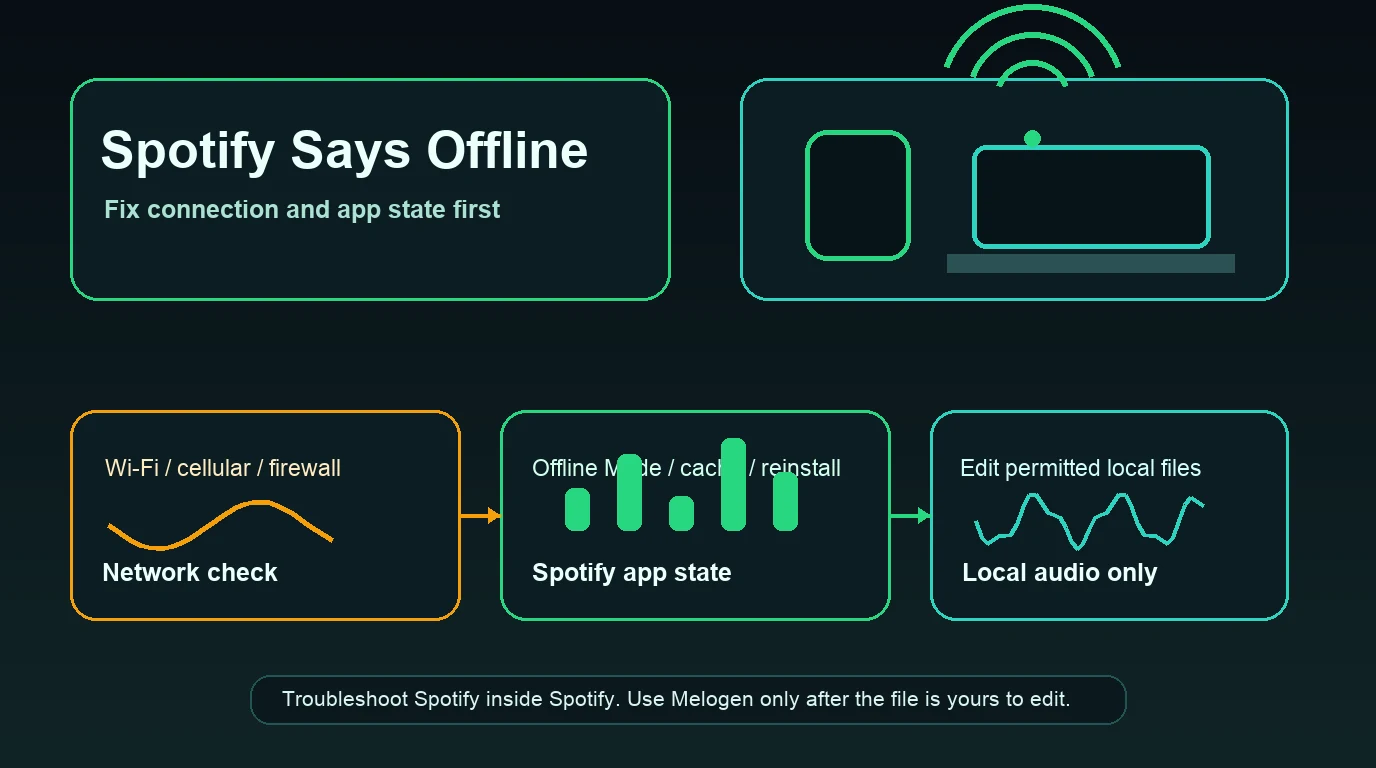
| Many tracks are grey on one device | Offline mode, cache, app state, or network issue | Turn off Offline Mode, reconnect, then restart Spotify |
| Explicit songs are grey and skipped | Explicit content is blocked | Check explicit content settings or Family plan controls |
| Local files are grey | Spotify cannot find or access the file | Re-enable Local Files and confirm the folder path |
| Songs are grey after playlist edits | The playlist points to removed, replaced, or hidden content | Re-add the track from search or restore the right playlist version |
Start with source and availability
Spotify's official not playing help page is blunt about grey tracks: check that the device is not offline, check the connection, and remember that songs can be greyed out when they are not available in your market.
That last point matters. If a track is grey on your phone, desktop app, web player, and another account in the same region, it is probably not a cache problem. It may be unavailable because of licensing, territory, a removed upload, a replaced release, or a rights change from the distributor.
Run this low-risk source check:
- Search the exact song and artist in Spotify.
- Open the album page, not only your saved playlist.
- Try another version, such as a deluxe edition, remaster, single, clean version, or compilation.
- Test one other device or the web player.
- If the same track stays grey everywhere, treat it as catalog availability rather than a local app bug.
If a different version plays, replace the playlist entry with the playable version. If no version plays, waiting or choosing another source is usually the honest answer.
Repair app state before deleting downloads
When many songs turn grey on one device, work through reversible fixes first. Spotify can look unavailable when the app is offline, the network is unstable, the account session is stale, or the cache is stuck.
Use this order:
| Step | Why it helps | What to avoid |
|---|---|---|
| Turn off Offline Mode | Offline Mode limits playback to downloaded content | Do not assume Premium fixes a non-downloaded track |
| Switch networks | Confirms whether Wi-Fi, mobile data, VPN, or firewall is blocking playback | Do not change account country during a quick test |
| Restart Spotify | Clears a temporary playback state | Do not reinstall before a restart |
| Update Spotify | Fixes app-version playback bugs | Use the official app store or Spotify installer |
| Clear cache | Removes stale local playback data | Expect some downloads or temporary data to rebuild |
Spotify's Listen Offline page explains that downloads play automatically without internet, but Offline Mode is specifically for playing only downloaded content. If a playlist mixes downloaded songs with non-downloaded songs, that can make the non-downloaded tracks look unavailable during an offline test.
If storage looks tight, Spotify's storage information page says the app uses device memory for cache and downloaded content, and recommends keeping at least 1GB free. Clear cache as a targeted app repair, not as a first response to every grey song.
Check account, explicit, and region settings
If the greyed out songs share a pattern, look at account settings before you blame the playlist.
Spotify's explicit content settings page says explicit tracks are greyed out and skipped when explicit content is switched off. Family plan managers can also block explicit content for other members. That means a song can look broken even though the catalog is fine.
Check these account-side causes:
- Explicit content is blocked on your account or managed profile.
- The account country does not match where you are using Spotify.
- A free account has been used abroad longer than Spotify allows.
- You are signed into a different account than the one that saved the playlist.
- The playlist owner removed, hid, or replaced the song.
If Spotify keeps pushing you out of sessions, fix that first with the Spotify keeps logging me out checklist. If the web player behaves differently from the app, use the Spotify Web Player not working guide to separate browser state from account state.
Fix greyed out local files
Local files are different from Spotify catalog tracks. If a local file is grey, Spotify usually cannot see the file, cannot access the folder, or cannot play the format from that device.
Spotify's Local Files help page gives the right direction: enable local files, choose the folders Spotify can access on desktop, and enable local audio files on mobile where supported.
Use this local-file checklist:
- Confirm the audio file still exists in the same folder.
- Make sure the file is not on an unplugged external drive.
- Turn on Local Files in Spotify settings.
- Add the correct folder as a source.
- Keep the phone and computer on the same network if you are syncing local files.
- Use a common playable format rather than an unusual export.
For a deeper local-file walkthrough, use the Add Local Files to Spotify guide. The key boundary is simple: local files are your files. They are not a way to recover licensed Spotify tracks that Spotify itself cannot play.
When a greyed out song cannot be fixed locally
Some greyed out Spotify songs are not device problems. If the track is unavailable because of licensing, region, distributor changes, or a removed release, a local reinstall will not restore it.
Here is the practical decision:
| Situation | Can you fix it locally? | Best next step |
|---|---|---|
| Offline Mode is on | Yes | Turn it off or download the track if you have Premium |
| Explicit content is blocked | Yes, if you control the setting | Re-enable explicit playback or ask the Family manager |
| Local file path changed | Yes | Restore the file path or re-add the folder |
| Track removed from Spotify | Usually no | Search for another official version |
| Track not licensed in your region | No local fix | Use another legal source or wait for availability |
Avoid the trap of treating every grey song as a download problem. If the music is not available through Spotify in your region, a converter does not solve the underlying right to access it. It only adds risk.
Where Melogen fits after Spotify is clear
Melogen does not unlock greyed out Spotify catalog tracks, bypass region limits, or repair Spotify licensing. It helps after you already have audio you are allowed to edit: a rehearsal recording, a purchased file, a lesson cue, a voice memo, a demo export, or a local file you are preparing before adding it to Spotify.

Use Melogen Music Trimmer when your own audio file needs a clean start, shorter ending, fade, or clip export before it goes back into a lesson, playlist, or practice workflow. Keep the workflow clean: fix Spotify availability in Spotify, then use Melogen for audio files you have the right to edit.
Prepare clean clips after Spotify is sorted
Use Melogen Music Trimmer for audio files you are allowed to edit, then bring the finished clip back into your listening or lesson workflow.
FAQs
Why are Spotify songs greyed out but still visible?
Spotify can still show tracks that are currently unavailable, hidden, blocked by settings, or referenced from a playlist. Visibility does not always mean the track can be played in your account, region, device state, or local-file setup.
Does Spotify Premium fix greyed out songs?
Premium can help when the problem is offline listening or downloads, but it does not override region availability, removed tracks, explicit restrictions, broken local-file paths, or account-country issues.
Why are explicit songs greyed out on Spotify?
Explicit content may be switched off on your account or managed by a Premium Family plan owner. Spotify says explicit tracks are greyed out and skipped when explicit content is blocked.
Why are my local files greyed out in Spotify?
Spotify may not have access to the folder, the file may have moved, the external drive may be disconnected, or local files may be disabled in settings. Re-enable Local Files and verify the exact folder path.
Should I reinstall Spotify to fix greyed out tracks?
Not first. Start with source availability, Offline Mode, network, explicit settings, account state, and local-file paths. Reinstall only after easier app-level fixes fail on one device.
The practical takeaway
Greyed out Spotify songs are easiest to handle when you separate fixable settings from catalog availability. Fix Offline Mode, network, cache, explicit settings, and local-file paths first. Replace broken playlist entries with playable versions when you can. If the track is unavailable because of licensing or region, do not fight the app. Choose another official version or another legal source, and use Melogen only for owned audio cleanup after you have a file you are allowed to edit.
About the author
Zhang Guo
Composer - AI Product Manager
AI product manager and digital marketing consultant with a background in music. Creativity is the bridge between rhythm and logic, where musical intuition and mathematical precision can coexist in every meaningful product decision.
Follow on X