Set Apple Music as Alarm Sound on iPhone
Set Apple Music as an alarm safely across iPhone, HomePod, Android, and local audio workflows without confusing streams with editable files.
 Zhang Guo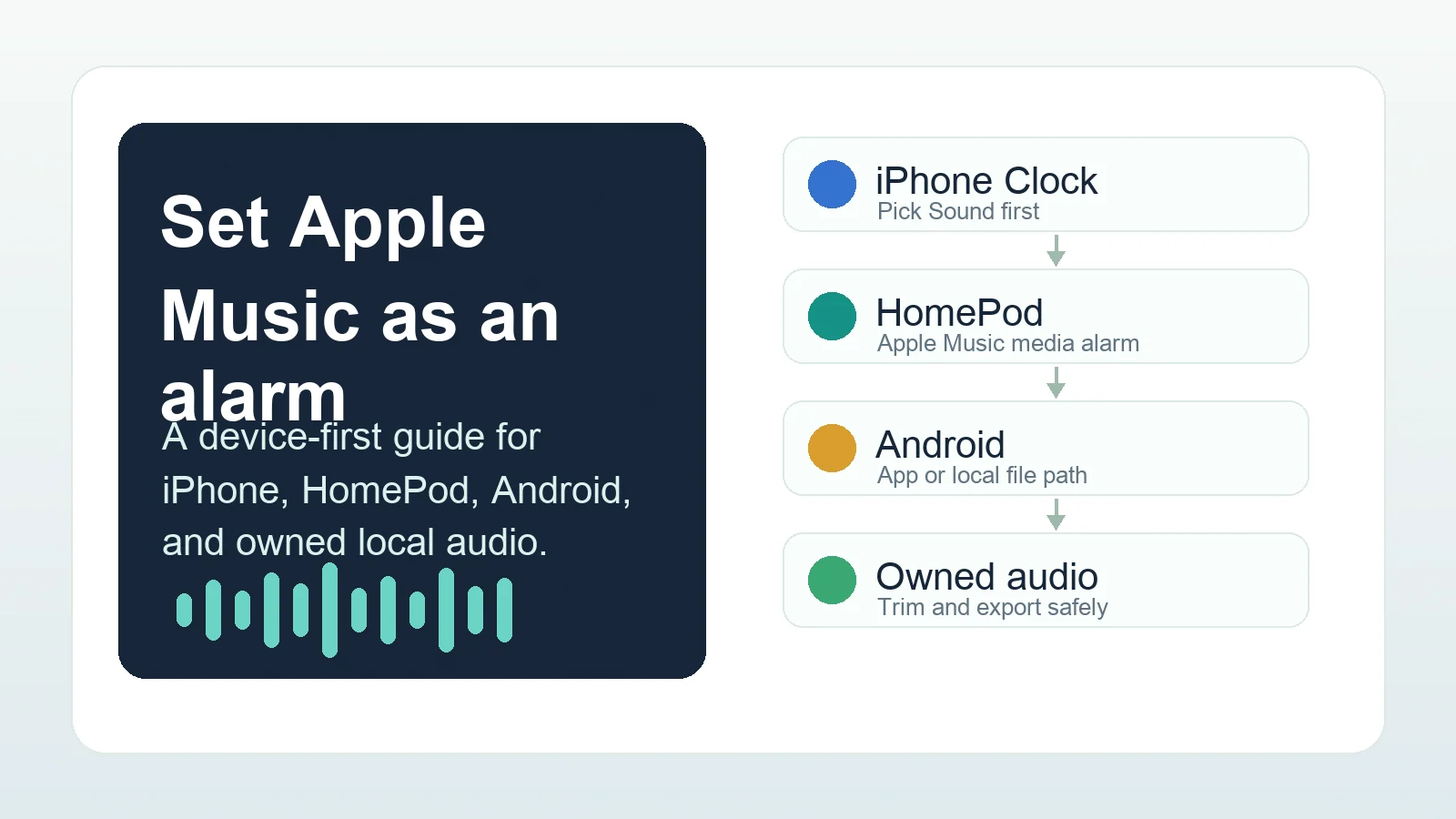
Turn a static score into editable MIDI
Contents
If you want to set Apple Music as alarm sound, start with the device, not the song. A normal iPhone alarm, a Sleep Schedule wake-up alarm, a HomePod alarm, and an Android alarm app do not use the same media picker. Some paths can use a song from your music library; others are better handled as local alarm tones or device-specific media alarms.
The safe answer is simple: use Apple Music directly only when the alarm workflow officially exposes it. If the alarm app asks for a local file or ringtone, use audio you own, created, purchased DRM-free, or are licensed to edit. Do not treat Apple Music subscription streams as raw files you can force into every alarm picker.
Quick answer
For most readers, the right route is one of these:
| Device or goal | Best route | What to check first |
|---|---|---|
| Regular iPhone alarm | Clock app > Alarm > Sound > choose a song or ringtone if the picker offers it | The song appears in the Sound picker and the alarm volume is audible |
| iPhone Sleep Schedule | Edit the wake-up alarm inside Sleep or Health settings | Sleep sounds are separate from normal Clock alarms |
| HomePod alarm | Home app > HomePod alarm > Play Media > Choose Media | Apple Music subscription, HomePod availability, and custom volume |
| Android phone | Use the local alarm sound picker or an alarm app that supports your source | Whether that exact Clock app can browse Apple Music or only local files |
| Custom local alarm tone | Prepare an owned local clip, then use the device ringtone or alarm-file path | The source is legal to edit and short enough for the alarm workflow |
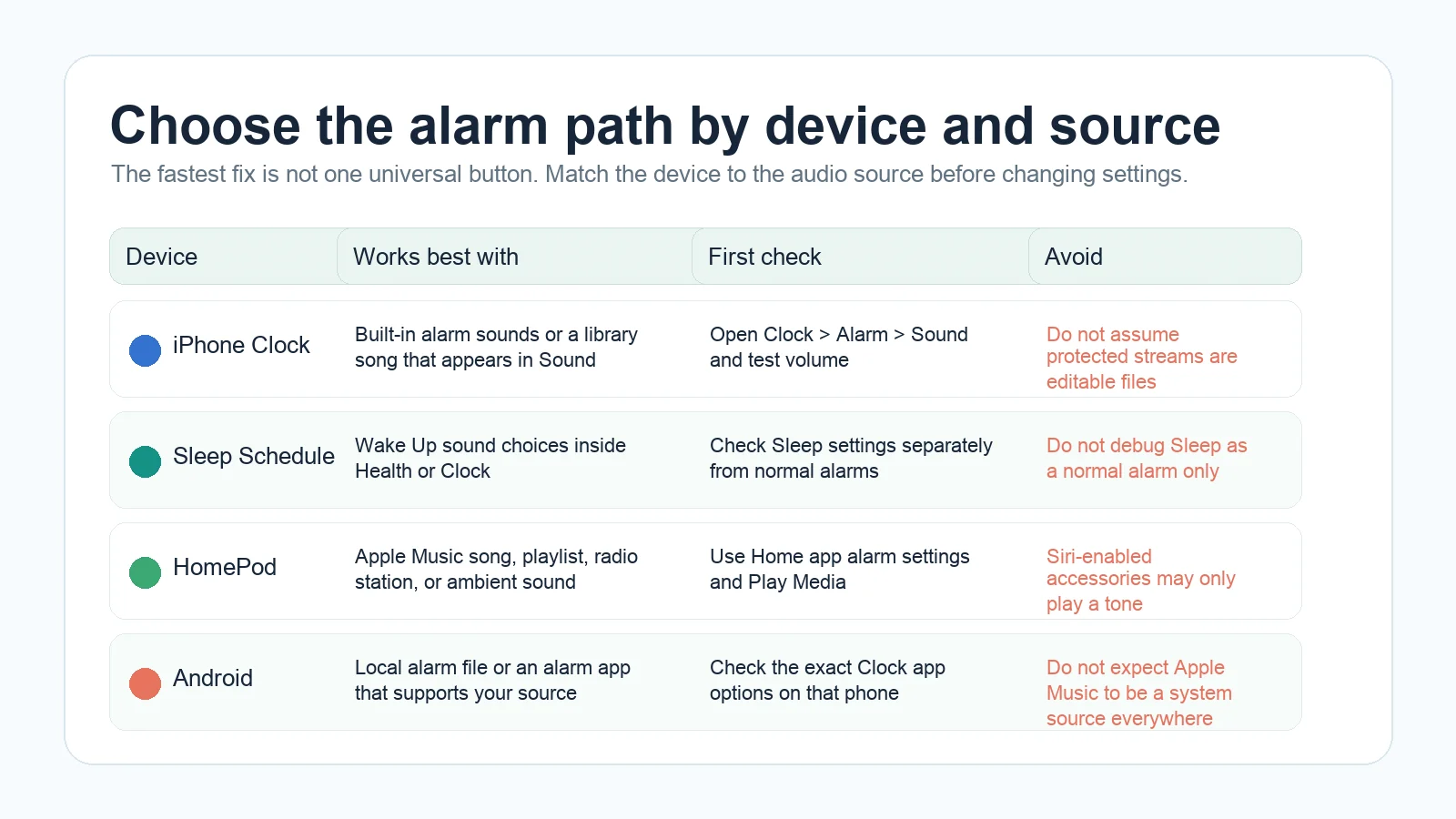
If your goal is a custom tone made from music you control, Melogen's Music Trimmer can help you cut the short clip before you move into the phone-specific alarm workflow. If your goal is to solve a broken Music app first, use the broader Apple Music problems checklist before editing any files.
Set Apple Music as an iPhone alarm
For a normal iPhone alarm, use Clock rather than Sleep Schedule. Apple's iPhone user guide says the alarm Sound option can choose a vibration, song, or ringtone, while Apple's shorter alarm support page explains that Sound is where the alarm sound is selected.
Use this path:
- Open the Clock app on iPhone.
- Tap Alarms.
- Tap + for a new alarm or edit an existing alarm.
- Tap Sound.
- If the Songs section appears, use Pick a Song and choose the song from your library.
- Go back to the alarm screen and tap Save or Done.
- Test the alarm with the phone awake before relying on it.
Two details matter more than most guides admit. First, the alarm volume follows the iPhone ringtone and alerts volume, not just the media volume you use while listening to Apple Music. Second, a song that plays in the Apple Music app does not guarantee that every alarm, ringtone, or export workflow can use it as a normal file.
Apple's iPhone Clock guide is the best official reference for the regular alarm path. Apple's iPhone alarm support page is useful for volume, headphones, silent mode, and the Sound setting.
Do not confuse Sleep Schedule with normal alarms
The Sleep Schedule wake-up alarm is a different workflow. It is useful if you track bedtime, wind down, and wake-up routines, but it does not behave like a generic alarm row in Clock.
Use a regular Clock alarm when:
- You only need one Apple Music song or ringtone as a wake-up sound.
- You want to edit the sound quickly from the Clock app.
- You are testing whether a specific song appears in the alarm picker.
Use Sleep Schedule when:
- You care more about bedtime, wake-up schedule, and sleep tracking.
- You are fine using the sounds exposed inside that wake-up flow.
- You want the alarm connected to Health and Sleep settings.
If a tutorial tells you to fix Apple Music alarm problems from Sleep settings but you are editing a normal alarm, stop and switch back to Clock. The two flows can look similar, but they are not the same job.
Set Apple Music as a HomePod alarm
HomePod is the cleanest Apple Music alarm path because HomePod alarms can use media directly. Apple's HomePod guide says that if you have Apple Music, you can choose a song, playlist, or radio station as the alarm media. It also notes that Siri-enabled accessories cannot play media for an alarm and will play a tone instead.
Use this path:
- Open the Home app on your iPhone or iPad.
- Touch and hold the HomePod.
- Tap an existing alarm or create a new one.
- Tap Play Media.
- Tap Choose Media.
- Pick a song, playlist, or radio station.
- Set repeat, shuffle, or custom volume if needed.
- Tap Done.
This is different from trying to turn an Apple Music track into a local ringtone. HomePod is playing media as an alarm through a supported Apple device workflow. The song does not need to become an editable audio file first.
Use Apple's HomePod alarms guide for the current Home app steps, especially if your interface changes with HomePod software updates.
Use Android carefully
Android is less predictable because the Clock app depends on the phone maker and app version. Some Android alarm apps can connect to supported streaming services. Others only accept built-in sounds or local audio files. Apple Music availability inside the Apple Music app does not automatically make Apple Music a system-wide alarm source.
Use this decision path:
- Open the Android Clock app.
- Edit an alarm and open the sound picker.
- Check whether it offers Apple Music or only local sounds.
- If it only offers local files, use a local audio file you are allowed to edit.
- If a third-party alarm app claims streaming support, check the supported services inside that app before building the alarm around it.
If the phone wants a local alarm file, treat that as a local-file workflow. Do not download a subscription stream with a random converter just to satisfy a clock app. If you own the source audio, cut a short clip, export it, and then follow the device's normal local alarm path.
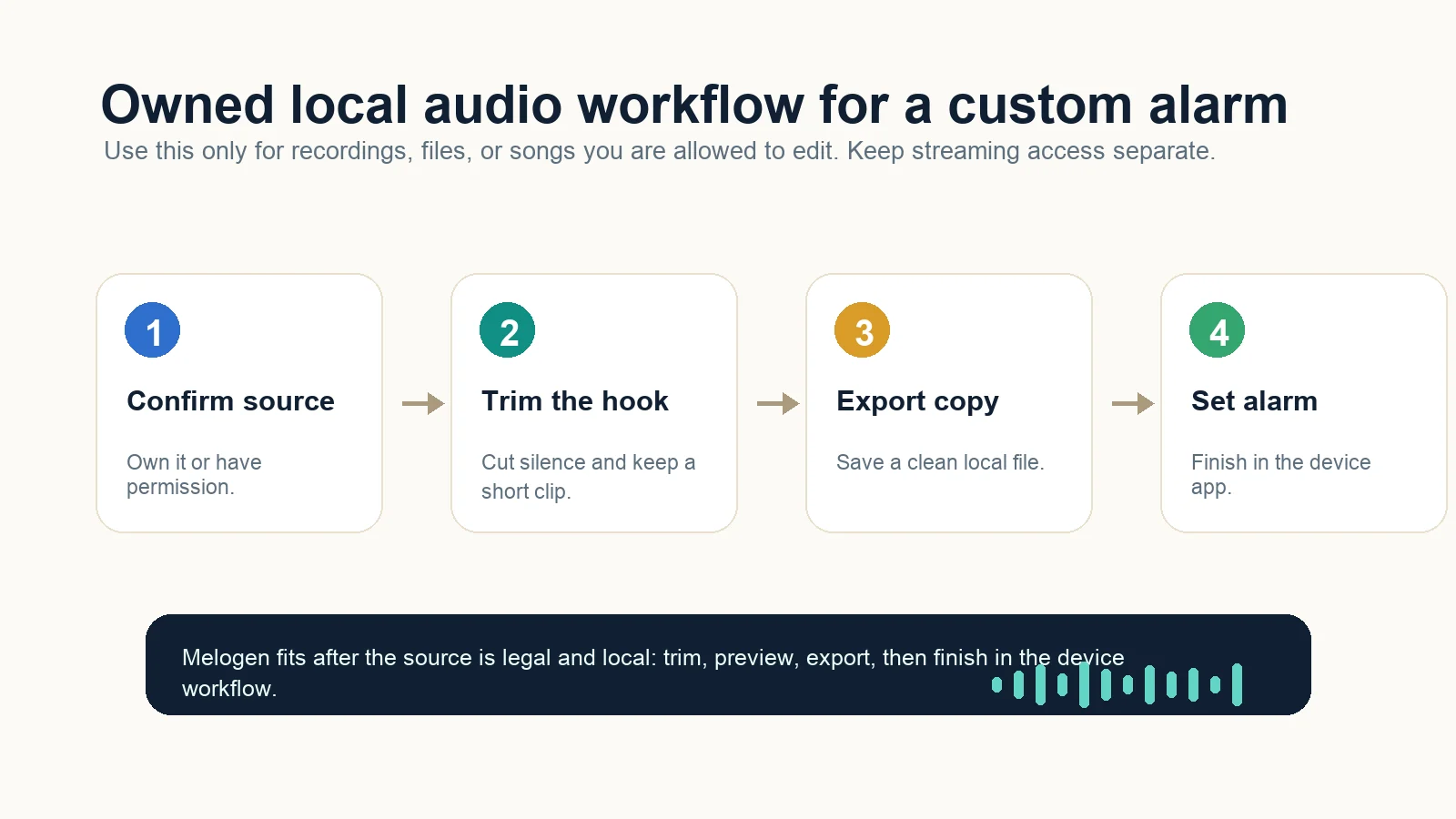
Prepare an owned local clip with Melogen
Melogen is useful when the source is already yours to edit. That might be a recording you made, a lesson cue, a rehearsal export, a DRM-free purchase, a sound-design clip, or a short intro you created. It is not an Apple Music DRM bypass tool.
Use Melogen when you need to:
- Remove silence before the alarm starts.
- Keep the strongest 15 to 30 seconds.
- Add a tiny fade to avoid a click at the end.
- Export a clean local file before using GarageBand, Files, or a device alarm app.
- Keep the master audio separate from the alarm copy.

Apple's GarageBand custom ringtone guide is a useful boundary for iPhone users because it explains that dimmed files may be protected or not downloaded, and protected files cannot be used for a ringtone. That same source-first logic applies to alarms: if the workflow needs a local sound, start with a file you can legally edit.
For a deeper ringtone-specific route, use the Melogen guide to creating ringtones in iTunes for free. For older devices or file-sync questions, the Apple Music on iPod Shuffle guide explains the same distinction between streaming access and transferable local files.
Trim a clean alarm clip from audio you can edit
Use Melogen Music Trimmer to cut silence, keep the useful section, and export a local audio copy before finishing the alarm setup on your device.
Troubleshooting
| Problem | Likely cause | Safe fix |
|---|---|---|
| The song does not appear in iPhone Sound | The song is not available in the alarm picker, is not in the expected library state, or the flow is not a normal Clock alarm | Add the song to the library, test a regular Clock alarm, or use a ringtone/local file path |
| The alarm is too quiet | Ringtone and Alerts volume is low, Sound is set to None, or the phone is being tested through the wrong volume control | Check Sound, then adjust Ringtone and Alerts volume in Settings |
| HomePod plays a tone instead of music | The alarm is on a Siri-enabled accessory, media was not selected, or Apple Music access is not available | Use a real HomePod alarm with Play Media and Choose Media |
| Android cannot browse Apple Music | The Clock app only supports local sounds or other streaming integrations | Use a local file you can edit, or choose an alarm app with explicit supported-service integration |
| A file is dimmed in GarageBand or a picker | It may be protected, missing, or not downloaded locally | Choose an allowed source before trimming or exporting |
| A converter guide promises one-click Apple Music alarms | It is mixing up listening access, local files, ringtones, and device alarms | Follow the device-supported path and avoid unsupported stream extraction |
The safest troubleshooting habit is to test one alarm five minutes from now, with the device awake, before using it for a real wake-up time. That catches wrong volume, wrong sound, missing media, and Sleep Schedule confusion quickly.
FAQs
Can I use any Apple Music song as an iPhone alarm?
Not always. A regular iPhone alarm can choose a song when the Sound picker exposes it, but that is not the same as owning an editable audio file. If the song does not appear or does not preview correctly, use another library item, a ringtone, or an owned local audio workflow.
Can HomePod wake me up with Apple Music?
Yes, when you use a HomePod alarm in the Home app and choose media with Apple Music access. That is a supported media-alarm workflow, not a ringtone conversion workflow.
Can Android use Apple Music as an alarm?
It depends on the Clock or alarm app. If the sound picker only accepts local files, Apple Music app access will not automatically appear there. Use local audio you are allowed to edit, or choose an alarm app that explicitly supports the source you want.
Can Melogen convert Apple Music songs into alarm sounds?
No. Melogen does not convert Apple Music subscription streams or bypass protected content. Use it for local audio you own, recorded, created, purchased DRM-free, or are licensed to process.
Should I make a ringtone instead of an alarm song?
Use a ringtone when the device workflow needs a local tone or when the song picker is unreliable. Use a HomePod media alarm when you want Apple Music playback directly. Use a regular iPhone Clock alarm when the song appears cleanly in the Sound picker.
The practical takeaway
To set Apple Music as an alarm safely, choose the device path first. Use Clock for normal iPhone alarms, Home app for HomePod media alarms, Sleep settings only for wake-up schedules, and local files when an Android or ringtone workflow asks for one. If the source is an Apple Music subscription stream, keep it in the supported Apple Music playback path. If the source is a local file you can edit, trim a clean alarm clip in Melogen, export a copy, and finish in the device workflow.
About the author
Zhang Guo
Composer - AI Product Manager
AI product manager and digital marketing consultant with a background in music. Creativity is the bridge between rhythm and logic, where musical intuition and mathematical precision can coexist in every meaningful product decision.
Follow on X