Set Spotify as Alarm on Android iPhone and Speakers
Set Spotify as alarm on Android, iPhone, Samsung, and speakers with official setup limits, device checks, troubleshooting, and Melogen owned-audio tips.
 Zhang Guo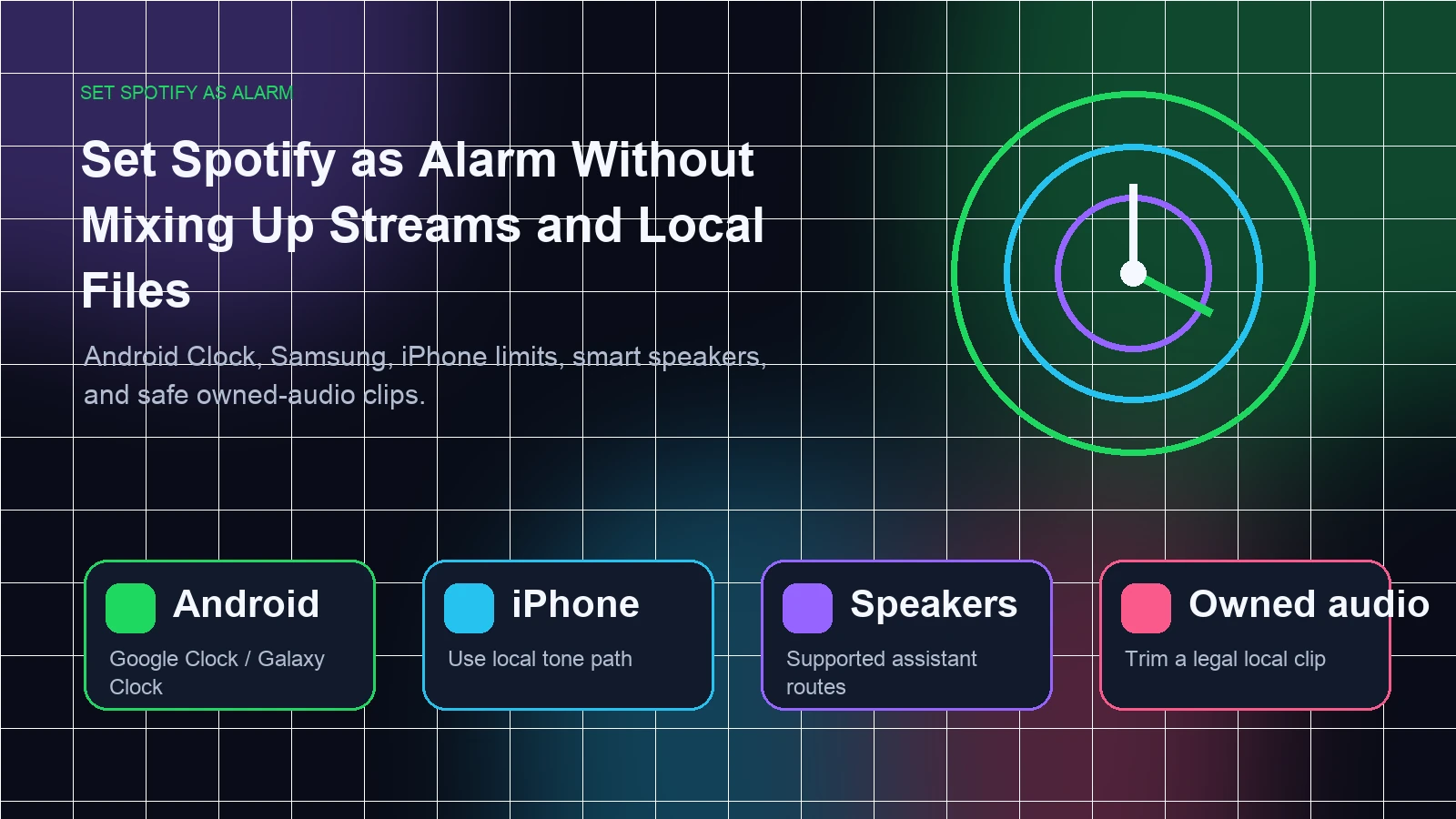
Turn a static score into editable MIDI
Contents
If you want to set Spotify as alarm sound, start with the device. Android phones, Samsung Galaxy devices, iPhones, smart speakers, and local alarm-tone workflows do not expose Spotify in the same way. Some can use Spotify directly. Others need a local audio file, a third-party alarm app, or a speaker routine.
The safe answer is simple: use Spotify directly only where the alarm workflow officially supports it. If the alarm app asks for a local sound file, use audio you created, recorded, bought DRM-free, or are licensed to edit. Do not treat a Spotify stream as a normal MP3 file just because an alarm picker wants local audio.
Quick answer
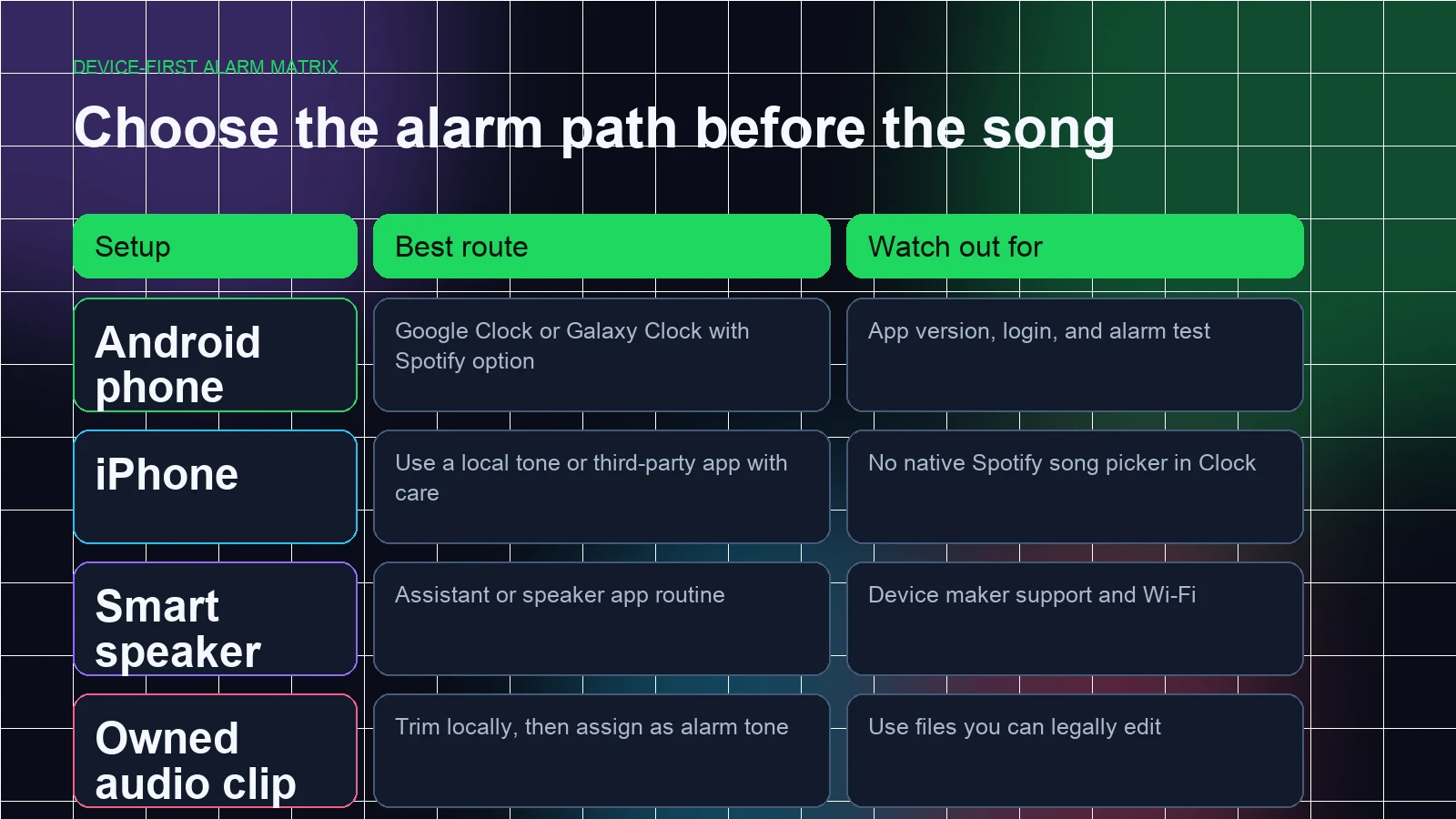
Use this table before following any step-by-step tutorial:
| Device or goal | Best route | What to check first |
|---|---|---|
| Android phone with Google Clock | Use the Spotify option inside Google Clock if it appears | Spotify is installed, logged in, and visible in Clock |
| Samsung Galaxy phone or tablet | Use Samsung Clock's Spotify alarm sound option | One UI 3 or later and Spotify installed |
| iPhone alarm | Use a local tone, Apple Music library song, or a trusted third-party app | iPhone Clock does not have a native Spotify song picker |
| Smart speaker or TV | Use the speaker maker's assistant, routine, or Spotify Connect path | The manufacturer supports the exact alarm or routine behavior |
| Custom alarm clip | Trim audio you can legally edit, then assign it as a local alarm tone | The source is not a protected Spotify stream |
If the source audio is yours, Melogen's Music Trimmer can help you cut a short alarm-ready clip before you move into the phone-specific alarm workflow. If your real goal is falling asleep to Spotify instead of waking up to it, use the Spotify sleep timer guide instead.
Set Spotify as alarm on Android
The cleanest Android path is Google Clock when the Spotify tab is available. Spotify's official Google Clock integration page says the Clock app can use Spotify as alarm music. Spotify's original newsroom announcement also describes the integration as an Android Clock app feature for Free and Premium users, with track, album, artist, and playlist selection.
Use this path:
- Install or update Spotify.
- Install or update the Clock app from Google if your phone does not already use it.
- Open Clock.
- Create or edit an alarm.
- Tap the alarm sound.
- Choose the Spotify tab or Spotify option if it appears.
- Connect your Spotify account.
- Pick a playlist, artist, album, or track.
- Save the alarm.
- Test it with a short alarm before relying on it in the morning.
Official references worth checking are Spotify's Clock App from Google device page and Spotify's Google Clock announcement. The announcement is older, so use it for the integration concept, then use your live Clock app as the final truth for the current interface.
Set Spotify as alarm on Samsung Galaxy
Samsung has its own current support path. Samsung's Galaxy support page says Spotify integration is available on devices with One UI 3 or later, and its alarm section explains that Galaxy users can choose Spotify under Alarm sound after signing in.
Use this path:
- Confirm Spotify is installed on the Galaxy phone or tablet.
- Open Clock.
- Tap Alarm.
- Add a new alarm or edit an existing one.
- Tap Alarm sound.
- Choose Spotify.
- Sign in if prompted.
- Choose the playlist you want.
- Go back and save the alarm.
- Run a test alarm while the phone is unlocked.
Samsung's Spotify features page for Galaxy phones and tablets is the best public source for this device-specific route. If your Samsung Clock does not show Spotify, update Clock, Spotify, and One UI before assuming the feature is unavailable.
Use Spotify on iPhone with the right expectations
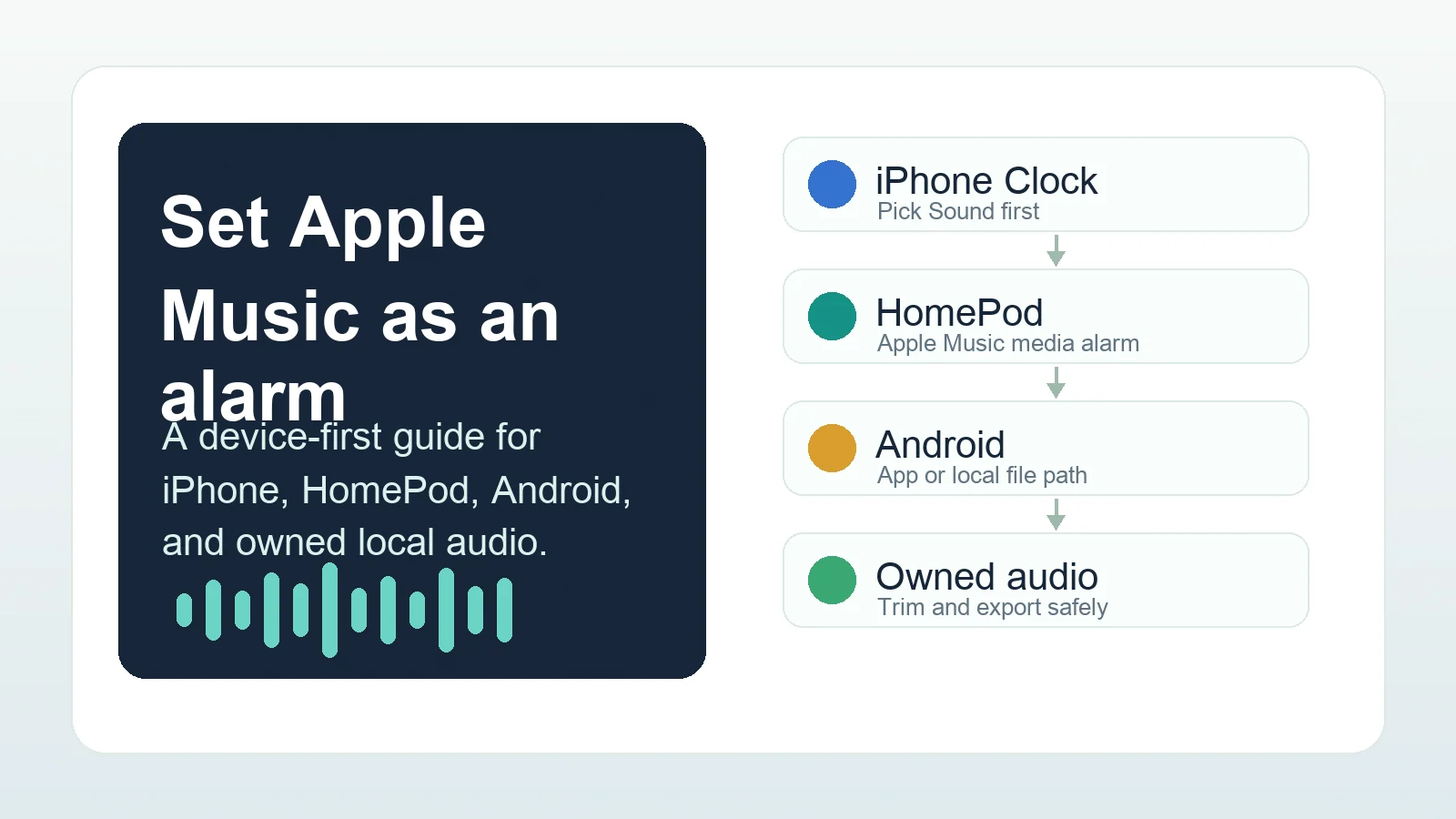
iPhone is where many tutorials overpromise. The built-in iPhone Clock app can use ringtones and songs exposed through Apple's own music library flow, but it does not provide the same native Spotify tab that Android and Samsung routes do.
That leaves three practical options:
| iPhone goal | Safer route | Tradeoff |
|---|---|---|
| Wake up with Spotify playback | Use a reputable third-party alarm app that explicitly supports Spotify | You must trust the app, permissions, reliability, and account connection |
| Wake up with a specific local sound | Use a ringtone or local alarm tone made from audio you can edit | More setup, but more reliable once installed |
| Wake up with Apple ecosystem media | Use an Apple Music or local-library alarm path where supported | This is not the same as using Spotify |
Spotify's community idea for an iOS Spotify alarm remains a useful public signal: users have asked for a native iOS Spotify alarm feature for years, but the discussion is not the same as an official built-in Clock feature. Treat third-party apps carefully. Check recent reviews, privacy language, subscription terms, and whether the alarm can trigger when the phone is locked.
If you are comparing the Apple-side version of this problem, the sibling guide to set Apple Music as alarm explains why Apple's own media paths behave differently from Spotify.
Use smart speakers and TVs carefully
Smart speakers add one more layer: the speaker may support Spotify playback, but that does not automatically mean it supports Spotify as an alarm source.
Spotify's support page for speakers says Spotify can play through Spotify Connect, voice assistants, Bluetooth, AUX or USB cable, Chromecast Audio, and AirPlay, and it tells users to check device compatibility with the manufacturer. That is the right boundary for alarms too. Spotify may be available on the speaker, but the alarm or routine feature belongs to the speaker maker.
Use this checklist:
- Confirm the speaker supports Spotify playback.
- Check whether the speaker app or voice assistant supports music alarms or routines.
- Link the same Spotify account you want to use.
- Create a short test alarm or routine.
- Confirm the speaker, not only the phone, plays the alarm.
- Keep a fallback alarm on the phone until the routine is proven.
Use Spotify's Spotify on speakers support page for the playback boundary, then use the speaker maker's documentation for alarm-specific steps. Do not assume that Spotify Connect alone is enough to schedule a reliable wake-up alarm.
Prepare a local alarm clip with Melogen
Melogen fits when the audio is already yours to edit. That might be a rehearsal cue, an original song demo, a purchased DRM-free file, a lesson prompt, a recorded voice cue, or a short sound-design clip. Melogen does not turn protected Spotify streams into alarm tones.
Use the local-file route when:
- The phone or alarm app only accepts local sounds.
- You want a short 15 to 30 second wake-up section.
- The beginning of the file has silence you want to remove.
- You need a small fade so the alarm starts or stops cleanly.
- You want to keep the original file untouched.
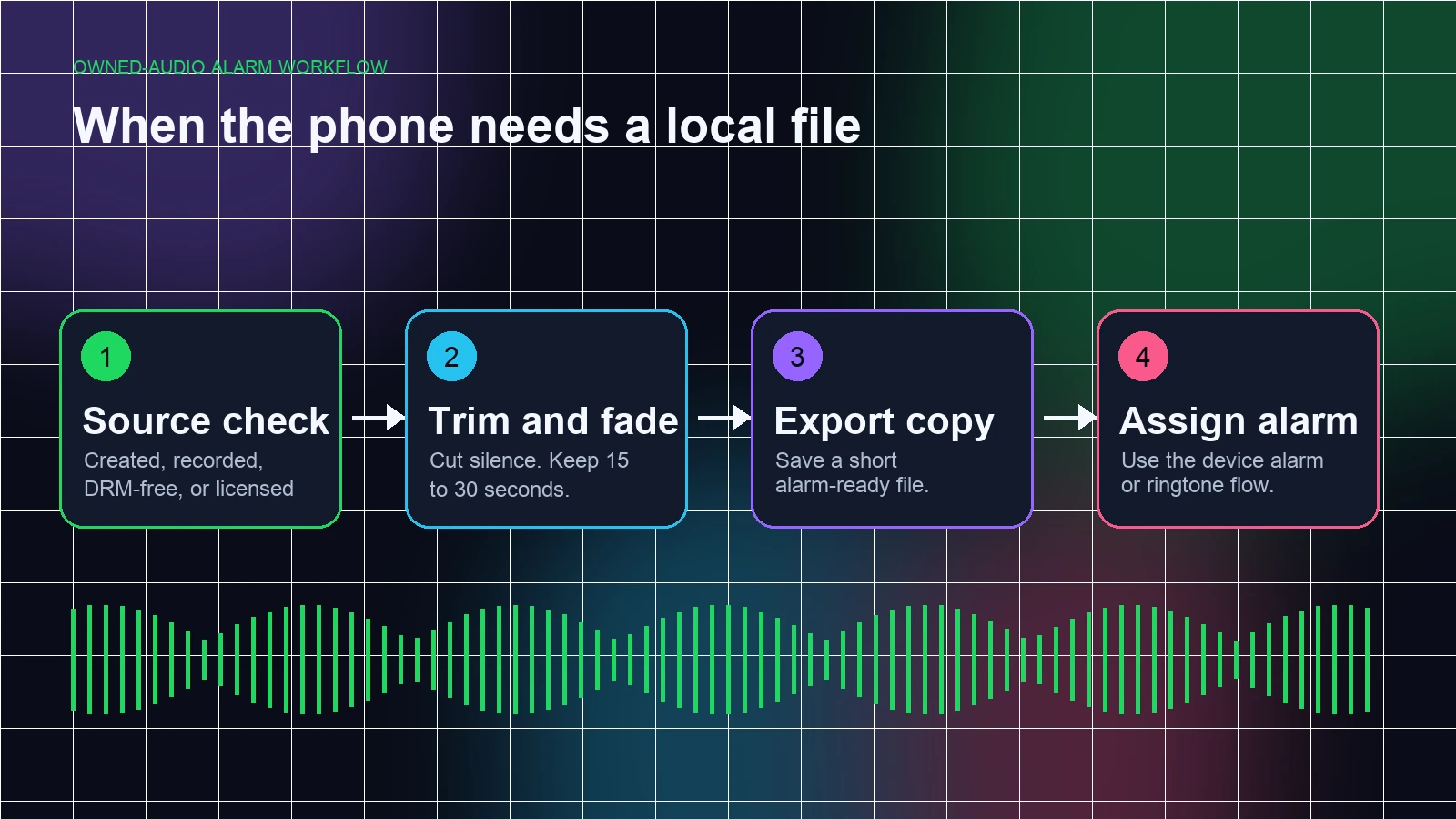
In Melogen, use the Music Trimmer for files you can legally edit. The local Music Trimmer page describes upload, waveform selection, trim and preview, and export steps for common formats such as MP3, WAV, M4A, OGG, FLAC, and AAC. After export, finish the device-specific ringtone or alarm-file setup outside Melogen.
If you plan to keep your own audio inside Spotify afterward, read Add Local Files to Spotify. Local files are a separate workflow from Spotify's streaming catalog, and keeping that boundary clear prevents most bad alarm advice.
Trim a clean local alarm clip
Use Melogen Music Trimmer to cut silence, keep the best wake-up section, and export a local file you are allowed to edit.
Troubleshooting
| Problem | Likely cause | Safer fix |
|---|---|---|
| Google Clock does not show Spotify | Spotify is not installed, the app is stale, or the Clock build does not expose the integration | Update Spotify and Clock, sign in, then create a fresh test alarm |
| Galaxy Clock does not show Spotify | One UI or Clock version may not support the feature, or Spotify is not connected | Update One UI, Clock, and Spotify; check Samsung's One UI requirement |
| iPhone Clock cannot pick Spotify | iPhone Clock has no native Spotify picker | Use a trusted third-party alarm app or a legal local tone |
| Smart speaker plays Spotify but not alarms | Playback support and alarm scheduling are separate features | Use the speaker maker's routine or alarm documentation |
| The alarm is silent | Phone volume, alarm volume, Do Not Disturb behavior, or failed account connection | Test a five-minute alarm while awake and keep a backup alarm |
| A converter guide promises one-click Spotify alarm files | It is treating streaming access as editable local audio | Stay inside supported Spotify playback or use audio you can legally edit |
The most boring test is also the most useful one: set a real alarm five minutes from now. If it rings from the correct device, correct account, and correct sound source, then schedule the morning alarm.
FAQs
Can Google Clock use Spotify as an alarm?
Yes, when the Spotify integration appears in the Google Clock alarm sound picker. Spotify has an official Google Clock device page, and the original Spotify announcement describes the Android Clock integration for Free and Premium users. Your current app interface still decides whether the option is available on your device.
Can Samsung Clock use Spotify as an alarm?
Yes on supported Galaxy devices. Samsung says Spotify integration is available on devices with One UI 3 or later, and its support page shows Spotify as an Alarm sound option after you sign in.
Can iPhone Clock use Spotify directly?
Not through a native Spotify tab like Android. Use a trusted third-party alarm app if you want Spotify playback, or use a local alarm tone made from audio you can edit.
Can a smart speaker wake me up with Spotify?
Sometimes. The speaker must support both Spotify playback and the alarm or routine behavior you want. Check Spotify for playback compatibility, then check the speaker maker for alarm scheduling.
Can Melogen convert Spotify songs into alarm sounds?
No. Melogen does not convert Spotify streams or bypass protected content. Use Melogen only for local audio you created, recorded, bought DRM-free, or are licensed to edit.
The practical takeaway
To set Spotify as alarm safely, match the method to the device. Android and Samsung can use Spotify directly when the Clock integration is present. iPhone usually needs a third-party app or a local tone. Smart speakers depend on the manufacturer. If the workflow asks for a local file, start with audio you can legally edit, trim a clean clip in Melogen, and keep Spotify streams inside Spotify's supported playback paths.
About the author
Zhang Guo
Composer - AI Product Manager
AI product manager and digital marketing consultant with a background in music. Creativity is the bridge between rhythm and logic, where musical intuition and mathematical precision can coexist in every meaningful product decision.
Follow on X