How to Set a Spotify Sleep Timer in 2026
Set a Spotify sleep timer on mobile, desktop, Wear OS, and connected speakers with current official limits and safer local-audio tips.
 Zhang Guo
Turn a static score into editable MIDI
Contents
A Spotify sleep timer stops playback after a set time so music, podcasts, or audiobooks do not run all night. The important 2026 update is that Spotify now treats Sleep Timer as a cross-device playback control, not only a hidden mobile option. You can control it from mobile, desktop, and Wear OS, and Spotify says the timer can stop playback on nearly any device, including speakers, TVs, and game consoles.
The safe workflow is simple: set the timer inside Spotify when you are listening to Spotify, and use a local audio editor only when the file is yours to edit. A sleep timer is not a downloader, a converter, or a way to turn streaming music into an editable file.
Quick answer
If you only need the fastest path, start from the playback screen:
| Listening setup | Best timer path | What to check |
|---|---|---|
| iPhone or Android | Open the Now Playing screen, use the menu or timer control, then choose a duration | The timer appears for the current content type and account state |
| Desktop app | Use Spotify's Sleep Timer control when it is available in your current desktop build | The app is updated and you are in the supported playback surface |
| Wear OS watch | Use the playback controls on the watch when the timer option is exposed | Spotify for Wear OS is updated from the Play Store |
| Connected speaker, TV, or console | Set the timer from a supported control surface, then let it stop the active playback device | The target device is still connected and visible in Spotify Connect |
| Your own bedtime audio file | Trim and fade the file first, then play it in your normal app | The audio is yours, licensed, DRM-free, or otherwise legal to edit |
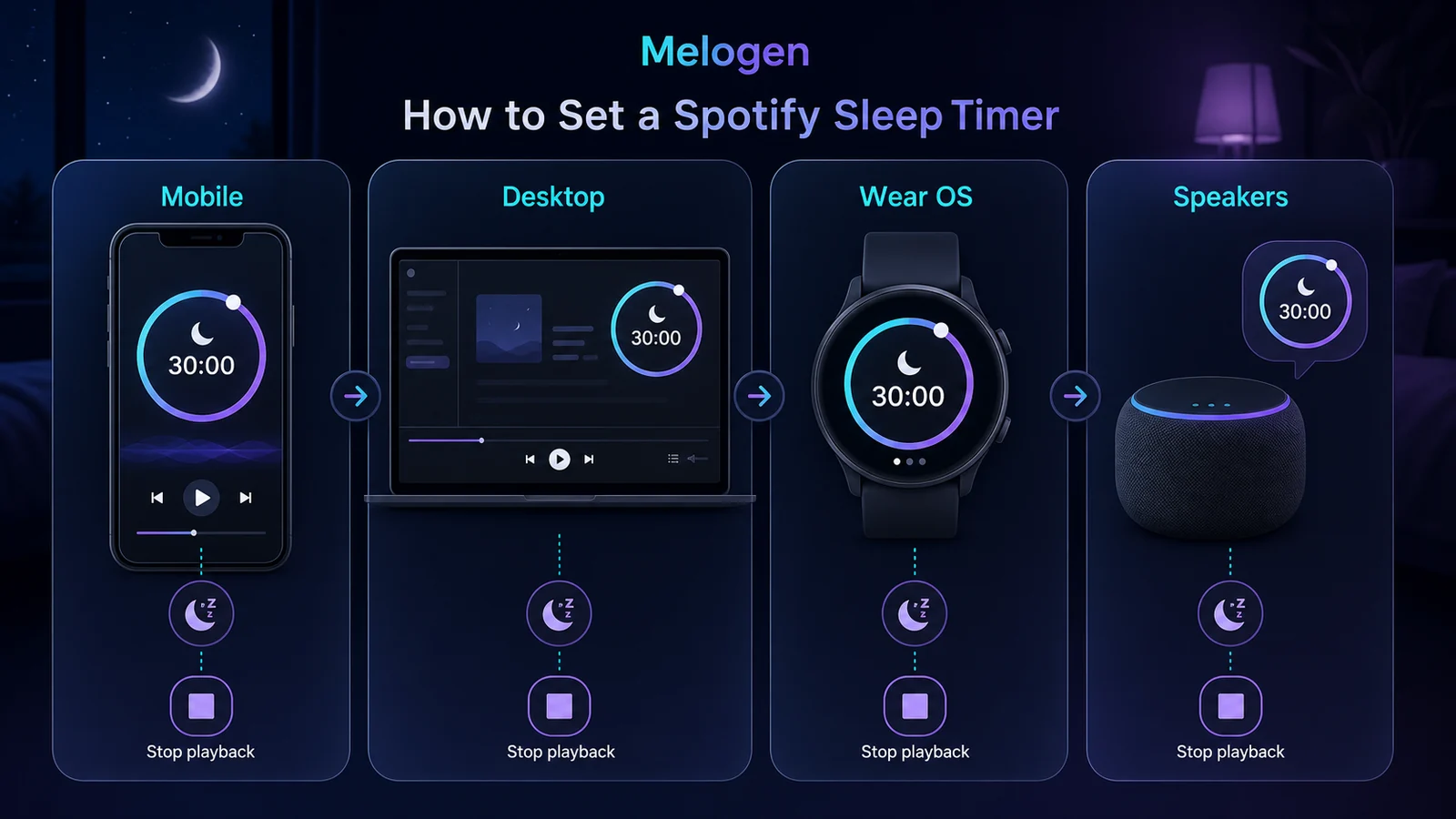
For most bedtime listening, choose 30 or 45 minutes first. Use 15 minutes for a short wind-down, 1 hour for long podcasts or audiobooks, and "end of track" only when one piece is enough.
What changed in Spotify sleep timer support
Spotify's official Sleep Timer article was originally published in 2022 and later updated on August 29, 2025. The update matters because many older guides still say the timer is mobile-only or does not work with desktop-style listening.
The current official framing is broader:
- You can control Sleep Timer across mobile, desktop, and Wear OS.
- A timer set from those surfaces can stop playback on nearly any active playback device.
- Connected speakers, TVs, and game consoles are part of the intended use case.
- The timer is useful for music, podcasts, and audiobooks, especially when you do not want playback to continue after you fall asleep.
That does not mean every old screenshot, web player extension, or third-party workaround is still the best answer. Start with Spotify's own control, then troubleshoot only if it is missing.
Set a Spotify sleep timer on mobile
On iPhone or Android, the timer usually lives close to Now Playing. Spotify's interface changes by content type, but the pattern is consistent: start playback, open the active track, podcast, or audiobook screen, then look for the menu or timer control.
Use this checklist:
- Open Spotify and start the song, playlist, podcast, or audiobook.
- Open Now Playing so the current item fills the screen.
- Open the menu or timer control for that item.
- Choose a duration such as 15, 30, or 45 minutes.
- Wait for the confirmation that the timer is set.
- Reopen the same control if you need to check the remaining time or cancel it.
For songs and playlists, the timer is usually in the more-options menu. For podcasts and audiobooks, Spotify has often exposed a dedicated timer-style control near playback. If the exact icon moves, search from Now Playing rather than account settings. Sleep Timer is a playback control, not a billing or profile setting.
Set a timer for desktop, Wear OS, and connected devices
The cleanest 2026 habit is to think in two layers:
| Layer | What it does | Example |
|---|---|---|
| Control surface | Where you set the timer | Phone, desktop app, Wear OS watch |
| Playback device | Where the sound is coming from | Phone speaker, laptop, smart speaker, TV, game console |
Spotify Connect is the bridge between those layers. Spotify's Spotify Connect support page explains that one device can remotely control listening on another. For sleep timer use, that means you may set the timer on a supported surface while audio plays elsewhere.
Use this test before relying on it overnight:
- Start playback on the device you actually want to hear.
- Confirm the device appears in Spotify's device picker.
- Set a short 5-minute timer from the phone, desktop app, or Wear OS surface you plan to use.
- Leave the audio playing through the speaker, TV, console, or laptop.
- Confirm playback stops when the timer ends.
If that five-minute test works, use your real bedtime duration. If it does not, do not assume the timer is broken everywhere. Update the app, reconnect the playback device, and try setting the timer from a different supported control surface.
Fix a missing or unreliable sleep timer
If you do not see the Spotify sleep timer, use a boring checklist before installing a random extension:
| Symptom | Likely cause | Safer fix |
|---|---|---|
| Timer is missing on mobile | The app is outdated, the account state is stale, or you are not in Now Playing | Update Spotify, restart the app, play a track, then check Now Playing again |
| Timer appears for podcasts but not music | The UI surface differs by content type or app version | Check the more-options menu on a song or playlist, then compare with a podcast |
| Desktop timer is missing | Your desktop build or surface has not exposed the current control | Update Spotify and use mobile/Wear OS as the control surface for now |
| Timer does not stop a speaker or TV | The Connect device dropped, changed sessions, or is not visible | Reconnect with Spotify Connect and test with a short timer |
| Playback stops on the wrong device | You changed the active playback target after setting the timer | Pick the device first, then set the timer |
| Audiobook hours keep draining | Timer duration is too long or the session is not stopping the active device | Use a short test, then choose 15 or 30 minutes for audiobook listening |
Avoid third-party "Spotify sleep timer" extensions unless you understand their permissions and privacy policy. Some may be useful for a specific browser workflow, but the official timer should be the first route when it is available.
Choose the right duration
The best timer length depends on what you are playing:
| Content | Good starting point | Why |
|---|---|---|
| Sleep playlist or ambient music | 30 minutes | Long enough to settle in without running for hours |
| One album side or classical movement | End of track or 45 minutes | Keeps the piece intact while still stopping later |
| Podcast episode | 30 to 45 minutes | Prevents several episodes from autoplaying while you sleep |
| Audiobook | 15 to 30 minutes | Reduces the chance of losing your place or burning listening hours |
| Nap or meditation | 10 to 15 minutes | Matches a short rest window |
| White noise through a speaker | 45 minutes to 1 hour | Gives the room time to settle, then stops the device |
If you are unsure, choose 30 minutes. The point is not to find a perfect universal number. The point is to stop playback before it becomes background noise you no longer control.
Where Melogen fits for your own bedtime audio
Melogen does not control Spotify's streaming catalog, change Spotify account settings, or convert Spotify streams into local files. It is useful when the source audio is already yours: a field recording, original song demo, practice loop, podcast intro, licensed sound bed, or DRM-free file.

Use the Melogen music trimmer when you need to:
- Remove silence before the audio starts.
- Keep only the calm section you want at night.
- Add a clean fade-out so the file does not stop abruptly.
- Export a short local copy for a phone alarm, meditation app, or offline player.
- Keep your original file untouched while making a bedtime version.
If your audio is meant to live inside Spotify later, read the add local files to Spotify guide before importing it. If the transition between tracks is your real problem, the Spotify crossfade settings guide is the closer match. For browser playback issues, use Spotify Web Player not working instead of changing timer settings.
Make a cleaner local bedtime clip
Use Melogen Music Trimmer to cut silence, keep the calm section, and add a fade to audio files you are allowed to edit.
FAQs
Does Spotify sleep timer work on desktop?
Spotify's 2025 update says Sleep Timer can be controlled across desktop as well as mobile and Wear OS. If your desktop app does not show it, update Spotify and test from a mobile or Wear OS control surface while the desktop or speaker is the playback device.
Can Spotify sleep timer stop music on speakers or a TV?
Spotify says the updated timer can stop playback on nearly any device, including speakers, TVs, and game consoles. Use Spotify Connect first, then run a short test before relying on it overnight.
Why is my Spotify sleep timer missing?
The most common reasons are an outdated app, looking in account settings instead of Now Playing, a stale session, or a playback surface where the control is not exposed yet. Update the app, restart playback, and test from mobile if desktop is unreliable.
Can I set Spotify to stop at the end of a song?
Spotify's official sleep timer options include fixed durations and an end-of-track style option. Use end-of-track for one piece, and fixed durations for playlists, podcasts, audiobooks, or white-noise sessions.
Can Melogen make a Spotify sleep timer?
No. Melogen does not control Spotify playback. Melogen helps when you are preparing your own local audio file, such as trimming silence or adding a fade before you use that file in another allowed workflow.
The practical takeaway
Set the Spotify sleep timer from the playback surface first, then confirm the active device stops with a short test. Use 30 minutes as the default, shorten it for audiobooks, and lengthen it only when the room needs more time. If the file is yours, trim a calm local version in Melogen. If the audio is Spotify's streaming catalog, keep it inside Spotify's own playback controls.
About the author
Zhang Guo
Composer - AI Product Manager
AI product manager and digital marketing consultant with a background in music. Creativity is the bridge between rhythm and logic, where musical intuition and mathematical precision can coexist in every meaningful product decision.
Follow on X