Spotify Search Not Working Fixes That Help
Fix Spotify search not working with status checks, network tests, cache, app updates, browser fixes, and local-audio boundaries.
 Zhang Guo
Turn a static score into editable MIDI
Contents
If Spotify search is not working, do not start with reinstalling the app or looking for a downloader workaround. First decide what kind of search failure you have: no results, "Something went wrong", playlist search broken, Web Player search failing, or search working on one device but not another.
The fastest fix is usually not one magic setting. It is a short diagnostic order: check whether Spotify itself is having issues, prove the network, restart or update the app, clear cache only when the app feels stale, then separate browser search from mobile or desktop app search.
Quick triage for Spotify search not working
Start with the exact symptom. "Spotify search not working" can mean several different things, and each one points to a different first move.
| What you see | Likely layer | First fix |
|---|---|---|
| Search says "Something went wrong" | Spotify app, network, or service state | Restart Spotify, switch networks, and check if other Spotify features work |
| Search loads forever | Connection, VPN, DNS, or cache | Disable VPN for one test, then clear cache if the app feels stale |
| Playlist search does not find songs | Playlist filter, Smart Shuffle, or local app state | Turn off shuffle-related modes, restart, and search inside the playlist again |
| Web Player search fails | Browser profile, cookies, extension, or restricted network | Try a private window, another browser, or the desktop app |
| Search works on one device only | Device-specific cache, app version, or storage | Fix the failing device instead of rebuilding the account |
If the whole app says offline, solve that state before chasing search. If the app is slow everywhere, use the clear Spotify cache guide after you have checked connection and status.
Check Spotify status, network, and account scope first
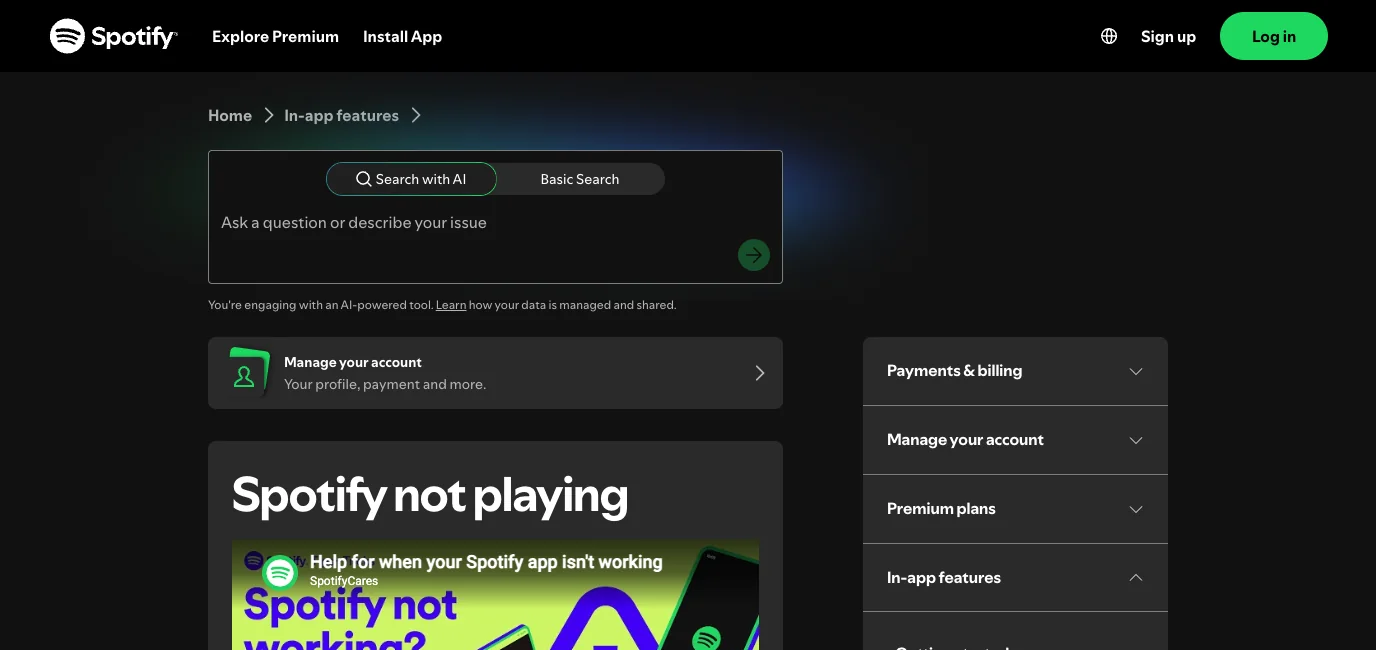
Spotify's official Spotify not playing page gives a useful starting order for broad app errors: restart the app, update it, reinstall only later, make sure the internet connection is stable, clear cache when relevant, and check whether the issue happens on another device or the web player.
Use that same logic for search:
- Search for one obvious artist, album, and playlist.
- Try the same search on another device or in the Web Player.
- Switch from Wi-Fi to mobile data, or from mobile data to Wi-Fi.
- Turn off VPN, private DNS, or workplace/school network filtering for one test.
- Check whether home, library, playback, and recommendations still load.
- If many Spotify surfaces fail at once, wait before reinstalling.
The goal is to avoid fixing the wrong layer. If search fails only on one phone, the phone or app state is probably the work. If search fails everywhere at the same time, a service issue, account issue, or network path is more likely.
Fix app search before reinstalling Spotify
When search fails in the mobile or desktop app, use the smallest reversible resets first.
| Step | Use it when | Why it helps |
|---|---|---|
| Restart Spotify | Search is frozen or stale in one session | Clears the current app state without touching downloads |
| Update Spotify | Search UI is buggy after an app change | Keeps search, autocomplete, and app surfaces current |
| Switch network | Search returns errors or no results on one connection | Proves whether VPN, DNS, router, or carrier path is involved |
| Clear cache | Album art, menus, and search all feel stale | Removes temporary app data without starting from scratch |
| Free storage | The device is nearly full | Gives Spotify room for cache and local app data |
| Reinstall | Updates, cache, storage, and network checks failed | Last reset because offline downloads may need rebuilding |
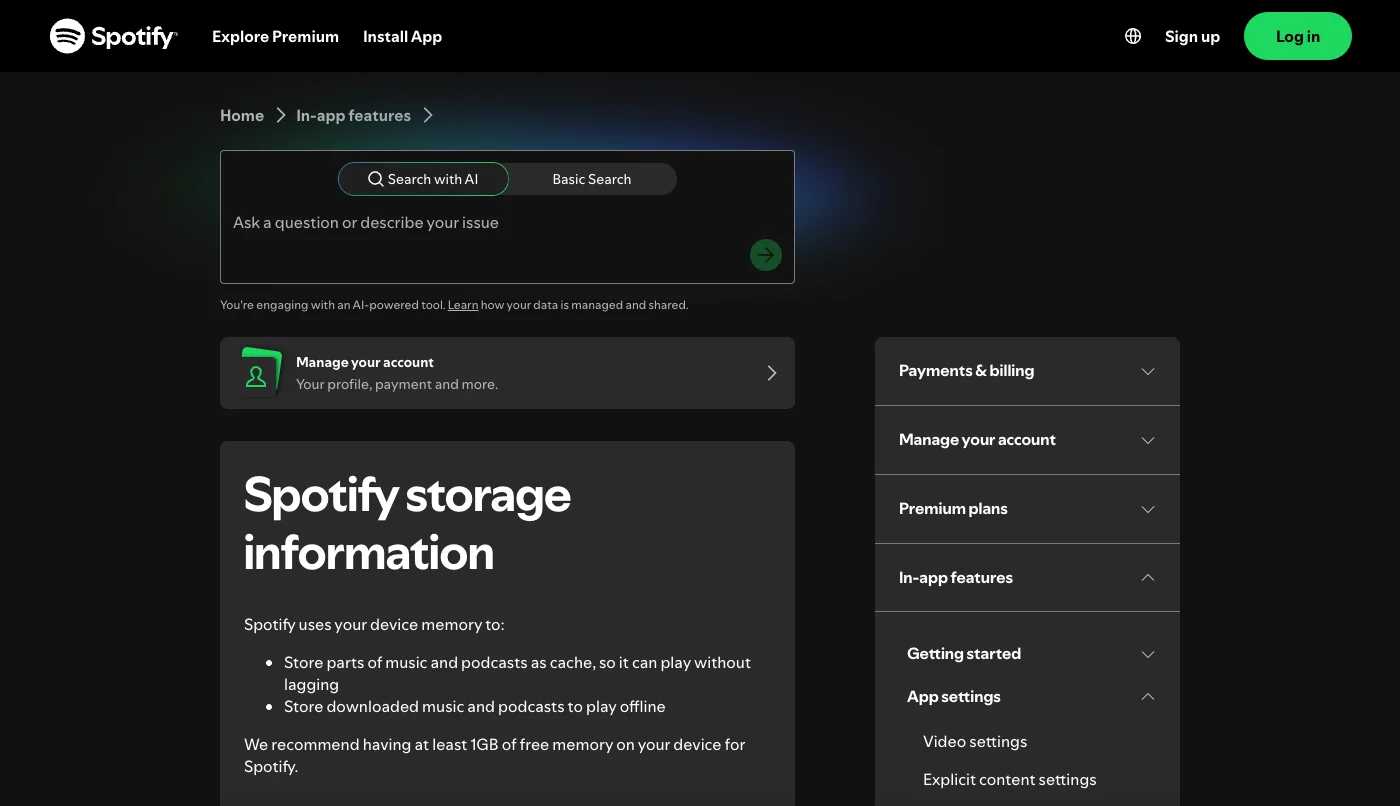
Spotify's storage information page separates cache from downloaded music and podcasts. That distinction matters here: clearing cache is a smaller app reset; removing downloads or reinstalling is a bigger reset.
For Android, also check data saver, battery saver, background data, and storage permissions. For iPhone or iPad, check whether the app is updated, whether low storage is affecting the device, and whether the same account searches correctly on another device. On desktop, firewall, VPN, proxy, and workplace networks can block enough traffic to make search fail while some cached pages still load.
Fix Web Player and playlist search separately
Do not mix every search surface together. Web Player search, playlist search, and global app search can fail for different reasons.
Spotify's official Web Player help page recommends an up-to-date browser, private or incognito testing, and checking whether a shared or public network restricts access. If the browser is the only broken surface, use the Spotify Web Player not working checklist before changing the mobile app.
For Web Player search:
- Open a private window.
- Try another supported browser.
- Disable extensions for one test.
- Clear Spotify site data only if private mode works.
- Try the desktop app on the same network.
- Test a different network if school, work, or public Wi-Fi is involved.
For playlist search:
- Make sure you are searching inside the playlist, not global search.
- Turn off temporary shuffle or queue states that change what you are seeing.
- Restart the app and reopen the playlist.
- Test the same playlist on desktop or web.
- If only one playlist is affected, duplicate or rebuild that playlist last.
Playlist search is a library-navigation problem. Global search is a catalog and app problem. Browser search is a web-session problem. Keeping those apart prevents a heavy reset when one smaller surface is the actual issue.
Use reinstall only as a controlled reset
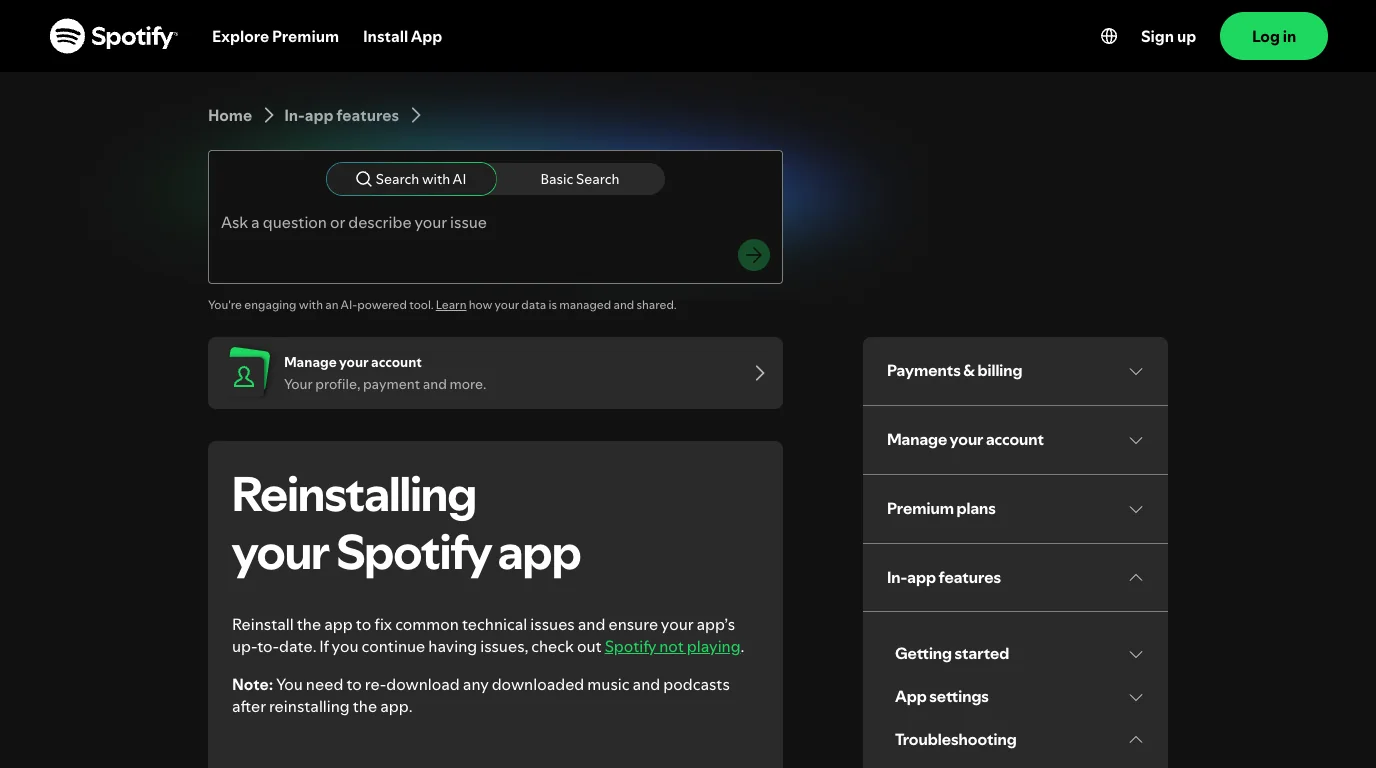
Reinstalling can help a corrupted app, but it is not a harmless first step. Spotify's reinstall support page notes that downloaded music and podcasts need to be downloaded again after reinstalling.
Use this reset ladder:
| Reset level | What it may fix | Cost |
|---|---|---|
| Restart app | One stuck search session | Very low |
| Log out and back in | Account session confusion | Low, but know your login method |
| Clear cache | Stale temporary app data | Low to medium |
| Clear site data | Web Player browser state | Medium for that browser |
| Reinstall Spotify | Broken app install | Higher because downloads and sign-in may need rebuilding |
Before reinstalling, write down the account login method, confirm another device can search, and decide which offline playlists you actually need to download again. If the same search error is happening on every device, reinstalling one device is unlikely to be the root fix.
Avoid downloader workarounds for a search bug
Some competitor guides end with a converter or downloader workaround. That is the wrong mental model for this query. A broken search box is not a reason to copy protected Spotify catalog audio, bypass platform limits, or turn a support issue into a downloader workflow.
Keep the boundary clean:
- Use Spotify and device settings to fix Spotify search.
- Use the Web Player or another device only to isolate the broken layer.
- Use official offline downloads only inside Spotify's supported access model.
- Use Melogen only for local audio files you own or have permission to edit.
Melogen does not repair Spotify search, unlock Spotify content, manage Premium, or convert protected Spotify catalog audio. It fits after the Spotify issue is resolved, when the separate job is trimming a rehearsal recording, lesson clip, podcast sample, backing track, or another permitted local file.

Use Melogen Music Trimmer only for that owned-audio task:
- Trim silence from a practice recording.
- Shorten a lesson clip before saving it.
- Add a fade to a backing track you created.
- Export a cleaner file for a local library.
- Add permitted files through the Add Local Files to Spotify workflow if you want them available in Spotify.
Clean up local audio after Spotify is stable
Use Melogen Music Trimmer when the file is yours to edit and the next job is trimming silence, shortening a practice clip, or preparing a cleaner local listening copy.
Troubleshooting checklist
Run the checklist in order and stop when search starts working.
| Step | Pass condition | If it fails |
|---|---|---|
| Try one obvious search | Artist, album, or playlist results appear | Restart Spotify |
| Switch network | Search works on another connection | Fix VPN, DNS, router, or mobile data settings |
| Test another device | Search works elsewhere | Keep fixing the failing device |
| Test Web Player | Search works in browser | Repair the app layer |
| Try private browser mode | Web Player search works privately | Clear site data or disable extensions |
| Clear cache | Search and menus feel responsive again | Check storage and update app |
| Reinstall intentionally | Fresh app searches after sign-in | Rebuild downloads only where needed |
FAQs
Why does Spotify search say something went wrong?
The usual causes are temporary Spotify service issues, weak network, VPN or DNS routing, stale app cache, outdated app version, browser cookies or extensions, low device storage, or a device-specific app state problem.
Why does Spotify search work on my phone but not desktop?
That usually points to a desktop-specific layer: VPN, firewall, proxy, browser profile, desktop app cache, or an outdated app. Test the Web Player and desktop app separately before reinstalling.
Should I clear cache or reinstall first?
Clear cache first when the app feels stale or menus load slowly. Reinstall only after restart, network, update, cache, storage, and browser checks fail because downloads may need to be rebuilt.
Why does playlist search not find songs?
Playlist search can be affected by filtering, playlist state, shuffle modes, local app cache, or the specific playlist. Test global search separately before you rebuild the playlist.
Can Melogen fix Spotify search?
No. Melogen cannot fix Spotify search, account access, servers, cache, or Premium downloads. Use Melogen only after Spotify works, when you have a permitted local audio file that needs trimming or cleanup.
The practical takeaway
Fix Spotify search not working by isolating the smallest layer first: status, network, device, app cache, browser, playlist scope, then reinstall. Do not use downloader shortcuts for a search bug. Once Spotify is stable, Melogen belongs only in the separate workflow of preparing local audio you are allowed to edit.
About the author
Zhang Guo
Composer - AI Product Manager
AI product manager and digital marketing consultant with a background in music. Creativity is the bridge between rhythm and logic, where musical intuition and mathematical precision can coexist in every meaningful product decision.
Follow on X