Clear Spotify Cache Without Losing Downloads
Clear Spotify cache safely with device steps, cache-vs-downloads rules, storage checks, and when local-audio cleanup belongs in Melogen.
 Zhang Guo
Turn a static score into editable MIDI
Contents
Clear Spotify cache when the app feels heavy, album art loads slowly, playback stutters after long use, or Spotify keeps using more storage than expected. Start with Spotify's in-app cache button where it exists, then move to device storage, browser data, or reinstall only when the smaller fix does not work.
The useful distinction is this: cache is temporary playback data, downloads are offline listening files, and your saved playlists live in your Spotify account. Clearing cache should not delete your playlists. It can remove temporary files and may force Spotify to rebuild local data, so check downloads and storage before you reset more than you need.
Quick answer
Use the smallest fix that matches the surface you are using.
| Where Spotify is slow | First cache action | What to avoid |
|---|---|---|
| iPhone or iPad | Clear cache in Spotify settings if available, then offload or reinstall only if needed | Do not delete the app first if you still need offline downloads |
| Android | Use Spotify's Clear cache button, then Android app storage only if the app path fails | Do not tap Clear data unless you are ready to sign in again |
| Windows desktop | Clear cache from Spotify settings, then remove the local cache folder if Spotify still misbehaves | Do not delete random AppData folders outside Spotify |
| Mac desktop | Clear cache in Spotify, then check the Spotify cache folder only when needed | Do not remove your whole Music folder or local audio library |
| Chromebook or web player | Clear Spotify site data or browser cache for the web player | Do not wipe every browser profile before testing one private window |
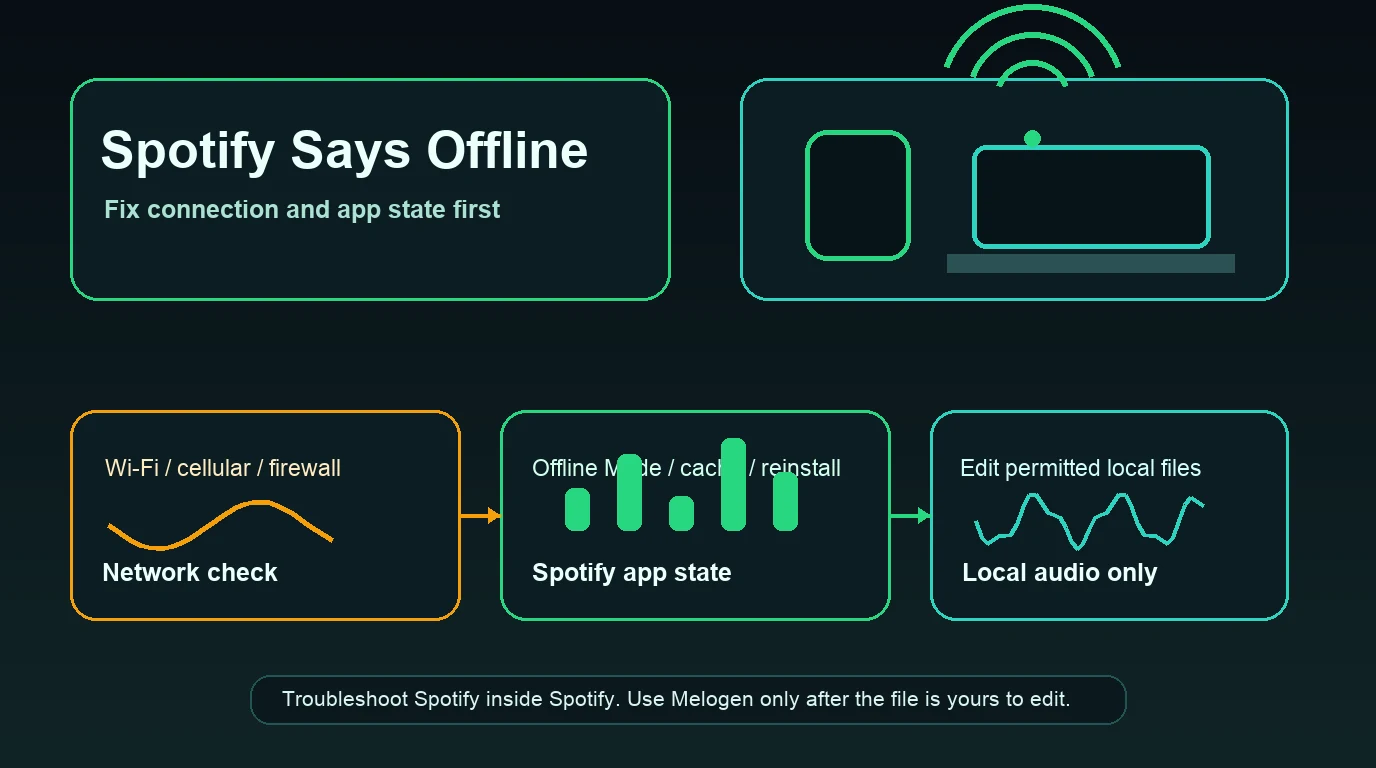
If Spotify is slow everywhere, read why Spotify is so slow before you spend time clearing every device. If Spotify says offline, use the Spotify offline error guide because that problem is usually network, Offline Mode, permissions, firewall, or VPN before it is cache.
Know what Spotify stores before clearing it
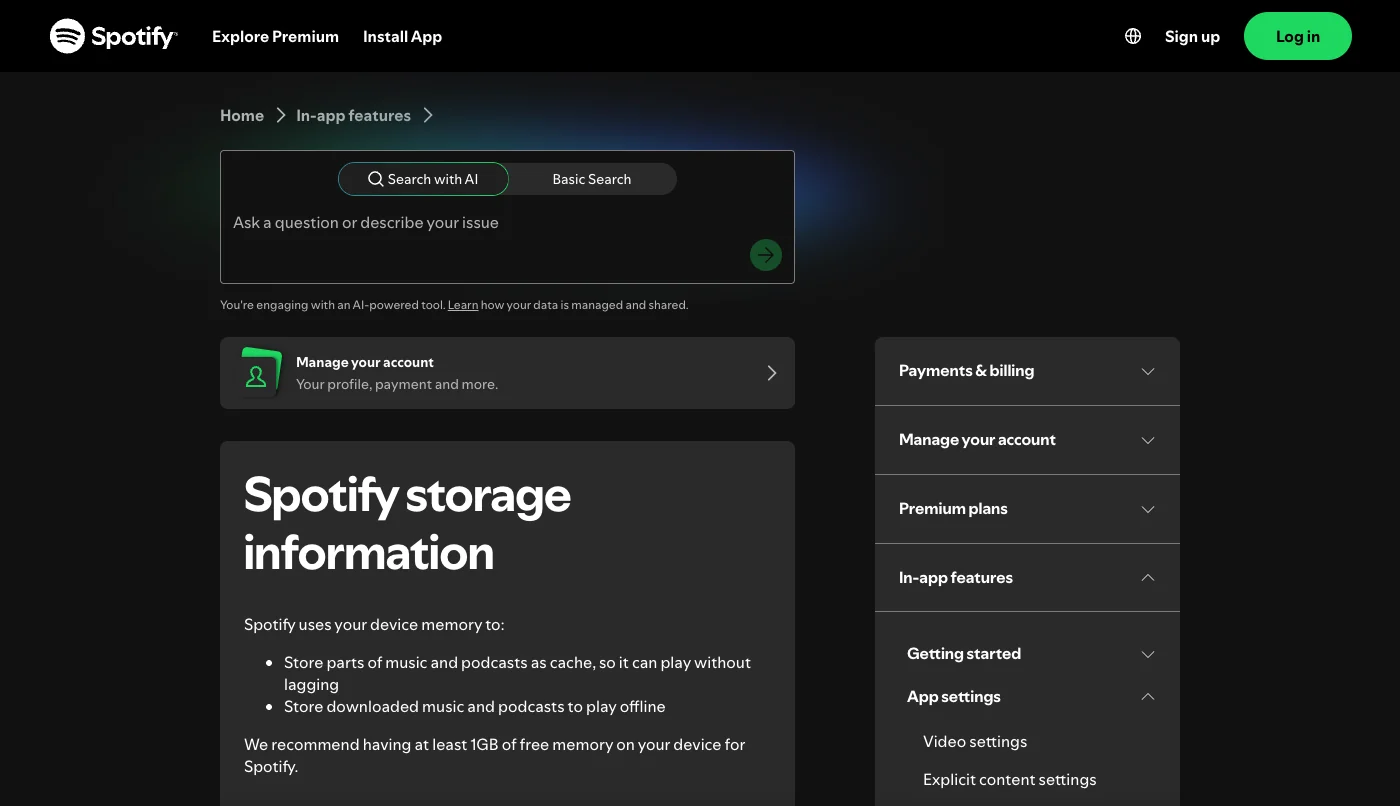
Spotify's official storage information page says Spotify uses device memory for two different jobs: caching parts of music and podcasts so they play without lagging, and storing downloaded music or podcasts for offline listening. It also recommends keeping at least 1GB of free memory for Spotify.
That means cache cleanup should be precise:
- Cache helps Spotify start and replay audio more smoothly.
- Offline downloads are different from cache, even though both use storage.
- Low device storage can make Spotify feel slow even after cache is cleared.
- Reinstalling can remove downloaded music and podcasts, so save it for later.
- Browser cache only matters when the web player is the broken surface.
The safest mental model is "temporary playback files first, downloaded offline content second, account library last." Your account playlists and followed artists are not the same thing as cache.
Clear Spotify cache on iPhone and iPad
On iPhone or iPad, start inside Spotify:
- Open Spotify.
- Tap your profile picture or settings entry.
- Open Storage or the storage-related setting.
- Tap Clear cache if the app shows that option.
- Restart Spotify and play one track.
- Check iPhone Storage only if Spotify still takes too much space.
If the app does not expose the same cache control on your current version, use iOS storage tools carefully. Offloading the app can remove the app while keeping some documents and data. Deleting and reinstalling the app is stronger, but it can force you to sign in again and re-download offline content.
Use this order when storage is the reason:
| iPhone action | Use it when | Tradeoff |
|---|---|---|
| Spotify Clear cache | Spotify has a cache button and the app feels sluggish | Lowest-risk first step |
| Offload App | iOS storage is tight and you want to preserve app data where possible | You may still need to reinstall the app shell |
| Delete App | Spotify stays broken after lighter fixes | You will need to sign in and rebuild downloads |
| Remove downloads inside Spotify | Offline content is taking too much space | You lose offline access until you download again |
If the issue is only that songs play in the wrong order, cache is probably not the first fix. Use the clear Spotify queue workflow instead.
Clear Spotify cache on Android
Android gives you both Spotify controls and system app-storage controls. Use Spotify first because it is narrower.
- Open Spotify.
- Go to Settings and privacy.
- Open Storage.
- Tap Clear cache.
- Restart Spotify.
- If Spotify still feels broken, open Android Settings, Apps, Spotify, Storage.
- Use Clear cache before Clear data.
Clear data is a larger reset. It can sign you out, reset local app state, and remove offline downloads depending on the app version and device behavior. Use it only when cache cleanup, app update, restart, and storage checks do not fix the problem.
If you use an SD card for downloads, test whether Spotify behaves better with internal storage. A failing card, almost-full card, or permission issue can look like a Spotify cache problem even when the cache is not the root cause.
Clear Spotify cache on Windows, Mac, and Chromebook
On desktop, start with Spotify's own settings. Then use file-system cleanup only when the app path fails or the cache folder remains unusually large.
For Windows:
- Open Spotify.
- Go to Settings.
- Find Storage or Offline storage location.
- Clear cache if the app exposes the option.
- Restart Spotify.
- If needed, close Spotify and check the Spotify cache folder shown in settings.
For Mac:
- Open Spotify.
- Use Spotify settings to clear cache where available.
- Restart the app.
- Check free disk space.
- Only then inspect the Spotify cache or offline storage location.
For Chromebook or the web player, the cache layer is usually browser-specific. Test a private window first. If the private window works, clear site data for Spotify or the affected browser profile rather than wiping every browser you use. If only the browser version fails, the Spotify Web Player not working guide is more precise than a general cache reset.
Check downloads, storage, and reinstall risk
Before a reinstall, decide what you are willing to rebuild.
| Reset level | What it may fix | What you may lose or redo |
|---|---|---|
| Clear cache | Sluggish menus, stale temporary playback files, bloated cache | Usually low risk |
| Remove downloads | Excess offline storage or broken offline state | Offline music and podcasts must be downloaded again |
| Clear app data | Bad local app state | Sign-in, local settings, downloads, and preferences may reset |
| Reinstall Spotify | Corrupted app install or persistent local app failure | You need to sign in and re-download offline content |
Spotify's reinstall support page notes that downloaded music and podcasts need to be downloaded again after reinstalling. That is why reinstall belongs late in the order.
Use reinstall only when:
- Spotify is updated.
- The same account works on another device.
- Cache cleanup did not help.
- The device has enough free storage.
- You are ready to rebuild offline downloads.
If Spotify is stuck waiting to download, cache may be one clue, but the real issue can also be Premium status, network, storage, download limits, or device state. Do not turn every download issue into a cache issue.
Where Melogen fits after cache cleanup
Melogen does not clear Spotify cache, manage Spotify downloads, repair Spotify servers, or convert protected Spotify catalog audio. Use Spotify and device settings for those jobs.
Melogen fits only after the file is already local audio you own, created, licensed, purchased DRM-free, recorded, or otherwise have permission to edit. For example, clearing cache might reveal that Spotify itself is fine, but the local rehearsal clip you added to Spotify starts with silence or ends abruptly.

Use Melogen Music Trimmer for that separate local-audio job:
- Trim silence from a rehearsal recording.
- Shorten a lesson clip before practice.
- Add a fade to a backing track you created.
- Export a cleaner local listening copy.
- Prepare a permitted file before following the Add Local Files to Spotify workflow.
Clean up local audio after Spotify is stable
Use Melogen Music Trimmer when the file is yours to edit and the next job is cutting silence, shortening a practice clip, or preparing a cleaner local listening copy.
Keep the boundary clean: cache cleanup fixes temporary Spotify app storage. Melogen edits permitted local audio after the source file is already yours to change.
Troubleshooting checklist
Run the checklist in order:
| Step | Pass condition | If it fails |
|---|---|---|
| Restart Spotify | App responds normally again | Update Spotify |
| Clear cache inside Spotify | Storage drops or playback feels stable | Check device free space |
| Keep at least 1GB free | Spotify has room to cache and download | Remove unused downloads or apps |
| Test another device | Same account works elsewhere | Keep fixing the local device |
| Test private browser window | Web player works in a clean profile | Clear Spotify site data or browser cache |
| Reinstall Spotify | Fresh app works after reinstall | Re-download offline content intentionally |
Stop when the symptom changes. If the next problem is queue order, Autoplay, Offline Mode, or web-player failure, move to the specific guide rather than repeating cache cleanup.
FAQs
Does clearing Spotify cache delete playlists?
No. Your playlists live in your Spotify account. Clearing cache removes temporary local data, not your saved Spotify playlists.
Does clearing Spotify cache delete downloads?
Clearing cache is different from removing downloads, but app behavior can vary by device and reset level. Reinstalling or clearing app data can require offline music and podcasts to be downloaded again.
Why is Spotify cache so large?
Spotify caches parts of music and podcasts to reduce lag and stores downloads for offline listening. Long listening sessions, offline downloads, and low device cleanup can all make storage usage grow.
Should I clear Spotify cache every day?
No. Clear it when Spotify feels slow, storage is tight, album art or playback behaves strangely, or a support checklist points there. Daily cache clearing can make Spotify rebuild data more often than needed.
Can Melogen clear Spotify cache?
No. Melogen does not control Spotify cache or downloads. Use Melogen only for permitted local audio files after Spotify itself is working.
The practical takeaway
Clear Spotify cache when the app is sluggish or storage looks bloated, but keep cache, downloads, browser data, and account library separate. Start inside Spotify, check device storage, avoid reinstalling too early, and use Melogen only for the different job of trimming or preparing local audio you are allowed to edit.
About the author
Zhang Guo
Composer - AI Product Manager
AI product manager and digital marketing consultant with a background in music. Creativity is the bridge between rhythm and logic, where musical intuition and mathematical precision can coexist in every meaningful product decision.
Follow on X