Spotify Waiting to Download Fixes That Actually Help
Fix Spotify waiting to download with Premium, Wi-Fi, storage, cache, local-file sync, firewall, Apple Watch, and reinstall checks.
 Zhang Guo
Turn a static score into editable MIDI
Contents
When Spotify is waiting to download, do not start by reinstalling the app or looking for a downloader shortcut. First decide what is stuck: Premium offline downloads, Apple Watch downloads, a local-file sync, or a device that simply lacks storage or a stable connection.
Most cases come down to one of five layers: account eligibility, Wi-Fi or cellular connection, device storage, stale cache, or local-file/network permissions. Work through those layers before you delete downloads or reset the app.
Quick triage for Spotify waiting to download
Use the symptom to choose the smallest first fix.
| What is stuck | Likely layer | First fix |
|---|---|---|
| A playlist or album says waiting to download | Premium/offline download state | Confirm Premium, turn Offline Mode off, reconnect, and restart Spotify |
| Downloads start then pause | Network or storage | Switch Wi-Fi, free storage, then retry one small playlist |
| Apple Watch downloads never start | Watch requirements or playlist limit | Check Premium, Wi-Fi/cellular, Bluetooth headphones, and playlist size |
| Local files are waiting to download | Local-file setup or device sync | Check Spotify Local Files setup and device/network permissions |
| Everything else is slow too | Cache or device health | Clear cache after storage and connection checks |
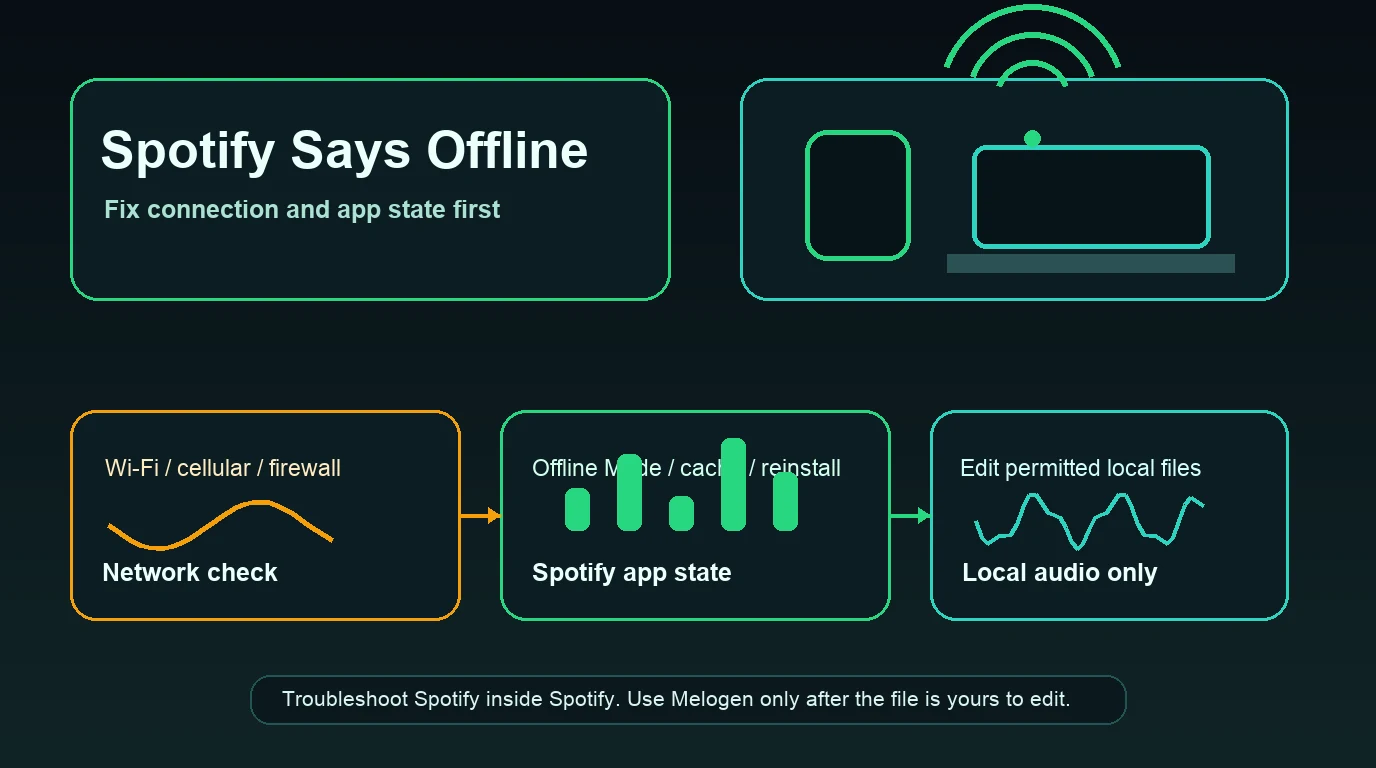
If Spotify says the whole app is offline, use the Spotify says offline guide first. If the app mainly feels heavy or stale, the clear Spotify cache guide is more focused than repeating every download check here.
Check Premium, Offline Mode, and the download surface
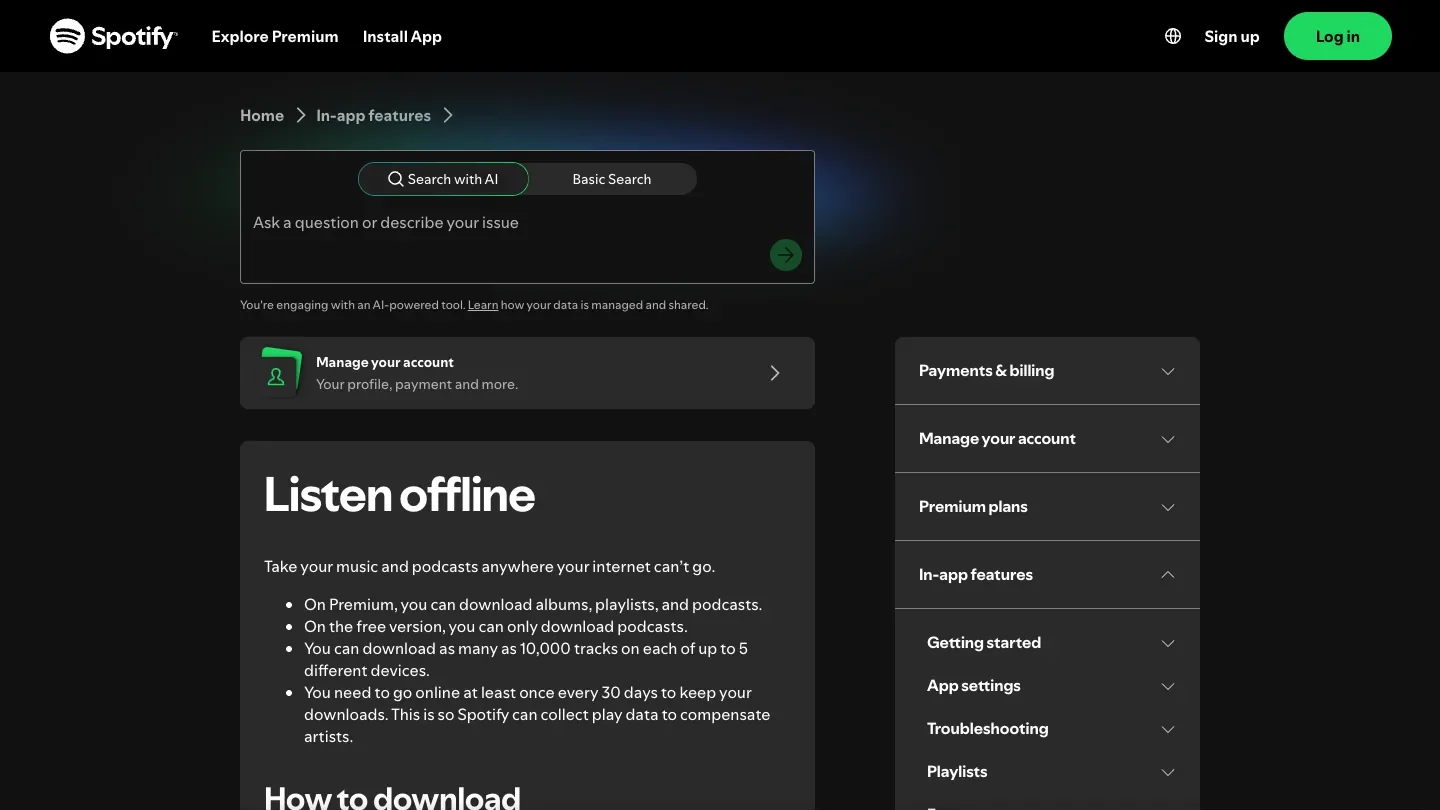
Spotify's official Listen offline page is the cleanest starting point. It separates downloaded content from Offline Mode: downloads can play automatically when internet drops, while Offline Mode forces Spotify to play only already-downloaded content.
Run these checks before you change anything bigger:
- Confirm you are signed into the right Spotify account.
- Confirm the account has the plan level required for the download you are trying to make.
- Turn Offline Mode off while you are trying to download new content.
- Use a stable Wi-Fi network for the first retry.
- Try one small playlist or album instead of your whole library.
- Keep Spotify open long enough to see whether the status changes.
The important distinction: Offline Mode is for playback after files are already downloaded. If Spotify is waiting to download, you usually need Spotify online, allowed through the network, and able to write files to the device.
Fix phone, desktop, and Apple Watch download stalls
Start with the device that is actually stuck. A phone download problem, desktop download problem, and Apple Watch download problem can look similar in Spotify, but the useful checks are different.
| Surface | Check first | Why it matters |
|---|---|---|
| iPhone or Android | Wi-Fi, cellular data permission, free storage, battery/data saver | Downloads need network access and storage in the background |
| Windows or Mac | Wi-Fi, VPN/firewall, disk space, Spotify update | Desktop security tools can block app traffic or local file access |
| Apple Watch | Premium, paired phone history, Wi-Fi/cellular, playlist size | Spotify's Watch support has its own download requirements |
| Local files | Spotify Local Files setting, file location, device setup | Local files are not the same as Spotify catalog downloads |
For Apple Watch specifically, Spotify's Spotify on Apple Watch page says offline listening on the watch requires Premium and notes a 100-download limit per playlist. That makes playlist size and account eligibility worth checking before you reinstall either app.
Try this device-first order:
- Restart Spotify on the stuck device.
- Restart the phone, computer, or watch if the app does not move.
- Switch to a known-good Wi-Fi network.
- Disable VPN temporarily for the test.
- Free storage before retrying a large playlist.
- Update Spotify from the official app store or installer.
- Retry a small playlist to prove the path works.
If one device works and another does not, keep fixing the device. If every device waits forever on the same account and network, check Spotify Status, account state, and whether the content is actually available to download in your region.
Separate storage, cache, and downloads
Spotify's storage information page explains that Spotify uses device memory for cache and for downloaded music or podcasts. It also recommends keeping at least 1GB of free memory.
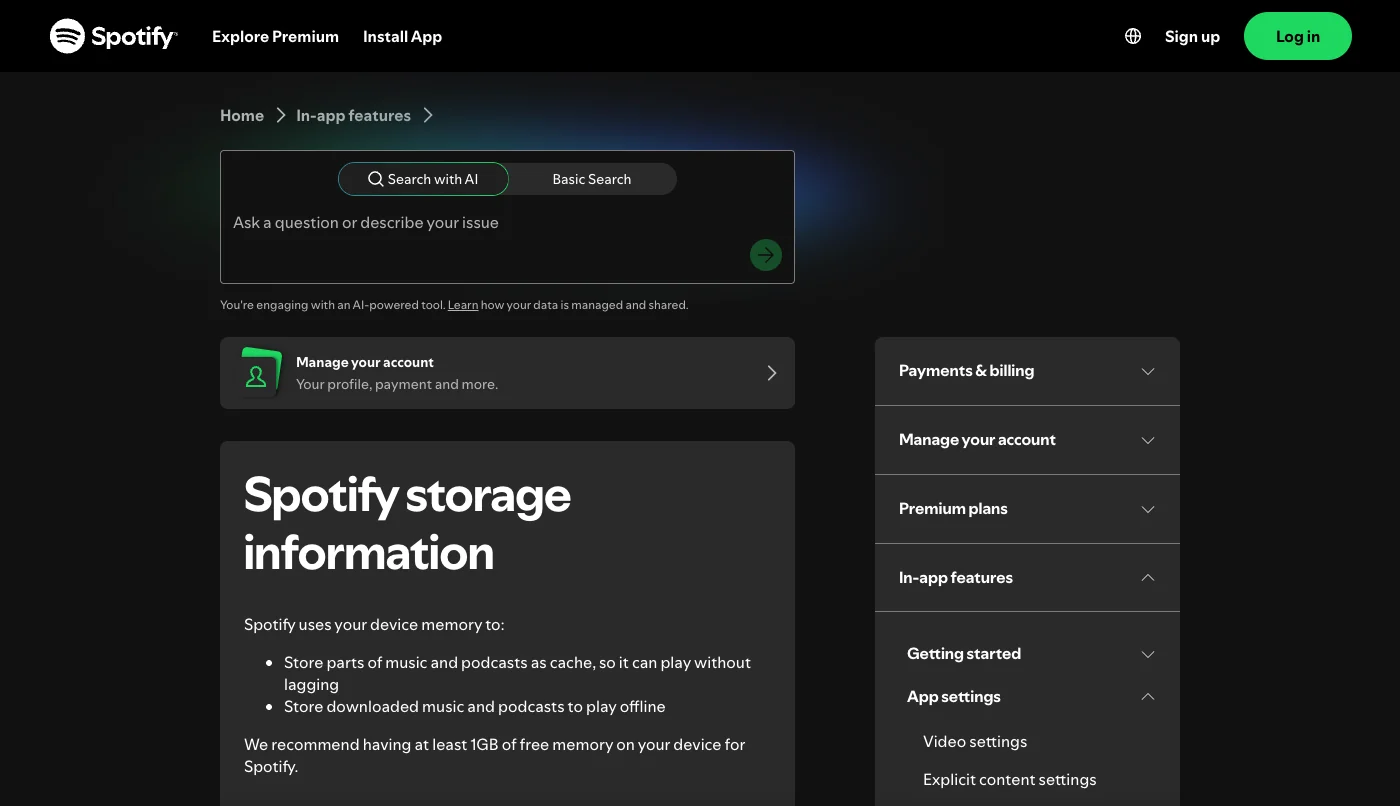
That means a stuck download can be caused by storage even when your connection is fine. Use this order:
- Check free storage on the device.
- Remove old Spotify downloads you no longer need.
- Keep at least 1GB free before retrying.
- Clear Spotify cache if menus or album art also feel stale.
- Avoid Clear data or reinstall until smaller steps fail.
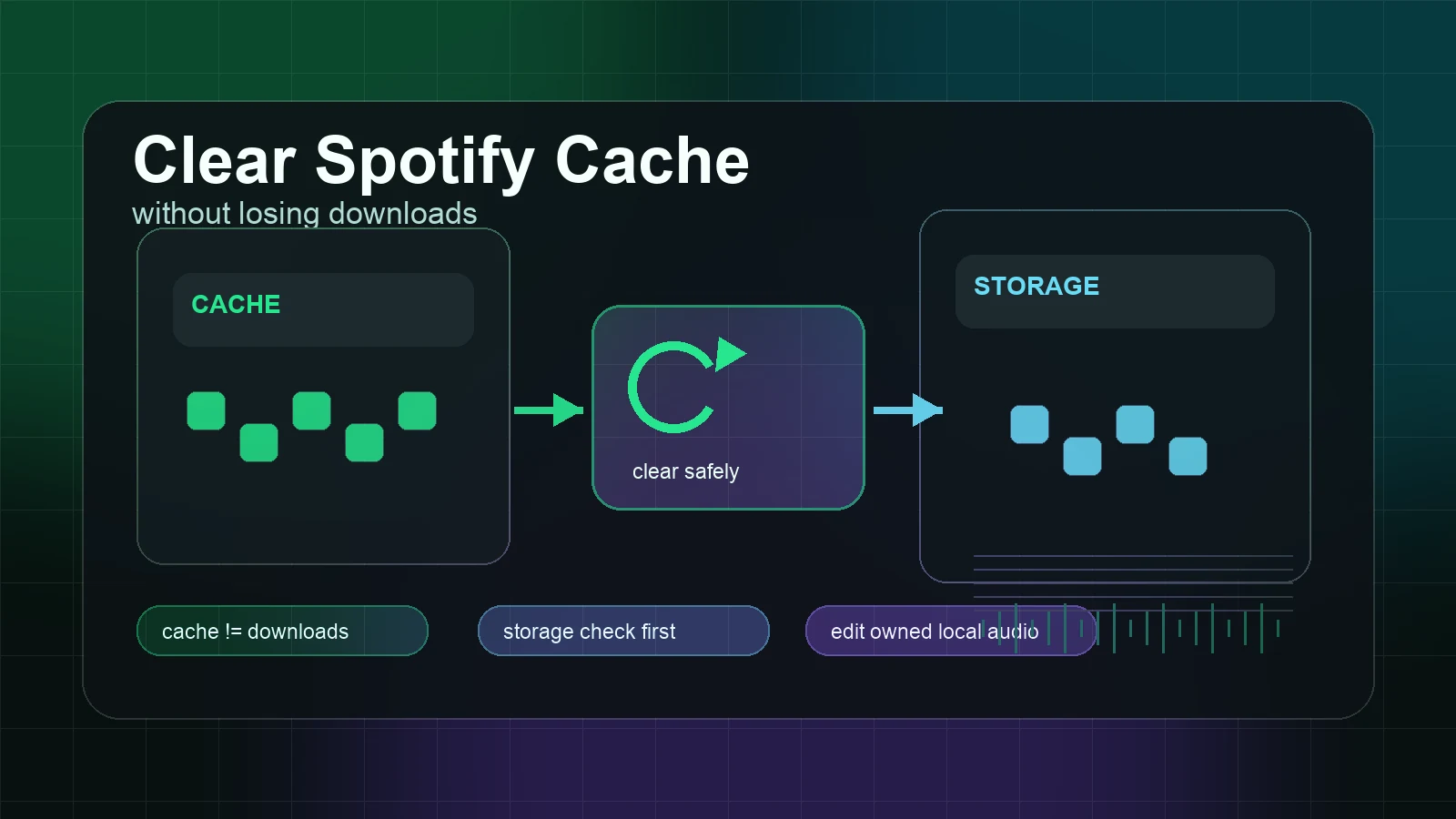
Cache is temporary playback data. Downloads are offline listening files. Your saved playlists live in your account. Keeping those separate prevents the common mistake: deleting the app too early, then having to rebuild offline downloads when a storage cleanup would have been enough.
Fix local files stuck waiting to download
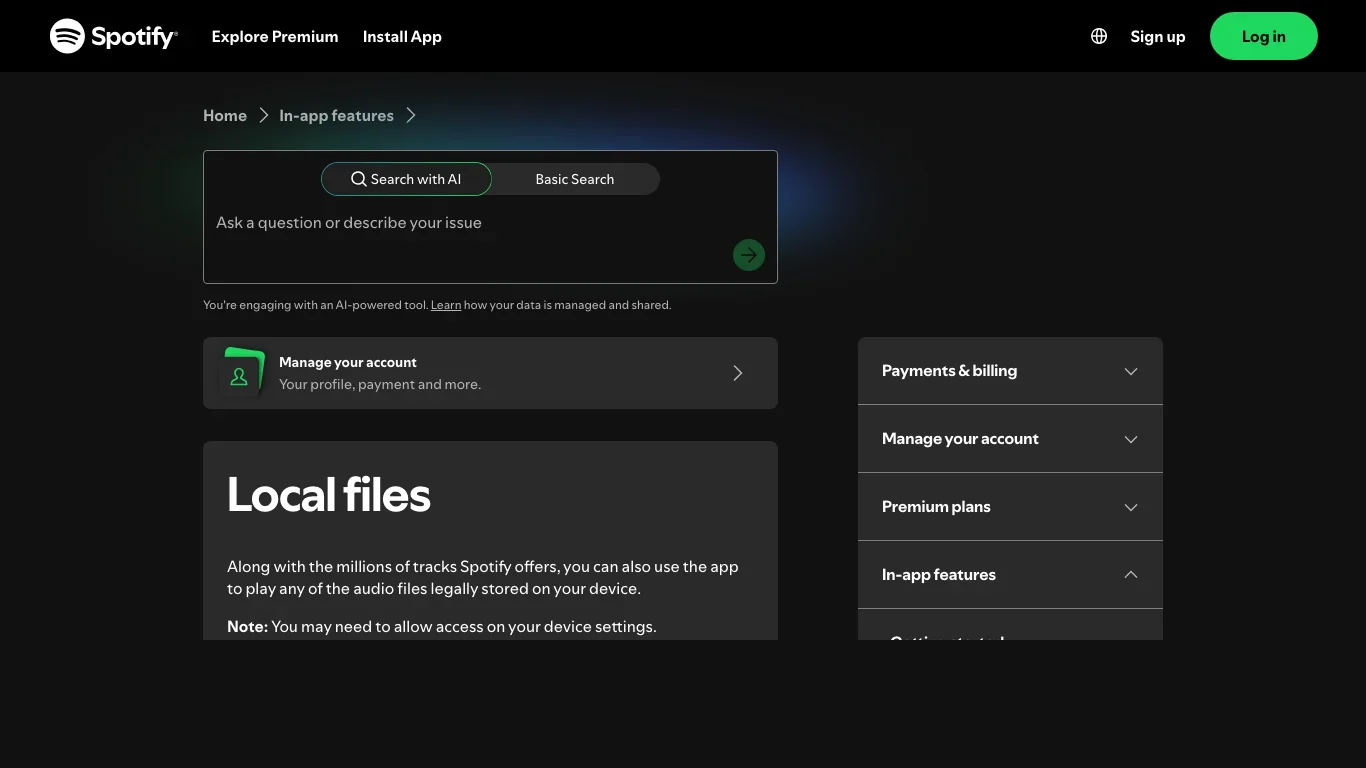
Local files are a separate job from downloading Spotify catalog music. Spotify's Local Files support page explains the current setup routes for listening to files stored on your device.
If only local files are stuck waiting, check the local-file path instead of treating it as a Premium catalog download:
- Make sure the file is a supported audio file on the source device.
- Put the file in the location Spotify expects for your platform.
- Enable Local Files in Spotify settings.
- Keep the device awake while Spotify indexes the file.
- Check firewall, VPN, and network permissions if you are syncing between devices.
- Remove and re-add the local file playlist only after the source setup is correct.
If the problem is a local rehearsal recording, lesson clip, or backing track you own, fix the file itself before syncing it again. That is where Melogen can help later. It should not be used as a workaround for protected Spotify catalog downloads.
Clear cache or reinstall only after smaller checks
Reinstall is sometimes useful, but it is not the first move. Spotify's reinstall support page notes that downloaded music and podcasts need to be downloaded again after reinstalling.
Use this reset ladder:
| Reset level | Use it when | Cost |
|---|---|---|
| Restart Spotify | The queue is stuck but the device is otherwise healthy | Lowest risk |
| Switch network | Waiting state appears only on one Wi-Fi or cellular path | Low risk |
| Free storage | Device is nearly full or downloads pause repeatedly | Low risk |
| Clear cache | Spotify feels stale, slow, or storage-heavy | Usually low risk |
| Remove downloads | Offline files are corrupted or too large | You rebuild offline access |
| Reinstall Spotify | Updates, storage, cache, and network checks failed | You sign in and download again |
If reinstall is necessary, do it deliberately: note what you need offline, confirm your login method, and rebuild only the playlists you actually use. A clean reinstall should be a controlled reset, not a panic button.
Where Melogen fits after Spotify downloads work
Melogen does not fix Spotify servers, unlock Spotify downloads, manage Premium, or convert protected Spotify catalog audio. Keep those jobs inside Spotify and your device settings.
Melogen fits only when the file is already local audio you own, created, licensed, purchased DRM-free, recorded, or otherwise have permission to edit. For example, a local practice track might sync better after you trim silence, shorten the clip, or export a cleaner file before adding it through Spotify Local Files.
Use Melogen Music Trimmer for that separate owned-audio task:
- Trim silence from a rehearsal recording.
- Shorten a lesson clip before practice.
- Add a fade to a backing track you made.
- Export a cleaner local file.
- Add the permitted file back through the Add Local Files to Spotify workflow.
Clean up local audio before syncing it again
Use Melogen Music Trimmer when the file is yours to edit and the next job is trimming silence, shortening a practice clip, or preparing a cleaner local listening copy.
Troubleshooting checklist
Run the checklist in order and stop when the download state changes.
| Step | Pass condition | If it fails |
|---|---|---|
| Confirm the right account | Spotify shows the plan and library you expect | Sign into the correct account |
| Turn Offline Mode off | Spotify can request new downloads | Keep Offline Mode off until downloads finish |
| Retry one small playlist | The waiting state clears | Keep narrowing device/network layers |
| Switch Wi-Fi or cellular | Downloads start on another connection | Fix the original network or VPN |
| Free storage | At least 1GB remains available | Remove old downloads or unused apps |
| Clear cache | Spotify feels responsive again | Restart and retry the download |
| Check local files separately | Local audio appears from the correct folder | Fix Local Files setup, not Premium downloads |
| Reinstall intentionally | Fresh app downloads one small playlist | Rebuild offline access only where needed |
FAQs
Why is Spotify stuck waiting to download?
The usual causes are Offline Mode, missing Premium download access, weak Wi-Fi, blocked cellular data, low storage, stale cache, a VPN or firewall, Apple Watch requirements, or a local-file setup problem.
Should I reinstall Spotify right away?
No. Restart Spotify, switch networks, free storage, and clear cache first. Reinstall only after smaller checks fail because it can force you to download offline content again.
Why are Spotify downloads stuck on Apple Watch?
Check Premium, Wi-Fi or cellular, paired-device setup, Bluetooth headphones, and playlist size. Spotify's Watch support notes a 100-download limit per playlist, so a smaller test playlist is useful.
Why are local files stuck waiting to download?
Local files use a different setup path from Spotify catalog downloads. Check the file location, Local Files setting, device permissions, and network or firewall rules before you rebuild the playlist.
Can Melogen fix Spotify waiting to download?
No. Melogen does not control Spotify downloads or Premium access. Use Melogen only for permitted local audio files after Spotify is stable and the source file is yours to edit.
The practical takeaway
Spotify waiting to download is easiest to fix when you keep the layers separate. Check Premium and Offline Mode, prove the network, free storage, clear cache late, handle local files as their own setup, and reinstall only when the smaller fixes fail. After Spotify works, Melogen belongs in the separate workflow of trimming or preparing local audio you are allowed to edit.
About the author
Zhang Guo
Composer - AI Product Manager
AI product manager and digital marketing consultant with a background in music. Creativity is the bridge between rhythm and logic, where musical intuition and mathematical precision can coexist in every meaningful product decision.
Follow on X