How to Turn Off Spotify Autoplay on Any Device
Turn off Spotify autoplay on mobile, desktop, Bluetooth, and Connect devices, with safe local-audio tips when you need a trimmed file.
 Zhang Guo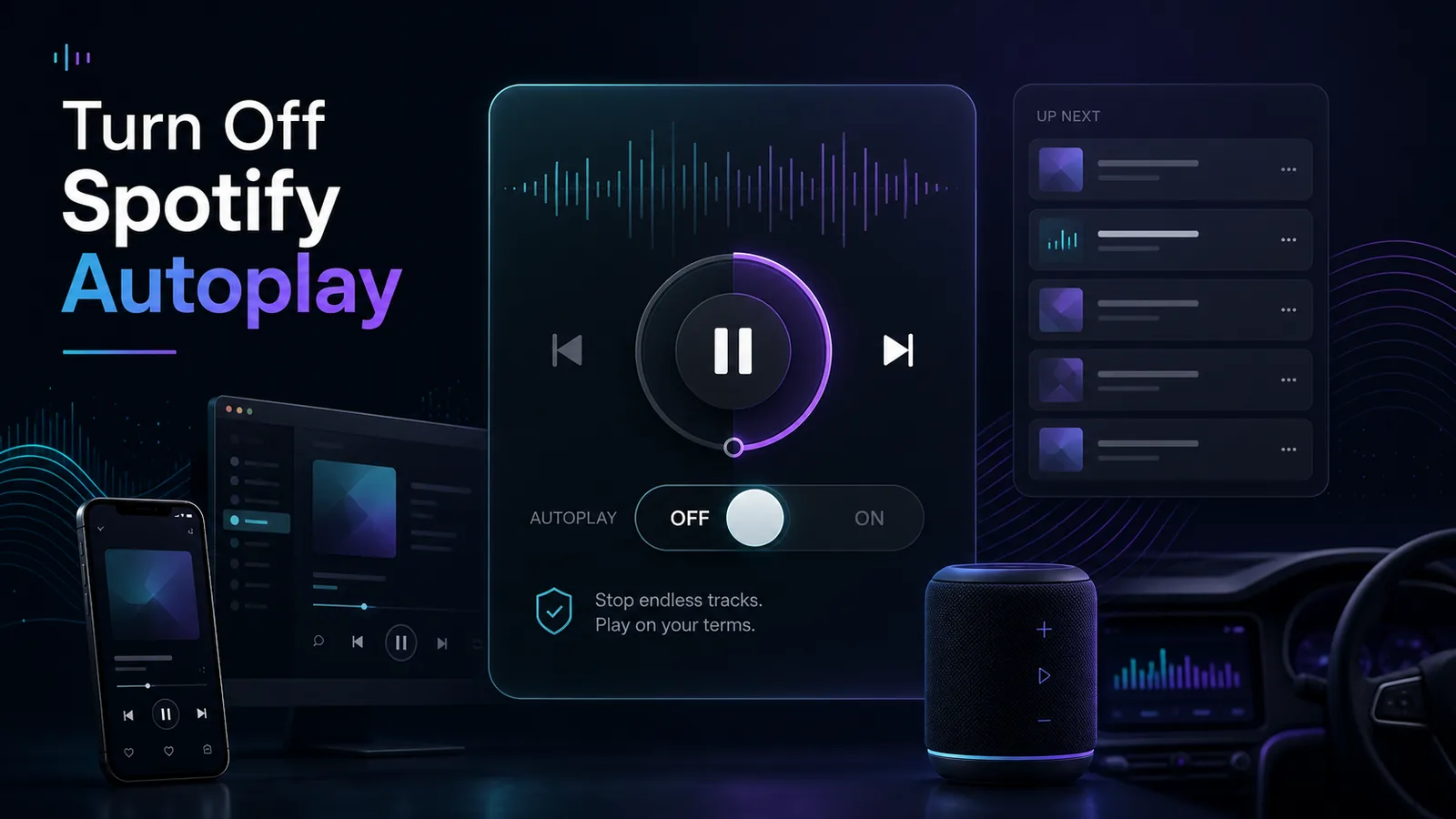
Turn a static score into editable MIDI
Contents
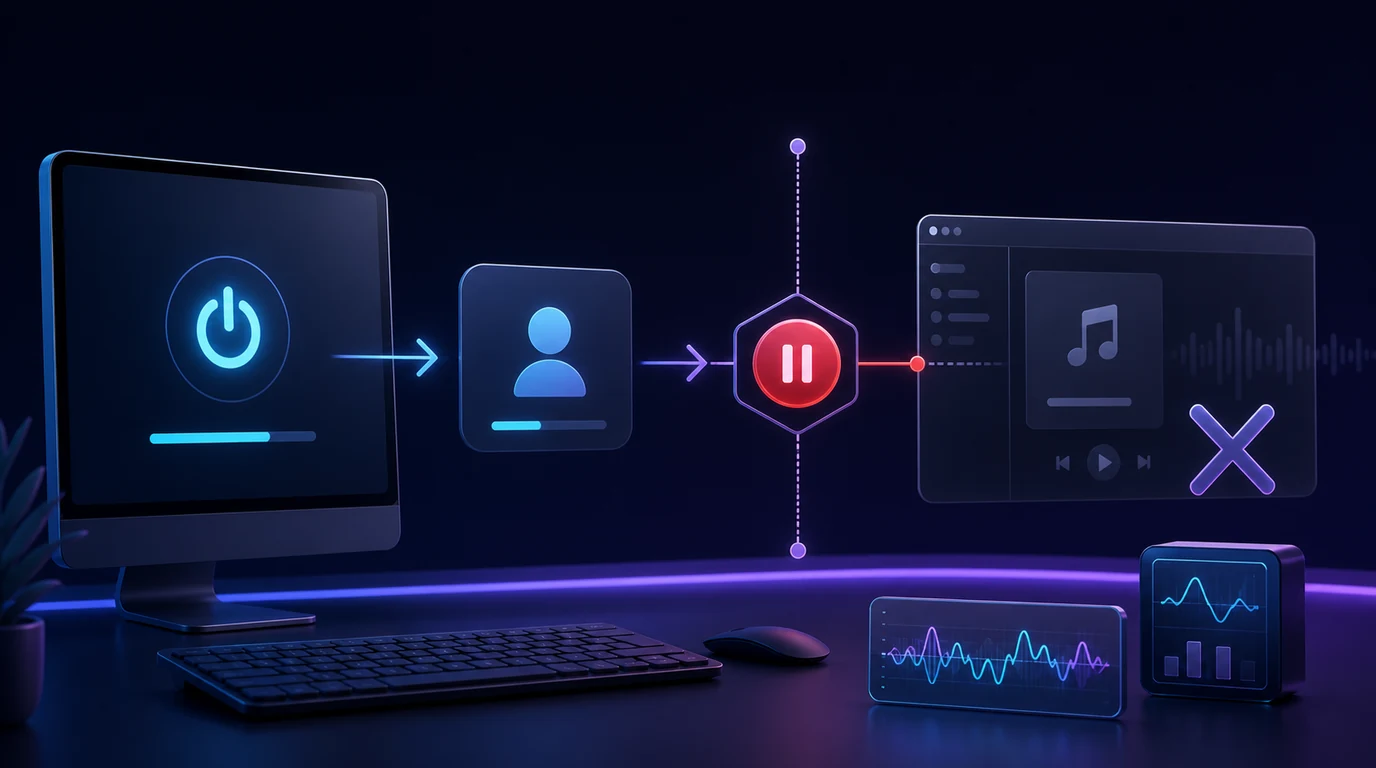
Spotify autoplay is useful when you want the music to keep going. It is annoying when an album ends, a playlist finishes, or a speaker keeps playing recommended songs after the thing you chose is over. The important first step is to name the layer correctly: Spotify Autoplay, Spotify Connect, Bluetooth auto-resume, and desktop startup are different problems.
The safe workflow is simple. Turn off Autoplay inside Spotify when Spotify keeps adding similar tracks after your selected music ends. Use Connect and device checks when the wrong speaker, TV, car, or laptop keeps taking over. Use Melogen only when the audio is already a local file you own or have permission to edit.
Quick answer
Start with the symptom you actually see:
| Symptom | Setting to check first | Why it matters |
|---|---|---|
| Similar songs continue after a playlist, album, or selection ends | Spotify Autoplay | This is the core autoplay setting Spotify documents |
| A speaker, TV, console, or laptop keeps playing from another device | Spotify Connect and device picker | One device can control playback on another device |
| Spotify resumes in the car or after Bluetooth connects | Bluetooth, car media settings, Connect, and phone playback state | This is often device resume behavior, not only Autoplay |
| Spotify opens when your computer starts | Desktop app and operating system startup settings | Startup launch is not the same as track autoplay |
| Music keeps running after you fall asleep | Sleep Timer | Use the Spotify sleep timer guide instead |
| You need a shorter local audio clip | A permitted local file plus an editor | That is where Melogen Music Trimmer can help |
If the problem is recommended music after your chosen queue ends, turn off Autoplay first. If the problem is a car, smart speaker, TV, or login behavior, keep reading before changing the wrong switch.
What Spotify Autoplay actually controls
Spotify's official Autoplay support page explains the core behavior: when your current album, playlist, or selected music finishes, Spotify can automatically continue with similar songs. That is the setting this guide is about.
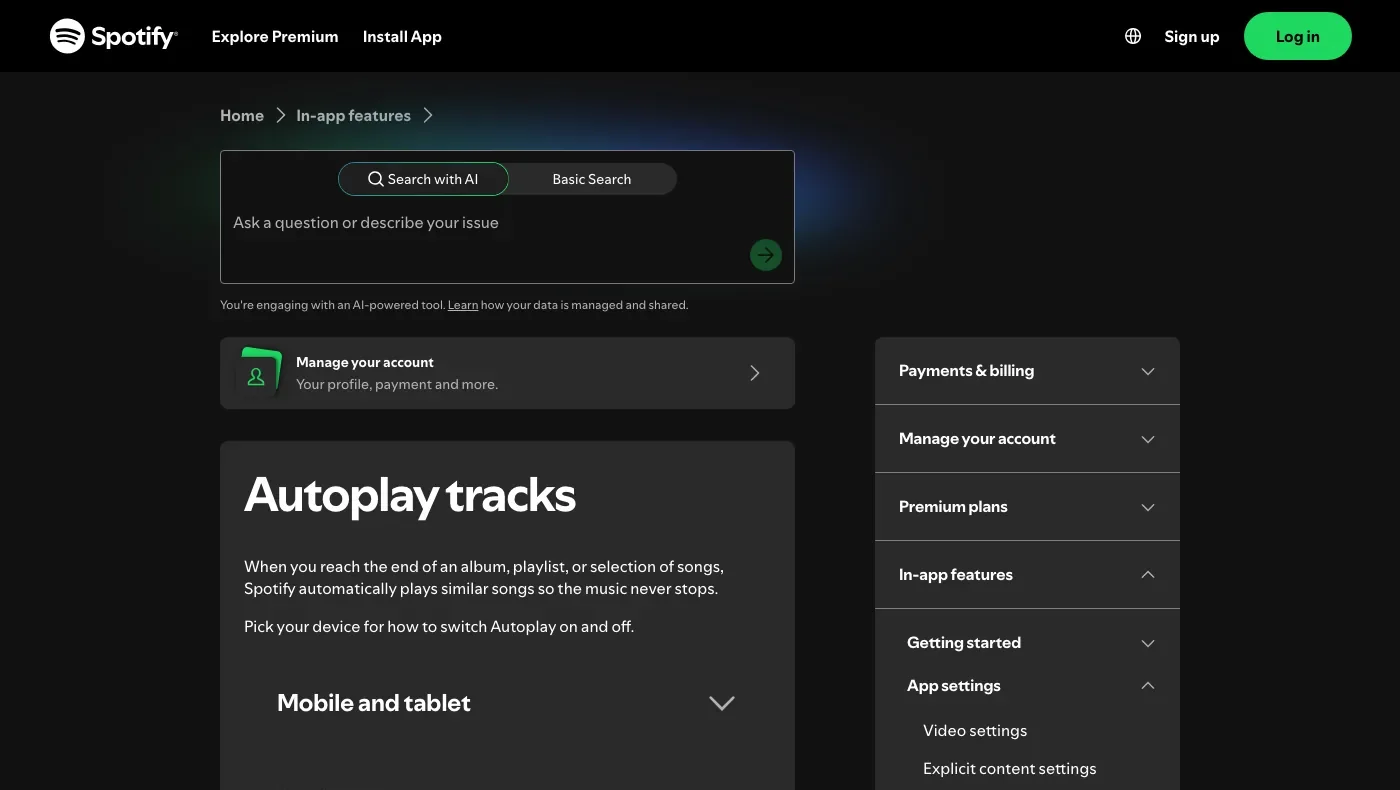
That also means Autoplay is not a universal answer to every surprise playback case. It does not necessarily stop a phone from resuming audio when Bluetooth reconnects. It does not decide which speaker Spotify Connect is using. It does not control whether the desktop app opens at login. Autoplay is about Spotify continuing playback after the selected music ends.
Use this boundary:
| Playback behavior | Is Autoplay likely involved? | Better next step |
|---|---|---|
| A playlist ends, then recommended songs start | Yes | Turn off Autoplay on the active device |
| A different device starts or controls playback | Sometimes | Check Spotify Connect and the device picker |
| The car starts the last paused song | Sometimes, but not always | Check car media, phone Bluetooth, and Spotify session state |
| Spotify launches when the computer starts | No | Change desktop startup settings |
| A local audio file needs a fade-out | No | Edit the file before playback |
This distinction prevents a lot of wasted troubleshooting. Turn off the setting that matches the job, not the setting with the closest name.
Turn off Spotify Autoplay on mobile and tablet
On iPhone, iPad, Android phone, or Android tablet, start in Spotify settings. Spotify's exact menu labels can move across versions, but the pattern is stable: open settings, find playback controls, then disable Autoplay for the device surface you are using.
Use this checklist:
- Open the Spotify app.
- Tap your profile picture or settings entry point.
- Open Settings and privacy if your app uses that label.
- Go to Playback.
- Find the Autoplay option for continuing with similar tracks.
- Turn it off.
- Play a short playlist or album and let it finish to confirm similar songs do not begin automatically.
If you are using Spotify on a phone to control a speaker, run the test on the speaker too. Start a short playlist, confirm the speaker is the active playback device, then wait for the end. If recommended songs still start, check whether the app exposes a separate Autoplay control for the current device or session.
If bedtime is the real use case, Autoplay is only one piece. Use Spotify sleep timer when you want playback to stop after a set duration, especially with podcasts, audiobooks, white noise, or connected speakers.
Turn off Spotify Autoplay on desktop
On desktop, the goal is the same: stop Spotify from filling the queue with similar tracks after your selected music ends. Use the desktop app settings first, then separate that from startup behavior.
Use this checklist:
- Open the Spotify desktop app.
- Open your profile or app menu.
- Go to Settings.
- Look for playback options.
- Turn off Autoplay for continuing similar songs.
- Restart the app if the setting does not seem to stick.
- Test with a short album or playlist.
If Spotify opens automatically when your computer starts, that is a different setting. Look for startup and window behavior in the Spotify desktop app, then check your operating system login items if needed. Turning off Autoplay can stop extra songs after playback ends, but it will not stop the app itself from launching.
If your issue is the web player instead of the desktop app, use the Spotify Web Player not working troubleshooting guide for browser permissions, cache, protected content, and audio output. Do not use a downloader or converter just because the playback surface is frustrating.
Fix Bluetooth, car, and Spotify Connect cases
Bluetooth and Spotify Connect are where many Autoplay guides get too vague. Spotify's Spotify Connect support page explains that you can use one device to remotely control listening on another. Spotify also has a separate speaker setup guide for playback through Wi-Fi, Bluetooth, Chromecast, AirPlay, and other device routes.
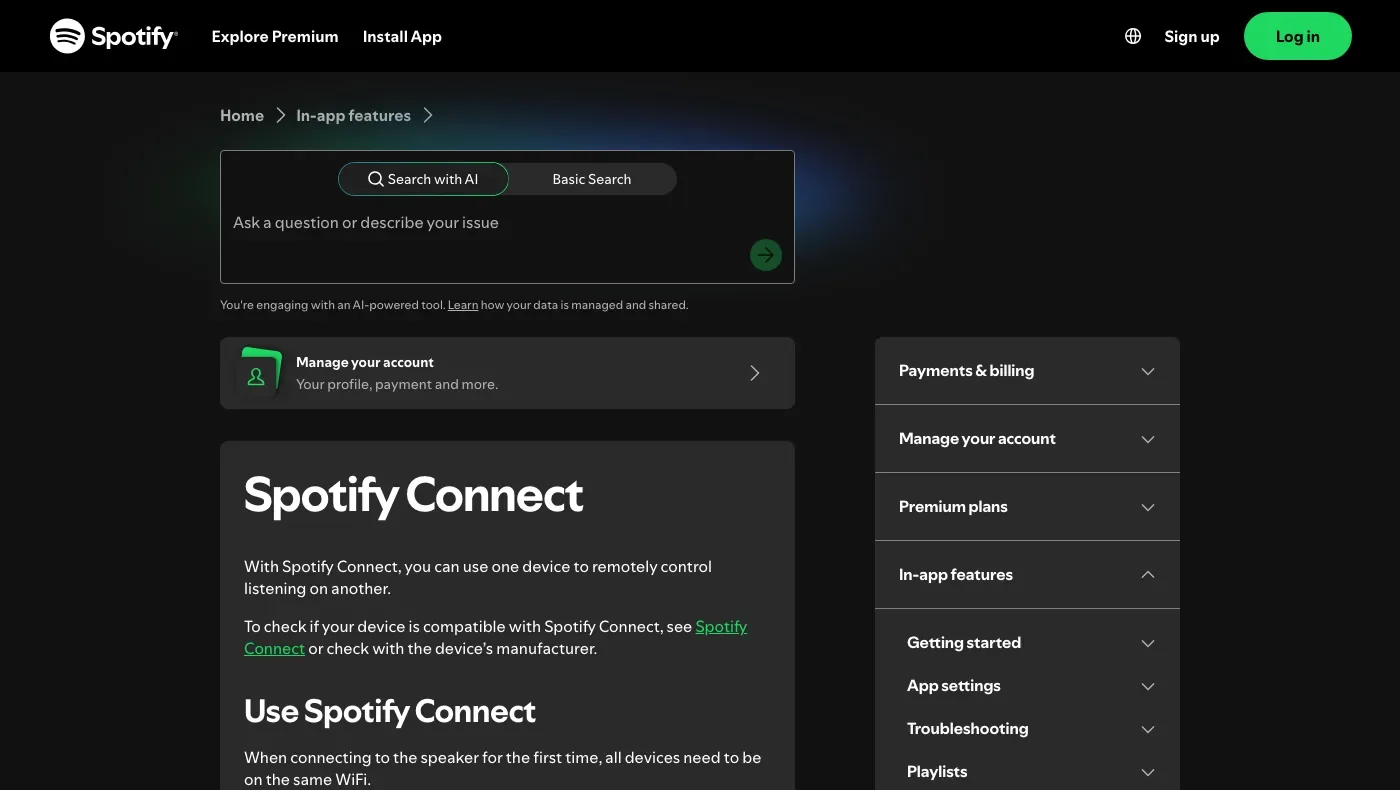
Use this practical sequence:
- Open Spotify and check the current playback device.
- If a speaker, TV, console, or car is selected, switch back to the device you actually want.
- Turn off Autoplay on the active control surface.
- End a short playlist and see whether similar songs start.
- If playback resumes only when Bluetooth reconnects, check phone and car media settings.
- If a speaker keeps taking over, restart Spotify, the speaker, and the controlling device, then reconnect.
Here is the quick difference:
| Case | What to try |
|---|---|
| Similar tracks start after the queue ends | Turn off Spotify Autoplay |
| A speaker keeps showing as the playback target | Re-select the device in Spotify Connect |
| Car Bluetooth starts the last paused track | Check car media auto-play, phone Bluetooth, and Spotify session state |
| The desktop app opens at login | Change startup settings, not Autoplay |
| Transitions between songs feel abrupt | Use Spotify crossfade settings, not Autoplay |
When you are not sure which layer is active, run a short test. Use a two-song playlist, confirm the playback device, then wait. If the third thing you hear is a recommended song, Autoplay is involved. If the problem begins only after a device reconnects, the device layer is probably involved too.
When not to solve Autoplay with a downloader
Some competitor-style pages drift from "turn off Autoplay" into downloading or converting Spotify music. That is not the right fix. Autoplay is a playback setting. It does not require extracting streams, bypassing Spotify limits, or turning subscription catalog music into editable files.
Avoid these shortcuts:
- Do not install a downloader just to stop recommended tracks.
- Do not export Spotify streams because a setting is hard to find.
- Do not treat Bluetooth auto-resume as a file conversion problem.
- Do not use a converter to fix privacy, playlist, sleep timer, or Connect behavior.
- Do not assume a local file workflow gives you rights to streaming catalog audio.
If you are comparing Spotify account behavior with local-file work, the Spotify private listening guide has a similar boundary: Spotify controls account playback and visibility; local tools help only after you already have a permitted file.
Where Melogen fits for owned local audio
Melogen does not turn off Spotify Autoplay, control Spotify Connect, change Bluetooth behavior, or convert Spotify streams. It is useful when your next step is file cleanup and the source audio is already yours, licensed, purchased DRM-free, exported from your own project, or otherwise permitted to edit.

Use Melogen Music Trimmer when you need to:
- Remove silence before a local clip starts.
- Cut a rehearsal, podcast cue, demo bounce, or lesson file down to the useful section.
- Add a smoother fade-out so a file does not stop abruptly.
- Prepare an owned clip before adding it to a personal local library.
- Keep a clean copy while leaving the original file untouched.
This is especially helpful when Autoplay was masking a messy file ending. If the track itself has a harsh stop, crossfade and autoplay settings can only hide so much. Clean the permitted file first, then choose the Spotify playback setting that matches the situation.
Trim a local clip after Spotify settings are fixed
Use Melogen Music Trimmer for audio files you are allowed to edit when the next job is cutting silence, keeping a section, or adding a cleaner fade.
Troubleshooting
| Problem | Likely cause | Safer fix |
|---|---|---|
| Spotify keeps playing similar songs after an album ends | Autoplay is still enabled for the active playback surface | Turn off Autoplay and retest with a short playlist |
| Autoplay is off, but a speaker keeps playing | Spotify Connect session or device handoff is still active | Re-select the playback device and restart the app or speaker |
| Spotify starts in the car | Bluetooth or car media auto-resume is involved | Check phone playback state, car settings, and Connect target |
| Spotify opens when the computer starts | Desktop startup behavior | Change Spotify startup settings and OS login items |
| Music runs all night | Sleep timer is missing or not set | Use a timer rather than relying only on Autoplay |
| Local file endings sound rough | The file needs editing | Trim and fade the permitted local file before playback |
Do the boring checks in order. Most autoplay complaints are solved by matching the setting to the layer: Spotify queue, connected device, Bluetooth resume, startup launch, or local file preparation.
FAQs
Does turning off Spotify Autoplay stop recommended songs?
It should stop Spotify from automatically continuing with similar tracks after your selected music ends. If recommended songs still start, confirm the setting on the active device and check whether another Connect device is controlling playback.
Is Spotify Autoplay the same as Spotify playing in my car?
Not always. Car playback can involve Bluetooth auto-resume, the phone's last media state, Spotify Connect, or the car's own media behavior. Turn off Autoplay, then check the device layer if playback resumes only after the car connects.
Does Autoplay affect Spotify Connect speakers?
It can, because the active playback device may be a speaker, TV, console, or computer controlled from another device. Confirm the Connect target before testing Autoplay, and use a short playlist so you can see what happens at the end.
Can I turn off Autoplay on Spotify desktop?
Yes, check playback settings in the Spotify desktop app. If your real problem is Spotify opening when your computer starts, change startup behavior separately.
Can Melogen turn off Spotify Autoplay?
No. Melogen does not control Spotify settings or Spotify streams. Melogen helps after you already have a permitted local audio file that needs trimming, silence removal, or a smoother fade.
The practical takeaway
Turn off Spotify Autoplay when similar tracks continue after the music you chose ends. Check Spotify Connect when another device keeps controlling playback. Check Bluetooth and startup settings when the behavior begins outside the Spotify queue. Use Melogen only after the source is already a local audio file you are allowed to edit.
About the author
Zhang Guo
Composer - AI Product Manager
AI product manager and digital marketing consultant with a background in music. Creativity is the bridge between rhythm and logic, where musical intuition and mathematical precision can coexist in every meaningful product decision.
Follow on X