How to Turn Suno Into Notes and MIDI
Turn Suno songs into notes with an audio-to-MIDI workflow, cleanup checks, and notation handoff tips for usable drafts.
 Zhang Guo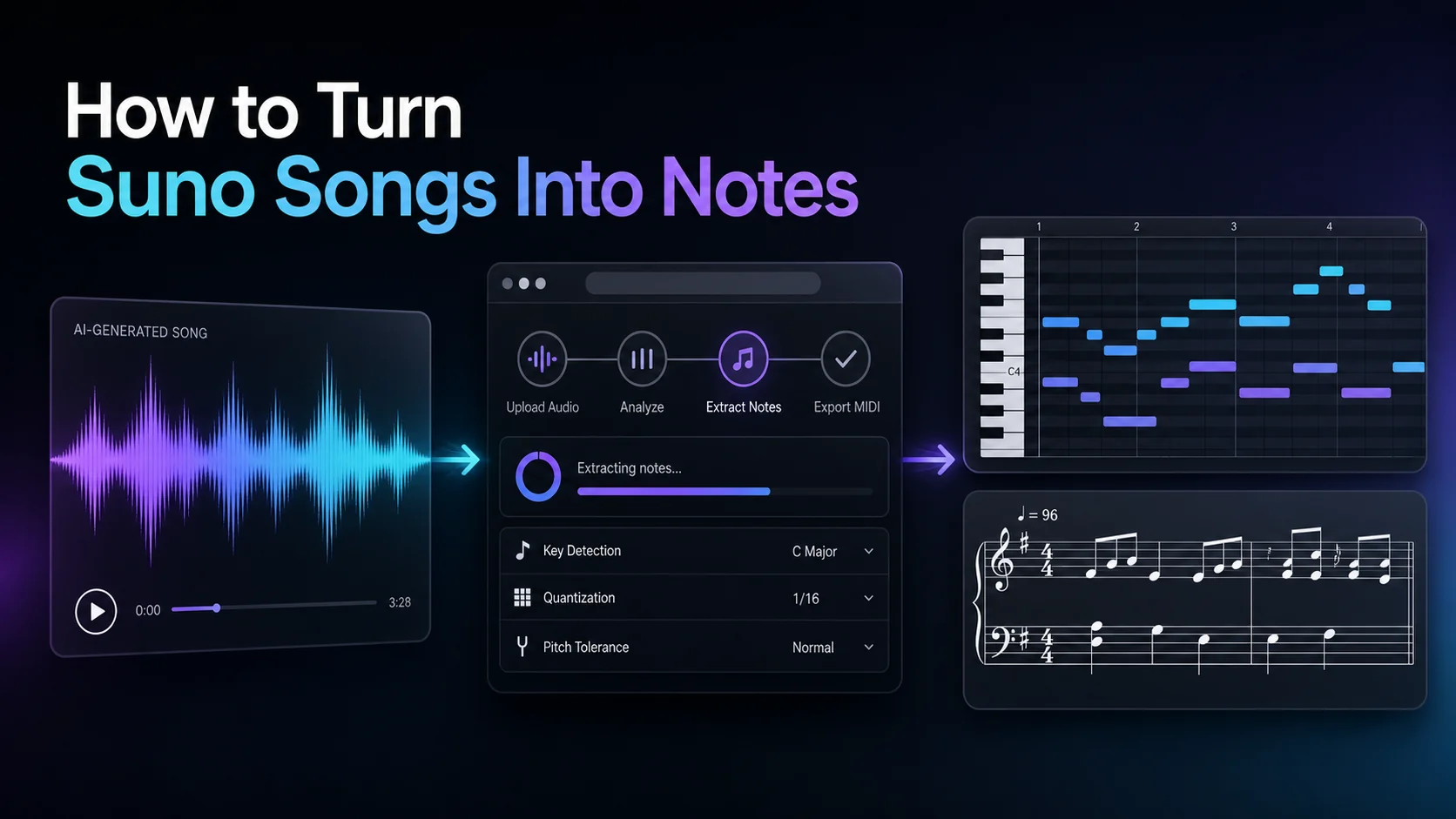
Turn a static score into editable MIDI
Contents
To turn Suno into notes, start with the cleanest audio you are allowed to use, convert that audio into a MIDI draft, then clean the result in a DAW or notation editor. The useful output is not a perfect one-click score. It is a playable MIDI or note sketch that helps you arrange, learn, rewrite, or document the musical idea.
If Suno already gives you usable stems or MIDI for your account and project, try that first. If you only have a full mix, an audio-to-MIDI workflow can still help, but you should expect a cleanup pass, especially with vocals, drums, reverb, dense chords, and generated mixes where several instruments blur together.
Start with the right Suno source
Suno is a song-generation tool, not a traditional notation editor. That means the first question is not "where is the score?" but "which audio source gives me the clearest musical line?"

Use the cleanest source available in your own project:
- a full exported song when you need the main melody or chord feel
- a stem when you can separate vocals, bass, piano, drums, or another part
- a short selected section when you only need one hook, riff, or verse idea
- a re-recorded playback only when no direct export is available and you are allowed to use it
Suno's current help pages describe Studio export options for full songs, selected ranges, multitracks, stems, and MIDI-from-stem workflows. Check the current Suno Studio export documentation and stem extraction documentation inside your own account, because export access and formats can depend on the product surface and plan.
Choose the output before converting
Do not convert first and decide later. A readable lead sheet, a DAW MIDI lane, and a quick note-name sketch are different jobs.
| Goal | Best first output | Why it works | Cleanup focus |
|---|---|---|---|
| Rebuild a melody in a DAW | MIDI | You can edit pitch, timing, and note length | Octaves, phrase starts, wrong short notes |
| Create a notation draft | MIDI, then notation software | MIDI gives the raw note material | Measures, rests, ties, voices, layout |
| Learn a hook or vocal line | Simple MIDI or note names | You need the contour more than full scoring | Key, octave, rhythm grouping |
| Arrange a full Suno track | Stems first, then MIDI per part | Dense full mixes confuse transcription | Separate parts, tempo, bar alignment |
Here is the useful distinction: if the listener hears one clear line, audio-to-MIDI can be a strong first pass. If the mix contains vocals, drums, pads, bass, and effects at once, split or simplify the source before asking for clean notes.
Run a first pass through Melogen
Melogen's Audio to MIDI converter is the most direct route when your Suno output is an audio file. The local tool page supports common audio formats such as MP3, WAV, FLAC, OGG, M4A, and AAC, and the output is a standard MIDI file that can move into a DAW or notation tool.
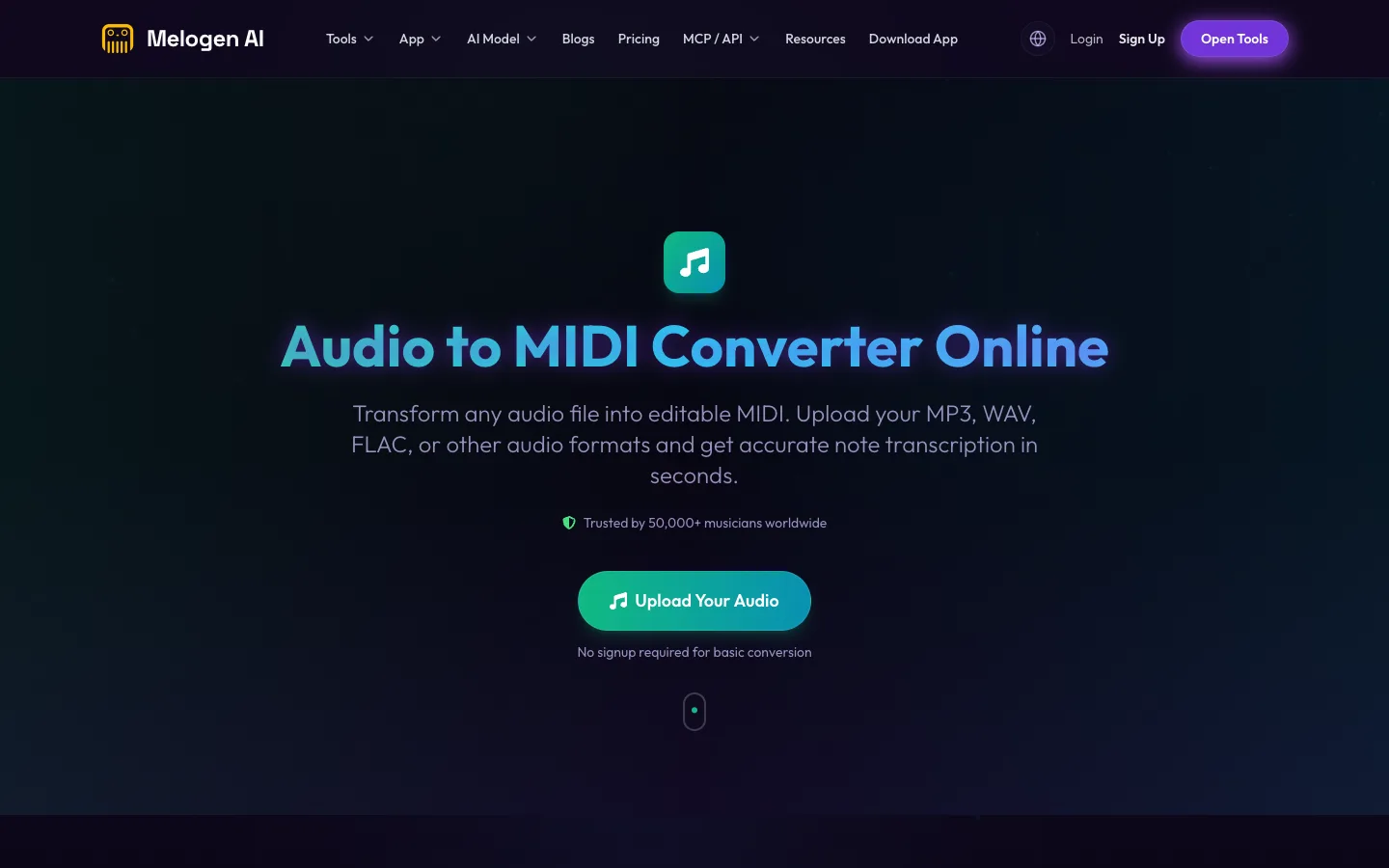
Use a short section first. Upload the hook, chorus, instrumental phrase, or stem that matters most, then inspect the MIDI before converting an entire song. This keeps the first pass practical and prevents you from spending an hour cleaning a file that was never clear enough to transcribe.
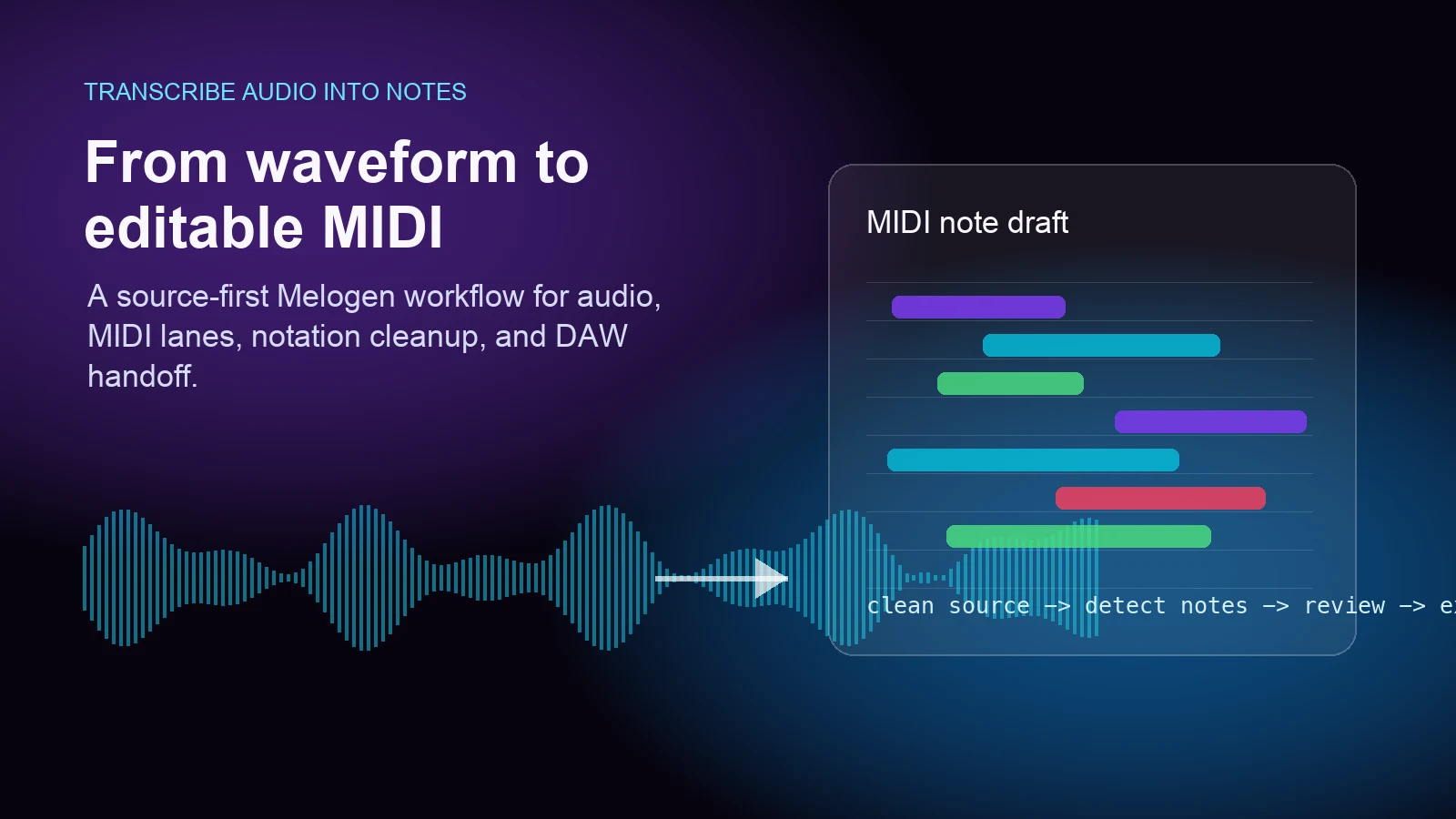
The broader Music2MIDI route is useful when the job is closer to music transcription across a full file or when you want a more general music-to-MIDI workflow. If you are still deciding whether audio transcription is the right route, the guide to transcribing audio into notes explains the source-first cleanup mindset in more detail.
Turn a Suno audio draft into editable MIDI
Use Melogen Audio to MIDI for the first pass, then clean the notes in your DAW or notation editor before arranging.
Clean the MIDI before making sheet music
The first MIDI file is a draft. Judge it like a musician, not like a finished score.
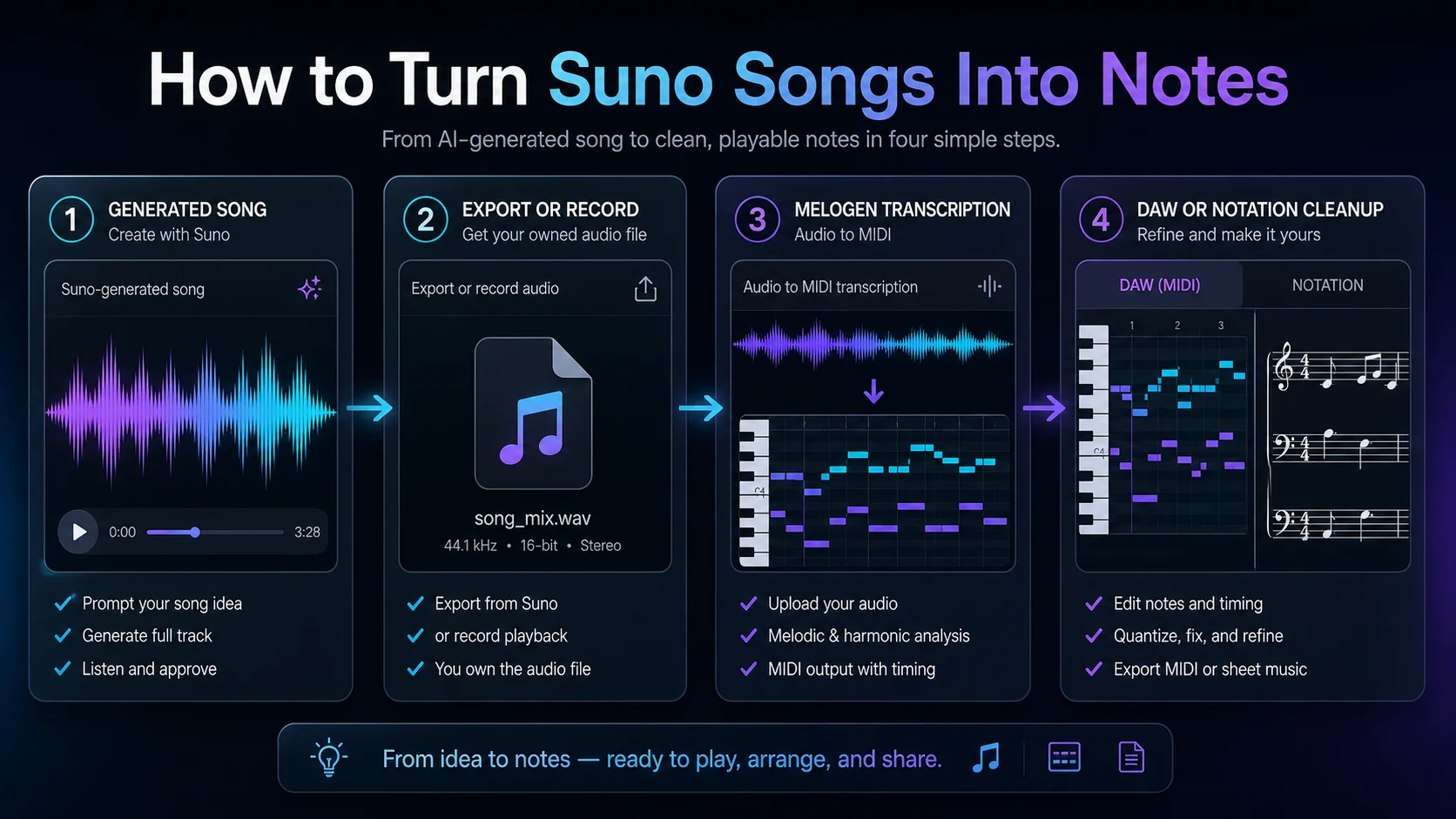
Check these items in order:
- Find the first downbeat and line it up before fixing small notes.
- Move whole phrases by octave if the melody landed too high or too low.
- Delete extra tiny notes caused by reverb, vocal texture, or drum bleed.
- Fix note lengths so held notes and phrase endings feel musical.
- Quantize lightly, then listen back against the Suno audio.
- Only after the MIDI feels playable, import it into notation software if you need staff notation.
If the structure is wrong, rerun from a cleaner stem or a shorter audio clip. If the structure is right but some notes are messy, stay in the MIDI editor and clean by phrase. That split saves a lot of time.
Use Suno MIDI export carefully when it is available
Suno may already offer MIDI from stems in some Studio workflows. That can be useful, especially when the stem is cleaner than the full mix. Still, MIDI export is not the same as finished notation.
Use Suno's native MIDI route when:
- you have access to stem or MIDI export in the current Suno product surface
- the stem is a clear single part such as bass, lead, or keyboard
- the exported MIDI opens cleanly in your DAW
- you only need a starting point for editing
Use Melogen after Suno when:
- you only have a bounced audio file
- the native MIDI is missing, unavailable, or too noisy for the part you need
- you want to compare another transcription pass against the generated song
- you are moving the result into a broader note-cleanup workflow
For generator-choice context, the guide to whether Suno is the best AI music generator compares Suno with other creation tools. This article is narrower: it starts after you already have a Suno song and want notes you can edit.
Avoid rights and source-quality traps
Only transcribe Suno songs you are allowed to use, edit, and export. If the generated song includes uploaded reference audio, a voice sample, a lyric source, or another collaborator's material, confirm the rights before turning it into a reusable MIDI or notation asset.
Also watch for source-quality traps:
- a mastered full mix may create extra notes from drums, effects, and harmonics
- vocals often need manual octave and rhythm cleanup
- long songs are easier to clean when split into sections
- generated endings and transitions may not align neatly to bars
- notation software may need manual fixes for rests, ties, voices, and enharmonic spelling
If you need a broader tool comparison for transcription, the best AI music transcription tools roundup is a better next read. For this Suno-specific job, the fastest useful path is still simple: isolate the clearest audio, create a MIDI draft, then clean it musically.
The practical takeaway
The best way to turn Suno into notes is to keep the workflow humble. Export or capture the cleanest audio you control, convert a short section first, inspect the MIDI, and only then build notation or an arrangement from the cleaned result.
Melogen helps most in the middle of that chain. It gives you a browser-based first pass from Suno audio to editable MIDI, then you decide what the music should become.
About the author
Zhang Guo
Composer - AI Product Manager
AI product manager and digital marketing consultant with a background in music. Creativity is the bridge between rhythm and logic, where musical intuition and mathematical precision can coexist in every meaningful product decision.
Follow on X