How to Add and Delete Measures in MuseScore Studio
Add or delete measures in MuseScore Studio with menu and keyboard steps, then check all staves, repeat signs, and the final bar count.
 Zhang Guo
Turn a static score into editable MIDI
Contents
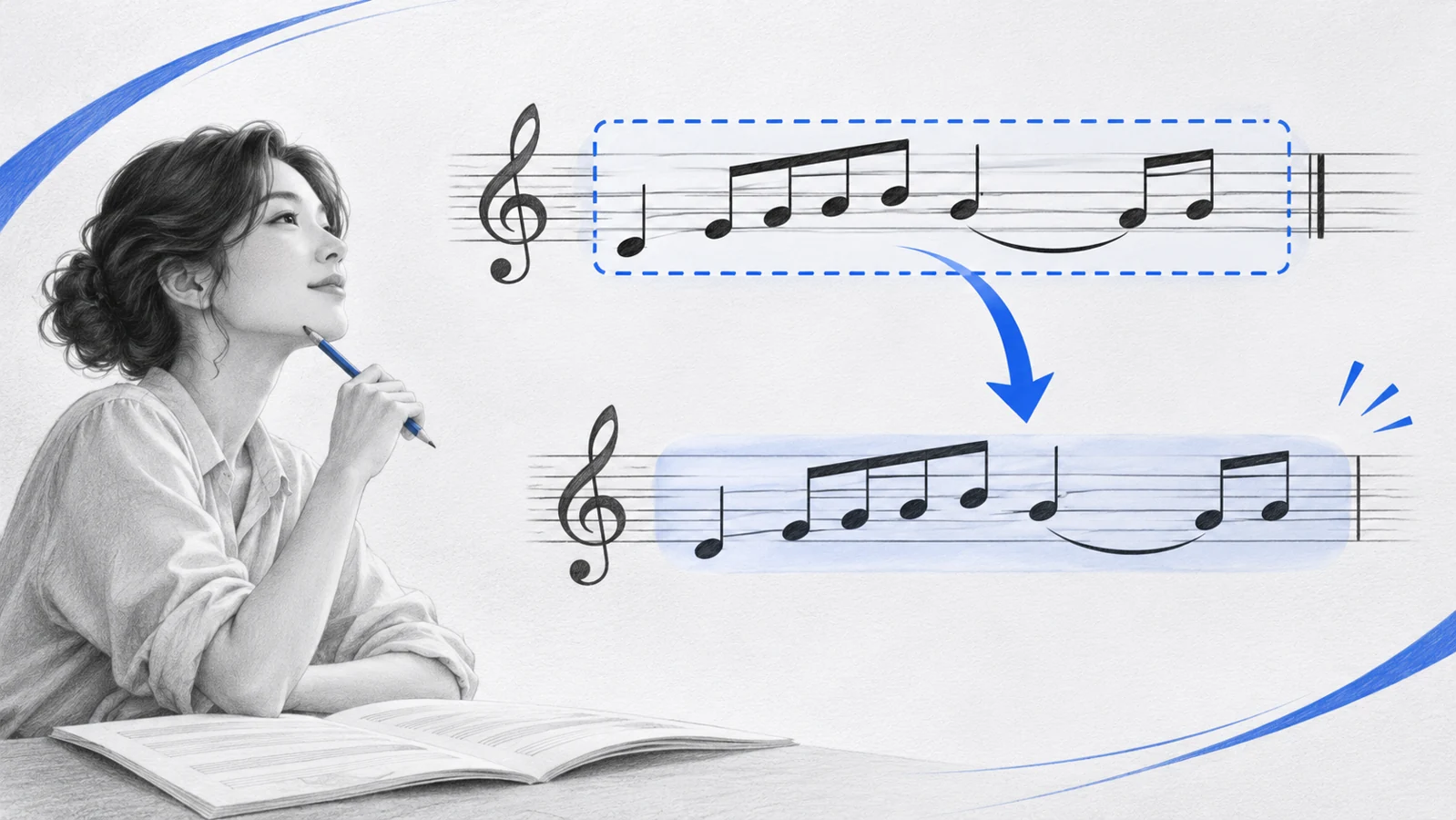
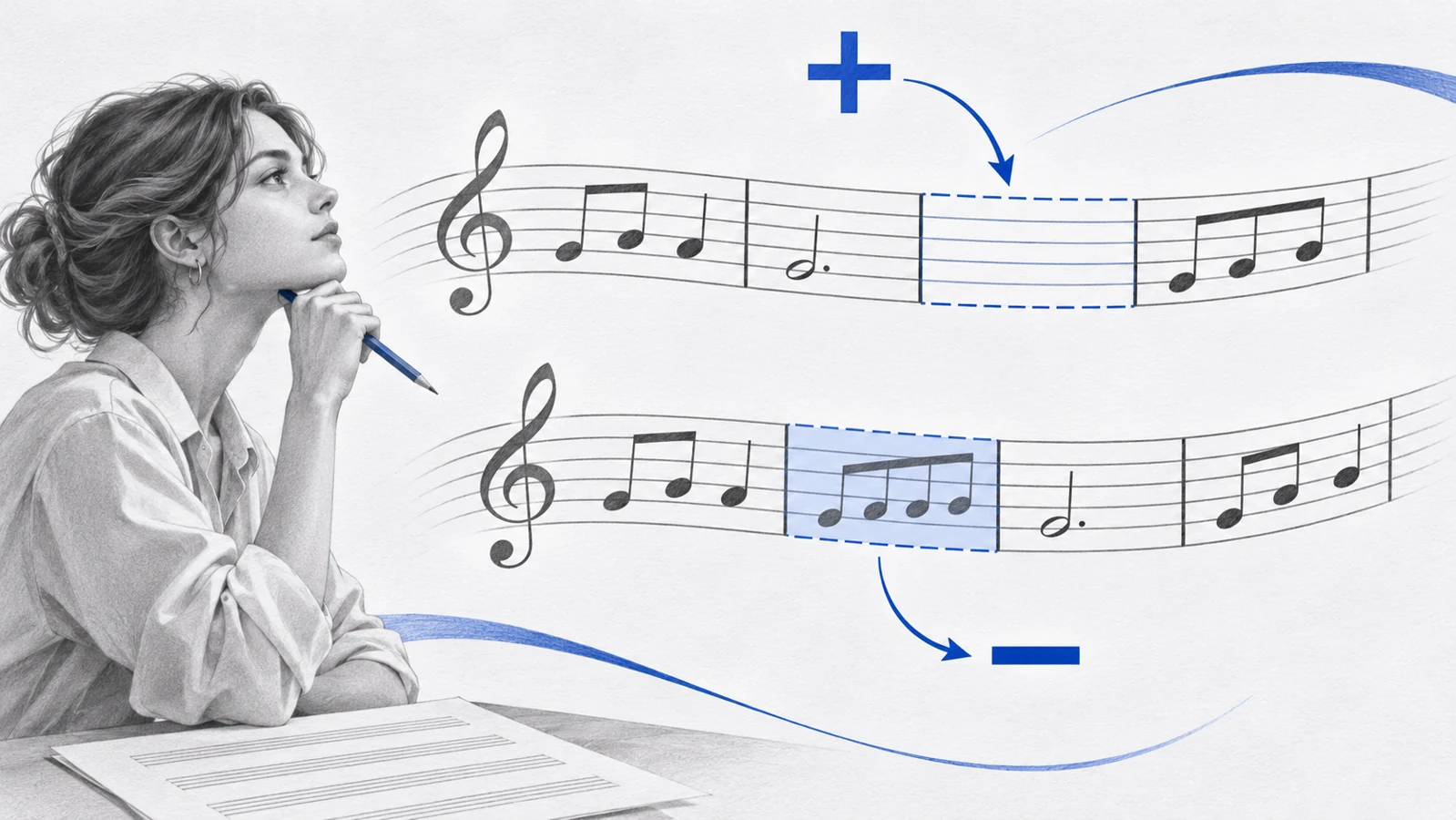
To delete measures in MuseScore Studio, select the required bars, right-click the selection, and choose Delete measures. To add bars, right-click a blank area of a measure and choose Insert measures, then set the location and count.
Removing a whole measure changes the score's timeline. Pressing Delete on a note usually changes its contents instead. Choose the operation according to whether you want less music or simply an empty bar.
Decide whether to clear music or remove time
Before editing, save a working copy and identify the section by a rehearsal mark, lyric, or recognizable phrase. Measure numbers can change after a deletion, so write down the musical landmark as well as the number.
| Your intention | Appropriate action | Expected result |
|---|---|---|
| Keep a silent bar | Remove or edit its notes | The bar remains in the timeline |
| Shorten the score by one bar | Delete the measure | Later music moves earlier |
| Add space for a new phrase | Insert measures | New bars appear at the chosen location |
| Remove unused bars at the end | Remove empty trailing measures | The score ends after the retained music |
In an ensemble score, examine every staff at the proposed edit. A bar that is empty for the flute may contain a cello entrance. Whole-measure edits affect the shared form.
Select the complete range to delete
Click a blank area inside the first measure. Hold Shift and click the last measure to extend the range. Confirm that the highlighted range ends where you intend; selecting a note or barline is a different starting point from selecting a block of measures.
The official selection handbook is useful when the highlight does not match your intended range.

Original example before removing the shared empty bar. Read both staves before deciding that a measure is expendable.
With the range selected, use Delete measures from its context menu. The keyboard alternatives are Ctrl + Backspace or Ctrl + Delete on Windows, and Cmd + Backspace or Cmd + Delete on Mac. These are the whole-measure commands in the current adding and removing measures guide.
Play from the bar before the cut. If the retained phrase now starts too early, undo immediately and check your selection.
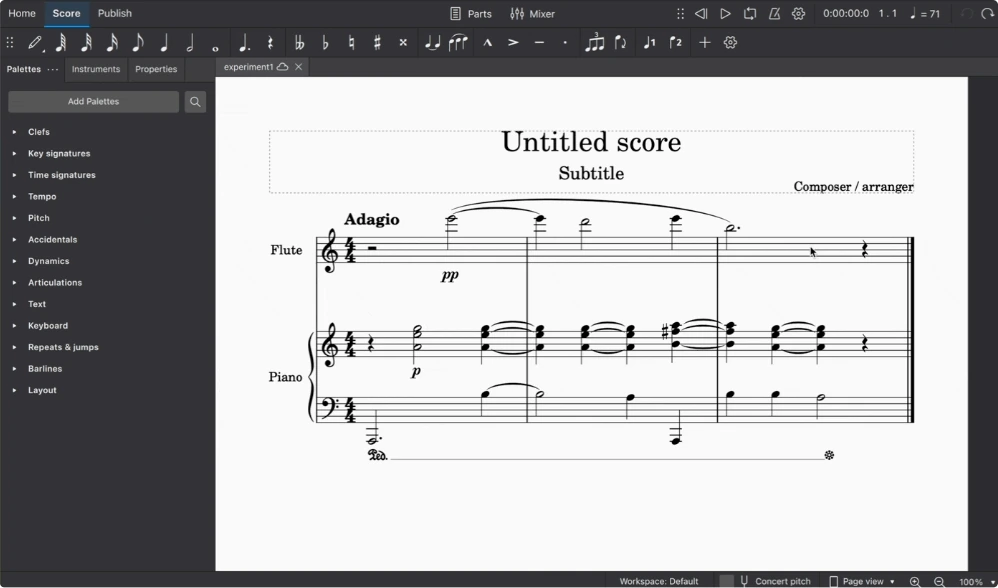
Official handbook illustration. The surrounding steps describe the current insertion commands.
Insert measures in the right place
Use the context-menu route when you want to see the location explicitly:
- Right-click a blank area inside a reference measure.
- Choose Insert measures.
- Choose whether the new bars belong before or after the reference, or at the start or end.
- Enter the number of measures and confirm.
You can also select music and use Add → Measures. To append one bar quickly, use Ctrl + B on Windows or Cmd + B on Mac. If your keyboard has no Insert key, the visible menu avoids special-key combinations.
For example, to make room for a four-bar introduction, insert four measures at the start. Then check whether the original opening key, tempo, and rehearsal cues still describe the intended entrance. Add the introduction's musical instructions deliberately.
Compare the result with your intended form

Illustrative before-and-after score fixtures rendered in MuseScore Studio 4.7.6. The after example has three bars instead of four.
The useful check is a count, not the amount of white space on the page. A new layout can squeeze bars together or move them to another system without changing the music.
- Count retained bars between two recognizable landmarks.
- Check every staff across the join.
- Listen for missing pickups, sustained bass notes, and premature entrances.
- Inspect repeats, alternate endings, tempo marks, and rehearsal marks near the cut.
- Review extracted parts after changing the full score.
If the original form was eight bars and you remove one complete bar, expect seven retained bars. If you merely cleared the notes, the form still contains eight.
Download the starting score and the illustrative result to inspect the musical difference in your own notation editor.
Fix empty endings and numbering problems
For genuinely unused bars after the music, use Tools → Remove empty trailing measures. Inspect the ending first: an empty-looking bar may contain a rest, cue, or other intentional material.
If the music is correct but bar numbers seem strange, inspect numbering separately. The official measure properties guide describes numbering and duration controls. Do not delete musical material to repair a numbering display.
A short first bar may be an intentional pickup. Its duration is a separate issue from inserting or deleting ordinary measures. Read the source phrase before treating that bar as a mistake.
Start from editable notation when repairing a scan
If the score came from a PDF, use Melogen PDF to MusicXML to create an editable first pass, then compare the imported form with the source. Recognition can produce extra or missing barlines, so check an entire phrase before deleting anything. The MuseScore scanning workflow covers those import checks.
Turn a PDF score into editable notation
Convert with Melogen PDF to MusicXML, then verify the form and repair measures in MuseScore Studio.
About the author
Zhang Guo
Composer - AI Product Manager
AI product manager and digital marketing consultant with a background in music. Creativity is the bridge between rhythm and logic, where musical intuition and mathematical precision can coexist in every meaningful product decision.
Follow on X