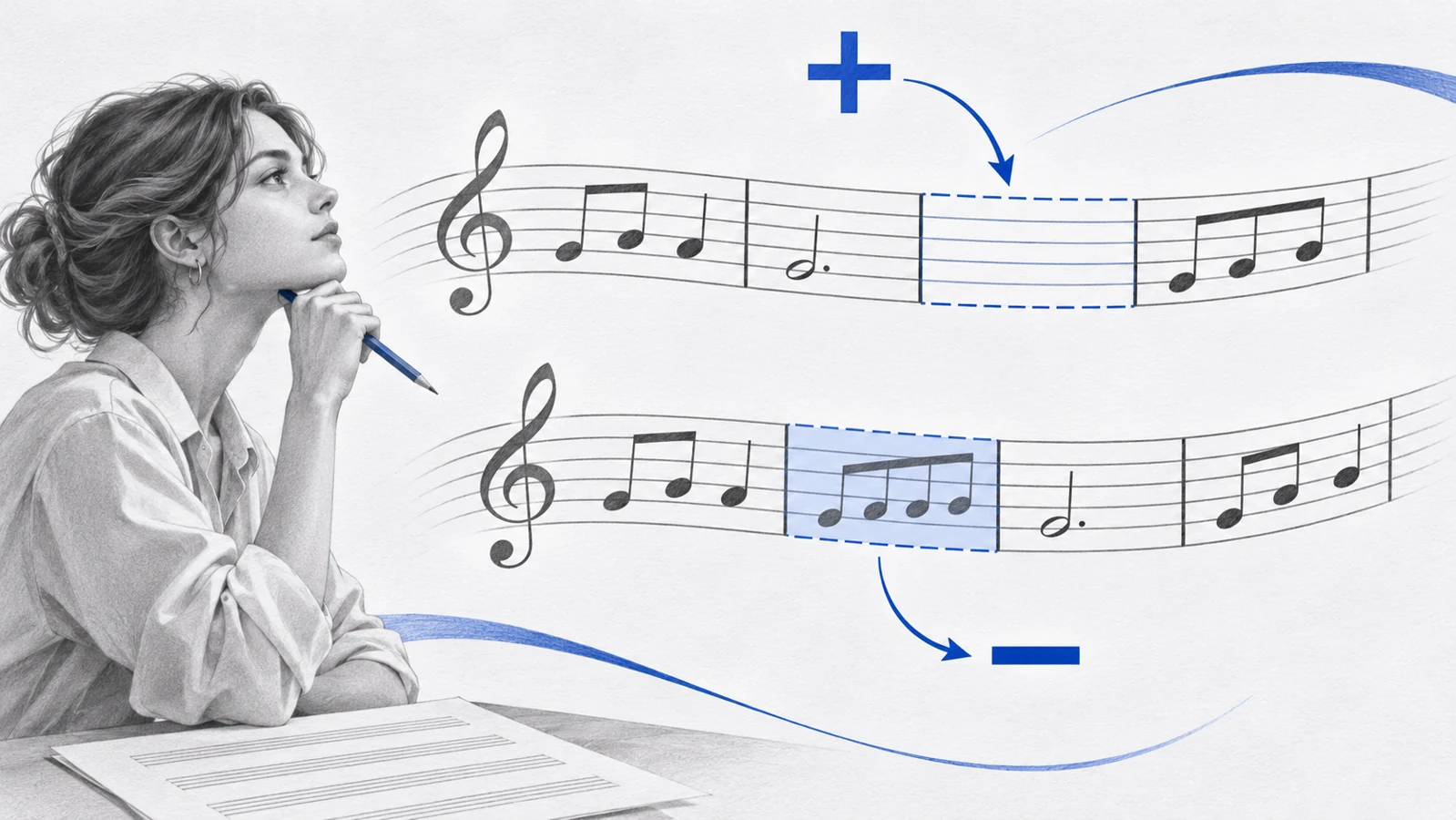
How to Copy and Paste in MuseScore Without Lost Notes
Copy and paste in MuseScore Studio with the right range selection, destination beat, and overwrite checks for notes, voices, and markings.
 Zhang Guo
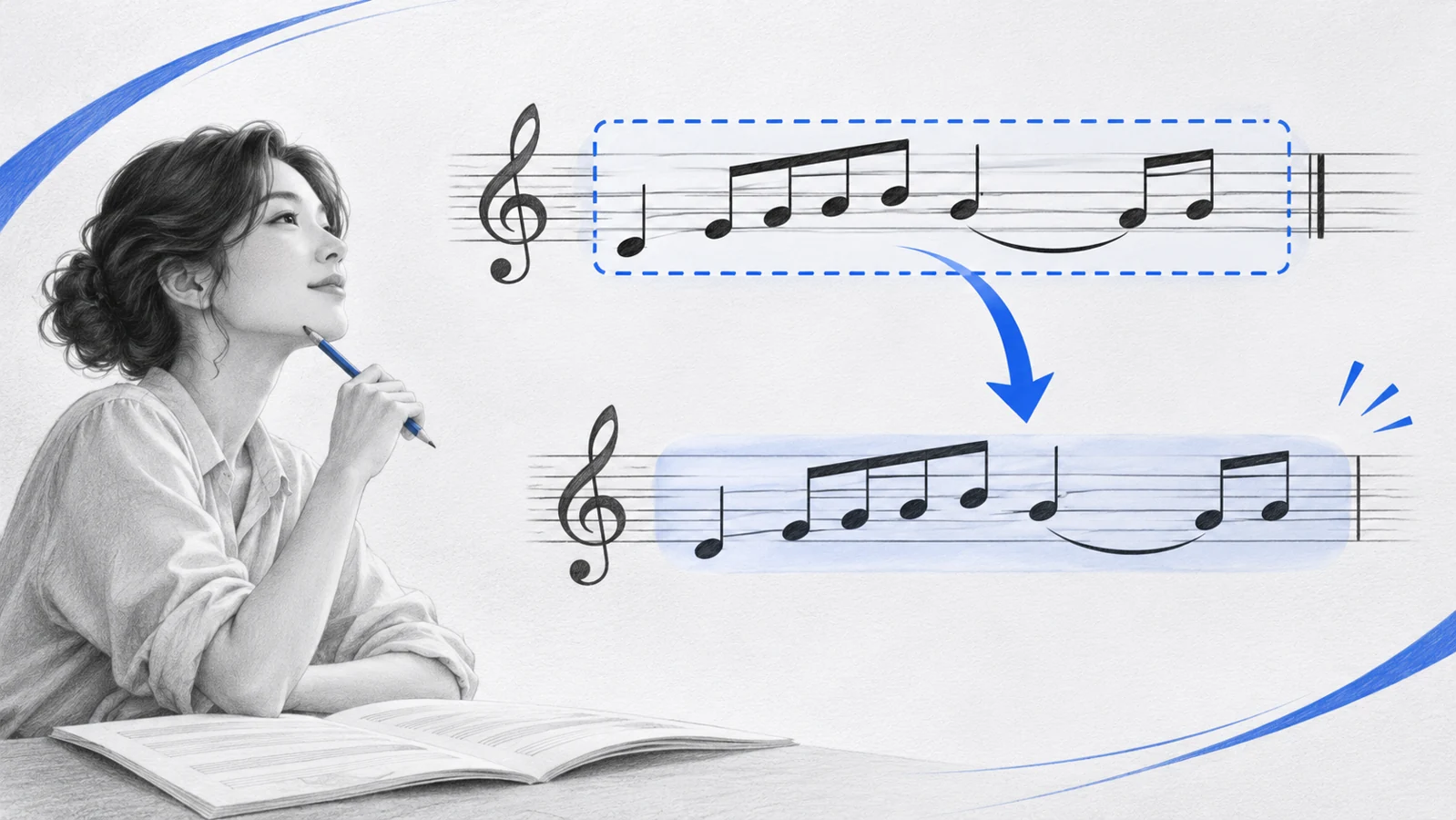
Turn a static score into editable MIDI
Contents
To copy and paste music in MuseScore Studio, select a range, copy it with Ctrl + C on Windows or Cmd + C on Mac, select the destination's first note or rest, then paste with Ctrl + V or Cmd + V. Existing music at the destination is replaced.
Most confusing results begin with the selection or destination beat. A highlighted note is not necessarily a highlighted passage, and a paste that begins on beat two will not behave like one that begins at the barline.
Select a passage rather than a list of notes
Save your score before replacing a populated passage. For a two-bar phrase, click a blank area in the first measure, then Shift-click the second measure to extend the range. Inspect the highlighted start, end, and staves before copying.
The current selecting elements guide distinguishes range selections from individual-element lists. Use the range method for a musical passage. A list of separately selected notes is not a substitute for the range-copy workflow.
| What you want to copy | Selection to use | First check |
|---|---|---|
| A melody with rhythm | Range on its staff | The whole phrase is highlighted |
| A piano passage | Range across both staves | Both hands are included |
| A dynamic or articulation | Individual element | The destination has a suitable musical anchor |
| A repeated phrase immediately after itself | Range, then Repeat selection | The following music can safely be replaced |
Copy the phrase and choose the destination
- Copy the selected range using the shortcut or Edit → Copy.
- Click the first note or rest where the copied phrase should begin.
- Check the destination staff and beat.
- Paste using the shortcut or Edit → Paste.
- Play across the join and inspect the end of the pasted range.
These steps follow the official copy and paste handbook. If using a context menu, right-click on a selected item; clicking empty space can discard the selection.

Example starting point. Copy bar 1 to the first rest of bar 3, leaving the final bar intact.
For this example, select bar 1, copy it, then select the rest at the start of bar 3. Pasting should reproduce the opening figure in bar 3 while leaving the final bar intact. Starting on a later rest would offset the figure.
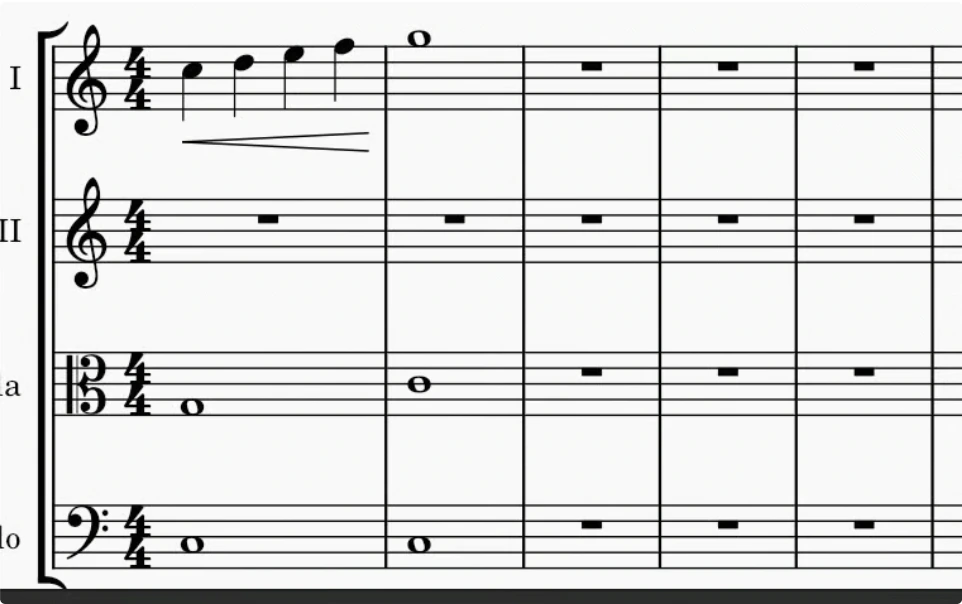
Official handbook illustration of copying a range. Check both the selected staves and the destination.
Understand what the paste replaces
A range paste overwrites music at its destination. It does not create a fresh gap before the existing notes. If the original destination contains a countermelody you still need, undo and create space or choose another staff before pasting again.
The range operation also has a musical boundary: system-wide objects such as tempo text, key or time changes, and repeats are excluded from an ordinary range copy. Check those separately when reproducing a section. The time signature documentation explains how meter changes affect the following music.

Illustrative before-and-after score fixtures rendered in MuseScore Studio 4.7.6. The third bar now contains the copied opening figure; the final bar remains unchanged.
Listen to the first note of the pasted phrase and the first note after it. Those two boundaries reveal many errors faster than inspecting every note in the middle.
Download the starting score and the illustrative result to inspect the musical difference in your own notation editor.
Use Repeat selection for an immediate duplicate
Select the passage and press R to repeat it immediately afterward. This is convenient for a repeated accompaniment pattern or short exercise. It still requires a careful destination check; repetition can replace music that follows.
Use ordinary copy and paste when the destination is elsewhere in the score. Use Cut only when the source passage should be moved rather than retained. Keeping these choices separate makes undo and verification much simpler.
Troubleshoot the common failures
| Result | Inspect first | Next action |
|---|---|---|
| Nothing useful pastes | Selection type | Select a continuous range instead of scattered notes |
| Phrase begins late | Destination beat | Undo and select the first note or rest at the intended start |
| Other music disappears | Destination contents | Undo and prepare enough space before repeating |
| Dynamics are absent | Selection Filter | Review excluded element types |
| Tempo or meter did not follow | System-wide markings | Add or verify those instructions separately |
| One piano hand is missing | Selected staff range | Repeat with both staves included |
Check voices when copying dense notation. A passage that sounds incomplete may have come from an incomplete staff or voice selection. Start with two bars, verify them, and expand the operation only after the pattern works.
Copy only after the imported score is stable
When your source is PDF sheet music, Melogen PDF to MusicXML can supply the editable notation for MuseScore. Proofread the first occurrence before duplicating it: copying a recognition error turns one correction into several.
The scan music into MuseScore guide covers that earlier handoff. If you are choosing between performance data and notation, the MIDI vs MusicXML comparison explains why MusicXML is usually the better score-editing bridge.
Make your score editable before arranging
Convert a PDF with Melogen PDF to MusicXML, proofread it in MuseScore, and reuse only the corrected passages.
About the author
Zhang Guo
Composer - AI Product Manager
AI product manager and digital marketing consultant with a background in music. Creativity is the bridge between rhythm and logic, where musical intuition and mathematical precision can coexist in every meaningful product decision.
Follow on X