How to Add Music to Apple Watch and Listen Offline
Add music to Apple Watch from your iPhone or the Watch itself, then fix offline downloads, storage, playback, removal, and local-audio issues.
 Zhang Guo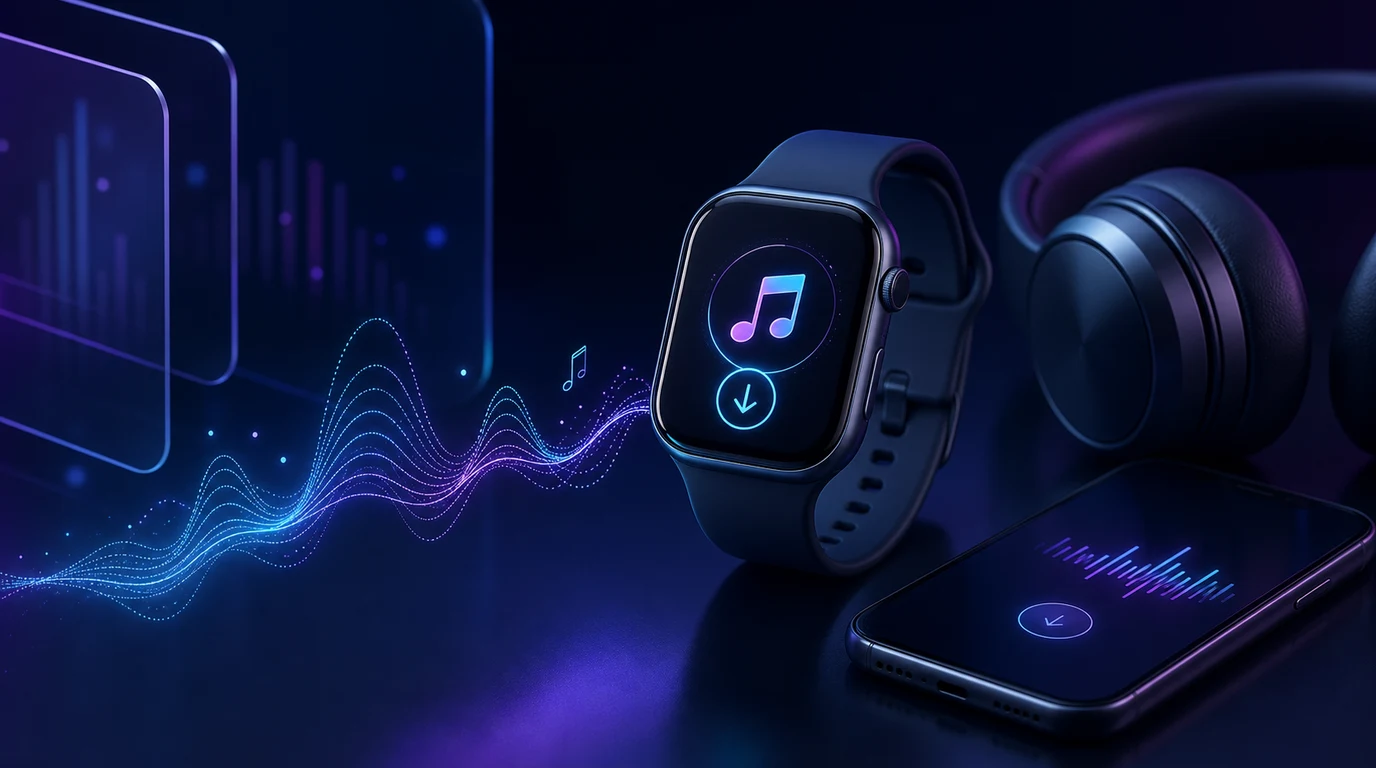
Turn a static score into editable MIDI
Contents
You can add music to Apple Watch in two official ways: sync albums or playlists from the Apple Watch app on your iPhone, or add Apple Music directly in the Music app on the Watch. If you want to listen without an internet connection, make sure the item is downloaded to the Watch rather than only added to your library.
Start with one short playlist. Confirm that it appears under Downloaded and plays with the iPhone out of range before you build a larger workout or travel library.
Choose the right Apple Watch music path
The best route depends on the source and where you want to control the process.
| What you want to add | Best path | What to verify |
|---|---|---|
| Apple Music album or playlist | Add it in Music on Apple Watch, then download it | Active subscription, internet connection, storage, and completed download |
| Music already organised on your iPhone | Use Apple Watch app > My Watch > Music | Watch near the iPhone, enough storage, and the correct playlist |
| Recent or recommended Apple Music | Let the automatic music setting add it | Whether Recent Music or another automatic option is enabled |
| A recording, demo, purchase, or other owned local file | Add it to the iPhone music library first, then sync | The file is playable, backed up, and permitted for your use |
The broader Apple Music offline guide fits inside the same rule: subscription downloads stay managed by Apple Music, while recordings, imports, purchases, and other files you own can be prepared as local audio before syncing.
Add music to Apple Watch using your iPhone
Apple's official support flow is short:
- Open the Apple Watch app on your iPhone.
- Tap My Watch, then Music.
- Under Playlists & Albums, tap Add Music.
- Choose the albums or playlists you want to sync.
- Keep the Apple Watch near the iPhone while the music is added.
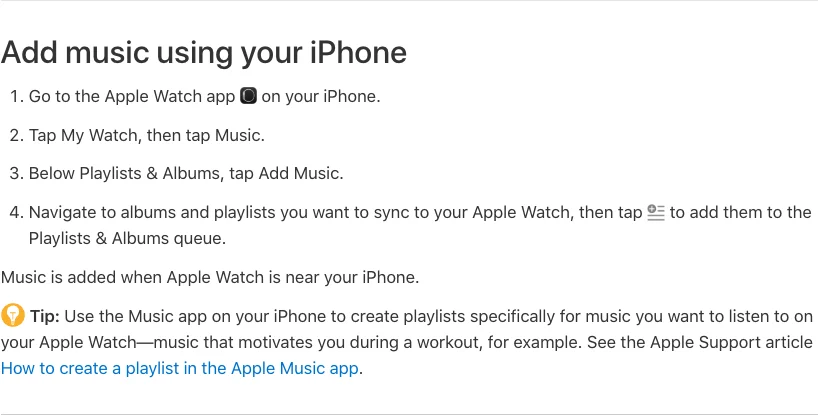
The official Apple Watch instructions also note that you can create a dedicated playlist on the iPhone first. That is the cleanest setup for a workout, rehearsal, commute, or flight because you can change one small playlist without reorganising the whole library.
If nothing moves, keep the Watch nearby, check that both devices use the expected Apple Account, and test a smaller playlist. Do not remove a working library just to force a large sync.
Add and download Apple Music directly on the Watch
Apple Music subscribers can complete the task from the Watch:
- Open Music on Apple Watch.
- Browse Home or use Search to find an album or playlist.
- Open the item, tap the More Options button, then tap Add to Library.
- Open More Options again and tap Download.
- Leave the Watch connected to power when practical while a larger download finishes.
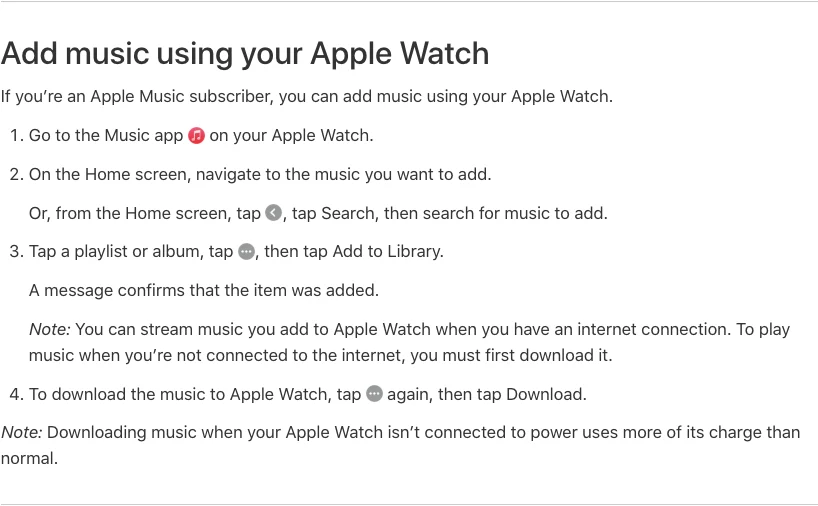
That fourth step is what makes the music available offline. An item can appear in your library and still require an internet connection if the download has not finished.
To verify it, open Music, go to Library, choose Downloaded, and play a track with the iPhone out of range. Apple notes that downloading while the Watch is not connected to power uses more battery than normal, so charging is a useful first check when a large playlist appears stalled.
Make sure the Watch can actually play the music
Adding music and hearing it are different checks. Apple's playback guide distinguishes music stored on the Watch, music controlled on the paired iPhone, and Apple Music streams.
Before you leave the iPhone behind, confirm:
- the album or playlist appears under Downloaded
- the intended Bluetooth headphones or speaker is paired when required
- the Watch volume and audio destination are correct
- the download completed rather than pausing on Wi-Fi, storage, or power
- the subscription and Apple Account are still valid for Apple Music catalog items
Apple Watch speaker support depends on the model and playback context. If you expect private or reliable listening, pair compatible Bluetooth headphones and test them before a workout or trip.
Prepare owned local audio before syncing
Melogen fits when the source is a normal audio file you own or have permission to edit: a rehearsal take, lesson recording, exported demo, DRM-free purchase, or another local file. It does not unlock Apple Music subscription downloads or turn catalog streams into permanent files.
Use Melogen Music Trimmer to cut silence, isolate a practice section, add fades, or create a shorter listening copy before adding the file to your iPhone library.

Keep the source workflow simple:
- Preserve the master recording or export outside the phone library.
- Make a separate listening copy.
- Trim or fade that copy only if it improves the use case.
- Add the listening copy to the iPhone music library.
- Sync one test playlist to Apple Watch.
Prepare a clean listening copy before syncing
Use Melogen Music Trimmer for recordings, demos, purchases, and other local audio you are allowed to edit. Keep the master, trim the listening copy, then add it to your Watch playlist.
Fix Apple Watch music sync and download problems
Use the symptom to identify the layer before changing the library.
| Symptom | Likely layer | Safest next check |
|---|---|---|
| Playlist is queued but never appears | iPhone proximity, Watch power, storage, or sync delay | Keep the Watch near the iPhone, charge it, and test one smaller playlist |
| Item appears in Library but not Downloaded | It was added but not downloaded | Open More Options and tap Download |
| Download stalls | Weak connection, low power, or low storage | Charge the Watch, verify Wi-Fi, and check General > Storage |
| Music plays only when the iPhone is nearby | The Watch is controlling the phone or streaming | Open Downloaded on the Watch and test again with the phone away |
| There is no sound | Audio destination, pairing, volume, or model-specific speaker support | Pair headphones, choose the output, and test a known downloaded track |
| Automatic music keeps returning | Recent Music or another automatic option is enabled | Turn off the relevant automatic music setting in the Apple Watch app |
If the issue is broader than the Watch, the Apple Music problems guide separates account, Sync Library, download, catalog, and device failures.
Remove music without deleting the wrong thing
When storage is tight, check Settings > General > Storage on Apple Watch, or open the Apple Watch app on iPhone and go to My Watch > General > Storage.
Apple's remove music guide gives two different actions:
- On iPhone, open Apple Watch > My Watch > Music, then edit manually added music or turn off an automatic music option.
- On Apple Watch, open Music > Library, choose a playlist or album, open More Options, then choose Remove Download or Delete from Library.
Prefer Remove Download when you only want to free Watch storage. Delete from Library can affect the shared library on other devices using the same Apple Account, so read the confirmation before accepting it.
FAQs
Can I add music to Apple Watch without an iPhone?
Apple Music subscribers can add an album or playlist directly in the Music app on Apple Watch when the Watch has an internet connection. Download it afterward if you need offline playback.
Why is music not downloading to my Apple Watch?
The most common checks are power, Wi-Fi, available storage, Apple Account and subscription state, and whether the item was added to the library before Download was selected. Test one small playlist before retrying a large library.
Can Apple Watch play music offline?
Yes. The album or playlist must finish downloading to the Watch. Confirm it appears under Library > Downloaded and test playback with the iPhone away.
Can I add my own MP3 to Apple Watch?
Yes, if it is a local file you own or have permission to use. Add it to the iPhone music library, organise it into a playlist, then sync that playlist through the Apple Watch app.
Does Melogen download songs from Apple Music?
No. Melogen works with local audio you own or are allowed to edit. Apple Music subscription downloads remain inside Apple's service and app-managed offline system.
The practical takeaway
To add music to Apple Watch, use the iPhone Watch app for playlist syncing or use Music on the Watch for Apple Music. Add the item first, download it for offline listening, then verify it under Downloaded with the iPhone away. Keep subscription music separate from owned local audio, and remove only the Watch download when storage is the problem.
About the author
Zhang Guo
Composer - AI Product Manager
AI product manager and digital marketing consultant with a background in music. Creativity is the bridge between rhythm and logic, where musical intuition and mathematical precision can coexist in every meaningful product decision.
Follow on X