Clear Spotify Queue on Mobile, Desktop, and Web
Clear Spotify queue on mobile, desktop, and web with safe steps, queue-vs-autoplay checks, device handoff fixes, and local-audio limits.
 Zhang Guo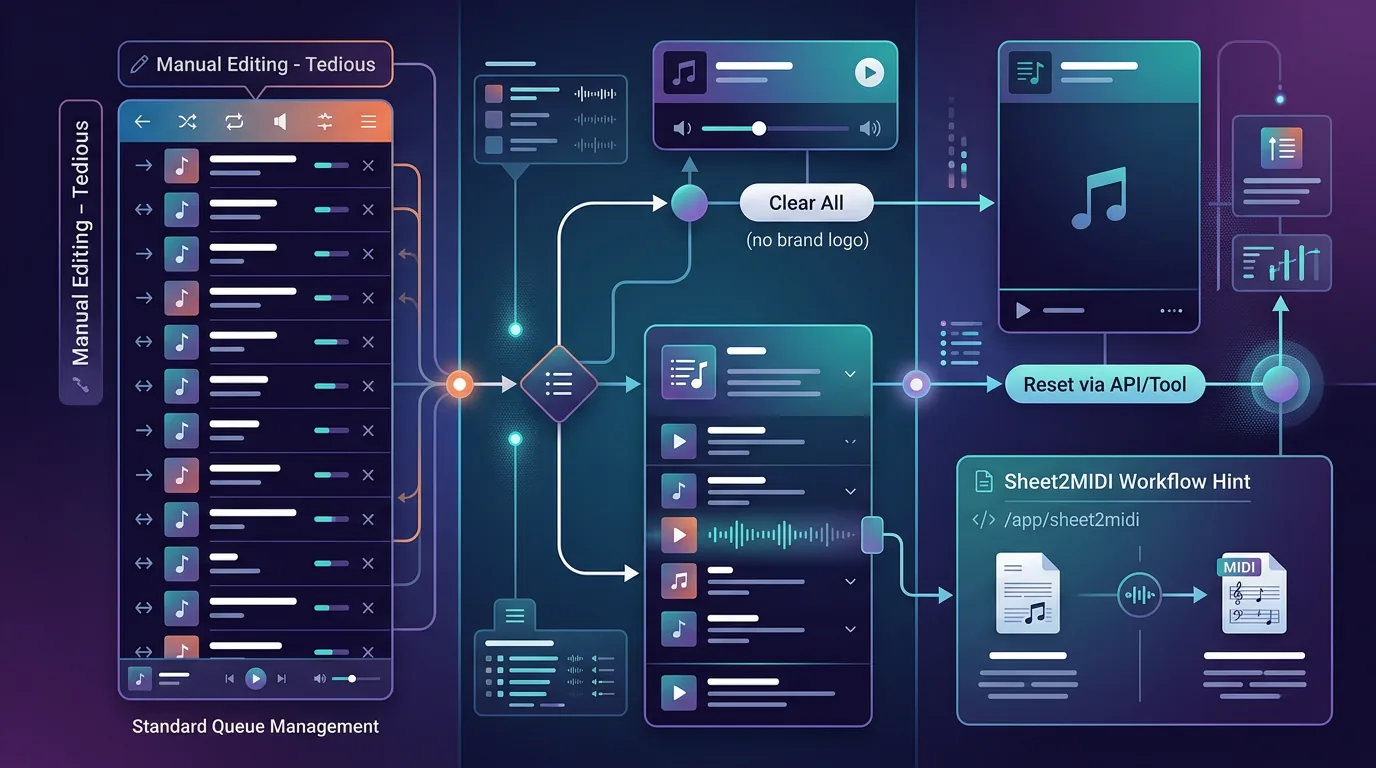
Turn a static score into editable MIDI
Contents
To clear Spotify queue, open the Play Queue, remove the songs that were manually added, then start the playlist, album, podcast, or local file you actually want to hear next. If the queue keeps filling again, the problem is usually not the queue itself. Check Autoplay, Spotify Connect, Jam, or the device that is controlling playback.
The useful distinction is simple: the queue is what plays next, Autoplay is what Spotify adds after your selected music ends, and playlists are saved collections. Clear the queue when you want to reset the next few tracks. Edit a playlist when the saved list is wrong. Turn off Autoplay when recommendations keep appearing after the queue is empty.
Quick answer
Start with the symptom you see:
| What is happening | Best first action | Why it works |
|---|---|---|
| Random songs are waiting in Up next | Open the Play Queue and remove queued tracks | The queue controls the immediate next playback order |
| A playlist always starts in the wrong order | Edit the playlist, not just the queue | Saved playlist order comes back after a one-time queue reset |
| Similar songs play after the queue ends | Turn off Autoplay | Autoplay adds recommendations after your selected music finishes |
| Another phone, speaker, TV, or car keeps changing playback | Check Spotify Connect or Jam | The active device or shared session can add or control songs |
| A local file ending sounds rough | Trim the permitted file before adding it to Spotify | Queue settings cannot fix the audio file itself |
If you only need a reset for the current session, clear the queue. If the same problem returns tomorrow, the saved playlist, Autoplay setting, or connected-device layer is probably the real cause.
What the Spotify queue controls
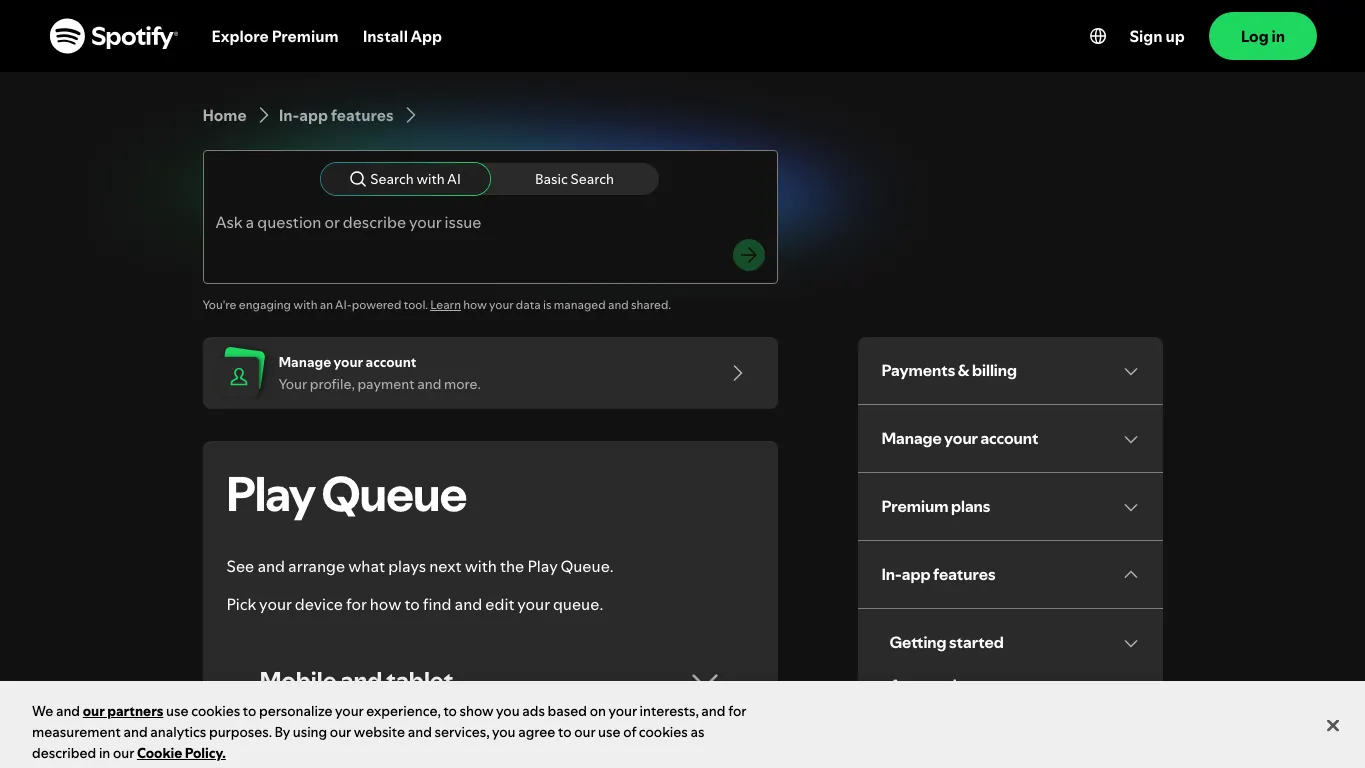
Spotify's official Play Queue support page describes the queue as the place to see and arrange what plays next. That makes it a short-term playback surface, not a permanent library editor.
Think of the queue as a temporary stack:
- The current track keeps playing.
- Manually queued songs sit near the top.
- The current album, playlist, podcast, or radio session may continue after those songs.
- Autoplay can add similar tracks after the selected music ends if it is enabled.
That is why clearing the queue feels different from deleting songs from a playlist. You are not changing the saved playlist. You are only changing what Spotify has lined up for the current listening session.
The clean workflow is:
- Open the queue from the Now Playing bar or player controls.
- Remove manually queued tracks you do not want.
- If Spotify shows a clear-all action for the queue, use it.
- Start the album, playlist, podcast, or local file you actually want.
- If recommendations keep appearing after the selected music ends, check Autoplay.
Clear Spotify queue on mobile and tablet
On iPhone, iPad, Android phone, or Android tablet, use the current Spotify app rather than a downloader or converter workaround. Spotify changes small UI labels over time, but the path is usually through Now Playing and the queue icon.
Use this practical sequence:
- Open Spotify and start any track so the Now Playing view is visible.
- Tap the queue icon or Up next control.
- Review the manually queued tracks.
- Remove the songs you do not want, or use Clear queue if your app shows it.
- Start the playlist, album, podcast, or local file you want to hear next.
- Let the last queued track finish once so you can see whether Autoplay adds more songs.
If the same songs keep returning, you may be starting the same playlist or album again. Clearing the queue does not rewrite a playlist. Use the Spotify playlist editing guide when the saved list itself needs cleanup.
If you are using a phone to control a speaker, TV, console, or car, check the active playback device before you blame the queue. The queue you see can be tied to the Connect device that is actually playing.
Clear Spotify queue on desktop and web
Desktop and web player workflows are easier when you keep the queue open while testing. Spotify's keyboard shortcuts page lists a shortcut for going to Queue on desktop, but you can also use the queue icon in the player controls.
Use this sequence:
- Open Spotify desktop or the web player.
- Open Queue from the player controls or keyboard shortcuts.
- Remove the songs in the manually queued section.
- Start the source you want next.
- Watch the queue for a few seconds to confirm the order changed.
- If the queue refills after the source ends, open Autoplay settings.
Desktop is also the best place to separate queue cleanup from playlist cleanup. If the playlist order is wrong, open the playlist and reorder or remove tracks there. If only the next few tracks are wrong, clear the queue and leave the playlist alone.
The web player can be stricter about browser state, cookies, protected content, and device handoff. If the queue panel itself will not load or playback controls are broken, fix the browser playback layer first rather than clearing the same queue repeatedly.
When the queue keeps coming back
A queue that keeps changing usually means another Spotify feature is involved.
Spotify's Autoplay support page explains that Spotify can continue with similar songs after an album, playlist, or selected songs end. That is separate from the songs you manually queued. If recommendations appear only after everything you chose has finished, turn off Autoplay and test again.
Spotify's Spotify Connect support page explains that one device can remotely control listening on another. If a speaker, TV, console, or car is selected, the queue may follow that device. Switch the playback target back to the device you want before testing.
Spotify's Jam support page says friends in a Jam can listen and add songs to the queue together. If tracks appear that you did not add, check whether you are in a Jam or shared listening session.
Use this decision table:
| The queue changes when | Likely cause | Safer fix |
|---|---|---|
| The playlist or album ends | Autoplay | Turn off Autoplay and retest with a short playlist |
| A speaker or TV is selected | Spotify Connect | Re-select the playback device and restart the session |
| Friends are listening with you | Jam or shared session | Leave the Jam or change session controls |
| The car starts playback | Car media, Bluetooth, or Connect | Check Spotify's car playback setup and device state |
| The same saved order returns | Playlist order | Edit the playlist instead of clearing the temporary queue |
Spotify's car playback guide is useful when the queue problem appears only after Bluetooth, CarPlay, Android Auto, AUX, or a built-in car app connects. In that case, set up playback before driving and avoid troubleshooting while the car is moving.
Where Melogen fits for local audio
Melogen does not clear Spotify queue, change Spotify Connect, manage Spotify Jam, or convert Spotify catalog streams. It fits only after the source is already a local audio file you own, created, licensed, purchased DRM-free, or otherwise have permission to edit.

Use Melogen Music Trimmer when the queue problem revealed a file-prep problem:
- A local rehearsal file has too much silence before it starts.
- A lesson clip needs a cleaner ending before you add it to Spotify Local Files.
- A demo bounce needs a short listening copy for a practice playlist.
- A podcast cue, backing track, or owned sample needs a fade.
- A local file should be cleaned before it enters a saved playlist.
Spotify's Local Files support page is the official source for playing audio files legally stored on your device. The Melogen step comes before that: trim or fade the permitted file, export a clean copy, then add it through Spotify Local Files if that is your listening workflow.
Trim a local file before adding it to Spotify
Use Melogen Music Trimmer for audio you are allowed to edit when the next job is cutting silence, tightening an ending, or preparing a cleaner listening copy.
The boundary matters. Clearing Spotify queue is a playback control task. Trimming an owned audio file is an editing task. Keep those jobs separate and the workflow stays much easier to debug.
Troubleshooting
| Problem | Likely cause | What to do |
|---|---|---|
| Clear queue does not appear | Current app surface or queue state does not expose a clear-all action | Remove queued tracks manually, then start a fresh source |
| Songs keep appearing after everything ends | Autoplay is still on | Use the Spotify Autoplay guide and retest |
| Queue changes when a speaker is selected | Spotify Connect device handoff | Select the intended device and restart Spotify if needed |
| Friends can add tracks | Jam or shared session | Leave the Jam or adjust session controls |
| Saved playlist order is still wrong | Playlist, not queue | Edit the playlist itself |
| Local files sound clipped or awkward | Source audio needs cleanup | Trim the permitted file before adding it to Spotify |
Do the checks in this order: queue, playlist, Autoplay, Connect, Jam, local file. Jumping straight to a converter or downloader is usually the wrong fix because it changes the source problem instead of the playback layer.
FAQs
Does clearing Spotify queue delete songs from my playlist?
No. Clearing the queue only changes the temporary playback order. If the saved playlist is wrong, edit the playlist itself.
Why does Spotify keep adding songs after I clear the queue?
Autoplay may be enabled. Autoplay can continue with similar songs after your selected music ends, even if you already removed manually queued tracks.
Can Spotify Connect change my queue?
Yes, the queue can follow the active playback device. If a speaker, TV, console, or car is selected, check the device picker before clearing the queue again.
Can people in a Spotify Jam add songs to my queue?
Yes. In a Jam, people can listen together and add songs to the queue depending on the session controls. Leave the Jam if you want a solo queue.
Can Melogen clear my Spotify queue?
No. Melogen does not control Spotify settings or Spotify streams. Use Melogen only for local audio files you are allowed to edit, such as trimming silence or creating a cleaner listening copy.
The practical takeaway
Clear Spotify queue when the next few tracks are wrong. Edit the playlist when the saved order is wrong. Turn off Autoplay when recommendations appear after the music ends. Check Spotify Connect or Jam when another device or person is changing playback. Use Melogen only after the file is already yours to edit.
About the author
Zhang Guo
Composer - AI Product Manager
AI product manager and digital marketing consultant with a background in music. Creativity is the bridge between rhythm and logic, where musical intuition and mathematical precision can coexist in every meaningful product decision.
Follow on X