How to Export MIDI From GarageBand and Keep the Notes
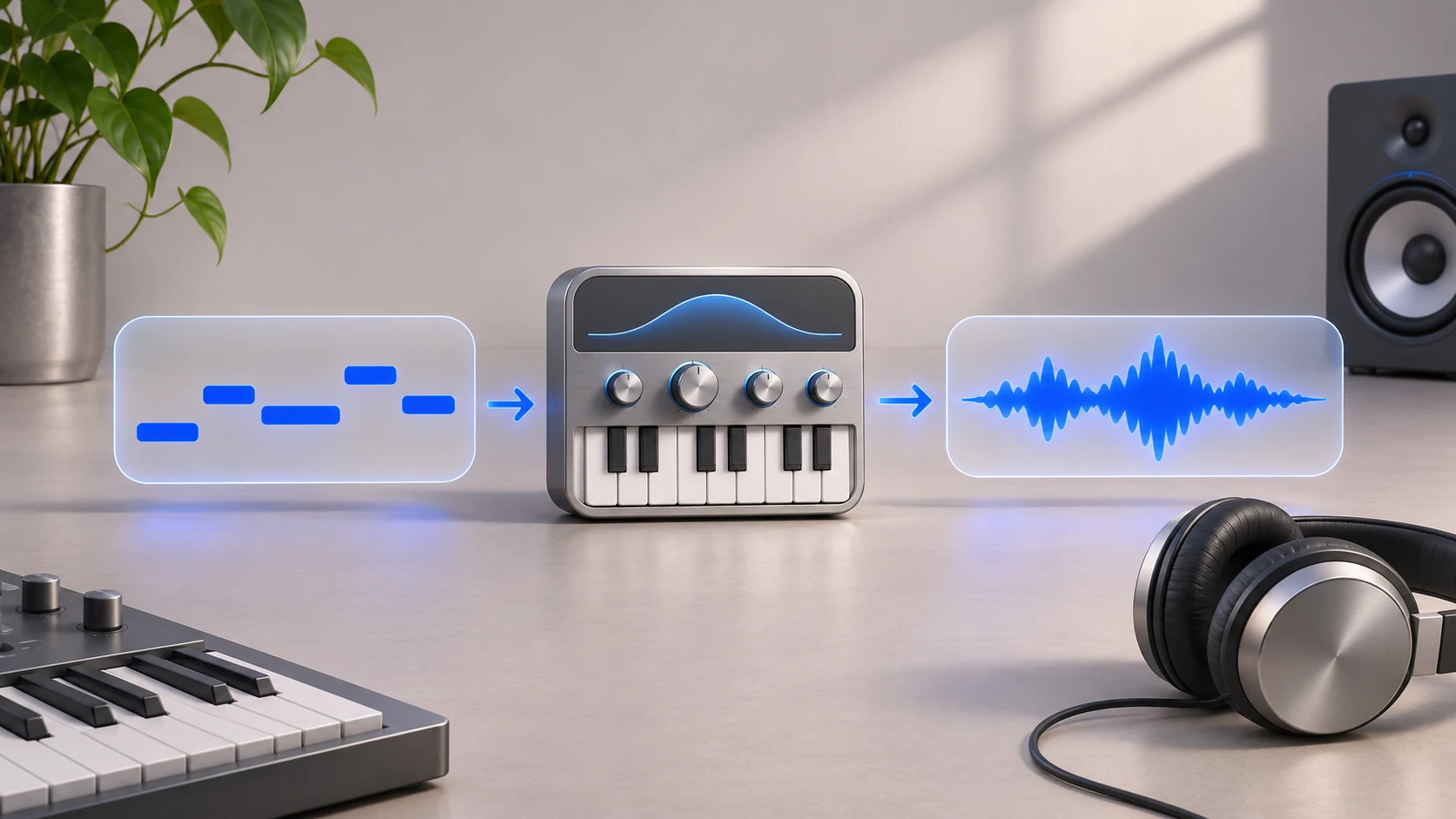
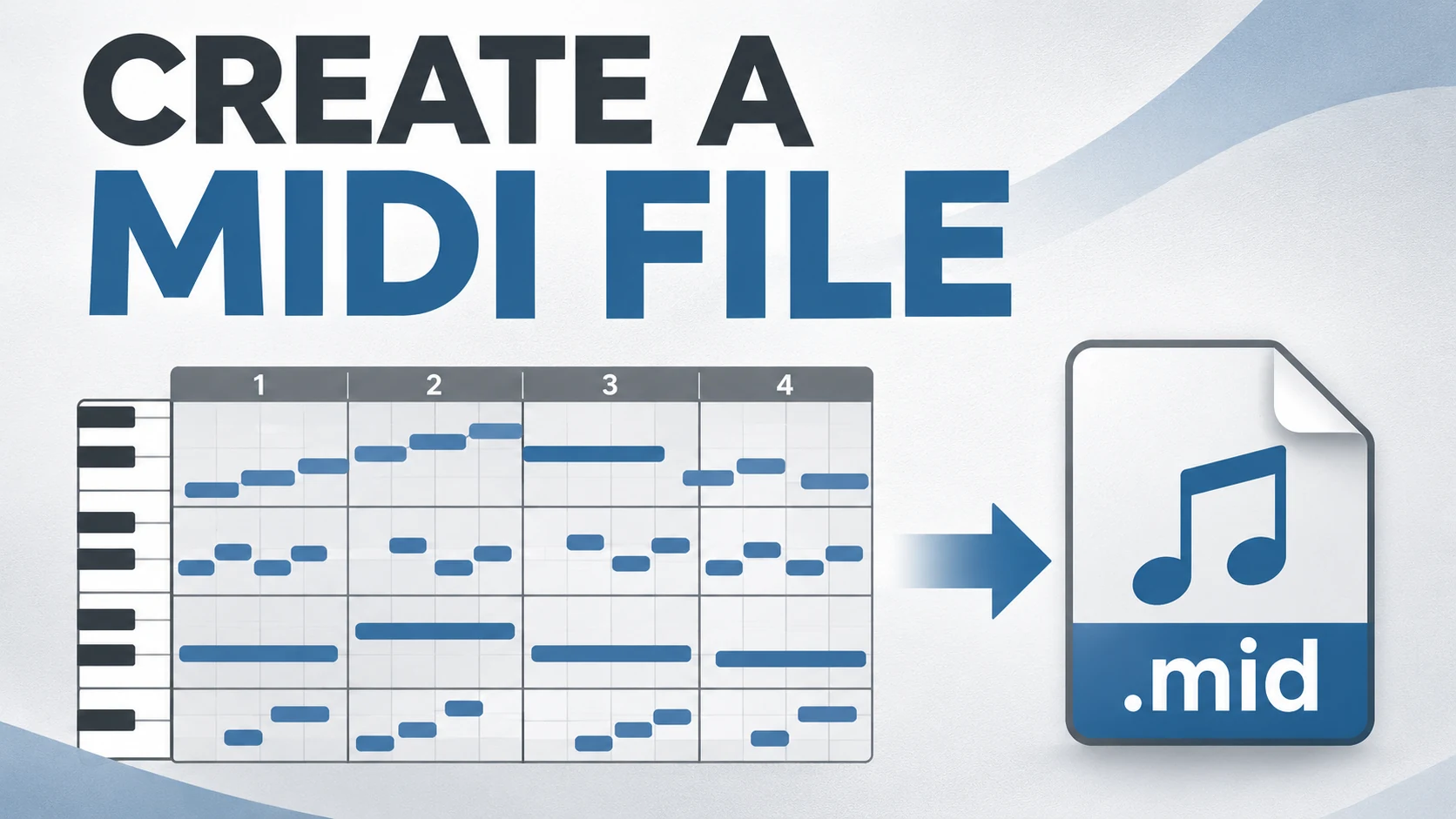
Export MIDI from a GarageBand project through Logic Pro. Keep notes separate from audio and verify timing, pitch and parts in the saved MIDI file.
 Zhang Guo

Turn a static score into editable MIDI
Contents
GarageBand on Mac does not provide a standard MIDI-file export in its song-export dialog. To preserve software-instrument notes through Apple's supported project workflow, open a copy of the GarageBand project in Logic Pro, prepare the MIDI regions, then export the selected regions as a .mid file there.
If you only have an audio recording, the job is different: audio-to-MIDI transcription estimates notes from sound. It cannot recover the original GarageBand note events, velocities, or edits exactly.
Choose the route by what you actually have
| Starting material | Useful route | What to expect |
|---|---|---|
| GarageBand project with software-instrument regions, plus access to Logic Pro | Open the project in Logic, then export its MIDI regions | A direct note-data handoff, followed by an import check |
Original .mid imported into GarageBand | Retrieve that source MIDI if it is still the required version | Original notes, without later GarageBand edits |
| Audio track or an audio-only song export | Transcribe the audio or enter the notes manually | An approximation that needs musical correction |
| A recipient who only needs to listen | Export audio from GarageBand | The recorded sound, without editable MIDI notes |
Start by saving a copy of the .band project. Keep the original intact while deciding how much of the arrangement must travel. A sound recording and a note export can both be useful, but they solve different handoff problems.
Understand what GarageBand's song export creates
On Mac, Share > Export Song to Disk creates an audio file. Apple's GarageBand export guide lists AAC, MP3, AIFF, and WAVE for this workflow. Choosing one of those formats does not turn the project into editable MIDI.
Renaming a WAV to .mid does not change its contents. Likewise, importing a song into another program as audio will not reveal the original software-instrument notes. Use an audio export as the listening reference beside a MIDI handoff, or as the input to a clearly separate transcription step.
Open a project copy in Logic Pro
If you have access to Logic Pro on Mac, use File > Open and choose the copied GarageBand project. Save the converted session as a new Logic project in a separate location.
Apple's GarageBand-project documentation for Logic describes this import path. Software-instrument parts and project information can continue into Logic, where the MIDI regions are available for editing and export. Keep the original GarageBand project because the saved Logic project is a different working file.
Play the imported arrangement before exporting anything. Check a melody, a bass or accompaniment part, and the final phrase. Resolve missing sounds or missing source material at this stage; a MIDI export cannot fix an incomplete project transfer.
Prepare and export the MIDI regions in Logic
Work on the copy and select the regions you want to transfer. Before export, inspect any region playback parameters, quantization, aliases, and repeated loops. These can affect what the region plays without being the same as a simple, continuous set of stored notes.
Apple's MIDI-region export instructions describe preparing those properties and exporting the selection. For a multitrack arrangement, preserve the separate musical parts and use the standard Format 1 output unless the destination specifically needs Format 0.
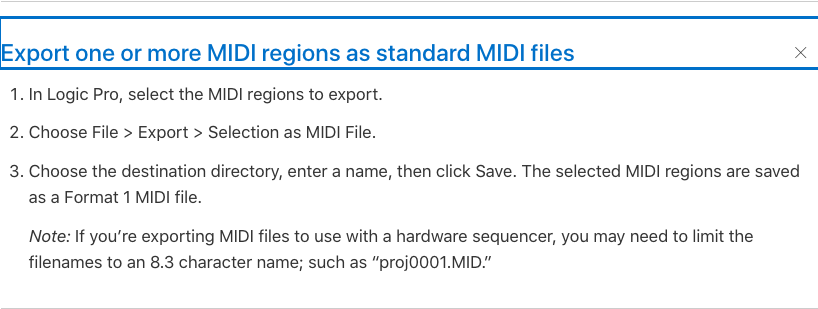
Then choose File > Export > Selection as MIDI File, name the file, and save it. This is a Logic command; it is not a hidden command inside GarageBand.
Export only actual MIDI regions for this task. Recorded audio does not become MIDI merely because it shares a project with software-instrument tracks. Check generated or special track types in Logic before assuming they are ordinary note regions.
Verify the exported file in a fresh destination
Import the .mid into a spare project or the recipient's application. Use simple sounds initially so you can inspect the performance separately from patch compatibility.
- Count the musical parts and compare their names.
- Check the intended tempo and starting bar.
- Compare a note near the beginning and the final phrase.
- Check a sustained note, a short note, and one velocity contrast.
- Listen for a doubled part or an octave error.
- Add an audio reference when the original sound or groove matters.
The original two-part 96 BPM MIDI example can help check the receiving application's MIDI setup. It has two musical parts and eight notes across a two-bar grid. It is a destination-check file, not a MIDI export from GarageBand.
If the notes look right but the sound changes, review the instrument assignment before altering pitches. MIDI does not package the entire GarageBand or Logic sound library. The MIDI sharing guide explains what to send beside the file.
Use transcription only when audio is the available source
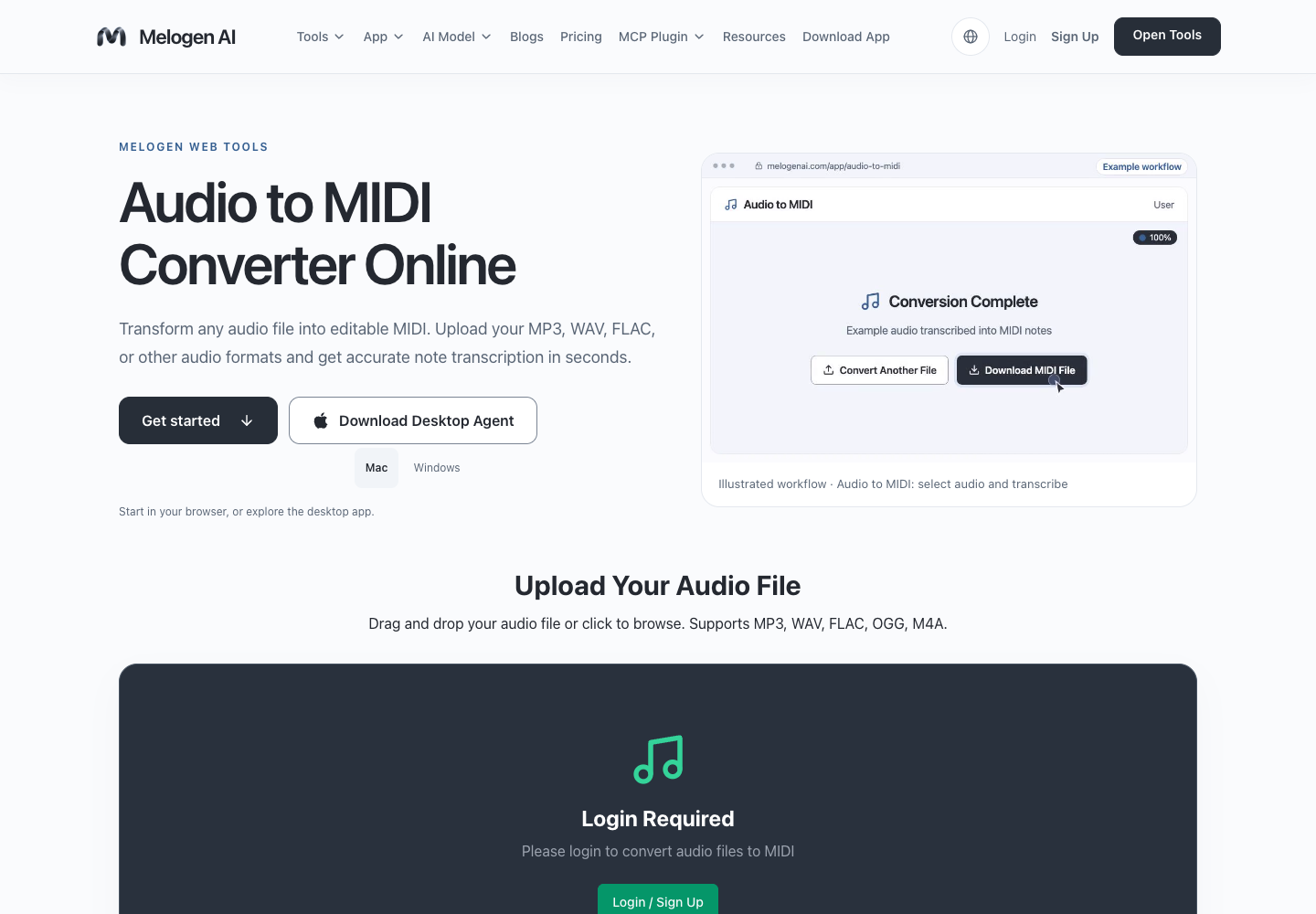
If you cannot access a direct project-note route, a clean solo audio export can be a practical source for a new MIDI draft. Melogen Audio to MIDI accepts audio for transcription; it does not open a .band project or extract GarageBand's original note events.
Choose one clearly audible instrument or melody where possible, convert it, and compare the resulting pitches and rhythms against the audio. Correct wrong octaves, extra notes, and note lengths before sharing it. For a recording-first workflow, the guide to transcribing audio into notes covers the musical cleanup.
Create a new MIDI draft from a recording
Use Melogen when audio is the source you have. Review the detected notes carefully; transcription is a new interpretation, not an exact GarageBand project export.
Keep the handoff clear
Label whether the .mid came from direct note export or audio transcription, include tempo and part information, and keep the original project. If the recipient only needs a listening copy, send the audio export. If they need editable notes, verify those notes in the destination before calling the transfer finished.
About the author
Zhang Guo
Composer - AI Product Manager
AI product manager and digital marketing consultant with a background in music. Creativity is the bridge between rhythm and logic, where musical intuition and mathematical precision can coexist in every meaningful product decision.
Follow on X