How to Remove Vocals in Audacity With the Right Method
Remove vocals with a version-aware Audacity workflow, current plugin checks, stem import steps, and a practical instrumental export test.
 Zhang Guo
Turn a static score into editable MIDI
Contents
To remove vocals in Audacity, choose the method your version actually supports. The old Vocal Reduction and Isolation effect is no longer bundled from Audacity 3.5 onward, and the official OpenVINO page currently warns that its AI plugins are not compatible with the latest Audacity release. Searching an empty Effects menu will not fix either situation.
For Audacity 4, a dependable workflow is to separate the song into stems with a compatible separator, import the instrumental into Audacity, then edit and export it. If you already use a supported Audacity and OpenVINO combination, you can perform the separation there instead. Use a source recording you have permission to edit and keep an untouched copy.
Check the version and the separation method
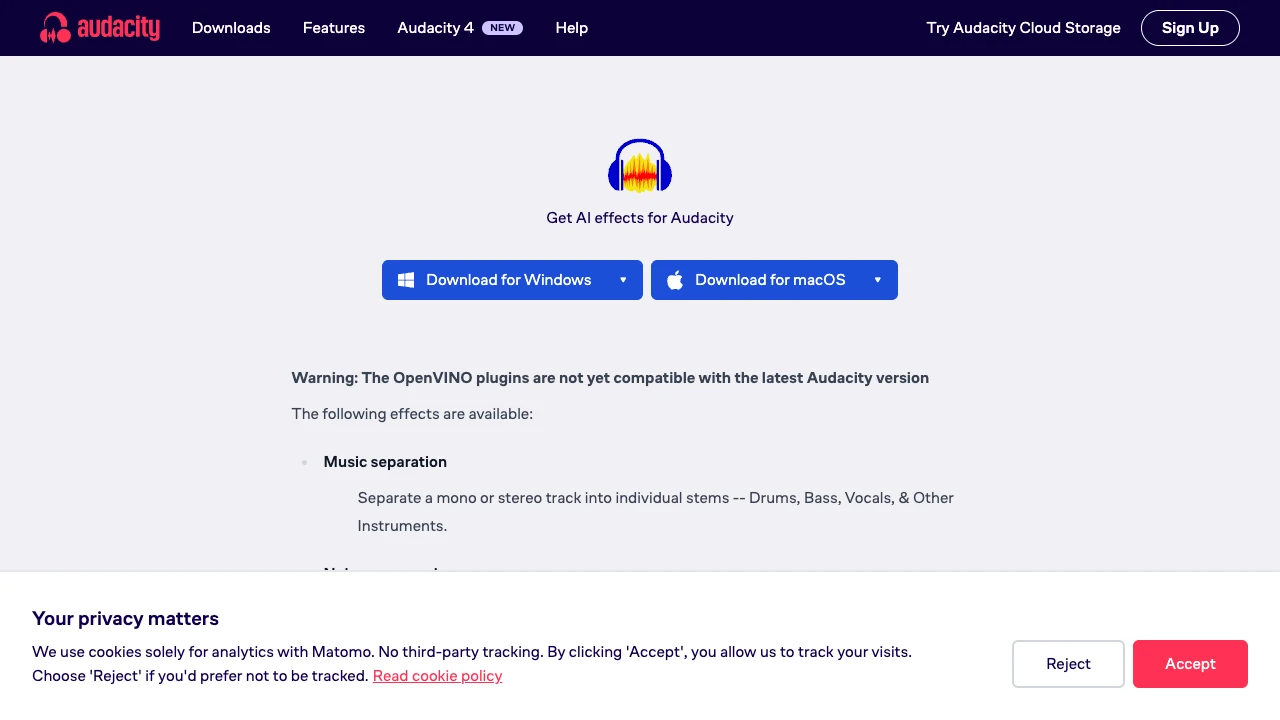
Open Audacity's About dialog and note the version. Then check the official OpenVINO download page before installing plugins. Its compatibility warning takes precedence over tutorials written for earlier Audacity versions.
| Your situation | Useful next step | Avoid |
|---|---|---|
| Audacity 4 with an incompatible OpenVINO release | Separate externally and import the backing audio | Forcing an unsupported plugin into the app |
| An explicitly supported Audacity/OpenVINO combination | Use Music Separation, then keep the non-vocal stems | Assuming every OpenVINO effect removes vocals |
| An older installation with Vocal Reduction and Isolation | Try center reduction on a duplicate | Expecting AI separation quality from stereo subtraction |
| Only a mono recording | Use source separation | Expecting left-minus-right cancellation to work |
There are two different jobs here. Source separation estimates vocals and instruments from their musical content. Center reduction works from the stereo relationship of the recording. It may remove centered bass, snare, or other instruments along with the singer.
Make an instrumental and import it into Audacity
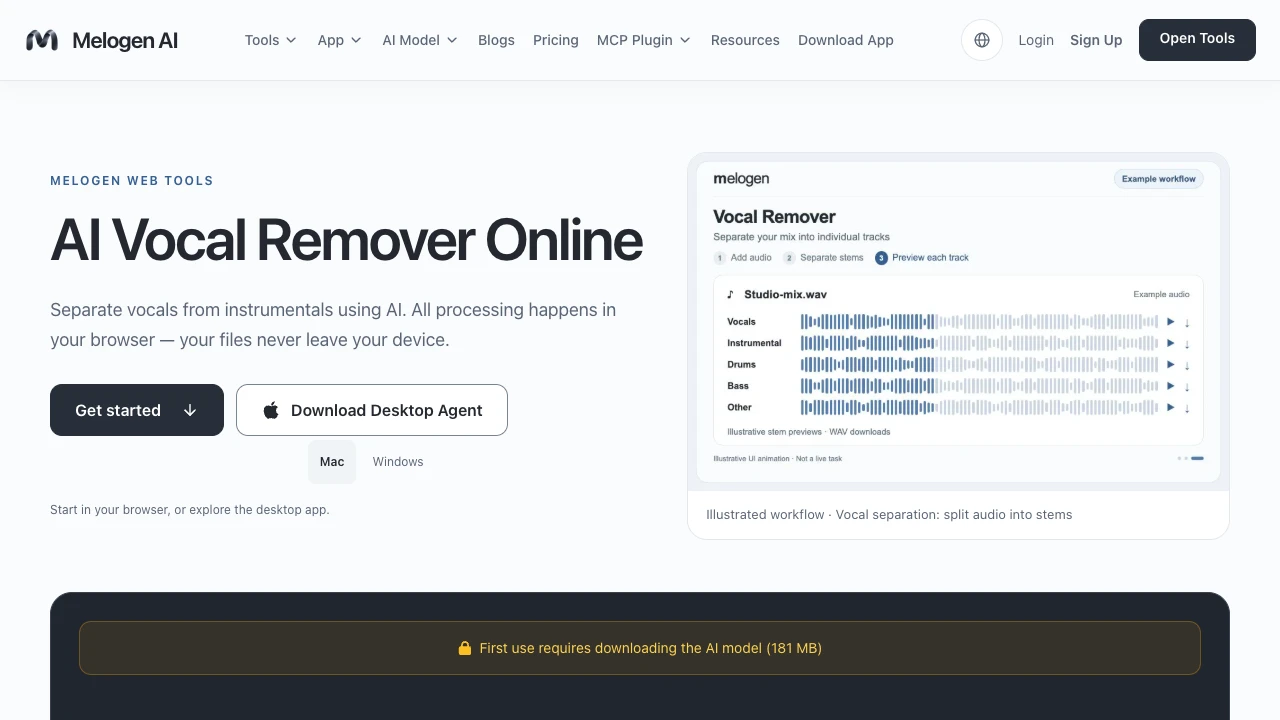
If the plugin route is unavailable, use a separator that outputs instrumental audio or separate non-vocal stems. Melogen's vocal remover provides vocals, a karaoke mix, drums, bass, and other stems in a browser-based workflow. Use the karaoke output when your goal is simply a backing track.
- Start with the cleanest available file. Converting a compressed MP3 to WAV will not restore lost information.
- Separate the song and audition the loudest vocal passage.
- Download the instrumental or the non-vocal stems.
- Drag the downloaded audio into Audacity, or use File → Import. Current Audacity editing documentation describes both import methods.
- If you imported multiple stems, keep their original start positions. Do not trim silence independently from each one.
- Play the result with the original recording muted or removed from the export project.
For a simple backing track, importing the finished instrumental is less error-prone than rebuilding it from several stems. Keep separate stems when you want to change the bass, drums, or accompaniment balance.
Use Music Separation only on a compatible setup
The OpenVINO suite includes Music Separation, which produces Drums, Bass, Vocals, and Other Instruments. Once a supported installation has processed your recording, keep drums, bass, and other instruments audible and mute the vocal result. Preserve the original as a muted reference.
Audition a sparse verse and a dense chorus. A vocal reverb tail can remain in another stem, and separation can soften percussion or smear sustained sounds. More EQ cannot reconstruct material the model removed. If the result is unacceptable, try a cleaner source or another separation model before editing for an hour.
Treat compatibility as a prerequisite. An absent plugin menu on an unsupported version is an installation mismatch, not a signal to change your audio settings at random.
Understand the older center-reduction method
The legacy Audacity effect manual explicitly states that Vocal Reduction and Isolation stopped shipping with Audacity at version 3.5. It documents a downloadable Nyquist effect and its stereo-center processing; that retained page is not proof that the same effect is bundled or compatible with your current installation.
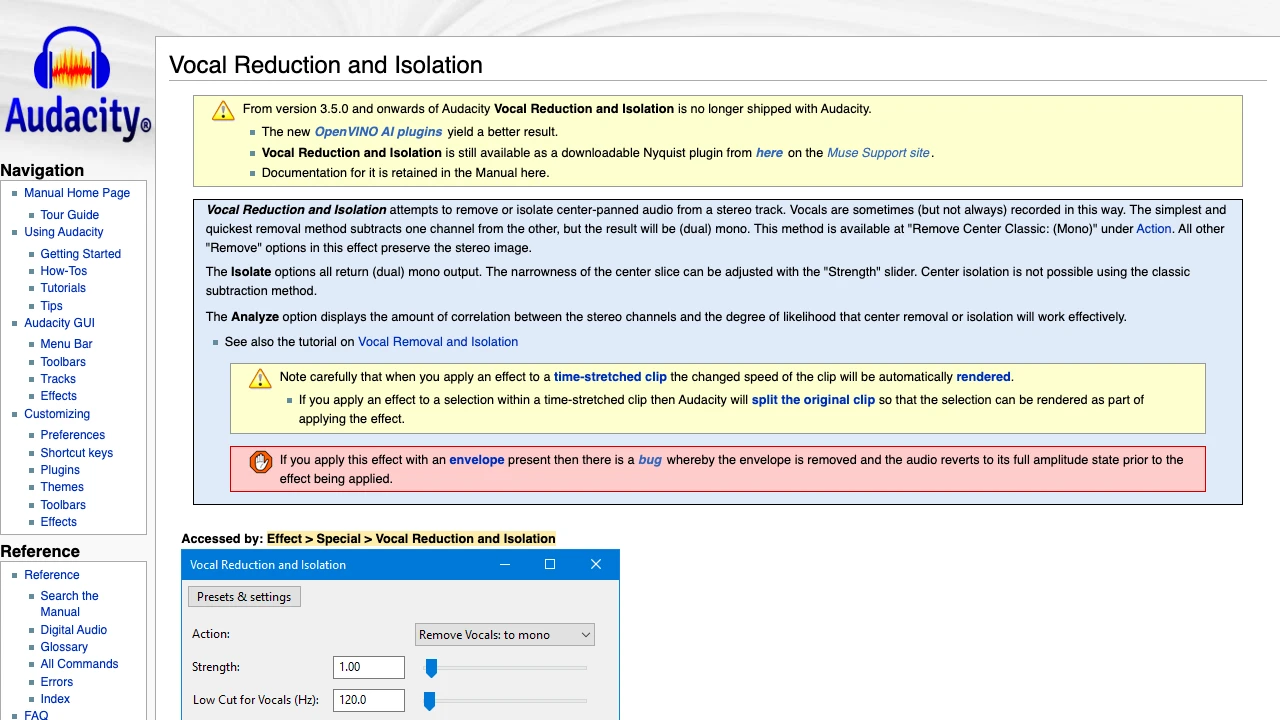
If your existing compatible setup already has that effect, duplicate the track, select the required audio, choose a removal action, and preview before applying it. Center-panned lead vocals may reduce, while wide doubles and reverberation remain. The classic center-removal option produces dual-mono output. Compare the drums and bass as well as the voice before keeping it.
A stereo track with the same signal in both channels gives this method very little useful separation information. Noise reduction, a noise gate, and a vocal EQ preset solve different problems; none is a substitute for separating a full mixed song.
Run a 30-second backing-track acceptance test
Use this original check before exporting a whole rehearsal track. Pick a 30-second passage spanning the last 10 seconds of a verse and the first 20 seconds of a chorus. If the transition is elsewhere, keep the same sparse-to-dense idea rather than those exact times.
| Check | Listen for | Decision |
|---|---|---|
| Lead vocal | Recognizable words or a loud ghost melody | Decide whether it distracts at rehearsal volume |
| Bass and kick | Missing low end, unstable thumps | Compare with the original at similar loudness |
| Chorus cymbals | Watery or metallic swirls | Try another separation before applying heavy EQ |
| Transition | A jump in level or a broken tail | Inspect alignment and edits |
| Stereo image | Unexpected narrowing or imbalance | Check whether a center-removal mode caused it |
Export the instrumental you actually want
Save the editable project separately, then use File → Export audio to create WAV or MP3. A project file is not the backing-track audio file. Confirm the export range, ensure the original full mix and vocal stem are excluded, and leave enough space for the ending.
Reopen the exported file and check its duration, opening, busiest chorus, and final decay. Name it clearly, such as practice-song-instrumental-v1.wav. For choosing among separators before the Audacity stage, the stem splitter comparison explains the different practice and production workflows.
About the author
Zhang Guo
Composer - AI Product Manager
AI product manager and digital marketing consultant with a background in music. Creativity is the bridge between rhythm and logic, where musical intuition and mathematical precision can coexist in every meaningful product decision.
Follow on X