Restore Apple Music Library Without Losing Songs
Restore Apple Music library safely by checking Apple Account, Sync Library, purchases, local files, downloads, and backups before rebuilding.
 Zhang Guo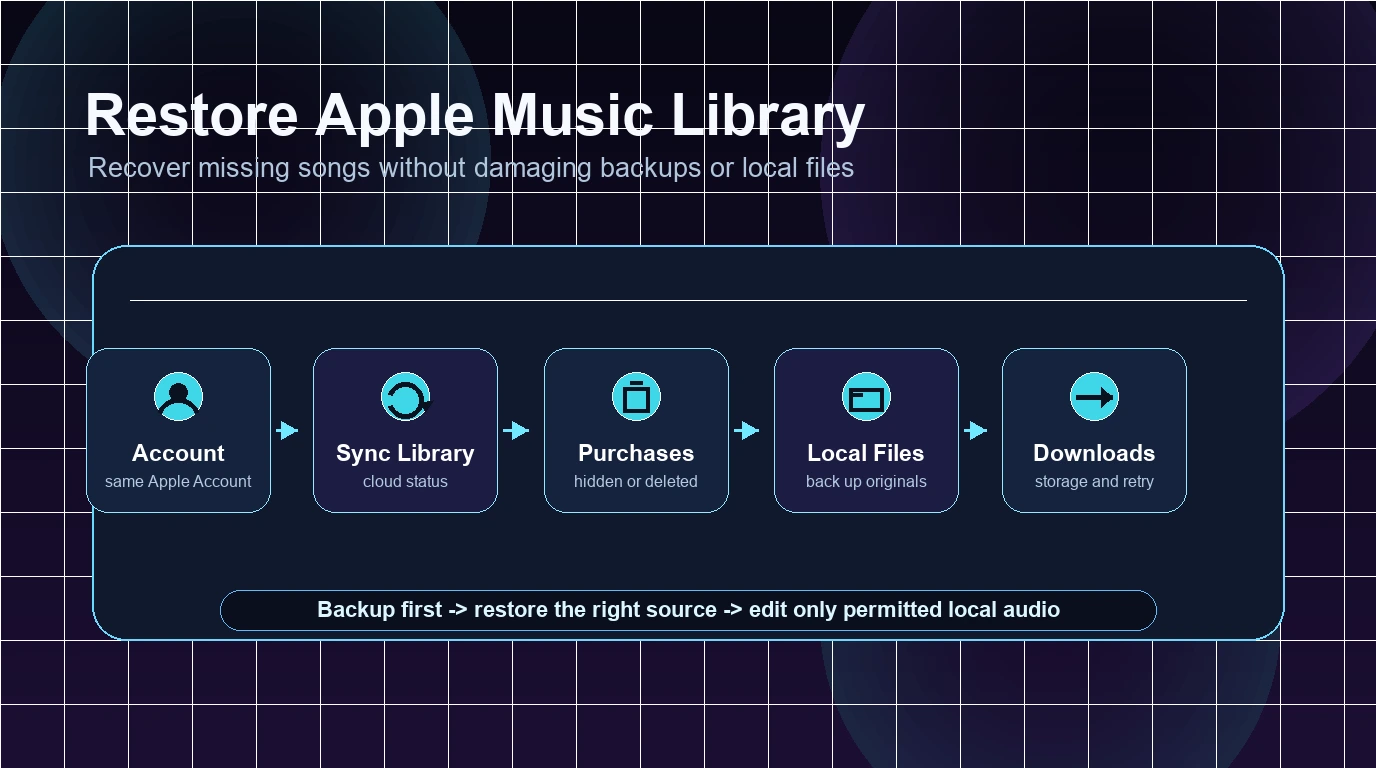
Turn a static score into editable MIDI
Contents
To restore Apple Music library items, start with the source of the library, not the panic button. Most missing songs come from the wrong Apple Account, Sync Library being off or stuck, hidden purchases, moved local files, removed downloads, low storage, or an expired subscription. Those are different problems, and rebuilding the whole library too early can make recovery harder.
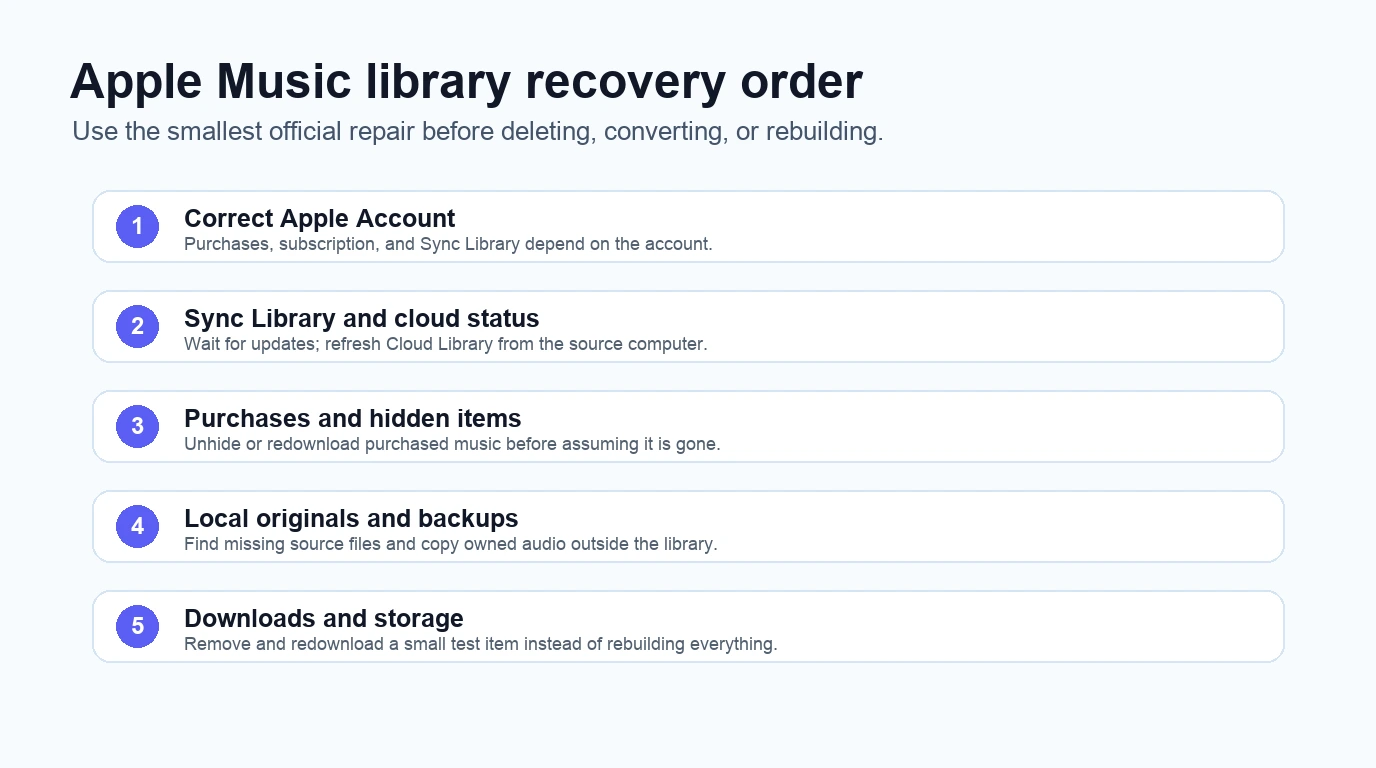
Use this safe order: check the Apple Account, turn on Sync Library, refresh the cloud library, redownload purchased music, locate local originals, then repair downloads one small batch at a time. Do not install an Apple Music converter just because a library looks empty. A converter does not restore the account, purchase history, cloud status, or missing original files.
Quick answer restore the right layer first
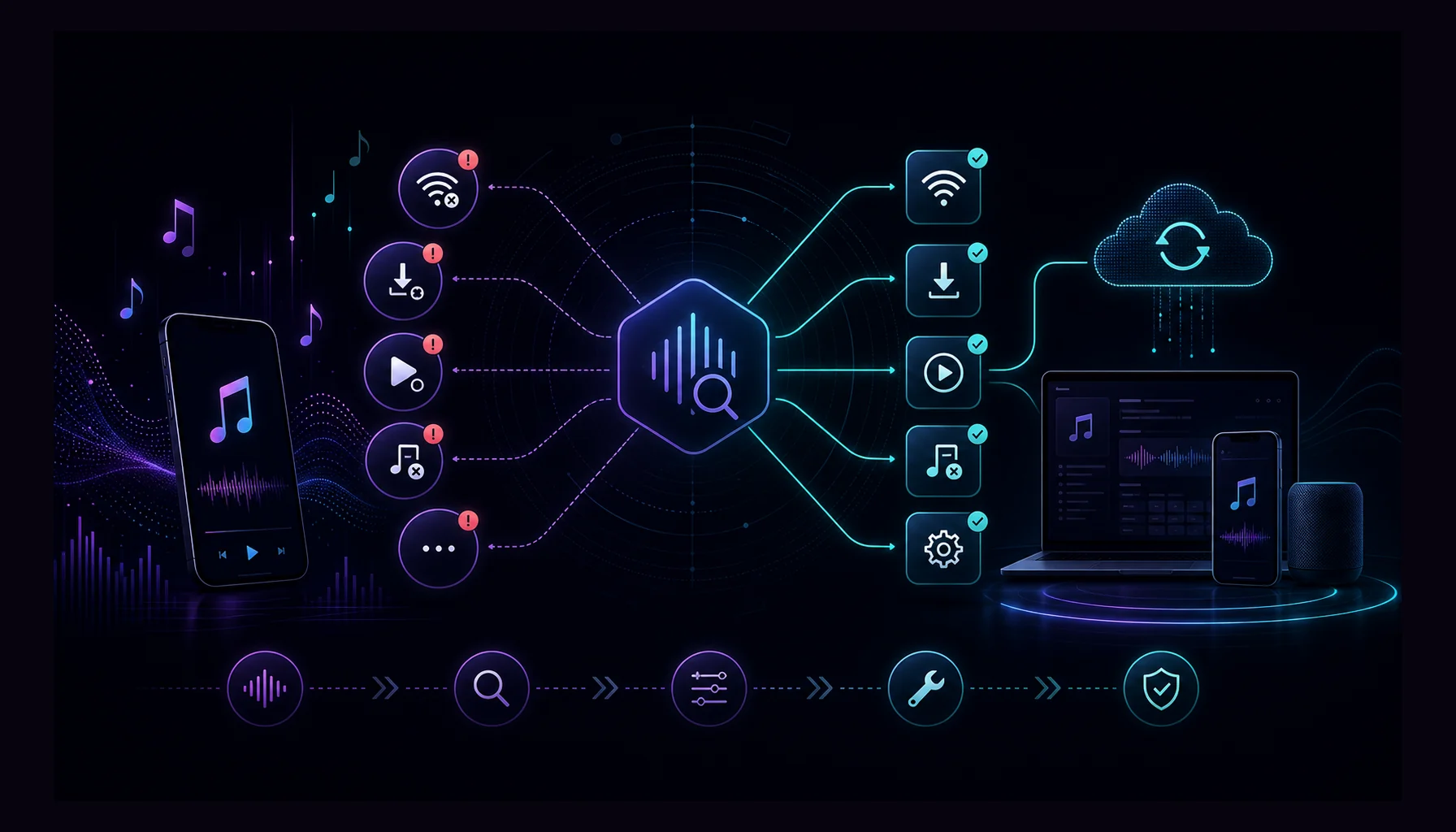
The useful question is not "Where did my Apple Music library go?" It is "Which layer disappeared?"
| What is missing | First check | What not to do yet |
|---|---|---|
| The whole library on one device | Apple Account and Sync Library on that device | Do not delete and rebuild the library |
| Songs are missing everywhere | Subscription, account, Apple service state, and cloud library | Do not assume a converter can recover them |
| Purchased songs are gone | Purchase account, hidden purchases, and redownload options | Do not repurchase before checking hidden items |
| Local files show an exclamation point or will not play | Original file path and backup folder | Do not delete the library row before locating the file |
| Offline songs vanished | Download status, storage, and subscription state | Do not use Delete from Library as a storage fix |
| Playlists are incomplete | Sync Library, catalog availability, and source computer | Do not bulk-edit until one test playlist works |
If the issue is broader than recovery, start with the parent Apple Music problems guide. If you meant to clean up the library on purpose, the Delete Apple Music Library guide is the safer next step.
Check the Apple Account before changing the library
Apple Music libraries are account-bound. A device signed into the wrong Apple Account can look like the library vanished, even when the original library is still attached to a different account.
Start here:
- Confirm the Apple Account used for the Apple Music subscription.
- Confirm the Apple Account used for iTunes Store purchases.
- Check the account on each affected iPhone, iPad, Mac, Windows PC, or Android device.
- Test another device signed into the account before changing a large library.
- Avoid signing out of every device at once until you know which account owns the missing music.
This is especially important for families, old iTunes accounts, shared computers, and anyone who used one account for purchases and another for iCloud. If the wrong account is active, Sync Library and purchased music checks can both point at the wrong library.
Turn on Sync Library and wait for cloud status
Apple's Sync Library support page says Sync Library lets you stream your music library on devices signed into the Apple Music app with the Apple Account used for your subscription. It also gives the recovery warning that matters most: Apple Music is not a backup service.
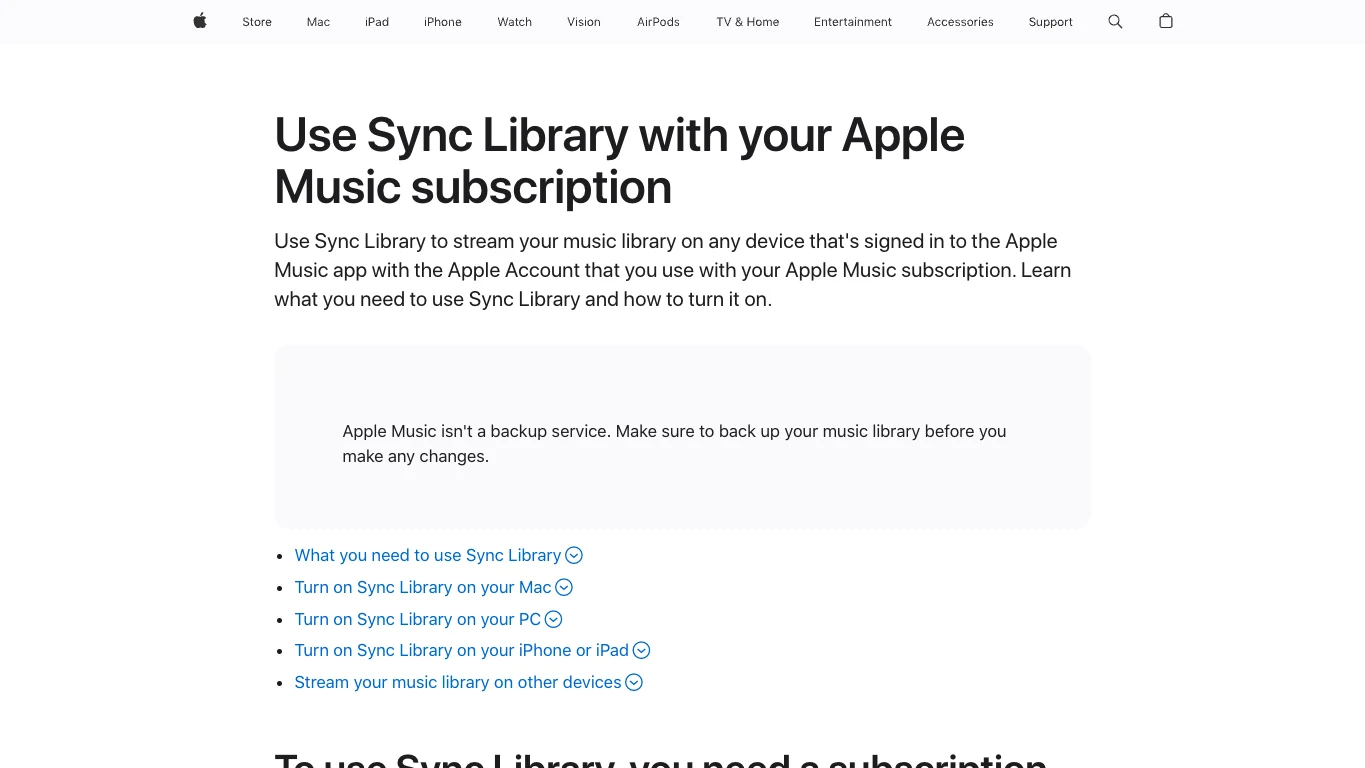
Use this Sync Library order:
- Turn on Sync Library on the computer or device that still has the most complete library.
- Confirm the other devices use the same Apple Account.
- Keep the devices online long enough for the library to update.
- On Mac or Windows, check the cloud library status before deciding music is gone.
- Update Cloud Library from the source computer when local music is involved.
- Turn Sync Library off and on only after you back up local or purchased files.
Sync repair can be slow with large libraries. Do not judge the result from the first minute after you toggle a setting. Search for a few known albums, wait for cloud status, then test a small playlist before making a bigger change.
Use missing-song checks before deleting anything
Apple's missing songs support page points to the checks that matter before deletion: internet connection, Sync Library, Cloud Status, local source files, catalog availability, restrictions, and the correct Apple Account.
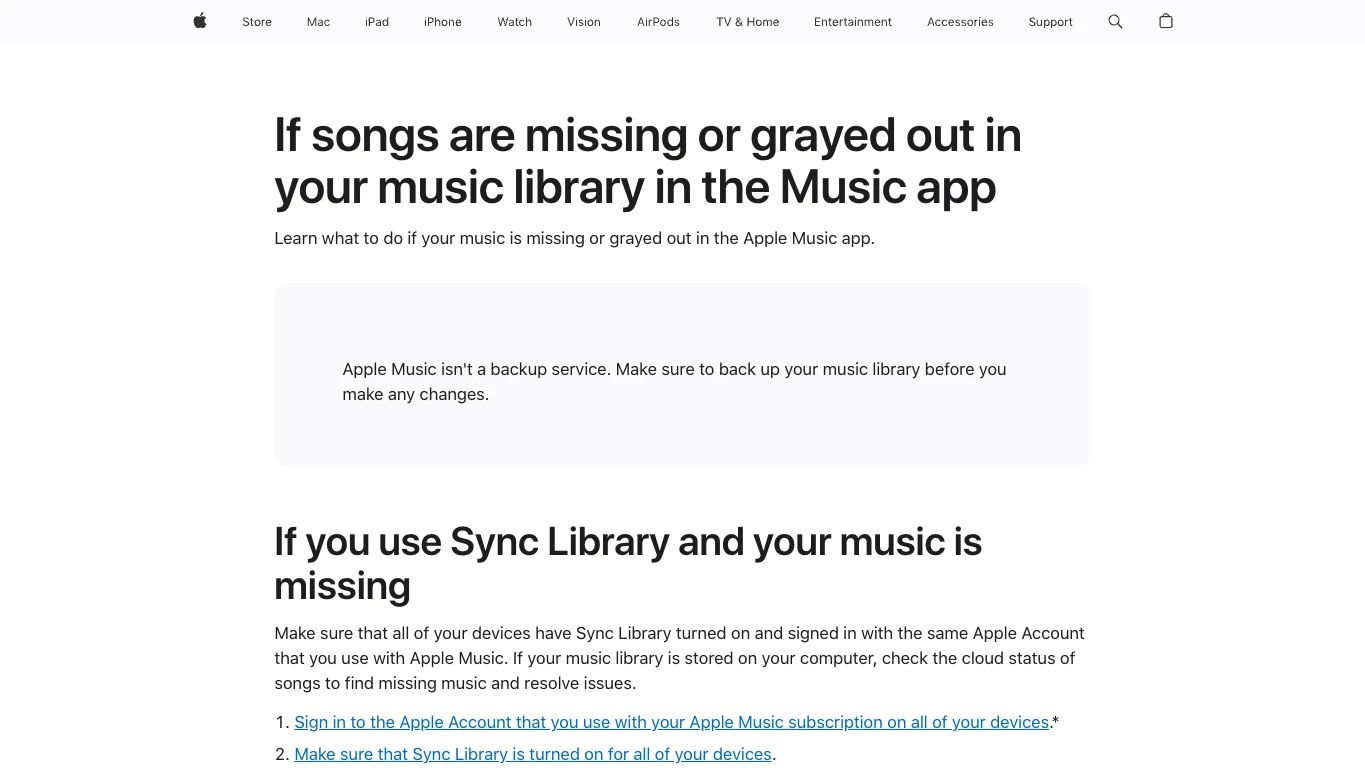
Use this triage when songs are missing, grayed out, or stuck:
| Symptom | Most likely cause | Safer repair |
|---|---|---|
| Song is grayed out | Catalog availability, restrictions, wrong account, or sync issue | Check account, region, restrictions, and Sync Library first |
| Song has a missing-file warning on desktop | The original local file moved or was deleted | Search the computer and backup drives before deleting the row |
| Song is waiting to sync | Cloud library update is incomplete | Update Cloud Library from the source computer |
| Song exists online but not offline | Download was removed, interrupted, or blocked by storage | Remove the download and redownload one album as a test |
| Song vanished after signing in again | Wrong Apple Account or Sync Library not loaded | Verify the account before changing the library |
If songs are disappearing repeatedly after you restore them, use Stop Apple Music From Deleting Songs before you rebuild. That article focuses on the delete/download/sync behaviors that can make a recovered library look unstable.
Redownload purchases and unhide hidden music
Purchased music has a different recovery path from Apple Music subscription catalog tracks. Apple has separate redownload pages for iPhone and iPad, Mac, and Windows. For mobile, Apple's redownload music support page says to check the Apple Account used for the purchase and look for hidden or deleted purchases before assuming the music is gone.
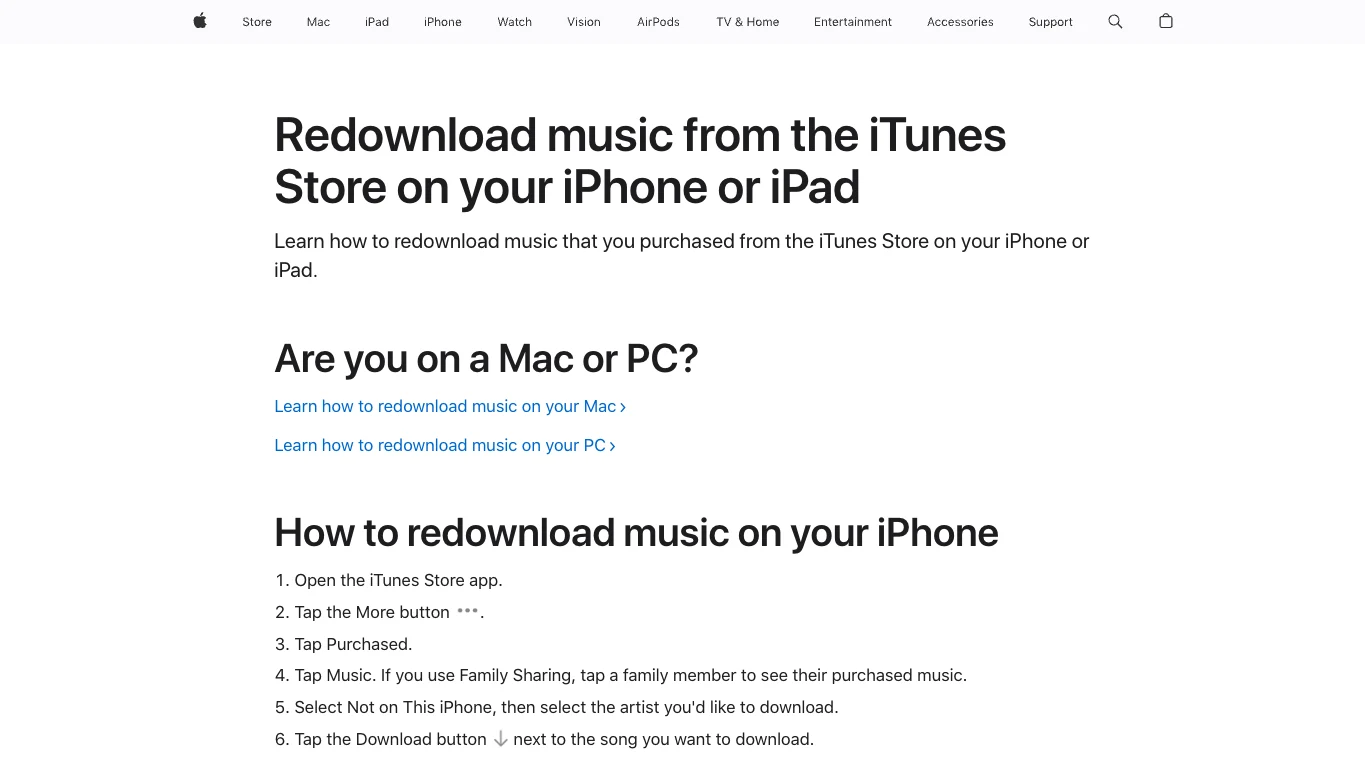
Use this purchase-recovery checklist:
- Confirm the purchase Apple Account.
- Check purchase history or the iTunes Store purchase area.
- Look for hidden purchases or hidden items.
- Unhide the music if it appears there.
- Redownload one purchased album or song first.
- Back up the downloaded file if it is part of a personal archive.
Do not treat purchased files, subscription downloads, and imported files as the same thing. Purchased music may be redownloadable from the purchase account. Apple Music subscription catalog items stay tied to subscription and app rules. Imported files depend on the original file path and your own backups.
Recover local files before rebuilding playlists
Many library emergencies are really local-file problems. A playlist can show the title of a song while the actual MP3, M4A, WAV, AIFF, or ALAC file is missing from the disk. Deleting the row can make the library look cleaner, but it also removes clues about what file you need to find.
Use this local-file recovery order:
- Search the Mac or Windows computer for the exact song title and file extension.
- Check external drives, old music folders, cloud backup folders, and previous iTunes or Music library locations.
- If the file is found, copy it to a stable music folder before dragging it back into Music.
- If the file is damaged, make a duplicate before trying conversion or editing.
- Re-add one album or playlist and update Cloud Library before restoring a large folder.
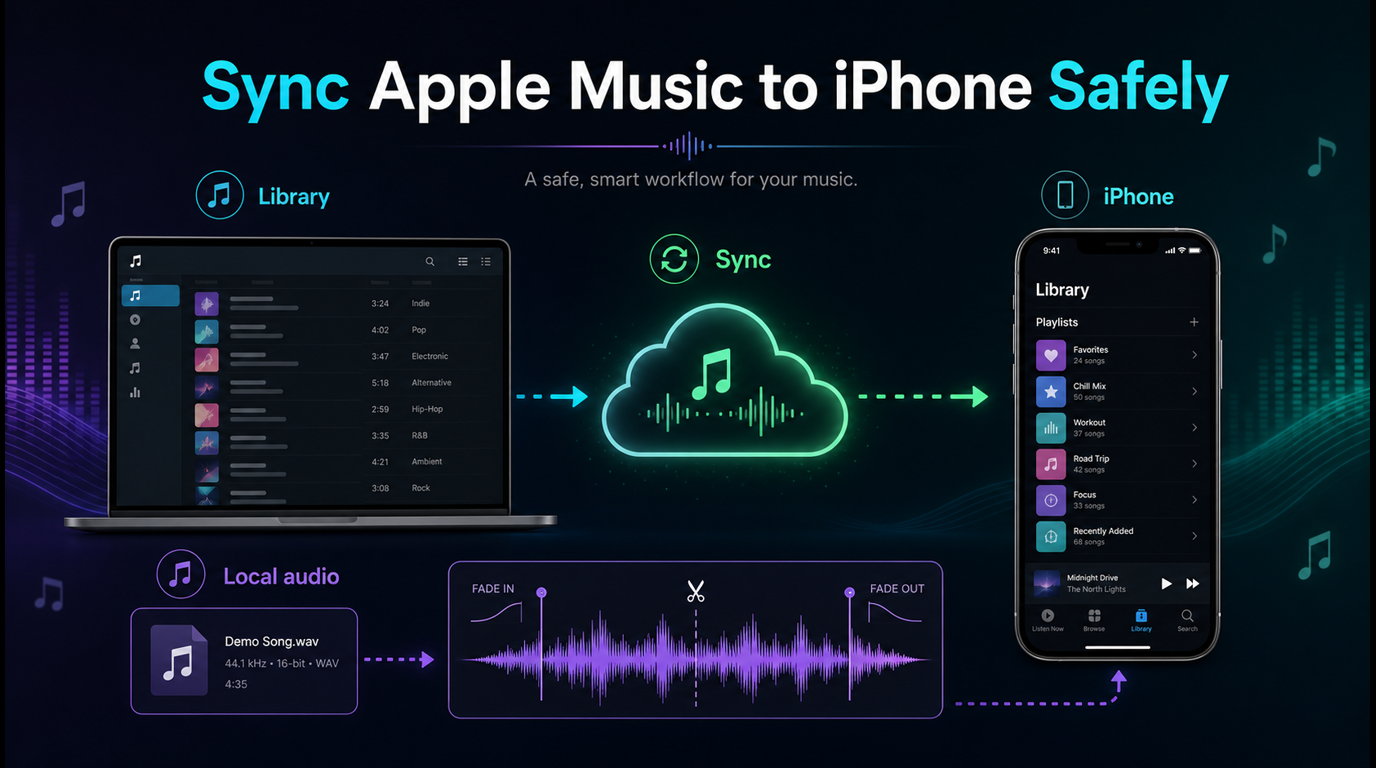
If your actual goal is to move eligible local or purchased files onto an iPhone, use Sync Apple Music to iPhone after the source files are stable.
Repair downloads and storage with a small test
Offline downloads are not the same as library ownership. A download can disappear because storage is low, a subscription expired, the app was reinstalled, a setting changed, or the device removed offline files. That does not always mean the library item is gone.
Try this smaller loop before rebuilding:
- Confirm the song plays while online.
- Check available storage.
- Remove the local download only, not the library item.
- Download one album or playlist again.
- Test offline after the download completes.
- Repeat with a second known-good album before touching the full library.
If online playback fails too, step back to account, catalog, region, restrictions, and Sync Library. If only offline playback fails, keep the repair focused on downloads and storage.
Where Melogen fits after recovery
Melogen does not restore Apple Music accounts, recover cloud libraries, unhide purchases, or bypass Apple Music subscription limits. Apple Music and the Apple Account are the recovery surfaces for streaming catalog tracks, purchased music, Sync Library, and downloads.
Melogen becomes useful after recovery when the source is an audio file you own or are allowed to edit: a purchased DRM-free file, rehearsal recording, exported mix, voice memo, lesson clip, or local file you recovered from a backup. At that point, Melogen Music Trimmer can help you cut silence, make a short test clip, add a fade, or prepare a smaller practice file before adding it back to a music library.
Check a recovered local file before re-importing it
Use Melogen Music Trimmer only after you have a file you own or have permission to edit. Trim a short test clip, add fades, and keep Apple Music account recovery inside Apple surfaces.
Keep the boundary simple: if the item is an Apple Music subscription stream, restore it through Apple Music. If it is your own file, back it up and use Melogen for editing after recovery.
FAQs
Why did my Apple Music library disappear?
Common causes include the wrong Apple Account, Sync Library being off, a cloud library update still in progress, hidden purchases, moved local files, unavailable catalog items, removed downloads, low storage, or an expired subscription.
Can I restore Apple Music library after subscription ends?
You can recover purchased and local files through their own paths, but Apple Music subscription catalog access depends on an active subscription and Apple account state. Do not rely on Apple Music as the only backup for local files.
Should I turn Sync Library off and on?
Only after you back up local and purchased music. Turning Sync Library off can remove downloaded music from a device, and large libraries may take time to sync again.
Can I restore deleted Apple Music downloads?
Usually yes if the item is still in your library and your account allows playback. Remove and redownload a small test album first. If the item was deleted from the library, check account, purchases, hidden items, and Sync Library before rebuilding.
Can Melogen recover my Apple Music library?
No. Melogen is not an Apple Music recovery or account tool. It helps after you recover an owned or permitted local audio file and need trimming, fades, or a smaller practice/export version.
The practical takeaway
Restore Apple Music library items by matching the fix to the missing layer. Check the Apple Account, Sync Library, cloud status, purchases, local originals, downloads, storage, and subscription state before deleting or rebuilding. Back up owned files first. Use Melogen only after the recovered source is a local audio file you are allowed to edit.
About the author
Zhang Guo
Composer - AI Product Manager
AI product manager and digital marketing consultant with a background in music. Creativity is the bridge between rhythm and logic, where musical intuition and mathematical precision can coexist in every meaningful product decision.
Follow on X