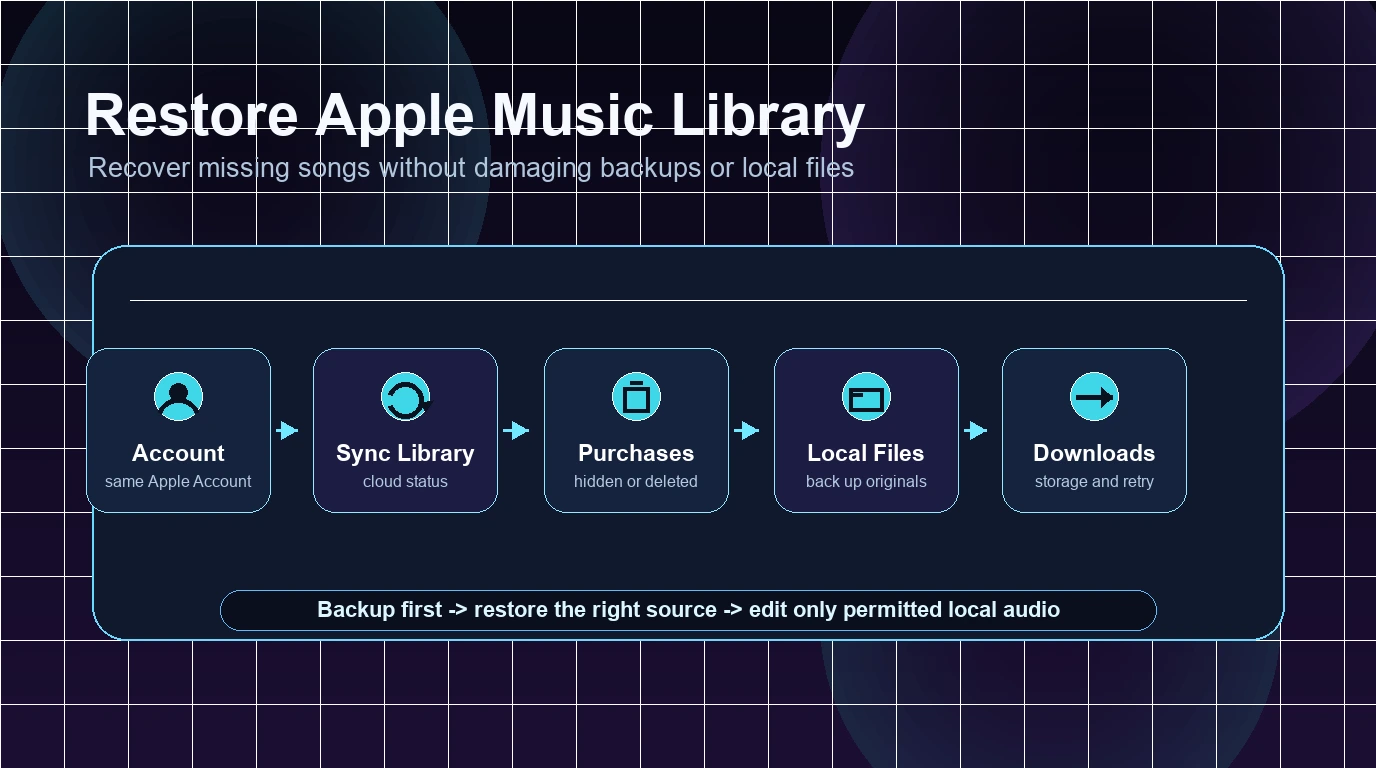
Sync Apple Music to iPhone Safely Without Losing Songs
Sync Apple Music to iPhone safely with Sync Library, Finder, Apple Devices, iTunes checks, missing-library fixes, and local-file boundaries.
 Zhang Guo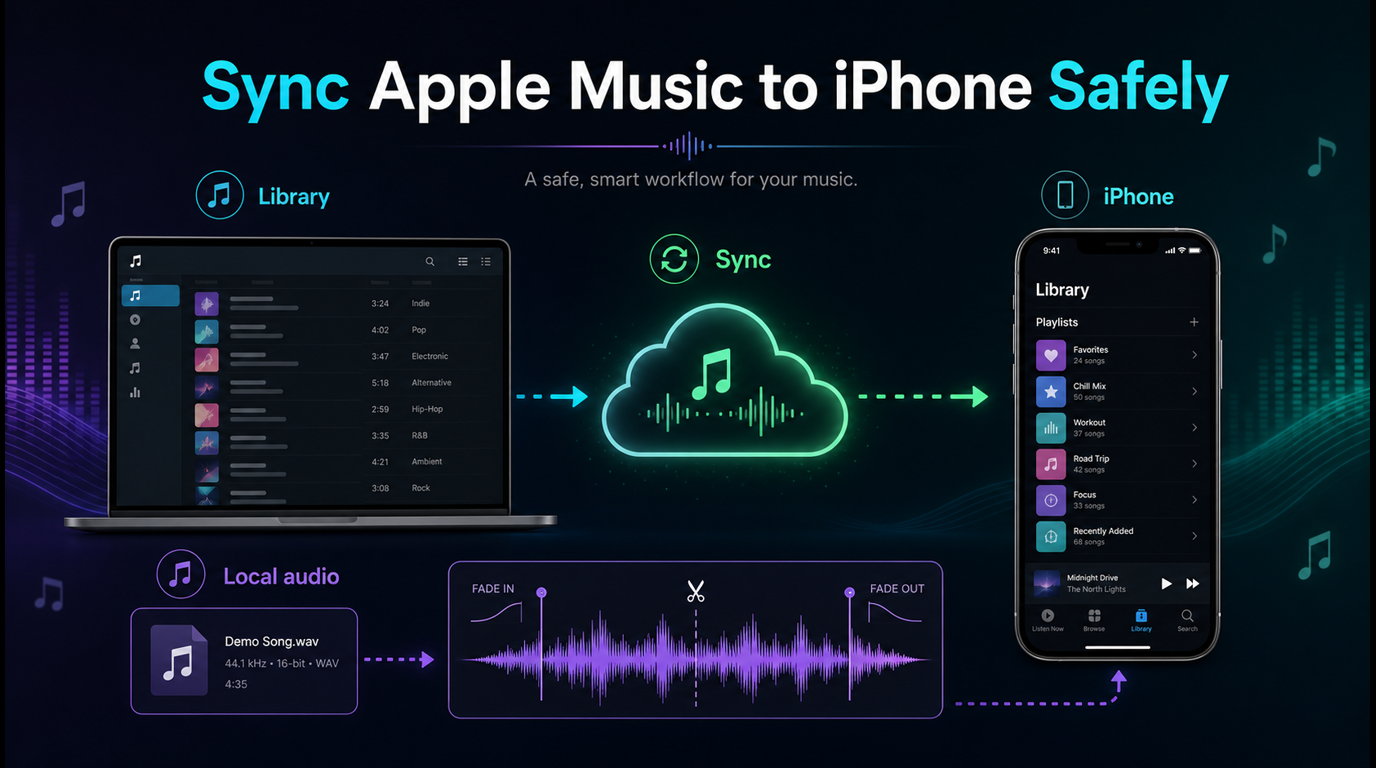
Turn a static score into editable MIDI
Contents
Sync Apple Music to iPhone by choosing the right source path first. Apple Music subscription songs should travel through Sync Library. Purchased, imported, or locally owned files can also be synced from a Mac or Windows computer, but only after you know whether Sync Library or manual device sync is in charge.
The risky shortcut is treating every missing song as a converter problem. A safer fix is to separate Apple Music catalog tracks, iTunes Store purchases, and your own local audio before you move anything to an iPhone.
Quick answer
Use this decision table before changing settings:
| Your source | Best sync path | Watch out for |
|---|---|---|
| Apple Music subscription songs and playlists | Turn on Sync Library on every device | Apple Music is not a backup service |
| iTunes Store purchases | Redownload from the purchase account or sync from the computer library | Wrong Apple Account can make purchases look missing |
| Imported MP3, M4A, WAV, AIFF, or ALAC files | Add to Music or iTunes, then sync or upload with Sync Library if eligible | Keep the original files backed up |
| A few local songs for one iPhone | Use Finder on Mac or Apple Devices/iTunes on Windows | Manual sync can replace music already synced from another library |
| Audio you recorded or exported yourself | Store a clean local copy, then trim or prepare it before syncing | Do not mix project files with streaming catalog tracks |
If the songs are already in Apple Music on one device but not on the iPhone, check Sync Library first. If the songs are files on your computer, check the computer library, file location, and manual sync settings.
Turn on Sync Library before manual sync
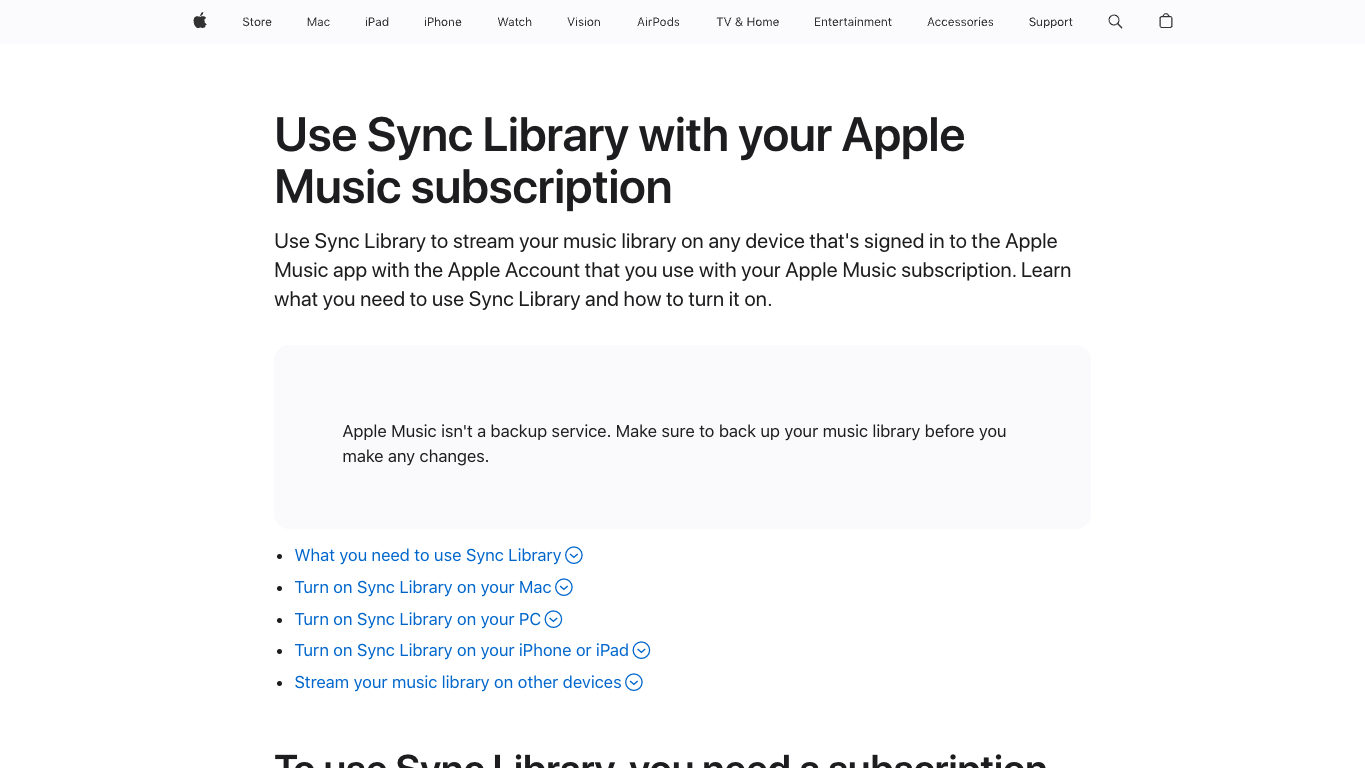
Apple's Sync Library support page explains that Sync Library lets you stream your music library on devices signed in to the Apple Music app with the Apple Account used for the subscription. It also warns that Apple Music is not a backup service.
Use this order:
- Confirm your Apple Music subscription is active.
- Sign in with the same Apple Account on Mac, Windows, iPhone, iPad, and any other device.
- Turn on Sync Library on the computer that holds the main library.
- Turn on Sync Library on the iPhone.
- Keep both devices online long enough for the library to update.
- Search the iPhone library before you remove or re-add songs.
If Sync Library is off on one device, Apple Music can look like it failed even when the account is fine. If Sync Library is on everywhere but songs still do not appear, treat it as a library-state problem and move to the troubleshooting section below.
Use Finder on Mac for local or purchased files
Apple's Mac User Guide for syncing content between Mac and iPhone says you can select content types or specific items to sync, and that the first sync usually requires a USB or USB-C connection before wireless syncing is set up.
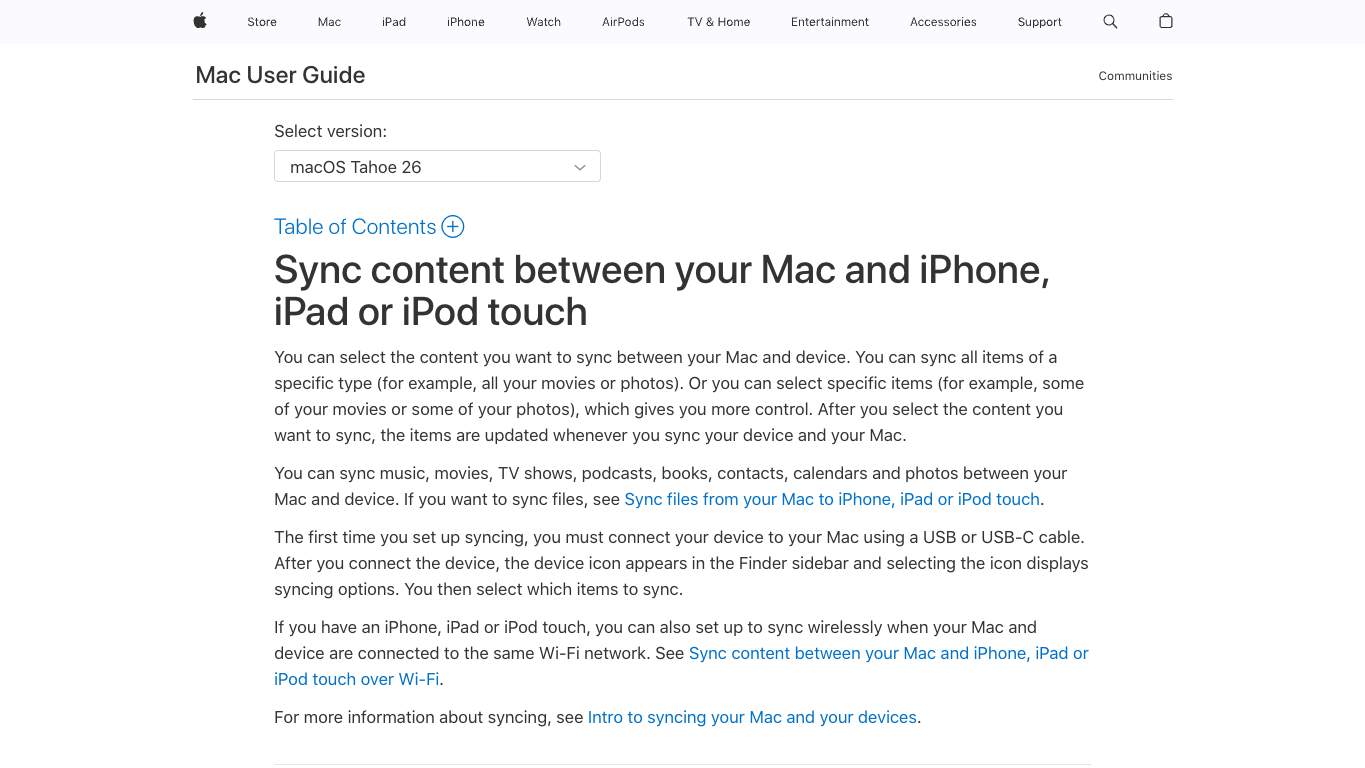
Use Finder when the music is a local or purchased file in your Mac library:
- Back up the music folder or library before changing sync settings.
- Connect the iPhone to the Mac with USB or USB-C.
- Open Finder and select the iPhone in the sidebar.
- Choose Music, then decide whether to sync the whole library or selected artists, albums, genres, and playlists.
- Apply the sync and wait for it to complete.
- Open Music on iPhone and test one album or playlist before syncing more.
Manual sync is useful for local music libraries, school devices, rehearsal phones, and older workflows. It is not the same thing as turning Apple Music subscription streams into editable files. If the file started as a protected streaming catalog track, keep it inside Apple Music.
For adding local files safely before sync, the Melogen guide to adding songs to Apple Music is the better companion article.
Use Apple Devices or iTunes on Windows carefully
Apple's Windows device guide for syncing music to iPhone says you can sync all or selected music from a Windows device to an iPhone, iPad, or iPod. It also notes that if you subscribe to Apple Music, your music transfers automatically to devices through Apple Music, and subscription songs cannot use the manual sync method unless Sync Library is turned off.
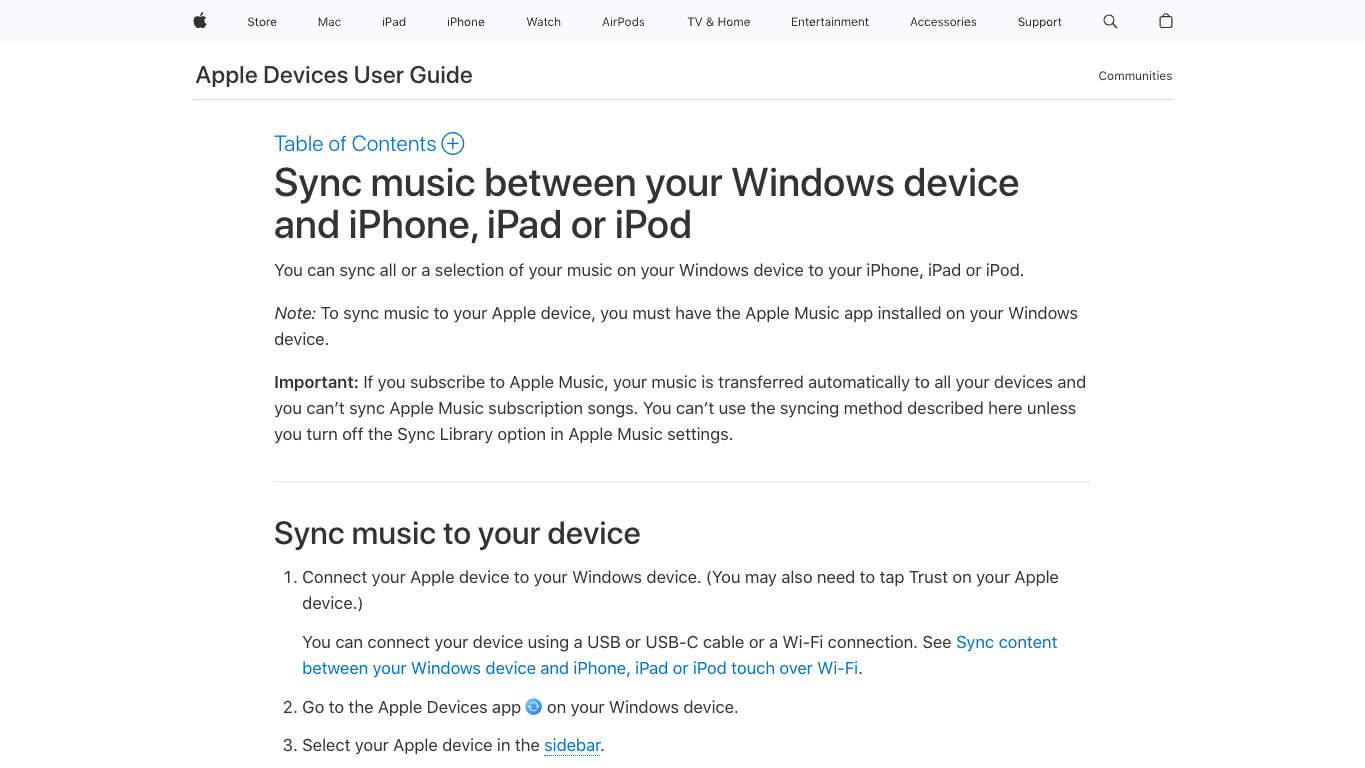
Use this Windows path for eligible files:
- Install the Apple Music app and Apple Devices app where required.
- Connect the iPhone to the Windows computer and trust the device.
- Confirm whether Sync Library is on. If it is on, use the Apple Music library path instead of manual syncing for subscription music.
- Select Music sync only for files you are allowed to move.
- Sync a small playlist first.
- Check the iPhone before adding a large library.
If you still use iTunes for Windows, keep the same source rule: sync purchased or imported files, not Apple Music subscription streams. For a broader computer-library path, read download music from iTunes to computer before you move folders or rebuild a library.
Fix songs that do not appear on iPhone
When Apple Music does not appear on iPhone after sync, do not start by deleting the library. Work from the smallest layer outward.
| Symptom | Most likely layer | Safer fix |
|---|---|---|
| Playlist appears on Mac but not iPhone | Sync Library is off, paused, or signed into another account | Check Apple Account and Sync Library on both devices |
| Local file appears on computer but not iPhone | File was not selected, source path moved, or manual sync did not finish | Reconnect, select the file or playlist, and sync again |
| Song is grayed out | Catalog, account, restriction, region, or missing original file issue | Check status before deleting or converting |
| iPhone has old music from another library | Manual sync source changed | Decide whether to replace the device library before applying changes |
| Downloaded music disappears offline | Device storage, removed download, or expired session | Redownload from Apple Music or the purchase account |
For broad playback, account, and missing-library triage, use the parent Apple Music problems guide. If the issue is disappearing downloads or deleted items, use stop Apple Music from deleting songs before you rebuild the library.
Keep subscription tracks separate from local audio
Most sync mistakes come from mixing source types.
| Source type | Safe Apple path | Melogen path |
|---|---|---|
| Apple Music subscription track | Sync Library, Apple Music download, account and catalog checks | Do not use Melogen to unlock or convert it |
| iTunes Store purchase | Purchase account, redownload, Music/iTunes library sync | Trim or prepare only if you have a local file you may edit |
| Imported local music | Back up original, add to Music or iTunes, sync manually or through eligible library sync | Use Melogen after the file is local and permitted |
| Recording, voice memo, stem, or DAW export | Store in a project folder, then add to the library if needed | Trim, fade, preview, and export a clean clip |
The boundary is not just legal caution. It keeps troubleshooting easier. If a stream fails, fix the streaming account or Sync Library. If a local file fails, find the file, test it outside Apple Music, then re-add it.
Where Melogen fits after sync
Melogen does not sync Apple Music accounts, manage iPhones, or convert Apple Music subscription streams. It helps after you have an owned or permitted audio file and the job becomes editing.
Use Melogen Music Trimmer when you need to:
- Cut silence from a rehearsal recording before adding it to a library.
- Make a short practice loop from a purchased or self-recorded file.
- Add a cleaner fade before syncing a local clip to iPhone.
- Export a smaller preview file for teaching or personal study.
- Check whether a local file itself is damaged before blaming Apple Music.
Prepare a local file before you sync it
Use Melogen Music Trimmer for audio you own or have permission to edit. Cut the useful section, add fades, and export a cleaner file before it goes into your music library.
FAQs
Why is Apple Music not syncing to my iPhone?
The common causes are Sync Library being off, a different Apple Account, slow library updating, missing original local files, device storage, or a manual sync source conflict. Check account and Sync Library before deleting songs.
Can I manually sync Apple Music subscription songs to iPhone?
No. Apple Music subscription songs should use Apple Music and Sync Library. Manual Finder, Apple Devices, or iTunes sync is for eligible local or purchased files, not for turning subscription streams into files.
Should I turn off Sync Library to sync music manually?
Only if you understand the tradeoff. Turning off Sync Library changes how Apple Music manages the library on that device and can remove downloaded music. Back up local files first and test with a small playlist.
Why did manual sync remove songs from my iPhone?
An iPhone can be tied to a manual sync source. If you sync from a different computer or replace selected music, old manually synced tracks can be removed. Review the selected playlists and source library before applying changes.
Can Melogen help me sync Apple Music to iPhone?
Melogen does not sync Apple Music services or bypass subscription restrictions. It helps with local audio you own or have permission to edit after you recover, record, purchase, or export the source file.
The practical takeaway
To sync Apple Music to iPhone safely, start with source type. Use Sync Library for Apple Music subscription libraries. Use Finder, Apple Devices, or iTunes for eligible local and purchased files. Back up before changing sync settings. When the file is yours and the next job is trimming or cleanup, Melogen fits after the Apple sync problem is solved.
About the author
Zhang Guo
Composer - AI Product Manager
AI product manager and digital marketing consultant with a background in music. Creativity is the bridge between rhythm and logic, where musical intuition and mathematical precision can coexist in every meaningful product decision.
Follow on X