Scan Sheet Music Into Dorico With MusicXML
Learn how to scan sheet music into Dorico by converting PDF or image scores to MusicXML, importing the file, and checking notation cleanup.
 Zhang Guo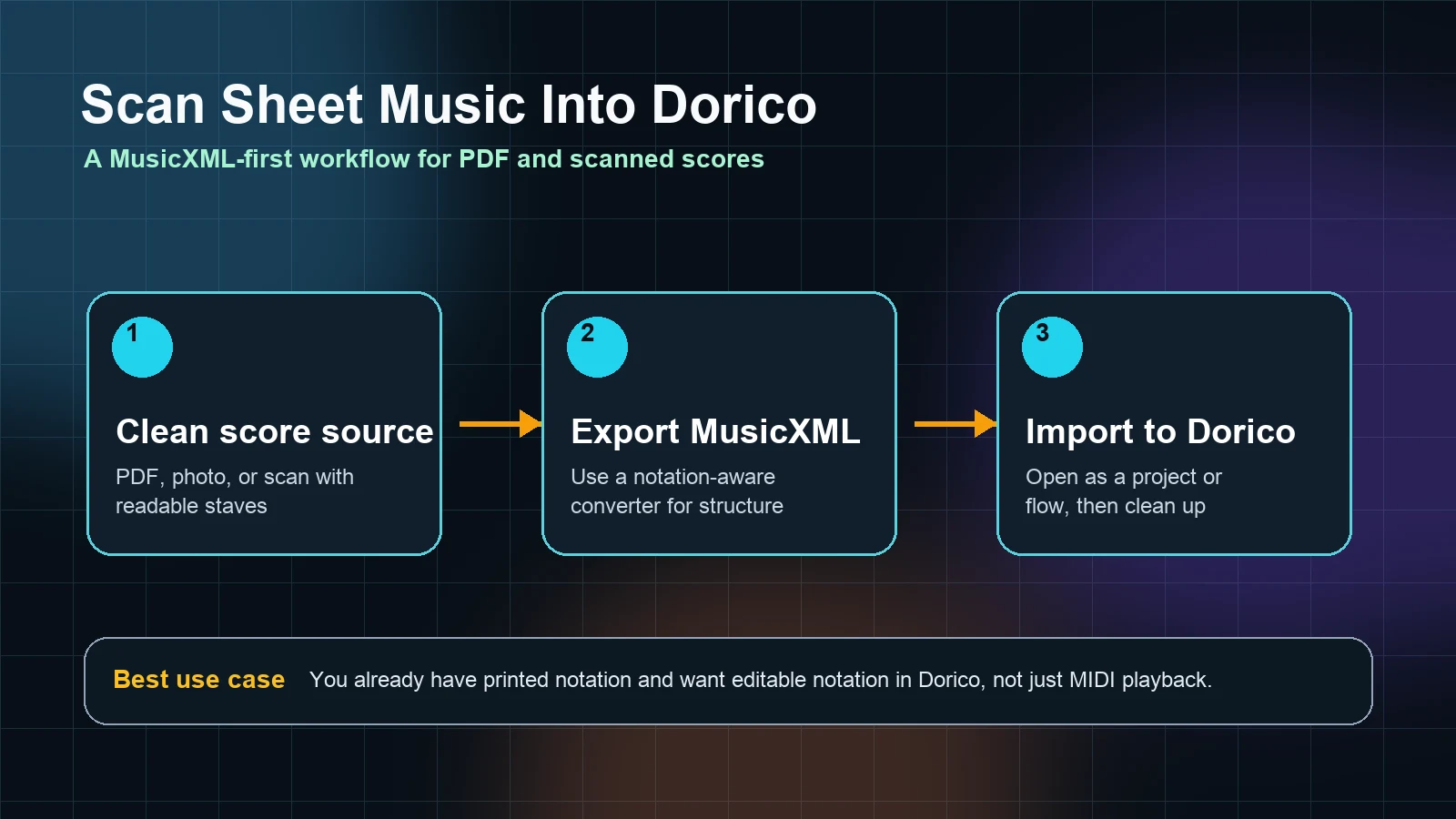
Turn a static score into editable MIDI
Contents
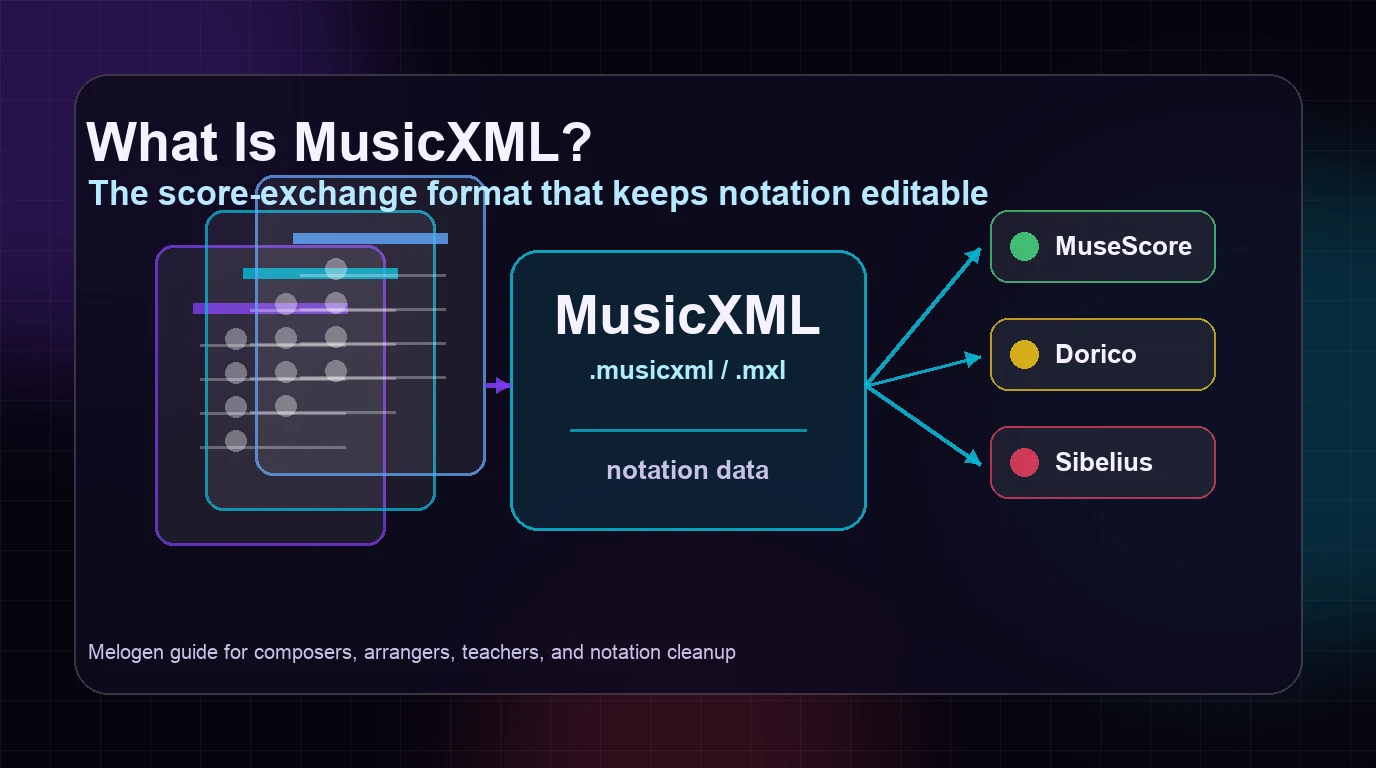
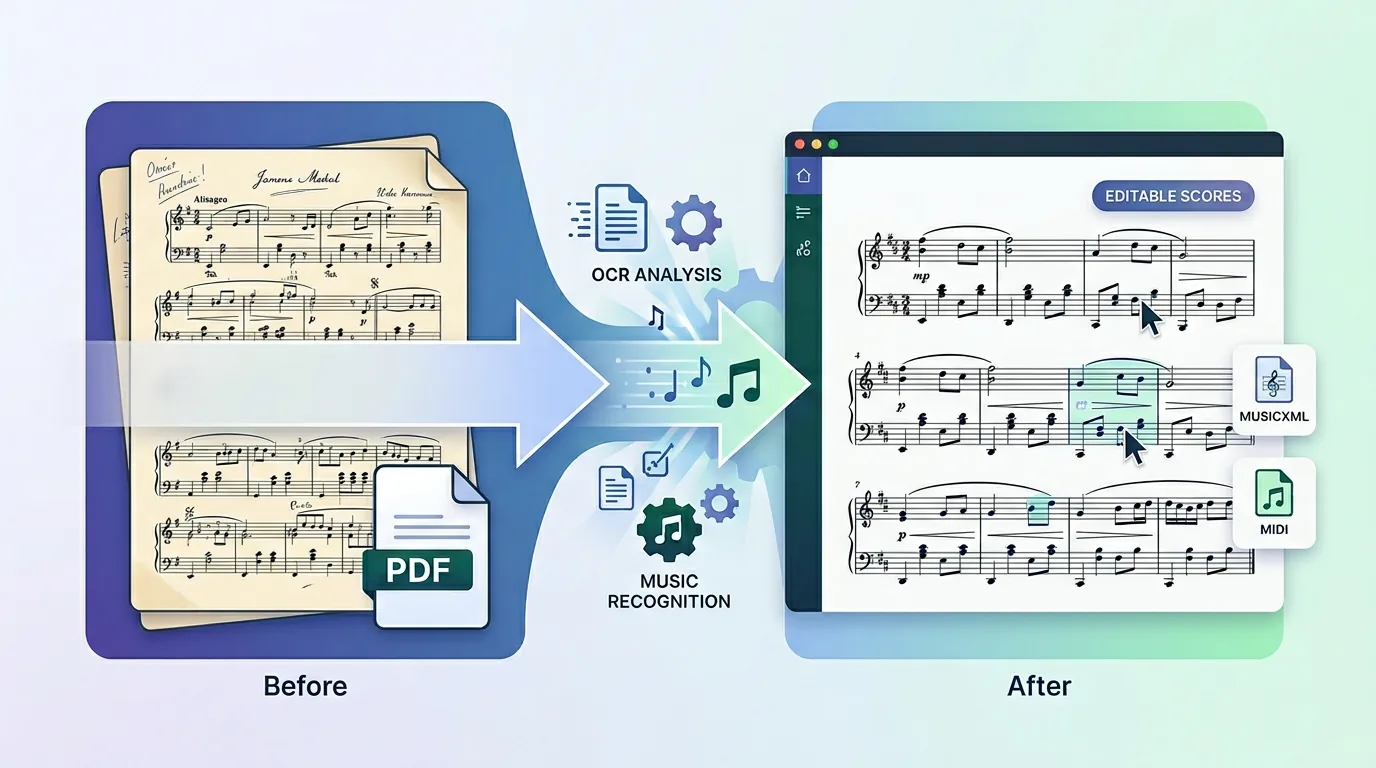
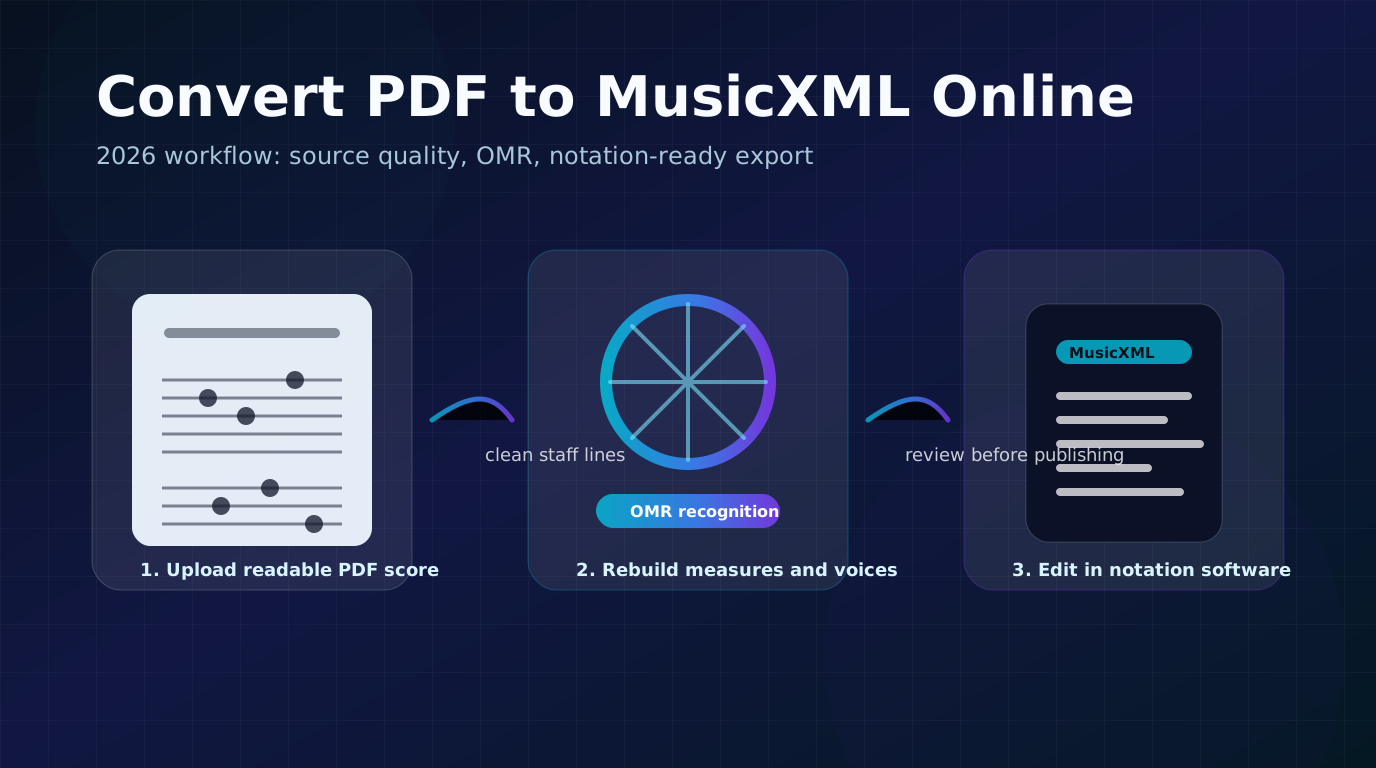
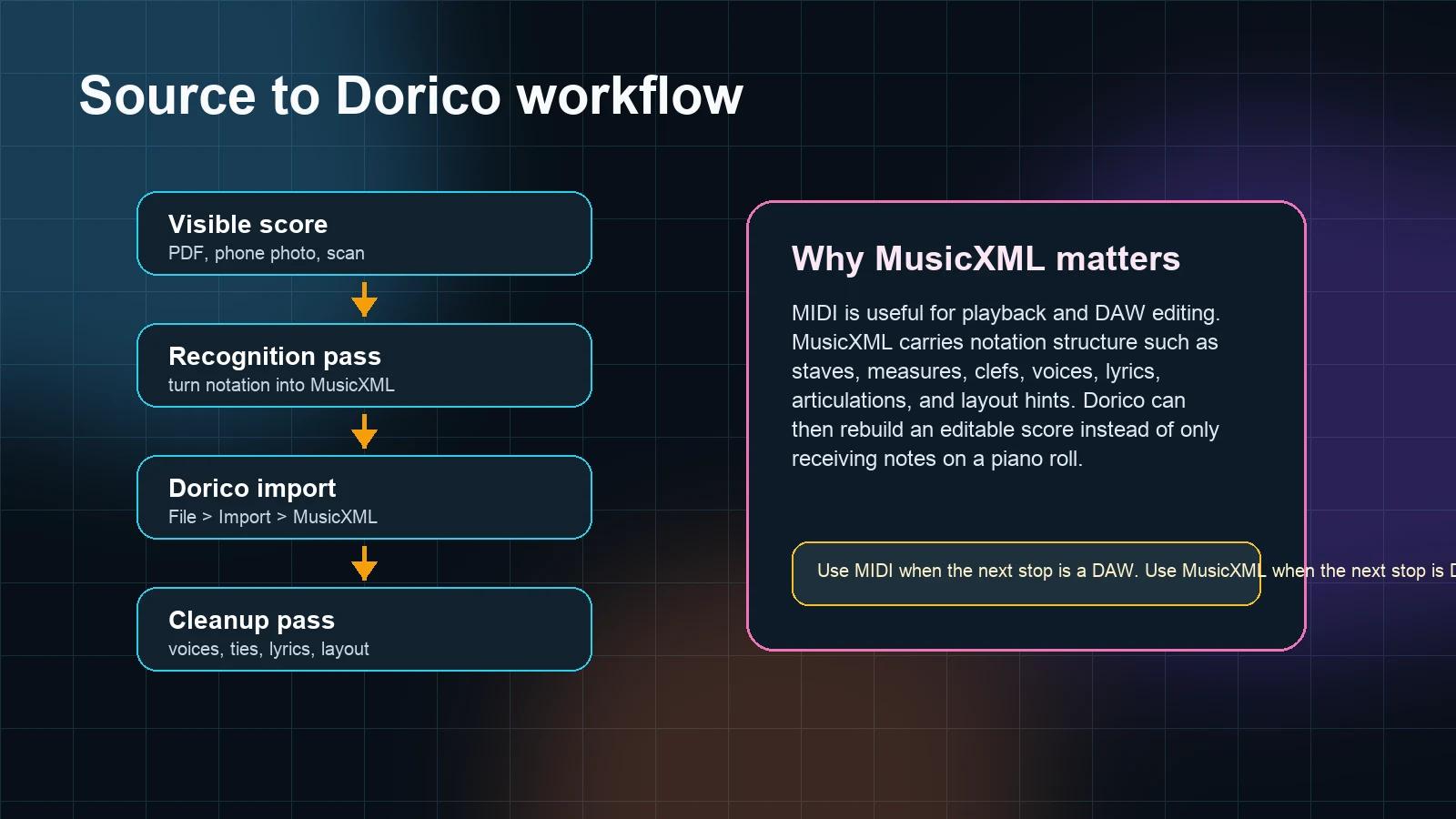
Yes, you can scan sheet music into Dorico, but Dorico itself is not the scanning step. The practical route is to convert the printed score, PDF, or image into MusicXML first, then import that MusicXML file into Dorico for notation editing.
That distinction matters. Dorico is where you clean, engrave, arrange, and publish the score. The scanning or OMR step happens before Dorico, using a tool that can read visible notation and export a notation-aware MusicXML file.
The short answer
If you have a clean PDF score, use a PDF-to-MusicXML workflow, then open or import the MusicXML file in Dorico. If you have a phone photo or image scan, first make sure the staff lines are straight, complete, and high contrast, then convert it to MusicXML before moving into Dorico.
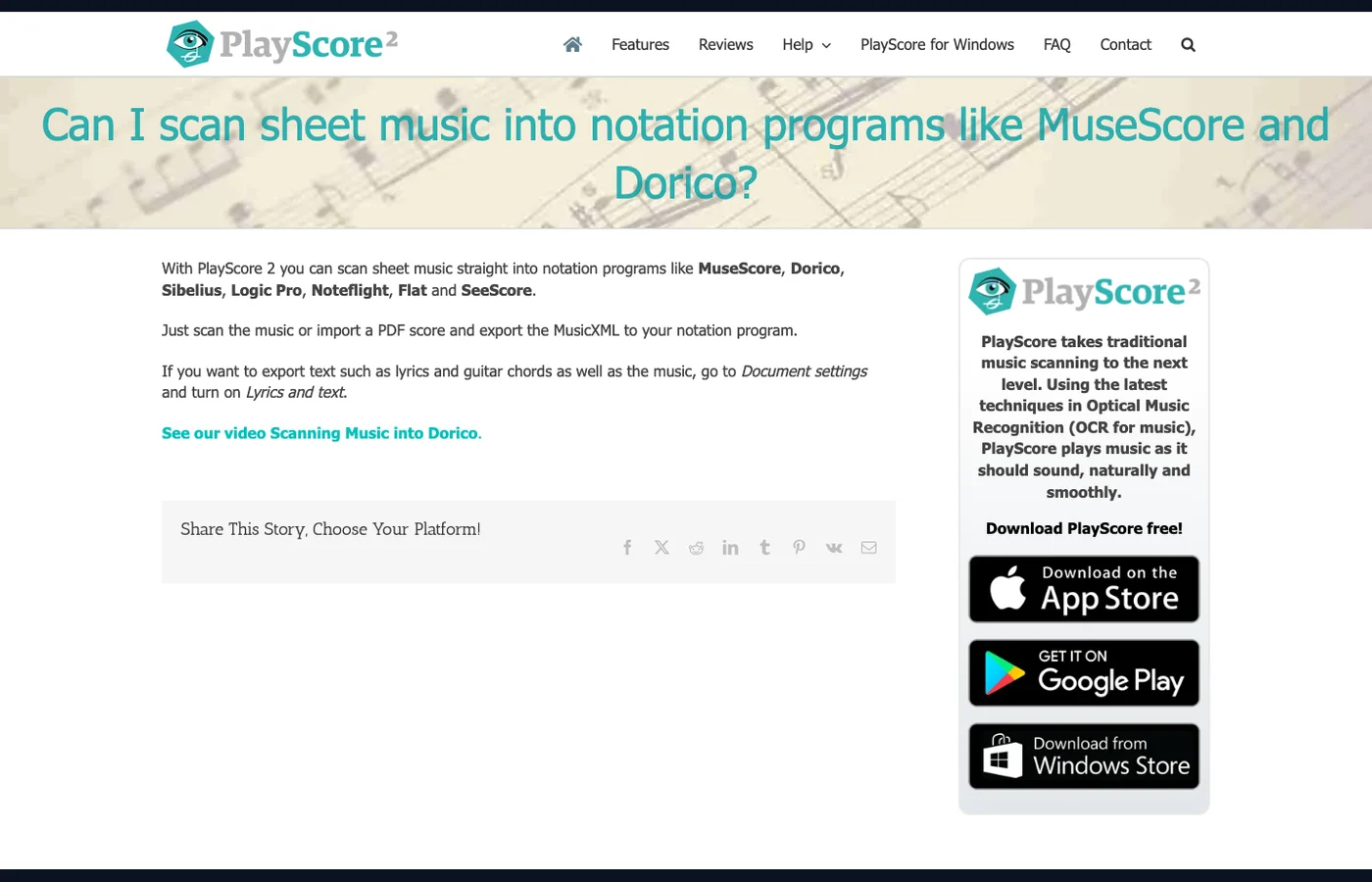
The competitor page that surfaced this opportunity is a PlayScore FAQ about scanning sheet music into notation programs. Its core workflow is simple: scan or import a PDF score, export MusicXML, then move that file into a notation program such as MuseScore, Dorico, Sibelius, Logic Pro, Noteflight, Flat, or SeeScore. That confirms the user job, but the useful Melogen angle is a little more precise: choose the source, export the right file type, and give Dorico a cleanup checklist instead of expecting a perfect scan.
What you need before opening Dorico
Start with the source quality. Dorico can only work with what the MusicXML file describes, so a bad scan usually becomes a messy notation file.
Use this quick preflight:
| Source | Good enough for MusicXML | Fix before conversion |
|---|---|---|
| Digital PDF | Text and staff lines are sharp when zoomed in | Cropped pages, password locks, watermarks over notes |
| Scanned PDF | Staff lines are straight and page edges are not cut off | Skewed pages, shadows near the binding, low resolution |
| Phone photo | Full page visible, high contrast, no perspective tilt | Curved paper, glare, missing clefs or key signatures |
| Multi-page score | Pages are in order and all systems are included | Duplicated pages, missing repeats, mixed portrait and landscape pages |
If the score is a notation PDF, use Melogen PDF to MusicXML as the direct route. If the next step is playback or DAW editing instead of Dorico notation cleanup, a MIDI workflow may be enough, but MusicXML is the better target when Dorico is the destination.
Step 1 convert the score to MusicXML
Upload the PDF score or image source to a notation-aware converter and export MusicXML. In Melogen, the PDF-to-MusicXML page is built for this job: the local product page describes converting PDF sheet music into editable MusicXML for notation software, and the app route uses the same Sheet2MIDI recognition core in a MusicXML-only variant.
Do not treat the first MusicXML file as finished notation. Treat it as a structured draft. A good first pass should preserve the main staves, measures, clefs, voices, and note positions well enough that Dorico can rebuild an editable score.
Step 2 import the MusicXML file into Dorico
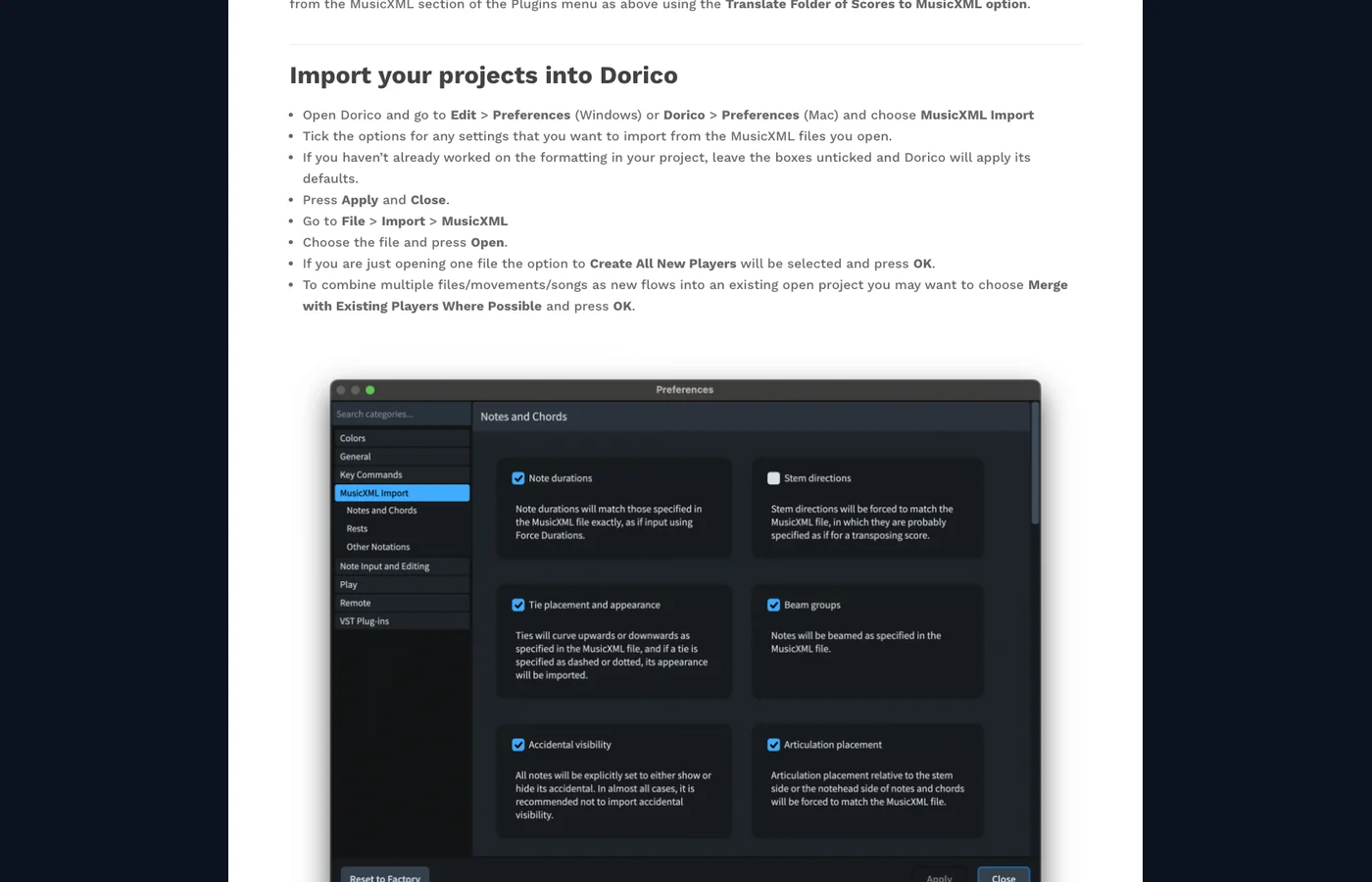
Steinberg's current Dorico Pro 6.1 help says MusicXML files can be imported into an existing Dorico project as separate flows. The documented path is File > Import > MusicXML, then select the MusicXML file and choose how Dorico should handle players. Dorico can also open MusicXML files directly as new projects.
The official Dorico MusicXML article gives the same practical import path and adds a useful preference step: check Dorico's MusicXML Import preferences before importing, especially if you care about which notation details Dorico should preserve from the source file.
Use this decision table:
| Dorico action | Use it when | What to check next |
|---|---|---|
| Open the MusicXML file directly | You want a new Dorico project from the scan | Page setup, players, part names |
| Import MusicXML into an existing project | You are adding a movement, excerpt, or exercise | Flow order, player merge behavior |
| Merge with existing players where possible | The MusicXML file shares instruments with an open project | Instrument names and transposition |
| Create all new players | You want the scan isolated from the current setup | Duplicate players and part layouts |
Step 3 clean up the Dorico score
No scan-to-Dorico workflow should skip the cleanup pass. MusicXML carries notation structure, but it is still an exchange file. Different programs interpret voices, stems, lyrics, tuplets, and layout details differently.
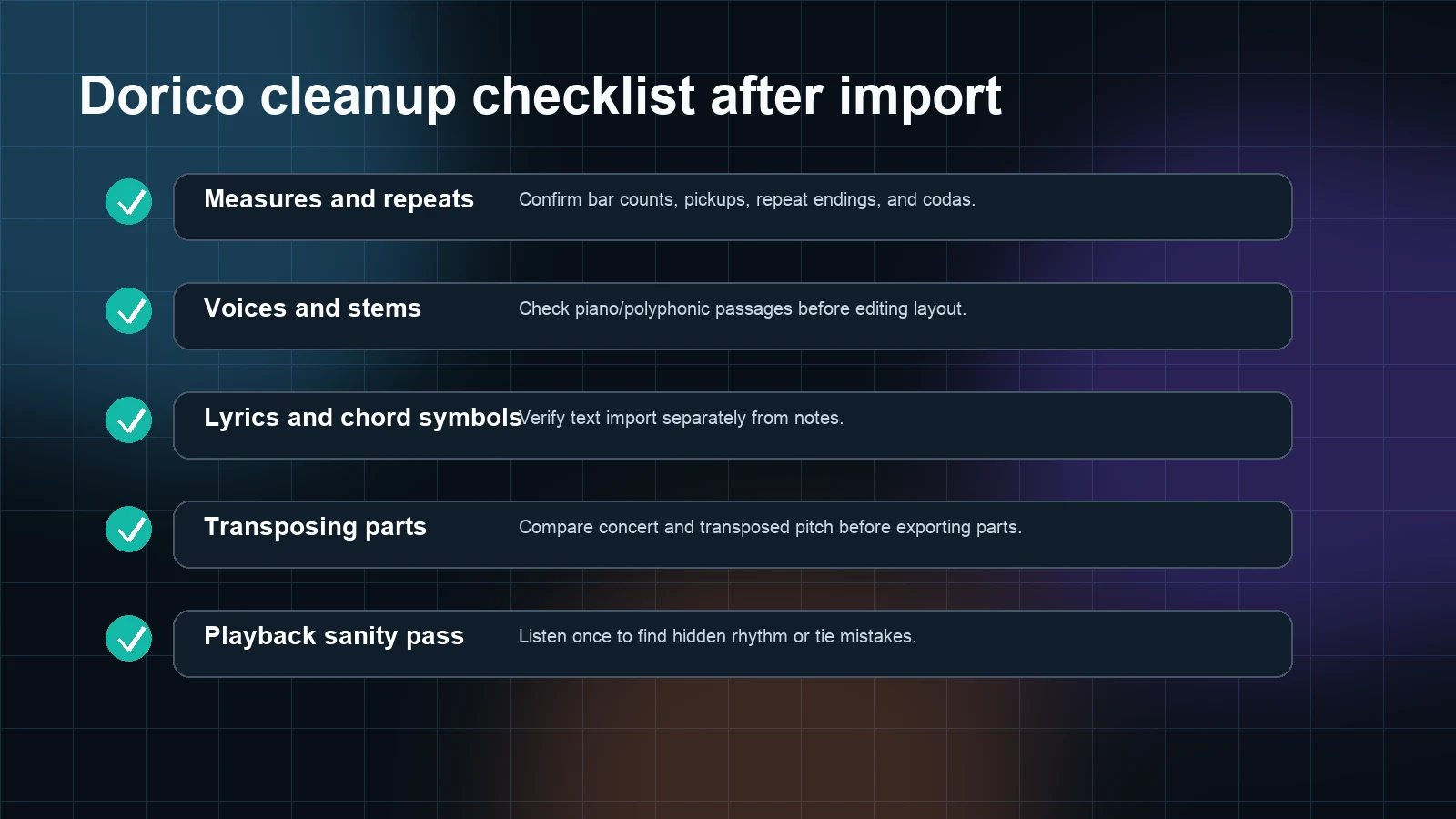
Check these areas first:
- Count measures and repeats before editing details.
- Confirm clefs, key signatures, time signatures, and pickup bars.
- Check polyphonic passages for voice and stem direction problems.
- Review lyrics, chord symbols, articulations, and dynamics separately.
- Play the score once to catch hidden rhythm, tie, or accidental issues.
- Switch between concert and transposed pitch if the score has transposing instruments.
If you are moving between notation editors often, keep a small test page. Convert one page, import it into Dorico, and judge whether the cleanup burden is reasonable before converting a whole book or large ensemble score.
When this is better than MIDI
MusicXML is the safer choice when the score must remain readable notation. MIDI is useful for pitches, timing, playback, virtual instruments, and DAW editing, but it does not preserve the visual logic of a printed score in the same way.
For a Dorico workflow, MusicXML usually wins when you care about:
- bar structure and repeats
- clefs, key signatures, and time signatures
- voices and staff assignments
- lyrics, chord symbols, and articulations
- printable parts and notation cleanup
MIDI still helps when the goal is playback, a mockup, or a DAW arrangement. If you are comparing the two formats more broadly, the Melogen guide to MIDI vs MusicXML is the better supporting read.
Common mistakes
The first mistake is trying to import a PDF directly into Dorico and expecting Dorico to scan it. Use a recognition step first.
The second mistake is using MIDI because it is familiar. MIDI may sound back correctly, but it can lose staff meaning, engraving detail, and notation context that matters in Dorico.
The third mistake is converting the whole score before testing one page. A single-page test exposes whether the source has bad scan quality, missing text, confused voices, or percussion mapping problems.
The fourth mistake is treating MuseScore, Sibelius, Dorico, and other notation editors as interchangeable at the cleanup stage. The file can move through MusicXML, but each editor has its own import preferences and engraving defaults. If you are deciding where the score should end up, the Dorico review and the scan music into MuseScore workflow cover related choices from different angles.
Where Melogen fits
Melogen fits before Dorico. Use it to turn the PDF score into an editable MusicXML draft, then finish the notation decisions in Dorico.
That is a clean split of responsibilities:
- Melogen handles the browser-based recognition pass from visible notation to MusicXML.
- Dorico handles engraving, layout, part preparation, and deeper notation editing.
- You handle the musical judgment: whether the imported score actually matches the original.
Convert your PDF score before opening Dorico
Use Melogen PDF to MusicXML for the first structured draft, then import the MusicXML file into Dorico for cleanup and engraving.
FAQs
Can Dorico scan a paper score by itself?
No. Dorico can import MusicXML and MIDI, but the scanning or OMR step happens before Dorico. Convert the paper score, PDF, or image into MusicXML first.
Should I use compressed MusicXML or uncompressed XML?
Either can work if Dorico accepts the file. Compressed MusicXML is convenient for sharing because it packages the score data more compactly. If an import fails, try exporting an uncompressed .xml file from the recognition tool and import again.
Will the imported Dorico score look exactly like the original PDF?
Not usually. MusicXML can carry a lot of notation structure, but layout and engraving still need review. Expect to check measures, voices, repeats, lyrics, chord symbols, and part formatting.
Is this the same as converting sheet music to MIDI?
No. MIDI is better for playback and DAW editing. MusicXML is better when the goal is an editable notation score in Dorico.
The practical takeaway
To scan sheet music into Dorico, think in three stages: prepare a clean source, convert it to MusicXML, then import and clean it in Dorico. The workflow is not one-click magic, but it is reliable when you choose MusicXML for notation and reserve Dorico for the editing work it is built to do.
About the author
Zhang Guo
Composer - AI Product Manager
AI product manager and digital marketing consultant with a background in music. Creativity is the bridge between rhythm and logic, where musical intuition and mathematical precision can coexist in every meaningful product decision.
Follow on X